---
updatedAt: 2026-11-05T15:19:28.000Z
agentTools:
siteIndex: https://docs.jfrog.com/llms.txt
projectIndex: https://docs.jfrog.com/artifactory/llms.txt
---
# AI Editor Extensions Repositories
Create an AI Editor Extensions repository, connect your IDE, and install extensions from Artifactory.
**JFrog Security Feature**
AI Editor Extensions repositories are available as part of [JFrog Curation](https://jfrog.com/curation/).
AI Editor Extensions repositories in JFrog Artifactory are a secure caching proxy for Integrated Development Environment (IDE) extensions like Cursor, Kiro, Devin (formerly Windsurf), and Visual Studio Code (VSCode). By proxying public marketplaces like Visual Studio Marketplace, Artifactory gives you control over the IDE plugins used by your developers. This level of control helps secure your development environments by caching and scanning extensions for vulnerabilities and applying Curation policies to prevent the use of unapproved plugins.
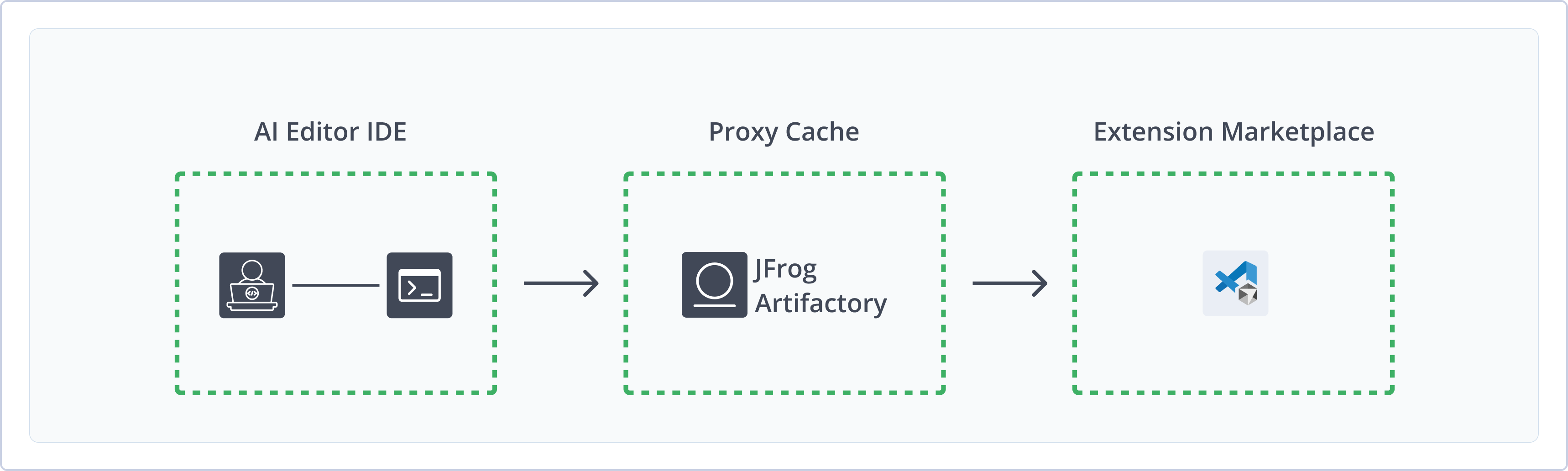
Artifactory supports the following capabilities for AI Editor Extensions repositories:
* **Remote Repository Proxy**: Proxy and cache extensions from the public marketplaces that support `.vsix`.
* **Secure Your Software Supply Chain**: Provide a secure, centralized location to vet and store IDE plugins, minimizing the risk of introducing malicious code into your development environments.
* **JFrog Curation Integration**: Apply Curation policies to block or approve extensions, preventing risky or unwanted plugins from being downloaded by developers.
* **VSCode-based IDE Support**: Designed for Cursor, Kiro, Devin (formerly Windsurf), and VSCode.
* **Native Extension Installation**: Browse and install extensions natively in your IDE, selecting from the approved and secured extensions in your Artifactory marketplace proxy.
## Get Started with AI Editor Extensions
To get started working with AI Editor Extensions repositories in Artifactory, complete the following main steps:
1. [Create an AI Editor Extensions Repository](#create-an-ai-editor-extensions-repository)
2. [Connect your IDE to Artifactory](#connect-your-ide-to-artifactory)
3. [Install Extensions](#install-extensions) 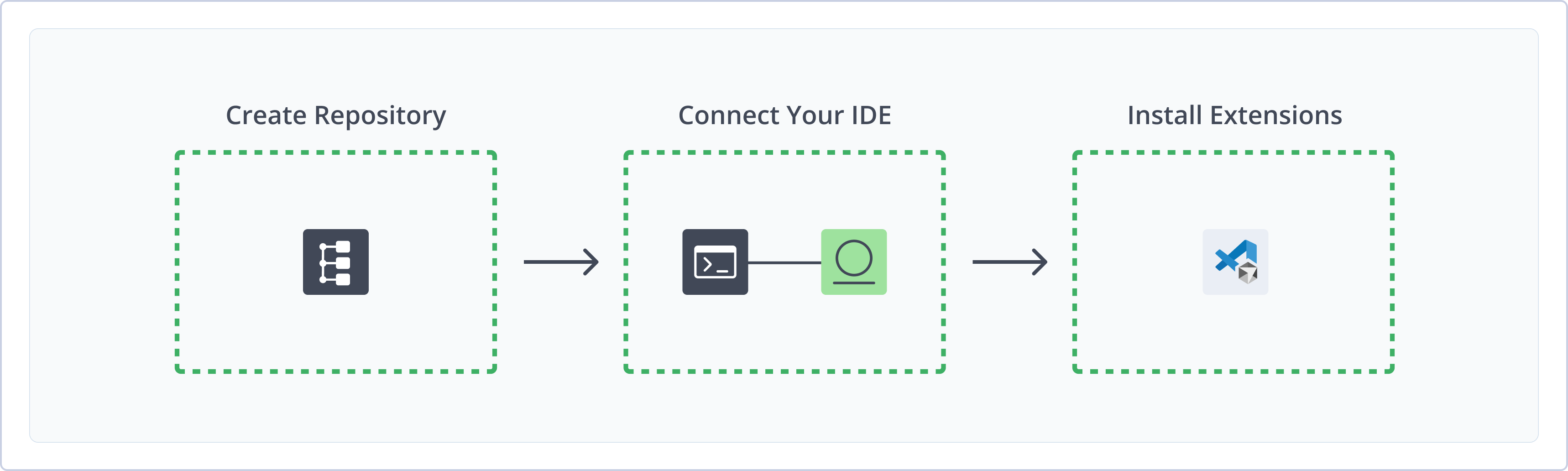
## Create an AI Editor Extensions Repository
This topic describes how to create an AI Editor Extensions repository. This is required before installing extensions. Artifactory supports remote AI Editor Extensions repositories, allowing you to proxy extension marketplaces and install extensions from your secure cache.
For more information, see [Repository Management](https://docs.jfrog.com/artifactory/docs/repository-management).
**Prerequisite**: You need Admin or Project Admin permissions in Artifactory to create a repository.
**To create an AI Editor Extensions repository:**
1. In the **Administration** tab, click **Repositories > Create a Repository**.
2. Select the **Remote** repository type.
3. Select the **AI Editor Extensions** package type.
4. Configure the required fields for the repository:
* In the **Repository Key** field, enter a meaningful name for the repository. For example, `cursor-remote`.
* Verify the **URL** and update as needed. The supported URLs include Open VSX based registries:
* **Cursor**: `https://marketplace.cursorapi.com/_apis/public/gallery`
* **Kiro**: `https://open-vsx.org/vscode/gallery`
* **Devin (formerly Windsurf)**: `https://marketplace.windsurf.com/vscode/gallery`
* **VSCode Public Gallery**: `https://marketplace.visualstudio.com/_apis/public/gallery`
For more information, see [Remote Repositories](https://docs.jfrog.com/artifactory/docs/remote-repositories).
5. Click **Create Repository**. The repository is created and the Repositories window is displayed.
## Connect Your IDE to Artifactory
To use Artifactory as the extension gallery for your IDE, you need to modify the `product.json` file to point to Artifactory. Make a backup of that file before you edit it. Supported IDEs are Cursor, Kiro, Devin (formerly Windsurf), and VSCode.
Artifactory supports two gallery URL patterns for the marketplace proxy connection:
* **Without token**: The gallery URL doesn't include a token segment. You can configure the marketplace proxy without a token. For more information, see [Connect Your IDE to Artifactory with JFrog CLI](#connect-your-ide-to-artifactory-with-jfrog-cli).
* **With reference token**: A read-only scoped reference token is embedded in the gallery URL path. This token enables Curation Audit tracking. For more information, see [Connect Your IDE to Artifactory Manually](#connect-your-ide-to-artifactory-manually).
**Prerequisite**: Before connecting your IDE to Artifactory, you must have an existing AI Editor Extensions repository in Artifactory. For more information, see [Create an AI Editor Extensions Repository](#create-an-ai-editor-extensions-repository).
**Warning**
This configuration modifies `product.json` and is a sensitive change. Make a backup of the original file before editing.
**Requirements**: Write permissions for all parent folders nesting `product.json`, and privileges to open and edit `product.json`. The file locations and parent folders vary by OS and IDE. For more information, see [`product.json` File Locations](#productjson-file-locations).
Use one of the following configuration methods:
* [Connect Your IDE to Artifactory with JFrog CLI](#connect-your-ide-to-artifactory-with-jfrog-cli), starting from JFrog CLI version 2.85.0
* [Connect Your IDE to Artifactory Manually](#connect-your-ide-to-artifactory-manually)
### Connect Your IDE to Artifactory with JFrog CLI
The JFrog CLI configures the marketplace proxy connection without a reference token. The `jf ide setup` command simplifies the following into a single command:
* Disables automatic updates to your IDE. Automatic updates will overwrite your configurations and reset the connection from your Artifactory registry to the default marketplace.
* Provides write access to `product.json` file and folders.
* Modifies your `product.json` file to point to Artifactory.
**Note**
The `jf ide setup` command is available starting from JFrog CLI version 2.85.0.
**To connect your IDE to Artifactory with JFrog CLI:**
* Run this command:
```shell
jf ide setup --url "https:///artifactory/api/aieditorextensions/" --update-mode none
```
Where:
* ``: The IDE you want to configure. Possible values are:
* `cursor`
* `kiro`
* `windsurf`
* `vscode`
* ``: The hostname of your JFrog Platform
* ``: The name of the target repository
For example:
```shell
jf ide setup cursor --url "https://company.jfrog.io/artifactory/api/aieditorextensions/cursor-remote" --update-mode none
```
**Tip**
- If your JFrog CLI is already set up with a default Artifactory `server-id`, you can run the script with the `--repo-key` flag instead of specifying the whole URL.
- If your IDE is installed in a custom path, specify its location using the `--product-json-path` flag.
**Note**
You can also use JFrog Set Me Up to copy the snippet populated with your token and environment. For more information, see [Use Artifactory Set Me Up for Configuring Package Manager Clients](/artifactory/docs/use-artifactory-set-me-up-for-configuring-package-manager-clients).
### Connect Your IDE to Artifactory Manually
To manually connect your IDE to Artifactory, disable automatic updates and edit the `product.json` file to point to your Artifactory repository. Automatic IDE updates will cause the marketplace connection to revert from Artifactory to the default.
**Requirements**: Write permissions for all parent folders nesting `product.json`, and privileges to open and edit `product.json`. The file locations and parent folders vary by OS and IDE. For more information, see [product.json File Locations](#productjson-file-locations).
**To connect your IDE to Artifactory:**
1. [Disable Automatic Updates](#disable-automatic-updates)
2. [Set Artifactory as the Marketplace Connection](#set-artifactory-as-the-marketplace-connection)
#### Disable Automatic Updates
Automatic IDE updates will cause the marketplace connection to revert from Artifactory to the default. Before configuring Artifactory as your marketplace connection, disable automatic updates to prevent overwriting your changes.
**To disable automatic updates:**
1. Open your `settings.json` file in a text editor. You can open the file by searching for workbench settings in the Command Palette:
* **Linux and Unix (macOS)**: Press Cmd+Shift+P
* **Windows**: Press Ctrl+Shift+P
2. Add the following line to the `settings.json` file:
```json
"update.mode":"none"
```
3. Save your changes and close the file.
#### Set Artifactory as the Marketplace Connection
To configure your IDE to connect to Artifactory, set the `serviceUrl` destination to the Artifactory proxy of the extensions marketplace.
**To edit** `serviceUrl` **to connect to Artifactory:**
1. Open the `product.json` file in a text editor. The file location varies by IDE and by OS, for example:
* **Linux and Unix (macOS)**: `/Applications/Visual Studio Code.app/Contents/Resources/app`
* **Windows**: `C:\Program Files\Microsoft VS Code\resources\app`
For `product.json` file locations, see [product.json File Locations](#productjson-file-locations).
2. In the `product.json` file, edit the `serviceUrl` in the `extensionsGallery` object to point to your Artifactory repository. Use one of the following URL patterns:
* **Without a read-only reference token**:
```json
"extensionsGallery": {
...
"serviceUrl": "https:///artifactory/api/aieditorextensions//_apis/public/gallery",
...
}
```
* **With a read-only reference token**:
```json
"extensionsGallery": {
...
"serviceUrl": "https:///artifactory/api/aieditorextensions//_apis/public/gallery/",
...
}
```
Where:
* ``: The hostname of your JFrog Platform
* ``: The name of the target repository
* ``: A read-only reference token for Curation Auditing, used to track developer interactions. The token is generated in the [Set Me Up](https://docs.jfrog.com/artifactory/docs/use-artifactory-set-me-up-for-configuring-package-manager-clients) configuration instructions for the repository. The token isn't an identity token.
For example, without a token:
```json
"extensionsGallery": {
...
"serviceUrl": "https://company.jfrog.io/artifactory/api/aieditorextensions/vscode-remote/_apis/public/gallery",
...
}
```
3. Save the changes to your file.
4. Close all instances of your IDE and restart the program.
**Note**
You can also use JFrog Set Me Up to copy the snippet populated with your token and environment. For more information, see [Use Artifactory Set Me Up for Configuring Package Manager Clients](/artifactory/docs/use-artifactory-set-me-up-for-configuring-package-manager-clients).
**Next steps:**
* [Install Extensions](#install-extensions)
#### product.json File Locations
The following table provides the locations of the `product.json` file for each supported IDE and OS. Use this information to verify the parent folders that you need write access to.
| IDE | OS | `product.json` File Location |
| :------------------------ | :--------------------- | :--------------------------------------------------------------------- |
| VSCode | Linux and Unix (macOS) | `/Applications/Visual Studio Code.app/Contents/Resources/app` |
| VSCode | Windows | `%USERPROFILE%\AppData\Local\Programs\Microsoft VS Code\resources\app` |
| Cursor | Linux and Unix (macOS) | `/Applications/Cursor.app/Contents/Resources/app` |
| Cursor | Windows | `%USERPROFILE%\AppData\Local\Programs\Cursor\resources\app` |
| Devin (formerly Windsurf) | Linux and Unix (macOS) | `/Applications/Windsurf.app/Contents/Resources/app` |
| Devin (formerly Windsurf) | Windows | `%USERPROFILE%\AppData\Local\Programs\Windsurf\resources\app` |
| Kiro | Linux and Unix (macOS) | `/Applications/Kiro.app/Contents/Resources/app` |
| Kiro | Windows | `%USERPROFILE%\AppData\Local\Programs\Kiro\resources\app` |
## Install Extensions
Once you have configured your IDE to connect to Artifactory, you can browse and install extensions from the secure Artifactory cache of the extensions marketplace natively in your IDE.
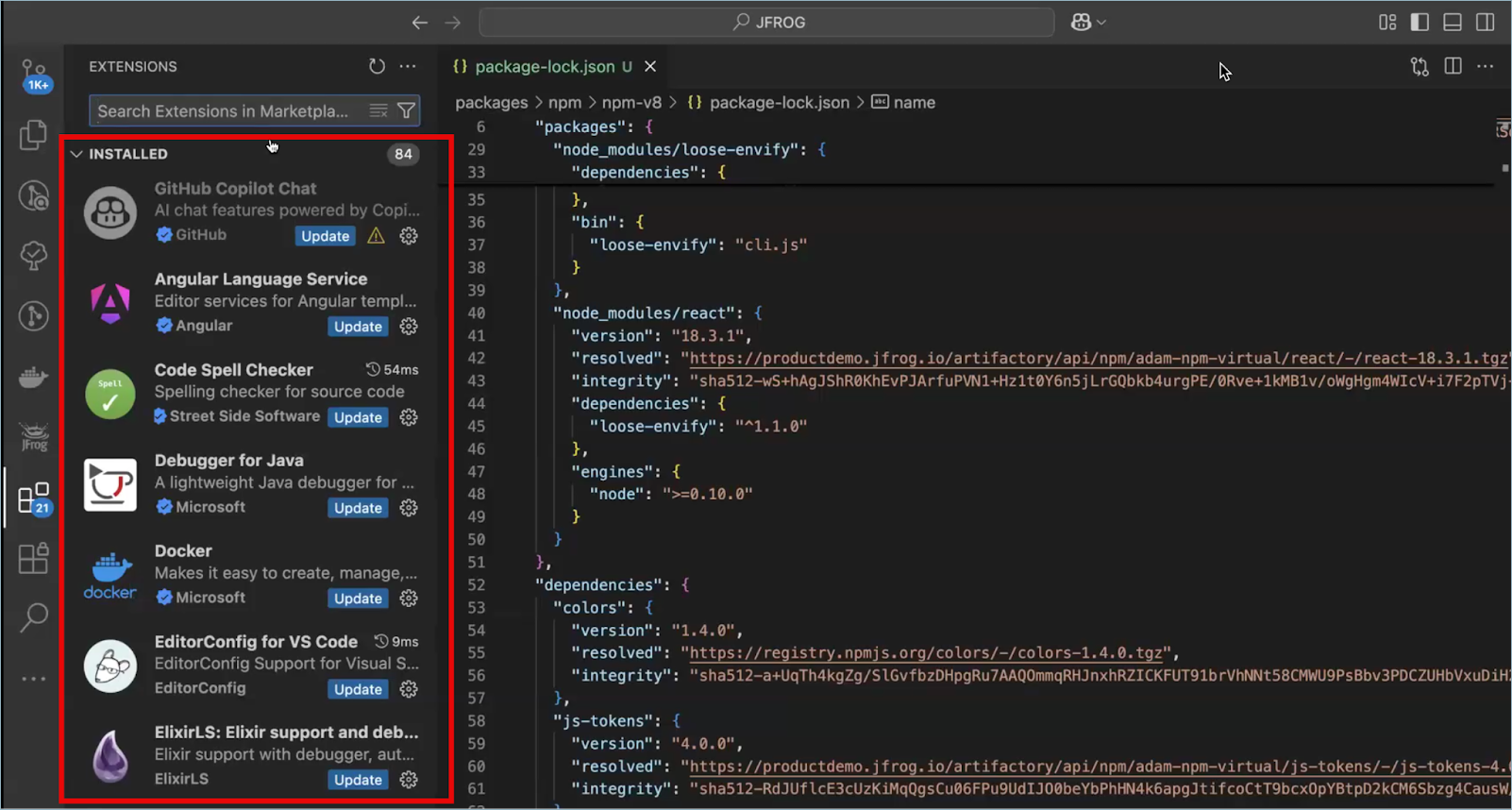
You can also install extensions using your IDE's CLI. For more information, see [Install Extensions with CLI](#install-extensions-with-cli).
**Important**
Extensions that are blocked by your organization's Curation policies return an error upon installation. For more information, see Curation.
### Install Extensions with CLI
You can install extensions from Artifactory using your IDE's CLI.
**To install extensions using the CLI:**
Run any of the following commands:
* To install an extension:
```shell
--install-extension .
```
* To install a specific version of an extension:
```shell
--install-extension .@
```
* To force download the latest versions of an extension:
```shell
--install-extension . --force
```
Where:
* ``: The CLI command for your IDE. Possible values are:
* `cursor`
* `kiro`
* `surf`
* `code`
* ``: The publisher of the extension
* ``: The name of the extension
* ``: The version number of the extension
For example:
```shell
cursor --install-extension ms-python.python@2024.10.1
```
**Important**
You can't install extensions that are blocked by your organization's Curation policies. For more information, see [Curation](/security/docs/curation-intro).
## Limitations of AI Editor Extensions in Artifactory
The following limitations apply to AI Editor Extensions repositories in Artifactory:
* **Remote Repositories Only**: AI Editor Extensions repositories support remote repositories only. Local and virtual repository types aren't supported.
* **Unauthenticated Gallery Access**: The IDE client can't send authentication headers to the gallery endpoint. Artifactory handles all gallery requests anonymously, and all operations are read-only. The optional read-only reference token embedded in the URL path is for Curation Audit tracking only and doesn't authenticate the request.
* **Disable Automatic IDE Updates**: Automatic IDE updates overwrite `product.json` and reset the marketplace connection to the default. You must disable automatic updates to preserve your Artifactory marketplace configuration.
* **ExtensionGalleryServiceUrl**: The VSCode `ExtensionGalleryServiceUrl` is not supported.
* **Signature Verification with Open VSX**: Due to a signature-verification path tied to the official VSCode Marketplace, installing extensions from an Artifactory repository that points to Open VSX or another non-VS Marketplace returns the error `Cannot install extension because Visual Studio Code cannot verify the extension signature`. The IDE offers **Install Anyway (Don't Verify Signature)** when signature verification fails.
## Frequently Asked Questions
This section provides answers to frequently asked questions about AI Editor Extensions repositories.
##### Q: Why did my IDE start connecting to the default marketplace again after I configured it for Artifactory?
**A:** Automatic IDE updates overwrite `product.json` and reset the marketplace connection to the default gallery. Disable automatic updates before you connect the IDE. For more information, see [Disable Automatic Updates](#disable-automatic-updates).
##### Q: What is the job of the reference token in the gallery URL?
**A:** A gallery URL without a token points the IDE to the Artifactory marketplace proxy. A URL with a read-only reference token enables Curation Audit tracking. The token isn't an identity token. For more information, see [Connect Your IDE to Artifactory](#connect-your-ide-to-artifactory).
##### Q: What permissions do I need to create an AI Editor Extensions repository?
**A:** You need Admin or Project Admin permissions in Artifactory. For more information, see [Create an AI Editor Extensions Repository](#create-an-ai-editor-extensions-repository).
##### Q: Can I apply Curation policies to extensions in this repository?
**A:** Yes. You can apply JFrog Curation policies to block or approve extensions in this repository. A blocked extension returns an error on install. For more information, see [Install Extensions](#install-extensions).
## Related Topics
* [JetBrains Plugins Repositories](https://docs.jfrog.com/artifactory/docs/jetbrains-plugins-repositories)
* [Agent Plugins Repositories](https://docs.jfrog.com/artifactory/docs/agent-plugins-repositories)
* [JFrog CLI](/integrations/docs/jfrog-cli)