---
updatedAt: 2026-11-15T09:22:13.000Z
agentTools:
siteIndex: https://docs.jfrog.com/llms.txt
projectIndex: https://docs.jfrog.com/artifactory/llms.txt
---
# Maven Repositories
Connect Maven to Artifactory to resolve and deploy artifacts.
As a Maven repository, Artifactory is both a source for artifacts needed for a build, and a target to deploy artifacts generated in the build process. Maven is configured using a `settings.xml` file located under your Maven home directory, which is typically located at `/user.home/.m2/settings.xml`. Once your Maven build is configured, Artifactory provides tight integration with commonly used CI servers like [Jenkins](/integrations/docs/jenkins-jfrog-plugin), [TeamCity](/integrations/docs/teamcity-artifactory-plug-in), or [Bamboo](/integrations/docs/bamboo-jfrog-plugin). The integration is done through a set of plugins that you can install and use freely.
Artifactory fully supports Maven repositories, including the following capabilities:
* **Unified Repository Management**: Consolidate all your Maven builds in Artifactory repositories as a single source of truth. Set up secure local repositories, access cached versions of remote registries, and create a single access point for all sources with virtual repositories.
* **Robust Metadata Capabilities**: Calculate metadata for artifacts hosted in Artifactory's local repositories.
* **Secure Storage**: Protect your proprietary information by deploying resources to Artifactory [local repositories](https://docs.jfrog.com/artifactory/docs/local-repositories), giving you fine-grained control over access to your project dependencies and build packages.
* **Centralized Storage and Management**: Use Artifactory as your source of truth and single location for distributing and sharing Maven builds and related artifacts.
## Get Started with Maven
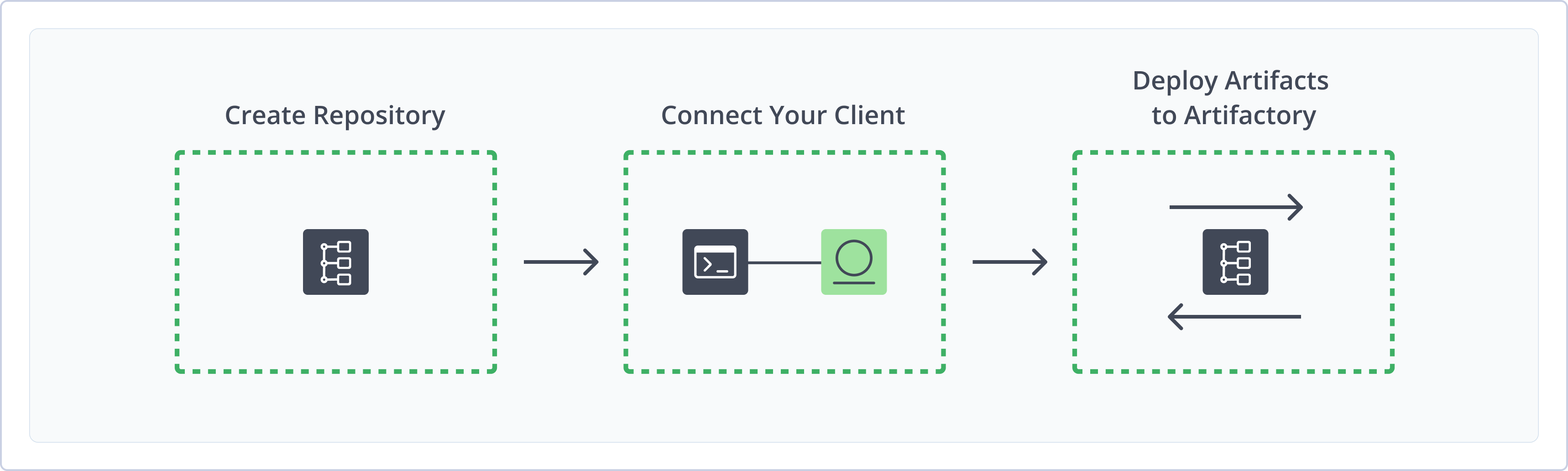
To get started working with Maven, complete the following main steps:
1. [Create a Maven Repository](#create-a-maven-repository)
2. [Connect Your Maven Client to Artifactory](#connect-your-maven-client-to-artifactory)
3. [Deploy Maven Artifacts to Artifactory](#deploy-maven-artifacts-to-artifactory)
## Create a Maven Repository
This topic describes how to create a Maven repository. This is required before you can deploy artifacts to Maven repositories. The primary repository types are:
* **Local repositories**: Where you store and share 1st and 2nd party repositories with your organization
* **Remote repositories**: Enable you to download from any remote location including external repositories or other Artifactory instances
* **Virtual repositories**: Enable aggregating remote and local repositories enabling your organization to scale by providing a single URL that provides access to multiple repositories and types
For more information on JFrog repositories, see [Repository Management](https://docs.jfrog.com/artifactory/docs/repository-management).
**Prerequisite**: You need Admin or Project Admin permissions to create a Maven repository. If you don't have Admin permissions, the option won't be available.
**To create a Maven repository:**
1. In the **Administration** tab, click **Repositories** > **Create a Repository**.
2. From the dropdown list, select the repository type you want to create. The **Select Package Type** window appears.
3. In the **Select Package Type** window, select **Maven**.
4. On the **New Local Repository**, **New Remote Repository**, or **New Virtual Repository** page, configure the required fields as described in the following list:
* For **Local Repositories**, in the **Repository Key** field, enter a meaningful name for the repository. For example, `maven-local-repository-1`. For more information on configuring local repositories, see [Local Repositories](https://docs.jfrog.com/artifactory/docs/local-repositories).
* For **Remote Repositories**, additionally verify the **Repository URL** and update if needed. For more information on Remote Repositories and all its possible settings, see [Remote Repositories](https://docs.jfrog.com/artifactory/docs/remote-repositories).
* For **Virtual Repositories**, additionally select one or more local or remote repositories to include in the virtual repository. For more information on virtual repositories and all its possible settings, see [Virtual Repositories](https://docs.jfrog.com/artifactory/docs/virtual-repositories).
5. When you are finished configuring the repository, click **Create Local Repository**, **Create Remote Repository**, or **Create Virtual Repository**. The repository is created and the **Repositories** window is displayed.
## Connect Your Maven Client to Artifactory
To configure Maven to resolve artifacts through Artifactory, you need to modify the `settings.xml` file. You can generate one with [JFrog Set Me Up](https://docs.jfrog.com/artifactory/docs/use-artifactory-set-me-up-for-configuring-package-manager-clients) or create and modify it manually. The instructions provided here explain how to create and modify `settings.xml` manually.
The repository with the ID `central` overrides Maven's built-in Maven Central definition, so Maven resolves through Artifactory.
**Note**
JFrog recommends using an identity token for configuring your Maven client. For more information, see [Generate Identity Token](/user-management/docs/identity-tokens#generate-identity-token).
If you use Set Me Up to generate the `settings.xml` file, it automatically includes an identity token.
**Prerequisite**: Before connecting your Maven client to Artifactory, you must have an existing Maven repository in Artifactory. For more information, see [Create a Maven Repository](#create-a-maven-repository).
**To connect your Maven client to Artifactory:**
1. Create and modify the `settings.xml` file according to the following steps:
1. Copy the contents of the following `settings.xml` file to an XML editor:
```xml
${ARTIFACTORY_USER}
${ARTIFACTORY_TOKEN}
central
${ARTIFACTORY_USER}
${ARTIFACTORY_TOKEN}
snapshots
false
central
https:///artifactory/
snapshots
https:///artifactory/
false
central
https:///artifactory/
snapshots
https:///artifactory/
artifactory
artifactory
```
2. In the `settings.xml` file, replace the following placeholders as follows:
* `${ARTIFACTORY_USER}`: Replace the entire expression with your Artifactory username.
* `${ARTIFACTORY_TOKEN}`: Replace the entire expression with your identity token or Artifactory password.
* ``: Replace with the name of your Artifactory domain.
* ``: Replace with the name of the repository from which to resolve releases.
* ``: Replace with the name of the repository from which to resolve snapshots.
* ``: Replace with the name of the repository from which to resolve plugin releases.
* ``: Replace with the name of the repository from which to resolve plugin snapshots.
2. Save the `settings.xml` file in one of the following locations, according to your system needs:
* **User-specific install**: `${user.home}/.m2/settings.xml`.
* **Global machine install**: `${maven.home}/conf/settings.xml`.
* **Custom settings file**: Pass it as an argument during execution, for example: `mvn install -s settings.xml`.
**Note**
You can also use JFrog Set Me Up to copy the snippet populated with your token and environment. For more information, see [Use Artifactory Set Me Up for Configuring Package Manager Clients](https://docs.jfrog.com/artifactory/docs/use-artifactory-set-me-up-for-configuring-package-manager-clients).
Set Me Up supports virtual Maven repositories only.
**Next Step**:
* [Deploy Maven Artifacts to Artifactory](#deploy-maven-artifacts-to-artifactory)
## Deploy Maven Artifacts to Artifactory
Deploy Maven artifacts to Artifactory by adding the following deployment element to the `pom.xml` file of your Maven project with the target local repository URL that you want to deploy your artifacts to.
**To deploy Maven artifacts to Artifactory:**
* Add the following `distributionManagement` element to the `pom.xml` file of your Maven project:
```xml
central
-releases
https:///artifactory/
snapshots
-snapshots
https:///artifactory/
```
Where:
* ``: Enter here the name of your Artifactory domain.
* ``: Enter here the name of your Maven repository.
The `` values are labels that help you identify the repositories. Set Me Up generates them as the repository name followed by `-releases` or `-snapshots`.
## Additional Maven Information
The following additional information is available with Maven repositories:
* [Configure Mirror Any](#configure-mirror-any)
* [Maven Authentication](#maven-authentication)
* [Provisioning Dynamic Maven Settings for Users](#provisioning-dynamic-maven-settings-for-users)
* [Maven Metadata in Virtual Repositories](#maven-metadata-in-virtual-repositories)
### Configure Mirror Any
In addition to overriding built-in Maven repositories, you can use the **Mirror Any** setting to redirect all requests to a Maven repository through Artifactory, including those defined inside POMs of plug-ins and third party dependencies. Although it doesn't adhere to best practices, it's not uncommon for POMs to reference Maven repositories directly. This ensures no unexpected requests directly to Maven are introduced by such POMs.
**To configure Mirror Any:**
* Choose one of the following options:
* Select **Mirror Any** in the **Maven Settings** screen when generating your `settings.xml` file.
* Manually add the following `mirrors` element to your `settings.xml` file:
```xml
central
*
http://:/artifactory/
Artifactory
```
Where:
* ``: The hostname of your JFrog Platform.
* ``: The port that Artifactory listens on.
* ``: The name of the virtual repository to mirror.
**Note**
While using Mirror Any is a convenient way to ensure Maven only accesses repositories through Artifactory, it defines a coarse proxying rule that doesn't differentiate between releases and snapshots and relies on the single specified repository to do this resolution.
For more information on using mirrors, see Using Mirrors for Repositories in the Apache Maven documentation.
### Maven Authentication
Artifactory requires user authentication in the following cases:
* Anonymous access has been disabled by clearing the global [Allow Anonymous Access](/administration/docs/security-configuration#allow-anonymous-access) setting.
* You want to restrict access to repositories to a limited set of users.
* You are deploying builds. Although allowing anonymous access to deployment repositories is theoretically possible, it's uncommon.
Authentication is configured in Maven using `` elements in the `settings.xml` file.
Each `` and `` element in the file must have a corresponding `` element with a matching `` that specifies the username and password.
For example, in the `settings.xml` file in [Connect Your Maven Client to Artifactory](#connect-your-maven-client-to-artifactory), the `` elements with `id` values `central` and `snapshots` each have a `` element with the same `id`. The same applies to `` elements that require authentication.
#### Synchronizing Authentication Details for Repositories with the Same URL
If you have repository definitions, either for deployment or download, that use the same URL, Maven takes the authentication details from the corresponding server definition of the first repository encountered. It uses them for the lifetime of the running build for all repositories with the same URL. This may cause authentication to fail, producing 401 errors for downloads or deployment, if you are using different authentication details for the respective repositories. This is inherent Maven behavior and can only be solved by using the same authentication details for all repository definitions with the same URL in your `settings.xml` file.
#### Force Authentication on Virtual Maven Repositories
Artifactory supports Maven repositories with **Allow Anonymous Access** enabled by default and won't query the Maven client for authentication parameters.
If you want to enforce authentication you need to explicitly instruct Artifactory to request authentication parameters.
**To force authentication on a virtual Maven repository:**
* In the repository settings, select the **Force Authentication** checkbox.
**Note**
When **Force Authentication** is selected, Artifactory will request authentication parameters from the Maven client before trying to access this repository.
#### Enable Non-Preemptive Maven Authentication
From Artifactory version 7.37.9, an enhanced Maven Authentication mechanism has been implemented in Artifactory to eliminate the need to perform authentication before checking if a package is located in the repository.
With the new authentication mechanism, when a request reaches a repository that requires authentication, Artifactory first checks if the requested item is located in the repository. If the requested package exists, Artifactory proceeds to perform authentication and authorization. If not, it returns a 404 error. This feature is disabled by default.
**Note**
This procedure applies to self-managed deployments only.
**To enable non-preemptive authentication:**
1. Add the `artifactory.maven.authentication.nonPreemptive` parameter to the `artifactory.system.properties` file.
2. Restart Artifactory for the changes to take effect.
### Provisioning Dynamic Maven Settings for Users
You can deploy and provision a dynamic settings template for your users.
Once downloaded, settings are generated according to your own logic and can automatically include user authentication information.
For more information, see the [Provisioning Build Tool Settings](https://docs.jfrog.com/artifactory/docs/filtered-resources#provision-build-tool-settings).
### Maven Metadata in Virtual Repositories
The **XML View** tab in the Artifactory UI tree browser displays the raw `maven-metadata.xml` file from the first resolved underlying repository, rather than the aggregated metadata that Maven and Gradle clients receive when they resolve through the virtual repository URL.
When a Maven or Gradle client requests `maven-metadata.xml` from a virtual repository, Artifactory merges the metadata from all aggregated repositories and returns the combined result. The merged metadata includes all versions from every underlying local, remote, and virtual repository, with the `latest` and `release` values calculated across all sources. If the file is in a repository with priority resolution enabled, Artifactory merges metadata only from the repositories with priority resolution, so versions in other aggregated repositories aren't included.
**Note**
To see the metadata that your build tools receive, request `maven-metadata.xml` through the virtual repository URL, for example `https:///artifactory////maven-metadata.xml`. Don't rely on **XML View** in the UI.
## Frequently Asked Questions
This section provides answers to frequently asked questions.
##### Q: How do I connect my Maven client to Artifactory?
**A:** Modify your `settings.xml` file so that Maven resolves artifacts through Artifactory. For the steps, see [Connect Your Maven Client to Artifactory](#connect-your-maven-client-to-artifactory).
##### Q: What permissions do I need to create a Maven repository?
**A:** You need Admin or Project Admin permissions. If you don't have them, the option to create a repository isn't available. For more information, see [Create a Maven Repository](#create-a-maven-repository).
##### Q: Why does XML View show different maven-metadata.xml content than my build tool receives?
**A:** The **XML View** tab shows the file from the first resolved underlying repository. Maven and Gradle clients receive metadata merged across the aggregated repositories. For more information, see [Maven Metadata in Virtual Repositories](#maven-metadata-in-virtual-repositories).
##### Q: What happens if two Maven repository definitions use the same URL but different credentials?
**A:** Maven uses the authentication details of the first repository it encounters for all repositories with that URL. This can cause authentication to fail with 401 errors. For more information, see [Synchronizing Authentication Details for Repositories with the Same URL](#synchronizing-authentication-details-for-repositories-with-the-same-url).
##### Q: Can I use Set Me Up to generate my Maven settings?
**A:** Yes, for virtual Maven repositories only. Set Me Up copies a snippet populated with your token and environment. For the manual steps, see [Connect Your Maven Client to Artifactory](#connect-your-maven-client-to-artifactory).
## Related Topics
* [Gradle Repositories](https://docs.jfrog.com/artifactory/docs/gradle-repositories)
* [sbt Repositories](https://docs.jfrog.com/artifactory/docs/sbt-repositories)
* [Virtual Repositories](https://docs.jfrog.com/artifactory/docs/virtual-repositories)
* [Use Artifactory Set Me Up to Configure Package Manager Clients](https://docs.jfrog.com/artifactory/docs/use-artifactory-set-me-up-for-configuring-package-manager-clients)