
Manage User Profile
Unlock Your Profile
-
To edit your profile, in the menu above, select Edit Profile.
-
To unlock your profile, you will need to enter your current password and click Unlock.
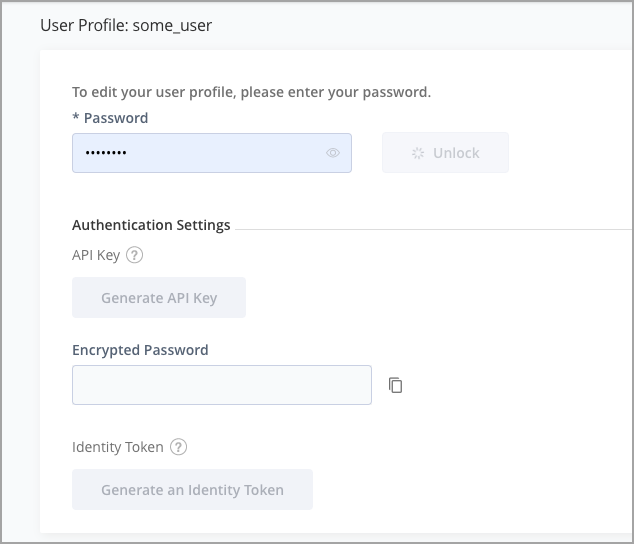
Once unlocked, you can modify all the elements of your user profile.
-
Be sure to click Save to save any changes to your profile.
Using external authentication
If you are using an external authentication server (such as OAuth SSO, or SAML SSO), you can ask your administrator to give you access to your API key and SSH public key without having to unlock your profile.
Secure Your Password
-
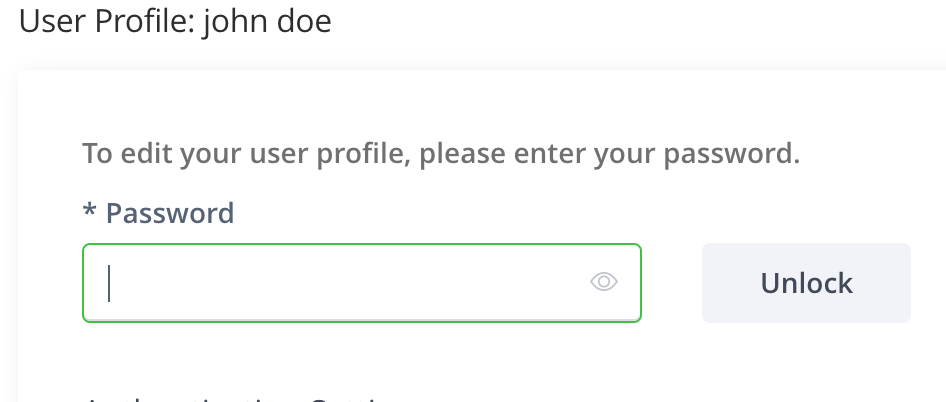
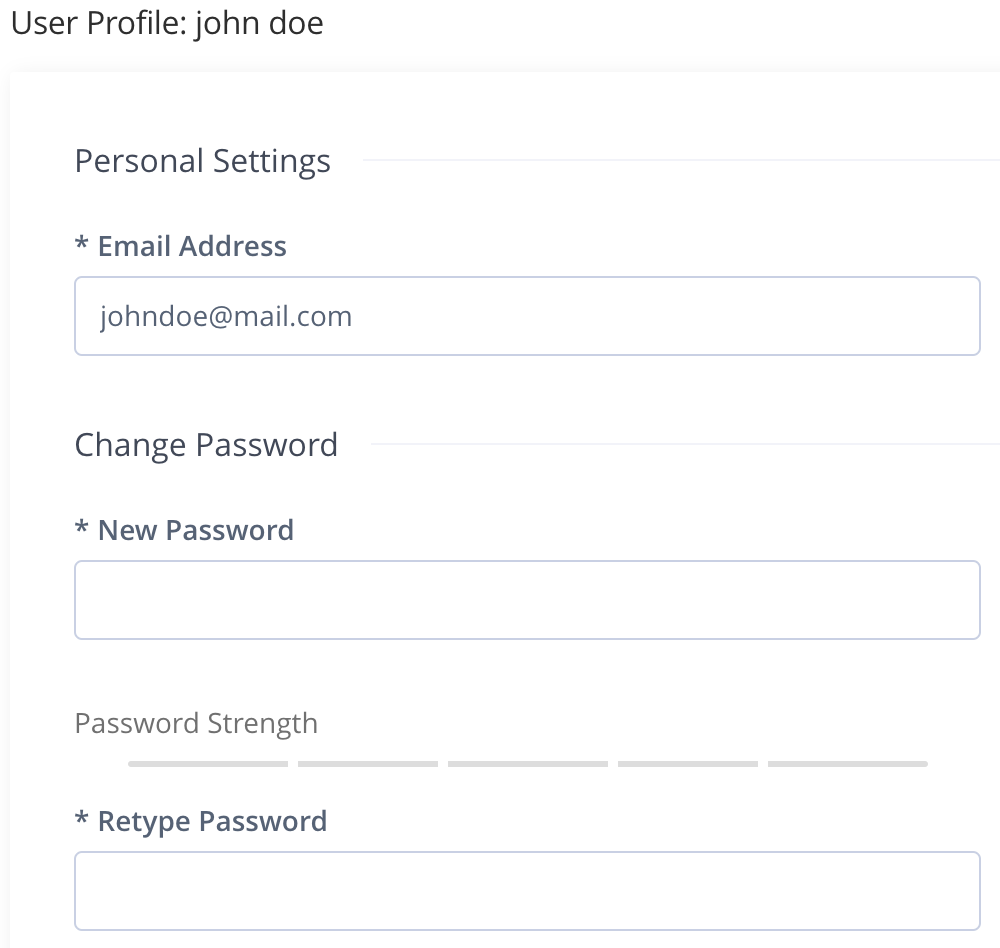
Open your profile page (click on your login name on the upper-right corner and select Edit Profile), type-in your password in the Current Password field, and click Unlock.
-
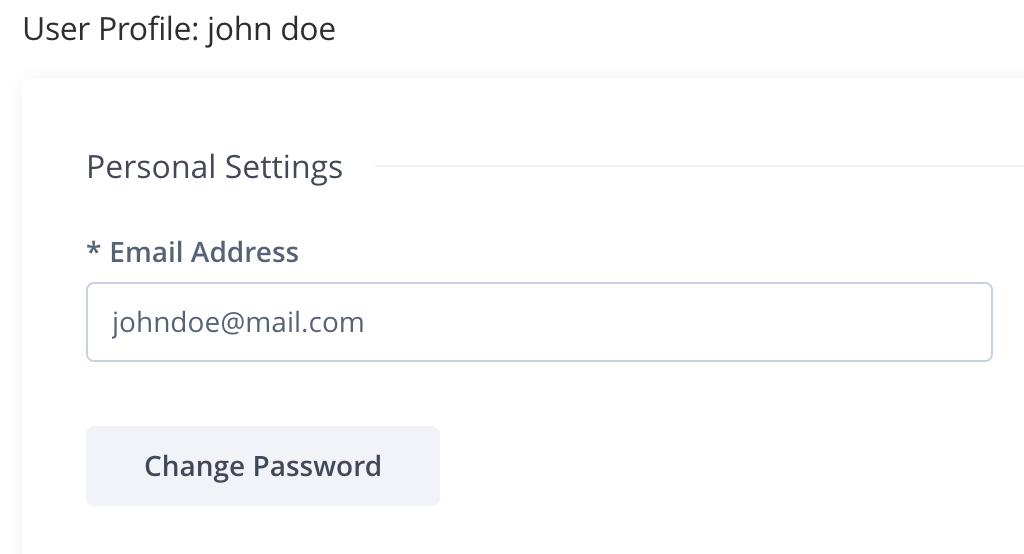
Once your profile is unlocked, you can update your email address.
-
Click Change Password to change your password.
Different encryption mechanisms
The encryption mechanisms of the Oracle and IBM JDKs are not identical. Switching from one to another will make your encrypted password obsolete.
IBM JDK Encryption Restrictions
Some of the IBM JRE/JDK are shipped with a restriction on the encryption key size (mostly for countries outside the US); This restriction can be officially removed by downloading unrestricted policy files from IBM and overriding the existing ones:
- Register and download the unrestricted JCE policy files from the IBM website.
- Select the correct zip that matches your JAVA version.
- The downloaded zip file contains 2 jar files -
local_policy.jarandUS_export_policy.jar. Backup the existing files in$IBM_JDK_HOME/jre/lib/securityand extract the jars from the zip file to this location- Restart the system.
Add SSH Key
Artifactory supports authentication via SSH for the Git LFS client and the JFrog CLI.
To be authenticated via SSH, you need to enter your SSH public key in the SSH Public Key (RSA) field. Starting from Artifactory version 7.63.2, you can add multiple SSH keys to your account by completing these steps:
-
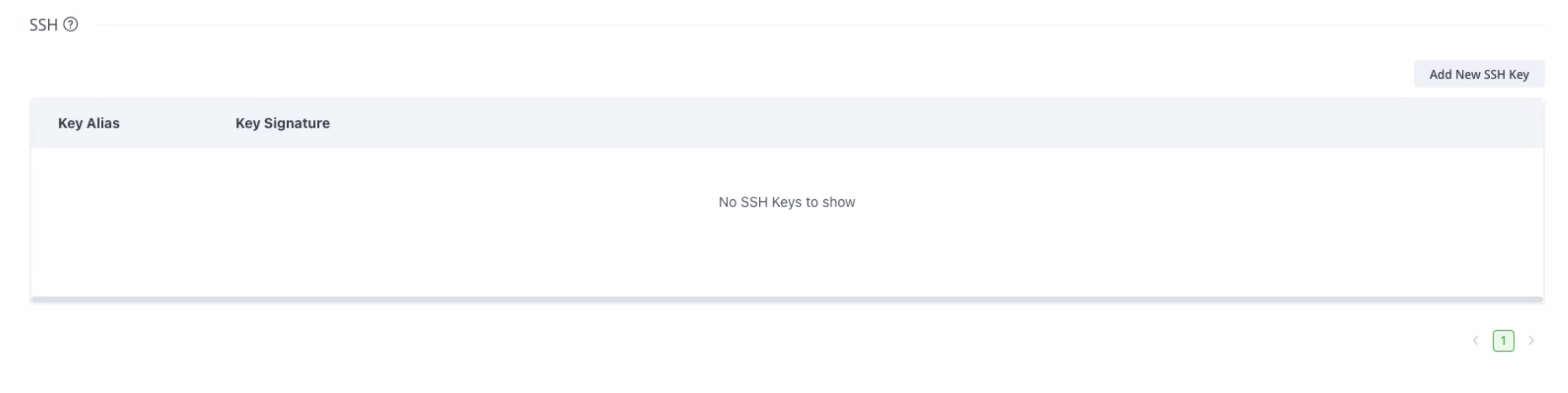
Unlock your profile, go to the SSH section, and click Add New SSH Key.
-
Enter the key alias and signature, and click Add.
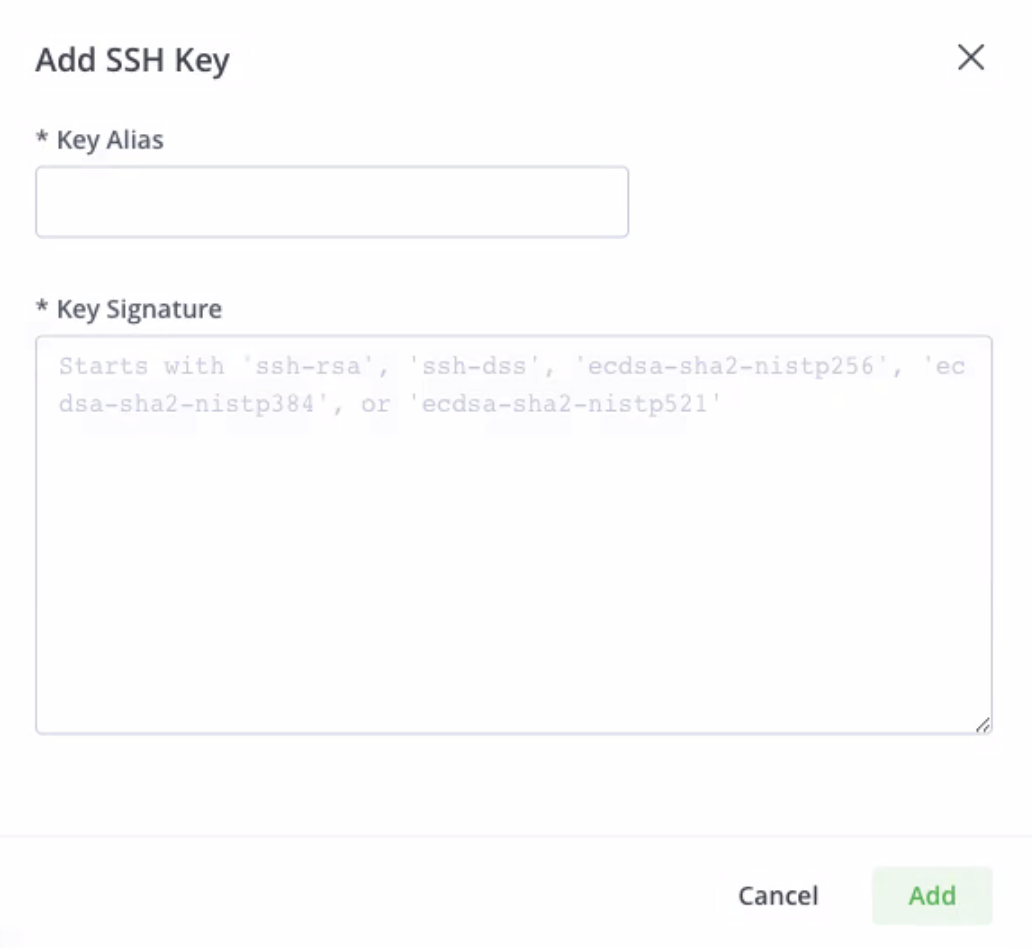
Once added, you can copy or delete the key.
Bind OAuth Accounts
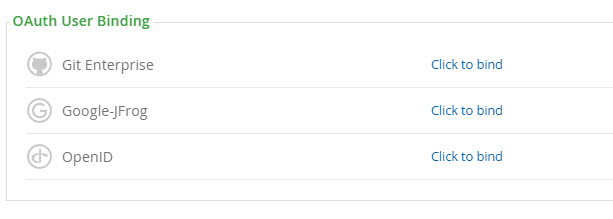
Artifactory is integrated with OAuth allowing you to log in through your account with one of the configured OAuth providers. To do so, you need to bind your OAuth account to your Artifactory user by clicking Click to bind next to the corresponding OAuth provider. For more details, please refer to OAuth SSO Integration.
Change Your Personal Settings
Personal settings include your Artifactory API Key, password and email address.
If the Can Update Profile field is enabled, you can update all of your profile details except for the password, since only an administrator can update the password.
Note that there may be cases in which you want to leave this option disabled to prevent users from updating their profile. For example, a departmental user with a single password shared between all department members.
Note
You are not able to change your password if the system is configured to use external authentication such as LDAP. For example, if users from LDAP are not created internally (i.e. Administration | Security | LDAP | LDAP Settings and the Create Internal Users is disabled).
Change Your Email and Password
Once your profile is unlocked, Artifactory displays your password in an encrypted format that can be used whenever you need to provide your password in an environment that is not secure. For example, when making REST API calls over HTTP.
The encrypted password is initially masked, but you may click the View icon to view the encrypted password in clear-text. You may also click the Copy icon to copy the encrypted password to the clipboard.
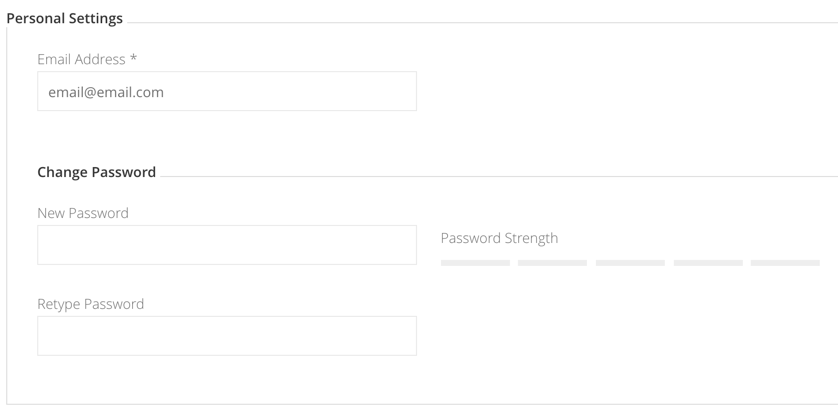
To change your Artifactory password, enter your new password and verify it.
You can also modify your email address.
Tip
For more information about using secured passwords with your profile, see Centrally Secure Passwords.
Verify Your Email Address
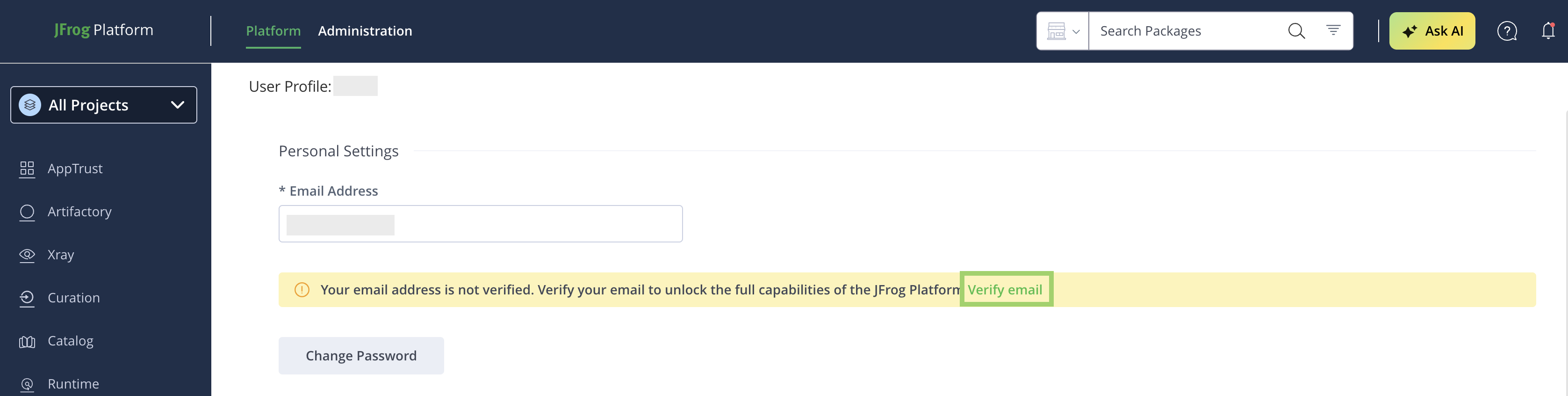
If the environment uses SAML SSO with an email attribute, and you are logging in to the JFrog Platform for the first time, you will be asked to verify your email address. This is important for maintaining your account security and is essential for MyJFrog admins to better manage the environment. When you see the notice to verify your email, click Verify email and follow the instructions to complete the verification.
Password Reminder
If you forget your password, on the Artifactory Login dialog, select Forgot Password, and enter your username in the following dialog that is displayed.
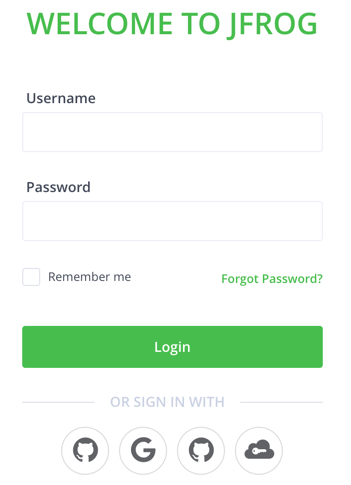
When you click Submit, the system will send a message to the email address configured for your user account, with a link you can click on to reset your password.
Updated 6 months ago