

Git LFS Repositories
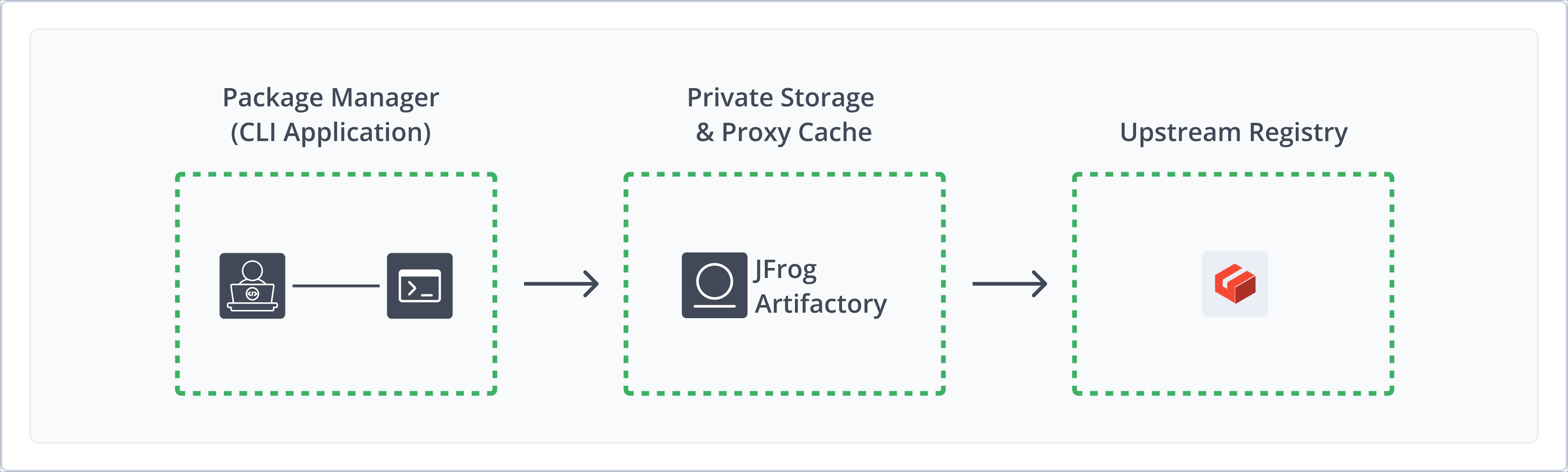
The JFrog Artifactory integration with Git LFS allows you to manage large file assets for your Git repositories, acting as a secure and private LFS server. Git Large File Storage (LFS) is a Git extension that replaces large files such as audio samples, videos, datasets, and graphics with text pointers inside Git, while storing the file contents on a remote server like Artifactory.
Artifactory support for Git LFS provides you with a fully functional LFS server that works with the Git LFS client.
Artifactory supports Git Large File Storage (LFS) repositories on top of Artifactory's existing support for advanced artifact management.
For more information, see Git LFS documentation.
You can push LFS blobs from Git and maintain them in Artifactory for the following benefits:
- Performance: With Artifactory’s file storage on your local or corporate network, file download times may be significantly reduced. When considering the number of files that may be needed for a build, this can drastically reduce your build time and streamline your workflow.
- Reliable and consistent access to binaries: With Artifactory as your LFS repository, all the resources you need for development and build are stored on your own local or corporate network and storage. This keeps you independent of the external network or any 3rd party services.
- Share binary assets with remote Git LFS repositories: Share your video, audio, image files, and any other binary asset between teams across your organization by proxying Git LFS repositories on other Artifactory instances.
- Upload and download binary assets using a single URL: Use a virtual Git LFS repository as both a source and a target for binary assets. By wrapping local and remote repositories and defining a deploy target in a virtual Git LFS repository, your Git LFS client only needs to be exposed to that single virtual repository for all your work with binary assets.
- Security and access control: Artifactory lets you define which users or groups of users can access your LFS repositories with a full set of permissions you can configure. You can control where developers can deploy binary assets to, whether they can delete assets, and more. And if it’s access to your servers that you’re concerned about, Artifactory provides full integration with the most common access protocols such as LDAP, SAML, Crowd, and others.
- One solution for all binaries: Once you are using Artifactory to store media assets, there is no need to use a 3rd party LFS provider. Artifactory can now handle those along with all the other binaries it already manages for you.
For more information, see JFrog Artifactory and Git Repository.
Get Started with Git LFS Repositories
To get started working with Git LFS, complete the following main steps:
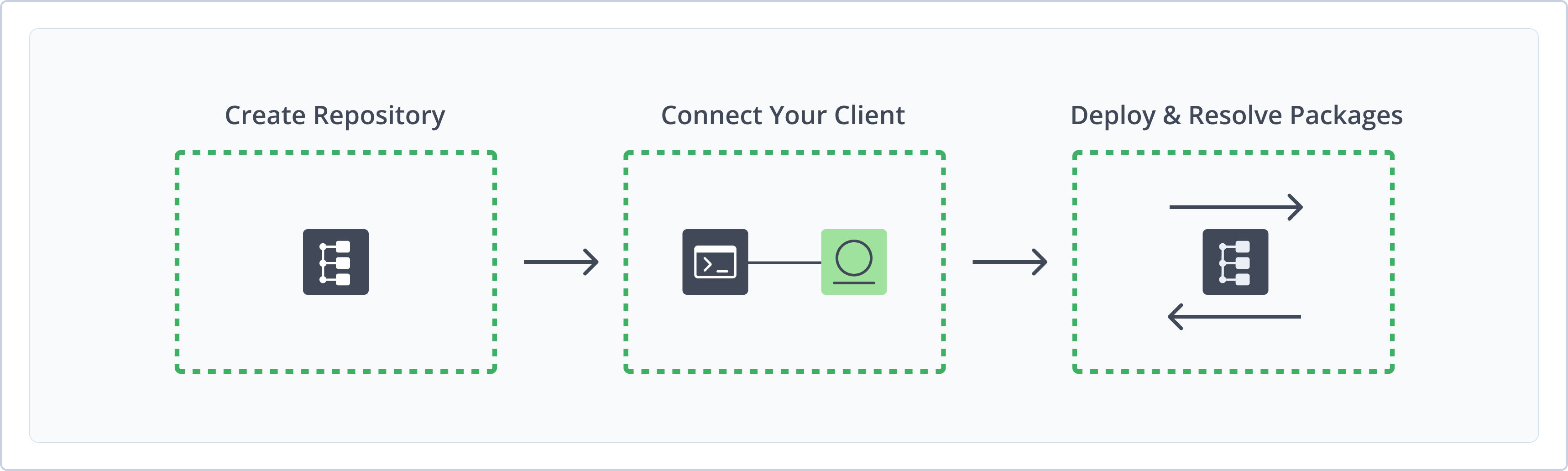
Create a Git LFS Repository
This topic describes how to create a Git LFS Repository. This is required before publishing and installing Git LFS packages. There are three primary types of repositories:
- Local repositories: Where you store and share 1st and 2nd party packages with your organization
- Remote repositories: Enable you to download from any remote location, including external package registries or other Artifactory instances
- Virtual repositories: Enable aggregating remote and local repositories, enabling your organization to scale by providing a single URL that provides access to multiple repositories and types
For more information on JFrog repositories, see Repository Management.
Prerequisite: You need Admin or Project Admin permissions to create a Git LFS repository. If you don't have Admin permissions, the option will not be available.
To create a Git LFS repository:
-
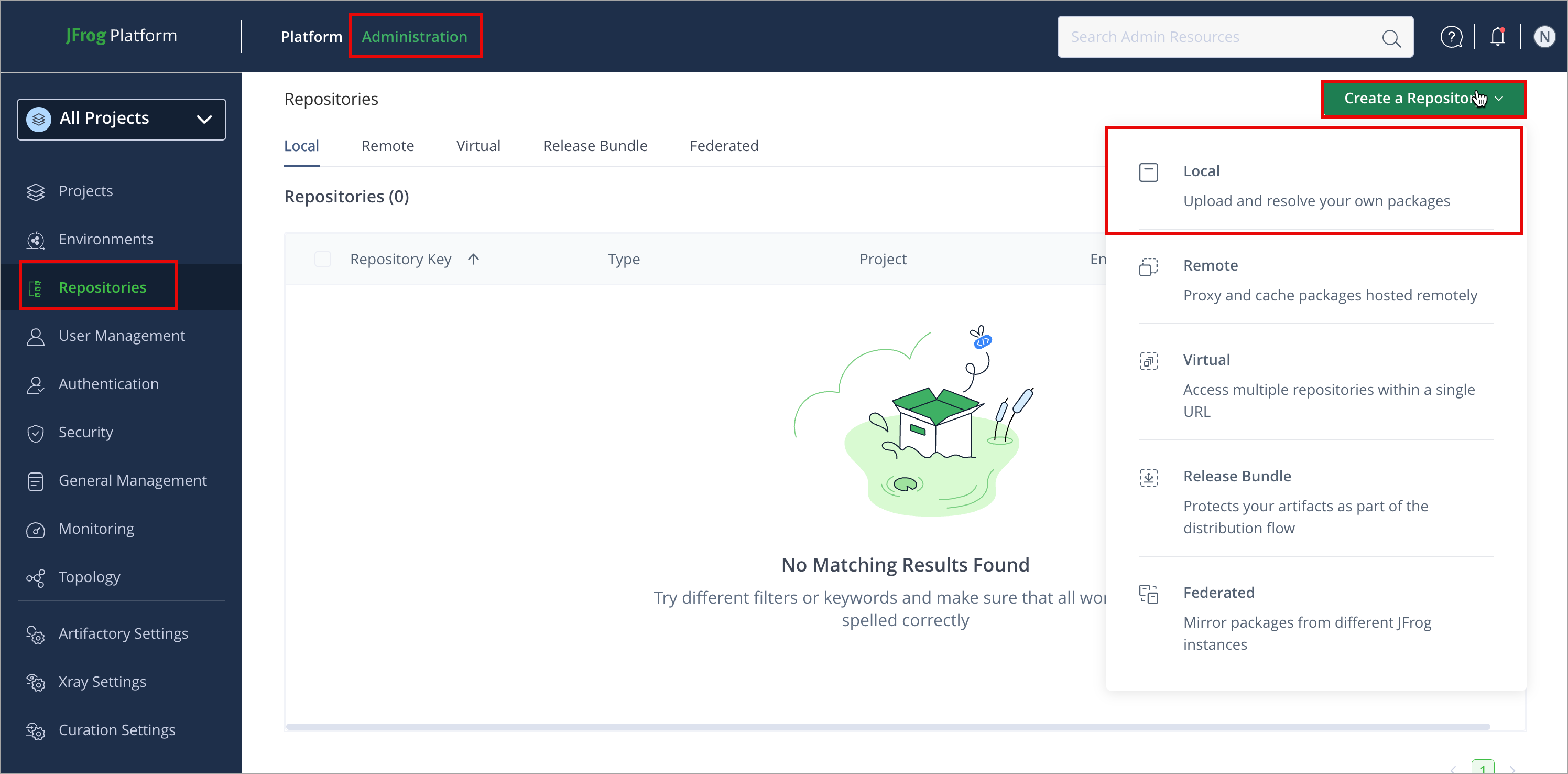
In the Administration tab, click Repositories | Create a Repository
-
Select the repository type you want to create, configure the required fields (described in the following list), then click Create Repository.
- For Local Repositories, in the Repository Key field, type a meaningful name for the repository. For example,
gitlfs-local-repository-1. For more information on local repositories and all their possible settings, see Local Repositories. - For Remote Repositories, additionally, verify the Repository URL and update if needed. For more information on Remote Repositories and all their possible settings, see Remote Repositories. You can create a Git LFS remote repository to proxy Git LFS local repositories on other Artifactory instances and enjoy all the features of Smart Remote Repositories.
- For Virtual Repositories, additionally select one or more local or remote repository types to include in the virtual repository. For more information on virtual repositories and all their possible settings, see Virtual Repositories. Make sure you also set the Default Deployment Repository so you can both download from and upload to this repository.
- For Local Repositories, in the Repository Key field, type a meaningful name for the repository. For example,
-
Click Create Repository. The repository is created, and the Repositories window is displayed.
Deploy Git LFS Files Using the UI
-
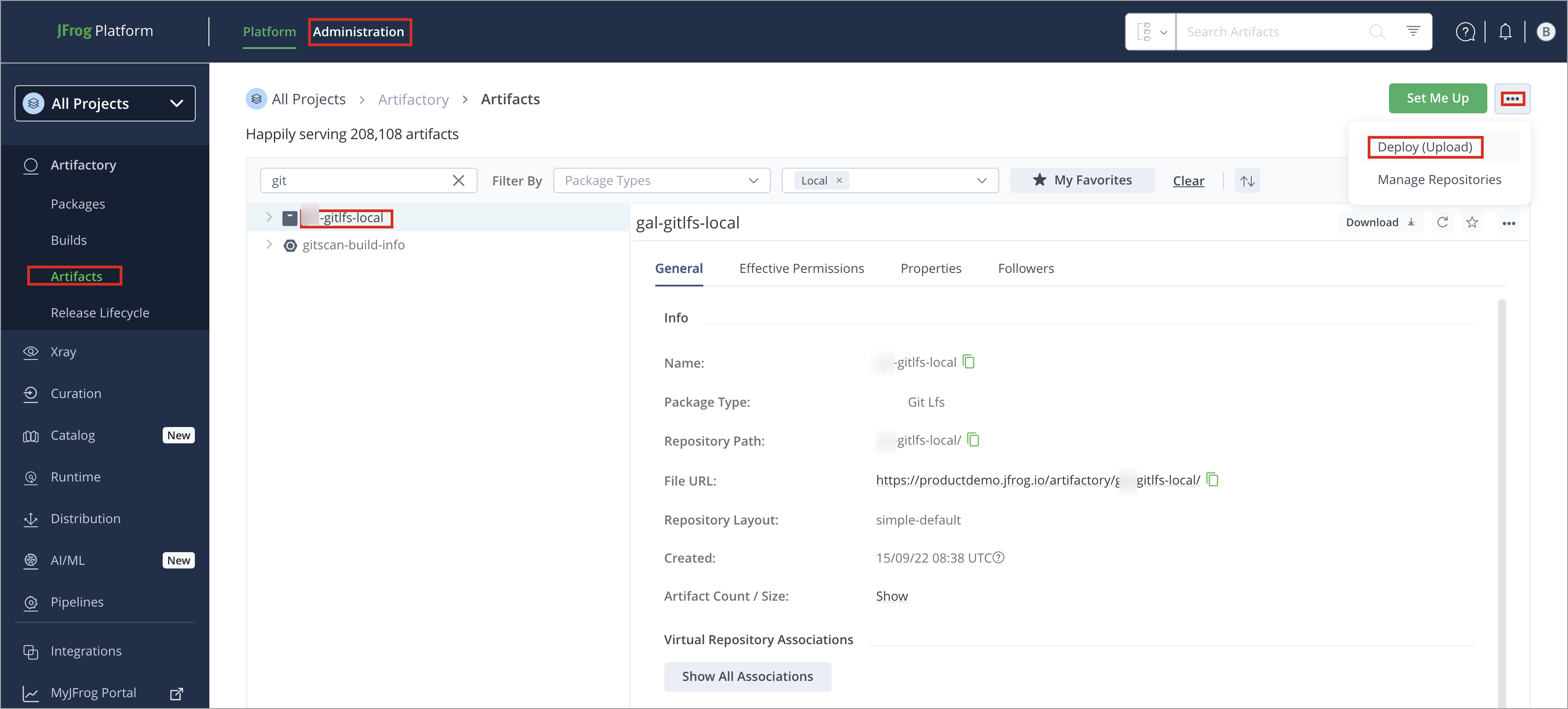
In the Platform tab, click Artifactory | Artifacts, then click ellipsis |Deploy(Upload). Deploy options are displayed.
-
Select your Git LFS repository as the Target Repository, and upload the file you want to deploy.
-
Check the Deploy as Git LFS Artifact. Notice that the Target Path is automatically updated to reflect your input.
-
Verify the deploy options, then click Deploy. The package is deployed.
Resolve Git LFS Packages
In order for your client to upload and download LFS blobs from artifactory the [lfs] clause should be added to the .lfsconfig file of your Git repository in the following format.
.lfsconfig
[lfs]
url = "https://company.jfrog.io/artifactory/api/lfs/gal-gitlfs-local"
You can also set different LFS endpoints for different remotes on your repo (as supported by the Git LFS client), for example:
.git/config different LFS URL for remotes
[remote "origin"]
  url = https://...
  fetch = +refs/heads/*:refs/remotes/origin/*
lfsurl = "http://localhost:8081/artifactory/api/lfs/lfs-local"Copy these clauses using Set Me Up
If you select your Git LFS repository in the Tree Browser and click Set Me Up, Artifactory will display these clauses in a dialog from which you can simply copy and paste them.
Working with Proxies and HTTPS
When using HTTPS (i.e., behind a proxy) with a self-signed certificate your configuration might also require you to add the following:
.gitconfig http section
[http]
 sslverify = false
Always consult your System Administrator before bypassing secure protocols in this way.
When running Artifactory behind a proxy, defining a base URL is usually required (depending on configuration) due to the operation of the Git LFS client, which expects to receive redirect URLs to the exact upload \ download location of blobs.
LFS repositories must be prefixed with api/lfs in the path
When accessing a Git LFS repository through Artifactory, the repository URL must be prefixed with
api/lfsin the path, except when configuring replication.For example, if you are using Artifactory standalone or as a local service, you would access your LFS repositories using the following URL:
http://localhost:8081/artifactory/api/lfs/<repository key>Or, if you are using Cloud, the URL would be:
https://<server name>.jfrog.io/artifactory/api/lfs/<repository key>When configuring replication, reference the repository's browsable URL i.e.;
http://localhost:8081/artifactory/<repository key>
Additional Git LFS Actions
The following additional actions are available with Git LFS repositories:
- Work with Artifactory and Git LFS without Anonymous Access
- Git LFS File Locking
- Use Git LFS Metadata
- Use Git LFS Storage
- Git LFS Quick Start Guide
Work with Artifactory and Git LFS without Anonymous Access
By default, Artifactory disallows anonymous access to Git LFS repositories. This is defined in the Administration module under Security | Settings. For more information, see Allow Anonymous Access.
The Git LFS client will ask for credentials for the Artifactory LFS repo when accessing it - if anonymous access is allowed, you can just enter blank credentials, otherwise you should enter your Artifactory user name and password (not your Git one).
To make the authentication process automatic, you can use Git Credential Helpers to store these for you and have the Git LFS client authenticate automatically.
Git stores credentials in plain text by default
You should take extra measures to secure your username and password when using Git credential helpers.
Git LFS File Locking
Artifactory supports Git LFS file locking to reserve a specific LFS-tracked file so others are discouraged (or blocked, depending on server policy) from changing it at the same time. It addresses a weakness of Git's model: merge conflicts on binary or non-mergeable assets (3D models, large images, video, design files) are painful or impossible to resolve like text.
Locking is cooperative: it works best when the team agrees to lock before editing and respects server rules.
Why Use File Locking
Binary and other single-writer files do not merge cleanly. Two people editing in parallel often means one side's work is thrown away or manually redone. Locks signal that someone is editing a file and can integrate with hosting (for example, GitHub, GitLab, or Bitbucket) so pushes or merges that touch a locked file can be rejected or warned.
How File Locking Works
LFS uses .gitattributes and the git lfs track command to define which paths are stored as LFS objects. A lock is stored on the Git LFS server and tied to identity. Host and project settings determine who can force-unlock, whether pushes are blocked, and other policy details.
Commands
The following table shows available commands and arguments for Git LFS File Locking. For complete information, run git lfs locks --help.
| Command | Description | Optional Arguments |
|---|---|---|
git lfs lock <path> | Lock a file that exists in the working tree. |
|
git lfs unlock <path> | Remove a lock. Usually requires the file to be clean. |
|
git lfs locks | List all existing locks. |
|
Usage Notes
The following usage notes apply:
- Git LFS file locking is not a substitute for branching or code review for text and code.
- Git LFS file locking is not a full document content management system. It's a thin layer for a single active editor on chosen paths.
- If you share large binary assets in Git and need to avoid silent overwrites or unmergeable parallel edits, use locking on those paths only. Other text files stay mergeable as usual.
For more information, see Git LFS locking API documentation.
Use Git LFS Metadata
As the Git LFS client supplies only limited data about the blob being uploaded (only it's sha256 checksum, or OID, and its size) Artifactory does not store or process any metadata for LFS blobs.
You can set properties on the blobs for your own convenience but this requires extra logic to infer a sha256-named file stored in Artifactory from the actual pointer stored in your Git repository.
Use Git LFS Storage
Artifactory stores LFS blobs in a manner similar to the Git LFS client, using the provided sha256 checksum.
Git LFS blobs will be stored under a path such as <lfs_repo>/objects/ad/1b/ad1b8d6e1cafdf33e941a5de462ca7edfa8818a70c79feaf68e5ed53dec414c4
Where ad and 1b are the 1st and 2nd, and the 3rd and 4th characters in the blob's name respectively.
Git LFS behavior when downloading from the LFS endpoint fails
The Git LFS client will download the pointer file it created in your remote Git repository if downloading the blob from the LFS endpoint failed (i.e., wrong credentials, network error, etc.).
This will cause the actual file in your local repo to be substituted with the pointer created by the LFS client with the same name , and lead to any number of problems this behavior can cause.
This is a limitation of the LFS client tracked by issue 89.
Git LFS Quick Start Guide
Visit our Knowledge Base for a quick start guide of Git LFS with Artifactory.
Updated 16 days ago