

Configure Zscaler ZIA for PTC
Configure Zscaler ZIA URL categories, SSL inspection, and redirect rules to send package traffic to Artifactory for Package Traffic Controller (PTC).
Zscaler ZIA Configuration Guide
Zscaler owns the Admin Portal navigation, rule types, and defaults. UI labels can vary by version and tenant (for example, Experience Center vs. the classic ZIA Admin Portal), so use this as a workflow guide and confirm exact options in Zscaler’s current ZIA documentation. The navigation paths below match the Zscaler Experience Center UI.
This section details the steps to configure Zscaler Internet Access (ZIA) to redirect developer traffic to your Artifactory instance. Complete Configure Artifactory for PTC before proceeding.
Zscaler Requirements
The following Zscaler-specific requirements must be met before you configure ZIA rules. (Artifactory and workstation install-script requirements that are shared across SASE are covered in Prerequisites and Installation Script.)
ZIA Admin Portal Access: You need administrative access to the Zscaler Internet Access (ZIA) Admin Portal to create URL categories, SSL inspection rules, and URL filtering rules.
Zscaler Client Connector (ZCC): ZCC must be deployed on all developer workstations that will be part of the PTC solution. ZCC routes network traffic through Zscaler for inspection.
Z-Tunnel Mode and SSL Inspection (Zscaler): PTC depends on ZIA being able to SSL-inspect the HTTPS flows to the public registries you intercept so URL filtering can redirect those requests to Artifactory. Confirm tunnel mode, forwarding behavior, and SSL inspection eligibility with Zscaler. For example, see About Z-Tunnel 1.0 and Z-Tunnel 2.0. If SSL inspection cannot be applied to the relevant client traffic, the redirect flow will not work as intended.
CA Certificate: The Zscaler CA certificate is already distributed to the developer machine by ZCC. However, some package managers and applications still need the certificate in an application-specific trust store or PEM path. MDM is optional: use MDM (for example, Intune and Jamf), other deployment tooling, or controlled manual steps, especially for labs and pilots. At enterprise scale, automated distribution is strongly recommended. The certificate file must be copied to a location with user-level read access, not a root-only location (see Before Step 2: Verify trust stores for your package clients for details). For detailed instructions, see Adding Custom Certificate to an Application-Specific Trust Store.
Target Group (Scoped Deployments Only): If you plan to scope PTC to a specific group (for example, R&D), ensure the target group exists in Zscaler. Groups can be configured via:
- Directory Sync / SCIM: Synced from your identity provider
- Local: Created manually under Administration > Identity > User Management > User Groups in the Zscaler Experience Center
Important: Workstation trust for Zscaler TLS inspection must be in place before you turn on ZIA rules for registry traffic; otherwise installs fail. Follow this order:
- Complete trust deployment per client and OS using
scripts/README.md, Zscaler’s trust guidance, and your process (MDM optional)—see Before Step 2: Verify trust stores for your package clients. - Recommend that developers open new terminal sessions or restart IDEs so updated environment variables apply (full machine reboot is optional, not required—old shells keep the previous env until closed).
- Then configure the ZIA rules in Step 1 through Step 4.
Complete the following procedures in order (after Configure Artifactory for PTC):
- Step 1: Create a Custom URL Category
- Before Step 2: Verify Trust Stores for Your Package Clients
- Step 2: Enable SSL Inspection for the Category
- Step 3: Configure the Block and Redirect Rule
- Step 4: Save and Activate Changes
No-Inspection Rule for Artifactory Traffic (Optional)
Optional: if you want ZIA to skip SSL inspection for traffic destined for your Artifactory hostname, add a no-inspection (SSL inspection bypass) rule for that host. For JFrog Cloud this is typically *.jfrog.io. Self-hosted deployments use their own DNS name.
Inspecting Artifactory traffic itself does not affect the redirect flow. The redirect works as long as the redirected request to /artifactory/api/package-reroute is not itself rerouted back. If your existing ZIA configuration could match on the Artifactory host and redirect it again, exclude the Artifactory host from the redirect rule (or add the no-inspection rule above).
Step 1: Create a Custom URL Category
Define the public registries you want to intercept and route to Artifactory.
To create a custom URL category for PTC:
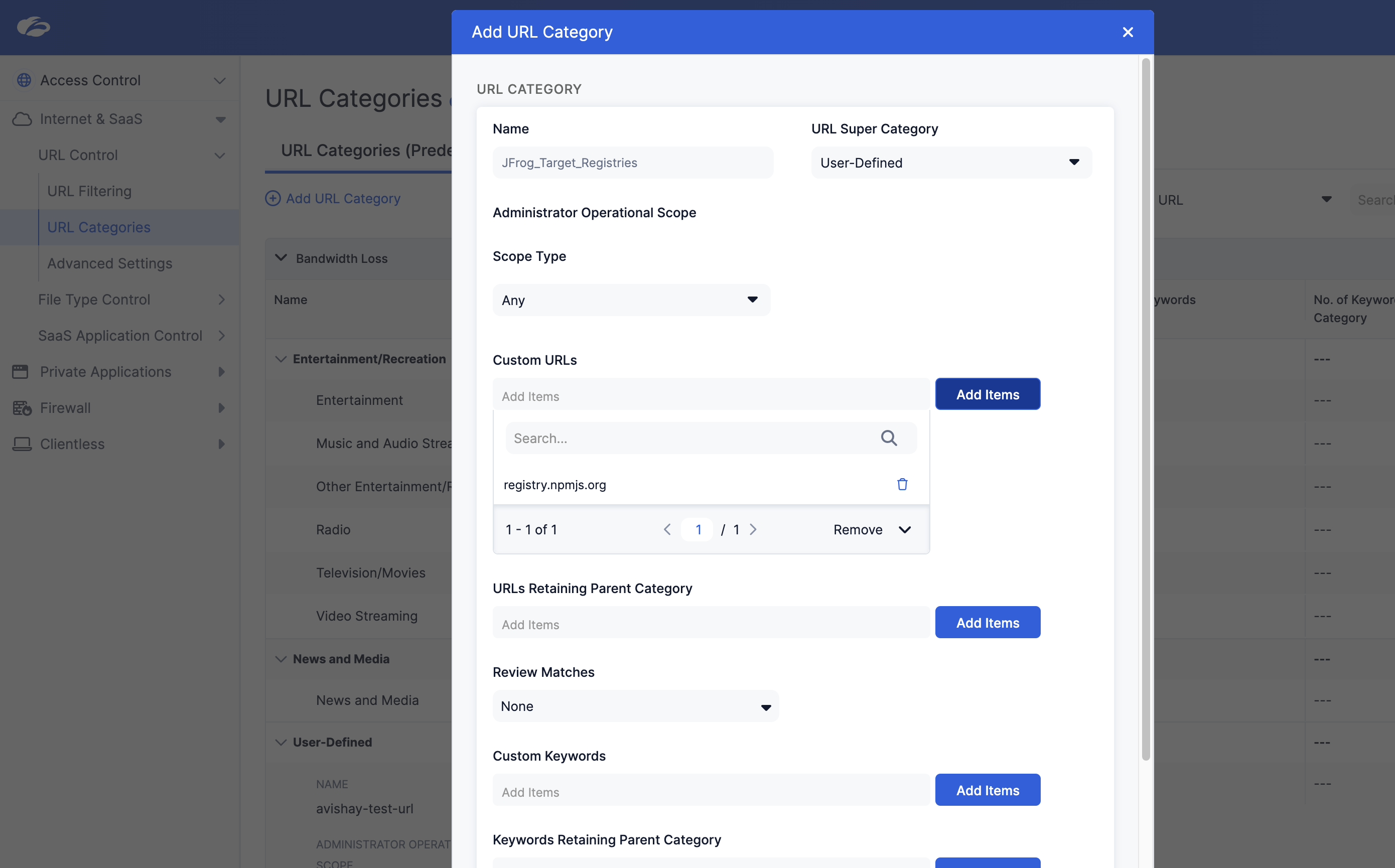
- Navigate to Policies > Internet & SaaS > URL Categories.
- Click Add URL Category.
- Name: Enter a descriptive name, for example
JFrog_Target_Registries. - URLs: Enter the domains for each ecosystem you redirect—use the Public Registry Hostnames reference and Supported Package Types (GA). Example when only npm (+ Yarn) is in scope:
registry.npmjs.organdregistry.yarnpkg.com. - Click Save.
The custom URL category is ready for SSL inspection and URL filtering rules.
Before Step 2: Verify Trust Stores for Your Package Clients
SSL inspection will apply to every hostname in your custom URL category (reference table). Before you enable it in ZIA, your organization must ensure workstations trust TLS through Zscaler for each package client and OS you actually intercept (npm, PyPI, Maven, Docker, and so on). The right variables, trust stores, and validation steps differ by product and version. This guide does not maintain that matrix.
Use the following sources of truth instead:
- Configure Workstation for PTC and the PTC repository
scripts/README.md— supported OSes, clients, environment variables, scripts, and tests - Zscaler: Adding Custom Certificate to an Application-Specific Trust Store (also linked from Prerequisites)
- Containers: Containers and Virtual Environments and Docker’s Using Docker with Zscaler when Docker registries are in scope
Have IT or platform engineering smoke-test real installs (the same commands your developers use) on representative machines before widening SSL inspection. After changing trust or environment configuration, new shell sessions pick up updates—see Deployment Sequence, step 3.
Step 2: Enable SSL Inspection for the Category
Critical Step: Zscaler must decrypt the HTTPS traffic destined for these registries to inject the HTTP Redirect header.
To enable SSL inspection for the registry URL category:
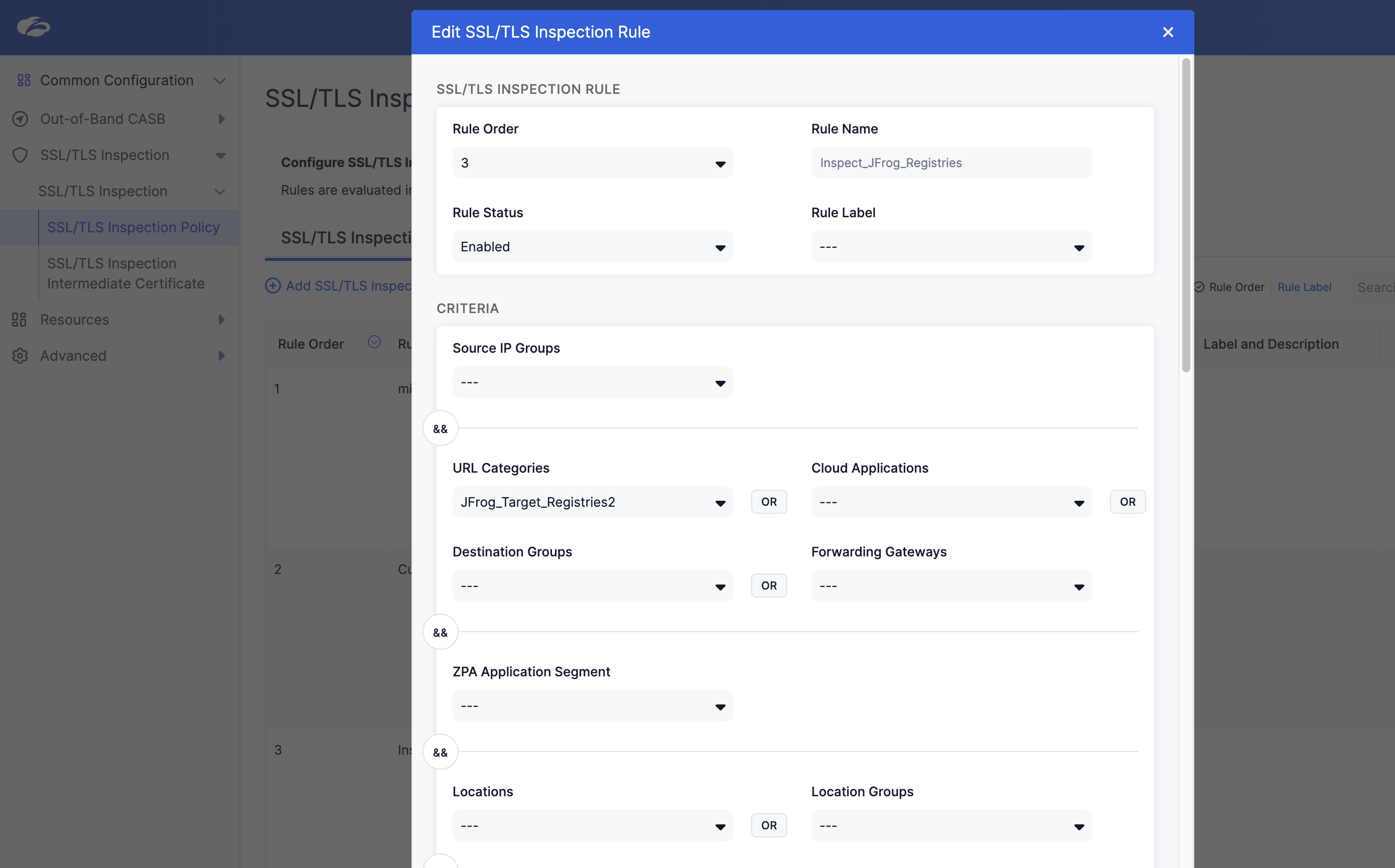
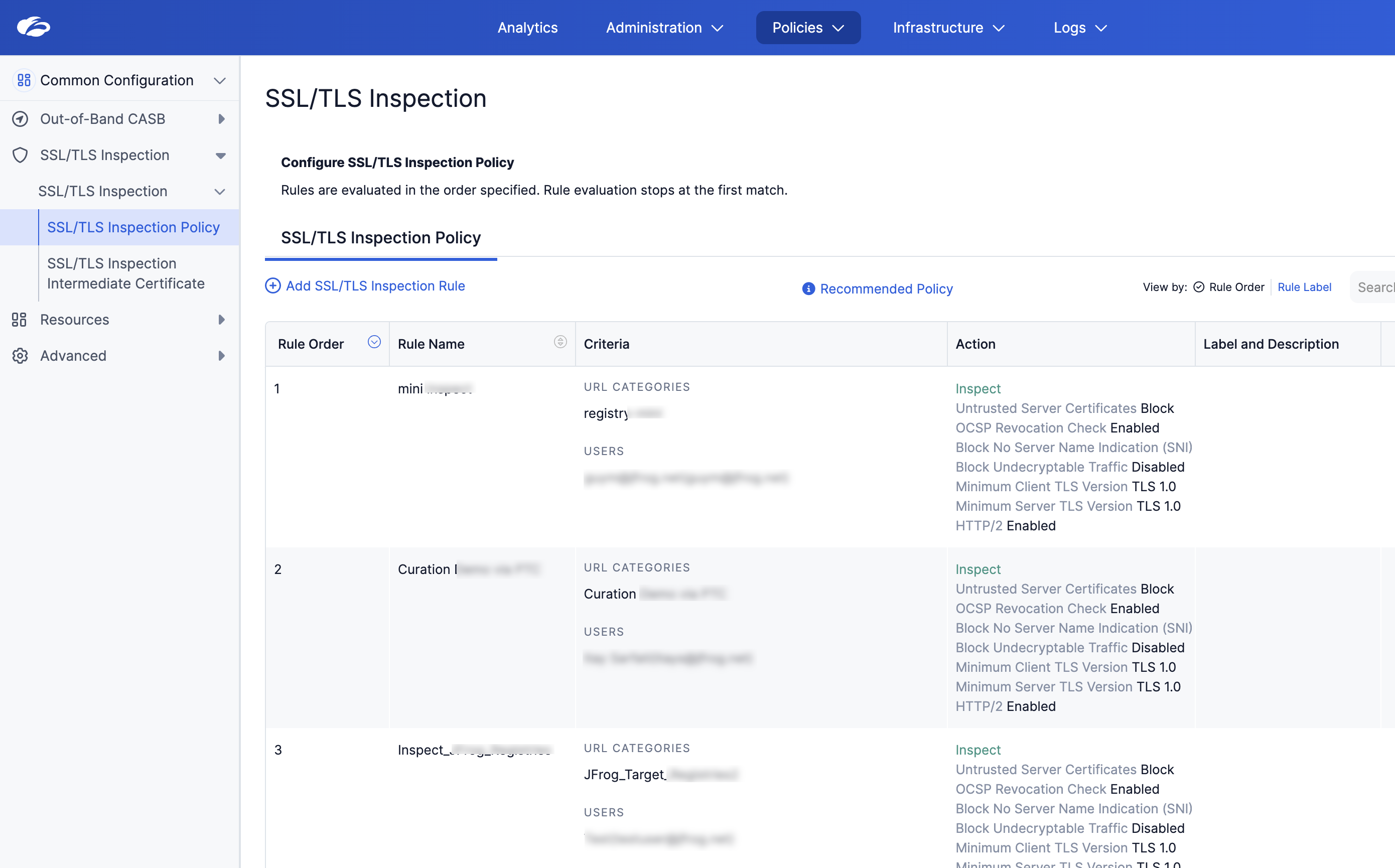
- Navigate to Policies > Common Configuration > SSL/TLS Inspection.
- Click Add SSL/TLS Inspection Rule.
- Rule Name: Enter a descriptive name, for example
Inspect_JFrog_Registries. - Rule Order: Ensure this rule is placed above any default rules that might bypass inspection.
- URL Categories: Select the category created in Step 1 (
JFrog_Target_Registries). - Action: Select Inspect.
- Click Save.
SSL inspection applies to traffic matching your PTC URL category.
Scoped Deployment (Optional): To limit SSL inspection to a specific group (e.g., R&D):
- In the same SSL Inspection rule, locate the Groups field.
- Select your target group (e.g.,
R&D).
This ensures that only traffic from the selected group is inspected for redirection.
Step 3: Configure the Block and Redirect Rule
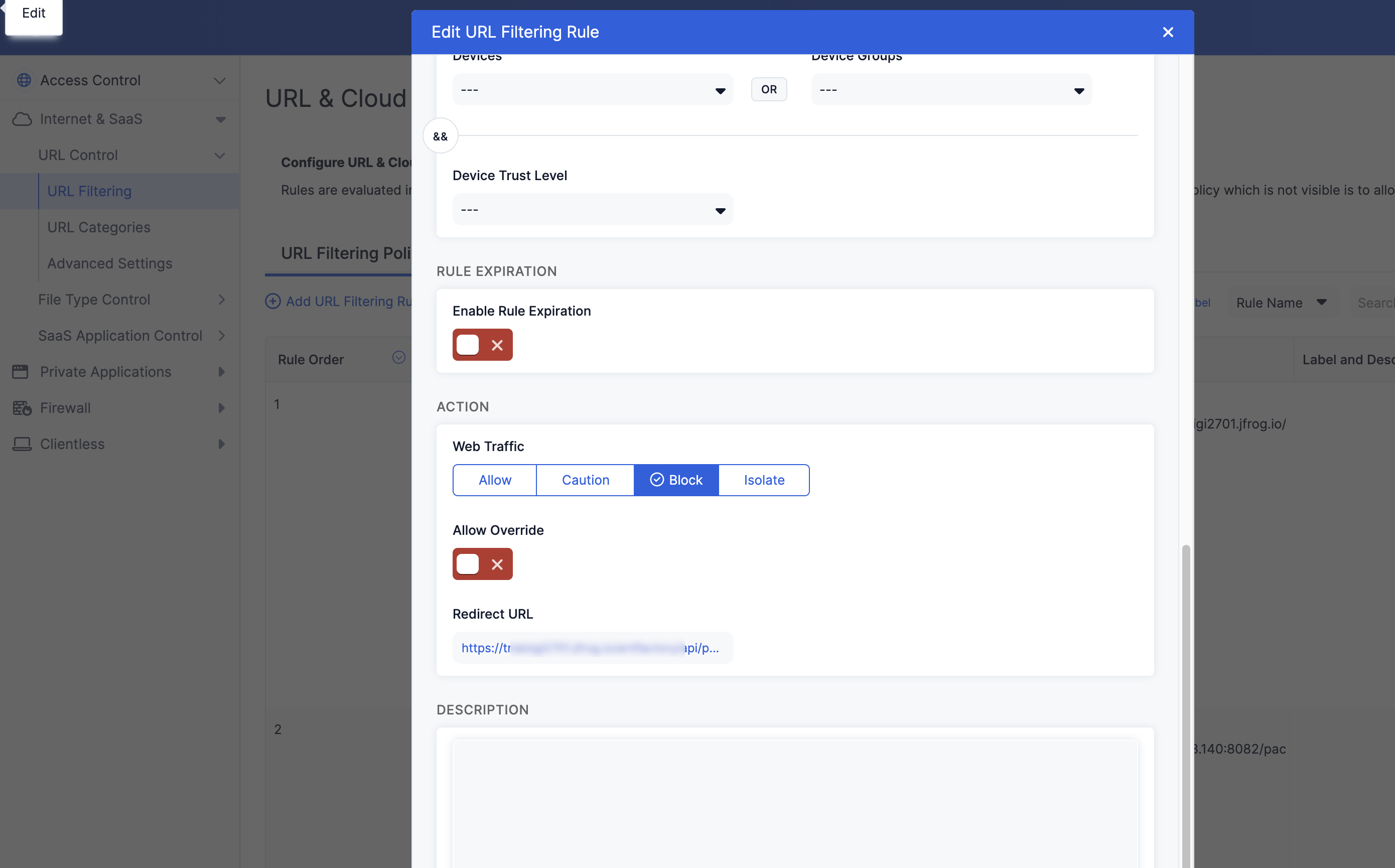
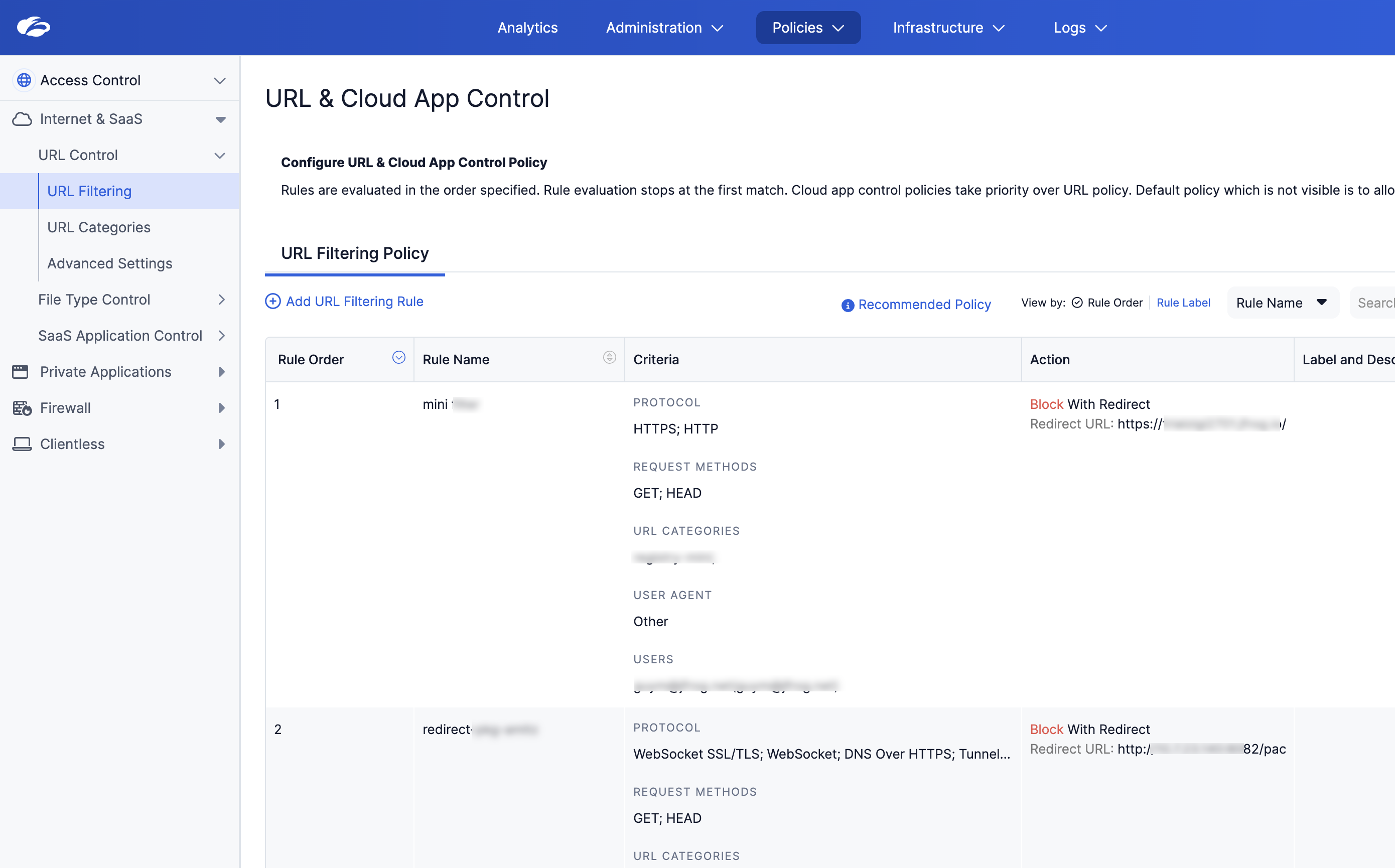
This step implements the routing logic. Zscaler "blocks" the request to the public registry but immediately provides a redirect response pointing to your Artifactory instance.
Key redirect settings:
- Protocols: Use HTTPS only for redirected registry traffic.
- Request methods: Allow GET and HEAD. Keep POST excluded for registry redirect rules. Hugging Face exception: if you redirect Hugging Face traffic, create a separate URL filtering rule for
huggingface.cowith GET only — do not include HEAD. See Docker, Hugging Face, and Other Types. - Redirect URL: Use
<YOUR_ARTIFACTORY_URL>/artifactory/api/package-reroutewith no trailing slash before query parameters.
To create the block and redirect URL filtering rule:
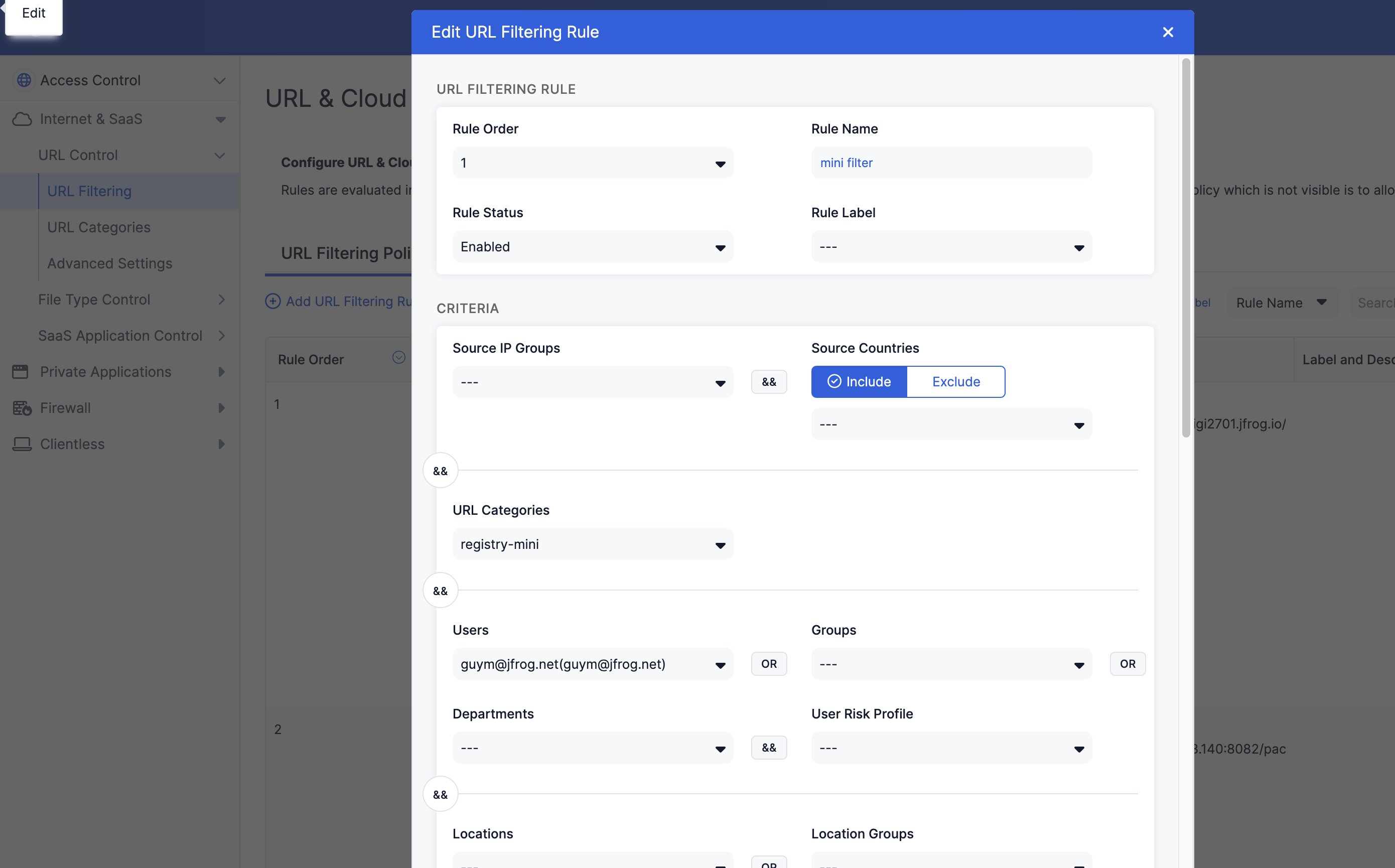
- Navigate to Policies > Internet & SaaS > URL Filtering.
- Click Add URL Filtering Rule.
- Rule Name: Enter a descriptive name, for example
Redirect_Registries_to_JFrog. - URL Categories: Select the category created in Step 1 (
JFrog_Target_Registries). - Protocols: Choose HTTPS.
- Request Methods (crucial):
- Select GET and HEAD.
- Do not select POST. Commands like
npm audituse POST and must not be redirected, or they will fail. - Set User Agent to Other.
- Action: Select Block.
- Redirect URL: Enter your Artifactory redirect endpoint. Zscaler appends the original destination URL as the
urlquery parameter (typically percent-encoded, consistent with thecurlexamples in Step 4: Verify the Redirect Endpoint).- Value:
<YOUR_ARTIFACTORY_URL>/artifactory/api/package-reroute(no trailing slash before the query string) - Example:
https://<YOUR_ARTIFACTORY_URL>/artifactory/api/package-reroute— Zscaler appends?url=<percent-encoded-upstream>(product-defined path; not configurable)
- Value:
- Click Save and Activate Change.
Registry GET traffic is redirected to your Artifactory /artifactory/api/package-reroute endpoint.
Scoped Deployment (Optional): To limit the redirect rule to a specific group:
- In the same URL Filtering rule, locate the Groups field.
- Select your target group (e.g.,
R&D).
Step 4: Save and Activate Changes
To save and activate ZIA policy changes:
- Review all rules in the correct order:
- SSL Inspection rule (Step 2) must be above default bypass rules.
- URL Filtering rule (Step 3) must be active.
- Click Activate Change if you have not already done so in Step 3.
- Allow a few minutes for the policy to propagate to all Zscaler enforcement nodes.
ZIA policies are active and ready for end-to-end verification on pilot workstations.
Traffic Flow After Configuration
After configuration, ZIA intercepts matching GET and HEAD requests and redirects them to <YOUR_ARTIFACTORY_URL>/artifactory/api/package-reroute. Artifactory then resolves the request through the configured remote repository.
For a complete flow diagram and scoped or unscoped behavior, see Package Traffic Controller (PTC) overview.
End-to-End Verification
After both Artifactory and ZIA are configured, verify the full flow with ZCC running on a developer workstation and all Zscaler rules active:
npm install express --loglevel verboseWhere:
express: A public npm package used as a smoke-test artifact
For example:
npm install lodash --loglevel verboseIn the verbose log, look for HTTP GET lines pointing at your Artifactory host (for example acme.jfrog.io and your npm-remote-registry API path) rather than registry.npmjs.org — that confirms the redirect. Then confirm the express package appears in the remote NPM repository's cached artifacts, and (if Curation is enabled for the remote) an Approved entry appears under Curation > Audit.
Rollback Process
If PTC needs to be reverted on the Zscaler side, you have two options: stop redirects only (the quick path) or do a full ZIA rollback. The JFrog Artifactory configuration does not need to be rolled back in either case.
Quick Rollback (Stop Redirects Only)
Stop redirecting by removing every registry hostname you added for PTC from the custom URL category (for example JFrog_Target_Registries) across all ecosystems you enabled, or disable the URL Filtering redirect rule that targets that category. Activate the policy change in ZIA. You typically do not need to change Artifactory for this quick path (see Note on Artifactory Configuration).
Full ZIA Rollback
To perform a full ZIA rollback:
- Navigate to Policies > Internet & SaaS > URL Filtering in ZIA.
- Find the redirect rule (for example
Redirect_Registries_to_Artifactory). - Disable or delete the rule.
- Click Activate Change.
- Navigate to Policies > Common Configuration > SSL/TLS Inspection in ZIA.
- Find the inspection rule (for example
Inspect_JFrog_Registries). - Disable or delete the rule.
- Click Activate Change.
- (Optional) Navigate to Policies > Internet & SaaS > URL Categories in ZIA, find
JFrog_Target_Registries, and delete the category (only after removing all rules that reference it).
Verify Rollback on a Workstation
# Should show the original registry CA, not Zscaler CA
openssl s_client -connect registry.npmjs.org:443 -servername registry.npmjs.org 2>/dev/null | openssl x509 -noout -issuer

# Package install should work directly against public registry (optional: --loglevel verbose to inspect GET targets)
npm install express --loglevel verbose
Note on Artifactory Configuration
The JFrog Artifactory configuration (repositories, Curation policies) does not need to be rolled back. These settings can remain in place without affecting developers once the Zscaler redirect is disabled.
Frequently Asked Questions
This section provides answers to frequently asked questions about configuring Zscaler ZIA for Package Traffic Controller (PTC).
FAQs
Q: Why must ZIA redirect rules exclude POST requests?
A: Commands such as npm audit send POST to registry hosts. Redirecting POST causes those commands to fail. Configure URL filtering for GET and HEAD only. See Step 3: Configure the Block and Redirect Rule.
Q: Which hostnames belong in the custom URL category?
A: Add every HTTPS hostname your clients use for enabled package types—for example registry.npmjs.org for npm. See Public Registry Hostnames.
Q: Must I configure Artifactory before enabling ZIA rules?
A: Yes. Artifactory repositories, Package Reroute registration, and the _package-reroute system user must be set up before SSL inspection and redirect rules intercept traffic. See Configure Artifactory for PTC.
Q: Should I bypass SSL inspection for Artifactory traffic?
A: It's optional. Inspecting Artifactory traffic itself does not affect the redirect flow. If your existing ZIA configuration could match on the Artifactory host and reroute it again, either exclude Artifactory from the redirect rule or add a no-inspection rule for the Artifactory host. See No-Inspection Rule for Artifactory Traffic (Optional).
Q: How do I restrict unauthenticated PTC repository access on JFrog Cloud?
A: Use the MyJFrog IP/CIDR allowlist to accept inbound traffic only from your SASE provider's public egress ranges. See Restrict PTC Traffic to SASE Provider Egress.
Related Topics
Updated 24 days ago