
How to Identify Affected Artifacts Using Impact Search
Use Case
This guide explains how to use Impact Search in Xray to identify artifacts that are affected by known vulnerabilities or contain specific software packages. Impact Search helps you quickly assess exposure across your software supply chain and prioritize remediation based on accurate, scan-backed data.
Before You Begin
Before using Impact Search, verify the following:
- Xray indexing is enabled for the repositories you want to search
- Artifacts have been scanned by Xray
- The SBOM Service is enabled and operational
This capability depends on the SBOM Service.
Self-Hosted users must enable the SBOM feature and complete the SBOM migration.
If SBOM is disabled, the API returns 403 – “SBOM is disabled”.
Step 1: Access Impact Search
- Navigate to Xray.
- Select Scans List from the main navigation.
- Click on Impact Search.
The Impact Search panel opens and is ready to accept search criteria.
For Self-Hosted installations, the Impact Search button in Xray > Scans List is available in Xray 3.137.16. The Impact Search REST API and SBOM migration are available in the backend starting in Xray 3.131.20.
Step 2: Search for Affected Artifacts
You can search using vulnerability or package-based criteria.
Search by Vulnerability
To find artifacts affected by a specific vulnerability:
- Enter a CVE ID or vulnerability identifier (for example,
CVE-2021-44228). - Run the search.
Xray returns all scanned artifacts affected by the specified vulnerability.
Search by Package
To find artifacts that include a specific package:
- Enter a Package Name. You can run the search with the package name only.
- (Optional) Select a Package Type to limit results to one ecosystem.
- (Optional) Specify a Package Version. Enter an exact version, or a range using
>=,>,<=, or<. - Run the search.
Search by JFrog Catalog Label
To find artifacts that contain packages with a JFrog Catalog public label:
- Enter a Label value. A label search runs on its own, so don't add other criteria.
- Run the search.
If a label isn't recognized, the search returns no results.
Use Structured Search Syntax
You can refine searches using structured key-value queries.
Example: Search by CVE
"Vulnerability": "CVE-2021-44228"Example: Search by package name only
"Package Name": "lodash"Example: Search by version range
"Package Name": "lodash" AND "Package Version" >= "4.17.0"Example: Search by Catalog Label
"Label": "Shai Hulud"Example: Combine Multiple Criteria
"Package Name": "log4j" AND "Package Type": "maven"Using multiple criteria helps narrow results and focus on relevant artifacts.
Step 3: Review Search Results
Search results display a table of affected resources, providing visibility into where vulnerabilities or risky packages exist across your environment.
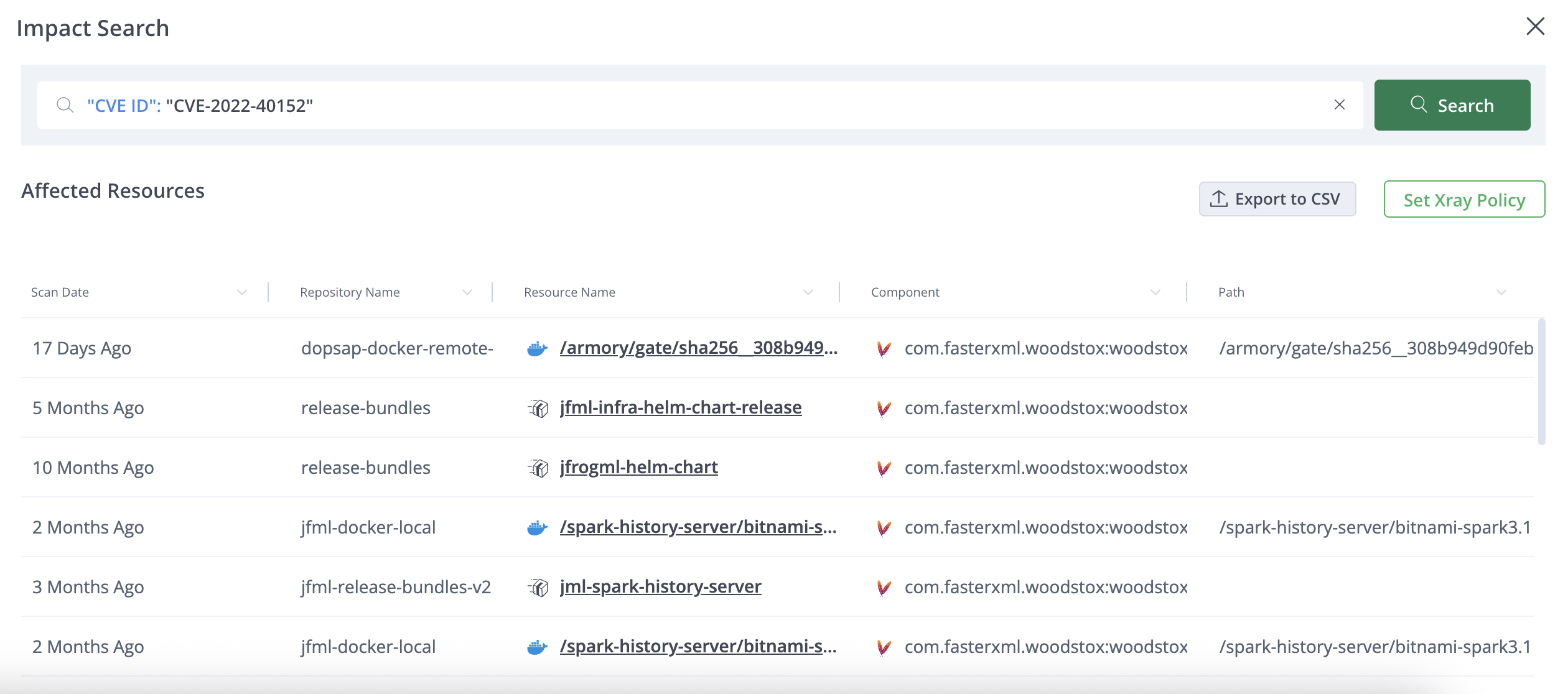
Each result includes:
- Resource name with a direct link to the scanned artifact
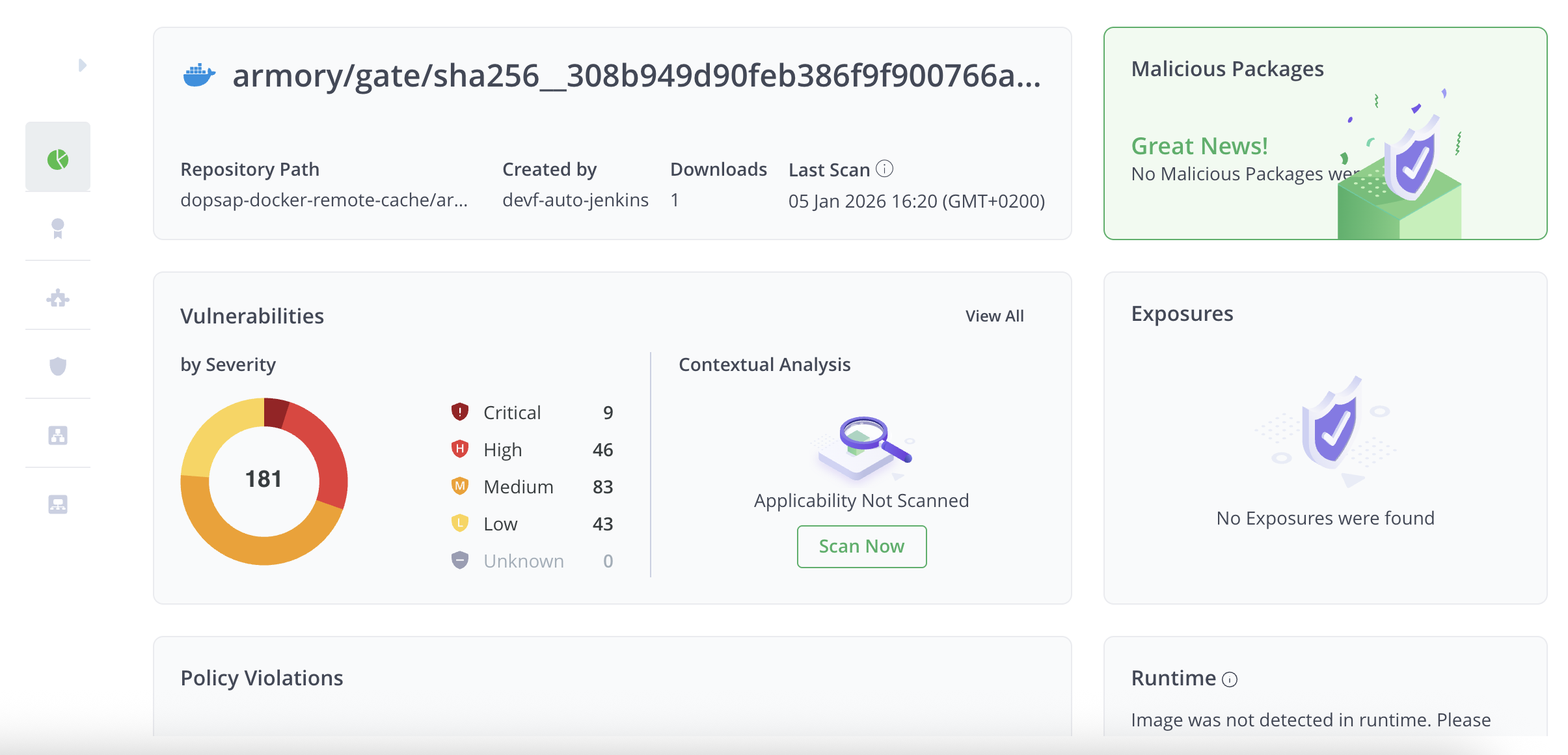
- Repository location
- Component and package details
- Artifact path
- Last Xray scan date
For vulnerability searches, each result also shows how many policy violations are active and how many are already ignored.
Use this information to understand the scope of exposure and prioritize remediation efforts.
Step 4: Take Action on Results
From the Impact Search results, you can take the following actions:
-
Ignore a violation directly from a result row, if you have permission to do so.
-
Export results to CSV to support offline analysis, reporting, or audits. For vulnerability searches, the exported file includes a Violation State column.
-
Create Xray policies based on identified vulnerabilities or packages to prevent similar issues in the future.

These actions help you move from impact analysis to remediation and prevention.
Updated 9 days ago