

Shadow AI Detection and Governance
Govern Shadow AI in the JFrog AI Catalog—detect models in repositories and allow, block, or dismiss them by project or repository.
Introduction
AI models enter most organizations through routine developer workflows, pip install, docker pull, a notebook download, without anyone reviewing what was brought in or where it ended up. Shadow AI Detection surfaces every AI model that lands inside your JFrog Platform repositories and lets a security or governance operator take action on each one.
The capability lives inside the JFrog AI Catalog and feeds off the same artifact scanning that powers JFrog Xray and JFrog Curation. Any model that lands in a repository, open-source, third-party, or a custom artifact, appears in a single inventory the moment it is detected.
Note
Shadow AI Detection is available to all organizations with an active AI Catalog subscription.
With Shadow AI Detection and Governance you can:
- Discover every AI model that has been uploaded, pulled, or otherwise materialized inside your repositories.
- Know which projects, repositories, and artifact paths each model lives in.
- See which models JFrog Xray has flagged as malicious, alongside the management state of the rest of your inventory.
- Approve models for use in specific projects, block them across selected projects and repositories, or dismiss findings that are known false positives.
- Take an org-wide action in a single step when a decision applies everywhere.
Why Shadow AI Detection Matters
Every artifact that contains an AI model, a Hugging Face snapshot in a generic repository, a model packaged inside a Docker image, a fine-tuned checkpoint in a custom format, is a potential governance, security, and compliance concern. Without an inventory, security teams cannot answer simple questions. Which projects are using which models? Are any of them flagged as malicious? Where exactly is a flagged model located?
Shadow AI Detection answers those questions by maintaining a per-organization inventory of every detected model, broken down by project, repository, and artifact path. It pairs that inventory with three governance actions, Allow, Block, and Dismiss, that operators apply at the level appropriate to their decision.
How Shadow AI Detection Works
Shadow AI Detection uses JFrog Xray to scan repositories and detect AI model artifacts. Detected models appear on the Shadow AI detection list, where you can review their governance status and take action.
If no models appear on the detection list, verify that the correct repositories are indexed and scanned by Xray.
Note
For administrators only — use the following procedure to verify or select repositories to scan.
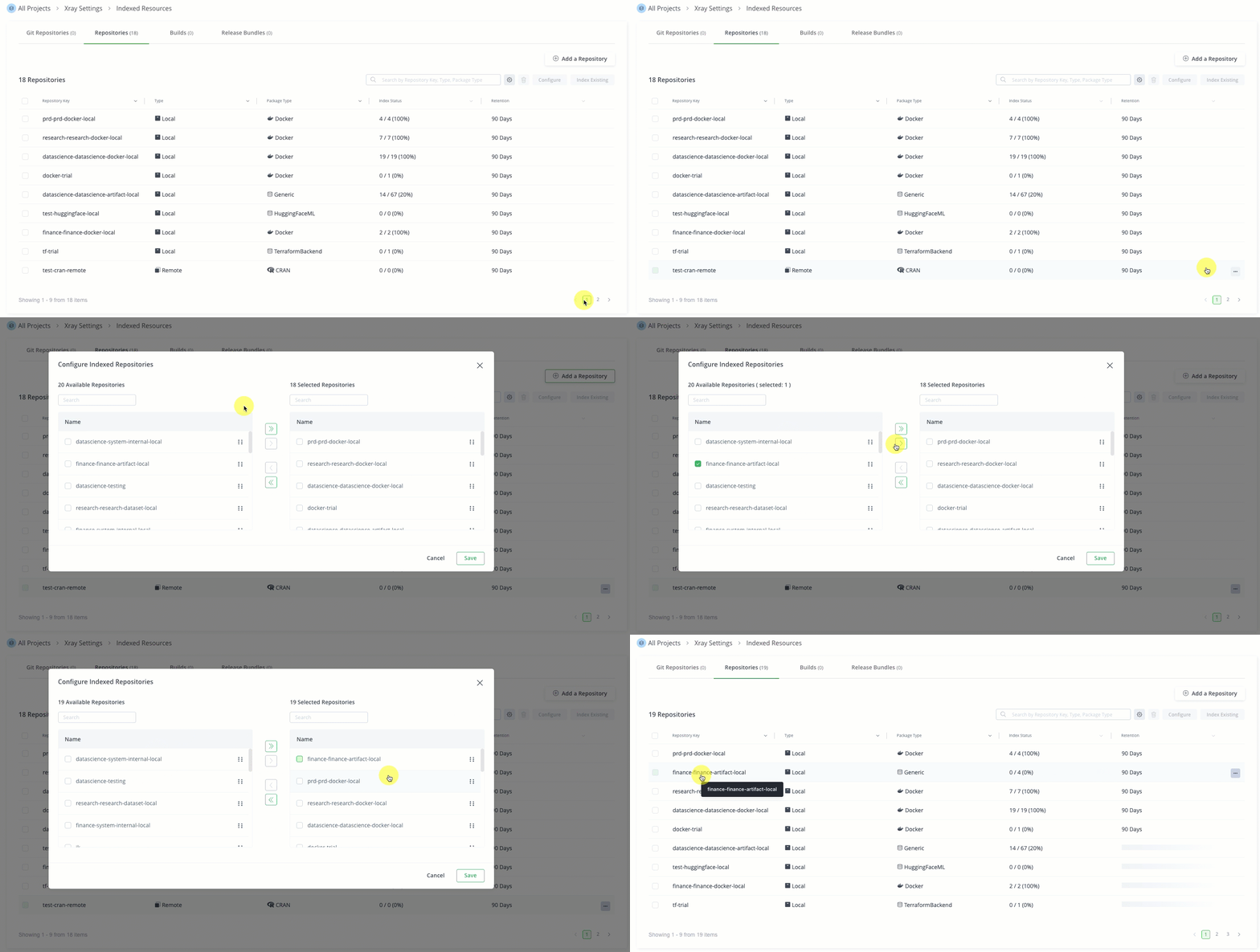
To verify or select repositories for Xray scanning:
- In the Administration module, navigate to Xray Settings > Indexed Resources.
- Browse the list of repositories. If the repositories you want scanned are not selected, select Add a Repository.
- Select the repositories you want Xray to scan and select the arrow button to move them into the Selected Repositories list.
- Select Save.
Currently, Shadow AI detection supports model packages only.
How Shadow AI Is Organized
The capability is structured around two screens connected by a single navigation. A list of all detected models, and a detail view for each individual model.
The Detection List
Select AI/ML > AI Catalog > Shadow AI to display the detection list. The page is composed of:
- A table of Detected AI Artifacts, with one row per unique AI asset. Each row carries the artifact name, its status ((managed/unmanaged), artifact type, the provider, the model's current management status, and the number of artifacts in which the model has been observed. Malicious models are marked inline.
- **Filtering options:** At the top, options to filter the list of detected ai artifacts. Filter by artifact name, Status, Type, or Provider.
From the Detected Models table, select a row to open the model's detail view.
The Model Details View
The model details view is a dedicated page for one model. It presents the model's identity and metadata, with two tabs that provide a detailed description of the model and how to use it, and where the model has been detected. and what can be done about it. In the Found at tab, there are 3 list views:
- Projects lists every JFrog project in which the model has been detected.
- Repositories lists every repository in which the model has been detected, grouped by the parent project.
- Artifacts lists every individual artifact occurrence — the specific paths, uploaders, and timestamps.
The details view header also enables two model-wide actions:
- Block everywhere blocks the model across every project and repository where it has been observed.
- Dismiss everywhere removes the model from the active findings list across the entire organization.
Governance Actions: Allow (Approve), Block, Dismiss
Three governance actions are available in Shadow AI. Each acts on a specific scope and signals a different intent.

Approve
Approve marks the model as allowed for use within a specific project. Once approved, the model is added to that project's allowed list and can be referenced by developers and pipelines scoped to the project.
Approve is a project-level action only. There is no per-repository or org-wide Approve. Allowing a model is always a deliberate decision made at the project boundary.
Note
Approve is unavailable for any model that JFrog Xray has flagged as malicious. To approve a model in that state, the model's malicious classification must change upstream.
Once a model is allowed for a project, it is added to the AI Catalog and becomes Managed for that project. The model appears on the Registry page. When every occurrence of the model has been allowed, its overall status updates to Managed. If a model still has unmanaged instances, its status is Pending.
Approve a Detected Model
Approving a model brings an unmanaged or partially managed model (status: Pending review) under governance in the AI Catalog for the selected project(s).
To allow (approve) a detected model at project scope:
- Navigate to AI/ML > AI Catalog > Shadow AI.
- Select the model row to open the model detail view.
- Open the Projects tab.
- In the Actions column for the project row, select Approve.
Block
Block prevents the model from being downloaded or used going forward. JFrog Curation enforces the block on subsequent pulls. In-flight requests are not interrupted.
Block is available at three scopes:
- Per-project. Block the model only in the selected project. Other projects remain unaffected.
- Per-repository. Block the model only in the selected repository, even if that repository sits under a project that has not been blocked.
- Everywhere. Assemble the full list of projects and unaffiliated repositories where the model has been observed, and block in all of them in a single bulk action. Use this when the decision is org-wide.
Block can succeed for some resources and fail for others. When a block partially fails, the detail view shows an inline alert that explains why each failure occurred, for example, you do not hold the right permission on a particular project, the target repository is not scanned by JFrog Xray, or the project shares its repositories with another selected project and the request would create a conflicting state. The blocks that succeeded remain in effect. Only the failed entries need to be retried.
Block a Model at Project Scope
To block a model at project scope:
- Navigate to AI/ML > AI Catalog > Shadow AI.
- Select the model row to open the model detail view.
- Open the Projects tab.
- In the Actions column for the project row, select Block.
Block a Model at Repository Scope
To block a model at repository scope:
- Navigate to AI/ML > AI Catalog > Shadow AI.
- Select the model row to open the model detail view.
- Open the Repositories tab.
- In the Actions column for the repository row, select Block.
Block a Model Everywhere
To block a model everywhere:
- Navigate to AI/ML > AI Catalog > Shadow AI.
- Select the model row to open the model detail view.
- In the detail view header, select Block everywhere.
Models cannot be unblocked via the AI Catalog. To unblock, refer to Curation and Xray instructions.
Dismiss
Dismiss sets aside a model, or a specific occurrence of a model, without approving or blocking it. The model leaves the active findings list, but the underlying record is preserved. If the same model is detected again in a future scan, it returns to the active findings.
Dismiss is available at three scopes:
-
Per-project. Dismiss the model only in the selected project.
To dismiss at project scope: See details...
- Navigate to AI/ML > AI Catalog > Shadow AI.
- Select the model row to open the model detail view.
- Open the Projects tab.
- In the Actions column for the project row, select Dismiss.
-
Per-repository. Dismiss the model only in the selected repository.
To dismiss at repository scope: See details...
- Navigate to AI/ML > AI Catalog > Shadow AI.
- Select the model row to open the model detail view.
- Select the Found at.
- Select Repositories.
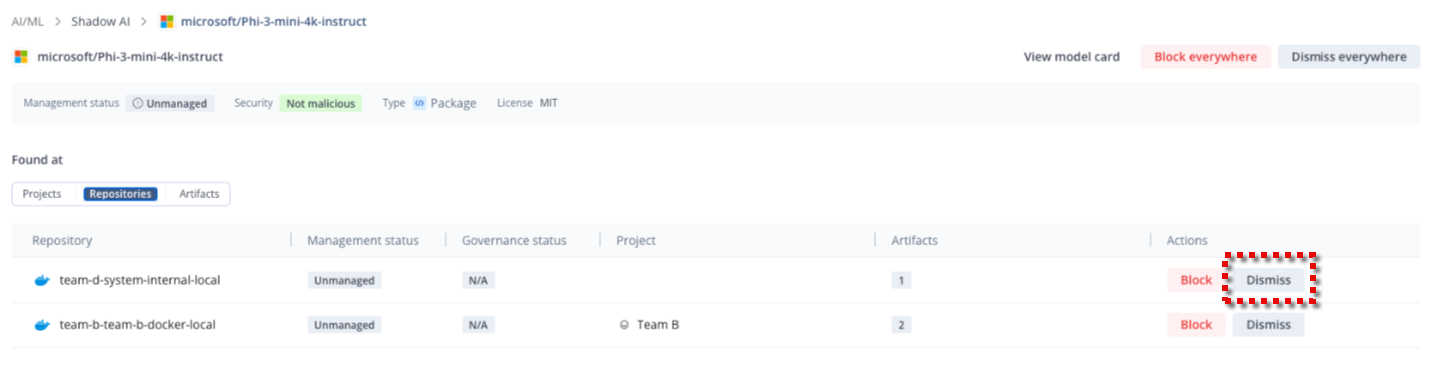
- In the Actions column for the project row, select Dismiss.
-
Everywhere. Dismiss the model across the entire organization.
To dismiss everywhere See details...
1. Navigate to AI/ML > AI Catalog > Shadow AI.
2. Select the model row to open the model detail view.
3. In the detail view header, select Dismiss everywhere

Dismiss is the right action when a finding is a known false positive, when the model has already been reviewed offline, or when you want to defer the decision without committing to Allow or Block.
Tip
Dismissed models are not deleted. They are preserved server-side and can resurface in future scans, so a dismissed model is never a permanent decision.
Which Actions Are Available, and Where
Different actions are exposed depending on where you are in the detail view and what state the project or repository is already in.
Actions in the Projects Tab
Available actions in the Projects tab depend on the current governance state of the model in the selected project.
| Model in Project's current state | Available actions |
|---|---|
| Allowed | Block |
| Blocked | None |
| Dismissed | Approve, Block |
| Mixed or untouched | Approve, Block, Dismiss |
Each row in the Projects tab also includes clickable counts for Repositories and Artifacts. Selecting one switches to the corresponding tab with a filter chip applied for that project.
Actions in the Repositories Tab
Available actions in the Repositories tab depend on the current governance state of the model in the selected repository.
| Model in Repository's current state | Available actions |
|---|---|
| Allowed | Block |
| Blocked | None |
| Dismissed | Block |
| Mixed or untouched | Block, Dismiss. |
Approve does not appear at repository scope. Approving a model is a project-level decision.
The Repositories tab supports filtering by project. Selecting the Artifacts count on a repository row jumps to the Artifacts tab with a filter chip applied for that repository.
The Artifacts Tab
The Artifacts tab is read-only with respect to governance. Each row carries the artifact path, uploader, timestamp, repository, and project. Allow, Block, and Dismiss are applied to the model at the project or repository level, not on individual artifact rows.
Each artifact row includes links you can use to investigate the occurrence further:
- Xray scan opens the artifact's security scan in JFrog Xray when you need vulnerability or policy context.
- Artifactory opens the artifact in Artifactory when you need to inspect the actual artifact.
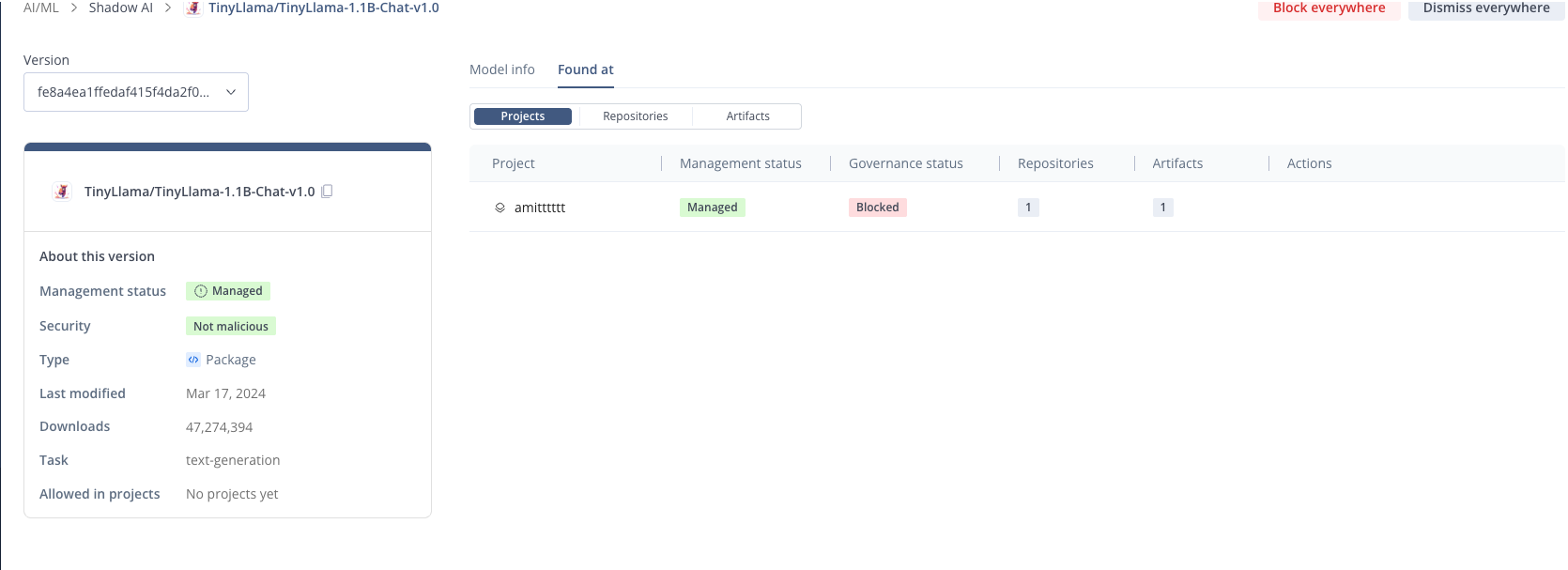
The Artifacts tab supports two filter chips, by project, by repository. Selecting an artifact count from the Projects or Repositories tab applies the appropriate chip automatically.
Filtering Across Tabs
Cross-tab navigation is the primary way you move from a broad view of where a model lives to a narrow, actionable view.
- Selecting the Artifacts count on a project row opens the Artifacts page filtered to that project.
- Selecting the Repositories count on a project row opens the Repositories page filtered to that project.
- Selecting the Artifacts count on a repository row opens the Artifacts page filtered to that repository.
Filter chips appear at the top of the Artifacts and Repositories tabs and can be cleared individually. Each filter combination is reflected in the URL, so any filtered view can be deep-linked or shared.
Detected Model Status
Each detected model carries three independent signals. You see all three because they answer different questions.
Management Status
A rollup that describes how much of a model's footprint has been acted upon.
- Pending review. Either no operator action has been taken on any occurrence of the model, or the model has been allowed or blocked in some projects or repositories, but not all.
- Managed. Every occurrence of the model has been resolved by an operator action.
Maliciousness
A signal from JFrog Xray's threat intelligence. A model is either Malicious, Not malicious, or pending classification. The signal is immutable from inside Shadow AI. It changes only when JFrog Xray reclassifies the model.
Per-Occurrence Governance Status
The state of an individual project or repository entry: Allowed, Blocked, Dismissed, or untouched. This status is what the action matrices in the Projects and Repositories tabs key off.
How Shadow AI Integrates with JFrog Security
Shadow AI detection integrates tightly with JFrog's security components:
- Scanning and Detection:
- JFrog Xray: Provides detection data, model-to-artifact mapping, and malicious flags.
- JFrog Advanced Security (JAS): Identifies external API calls through source-code analysis.
- Block Policies:
- For local repositories: Blocking applies Xray's Download Block policy.
- For remote repositories: Create a Curation by label policy that blocks the model from the cache in remote repositories.
Both these policies block future downloads of the blocked model for that repository. JFrog Curation also enforces blocks on subsequent pulls when you use the Shadow AI Block action.
Common Use Cases
The pattern of "browse, drill in, act" is the same across operator scenarios. The entry point differs.
- An auditor reviewing all malicious models in the organization opens the Shadow AI list, selects the Malicious AI artifacts widget, drills into each model, and uses Block everywhere on the ones that need to be removed across the platform in one action.
- A platform owner pruning a single project opens the Shadow AI list, opens the project's model footprint by navigating through the model detail view, and acts on each project row in the Projects tab.
- A security responder triaging a single repository reaches the model detail view, switches to the Repositories tab, filters to the affected repository, and applies Block at the row level.
- A reviewer setting aside known false positives reaches the model detail view and uses Dismiss at the appropriate scope. The dismissed records remain available if the same model returns on a future scan.
Frequently Asked Questions
Shadow AI Detection helps security and platform teams inventory AI models in JFrog repositories and govern them with scoped Allow, Block, and Dismiss actions.
FAQs
Q: What is Shadow AI Detection?
A: Shadow AI Detection is a capability in the JFrog AI Catalog that lists AI models found in your repositories and lets operators allow, block, or dismiss each model by project or repository. Detection uses JFrog Xray scanning; blocks are enforced through JFrog Curation.
Q: Why do I not see any models on the Shadow AI list?
A: Models appear only after Xray scans indexed repositories. An administrator can add repositories under Administration > Xray Settings > Indexed Resources. See How Shadow AI Detection Works.
Q: Can I approve a model that Xray flagged as malicious?
A: No. Approve is unavailable while a model is classified as malicious. The classification must change in Xray before you can approve the model for a project.
Q: What is the difference between Block and Dismiss?
A: Block prevents future download or use through Curation on subsequent pulls. Dismiss removes the finding from the active list without approving or blocking; the record is kept and the model can reappear on a later scan.
Q: Where do approved models appear for developers?
A: Approved models are added to the AI Catalog and appear on the Registry page for that project.
Related Topics
Updated about 1 month ago