

Connect AI Providers
A Connection stores the credentials required to access an external API model provider, and can be established with providers such as OpenAI.
In the Connections page, you can view a list of all the connections defined in your system.
Note:
The Connections page is only available to platform admins.
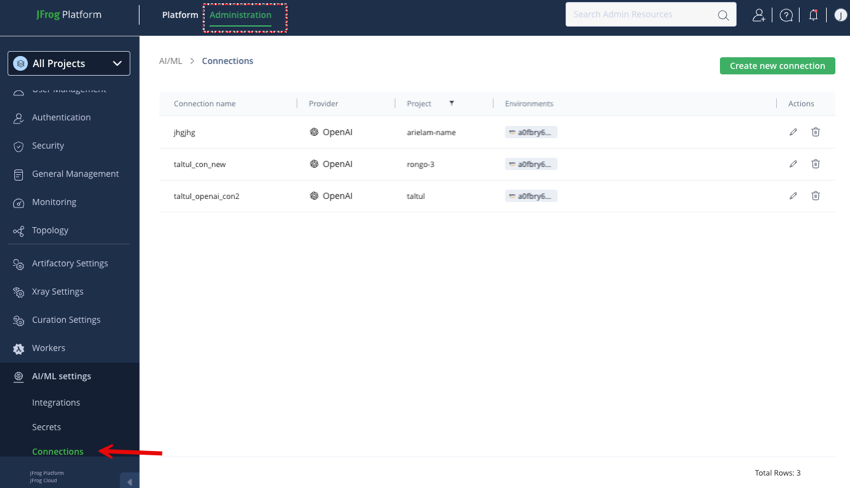
To view the Connections page:
- In the JFrog platform, select the Administration module.
- Scroll down to the bottom of the left menu bar and select AI/ML Settings > Connections.
In the Connections page, you can:
- Sort ascending/descending by Secret name, Environment, or time of creation
- Filter by Connection name, Provider, Project or Environment
- Edit a connection (change the associated secret)
- Pin any of the columns to the left/right
- Group by project
- Show/hide columns
Create a New Model Provider Connection
Each model provider-project pair requires a unique connection.
When you select a project for allowing a model, and you do not have any models from the same provider already allowed for that project, you must create a new connection.
To create a new connection:
EITHER:
-
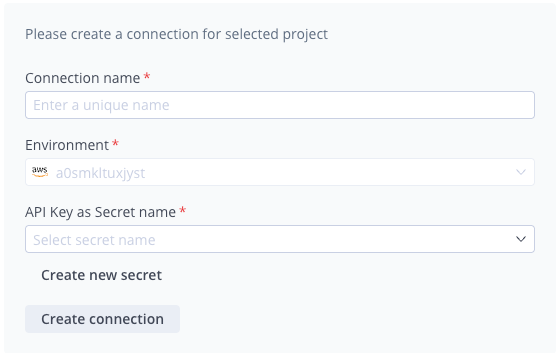
In the Allow Model Usage pane, enter a unique Connection name.
-
Select a secret from the API Key as Secret Name dropdown list or Create a New Secret.
-
Click Create connection. The "Connection created successfully" notification is displayed.
OR:
-
In the Administration module menu bar, select AI/ML Settings > Connections.
-
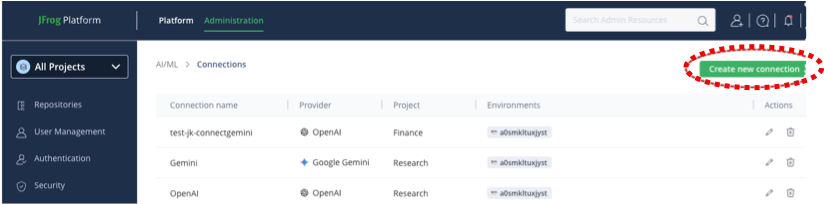
Click Create new connection.
-
Enter a unique Connection name, the project and the model provider for the connection.
The connection name can only contain alphanumeric characters, hyphens and underscore.
-
Select a secret for the connection from the API Key as Secret Name dropdown list or Create a New Secret.
-
Click Save.
How to Get API Keys for External Providers
API keys serve as unique identifiers used to authenticate requests from external applications or users to the service provider's API. To enhance your JFrog ML workflows with integrated trading and AI models, acquiring API keys from external providers, such as Gemini and OpenAI, is essential. These keys enable secure and efficient access to powerful functionalities, ensuring smooth operations and automation.
You can integrate several accounts from OpenAI, AWS, and Anthropic, each with your own unique API keys or authentication tokens. Each of these provider accounts can manage multiple models offered by the respective providers.
Create a New Secret
This procedure outlines the steps to create a new secret, which is used to securely store sensitive credentials such as API keys and access tokens. These secrets enable the JFrog platform to authenticate and establish secure connections with external model providers.
To create a new secret:
-
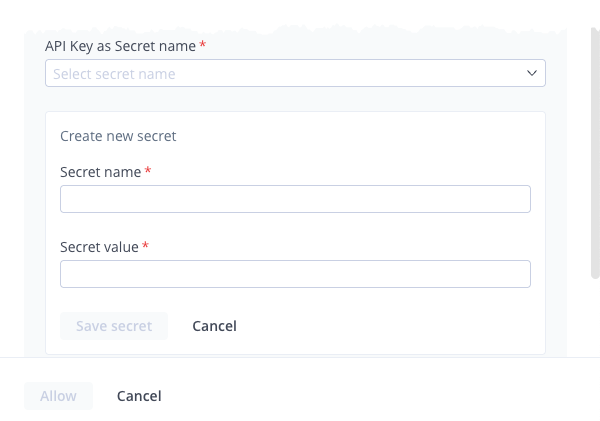
In the Allow Model Usage pane, click Create new secret.
-
Enter a Secret name and the Secret value.
Note:
For important information about choosing a name for your secret, see Secret Management.
-
Click Save secret. The secret is now displayed in the API Key as Secret name box.
Updated about 1 month ago