

Get Started
Follow these steps to start managing your AI models.
Once you have set up your JFrog ML account and your AI catalog entitlement, all you need to do to start allowing models is follow these simple steps:
Workflow for Using the AI Catalog to Manage Models

Access the AI Catalog
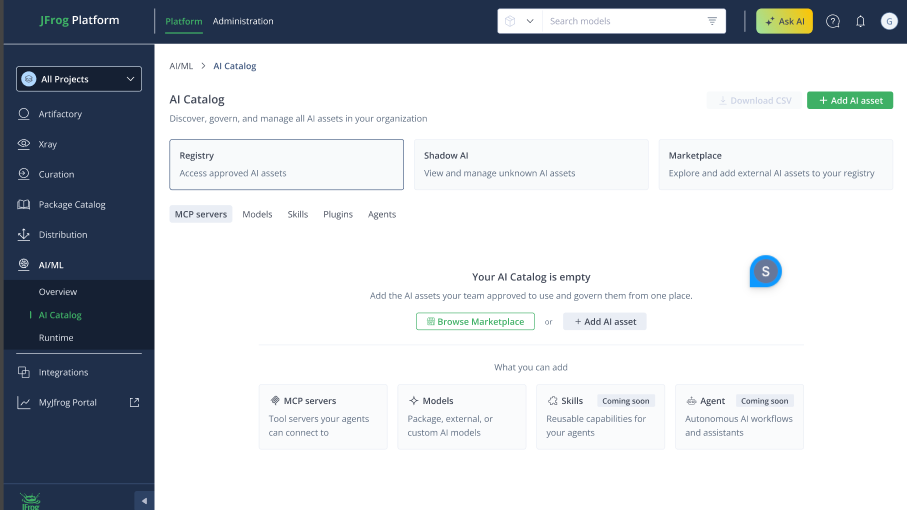
From the JFrog Platform menu, select AI/ML. The Registry page opens by default.
The AI Catalog has three main windows:
- Registry: The default view, this lists the models approved for use in your organization. If you are a new user, this page is empty until models are approved.
- Marketplace: Explore all available models provided by approved (supported) providers that you can review and approve for use.
- Shadow AI: View and manage all package type models (AI assets) found in your organization’s artifacts as scanned by JFrog Xray.
To explore all available models (or MCP servers), switch to the Marketplace page. This page displays the full list of models and MCP servers that can be reviewed and allowed for use within your organization.
Note
- While all users can consume allowed models, only Admin level users have the permission to decide which models are allowed for use within your organization.
- By default, on first use, no models have been allowed.
Learn more about AI Catalog for DevSecOps at JFrog Academy!
Finding Your First Model
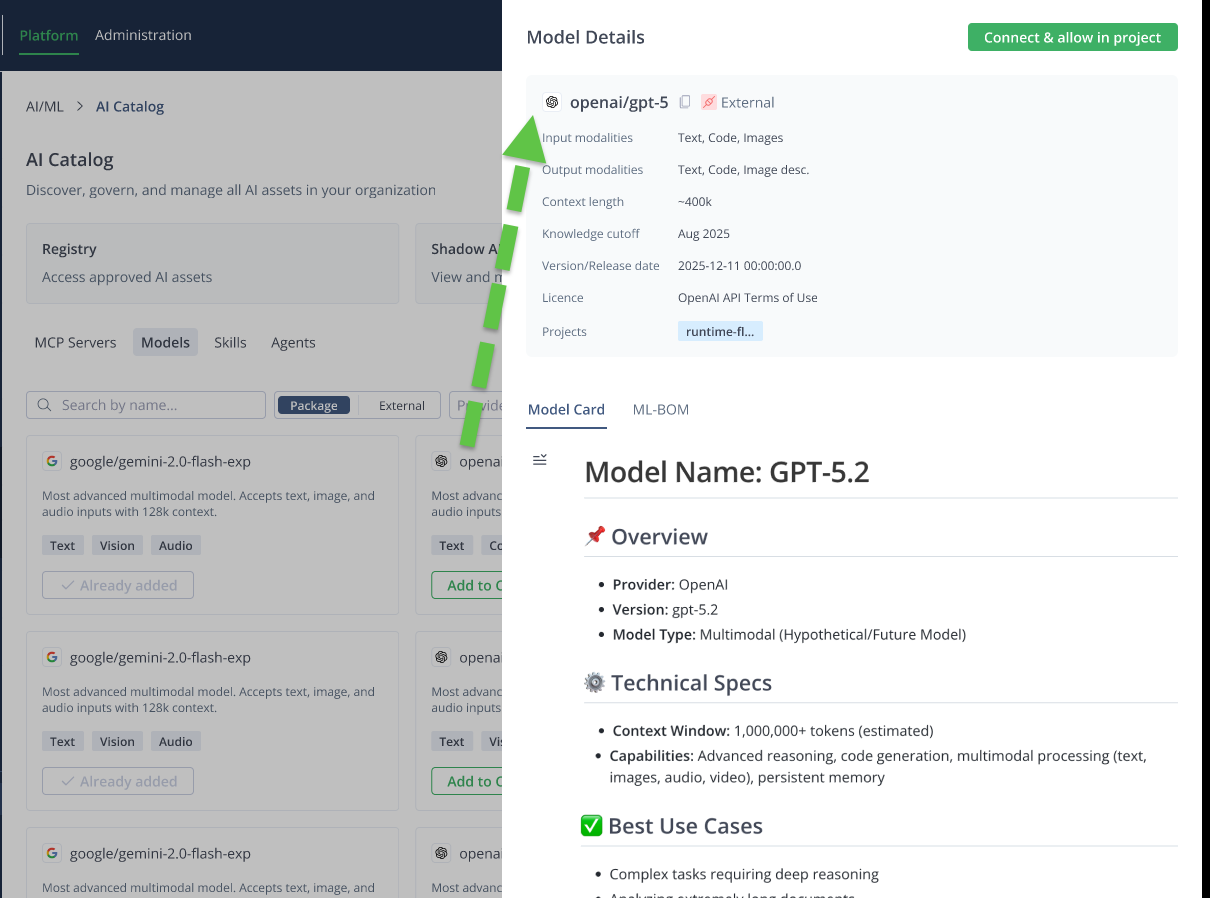
Since the Registry page is empty on first use, your first action is to switch to the Marketplace page. Browse the comprehensive catalog of external APIs, model packages, and your own custom models to discover the best fits for your project requirements.
Use the Search and Filter AI Models functionality to quickly pinpoint the most suitable models.
The JFrog platform automatically scans each model for vulnerabilities, and offers transparent license information to help you avoid compliance issues.
Note
- Even if your AI Catalog is empty, that does not mean your organization is not using any models. It may be using unmanaged models. Using the Shadow AI detection feature, which uses Xray to scan your JFrog artifacts, you can detect which models are already being used, and manage them in the AI Catalog.
- Before allowing any models you must set up your Curation settings.
Allow Models
Next, governance becomes straightforward and effective. Admin users can easily allow models (from the Marketplace page) for secure use within your organization. Models can be approved on a per-project basis, with a comprehensive list of allowed models available on the Registry page.
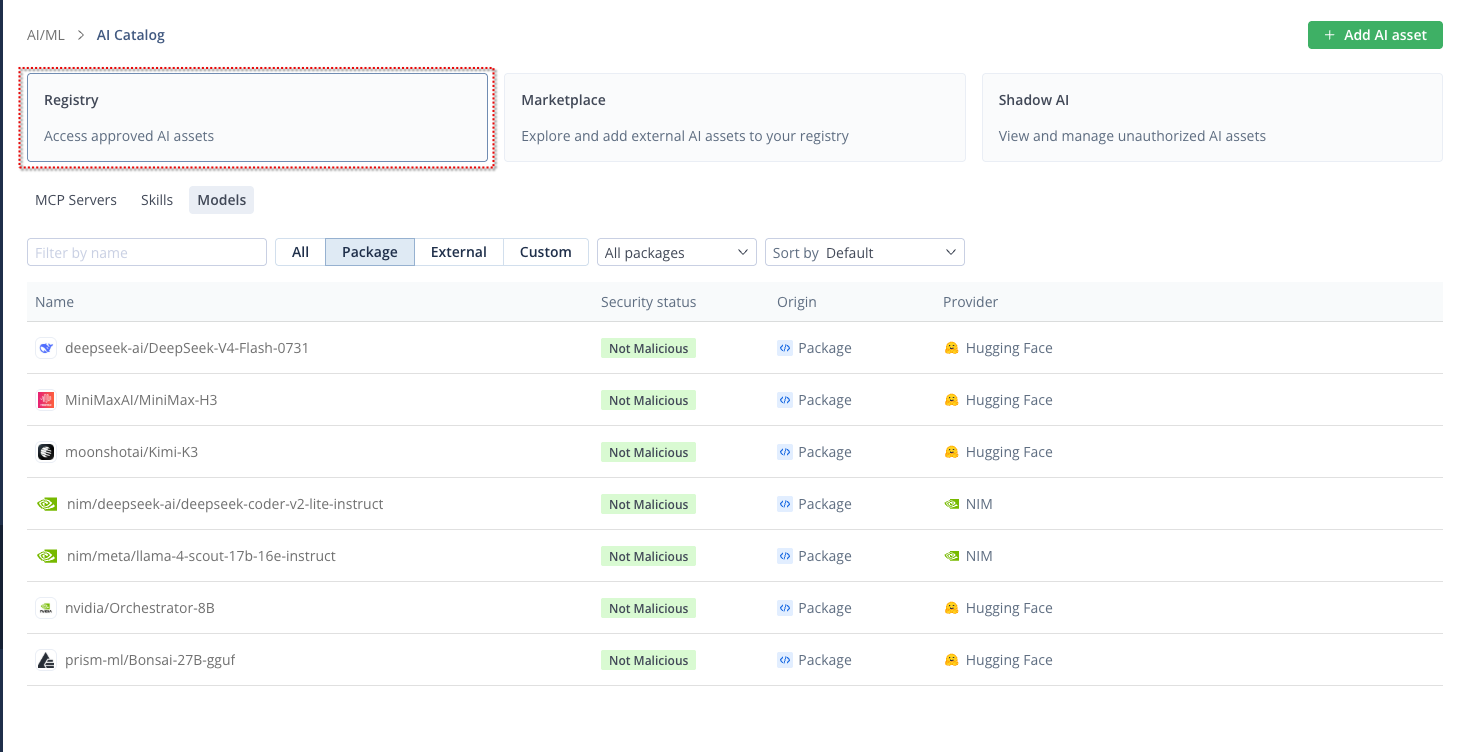
You can create an allow-list of models, ensuring that if a model is not on the list, it cannot be used, thereby preventing unvetted models from entering your supply chain.
Using an Allowed Model
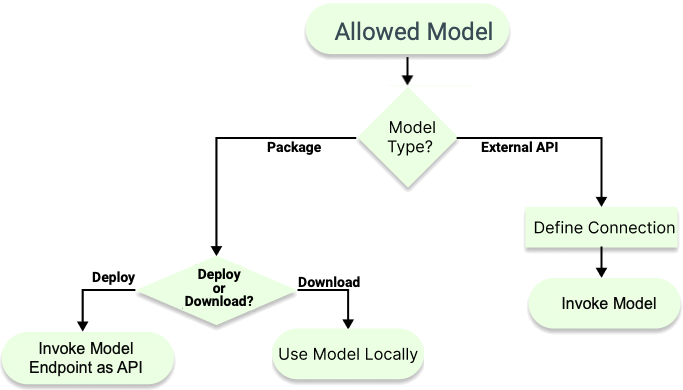
Once a model has been successfully allowed in a project, it moves into the Registry page and is ready for use. The steps for model consumption vary depending on the model type (Package or External API).
See: Allow Your First Model | Discover and Allow Models | Get Started with JFrog ML
Set Up Curation Settings for Model Packages
This procedure outlines the prerequisite steps to enable the use of model packages on your platform. Specifically, it involves configuring the curation settings in the administration module.
To set up curation settings for model packages:
-
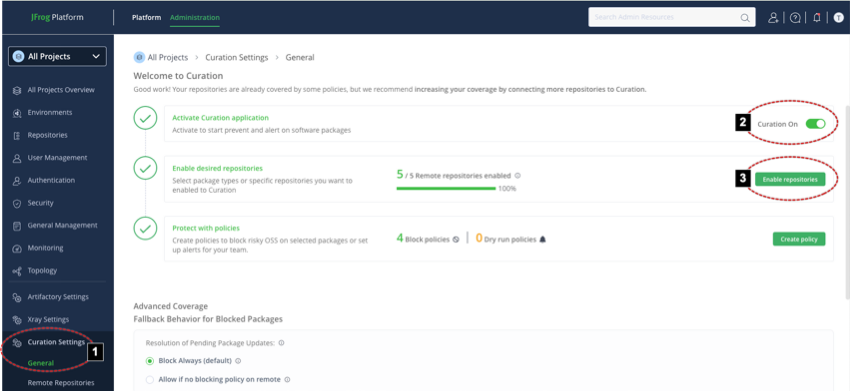
Navigate to the curation settings: Select Administration > Curation Settings > General.
-
Toggle the Curation On switch to ON.
-
Click Enable repositories to navigate to the Remote Repositories page.
-
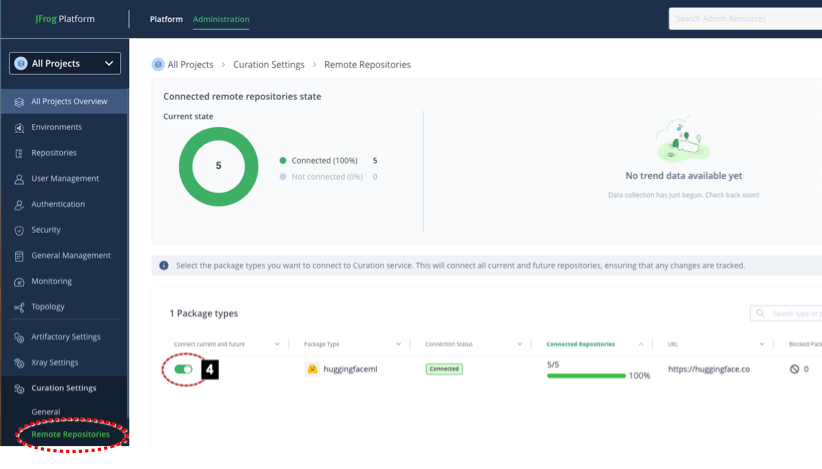
Verify the PackageType. Ensure that HuggingFaceML is toggled ON.
-
Click the package type row to view the package type's repositories.
-
Make sure all the repositories in the package type are also enabled. If any are not enabled, a notification is shown at the top, for example, "Connect package type status: Partially Connected".
The prerequisite Curation Settings setup is now complete. If required, you can now return to your model page in the AI Catalog, and continue to enable use of your open source model.
Important
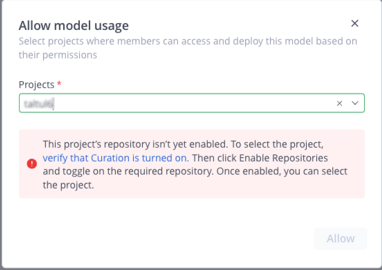
Failure to activate these curation settings may result in the following error when attempting to add a model package. To resolve this error, ensure both settings are activated as described.
Updated about 1 month ago