

Get Started with the MCP Registry
Connect governed MCP servers to your coding agent using the JFrog MCP Registry.
This guide covers the full lifecycle of an MCP server in the JFrog MCP Registry, from discovering and approving servers as an admin to connecting them to your coding agent as a developer.
Prerequisites
- Access to the JFrog Platform with JFrog AI Catalog enabled.
- A project with the appropriate admin or developer role.
- Cursor, Claude Code, or VS Code installed.
Workflow Summary
1. Discover and Allow MCP Servers
An admin approves MCP servers for a project and defines tool policies.
2. Install the JFrog Plugin
Install the JFrog plugin for the coding assistant to connect to the MCP Registry.
3. Verify and Use
Confirm the connection and start using approved MCP servers in your agent.
1. Discover and Allow MCP Servers
Required role: Project Admin with Allow in Project permission.
The JFrog MCP Registry enforces a zero-trust model. All official Model Context Protocol (MCP) integrations and connectors are sourced directly from the official MCP public registry.
All MCP servers are blocked by default. Before developers can use an MCP server, an admin must explicitly allow it for one or more projects and define which tools it can expose.
To allow an MCP server for a project:
-
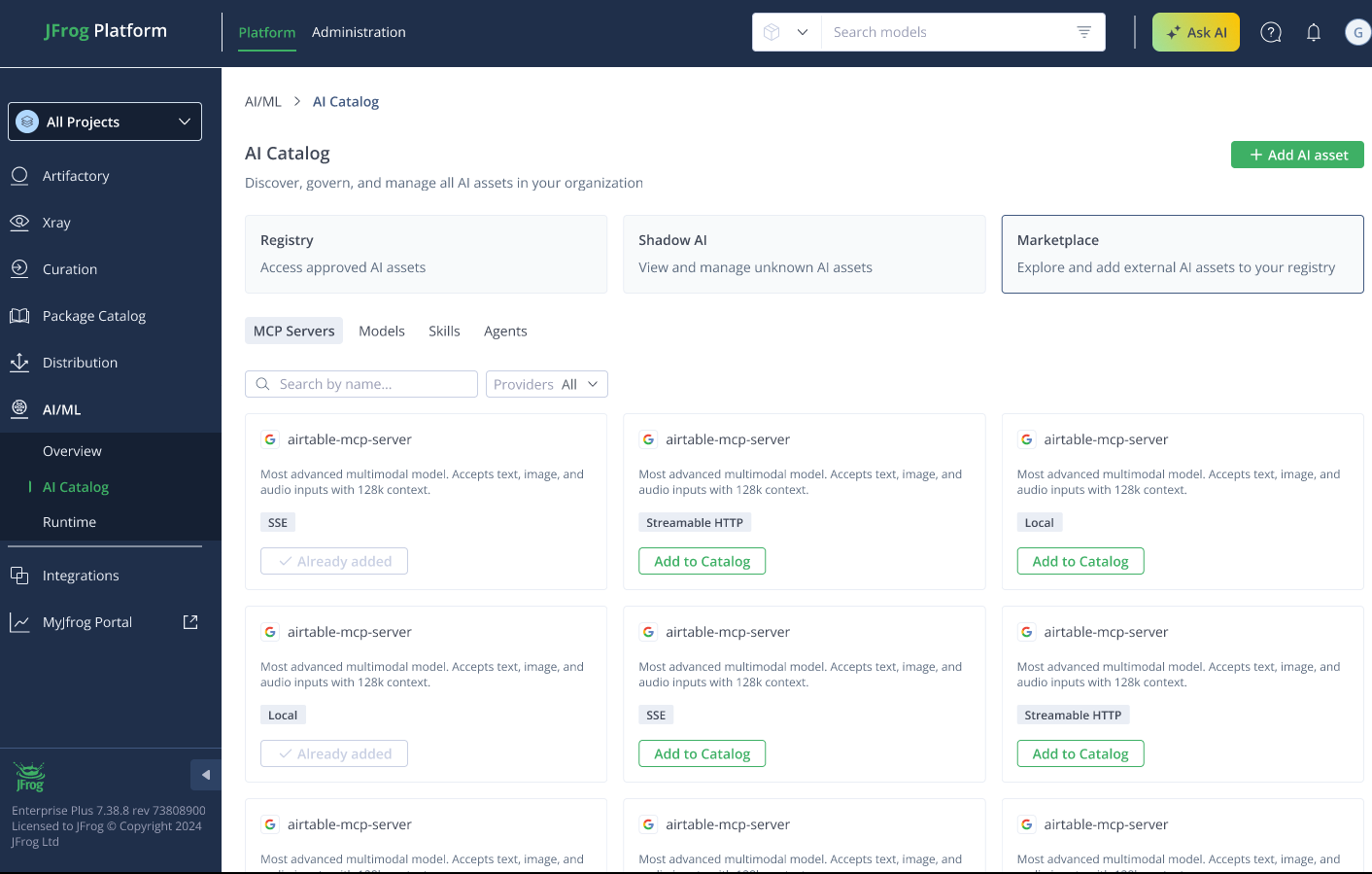
In the JFrog Platform, navigate to AI/ML > AI Catalog, and select Marketplace > MCP Servers.
-
Search for an MCP server and click Add to Catalog on the MCP server card.
Didn't find the required MCP?If a required MCP cannot be found in the official registry, add it manually as a custom MCP server.
-
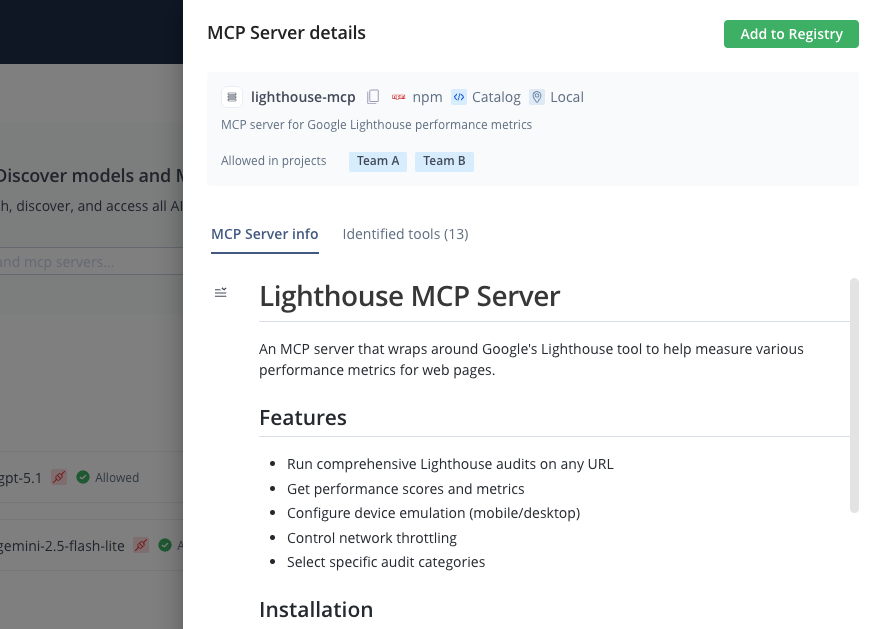
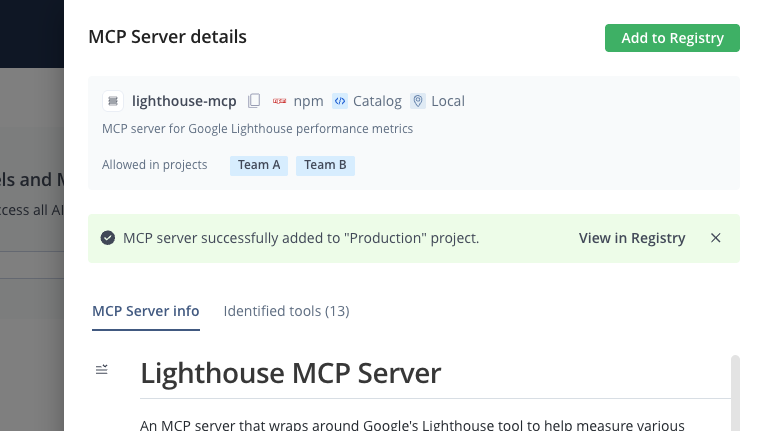
Click Add to Registry in the MCP details pane.
-
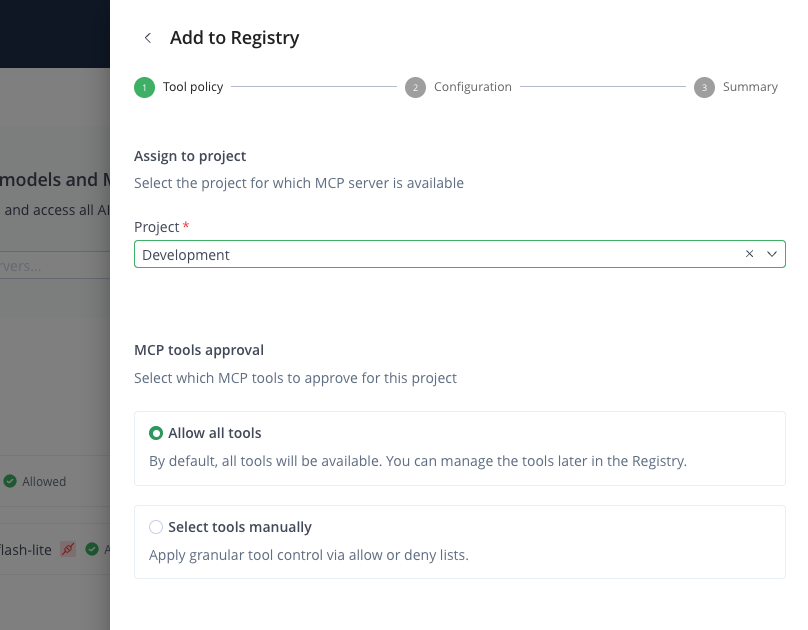
In the Add to Registry pane, select the project to allow this MCP server for.
-
Define a tool policy. Select Allow all tools or configure Manual Policies using regex-based filtering. For more information, see Configure Tool Policies.
-
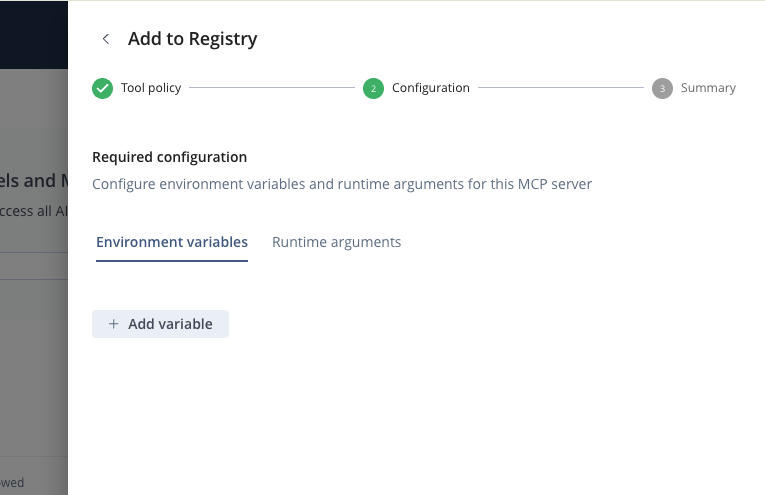
Configure any required environment variables and runtime arguments for the MCP server.
-
Click Save. The MCP server is now authorized and available in the registry for the selected project. Click View in Registry to see it there.
2. Install the JFrog Plugin
Target: Developer workstation.
Install the JFrog plugin for your IDE. The plugin installs and configures the JFrog Agent Guard automatically. No CLI setup is required. The Agent Guard is a local proxy that wraps each approved MCP server individually and enforces your organization's tool policies on every agent call.
To install the JFrog plugin:
-
In the JFrog Platform, navigate to AI/ML > AI Catalog and select Registry > [Your Project] > MCP Servers.
-
Click Install MCP.
-
Select your coding assistant and follow the installation instructions for that coding assistant:
- For Cursor, see Cursor.
- For Claude Code, see Claude Code.
- For VS Code, see VS Code.
- For OpenCode, see OpenCode. The OpenCode plugin installs via
opencode.jsonand connects to the JFrog Platform MCP server. It does not use the Registry Install MCP UI or Agent Guard.
After installation, verify that the JFrog Agent Guard is enabled so that it can start automatically when you open your IDE. For more information, see Use the MCP Registry with Agent Guard. Once enabled, your allowed MCP servers are available to your agent.
Note:
OpenCode uses a separate install and connection model. For bundled JFrog Agent Skills and the JFrog Platform MCP server, see Install JFrog Plugin for OpenCode.
3. Verify and Use
Confirm that your agent is connected to the JFrog Agent Guard and can access allowed MCP servers.
To verify the connection:
-
Open your coding assistant and start a chat with your agent.
-
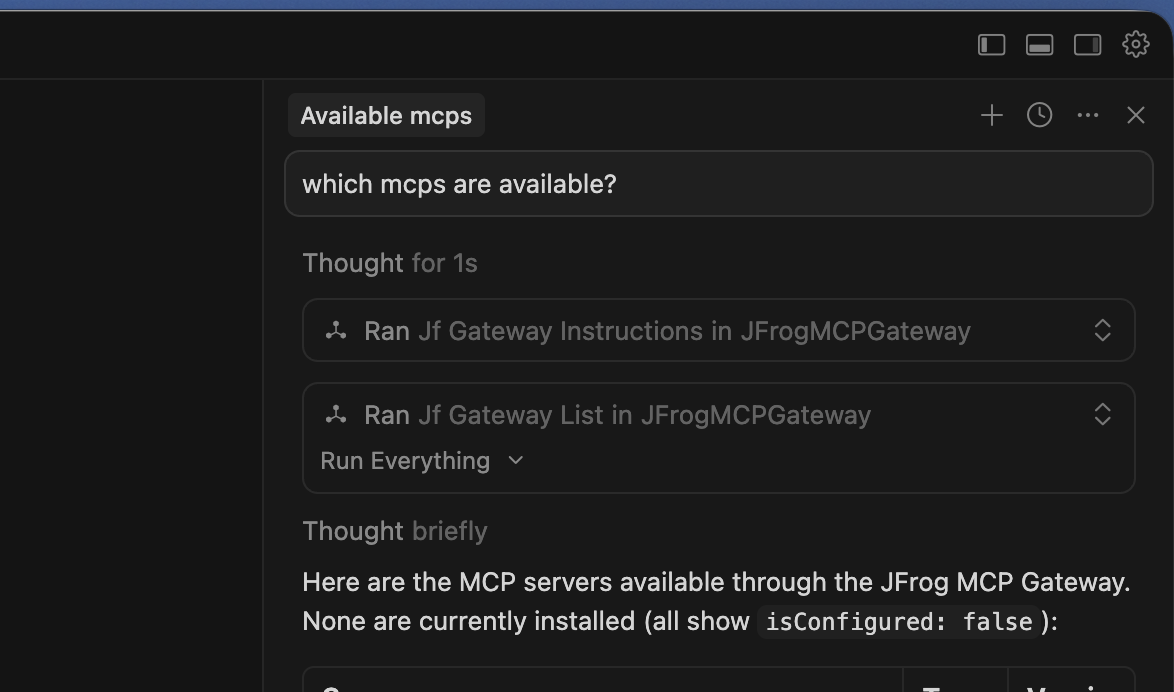
Ask your agent: "Which MCP servers are available?" Your agent responds with two sections: Active servers currently configured, and Available from JFrog servers you can add.
Note
If you do not get the expected results, see MCP Registry Troubleshooting for how to verify that JFrog's Agent Guard is connected to your coding assistant.
-
Ask your agent to add an MCP server, for example, "Add the lighthouse-mcp server."
-
Use the server in your agent chat, for example, "Get the performance report for jfrog.com."
Your agent now has governed access to the MCP servers approved for your project. If a server requires OAuth or SSO sign-in, your browser opens for consent the first time you use it. For more information, see Authenticate Remote MCP Tools in Agent Guard. For a full list of agentic operations, see Manage MCPs via Agents.
Frequently Asked Questions
This section provides answers to frequently asked questions.
FAQs
Q: Why can't my agent see MCP servers after I install the JFrog plugin?
A: The JFrog MCP Registry blocks all MCP servers by default until a project admin allows them for your project. Confirm the JFrog Agent Guard is enabled so it starts when you open your IDE. If you still do not see expected results, see MCP Registry Troubleshooting.
Q: What is the difference between Active and Available from JFrog in my agent's MCP list?
A: Active lists MCP servers already configured in your agent. Available from JFrog lists MCP servers your project admin approved in the registry that you can add. Ask your agent "Which MCP servers are available?" as described in Verify and Use.
Q: What does a project admin need to do before developers can use MCP servers?
A: An admin must discover an MCP server, add it to the registry for a project, define a tool policy, and save. Developers install the JFrog plugin only after that allow step. See Discover and Allow MCP Servers.
Q: Which coding assistants work with the JFrog MCP Registry?
A: Install the JFrog plugin from the Registry for Cursor, Claude Code, or VS Code. Follow the assistant-specific steps in Install the JFrog Plugin. For OpenCode, install via opencode.json as described in Install JFrog Plugin for OpenCode.
Q: Do I need the JFrog CLI to connect my IDE to the MCP Registry?
A: No. The JFrog plugin installs and configures the JFrog Agent Guard on your workstation automatically. See Install the JFrog Plugin.
Related Topics
Updated about 1 month ago