

Discover and Allow Models
Discover, search, and allow AI models in JFrog AI Catalog for your projects.
This guide explains how the AI Catalog Marketplace, Registry, and Shadow AI (Detection) pages fit together, how to search and filter models, and how to allow your first model for a project.
- Exploring the AI Catalog
- Managing Allowed Models
- Managing External APIs
- Handling Model Packages
- Search and Filter AI Models
- Allow Your First Model
Exploring the AI Catalog
The AI Catalog enables you to fully manage all AI assets in your organization.
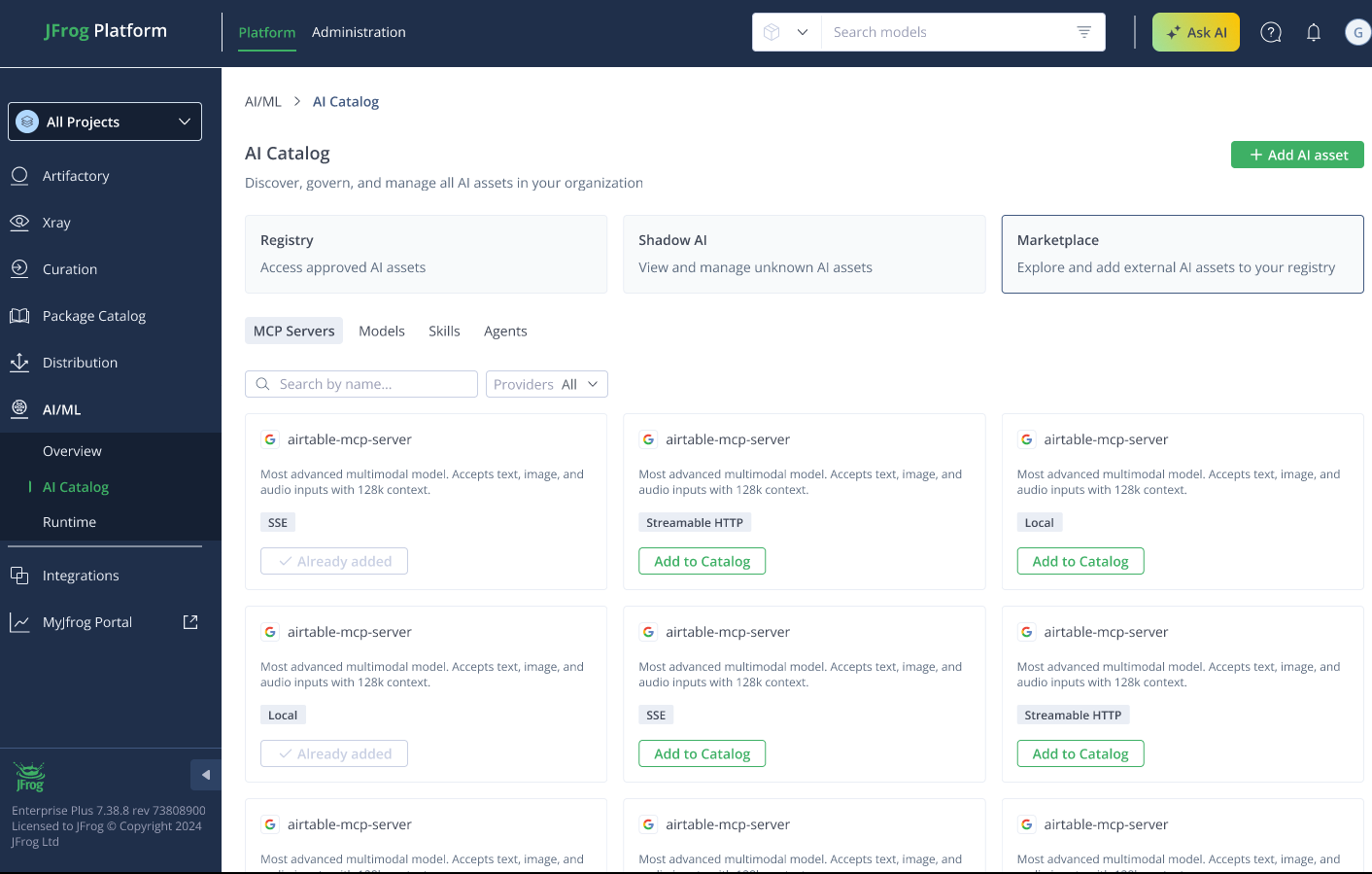
Explore the various models available for use in your organization in the Marketplace page.
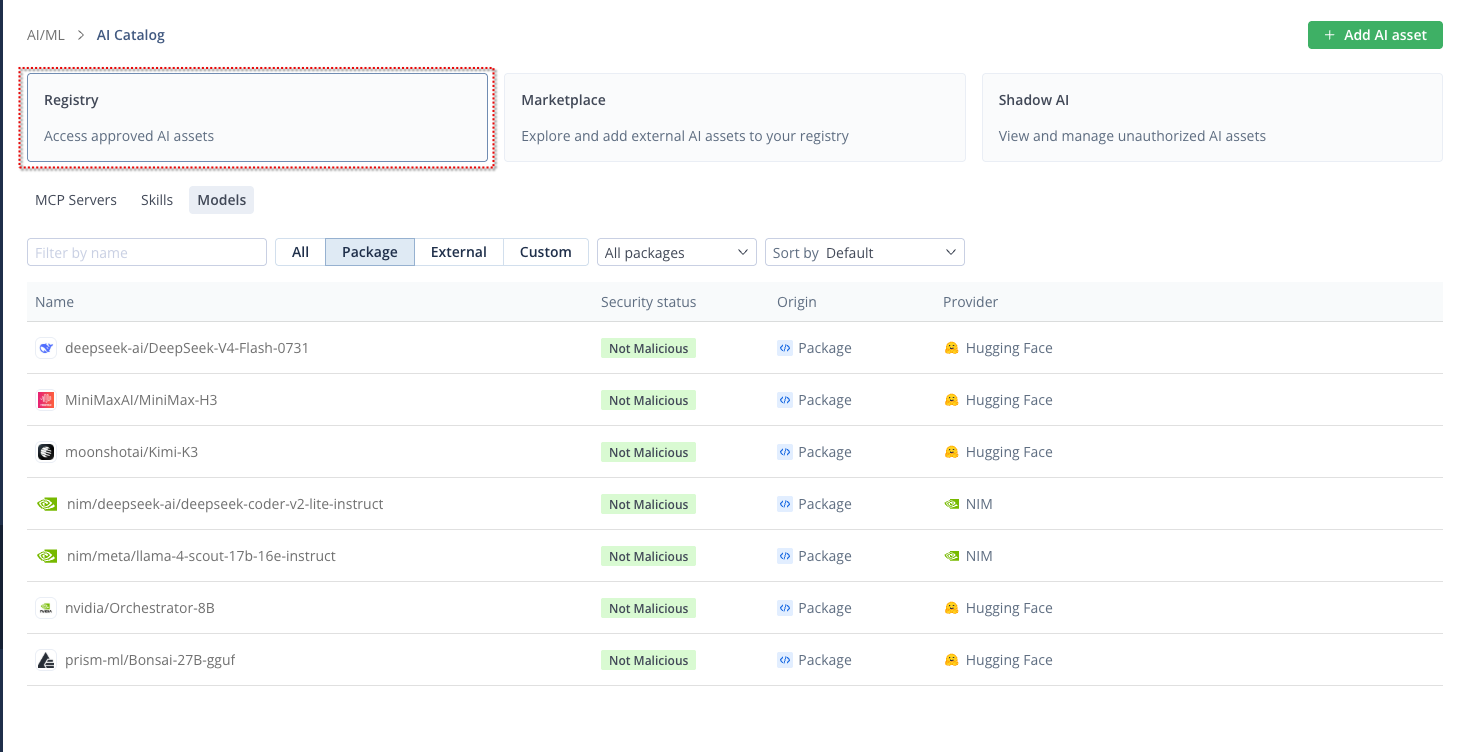
In the Registry page, you can see all AI assets are managed or partially managed in the AI Catalog.
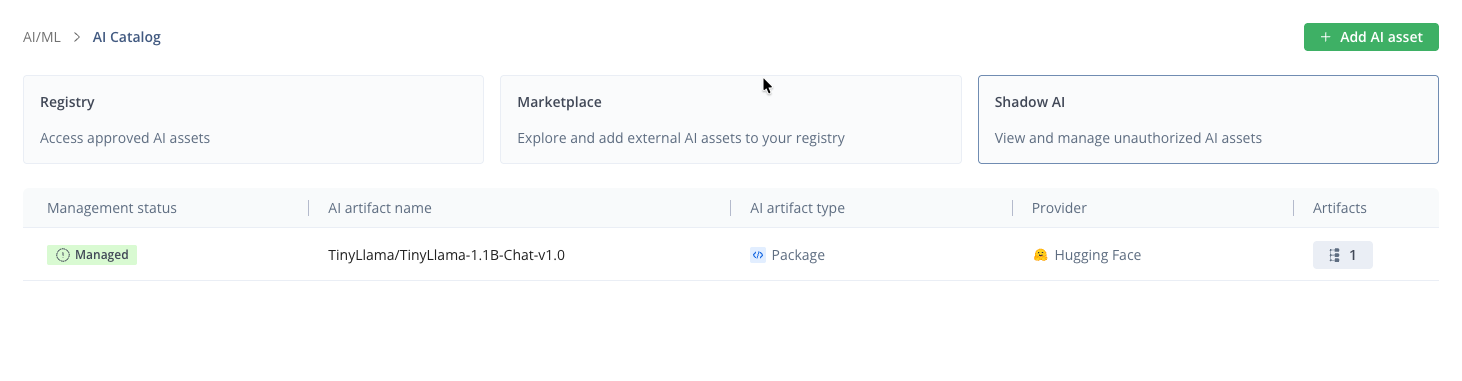
Detect all AI assets that are used in your system, but are unmanaged by AI Catalog, and possibly even unvetted by your organization, in the Shadow AI page. For more information about detecting unmanaged AI assets, see Detect Shadow AI.
Note
Looking for MCP servers? MCP allow and setup are documented in the MCP Registry docs, not in this models guide.
See also Local & Remote MCP Servers and Get Started with MCP.
MCP servers are managed on the MCP tabs in the Registry and Marketplace pages.
Managing Allowed Models
After you have allowed your first model, you will see that the allowed models all appear in the Registry page.
-
For instructions on how to start allowing models, see Allow Your First Model.
-
To allow additional models, the same instructions can be followed.
Note
When allowing models, if the model provider is already associated with the project (meaning that another model from the same provider is associated with the project), the connection is already set up and does not need to be re-selected.
Managing External APIs
For external APIs, the AI Catalog provides a secure gateway that centralizes access:
- Instead of scattering API keys, you manage secure connections governed by JFrog's permission model.
- After model access has been allowed for a specific project, all traffic is tracked and audited.
- This gives you full visibility and control over usage and performance in real time.
Handling Model Packages
For model packages, the AI Catalog streamlines the path to production:
- You can enforce granular, policy-based controls to create allow-lists.
- This ensures developers only use models that are vetted and compliant.
To understand how policy decisions appear on the model page (Blocked/Allowed badge, disabled actions, and the Policies tab), see Viewing Curation Policy Status for AI Catalog Models.
Search and Filter AI Models
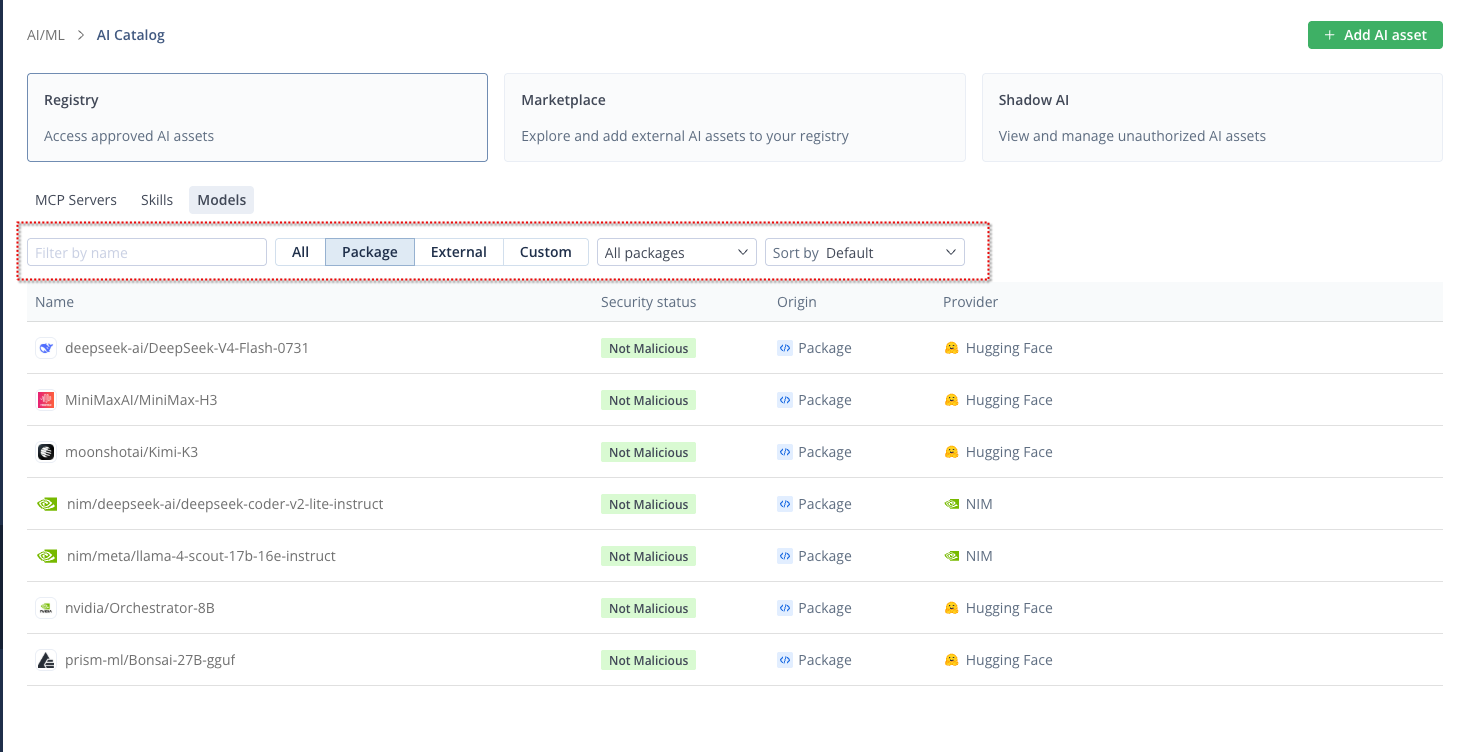
To help you find the best model for your project in the AI Catalog, in the Marketplace page you can search for and filter models by:
To search and filter models in Discovery:
-
Free text: Enter the search term in the search field. Press Enter and select the required asset or select
additional filtering. -
Filter by: Model type and or provider.
Allow Your First Model
The AI Catalog provides access to thousands of models. This guide outlines the process for exploring and evaluating a diverse range of AI models, helping you identify and allow the most suitable options for your projects.
Important
Only Admin users have permission to allow models.
To allow a model in the AI Catalog:
-
Select a model from the Marketplace:
-
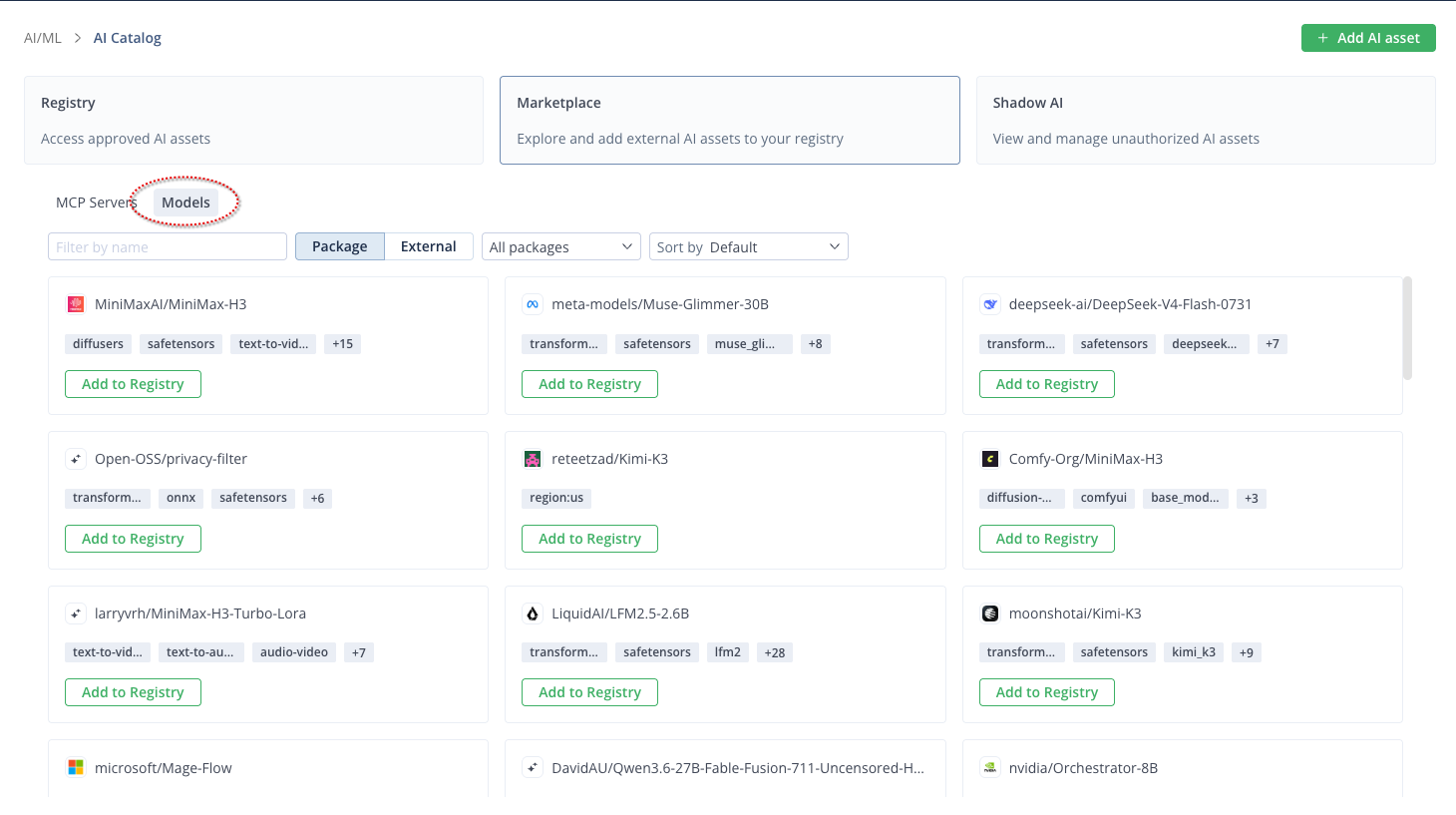
From the JFrog Platform menu, select AI/ML > AI Catalog and select the Marketplace tab. The page opens.
-
Verify that Models is selected, and either browse through the catalog directly, or click Add AI Asset > Add from Marketplace (and select Models). You can use Search and Filter AI Models to locate a specific model or model type.
-
Click Add to Registry on the model you wish to allow. The Allow model usage pane is displayed. To enable your developers to use this model, assign it to a project, connect it (for external models), and allow it.
-
After you select a model, allow it for a project. The allow procedure differs for external API models and model packages. Follow the procedure below that matches your model type:
Allow an External API Model
To allow an external API model:
-
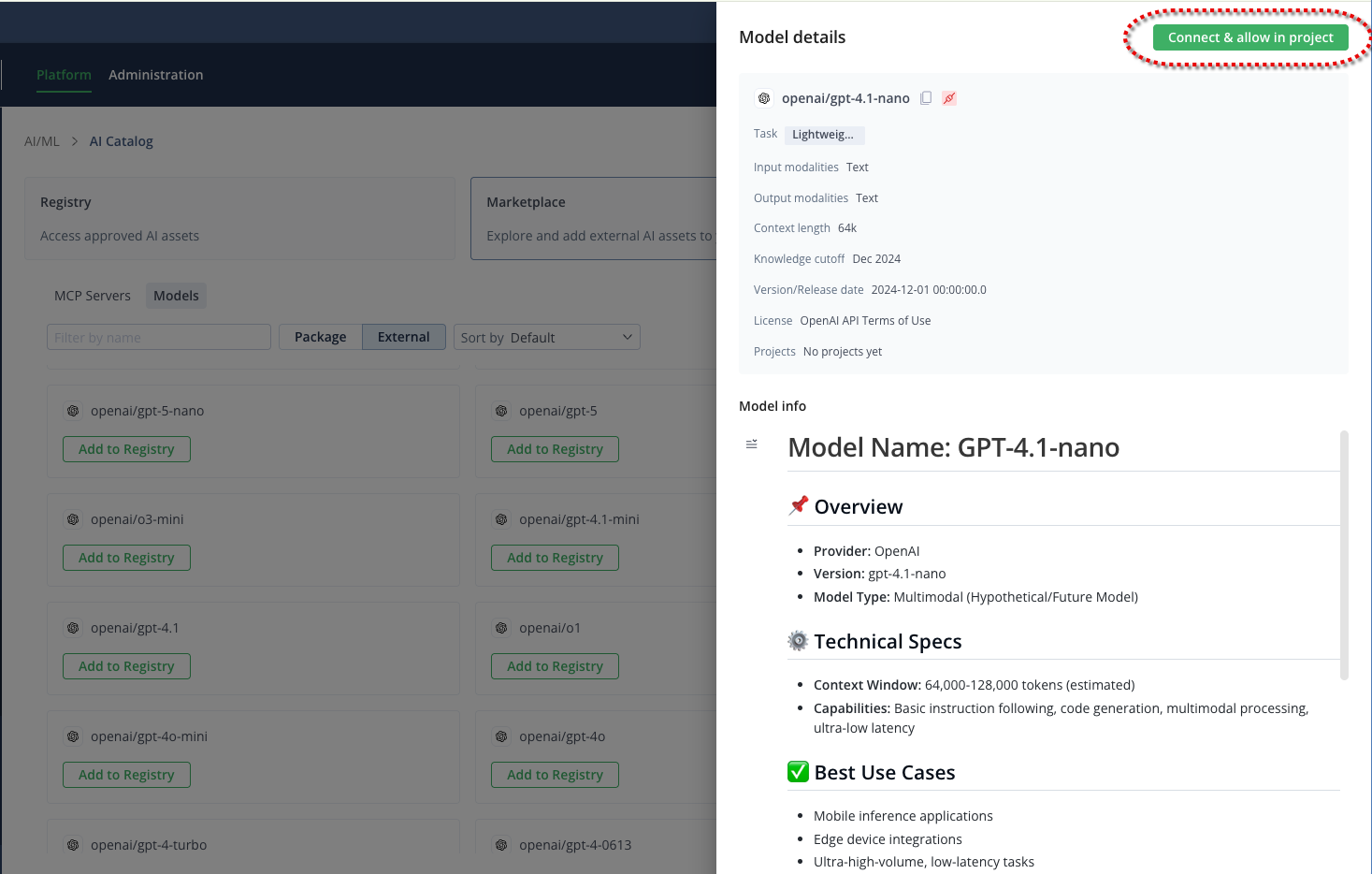
In the model's detail page, click Connect & allow in project.
-
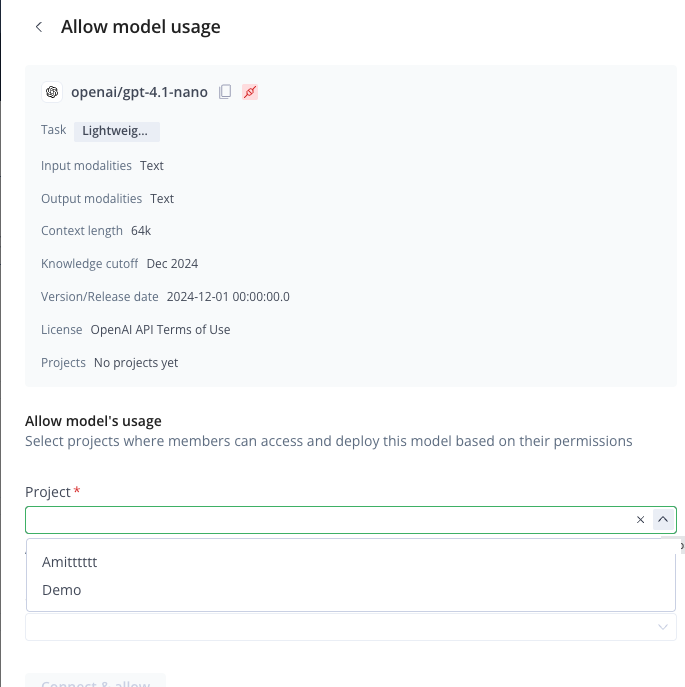
In the Allow Model Usage pane, select the project from the drop-down list.
Select Project for an External Model
-
First create a new connection for the project, and then click Connect & Allow.
Note
You can create a connection without currently allowing the project if you want.
Allow a Model Package
To allow a model package:
-
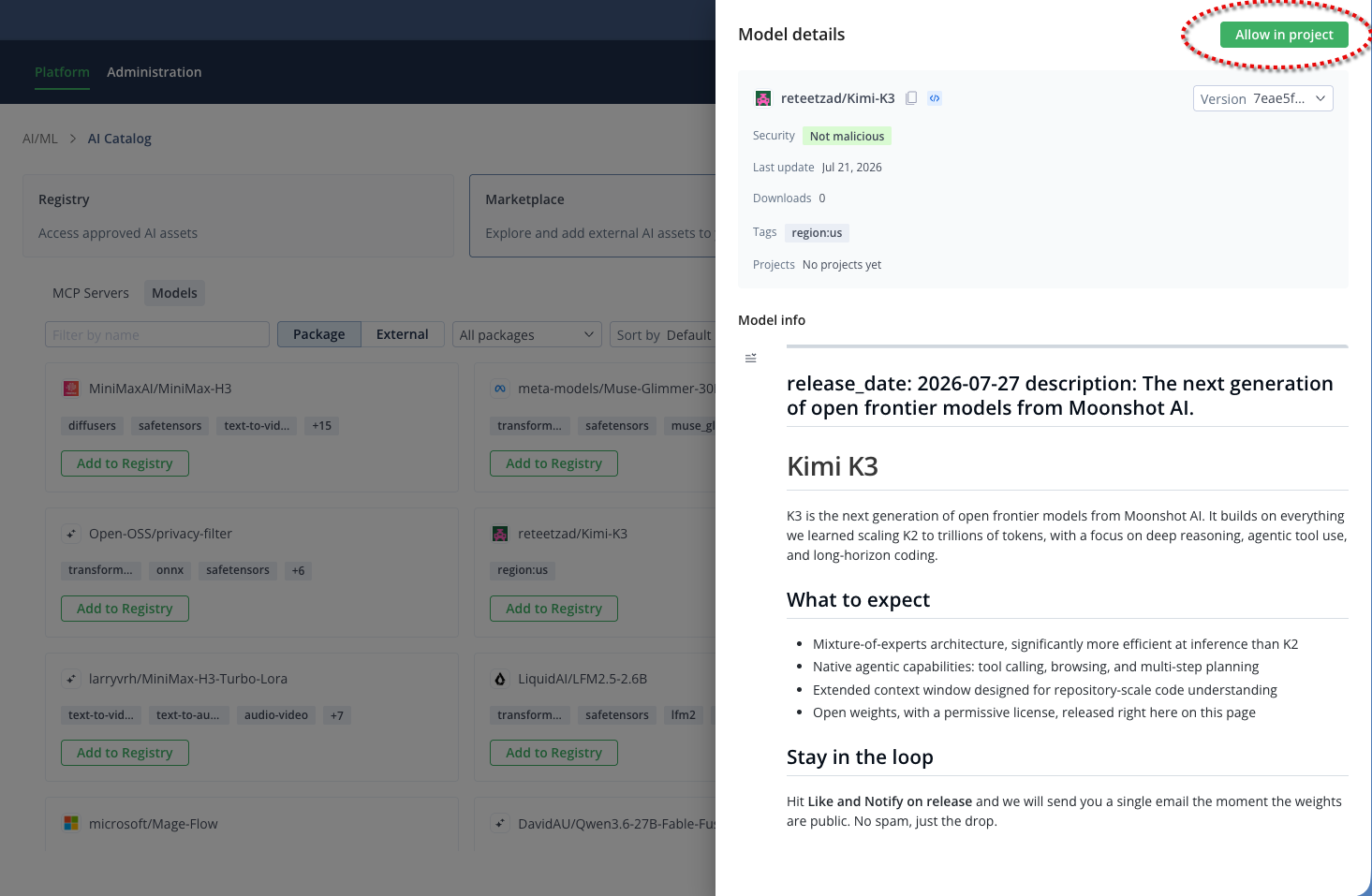
In the model's detail page, click Allow in project.
-
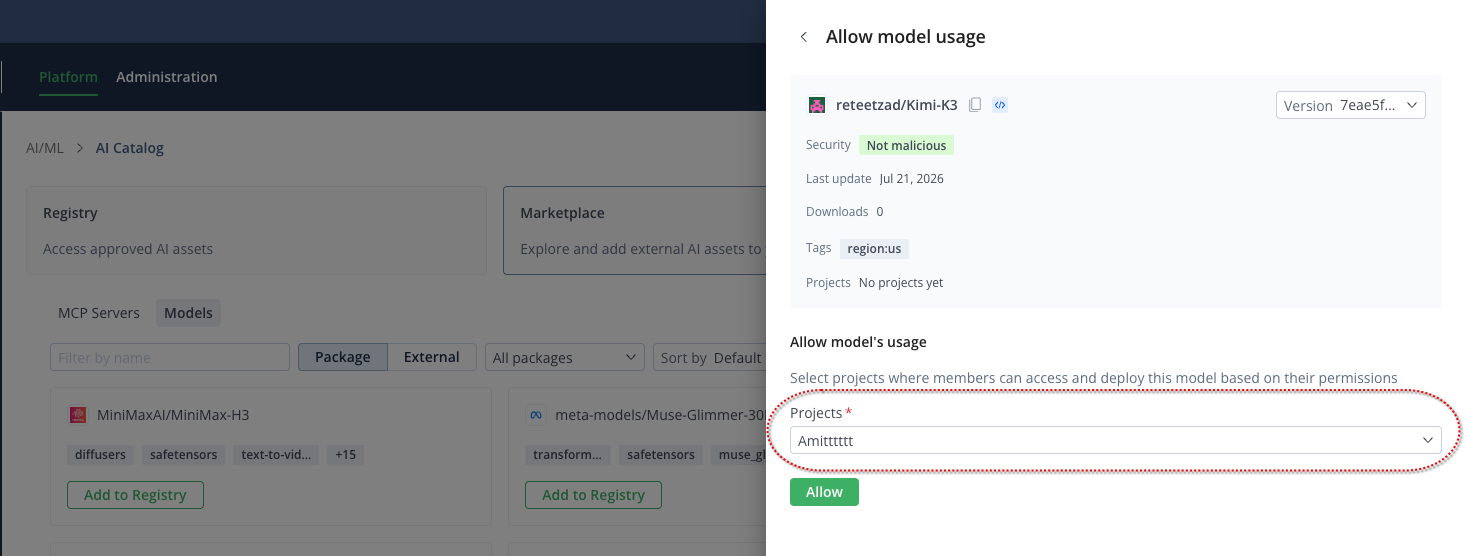
In the Allow Model Usage pane, select the project from the drop-down list.
Select Project for a Model Package
-
Click Allow. A success message is momentarily displayed, and the View in Registry button appears, enabling you to review the allowed model in the registry.
Note
Using your first NVIDIA NIM Model Package
If this is the first NVIDIA NIM model package that you have allowed, to use the model, you'll need to follow the Set Me Up instructions in Use Artifactory Set Me Up to Configure Package Manager Clients or the instructions displayed on the First-time setup tab on the Use Model pane.
-
Use the model in your code:
For more information, see Use Models in Your Code.
¹ Connections are per provider per project. For more info, see Connect AI Providers.
² When allowing a model for which a connection is already set up between the project and the model provider, you do not need to define a new connection.
Related Topics
Updated about 1 month ago