

Legacy Plugins
Jenkins Artifactory Plug-in
We have recently released a new next-gen plugin - the Jenkins JFrog Plugin . The new plugin can be installed and used side by side with the Jenkins Artifactory plugin.
Migrate to the Jenkins JFrog Plugin
If you're already using the Artifactory Plugin, we recommend also installing the JFrog Plugin, and gradually migrate your jobs from the old plugin to the new one. You can also have your existing jobs use the two plugins. The old plugin will continue to be supported, however new functionality will most likely make it into the new plugin only.
Why Did We Create the Jenkins JFrog Plugin?
We want to ensure that the Jenkins plugin continues receiving new functionality and improvements. that are added very frequently to JFrog CLI. JFrog CLI already includes significantly more features than the Jenkins Artifactory Plugin. The new JFrog plugin will be receiving these updates automatically.
How is the Jenkins JFrog Plugin Different from the Jenkins Artifactory Plugin?
Unlike the Jenkins Artifactory plugin, the Jenkins JFrog plugin completely relies on JFrog CLI, and serves as a wrapper for it. This means that the APIs you'll be using in your Pipeline jobs look very similar to JFrog CLI commands. The Jenkins JFrog plugin also does not support UI based Jenkins jobs, such as Free-Style jobs. It supports Pipeline jobs only.
How do I get Started?
Read the JFrog Plugin documentation to get started.
Plug-in Version 4.0.0 is available now
We have recently released a major version of the Jenkins Artifactory plugin - version 4.0.0.
This release includes the breaking change - Builds that utilize Gradle version below 6.8.1 are no longer supported.
The reason for this change is to support the Gradle Version Catalog feature.
The popular Jenkins Artifactory Plugin brings Artifactory's Build Integration support to Jenkins.
This integration allows your build jobs to deploy artifacts and resolve dependencies to and from Artifactory, and then have them linked to the build job that created them. The plugin includes a vast collection of features, including a rich pipeline API library and release management for Maven and Gradle builds with Staging and Promotion.
The plugin currently require version 2.159 or above of Jenkins.
Get started with configuring the Jenkins Artifactory Plug-in.
Watch the Screencast
Integrate of the Jenkins Artifactory Plug-in with JFrog Pipelines
JFrog Pipelines integration with Jenkins is supported since version 1.6 of JFrog Pipelines and version 3.7.0 of the Jenkins Artifactory Plugin. This integration allows triggering a Jenkins job from JFrog Pipelines. The Jenkins job is triggered using JFrog Pipeline's native Jenkins step. When the Jenkins job finishes, it reports the status to back to JFrog Pipelines.
The integration supports:
- Passing build parameters to the Jenkins job.
- Sending data from Jenkins back to JFrog Pipelines.
Set Up the Integration of Jenkins Artifactory Plug-in with Pipelines
-
Open the JFrog Pipelines UI.
-
Under Integrations, click on the_Add an Integration_button.
-
Choose _Jenkins Server_integration type and fill out all of the required fields.
-
Click on the _Generate_button to generate a token. This token is used by Jenkins to authenticate with JFrog Pipelines.
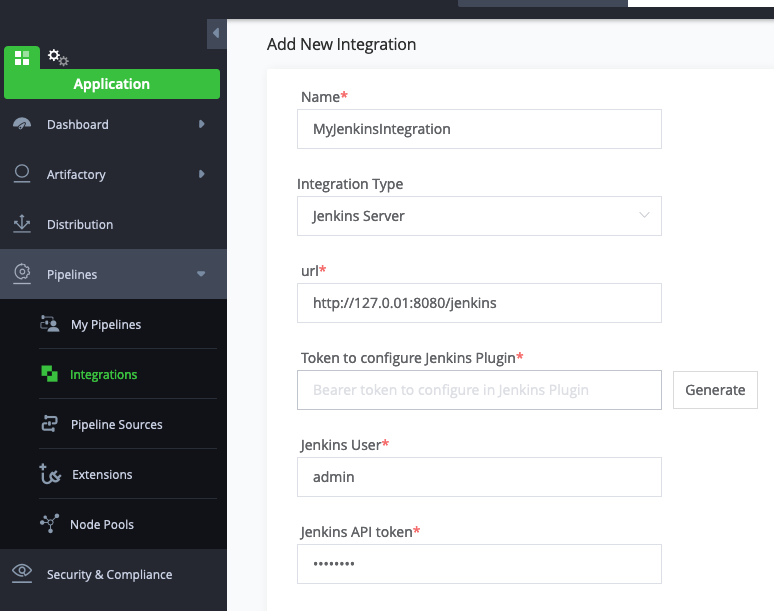
-
Copy the Callback URL and Token, and save them in Jenkins | Manage | Configure System | JFrog Pipelines server
Trigger a Jenkins Job from JFrog Pipelines
To trigger a Jenkins job from JFrog Pipelines, add the Jenkins step In your pipelines yaml as shown here.
- Name: MyJenkinsStep
    Type: Jenkins
    configuration:
        jenkinsJobName: <jenkins-job-name>
        Integrations:
        - name: MyJenkinsIntegration
Once the Jenkins job finishes, it will report back the status to the Jenkins step.
More Options with the Jenkins Artifactory Plug-in
For pipelines jobs in Jenkins, you also have the option of sending info from Jenkins back to JFrog Pipelines. This info will be received by JFrog Pipelines as output resources of the Jenkins step in JFrog Pipelines. Here's how you add those resources to the Jenkins pipeline script:
jfPipelines (
    outputResources: """[
        {
            "name": "pipelinesBuildInfo",
            "content": {
                "buildName": "${env.JOB_NAME}",
                "buildNumber": "${env.BUILD_NUMBER}"
            }
        }
    ]"""
)
By default, the Jenkins job status and the optional output resources are sent by Jenkins to JFrog Pipelines when the job finishes. You also however have the option of sending the status and output resources before the Jenkins job ends. Here's how you do it:
jfPipelines (
    reportStatus: "SUCCESS"
)
After Jenkins reports the status back to JFrog Pipelines, it does not wait for any response from JFrog Pipelines, and the job continues to the next step immediately.
You also have the option of putting the reportStatus and outputResources together as follows:
jfPipelines (
    reportStatus: "SUCCESS",
    outputResources: """[
        {
            "name": "pipelinesBuildInfo",
            "content": {
                "buildName": "${env.JOB_NAME}",
                "buildNumber": "${env.BUILD_NUMBER}"
            }
        }
    ]"""
)
The supported statuses are SUCCESS, UNSTABLE, FAILURE, NOT_BUILT or ABORTED.
The Jenkins job will report the status to JFrog Pipelines only once. If you don't report the status as part fo the pipelines script as shown above, Jenkins will report it when the job finishes.
Multi-Configuration (Freestyle) Projects with the Jenkins Artifactory Plug-In
A multi-configuration project can be used to avoid duplicating many similar steps that would otherwise be made by different builds.
The plugin is used in the same way as the other Freestyle builds, but under "Deploy artifacts to Artifactory" you will find a mandatory Combination Matches field where you can enter the specific matrix combinations to which the plugin will deploy the artifacts.

Combination Matches field
Here you can specify build combinations that you want to deploy through a Groovy expression that returns true or false.
When you specify a Groovy expression here, only the build combinations that result in true will be deployed to Artifactory. In evaluating the expression, multi-configuration axes are exposed as variables (with their values set to the current combination evaluated).
The Groovy expression uses the same syntax used in Combination Filter under Configuration Matrix
For example, if you are building on different agents for different jdk`s you would specify the following:
| Deploy "if both linux and jdk7, it's invalid " | !(label=="linux" && jdk=="jdk7" |
|---|---|
| Deploy "if on master, just do jdk7 " | (label=="master").implies(jdk=="jdk7") |
Important Note
Deployment of the same Maven artifacts by more than one matrix job is not supported!
Trigger Builds with the Jenkins Artifactory Plug-in
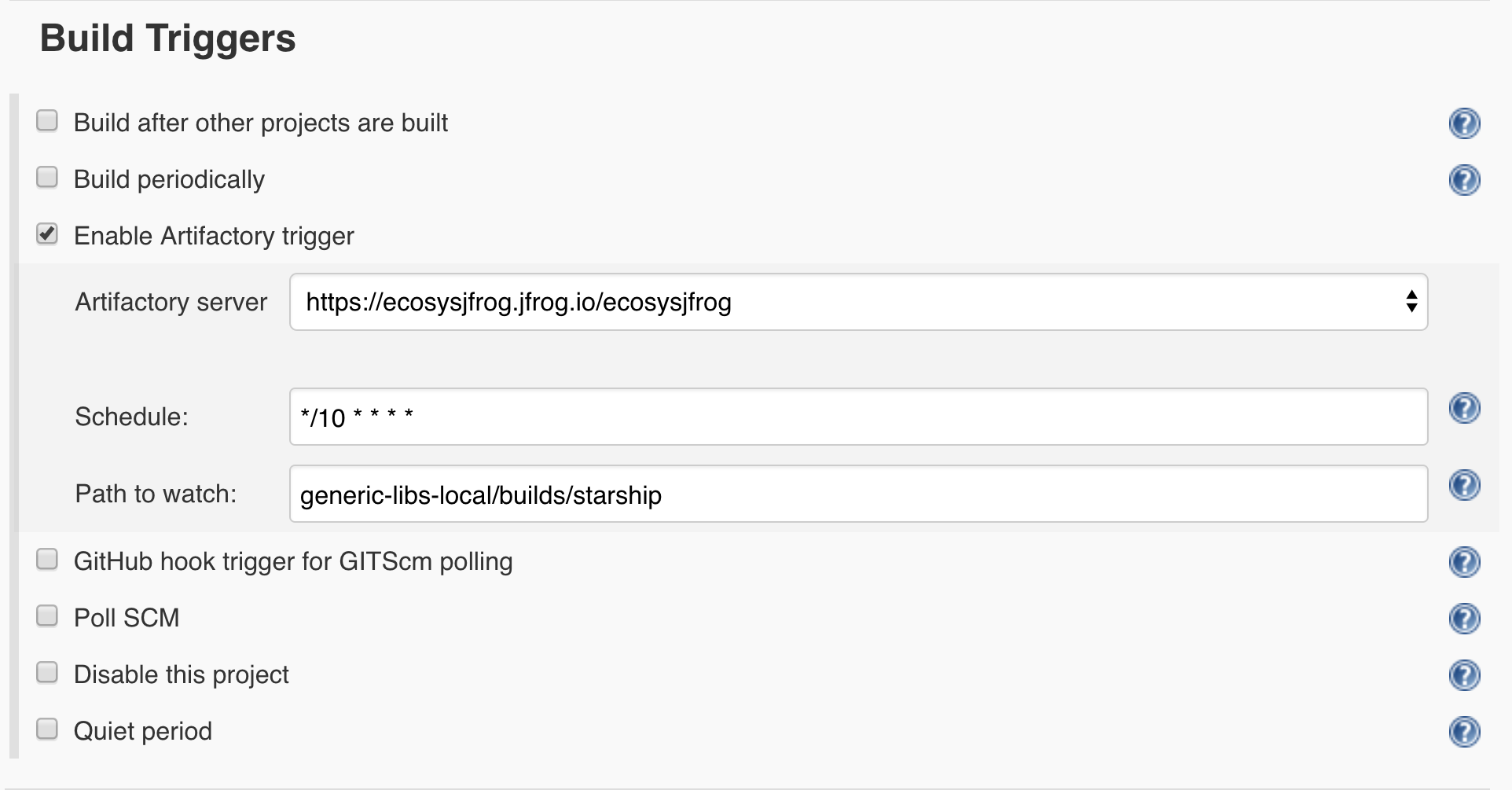
The Artifactory Trigger allows a Jenkins job to be automatically triggered when files are added or modified in a specific Artifactory path. The trigger periodically polls Artifactory to check if the job should be triggered.
To enable the Artifactory trigger, follow these steps:
-
In the Jenkins job UI, go to Build Triggers, and check the Enable Artifactory trigger checkbox.
-
Select an Artifactory server.
-
Define a cron expression in the Schedule field. For example, to pull Artifactory every ten minutes, set */10 * * * *
-
Set a Path to watch. For example, when setting generic-libs-local/builds/starship, Jenkins polls the /builds/starship folder under the generic-libs-local repository in Artifactory for new or modified files.
JIRA Integration and the Jenkins Artifactory Plug-in
Note
JIRA Integration is supported only in Free-Style and Maven jobs.
Pipeline jobs support a more generic integration, which allows integrating with any issue tracking system. See the Collecting Build Issues section in Declarative and Scripted Pipeline APIs documentation pages.
The Jenkins plugin may be used in conjunction with the Jenkins JIRA plugin to record the build's affected issues, and include those issues in the Build Info descriptor inside Artifactory and as searchable properties on deployed artifacts.
The SCM commit messages must include the JIRA issue ID. For example:HAP-007 - Shaken, not stirred
To activate the JIRA integration, make sure that Jenkins is set with a valid JIRA site configuration and select the Enable JIRA Integration in the job configuration page:

Aggregate Issues from Previous Builds
It is possible to collect under a build deployed to Artifactory all JIRA issues affected by this build as well as previous builds. This allows you, for example, to see all issues between the previous release to the current build, and if the build is a new release build - to see all issues addresses in the new release.
To accumulate JIRA issues across builds, check the "Aggregate issues from previous builds" option and configure the last build status the aggregation should begin from. The default last status is "Released" (case insensitive), which means aggregation will begin from the first build after the last "Released" one.

Build Isolation and the Jenkins Artifactory Plugin
Note
Build Isolation is currently supported only in Free-Style and Maven jobs.
When executing the same chain of integration (snapshot) builds in parallel, a situation may arise in which downstream builds resolve snapshot dependencies which are not the original dependencies existing when the build was triggered.
This can happen when a root upstream build has run and triggered downstream builds that depend on its produced artifacts. Then the upstream has run again before the running downstream builds has finished, so these builds may resolve newly created upstream artifacts that are not meant for them, leading to conflicts.

Solution
The Jenkins plugin offers a new checkbox for its Maven/Gradle builds 'Enable isolated resolution for downstream builds' which plants a new 'build.root' property that is added to the resolution URL.
This property will then be read by the direct children of this build and implanting them in their resolution URLs respectively, thus guaranteeing that the parent artifact resolved is the one that was built prior to the build being run.
- Maven: In order for Maven to use the above feature, the checkbox needs to be checked for the root build only, and make sure that all artifacts are being resolved from Artifactory by using the 'Resolve artifacts from Artifactory' feature. This will enforce Maven to use the resolution URL with Maven builds, alongside with the 'build.root' property as a matrix param in the resolution URL.
- Gradle: Once the 'Enable isolated resolution for downstream builds' has been checked, the build.root property will be added to all existing resolvers.
Discard Old Builds
Note
To use this functionality in pipeline jobs, please refer to one of the Triggering Build Retention sections in the Artifactory Pipeline APIs documentation page.
The Jenkins project configuration lets you specify a policy for handling old builds.
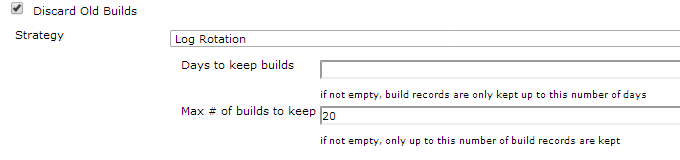
You can delete old builds based on age or number as follows:
| Days to keep builds | The number of days that a build should be kept before it is deleted |
|---|---|
| Max # of builds to keep | The maximum number of builds that should be kept. When a new build is created, the oldest one will be deleted |
Once these parameters are defined, in the Post-build Actions section, you can specify that Artifactory should also discard old builds according to these settings as follows:

| Discard old builds from Artifactory | Configures Artifactory to discard old builds according to the Jenkins project settings above |
|---|---|
| Discard build artifacts | Configures Artifactory to also discard the artifacts within the build |
Excluded Artifacts and the BuildInfo
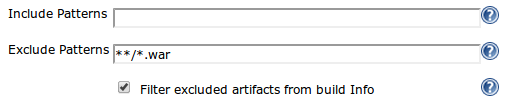
By default when providing exclude patterns for artifacts, they will not get deployed into Artifactory but they will get included in the final BuildInfo JSON.
By marking the "Filter excluded artifacts from build Info" the excluded artifacts will appear in a different section inside the BuildInfo and by this providing a clear understanding of the entire Build.
This is also crucial for the promotion procedure, since it scans your BuildInfo JSON and trying to promote all the artifacts there, it will fail when you excluded artifacts unless you mark this option.
Configure Repositories with Variables
This section is relevant for Free-Style and Maven jobs only,.

You can select text mode in which you can type out your target repository.
In your target repository name, you can use variables that will be dynamically replaced with a value at build time.
The variables should be specified with a dollar-sign prefix and be enclosed by curly brackets.
For example: ${deployRepository}, ${resolveSnapshotRepository}, ${repoPrefix}-${repoName} etc.
The variables are replaced by values from one of the following job environments:
- Predefined Jenkins environment variables.
- Jenkins properties (Read more in Jenkins Wiki)
- Parameters configured in the Jenkins configuration under the "This build is parameterized" section - these parameters could be replaced by a value from the UI or using the Jenkins REST API.
- Injected variables via one of the Jenkins plugins ("EnvInject" for example).
Dynamically Disable Deployment of Artifacts and Build-info
Maven, Gradle and Ivy builds can be configured to deploy artifacts and/or build information to Artifactory. For example, in the case of Gradle builds, you would set the Publishing repository field and check Capture and publish build-info. Maven and Ivy have similar (although slightly different) configuration parameters. By setting these parameters, you can configure each build tool respectively to deploy build artifacts and/or build information to Artifactory. However, there may be specific cases in which you want to override this setting and disable deploying artifacts and build information. In these cases, you can pass the following two system properties to any of the build tools:
-
artifactory.publish.artifacts
-
artifactory.publish.buildInfo
For example, for a Maven build, you can add these system properties to the Goals and options field as follows:
clean install -Dartifactory.publish.artifacts=false -Dartifactory.publish.buildInfo=falseTo control these properties dynamically, you can replace the values with Jenkins variables or Environment variables that you define as follows
clean install -Dartifactory.publish.artifacts=$PUBLISH_ARTIFACTS -Dartifactory.publish.buildInfo=$PUBLISH_BUILDINFOUse the Jenkins Job DSL Plugin
The Jenkins Job DSL plugin allows the programmatic creation of jobs using a DSL. Using the Jenkins Job DSL plugin, you can create Jenkins jobs to run Artifactory operations. To learn about the Jenkins Job DSL, see the Job DSL Tutorial.
To view Seed job examples and instructions for each type of Jenkins jobs, see jenkins-job-dsl-examples.
Release Notes for the Jenkins Artifactory Plug-in
Note
The release notes for versions 3.18.1 and above are available here.
4.0.0
Breaking Change - Builds that utilize Gradle version below 6.8.1 are no longer supported.
The reason for this change is to support the Gradle Version Catalog feature.
3.18.0 (29 December 2022)
- Support excluding build info module properties https://github.com/jfrog/jenkins-artifactory-plugin/pull/720
- Add support for virtual and federated repositories in UI jobs. https://github.com/jfrog/jenkins-artifactory-plugin/pull/726
- Filter suspected secrets from env vars values https://github.com/jfrog/jenkins-artifactory-plugin/pull/732
- Gradle - Publish bom files when ‘java-platform’ plugin applied https://github.com/jfrog/build-info/pull/680
- Maven - Remove the dummy remote repository. https://github.com/jfrog/build-info/pull/683
3.17.4 (1 December 2022)
- Bug fix - ConcurrentModificationException in UnifiedPromoteBuildAction https://github.com/jfrog/jenkins-artifactory-plugin/pull/710
- Make the Ivy plugin optional https://github.com/jfrog/jenkins-artifactory-plugin/pull/714
3.17.3 (10 November 2022)
- Support Maven opts from jvm.config file https://github.com/jfrog/jenkins-artifactory-plugin/pull/708
- Bug fix - Remove custom exception for unknown violation types https://github.com/jfrog/build-info/pull/675
- Bug fix - Sha256 being set to literal "SHA-256" in build-info json https://github.com/jfrog/build-info/pull/669
3.17.2 (19 October 2022)
- Bug fix - Pom doesn't get deployed using Maven Install plugin 3+ https://github.com/jfrog/build-info/pull/670
3.17.1 (28 September 2022)
- Bug fix - Add CopyOnWriteArrayList to SetModules in buildInfoDeployer https://github.com/jfrog/jenkins-artifactory-plugin/pull/696
- Bug fix - Remove Cause.UserIdCause https://github.com/jfrog/jenkins-artifactory-plugin/pull/699
- Bug fix - Support Docker module ID with slash https://github.com/jfrog/build-info/pull/666
3.17.0 (21 July 2022)
- Support JFrog Projects in Gradle/Generic jobs - https://github.com/jfrog/jenkins-artifactory-plugin/pull/687
3.16.3 (4 July 2022)
- Bugfix - Broken AQL request when build is not defined in FilesGroup - https://github.com/jfrog/build-info/pull/650
- Bugfix - Usage report fails with access tokens - https://github.com/jfrog/jenkins-artifactory-plugin/pull/669
- Bugfix - Create workspace directories if missing - https://github.com/jfrog/jenkins-artifactory-plugin/pull/670
3.16.2 (24 April 2022)
- Bug fix - Calling MavenDescriptor.transform() results in java.lang.StackOverflowError - https://github.com/jfrog/jenkins-artifactory-plugin/pull/656
- Bug fix - NoSuchMethodError in Maven builds - https://github.com/jfrog/build-info/pull/633
- Bug fix - Fails to fetch Promotion Plugins - https://github.com/jfrog/build-info/pull/635
- Bug fix - When project provided, "projectKey" query parameter should be added to build info URL - https://github.com/jfrog/build-info/pull/631
- Bug fix - Incorrect Docker manifest path when collecting build-info - https://github.com/jfrog/build-info/pull/643
- Bug fix - Warning about missing Git branch should be in debug level - https://github.com/jfrog/build-info/pull/632
3.16.1 (20 March 2022)
- Bug fix - credentials not loaded in global configuration - https://github.com/jfrog/jenkins-artifactory-plugin/pull/650
3.16.0 (16 March 2022)
- Maven - Support projects in UI jobs - https://github.com/jfrog/jenkins-artifactory-plugin/pull/633
- Maven - Deploy only in mvn install/deploy phases - https://github.com/jfrog/build-info/pull/626 & https://github.com/jfrog/build-info/pull/630
- Gradle - Support Gradle 8 - https://github.com/jfrog/jenkins-artifactory-plugin/pull/631
- Go - Filter out unused dependencies from build info - https://github.com/jfrog/build-info/pull/622
- Add Jenkins scoped credentials to credentials list - https://github.com/jfrog/jenkins-artifactory-plugin/pull/637
- Add information to the exception threw when a pipeline job fails - https://github.com/jfrog/jenkins-artifactory-plugin/pull/626
- Bug fix - Stay on step context Node when finding root workspace - https://github.com/jfrog/jenkins-artifactory-plugin/pull/616
- Bug fix - In some cases, the project parameter in Maven is ignored - https://github.com/jfrog/build-info/pull/618
- Bug fix - Distribution declarative steps should be unblocking - https://github.com/jfrog/jenkins-artifactory-plugin/pull/640
- Bug fix - In some cases, the build-info URL is wrong - https://github.com/jfrog/build-info/pull/618 & https://github.com/jfrog/build-info/pull/619
- Bug fix - Failed to save System configuration - https://github.com/jfrog/jenkins-artifactory-plugin/pull/642
- Bug fix - in some cases, Docker module name in build-info is wrong - https://github.com/jfrog/build-info/pull/617
3.15.4 (6 February 2022)
- Bug fix - NoClassDefFoundError when running rtDockerPush - https://github.com/jfrog/jenkins-artifactory-plugin/pull/629
- Bug fix - Can't promote builds with projects - https://github.com/jfrog/jenkins-artifactory-plugin/pull/628
3.15.3 (26 January 2022)
- Bug fix - Signature of AmazonCorrettoCryptoProvider couldn't found - https://github.com/jfrog/build-info/pull/609
3.15.2 (20 January 2022)
- Add SHA2 to upload files- https://github.com/jfrog/jenkins-artifactory-plugin/pull/615
- Bug fix - Add 'localpath' to artifact - https://github.com/jfrog/build-info/pull/606
3.15.1 (6 January 2022)
- Calculate SHA2 in builds - https://github.com/jfrog/build-info/pull/598
- Bug fix - Fix possible NullPointerException in getDeployableArtifactPropertiesMap - https://github.com/jfrog/jenkins-artifactory-plugin/pull/609
- Bug fix - Remove JGit dependency - https://github.com/jfrog/build-info/pull/600
3.15.0 (3 January 2022)
- Add support to VCS branch and VCS message - https://github.com/jfrog/jenkins-artifactory-plugin/pull/603
- Add VCS properties on late deploy artifacts - https://github.com/jfrog/jenkins-artifactory-plugin/pull/604
- Bug fix - HasSnapshot always returns true - https://github.com/jfrog/jenkins-artifactory-plugin/pull/606
3.14.2 (7 December 2021)
- Exclude common-lang2.4 dependency - https://github.com/jfrog/jenkins-artifactory-plugin/pull/591
3.14.1 (6 December 2021)
- Maven builds now also deploy to Artifactory using the ‘deploy’ phase - https://github.com/jfrog/build-info/commit/e9341d8f85ce3959fe90a3c143b6a40ed843074e
- Add gradle-enterprise-maven-extension-1.11.1.jar to mvn classpath - https://github.com/jfrog/jenkins-artifactory-plugin/pull/581
- Bug fix - Build-info ignores duplicate artifacts checksum - https://github.com/jfrog/jenkins-artifactory-plugin/pull/571
- Upgrade common-lang2.4 to common-lang3 - https://github.com/jfrog/jenkins-artifactory-plugin/pull/567
3.13.2 (23 September 2021)
- Bug fix - Xray Scan generates an exception - https://github.com/jfrog/build-info/pull/554
3.13.1 (2 September 2021)
- Bug fix - NPE in Gradle jobs when deployer is empty - https://github.com/jfrog/jenkins-artifactory-plugin/pull/554
- Bug fix - NPE in Gradle when build info was not generated - https://github.com/jfrog/jenkins-artifactory-plugin/pull/552
- Bug fix - NPE in extractVcs when running on the master - https://github.com/jfrog/jenkins-artifactory-plugin/pull/549
3.13.0 (17 August 2021)
- Show deployed Gradle artifacts - https://github.com/jfrog/jenkins-artifactory-plugin/pull/538
- Improved build scan table - https://github.com/jfrog/build-info/pull/545
- Bug fix - Autofill JFrog servers get triggered for the wrong server-id - https://github.com/jfrog/jenkins-artifactory-plugin/pull/534
- Bug fix - Go jobs don't run on Docker images when they should - https://github.com/jfrog/jenkins-artifactory-plugin/pull/544
- Bug fix - Go jobs don't collect environment variables when they should - https://github.com/jfrog/jenkins-artifactory-plugin/pull/544
3.12.5 (20 July 2021)
- Bug fix - Exception raised when workflow - multibranch plugin is not installed - https://github.com/jfrog/build-info/pull/530
- Bug fix - Fail to deserialize deployable artifacts - https://github.com/jfrog/build-info/pull/537
- Gradle - Skip uploading JAR if no jar produced in build - https://github.com/jfrog/build-info/pull/538
- Make download headers comparisons case insensitive - https://github.com/jfrog/build-info/pull/539
3.12.4 (7 July 2021)
- Bug fix - Save JFrog instances for the first time throws NPE - https://github.com/jfrog/build-info/pull/52 7
3.12.3 (5 July 2021)
- Bug fix - ReportUsage throws an exception for Artifactory version 6.9.0 - https://github.com/jfrog/build-info/pull/525
- Bug fix - BuildInfo link is broken if contains special characters - https://github.com/jfrog/jenkins-artifactory-plugin/pull/525
3.12.1 (30 Jun 2021)
- Add new JFrog Distribution commands - https://github.com/jfrog/jenkins-artifactory-plugin/pull/518
- Support collecting build-info for Docker images created by Kaniko and JIB - https://github.com/jfrog/jenkins-artifactory-plugin/pull/503
- Support Maven wrapper - https://github.com/jfrog/jenkins-artifactory-plugin/pull/482
- Add project option to scan build - https://github.com/jfrog/jenkins-artifactory-plugin/pull/517
- Support multibranch Artifactory trigger - https://github.com/jfrog/jenkins-artifactory-plugin/pull/507
- Bug fix - Legacy patterns doesn't display defined instances - https://github.com/jfrog/jenkins-artifactory-plugin/pull/510
- Bug fix - Link to BuildInfo page gets encoding twice - https://github.com/jfrog/jenkins-artifactory-plugin/pull/516
- Bug fix - In some cases, NoSuchMethodError raised using IOUtils.toString - https://github.com/jfrog/build-info/pull/516
3.11.4 (31 May 2021)
- Bug fix - Error when trying to download an empty (zero bytes size) file - https://github.com/jfrog/build-info/pull/507
- Bug fix - Deploy file doesn't print full URL in the log output - https://github.com/jfrog/build-info/pull/509
3.11.3 (29 May 2021)
- Bug fix - Artifactory servers are missing in Jenkins dropdown list - https://github.com/jfrog/jenkins-artifactory-plugin/pull/489
- Bug fix - Ignore missing fields while deserialize HTTP response - https://github.com/jfrog/build-info/pull/502
- Bug fix - Build retention service sends an empty body - https://github.com/jfrog/build-info/pull/504
- Bug fix - Artifactory Trigger cannot deserialize instance ItemLastModified - https://github.com/jfrog/build-info/pull/503
3.11.2 (26 May 2021)
- Bug fix - Set bypassProxy in the configuration page fails https://github.com/jfrog/jenkins-artifactory-plugin/pull/486
3.11.1 (25 May 2021)
- Gradle - Improve Gradle transitive dependency collection - https://github.com/jfrog/build-info/pull/498
- Bug fix - Compatibility with JCasC fails - https://github.com/jfrog/jenkins-artifactory-plugin/pull/478
3.11.0 (19 May 2021)
- Update commons-codec and commons-io - https://github.com/jfrog/jenkins-artifactory-plugin/pull/462
- Add JFrog platform URL to Jenkins configuration page - https://github.com/jfrog/jenkins-artifactory-plugin/pull/455
- Add support for Artifactory Projects - https://github.com/jfrog/jenkins-artifactory-plugin/pull/449
- Add support for npm 7.7 - https://github.com/jfrog/build-info/pull/484
- Add support for NuGet V3 protocol - https://github.com/jfrog/build-info/pull/479 & https://github.com/jfrog/build-info/pull/494
- Bug fix - Gradle init script with space in path causes failure - https://github.com/jfrog/jenkins-artifactory-plugin/pull/469
- Bug fix - env doesn't collected in npm, Go, Pip, and NuGet builds - https://github.com/jfrog/jenkins-artifactory-plugin/pull/468
3.10.6 (23 Mar 2021)
- Bug fix - root workspace detection from flow - https://github.com/jfrog/jenkins-artifactory-plugin/pull/432
- Bug fix - tests for upload files with props omit multiple slashes - https://github.com/jfrog/jenkins-artifactory-plugin/pull/436
- Bug fix - Legacy patterns in existing Freestyle jobs are messed-up - https://github.com/jfrog/jenkins-artifactory-plugin/issues/434
- Bug fix - upload files with props omit multiple slashes - https://github.com/jfrog/build-info/issues/460
- Bug fix - Git-collect-issues should ignore errors when the revision of the previous build info doesn't exist - https://github.com/jfrog/build-info/issues/457
- Add usage report for pipeline APIs - https://github.com/jfrog/jenkins-artifactory-plugin/pull/441
- Populate requestedBy field in NPM build-info - https://github.com/jfrog/build-info/pull/446
- Populate requestedBy field in Gradle build-info - https://github.com/jfrog/build-info/pull/454
3.10.5 (25 Feb 2021)
3.10.4 (25 Jan 2021)
- Legacy patterns option removed from newly created Freestyle jobs
- Support a new ALL_PUBLICATIONS option bt gradle pipeline deployer API
- Bug fix - java.lang.UnsatisfiedLinkError
- Bug fix - Conan - incorrect quotation marks
- Bug fix - Allow rtBuildInfo to configure existing server configuration
- Bug fix - Freestyle jobs UI crashes following recent changes in Jenkins
3.10.3 (3 Jan 2021)
- Bug fix ( HAP-1439)
3.10.2 (3 Jan 2021)
- Bug fix ( HAP-1438)
3.10.1 (29 December 2020)
- Bug fixes and improvements ( HAP-1389, HAP-1417, HAP-1419, HAP-1420, HAP-1421, HAP-1422, HAP-1423, HAP-1424, HAP-1425, HAP-1429, HAP-1430, HAP-1431, HAP-1432, HAP-1433, HAP-1434, HAP-1435)
3.10.0 (1 December 2020)
- New "npm ci" pipelines API ( HAP-1338)
- Support for build-info aggregation across different agents ( HAP-1412)
- New build scan summary table added to the build log ( HAP-1413)
- Bug fixes ( HAP-1415, HAP-1416)
3.9.1 (25 November 2020)
- File-Specs: Support wildcard in repositories, Add new 'exclusions' field which allows excluding repositories. ( HAP-1409)
- Bug fixes ( HAP-1401, HAP-1408, HAP-1410, HAP-1411)
3.9.0 (27 October 2020)
- Support Docker pull ( HAP-1397)
- Fix and improve interactive promotions UI ( HAP-1394)
- Get Artifactory trigger path which caused the build ( HAP-1246)
- Breaking change - BuildInfo.getArtifacts() Api returns the artifact's remote path without repository ( HAP-1426).
- Bug fixes ( HAP-1398, HAP-1384, HAP-1399, HAP-1385, HAP-1382, HAP-1396, HAP-1392, HAP-1391, HAP-1390, HAP-1379, HAP-1395)
3.8.1 (28 August 2020)
- Bug fix ( HAP-1378)
3.8.0 (17 August 2020)
- Breaking change - Push / pull docker image steps use as a separate Java process ( HAP-1375)
- Define Artifactory Trigger using pipeline script ( HAP-1373)
- Support for NuGet & .NET Core CLI in scripted and declarative pipelines ( HAP-1370)
- Support for Python in scripted and declarative pipelines ( HAP-1369)
- Allow defining Gradle Publications in scripted and declarative pipelines ( HAP-1367)
- Display the list of deployed artifacts on the job summary page for maven builds ( HAP-1346)
- Support for JCasC (Jenkins Configuration as Code) ( HAP-1092)
- Bug fixes ( HAP-1368, HAP-1372)
3.7.2 (7 July 2020)
3.7.0 (25 June 2020)
- Integration with JFrog Pipelines ( HAP-1348)
- Declarative pipeline support for Conan ( HAP-1360)
- Avoid assigning builds a FAILURE result ( HAP-1357)
3.6.2 (4 May 2020)
3.6.1 (19 Mar 2020)
3.6.0 (9 Mar 2020)
- Parallel maven and gradle deployments ( HAP-1308)
- Build-info module name customisation for generic, npm and go builds ( HAP-1259)
- Docker foreign layers support ( HAP-1314)
- Jenkins core API bump ( HAP-1312)
- Support the conan client's verify SSL option ( HAP-1309)
- Fixes and improvements ( HAP-1313, HAP-1311, HAP-1305, HAP-1304, HAP-1303, HAP-1299, HAP-1297, HAP-1295, HAP-1290, HAP-1286, HAP-1283, HAP-1286, HAP-1286, HAP-1395)
3.5.0 (30 Dec 2019)
- New Go pipeline APIs ( HAP-1272)
- Support access token auth with Artifactory ( HAP-1271)
- File Specs - support for sorting. ( HAP-1215)
- Gradle pipeline - support defining snapshot and release repositories. ( HAP-1174)
- Replace the usage of gradle's maven plugin with the maven-publish plugin. ( HAP-1096)
- NPM pipeline - allow running inside a container. ( HAP-1261)
- New Xray Scan Report icon. ( HAP-1274)
- Bug fixes ( HAP-1265, HAP-1264, HAP-1250, HAP-1240, HAP-1243, HAP-954, HAP-1268)
3.4.1 (23 Sep 2019)
3.4.0 (5 Sep 2019)
- Allow adding projects issues to the build-info in pipeline jobs ( HAP-1231)
- Attach vcs.url and vcs.revision to files uploaded from a pipeline job ( HAP-1233)
- Conan remote.add pipeline API - support "force" and "remoteName" ( HAP-1232)
- Bug fixes ( HAP-1230, HAP-1229, HAP-1225, HAP-1224, HAP-1219, HAP-1218, HAP-1214, HAP-1210, HAP-1209, HAP-1190)
3.3.2 (2 July 2019)
- Change Xray connection timeout to 300 seconds ( HAP-1213)
- Add psw to the exclude environment variables list of pipeline jobs only. ( HAP-1212)
- Bug fixes ( HAP-1204, HAP-1205)
3.3.0 (17 June 2019)
- Declarative pipeline API for Xray build scan ( HAP-1175)
- Declarative pipeline API for docker push ( HAP-1201)
- Bug fix ( HAP-1200)
3.2.4 (5 June 2019)
3.2.3 (4 June 2019)
3.2.2 (31 Mar 2019)
- Bug fixes & Improvements ( HAP-1150, HAP-1151, HAP-1157, HAP-1158, HAP-1160, HAP-1164, HAP-1168, HAP-1169)
3.2.1 (20 Feb 2019)
- Bug fix ( HAP-1156)
3.2.0 (18 Feb 2019)
- New Set/Delete Properties step in generic pipeline ( HAP-1153)
- Add an option to get a list of all downloaded artifacts ( HAP-1114)
3.1.2 (11 Feb 2019)
- Bug fix ( HAP-1146)
3.1.1 (10 Feb 2019)
- Add the ability to control the number of parallel uploads using File Specs ( HAP-1085)
- Bug fixes & Improvements ( HAP-1116, HAP-1136, HAP-1137, HAP-1140, HAP-1143, HAP-1144, HAP-1145)
3.1.0 (16 Jan 2019)
- Support for NodeJS plugin in npm builds ( HAP-1127)
- Support for Declarative syntax in npm builds ( HAP-1128)
- Bug fixes & Improvements ( HAP-1130, HAP-1132, HAP-1133, HAP-1134)
3.0.0 (31 Dec 2018)
- Upgrade to Java 8 - Maven, Gradle and Ivy builds no longer support JDK 7
- Support for Declarative syntax in Generic Maven and Gradle builds ( HAP-1093)
- Support for npm in scripted pipeline ( HAP-1044)
- Support for Artifactory trigger ( HAP-1012)
- New Fail No Op flag in generic pipeline ( HAP-1123)
- Breaking changes: Removal of deprecated features ( HAP-1119)
- Bug fixes & Improvements ( HAP-1120, HAP-1121, HAP-1122, HAP-1113, HAP-1112, HAP-1110, HAP-1102, HAP 1098, HAP-1090, HAP-1124)
2.16.2 (9 Jul 2018)
- Docker build-info performance improvement ( HAP-1075)
- Bug fixes ( HAP-1057, HAP-1076, HAP-1083, HAP-1086, HAP-1087)
2.16.1 (3 May 2018)
- Support "proxyless" configuration for docker build-info ( HAP-1061)
- Bug fixes ( HAP-1043, HAP-1068, HAP-1070)
2.16.0 (1 May 2018)
- File Specs - Deployment of Artifacts is now parallel ( HAP-1066)
- Conan build with Docker improvement ( HAP-1055)
- Bug fixes & improvements ( HAP-1000, HAP-1049, HAP-1058, HAP-1062, HAP-1065)
2.15.1 (1 Apr 2018)
2.15.0 (14 Mar 2018)
- Support Jenkins JEP-200 changes ( HAP-1032)
- File Specs - File larger than 5mb are now downloaded concurrently ( HAP-1041)
- Add support for Jenkins job-DSL ( HAP-1028)
- Validate git credentials early in Artifactory Release Staging ( HAP-1027)
- Bug fixes & improvements ( HAP-1042, HAP-1039, HAP-1031, HAP-1030, HAP-1029, HAP-1026, HAP-1025, HAP-1024, HAP-1021, HAP-1019, HAP-999, HAP-970)
2.14.0 (28 Dec 2017)
- Docker build info without the Build Info Proxy ( HAP-1016)
- Bug fixes ( HAP-1001, HAP-1003, HAP-1007, HAP-1008, HAP-1009, HAP-1010, HAP-1013)
2.13.1 (26 Oct 2017)
2.13.0 (27 Sep 2017)
- Support JFrog DSL from within Docker containers ( HAP-937)
- Release Staging API - Send release and queue metadata back as JSON in the response body ( HAP-971)
- Allow adding properties in a pipeline docker push ( HAP-974, HAP-977)
- Support pattern exclusion in File Specs ( HAP-985)
- File specs AQL optimizations ( HAP-990)
- Bug fixes ( HAP-961, HAP-962, HAP-964, HAP-969, HAP-972, HAP-978, HAP-980, HAP-981, HAP-983, HAP-988, HAP-991)
2.12.2 (27 Jul 2017)
2.12.1 (11 Jul 2017)
2.12.0 (29 Jun 2017)
- Pipepine - Allow separation of build and deployment for maven and gradle ( HAP-919)
- Git commit information as part of Build Info ( HAP-920)
- Support asynchronous build retention ( HAP-934)
- Support archive extraction using file specs ( HAP-942)
- Bug fixes ( HAP-933, HAP-929, HAP-912, HAP-941, HAP-940, HAP-935, HAP-938)
2.11.0 (17 May 2017)
- Support distribution as part of the Pipeline DSL ( HAP-908)
- Compatibility with JIRA Plugin 2.3 ( HAP-928)
- Bug fixes ( HAP-915, HAP-917, HAP-927)
2.10.4 (27 Apr 2017)
2.10.3 (5 Apr 2017)
- Support interactive promotion in Pipeline jobs ( HAP-891)
- Conan commands support for Pipeline jobs ( HAP-899)
- Improve build-info links for multi build Pipeline jobs ( HAP-901)
- Bug fixes ( HAP-556, HAP-855, HAP-887, HAP-897)
2.9.2 (5 Mar 2017)
2.9.1 (1 Feb 2017)
2.9.0 (7 Jan 2017)
- Add to file spec the ability to download artifact by build name and number ( HAP-865)
- Support Release Management as part of the Pipeline DSL ( HAP-797)
- Capture docker build-info from all agents proxies ( HAP-868)
- Support for Xray scan build feature ( HAP-866)
- Support customised build name ( HAP-869)
- Change file Specs pattern ( HAP-876)
- Bug fixes ( HAP-872, HAP-873, HAP-870, HAP-856, HAP-862)
2.8.2 (6 Dec 2016)
- Support promotion fail fast ( HAP-803)
- Enable setting the JDK for Maven/Gradle Pipeline API ( HAP-848)
- Support environment variables within Pipeline specs ( HAP-849)
- Improve release staging with git ( HAP-842)
- Bug fixes ( HAP-854, HAP-852, HAP-846, HAP-843, HAP-791, HAP-716, HAP-488)
2.8.1 (10 Nov 2016)
- Bug fix ( HAP-841)
2.8.0 (9 Nov 2016)
- Upload and download specs support to Jenkins generic jobs ( HAP-823)
- Pipeline docker enhancements ( HAP-834)
- Support matrix params as part of the Maven and Gradle Pipeline DSL ( HAP-835)
- Support credentials iD as part of the Docker Pipeline DSL ( HAP-838)
- Support reading download and upload specs from FS ( HAP-838)
- Bug fix ( HAP-836, HAP-830, HAP-829, HAP-822, HAP-824, HAP-816, HAP-828, HAP-826)
2.7.2 (25 Sep 2016)
- Build-info support for docker images within pipeline jobs ( HAP-818)
- Support for Maven builds within pipeline jobs ( HAP-759)
- Support for Gradle builds within pipeline jobs ( HAP-760)
- Support for Credentials plugin ( HAP-810)
- Bug fix ( HAP-723, HAP-802, HAP-804, HAP-815, HAP-816)
2.6.0 (7 Aug 2016)
- Pipeline support for build retention (discard old builds) (HAP-796)
- Pipeline support for build promotion, environment variables and system properties filtered collection ( HAP-787)
- Expose release version and next development release property as environment variable ( HAP-798)
- Bug fix ( HAP-772, HAP-762, HAP-795, HAP-796, HAP-799)
2.5.1 (30 Jun 2016)
- Bug fix ( HAP-771)
2.5.0 (9 Jun 2016)
- Pipeline support for Artifactory ( HAP-625, HAP-722)
- Support for credentials using inside a Folder with the Credentials Plugin ( HAP-742)
- Configure from the job a default release repository from configuration page ( HAP-688)
- Allowing override Git credentials at artifactory release staging page ( HAP-626)
- Bug fix ( HAP-754, HAP-752, HAP-747, HAP-736, HAP-726, HAP-722, HAP-715, HAP-712, HAP-704, HAP-695, HAP-688, HAP-671, HAP-642, HAP-639)
2.4.7 (12 Jan 2016)
- Bug fix ( HAP-678)
2.4.6 (13 Dec 2015)
- Bug fix ( HAP-674)
2.4.5 (6 Dec 2015)
2.4.4 (17 Nov 2015)
2.4.1 (6 Nov 2015)
- Bug fix ( HAP-660)
2.4.0 (2 Nov 2015)
- Use the Credentials Plugin;( HAP-491)
- FreeStyle Jobs - Support different Artifactory server for resolution and deployment;( HAP-616)
- Jenkins should write the Artifactory Plugin version to the build log and build-info json;( HAP-620)
- Bug fixes ( HAP-396, HAP-534, HAP-583, HAP-616, HAP-617, HAP-618, HAP-621, HAP-622, HAP-641, HAP-646)
2.3.1 (13 Jul 2015)
- Expose Release SCM Branch and Release SCM Tag as build variables;( HAP-606)
- Bug fixes ( HAP-397, HAP-550, HAP-576, HAP-593, HAP-603, HAP-604, HAP-605, HAP-609)
2.3.0 (01 Apr 2015)
- Push build to Bintray directly from Jenkins UI ( HAP-566)
- Multijob (plugin job) type not supported by Artifactory Plugin ( HAP-527)
- Support multi-configuration projects ( HAP-409)
- "Target-Repository" - need a dynamic parameter ( HAP-547)
- Bug fixes ( HAP-585, HAP-573, HAP-574, HAP-554, HAP-567)
2.2.7 (27 Jan 2015)
- Add resolve artifacts from Artifactory to the Free Style Maven 3 integration ( HAP-379)
- Bug fixes ( HAP-411, HAP-553, HAP-555)
2.2.5 (18 Dec 2014)
- Maven jobs - Record Implicit Project Dependencies and Build-Time Dependencies ( HAP-539)
- Possibility to refer to git url when using target remote for Release management ( HAP-525)
- Bug fixes ( HAP-537, HAP-542, HAP-535, HAP-528, HAP-516, HAP-507, HAP-484, HAP-454, HAP-538, HAP-523, HAP-548)
2.2.4 (21 Aug 2014)
- New Artifactory Release Management API ( HAP-503)
- Compatibility with Gradle 2.0 ( GAP-153)
- Job configuration page performance improvements ( HAP-492)
- Bug fixes ( HAP-485, HAP-499), HAP-502, HAP-508, HAP-509, HAP-301)
2.2.3 (10 Jun 2014)
-
Artifactory plugin is back to support Maven 2 ( HAP-459)
-
New feature, "Refresh Repositories" button, a convenient way to see your available repositories that exists in the configured Artifatory.
This feature also improves the Job page load response, and fixes the following bug ( HAP-483)
-
Supporting "Subversion plugin" version 2.+, on their compatibility with "Credentials plugin" ( HAP-486)
2.2.2 (21 May 2014)
- Split Resolution repository to Snapshot and Release ( HAP-442)
- Supporting Git plugin credentials ( HAP-479)
- Upgrading and also minimum supporting version of Git plugin 2.0.1 (recommended 2.0.4 for the credentials feature)
- Fix bug with Maven release plugin ( HAP-373)
- Adding Version Control Url property to the Artifactory Build Info JSON ( HAP-478)
- Bug fixes ( HAP-432, HAP-470)
2.2.1 (11 Nov 2013)
- Fix for IllegalArgumentException in Deployment when no deployment is defined in Job ( HAP-241)
2.2.0 (16 Oct 2013)
- Fix parent pom resolution issue ( HAP-236) from Jenkins 1.521
- Add support for maven 3.1.X
- Option to ignore artifacts that are not deploy because of include/exclude patterns from the build info ( HAP-444)
- Enable credentials configuration for repository listing per project ( HAP-430)
- Bug fixes
2.1.8 (26 Aug 2013)
- Fix migration to Jenkins 1.528 ( HAP-428)
2.1.7 (31 Jul 2013)
2.1.6 (24 Jun 2013)
- Fix plugin compatibility with Jenkins 1.519 ( HAP-418)
2.1.5 (23 Apr 2013)
- Black duck integration - Automatic Black duck Code-Center integration for open source license governance and vulnerability control ( HAP-394)
- Gradle 1.5 support for maven and ivy publishes - New 'artifactory-publish' plugin with fully supported for Ivy and Maven publications ( GAP-138)
- Bug fixes ( HAP-341, HAP-390, HAP-366, HAP-380)
2.1.4 (03 Feb 2013)
- Generic resolution interpolates environment variables ( HAP-352)
- Broken link issues ( HAP-362, HAP-371, HAP-360)
- Minor bug fixes
2.1.3 (14 Oct 2012)
- Support include/exclude patterns of captured environment variables ( BI-143)
- Bug fixes ( HAP-343, HAP-4, GAP-136)
2.1.2 (08 Aug 2012)
- Aggregating Jira issues from previous builds ( HAP-305)
- Bug fixes and improvements in generic deploy ( HAP-319, HAP-329)
2.1.1 (31 May 2012)
- NPE on Maven2 builds ( HAP-316)
2.1.0 (24 May 2012)
- Support for cloudbees 'Folder plugin' ( HAP-312, HAP-313)
- Minor bug fixes
2.0.9 (15 May 2012)
- Fix UI integration for Jenkins 1.463+ ( HAP-307)
- Minor bug fixes
2.0.8 (09 May 2012)
- Integration with Jira plugin ( HAP-297)
- Support build promotion for all build types ( HAP-264)
- Ability to leverage custom user plugins for staging and promotion ( HAP-271, HAP-272)
2.0.7 (20 Apr 2012)
- Generic artifact resolution (based on patterns or other builds output) to freestyle builds
- Optimized deploy - when a binary with the same checksum as an uploaded artifact already exists in the Artifactory storage, a new local reference will be created instead of reuploading the same content
- Bug fixes
2.0.6 (19 Mar 2012)
2.0.5 (08 Dec 2011)
- Compatible with Gradle 1.0-milestone-6
- Different Artifactory servers can be used for resolution and deployment ( HAP-203)
- Using the new Jenkins user cause class to retrieve triggering user. Requires Jenkins 1.428 or above ( HAP-254)
- Release management with Git work with the latest plugin. Requires Git plugin v1.1.13 or above ( HAP-259, JENKINS-12025)
- Build-info exports an environment variable
'BUILDINFO_PROPFILE'with the location of the generated build info properties file
2.0.4 (15 Aug 2011)
- Compatible with Jenkins 1.424+ ( HAP-223)
- Resolved Maven 3 deployments intermittently failing on remote nodes ( HAP-220)
- Target repository for staged builds is now respected for Maven 3 builds ( HAP-219)
- Remote builds no longer fail when "always check out a fresh copy" is used ( HAP-224)
2.0.3 (26 Jul 2011)
- Support for Git Plugin v1.1.10+ ( HAP-217)
- Native maven 3 jobs doesn't work if the Jenkins home path contains spaces ( HAP-218)
- Wrong tag URL is used when changing scm element during staged build ( HAP-215)
2.0.2 (07 Jul 2011)
- Support Jenkins version 1.417+ ( HAP-211)
2.0.1 (19 May 2011)
- Maven deployment from remote slaves - artifact deployment for Maven builds will run directly from a remote slave when artifact archiving is turned off, saving valuable bandwidth and time normally consumed by copying artifacts back to master for archiving and publishing (requires Maven 3.0.2 and above)
- Staging of Maven builds now correctly fails if snapshot dependencies are used in POM files ( HAP-183)
- All staging and promotion commit comments are now customizable ( HAP-181)
- Fix for staged builds failing on remote slaves ( HAP-189)
2.0.0 (4 May 2011)
- Release management with staging and promotion support
- Support for forcing artifact resolution in Maven 3 to go through Artifactory ( HAP-144)
- Isolated resolution for snapshot build chains for Maven and Gradle
- Ability to attach custom properties to published artifacts ( HAP-138)
- Improved Ant/Ivy integration
- Improved Gradle integration
- Support saving pinned builds (HAP-140)
- Option to delete deployed artifacts when synchronizing build retention ( HAP-161)
1.4.3 (7 Apr 2011)
- Compatible to work with Jenkins 1.405 ( HAP-159)
1.4.2 (27 Jan 2011)
1.4.1 (10 Jan 2011)
- Synchronize the build retention policy in Artifactory with Jenkins' build retention settings (requires Artifactory Pro) ( HAP-90)
1.4.0 (09 Jan 2011)
- Improved Gradle support
- Optimized checksum-based publishing with Artifactory 2.3.2+ that saves redeploying the same binaries
- Remote agent support for Gradle, Maven 3 and Ivy builds ( HAP-59, HAP-60, HAP-114)
- Configurable ivy/artifact patterns for Ivy builds ( HAP-120)
1.3.6 (21 Nov 2010)
- Allow specifying include/exclude patterns for published artifacts ( HAP-61).
- Support for custom Ivy/artifact patterns for Gradle published artifacts ( HAP-108).
1.3.5 (7 Nov 2010)
- Fixed integration with Jenkins maven release plugin. ( HAP-93)
- Global Artifactory credentials ( HAP-53)
- Auto preselect target release and snapshot repositories. ( HAP-98)
1.3.4 (28 Oct 2010)
- Fixed Gradle support
1.3.3 (21 Oct 2010)
- Update version of the Gradle extractor.
1.3.2 (19 Oct 2010)
- Support for running license checks on third-party dependencies and sending license violation email notifications ( HAP-91)
1.3.1 (19 Sep 2010)
- Maven 2 and Maven 3 support two target deploy repositories - releases and snapshots ( HAP-29)
- Maven 2 - Allow deployment even if the build is unstable ( HAP-77)
- Link to the build info next to each build that deployed build info ( HAP-80)
- Link to the builds list in the jobs' main page ( HAP-41)
- Allow skipping the creation and deployment of the build info ( HAP-47)
1.3.0 (26 Aug 2010)
- New support for Maven 3 Beta builds!
1.2.0 (26 Jul 2010)
- New support for Ivy builds! (many thanks to Timo Bingaman for adding the hooks to the the Jenkins Ivy Plugin)
- Supporting incremental builds ( HAP-52)
- Testing connection to Artifactory in the main configuration page
- Update Jenkins dependency to version 1.358
- Fixed HAP-51 - tar.gz files were deployed as .gz files
1.1.0 (09 Jun 2010)
- Added support for gradle jobs, see: http://www.jfrog.org/confluence/x/tYK5
- Connection timeout setting changed from milliseconds to seconds.
- Allow bypassing the http proxy ( JENKINS-5892)
1.0.7 (04 Mar 2010)
- Improved Artifactory client
- Another fix for duplicate pom deployments
- Sending parent (upstream) build information
- Displaying only local repositories when working with Artifactory 2.2.0+
1.0.6 (16 Feb 2010)
- Fixed a bug in the plugin that in some cases skipped deployment of attached artifacts
- In some cases, pom were deployed twice
- MD5 hash is now set on all files
- Dependency type is passed to the build info
1.0.5 (22 Jan 2010)
- Using Jackson as JSON generator for BuildInfo (will fix issues with Hudson version 1.340-1.341)
1.0.4 (15 Jan 2010)
- Accept Artifactory urls with slash at the end
- Fixed JSON object creation to work with Hudson 1.340
1.0.3 (07 Jan 2010)
- Using preemptive basic authentication
1.0.2 (22 Dec 2009)
- Configurable connection timeout
1.0.1 (16 Dec 2009)
- Fixed Artifactory plugin relative location (for images and help files)
1.0.0 (14 Dec 2009)
- First stable release
Configure Jenkins Artifactory Plug-in
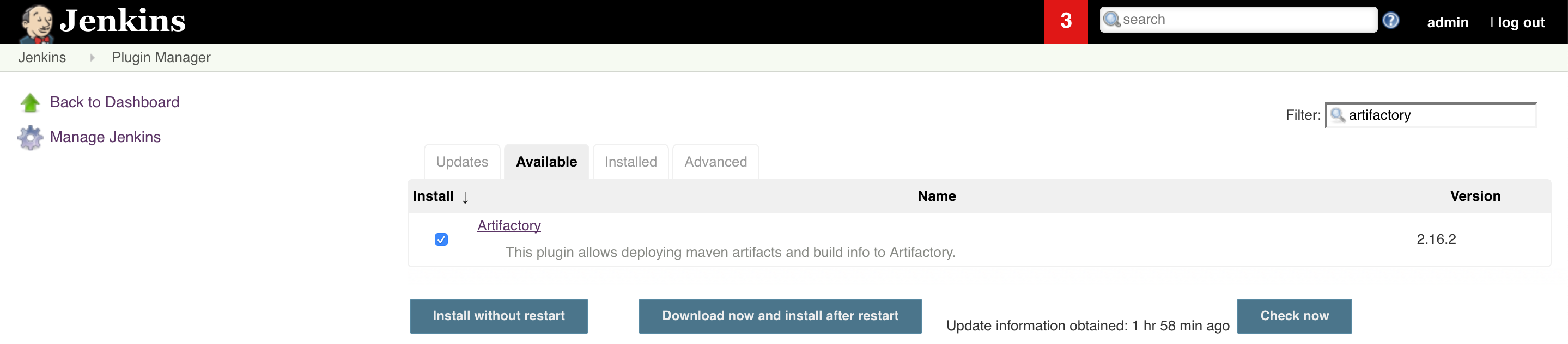
To install the Jenkins Artifactory Plugin, go to Manage Jenkins > Manage Plugins, click on the Available tab and search for Artifactory. Select the Artifactory plugin and click Download Now and Install After Restart.
Working With Pipeline Jobs in Jenkins
Pipeline jobs allow building a continuous delivery pipeline with Jenkins by creating a script that defines the steps of your build. For those not familiar with Jenkins Pipeline, please refer to the Pipeline Tutorial or the Getting Started With Pipeline documentation.
The Jenkins Artifactory Plugin adds pipeline APIs to support Artifactory operations as part of the build. You have the added option of downloading dependencies, uploading artifacts, and publishing build-info to Artifactory from a Pipeline script, in addition to integration with build tools and package managers.
Use Declarative or Scripted Syntax with Pipelines
Scripted and Declarative syntaxes are two different approaches to defining your pipeline jobs in Jenkins. When working with the Jenkins Artifactory plugin, be sure to choose either scripted or declarative. In other words, do not use declarative and scripted steps within a single pipeline. This will not work.
More information on the difference between the two can be found in the Jenkins Pipeline Syntax documentation.
Integration Benefits JFrog Artifactory and Jenkins-CI
Declarative Pipeline Syntax
Pipeline jobs simplify building continuous delivery workflows with Jenkins by creating a script that defines the steps of your build. For those not familiar with Jenkins Pipeline, please refer to the Pipeline Tutorial or the Getting Started With Pipeline documentation.
The Jenkins Artifactory Plugin supports Artifactory operations pipeline APIs. You have the added option of downloading dependencies, uploading artifacts, and publishing build-info to Artifactory from a pipeline script.
This page describes how to use declarative pipeline syntax with Artifactory. Declarative syntax is available from version 3.0.0 of the Jenkins Artifactory Plugin.
Tip
Scripted syntax is also supported. Read more about it here.
Examples
The Jenkins Pipeline Examples can help get you started creating your pipeline jobs with Artifactory.
Integration Benefits JFrog Artifactory and Jenkins-CI
Create an Artifactory Server Instance - Declarative Pipeline Syntax
There are two ways to tell the pipeline script which Artifactory server to use. You can either define the server details as part of the pipeline script, or define the server details in Manage | Configure System.
If you choose to define the Artifactory server in the pipeline, add the following to the script:
rtServer (
    id: 'Artifactory-1',
    url: 'http://my-artifactory-domain/artifactory',
        // If you're using username and password:
    username: 'user',
    password: 'password',
        // If you're using Credentials ID:
        credentialsId: 'ccrreeddeennttiiaall',
        // If Jenkins is configured to use an http proxy, you can bypass the proxy when using this Artifactory server:
        bypassProxy: true,
        // Configure the connection timeout (in seconds).
        // The default value (if not configured) is 300 seconds:
        timeout: 300
)
You can also use a Jenkins Credential ID instead of the username and password:
The id property (Artifactory-1 in the above examples) is a unique identifier for this server, allowing us to reference this server later in the script. If you prefer to define the server in Manage | Configure System, you don't need to add the rtServerit definition as shown above. You can use the reference the server using its configured Server ID.
Upload and Download Files - Declarative Pipeline Syntax
To download the files, add the following closure to the pipeline script:
rtDownload (
    serverId: 'Artifactory-1',
    spec: '''{
          "files": [
            {
              "pattern": "bazinga-repo/froggy-files/",
              "target": "bazinga/"
            }
          ]
    }''',

    // Optional - Associate the downloaded files with the following custom build name and build number,
    // as build dependencies.
    // If not set, the files will be associated with the default build name and build number (i.e the
    // the Jenkins job name and number).
    buildName: 'holyFrog',
    buildNumber: '42',
    // Optional - Only if this build is associated with a project in Artifactory, set the project key as follows.
    project: 'my-project-key'
)
In the above example, file are downloaded from the Artifactory server referenced by the Artifactory-1 server ID.
The above closure also includes a File Spec, which specifies the files which files should be downloaded. In this example, all ZIP files in the bazinga-repo/froggy-files/ Artifactory path should be downloaded into the bazinga directory on your Jenkins agent file system.
Uploading files is very similar. The following example uploads all ZIP files which include froggy in their names into the froggy-files folder in the bazinga-repo Artifactory repository.
rtUpload (
    serverId: 'Artifactory-1',
    spec: '''{
          "files": [
            {
              "pattern": "bazinga/*froggy*.zip",
              "target": "bazinga-repo/froggy-files/"
            }
         ]
    }''',

    // Optional - Associate the uploaded files with the following custom build name and build number,
    // as build artifacts.
    // If not set, the files will be associated with the default build name and build number (i.e the
    // the Jenkins job name and number).
    buildName: 'holyFrog',
    buildNumber: '42',
    // Optional - Only if this build is associated with a project in Artifactory, set the project key as follows.
    project: 'my-project-key'
)
You can manage the File Spec in separate files, instead of adding it as part of the rtUpload and rtDownload closures. This allows managing the File Specs in a source control, possible with the project sources. Here's how you access the File Spec i the rtUpload. The configuration is similar in thertDownload closure****:****
rtUpload (
    serverId: 'Artifactory-1',
    specPath: 'path/to/spec/relative/to/workspace/spec.json',

    // Optional - Associate the uploaded files with the following custom build name and build number.
    // If not set, the files will be associated with the default build name and build number (i.e the
    // the Jenkins job name and number).
    buildName: 'holyFrog',
    buildNumber: '42',
    // Optional - Only if this build is associated with a project in Artifactory, set the project key as follows.
    project: 'my-project-key'
)
You can read about using File Specs for downloading and uploading files here.
If you'd like to fail the build in case no files are uploaded or downloaded, add the failNoOp property to the rtUpload or rtDownload closures as follows:
rtUpload (
    serverId: 'Artifactory-1',
    specPath: 'path/to/spec/relative/to/workspace/spec.json',
    failNoOp: true,

    // Optional - Associate the uploaded files with the following custom build name and build number.
    // If not set, the files will be associated with the default build name and build number (i.e the
    // the Jenkins job name and number).
    buildName: 'holyFrog',
    buildNumber: '42',
    // Optional - Only if this build is associated with a project in Artifactory, set the project key as follows.
    project: 'my-project-key'
)
Set and Delete Properties on Files in Artifactory - Declarative Pipeline Syntax
When uploading files to Artifactory using the rtUpload closure, you have the option of setting properties on the files. These properties can be later used to filter and download those files.
In some cases, you may want want to set properties on files that are already in Artifactory. The way to this is very similar to the way you define which files to download or upload: A FileSpec is used to filter the filter on which the properties should be set. The properties to be set are sent outside the File Spec. Here's an example.
rtSetProps (
        serverId: 'Artifactory-1',
        specPath: 'path/to/spec/relative/to/workspace/spec.json',
        props: 'p1=v1;p2=v2',
        failNoOp: true
)
In the above example:
- The serverId property is used to reference pre-configured Artifactory server instance as described in the Creating Artifactory Server Instance section.
- The specPath property include a path to a File Spec, which has a similar structure to the File Spec used for downloading files.
- The props property defines the properties we'd like to set. In the above example we're setting two properties - p1 and p2 with the v1 and v2 values respectively.
- The failNoOp property is optional. Setting it to true will cause the job to fail, if no properties have been set.
You also have the option of specifying the File Spec directly inside the rtSetProps closure as follows.
rtSetProps (
        serverId: 'Artifactory-1',
        props: 'p1=v1;p2=v2',
        spec: '''{
            "files": [{
                "pattern": "my-froggy-local-repo",
                "props": "filter-by-this-prop=yes"
        }]}'''
)
The rtDeleteProps closure is used to delete properties from files in Artifactory, The syntax is pretty similar to the rtSetProps closure. The only difference is that in the rtDeleteProps, we specify only the names of the properties to delete. The names are comma separated. The properties values should not be specified. Here's an example:
rtDeleteProps (
        serverId: 'Artifactory-1',
        specPath: 'path/to/spec/relative/to/workspace/spec.json',
        props: 'p1,p2,p3',
        failNoOp: true
)
Similarly to the rtSetProps closure, the File Spec can be defined implicitly in inside the closure as shown here:
rtDeleteProps (
        serverId: 'Artifactory-1',
        props: 'p1,p2,p3',
        spec: '''{
            "files": [{
                "pattern": "my-froggy-local-repo",
                "props": "filter-by-this-prop=yes"
        }]}'''
)
Publish Build-Info to Artifactory - Declarative Pipeline Syntax
If you're not yet familiar with the build-info entity, read about it here.
Files that are downloaded by the rtDownload closure are automatically registered as the current build's dependencies, while files that are uploaded by the rtUpload closure are registered as the build artifacrts. The depedencies and artifacts are recorded locally and can be later published as build-info to Artifactory.
Here's how you publish the build-info to Artifactory:
rtPublishBuildInfo (
    serverId: 'Artifactory-1',
    // The buildName and buildNumber below are optional. If you do not set them, the Jenkins job name is used
    // as the build name. The same goes for the build number.
    // If you choose to set custom build name and build number by adding the following buildName and
    // buildNumber properties, you should make sure that previous build steps (for example rtDownload
    // and rtIpload) have the same buildName and buildNumber set. If they don't, then these steps will not
    // be included in the build-info.
    buildName: 'holyFrog',
    buildNumber: '42',
    // Optional - Only if this build is associated with a project in Artifactory, set the project key as follows.
    project: 'my-project-key'
)
If you set a custom build name and number as shown above, please make sure to set the same build name and number in the rtUpload or rtDownload closures as shown below. If you don't, Artifactory will not be able to associate these files with the build and therefore their files will not be displayed in Artifactory.
rtDownload (
    serverId: 'Artifactory-1',
    // Build name and build number for the build-info:
    buildName: 'holyFrog',
    buildNumber: '42',
    // Optional - Only if this build is associated with a project in Artifactory, set the project key as follows.
    project: 'my-project-key',
    // You also have the option of customising the build-info module name:
    module: 'my-custom-build-info-module-name',
    specPath: 'path/to/spec/relative/to/workspace/spec.json'
)

rtUpload (
    serverId: 'Artifactory-1',
    // Build name and build number for the build-info:
    buildName: 'holyFrog',
    buildNumber: '42',
    // Optional - Only if this build is associated with a project in Artifactory, set the project key as follows.
    project: 'my-project-key',
    // You also have the option of customising the build-info module name:
    module: 'my-custom-build-info-module-name',
    specPath: 'path/to/spec/relative/to/workspace/spec.json'
)
Capture Environment Variables - Declarative Pipeline Syntax
To set the Build-Info object to automatically capture environment variables while downloading and uploading files, add the following to your script.
Note
It is important to place the rtBuildInfo closure before any steps associated with this build (for example, rtDownload and rtUpload), so that its configured functionality (for example, environment variables collection) will be invoked as part of these steps.
rtBuildInfo (
    captureEnv: true,

    // Optional - Build name and build number. If not set, the Jenkins job's build name and build number are used.
    buildName: 'my-build',
    buildNumber: '20',
    // Optional - Only if this build is associated with a project in Artifactory, set the project key as follows.
    project: 'my-project-key'
)
By default, environment variables names which include "password", "psw", "secret", "token", or "key" (case insensitive) are excluded and will not be published to Artifactory.
You can add more include/exclude patterns with wildcards as follows:
rtBuildInfo (
    captureEnv: true,
    includeEnvPatterns: ['*abc*', '*bcd*'],
    excludeEnvPatterns: ['*private*', 'internal-*'],

    // Optional - Build name and build number. If not set, the Jenkins job's build name and build number are used.
    buildName: 'my-build',
    buildNumber: '20'
    // Optional - Only if this build is associated with a project in Artifactory, set the project key as follows.
    project: 'my-project-key'
)
Trigger Build Retention - Declarative Pipeline Syntax
Build retention can be triggered when publishing build-info to Artifactory using the rtPublishBuildInfo closure. Setting build retention therefore should be done before publishing the build, by using the rtBuildInfo closure, as shown below. Please make sure to place the following configuration in the script before the rtPublishBuildInfo closure.
rtBuildInfo (
    // Optional - Maximum builds to keep in Artifactory.
    maxBuilds: 1,
    // Optional - Maximum days to keep the builds in Artifactory.
    maxDays: 2,
    // Optional - List of build numbers to keep in Artifactory.
    doNotDiscardBuilds: ['3'],
    // Optional (the default is false) - Also delete the build artifacts when deleting a build.
    deleteBuildArtifacts: true,

    // Optional - Build name and build number. If not set, the Jenkins job's build name and build number are used.
    buildName: 'my-build',
    buildNumber: '20',
    // Optional - Only if this build is associated with a project in Artifactory, set the project key as follows.
    project: 'my-project-key'
)
Collect Build Issues - Declarative Pipeline Syntax
The build-info can include the issues which were handled as part of the build. The list of issues is automatically collected by Jenkins from the git commit messages. This requires the project developers to use a consistent commit message format, which includes the issue ID and issue summary, for example:
HAP-1364 - Replace tabs with spaces
The list of issues can be then viewed in the Builds UI in Artifactory, along with a link to the issue in the issues tracking system.
The information required for collecting the issues is provided through a JSON configuration. This configuration can be provided as a file or as a JSON string.
Here's an example for issues collection configuration.
{
    'version': 1,
    'issues': {
        'trackerName': 'JIRA',
        'regexp': '(.+-[0-9]+)\\s-\\s(.+)',
        'keyGroupIndex': 1,
        'summaryGroupIndex': 2,
        'trackerUrl': 'http://my-jira.com/issues',
        'aggregate': 'true',
        'aggregationStatus': 'RELEASED'
    }
}
Configuration file properties:
| Property name | Description |
|---|---|
| Version | The schema version is intended for internal use. Do not change! |
| trackerName | The name (type) of the issue tracking system. For example, JIRA. This property can take any value. |
| trackerUrl | The issue tracking URL. This value is used for constructing a direct link to the issues in the Artifactory build UI. |
| keyGroupIndex | The capturing group index in the regular expression used for retrieving the issue key. In the example above, setting the index to "1" retrieves HAP-1364 from this commit message: HAP-1364 - Replace tabs with spaces |
| summaryGroupIndex | The capturing group index in the regular expression for retrieving the issue summary. In the example above, setting the index to "2" retrieves the sample issue from this commit message: HAP-1364 - Replace tabs with spaces |
| aggregate | Set to true, if you wish all builds to include issues from previous builds. |
| aggregationStatus | If aggregate is set to true, this property indicates how far in time should the issues be aggregated. In the above example, issues will be aggregated from previous builds, until a build with a RELEASE status is found. Build statuses are set when a build is promoted using the jfrog rt build-promote command. |
| regexp | A regular expression used for matching the git commit messages. The expression should include two capturing groups - for the issue key (ID) and the issue summary. In the example above, the regular expression matches the commit messages as displayed in the following example: HAP-1364 - Replace tabs with spaces |
Here's how you set issues collection in the pipeline script.
rtCollectIssues (
    serverId: 'Artifactory-1',
    config: '''{
        "version": 1,
        "issues": {
            "trackerName": "JIRA",
            "regexp": "(.+-[0-9]+)\\s-\\s(.+)",
            "keyGroupIndex": 1,
            "summaryGroupIndex": 2,
            "trackerUrl": "http://my-jira.com/issues",
            "aggregate": "true",
            "aggregationStatus": "RELEASED"
        }
    }''',
)
In the above example, the issues config is embedded inside the rtCollectIssues closure. You also have the option of providing a file which includes the issues configuration. Here's how you do this:
rtCollectIssues (
    serverId: 'Artifactory-1',
    configPath: '/path/to/config.json'
)
If you'd like add the issues information to a specific build-info, you can also provide build name and build number as follows:
rtCollectIssues (
    serverId: 'Artifactory-1',
    configPath: '/path/to/config'
    buildName: 'my-build',
    buildNumber: '20',
    // Optional - Only if this build is associated with a project in Artifactory, set the project key as follows.
    project: 'my-project-key'
)Note
To help you get started, we recommend using the Github Examples.
Aggregate Builds - Declarative Pipeline Syntax
The build-info published to Artifactory can include multiple modules representing different build steps. As shown earlier in this section, you just need to pass the same buildName and buildNumber to all the steps that need it (rtUpload for example).
What happens however if your build process runs on multiple machines or it is spread across different time periods? How do you aggregate all the build steps into one build-info?
When your build process runs on multiple machines or it is spread across different time periods, you have the option of creating and publishing a separate build-info for each segment of the build process, and then aggregating all those published builds into one build-info. The end result is one build-info which references other, previously published build-infos.
In the following example, our pipeline script publishes two build-info instances to Artifactory:
rtPublishBuildInfo (
    serverId: 'Artifactory-1',
    buildName: 'my-app-linux',
    buildNumber: '1'
)

rtPublishBuildInfo (
    serverId: 'Artifactory-1',
    buildName: 'my-app-windows',
    buildNumber: '1'
)
At this point, we have two build-infos stored in Artifactory. Now let's create our final build-info, which references the previous two:
rtBuildAppend(
    // Mandatory:
    serverId: 'Artifactory-1',
    appendBuildName: 'my-app-linux',
    appendBuildNumber: '1',

    // The buildName and buildNumber below are optional. If you do not set them, the Jenkins job name is used
    // as the build name. The same goes for the build number.
    // If you choose to set custom build name and build number by adding the following buildName and
    // buildNumber properties, you should make sure that previous build steps (for example rtDownload
    // and rtIpload) have the same buildName and buildNumber set. If they don't, then these steps will not
    // be included in the build-info.
    buildName: 'final',
    buildNumber: '1'
)

rtBuildAppend(
    // Mandatory:
    serverId: 'Artifactory-1',
    appendBuildName: 'my-app-windows',
    appendBuildNumber: '1',
    buildName: 'final',
    buildNumber: '1'
)

// Publish the aggregated build-info to Artifactory.
rtPublishBuildInfo (
    serverId: 'Artifactory-1',
    buildName: 'final',
    buildNumber: '1'
)
If the published builds in Artifactory are associated with a project, you should add the project key to the rtBuildAppend and rtPublishBuildInfo steps as follows.
rtBuildAppend(
    // Mandatory:
    serverId: 'Artifactory-1',
    appendBuildName: 'my-app-linux',
    appendBuildNumber: '1',
    buildName: 'final',
    buildNumber: '1',
    project: 'my-project-key'
)

rtBuildAppend(
    // Mandatory:
    serverId: 'Artifactory-1',
    appendBuildName: 'my-app-windows',
    appendBuildNumber: '1',
    buildName: 'final',
    buildNumber: '1',
    project: 'my-project-key'
)

// Publish the aggregated build-info to Artifactory.
rtPublishBuildInfo (
    serverId: 'Artifactory-1',
    buildName: 'final',
    buildNumber: '1',
    project: 'my-project-key'
)Note
Build Promotion and Build scanning with Xray are currently not supporting aggregated builds.
Promote Builds in Artifactory - Declarative Pipeline Syntax
To promote a build between repositories in Artifactory, define the promotion parameters in the rtPromote closure For example:
rtPromote (
    // Mandatory parameter

    buildName: 'MK',
    buildNumber: '48',
    // Optional - Only if this build is associated with a project in Artifactory, set the project key as follows.
    project: 'my-project-key',
    // Artifactory server ID from Jenkins configuration, or from configuration in the pipeline script
    serverId: 'Artifactory-1',
    // Name of target repository in Artifactory
    targetRepo: 'libs-release-local',

    // Optional parameters

    // Comment and Status to be displayed in the Build History tab in Artifactory
    comment: 'this is the promotion comment',
    status: 'Released',
    // Specifies the source repository for build artifacts.
    sourceRepo: 'libs-snapshot-local',
    // Indicates whether to promote the build dependencies, in addition to the artifacts. False by default.
    includeDependencies: true,
    // Indicates whether to fail the promotion process in case of failing to move or copy one of the files. False by default
    failFast: true,
    // Indicates whether to copy the files. Move is the default.
    copy: true
)
Allow Interactive Promotion for Published Builds - Declarative Pipeline Syntax
The Promoting Builds in Artifactory section describes how your Pipeline script can promote builds in Artifactory. In some cases however, you'd like the build promotion to be performed after the build finished. You can configure your Pipeline job to expose some or all the builds it publishes to Artifactory, so that they can be later promoted interactively using a GUI.
When the build finishes, the promotion window will be accessible by clicking on the promotion icon, next to the build run. To enable interactive promotion for a published build, add the rtAddInteractivePromotion as shown below.
rtAddInteractivePromotion (
    // Mandatory parameters

    // Artifactory server ID from Jenkins configuration, or from configuration in the pipeline script
    serverId: 'Artifactory-1',
    buildName: 'MK',
    buildNumber: '48',
    // Only if this build is associated with a project in Artifactory, set the project key as follows.
    project: 'my-project-key',

    // Optional parameters

    If set, the promotion window will display this label instead of the build name and number.
    displayName: 'Promote me please',
    // Name of target repository in Artifactory
    targetRepo: 'libs-release-local
    // Comment and Status to be displayed in the Build History tab in Artifactory
    comment: 'this is the promotion comment',
    status: 'Released',
    // Specifies the source repository for build artifacts.
    sourceRepo: 'libs-snapshot-local',
    // Indicates whether to promote the build dependencies, in addition to the artifacts. False by default.
    includeDependencies: true,
    // Indicates whether to fail the promotion process in case of failing to move or copy one of the files. False by default
    failFast: true,
    // Indicates whether to copy the files. Move is the default.
    copy: true
)
You can add multiple _rtAddInteractivePromotion_closures, to include multiple builds in the promotion window.
Maven Builds with Artifactory - Declarative Pipeline Syntax
Maven builds can resolve dependencies, deploy artifacts and publish build-info to Artifactory.
Maven Compatibility
- The minimum Maven version supported is 3.3.9
- The deployment to Artifacts is triggered both by the deploy and install phases.
To run Maven builds with Artifactory from your Pipeline script, you first need to create an Artifactory server instance, as described in the _Creating an Artifactory Server Instance_section.
The next step is to define an rtMavenResolver closure, which defines the dependencies resolution details, and an rtMavenDeployer closure, which defines the artifacts deployment details. Here's an example:
rtMavenResolver (
    id: 'resolver-unique-id',
    serverId: 'Artifactory-1',
    releaseRepo: 'libs-release',
    snapshotRepo: 'libs-snapshot'
)

rtMavenDeployer (
    id: 'deployer-unique-id',
    serverId: 'Artifactory-1',
    releaseRepo: 'libs-release-local',
    snapshotRepo: 'libs-snapshot-local',
    // By default, 3 threads are used to upload the artifacts to Artifactory. You can override this default by setting:
    threads: 6,
    // Attach custom properties to the published artifacts:
    properties: ['key1=value1', 'key2=value2']
)
As you can see in the example above, the resolver and deployer should have a unique ID, so that they can be referenced later in the script, In addition, they include an Artifactory server ID and the names of release and snapshot maven repositories.
Now we can run the maven build, referencing the resolver and deployer we defined:
rtMavenRun (
        // Tool name from Jenkins configuration.
    tool: MAVEN_TOOL,
    // Set to true if you'd like the build to use the Maven Wrapper.
    useWrapper: true,
    pom: 'maven-example/pom.xml',
    goals: 'clean install',
        // Maven options.
        opts: '-Xms1024m -Xmx4096m',
    resolverId: 'resolver-unique-id',
    deployerId: 'deployer-unique-id',
    // If the build name and build number are not set here, the current job name and number will be used:
    buildName: 'my-build-name',
    buildNumber: '17',
    // Optional - Only if this build is associated with a project in Artifactory, set the project key as follows.
    project: 'my-project-key'
)
Instead of setting the tool in the rtMavenRun closure, you can set the path to the Maven installation directory using the MAVEN_HOME environment variable as follows:
environment {
    MAVEN_HOME = '/tools/apache-maven-3.3.9'
}
In case you'd like Maven to use a different JDK than your build agent's default, no problem.
Simply set the JAVA_HOME environment variable to the desired JDK path (the path to the directory above the bin directory, which includes the java executable).
environment {
    JAVA_HOME = '/full/path/to/JDK'
}
The last thing you might want to do, is to publish the build-info for this build. See the Publishing Build Info to Artifactory section for how to do it.
Gradle Builds with Artifactory - Declarative Pipeline Syntax
Gradle builds can resolve dependencies, deploy artifacts and publish build-info to Artifactory.
Gradle Compatibility
The minimum Gradle version supported is 4.10
To run Gradle builds with Artifactory from your Pipeline script, you first need to create an Artifactory server instance, as described in the Creating an Artifactory Server Instance section.
The next step is to define an rtGradleResolver closure, which defines the dependencies resolution details, and an rtGradleDeployer closure, which defines the artifacts deployment details. Here's an example:
rtGradleResolver (
    id: 'resolver-unique-id',
    serverId: 'Artifactory-1',
    repo: 'maven-remote'
)

rtGradleDeployer (
    id: 'deployer-unique-id',
    serverId: 'Artifactory-1',
    repo: 'libs-snapshot-local',
    // Optional - By default, 3 threads are used to upload the artifacts to Artifactory. You can override this default by setting:
    threads: 6,
    // Optional - Attach custom properties to the published artifacts:
    properties: ['key1=value1', 'key2=value2'],
        // Optional - Gradle allows customizing the list of deployed artifacts by defining publications as part fo the Gradle build script.
        // Gradle publications are used to group artifacts together. You have the option of defining which of the defined publications Jenkins should use. Only the artifacts grouped by these publications will be deployed to Artifactory.
        // If you do not define the publications, a default publication, which includes the list of the produced artifacts by a java project will be used.
        // Here's how you define the list of publications.
        publications: ["mavenJava", "ivyJava"]
    // If you'd like to deploy the artifacts from all the publications defined in the gradle script, you can set the "ALL_PUBLICATIONS" string as follows
    // publications: ["ALL_PUBLICATIONS"]
)
As you can see in the example above, the resolver and deployer should have a unique ID, so that they can be referenced later in the script, In addition, they include an Artifactory server ID and the names of release and snapshot maven repositories.
If you're using gradle to build a project, which produces maven artifacts, you also have the option of defining two deployment repositories as part the rtGradleDeployer closure - one repository will be used for snapshot artifacts and one for release artifacts. Here's how you define it:
rtGradleDeployer (
    id: 'deployer-unique-id',
    serverId: 'Artifactory-1',
        releaseRepo: 'libs-release',
        snapshotRepo: 'libs-snapshot'
)
Now we can run the Gradle build, referencing the resolver and deployer we defined:
rtGradleRun (
        // Set to true if the Artifactory Plugin is already defined in build script.
    usesPlugin: true,
        // Tool name from Jenkins configuration.
    tool: GRADLE_TOOL,
        // Set to true if you'd like the build to use the Gradle Wrapper.
        useWrapper: true,
    rootDir: 'gradle-examples/gradle-example/',
    buildFile: 'build.gradle',
    tasks: 'clean artifactoryPublish',
    resolverId: 'resolver-unique-id',
    deployerId: 'deployer-unique-id',
    // If the build name and build number are not set here, the current job name and number will be used:
    buildName: 'my-build-name',
    buildNumber: '17',
    // Optional - Only if this build is associated with a project in Artifactory, set the project key as follows.
    project: 'my-project-key'
)
In case you'd like Gradle to use a different JDK than your build agent's default, no problem.
Simply set the JAVA_HOME environment variable to the desired JDK path (the path to the directory above the bin directory, which includes the java executable).
Here's you do it:
environment {
    JAVA_HOME = '/full/path/to/JDK'
}
The last thing you might want to do, is to publish the build-info for this build. See the Publishing Build Info to Artifactory section for how to do it.
Note
You also have the option of defining default values in the gradle build script. Read more about it here.
Python Builds with Artifactory - Declarative Pipeline Syntax
Tip
We recommend using the integration with the JFrog Jenkins Plugin, rather than using the following DSL.
Python builds can resolve dependencies, deploy artifacts and publish build-info to Artifactory. To run Python builds with Artifactory start by following these steps, to make sure your Jenkins agent is ready:
- Make sure Python is installed on the build agent and that the python command is in the PATH.
- Install pip. You can use the Pip Documentation and also Installing packages using pip and virtual environments.
- Make sure wheel and setuptools are installed. You can use the Installing Packages Documentation.
- Validate that the build agent is ready by running the following commands from the terminal:
Output Python version:
> python --version

Output pip version:
> pip --version

Verify wheel is installed:
> wheel -h

Verify setuptools is installed:
> pip show setuptools

Verify that virtual-environment is activated:
> echo $VIRTUAL_ENV
To run Python builds from your Pipeline script, you first need to create an Artifactory server instance, as described in the Creating an Artifactory Server Instance section.
The next step is to define an rtPipResolver, which defines the dependencies resolution details. Here's an example:
rtPipResolver (
    id: "resolver-unique-id",
    serverId: "Artifactory-1",
    repo: "pip-virtual"
)
As you can see in the example above, the resolver should have a unique ID, so that it can be referenced later in the script, In addition, it includes an Artifactory server ID and the name of the repository.
Now we can use the rtPipInstall closure, to resolve the pip dependencies. Notice that the closure references the resolver we defined above.
rtPipInstall (
    resolverId: "resolver-unique-id",
    args: "-r python-example/requirements.txt",
    envActivation: virtual_env_activation,
        // Jenkins spawns a new java process during this step's execution.
        // You have the option of passing any java args to this new process.
        javaArgs: '-agentlib:jdwp=transport=dt_socket,server=y,suspend=n,address=*:5005'
    // If the build name and build number are not set here, the current job name and number will be used:
    buildName: 'my-build-name',
    buildNumber: '17',
    // Optional - Only if this build is associated with a project in Artifactory, set the project key as follows.
    project: 'my-project-key'
)
Notice the envActivation property in the example above. Is is an optional property. Since it is mostly recommended to run pip commands inside a virtual environment, to achieve isolation for the pip build. To follow this recommendation, you have the option of using the envActivation by sending a shell script as its value, for setting up the virtual env.
In most cases, your build also produces artifacts. The artifacts produced can be deployed to Artifactory using the rtUpload closure, as described in the Uploading and Downloading Files section in this article.
The last thing you might want to do, is to publish the build-info for this build. See the Publishing Build Info to Artifactory section for how to do it.
More about build-info: You also have the option of customising the build-info module names. You do this by adding the module property to the rtPipInstall closure as follows:
rtPipInstall (
    resolverId: "resolver-unique-id",
    args: "-r python-example/requirements.txt",
    envActivation: virtual_env_activation,
        module: 'my-custom-build-info-module-name'
)
NuGet and .NET Core Builds with Artifactory - Declarative Pipeline Syntax
Tip
We recommend using the integration with the JFrog Jenkins Plugin, rather than using the following DSL.
The Artifactory Plugin's integration with the NuGet and .NET Core clients allow build resolve dependencies, deploy artifacts and publish build-info to Artifactory.
Note
- Depending on the client you'd like to use, please make sure either the nuget or dotnet clients are included in the build agent's PATH.
- If you're using the dotnet client, please note that the minimum version supported is .NET Core 3.1.200 SDK.
To run NuGet / DotNet Core builds with Artifactory from your Pipeline script, you first need to create an Artifactory server instance, as described in the Creating an Artifactory Server Instance section.
The next step is to define an rtNugetResolver or rtDotnetResolver (depending on whether you're using using NuGet or DorNet Core), which defines the dependencies resolution details. Here's an example:
rtNugetResolver (
    id: 'resolver-unique-id',
    serverId: 'Artifactory-1',
    repo: 'libs-nuget'
)

// OR

rtDotnetResolver (
    id: 'resolver-unique-id',
    serverId: 'Artifactory-1',
    repo: 'libs-nuget'
)
As you can see in the example above, the resolver should have a unique ID, so that it can be referenced later in the script, In addition, it includes an Artifactory server ID and the name of the repository.
Now we can use the rtNugetRun or rtDotnetRun closure, to resolve the NuGet dependencies. Notice that the closure references the resolver we defined above.
rtNugetRun (
    resolverId: "resolver-unique-id",
    args: "restore ./Examples.sln",
        // Optional - Jenkins spawns a new java process during this step's execution.
        // You have the option of passing any java args to this new process.
        javaArgs: "-agentlib:jdwp=transport=dt_socket,server=y,suspend=n,address=*:5005",
    // Optional - By default, the build uses NuGet API protocol v2. If you'd like to use v3, set it on the build instance as follows.
    apiProtocol: "v3"
    // If the build name and build number are not set here, the current job name and number will be used:
    buildName: 'my-build-name',
    buildNumber: '17',
    // Optional - Only if this build is associated with a project in Artifactory, set the project key as follows.
    project: 'my-project-key'
)

// OR

rtDotnetRun (
    resolverId: "resolver-unique-id",
    args: "restore ./Examples.sln",
        // Jenkins spawns a new java process during this step's execution.
        // You have the option of passing any java args to this new process.
        javaArgs: "-agentlib:jdwp=transport=dt_socket,server=y,suspend=n,address=*:5005",
    // Optional - By default, the build uses NuGet API protocol v2. If you'd like to use v3, set it on the build instance as follows.
    apiProtocol: "v3"
    // If the build name and build number are not set here, the current job name and number will be used:
    buildName: 'my-build-name',
    buildNumber: '17',
    // Optional - Only if this build is associated with a project in Artifactory, set the project key as follows.
    project: 'my-project-key'
)
In most cases, your build also produces artifacts. The artifacts can be NuGet packages, DLL files or any other type of artifact. The artifacts produced can be deployed to Artifactory using the rtUpload closure, as described in the Uploading and Downloading Files section in this article.
The last thing you might want to do, is to publish the build-info for this build. See the Publishing Build Info to Artifactory section for how to do it.
More about build-info: You also have the option of customising the build-info module names. You do this by adding the module property to the rtNugetRun or rtDotnetRun closures as follows:
rtNugetRun (
    resolverId: "resolver-unique-id",
    args: "restore ./Examples.sln",
        module: 'my-custom-build-info-module-name'
)

// OR

rtDotnetRun (
    resolverId: "resolver-unique-id",
    args: "restore ./Examples.sln",
        module: 'my-custom-build-info-module-name'
)
NPM Builds with Artifactory - Declarative Pipeline Syntax
NPM builds can resolve dependencies, deploy artifacts and publish build-info to Artifactory. To run NPM builds with Artifactory from your Pipeline script, you first need to create an Artifactory server instance, as described in the Creating an Artifactory Server Instance section.
The next step is to define an rtNpmResolver closure, which defines the dependencies resolution details, and an rtNpmDeployer closure, which defines the artifacts deployment details. Here's an example:
rtNpmResolver (
    id: 'resolver-unique-id',
    serverId: 'Artifactory-1',
    repo: 'libs-npm'
)

rtNpmDeployer (
    id: 'deployer-unique-id',
    serverId: 'Artifactory-1',
    repo: 'libs-npm-local',
    // Attach custom properties to the published artifacts:
    properties: ['key1=value1', 'key2=value2']
)
As you can see in the example above, the resolver and deployer should have a unique ID, so that they can be referenced later in the script, In addition, they include an Artifactory server ID and the name of the repository.
Now we can use the rtNpmInstall or rtNpmCi closures, to resolve the NPM dependencies. Notice that the closure references the resolver we defined above.
rtNpmInstall (
    // Optional tool name from Jenkins configuration
    tool: NPM_TOOL,
    // Optional path to the project root. If not set, the root of the workspace is assumed as the root project path.
    path: 'npm-example',
    // Optional npm flags or arguments.
    args: '--verbose',
    resolverId: 'resolver-unique-id',
        // Jenkins spawns a new java process during this step's execution.
        // You have the option of passing any java args to this new process.
        javaArgs: '-agentlib:jdwp=transport=dt_socket,server=y,suspend=n,address=*:5005'
    // If the build name and build number are not set here, the current job name and number will be used:
    buildName: 'my-build-name',
    buildNumber: '17',
    // Optional - Only if this build is associated with a project in Artifactory, set the project key as follows.
    project: 'my-project-key'
)Note
The rtNpmInstall step invokes the npm install command behind the scenes. If you'd like to use the npm ci command instead, simply replace the step name with rtNpmCi.
And to pack and publish the npm package out project creates, we use the rtNpmPublish closure with a reference to the deployer we defined.
rtNpmPublish (
    // Optional tool name from Jenkins configuration
    tool: 'npm-tool-name',
    // Optional path to the project root. If not set, the root of the workspace is assumed as the root project path.
    path: 'npm-example',
    deployerId: 'deployer-unique-id',
        // Jenkins spawns a new java process during this step's execution.
        // You have the option of passing any java args to this new process.
        javaArgs: '-agentlib:jdwp=transport=dt_socket,server=y,suspend=n,address=*:5005'
    // If the build name and build number are not set here, the current job name and number will be used:
    buildName: 'my-build-name',
    buildNumber: '17',
    // Optional - Only if this build is associated with a project in Artifactory, set the project key as follows.
    project: 'my-project-key'
)
The build uses the npm executable to install (download the dependencies) and also to pack the resulting npm package before publishing it. By default, Jenkins uses the npm executable, which is present in the agent’s PATH. You can also reference a tool defined in Jenkins configuration. Here's how:
environment {
    // Path to the NodeJS home directory (not to the npm executable)
    NODEJS_HOME = 'path/to/the/nodeJS/home'
}
// or
environment {
    // If a tool named 'nodejs-tool-name' is defined in Jenkins configuration.
    NODEJS_HOME = "${tool 'nodejs-tool-name'}"
}
// or
nodejs(nodeJSInstallationName: 'nodejs-tool-name') {
    // Only in this code scope, the npm defined by 'nodejs-tool-name' is used.
}
If the npm installation is not set, the npm executable which is found in the agent's PATH is used.
The last thing you might want to do, is to publish the build-info for this build. See the Publishing Build Info to Artifactory section for how to do it.
More about build-info: You also have the option of customising the build-info module names. You do this by adding the module property to the rtNpmInstall or rtNpmPublish closures as follows:
rtNpmInstall (
    tool: 'npm-tool-name',
    path: 'npm-example',
    resolverId: 'resolver-unique-id',
    module: 'my-custom-build-info-module-name'
)

rtNpmPublish (
    tool: 'npm-tool-name',
    path: 'npm-example',
    deployerId: 'deployer-unique-id'
    module: 'my-custom-build-info-module-name'
)
Go Builds with Artifactory - Declarative Pipeline Syntax
While building your Go projects, Jenkins can resolve dependencies, deploy artifacts and publish build-info to Artifactory.
Note
Please make sure that the go client is included in the build agent's PATH.
To run Go builds with Artifactory from your Pipeline script, you first need to create an Artifactory server instance, as described in the Creating an Artifactory Server Instance section.
The next step is to define an rtGoResolver closure, which defines the dependencies resolution details, and an rtGoDeployer closure, which defines the artifacts deployment details. Here's an example:
rtGoResolver (
    id: 'resolver-unique-id',
    serverId: 'Artifactory-1',
    repo: 'libs-go'
)

rtGoDeployer (
    id: 'deployer-unique-id',
    serverId: 'Artifactory-1',
    repo: 'libs-go-local',
    // Attach custom properties to the published artifacts:
    properties: ['key1=value1', 'key2=value2']
)
As you can see in the example above, the resolver and deployer should have a unique ID, so that they can be referenced later in the script, In addition, they include an Artifactory server ID and the name of the repository.
Now we can use the rtGoRun closure, to run the build..Notice that the closure references the resolver we defined above.
rtGoRun (
    path: 'path/to/the/project/root',
    resolverId: 'resolver-unique-id',
    args: 'build'
    // If the build name and build number are not set here, the current job name and number will be used:
    buildName: 'my-build-name',
    buildNumber: '17',
    // Optional - Only if this build is associated with a project in Artifactory, set the project key as follows.
    project: 'my-project-key'
)
Now that the project is built, you can pack and publish it to Artifactory as a Go package. We use the rtGoPublish closure with a reference to the deployer we defined.
rtGoPublish (
    path: "path/to/the/project/root',
    deployerId: 'deployer-unique-id',
    version: '1.0.0'
)
The last thing you might want to do, is to publish the build-info for this build. See the _Publishing Build Info to Artifactory_section for how to do it.
More about build-info: You also also have the option of customising the build-info module names. You do this by adding the module property to the rtGoRun or rtGoPublish closures as follows:
rtGoRun (
    path: 'path/to/the/project/root',
    resolverId: 'resolver-unique-id',
    args: 'build',
    module: 'my-custom-build-info-module-name'
)

rtGoPublish (
    path: 'path/to/the/project/root',
    deployerId: 'deployer-unique-id',
    version: '1.0.0',
    module: 'my-custom-build-info-module-name'
)
Conan Builds with Artifactory - Declarative Pipeline Syntax
Conan is a C/C++ Package Manager. The Artifactory Pipeline DSL includes APIs that make it easy for you to run Conan builds, using the Conan Client installed on your build agents. Here's what you need to do before you create your first Conan build job with Jenkins:
1, Install the latest Conan Client on your Jenkins build agent. Please refer to the Conan documentation for installation instructions.
-
Add the Conan Client executable to the PATH environment variable on your build agent, to make sure Jenkins is able to use the client.
-
Create a Conan repository in Artifactory as described in the Conan Repositories Artifactory documentation.
OK. Let's start coding your first Conan Pipeline script.
Let's start by creating a Conan Client instance:
rtConanClient (
    id: "myConanClient"
)
When creating the Conan client, you can also specify the Conan user home directory as shown below:
rtConanClient (
    id: "myConanClient",
        userHome: "conan/my-conan-user-home"
)
We can now configure our new conan client by adding an Artifactory repository to it. In our example, we're adding the 'conan-local' repository, located in the Artifactory server, referenced by the pre-configured server ID:
rtConanRemote (
    name: "myRemoteName",
    serverId: "Artifactory-1",
    repo: "conan-local",
    clientId: "myConanClient",
        // Optional - Adding this argument will make the conan client not to raise an error. If an existing remote exists with the provided name.
        force: true,
        // Optional - Adding this argument will make the conan client skip the validation of SSL certificates.
        verifySSL: false
)
OK. We're ready to start running Conan commands. You'll need to be familiar with the Conan commands syntax, exposed by the Conan Client to run the commands. You can read about the commands syntax in the Conan documentation.
Let's run the first command:
rtConanRun (
    clientId: "myConanClient",
    command: "install . --build missing"
)
The next thing we want to do is to use the conan remote we created. For example, let's upload our artifacts to the conan remote. Notice how we use the ID of the remote we created earlier, which is myRemoteName:
rtConanRun (
    clientId: "myConanClient",
    command: "upload * --all -r myRemoteName --confirm"
)
We can now publish the the buildInfo to Artifactory, as described in the following section:
rtPublishBuildInfo (
    serverId: "Artifactory-1"
)
Docker Builds with Artifactory - Declarative Pipeline Syntax
Tip
We recommend using the integration with the JFrog Jenkins Plugin, rather than using the following DSL.
The Jenkins Artifactory Plugin supports a Pipeline DSL that allows pulling and pushing docker images from and to Artifactory. while collecting and publishing build-info to Artifactory. To setup your Jenkins build agents to collect build-info for your Docker builds, see setup instructions.
Work with Docker Daemon Directly - Declarative Pipeline Syntax
The Jenkins Artifactory Plugin supports working with the docker daemon directly through its REST API. Please make sure ti set up Jenkins to work with docker and Artifasctory as mentioned in the previous section.
Next, let's create an Artifactory server instance as shown blow, or configure it through Manage | Configure System.
rtServer (
    id: 'Artifactory-1',
    url: 'http://my-artifactory-domain/artifactory',
    credentialsId: 'my-credentials-id'
)
Next, here's how you pull a docker image from Artifactory.
Pulling Docker Images from Artifactory
rtDockerPull(
    serverId: 'Artifactory-1',
    image: ARTIFACTORY_DOCKER_REGISTRY + '/hello-world:latest',
    // Host:
    // On OSX: "tcp://127.0.0.1:1234"
    // On Linux can be omitted or null
    host: HOST_NAME,
    sourceRepo: 'docker-remote',
    // If the build name and build number are not set here, the current job name and number will be used:
    buildName: 'my-build-name',
    buildNumber: '17',
    // Optional - Only if this build is associated with a project in Artifactory, set the project key as follows.
    project: 'my-project-key',
        // Jenkins spawns a new java process during this step's execution.
        // You have the option of passing any java args to this new process.
        javaArgs: '-agentlib:jdwp=transport=dt_socket,server=y,suspend=n,address=*:5005'
)
Here's how you push an image to Artifactory
Pushing Docker Images to Artifactory
rtDockerPush(
    serverId: 'Artifactory-1',
    image: ARTIFACTORY_DOCKER_REGISTRY + '/hello-world:latest',
    // Host:
    // On OSX: 'tcp://127.0.0.1:1234'
    // On Linux can be omitted or null
    host: HOST_NAME,
    targetRepo: 'docker-local',
    // Attach custom properties to the published artifacts:
    properties: 'project-name=docker1;status=stable',
    // If the build name and build number are not set here, the current job name and number will be used:
    buildName: 'my-build-name',
    buildNumber: '17',
    // Optional - Only if this build is associated with a project in Artifactory, set the project key as follows.
    project: 'my-project-key',
        // Jenkins spawns a new java process during this step's execution.
        // You have the option of passing any java args to this new process.
        javaArgs: '-agentlib:jdwp=transport=dt_socket,server=y,suspend=n,address=*:5005'
)
And finally, you have the option of publishing the build-info to Artifactory as follows.
rtPublishBuildInfo (
    serverId: 'Artifactory-1',
    // If the build name and build number are not set here, the current job name and number will be used. Make sure to use the same value used in the rtDockerPull and/or rtDockerPush steps.
    buildName: 'my-build-name',
    buildNumber: '17',
    // Optional - Only if this build is associated with a project in Artifactory, set the project key as follows.
    project: 'my-project-key',
)
Use Kaniko for Docker Images - Declarative Pipeline Syntax
The rtCreateDockerBuild step allows collecting build-info for docker images that were published to Artifactory using Kaniko. See our kaniko project example on GitHub to learn how to do this.
Use Jib for Docker Images - Declarative Pipeline Syntax
The rtCreateDockerBuild step allows collecting build-info for docker images that were published to Artifactory using t he JIB Maven Plugin. See our maven-jib-example on GitHub to learn how to do this. Since this example also runs maven using the Artifactory pipeline APIs, we also recommend referring to the Maven Builds with Artifactory section included in this documentation page.
Scan Builds with JFrog Xray - Declarative Pipeline Syntax
The Jenkins Artifactory Plugin is integrated with JFrog Xray through JFrog Artifactory allowing you to have build artifacts scanned for vulnerabilities and other issues. If issues or vulnerabilities are found, you may choose to fail a build. This integration requires JFrog Artifactory v4.16 and above and JFrog Xray v1.6 and above.
You may scan any build that has been published to Artifactory. It does not matter when the build was published, as long as it was published before triggering the scan by JFrog Xray.
The following instructions show you how to configure your Pipeline script to have a build scanned.
rtServer (
    id: 'Artifactory-1',
    url: 'http://my-artifactory-domain/artifactory',
    credentialsId: 'my-credentials-id'
)

xrayScan (
    serverId: 'Artifactory-1',
        // If the build name and build number are not set here, the current job name and number will be used:
        buildName: 'my-build-name',
        buildNumber: '17',
    // Optional - Only if this build is associated with a project in Artifactory, set the project key as follows.
    project: 'my-project-key',
        // If the build is found vulnerable, the job will fail by default. If you do not wish it to fail:
        failBuild: false
)
Manage Release Bundles - Declarative Pipeline Syntax
The Jenkins Artifactory Plugin exposes a set of pipeline APIs for managing and distributing Release Bundles. These APIs require version 2.0 or higher of JFrog Distribution. These APIs work with JFrog Distribution's REST endpoint, and not with Artifactory REST endpoint. It is therefore recommended to verify that JFrog Distribution is accessible from Jenkins through Jenkins | Manage | Configure System. The serverId value in all examples in this section should be replaced with the JFrog Platform ID you configured.
To make it easier to get started using the JFrog Distribution pipeline APIs, you can use the jfrog-distribution-example available here.
Create or Update Unsigned Release Bundles - Declarative Pipeline Syntax
The dsCreateReleaseBundle and dsUpdateReleaseBundle steps create and update a release bundle on JFrog Distribution. The steps accept the configured JFrog Platform ID as well as the release bundle name and release bundle version to be created. The steps also accept a File Spec, which defines the files in Artifactory to be bundled into the release bundle.
Create a release bundle
dsCreateReleaseBundle(
    serverId: "jfrog-instance-1",
    name: "example-release-bundle",
    version: "1",
    spec: """{
        "files": [{
            "pattern": "libs-release-local/ArtifactoryPipeline.zip"
        }]
    }""",
        // The default is "plain_text". The syntax for the release notes. Can be one of 'markdown', 'asciidoc', or 'plain_text'.
    releaseNotesSyntax: "markdown",
        // Optional. If set to true, automatically signs the release bundle version.
    signImmediately: true,
    // Optional. Path to a file describing the release notes for the release bundle version.
        releaseNotesPath: "path/to/release-notes",
    // Optional. The passphrase for the signing key.
        gpgPassphrase: "abc",
    // Optional. A repository name at the source Artifactory instance, to store release bundle artifacts in. If not provided, Artifactory will use the default one.
        storingRepo: "release-bundles-1",
    // Optional.
        description: "Some desc",
    // Optional. Path to a file with the File Spec content.
        specPath: "path/to/filespec.json",
    // Optional. Set to true to disable communication with JFrog Distribution.
        dryRun: true
)
Update a release bundle
dsUpdateReleaseBundle(
    serverId: "jfrog-instance-1",
    name: "example-release-bundle",
    version: "1",
    spec: """{
        "files": [{
            "pattern": "libs-release-local/ArtifactoryPipeline.zip"
        }]
    }""",
        // The default is "plain_text". The syntax for the release notes. Can be one of 'markdown', 'asciidoc', or 'plain_text'.
    releaseNotesSyntax: "",
        // Optional. If set to true, automatically signs the release bundle version.
    signImmediately: true,
    // Optional. Path to a file describing the release notes for the release bundle version.
        releaseNotesPath: "path/to/release-notes",
    // Optional. The passphrase for the signing key.
        gpgPassphrase: "abc",
    // Optional. A repository name at the source Artifactory instance, to store release bundle artifacts in. If not provided, Artifactory will use the default one.
        storingRepo: "release-bundles-1",
    //Optional.
        description: "Some desc",
    // Optional. Path to a file with the File Spec content.
        specPath: "path/to/filespec.json",
    // Optional. Set to true to disable communication with JFrog Distribution.
        dryRun: true
)
Sign Release Bundles - Declarative Pipeline Syntax
Release bundles must be signed before they can be distributed. Here's how you sign a release bundle.
Sign a release bundle
dsSignReleaseBundle(
    serverId: "jfrog-instance-1",
    name: "example-release-bundle",
    version: "1",
        // Optional GPG passphrase
        gpgPassphrase: "abc",
        // Optional repository name at the source Artifactory instance, to store release bundle artifacts in. If not provided, Artifactory will use the default one.
        storingRepo: "release-bundles-1"
)
Distributing Release Bundles
Here's how you distribute a signed release bundle.
Distribute a release bundle
dsDeleteReleaseBundle(
    serverId: "jfrog-instance-1",
    name: "example-release-bundle",
    version: "1",
        // Optional distribution rules
    distRules: """{
            "distribution_rules": [
            {
                "site_name": "*",
                "city_name": "*",
                "country_codes": ["*"]
            }
            ]
        }""",
        // Optional country codes. Cannot be used together with 'distRules'
        countryCodes: ["001", "002"],
        // Optional site name. Cannot be used together with 'distRules'
        siteName: "my-site",
        // Optional city name. Cannot be used together with 'distRules'
        cityName: "New York",
        // Optional. If set to true, the response will be returned only after the distribution is completed.
    sync: true,
        // Optional. Set to true to disable communication with JFrog Distribution.
        dryRun: true
}
Delete Release Bundles - Declarative Pipeline Syntax
Here's how you delete a release bundle.
dsDeleteReleaseBundle(
    serverId: "jfrog-instance-1",
    name: "example-release-bundle",
    version: "1",
        // Optional distribution rules
    distRules: """{
            "distribution_rules": [
            {
                "site_name": "*",
                "city_name": "*",
                "country_codes": ["*"]
            }
            ]
        }"""
    ),
        // Optional country codes. Cannot be used together with 'distRules')
        countryCodes: ["001", "002"]
        // Optional site name. Cannot be used together with 'distRules')
        siteName: "my-site",
        // Optional city name. Cannot be used together with 'distRules')
        cityName: "New York",
        // Optional. If set to true, the response will be returned only after the deletion is completed.
    sync: true,
        // Optional. If set to true, the release bundle will also be deleted on the source Artifactory instance, and not only on the edge node.
    deleteFromDist: true,
        // Optional. Set to true to disable communication with JFrog Distribution.
        dryRun: true
}
Build Triggers - Declarative Pipeline Syntax
The Artifactory Trigger allows a Jenkins job to be automatically triggered when files are added or modified in a specific Artifactory path. The trigger periodically polls Artifactory to check if the job should be triggered. You can read more about it here.
You have the option of defining the Artifactory Trigger from within your pipeline. Here's how you do it:
First, create an Artifactory server instance, as described in the Creating an Artifactory Server Instance section.
Next, define the trigger as shown here:
rtBuildTrigger(
    serverId: "ARTIFACTORY_SERVER",
    spec: "*/10 * * * *",
    paths: "generic-libs-local/builds/starship"
)
When a job is triggered following deployments to Artifactory, you can store the URL of the file in Artifactory which triggered the job in an environment variable. Here's how you do it:
environment {
    RT_TRIGGER_URL = "${currentBuild.getBuildCauses('org.jfrog.hudson.trigger.ArtifactoryCause')[0]?.url}"
}
Scripted Pipeline Syntax
Pipeline jobs simplify building continuous delivery workflows with Jenkins by creating a script that defines the steps of your build. For those not familiar with Jenkins Pipeline, please refer to the Pipeline Tutorial or the Getting Started With Pipeline documentation.
The Jenkins Artifactory Plugin supports Artifactory operations pipeline API. You have the added option of downloading dependencies, uploading artifacts, and publishing build-info to Artifactory from a pipeline script.
This page describes how to use scripted pipeline syntax with Artifactory.
Tip
Declarative syntax is also supported. Read more about it here.
The Jenkins Pipeline Examples can help get you started creating your pipeline jobs with Artifactory.
Integration Benefits JFrog Artifactory and Jenkins-CI
Create an Artifactory Server Instance - Scripted Pipeline Syntax
To upload or download files to and from your Artifactory server, you need to create an Artifactory server instance in your Pipeline script.
If your Artifactory server is already defined in Jenkins, you only need its server ID which can be obtained under Manage | Configure System.
Then, to create your Artifactory server instance, add the following line to your script:
def server = Artifactory.server 'my-server-id'If your Artifactory is not defined in Jenkins you can still create it as follows:
def server = Artifactory.newServer url: 'artifactory-url', username: 'username', password: 'password'You can also user Jenkins Credential ID instead of username and password:
def server = Artifactory.newServer url: 'artifactory-url', credentialsId: 'ccrreeddeennttiiaall'You can modify the server object using the following methods:
// If Jenkins is configured to use an http proxy, you can bypass the proxy when using this Artifactory server:
server.bypassProxy = true
// If you're using username and password:
server.username = 'new-user-name'
server.password = 'new-password'
// If you're using Credentials ID:
server.credentialsId = 'ccrreeddeennttiiaall'
// Configure the connection timeout (in seconds).
// The default value (if not configured) is 300 seconds:
server.connection.timeout = 300Use variables
We recommend using variables rather than plain text to specify the Artifactory server details.
Upload and Download Files - Scripted Pipeline Syntax
To upload or download files you first need to create a spec which is a JSON file that specifies which files should be uploaded or downloaded and the target path.For example:def downloadSpec = """{
"files": [
{
"pattern": "bazinga-repo/*.zip",
"target": "bazinga/"
}
]
}"""The above spec specifies that all ZIP files in thebazinga-repo Artifactory repository should be downloaded into thebazingadirectory on your Jenkins agent file system."files" is an array
Since the "files" element is an array, you can specify several patterns and corresponding targets in a single download spec.
To download the files, add the following line to your script:server.download spec: downloadSpecUploading files is very similar. The following example uploads all ZIP files that includefroggyin their names into thefroggy-filesfolder in thebazinga-repoArtifactory repository.def uploadSpec = """{
"files": [
{
"pattern": "bazinga/*froggy*.zip",
"target": "bazinga-repo/froggy-files/"
}
]
}"""
server.upload spec: uploadSpecYou can read about using File Specs for downloading and uploading files here.If you'd like the build to fail, in case no files are uploaded or downloaded, add the
failNoOp
argume to the
upload
or
download
methods as follows:server.download spec: downloadSpec, failNoOp: true
server.upload spec: uploadSpec, failNoOp: trueSet and Delete Properties on Files in Artifactory - Scripted Pipeline Syntax
When uploading files to Artifactory using the server.upload method, you have the option of setting properties on the files. The properties are defined as part of the File Spec sent to the method. These properties can be later used to filter and download those files.
In some cases, you may want want to set properties on files that are already in Artifactory. Here properties to be set are sent outside the File Spec. To define which file to set the properties, a File Spec is used. Here's an example:
def setPropsSpec = """{
 "files": [
  {
       "pattern": "my-froggy-local-repo/dir/*.zip",
       "props": "filter-by-this-prop=yes"
    }
 ]
}"""


server.setProps spec: setPropsSpec, props: “p1=v1;p2=v2”
In the above example, the p1 and p2 properties will be set with the v1 and v2 values respectively. The properties will be set on all the zip files inside the dir directory under the my-froggy-local-repo repository. Only files which already have the filter-by-this-prop property set to yes will be affected.
The failNoOp argument is optional. Setting it to true will cause the job to fail, if no properties have been set. Here's how you use it:
server.setProps spec: setPropsSpec, props: “p1=v1;p2=v2”, failNoOp: trueThe server.deleteProps method can be used to delete properties from files in Artifactory, Like the server.setProps method, it also uses a File Spec. The only difference between the two methods, is that for deleteProps, we specify only the names of the properties to delete. The names are comma separated. The properties values should not be specified. The failNoOp argument is optional. Setting it to true will cause the job to fail, if no properties have been deleted.
Here's an example:
server.deleteProps spec: deletePropsSpec, props: “p1,p2,p3”, failNoOp: truePublish Build-Info to Artifactory - Scripted Pipeline Syntax
If you're not yet familiar with the build-info entity, read about it here.
Files that are downloaded by the server.download are automatically registered as the current build's dependencies, while files that are uploaded by the server.upload are registered as the build artifacts. The dependencies and artifacts are recorded locally(Ex: Jenkins environment) using the respective buildinfo objects and can be later published as build-info to Artifactory. See the examples below:
def buildInfo1 = server.download downloadSpec    // The server.download method downloads the artifacts from Artifactory using download spec and adds them as dependencies to the build-info object created in the build client.
def buildInfo2 = server.upload uploadSpec        // The server.upload method adds artifacts to the build-info object created in the build client.
buildInfo1.append buildInfo2                     // Appending the buildInfo2 object content to buildInfo1 object.
server.publishBuildInfo buildInfo1               // Publishing the buildInfo1 object to Artifactory server.
def buildInfo = Artifactory.newBuildInfo()
server.download spec: downloadSpec, buildInfo: buildInfo
server.upload spec: uploadSpec, buildInfo: buildInfo
server.publishBuildInfo buildInfoYou also have the option of customising the build-info module names, used for the download and upload operations. Here's how you do it:
def buildInfo1 = server.download spec: downloadSpec, module: 'my-custom-build-info-module-name'
def buildInfo2 = server.upload spec: uploadSpec, module: 'my-custom-build-info-module-name'
Trigger Build Retention - Scripted Pipeline Syntax
To trigger build retention when publishing build-info to Artifactory, use the following method:
buildInfo.retention maxBuilds: 10buildInfo.retention maxDays: 7To have the build retention also delete the build artifacts, add the deleteBuildArtifacts with true value as shown below:
buildInfo.retention maxBuilds: 10, maxDays: 7, doNotDiscardBuilds: ["3", "4"], deleteBuildArtifacts: trueIt is possible to trigger an asynchronous build retention. To do this, add the async argument with true as shown below:
buildInfo.retention maxBuilds: 10, deleteBuildArtifacts: true, async: trueGet Dependencies and Artifacts from the Build-Info - Scripted Pipeline Syntax
The build-info instance stores the build-info locally. It can be later published to Artifactory. As shown above, the server.upload method adds artifacts to the build-info and the server.download method adds dependencies to the build-info.
You have the option of getting the list of dependencies and artifacts stored in the build-info instance. You can do this at any time, before or after the build-info is published to Artifactory. In the following example, ww first check if there are any dependencies stored in the build-info, and if there are, we access the properties of one of the dependencies. We then do the same for artifacts.
if (buildInfo.getDependencies().size() > 0) {
        def localPath = buildInfo.getDependencies()[0].getLocalPath()
        def remotePath = buildInfo.getDependencies()[0].getRemotePath()
        def md5 = buildInfo.getDependencies()[0].getMd5()
        def sha1 = buildInfo.getDependencies()[0].getSha1()
}

if (buildInfo.getArtifacts().size() > 0) {
        def localPath = buildInfo.getArtifacts()[0].getLocalPath()
        def remotePath = buildInfo.getArtifacts()[0].getRemotePath()
        def md5 = buildInfo.getArtifacts()[0].getMd5()
        def sha1 = buildInfo.getArtifacts()[0].getSha1()
}
Modify the Default Build Name and Build Number - Scripted Pipeline Syntax
You can modify the default build name and build number set by Jenkins. Here's how you do it:
def buildInfo = Artifactory.newBuildInfo()
buildInfo.name = 'super-frog'
buildInfo.number = 'v1.2.3'
...
server.publishBuildInfo buildInfoNote
If you're setting the build name or number as shown above, it is important to do so before you're using this buildInfo instance for uploading files.
Here's the reason for this: The server.upload method also tags the uploaded files with the build name and build number (using the build.name and build.number properties). Setting a new build name or number after the files are already uploaded to Artifactory, will not update the properties attached to the files.
Set the Build-Info Project - Scripted Pipeline Syntax
If the build-info should be published as part of a specific JFrog project, you should set the project key on the build-info instance before it is published to Artifactory. Here's how you do this:
def buildInfo = Artifactory.newBuildInfo()
buildInfo.project = 'my-jfrog-project-key'
...
server.publishBuildInfo buildInfo
Capturing Environment Variables
To set the Build-Info object to automatically capture environment variables while downloading and uploading files, add the following to your script:
def buildInfo = Artifactory.newBuildInfo()
buildInfo.env.capture = true
By default, environment variables names which include "password", "psw", "secret", "token", or "key" (case insensitive) are excluded and will not be published to Artifactory.
You can add more include/exclude patterns with wildcards as follows:
def buildInfo = Artifactory.newBuildInfo()
buildInfo.env.filter.addInclude("*a*")
buildInfo.env.filter.addExclude("DONT_COLLECT*")
Here's how you reset to the include/exclude patterns default values:
buildInfo.env.filter.reset()You can also completely clear the include/exclude patterns:
buildInfo.env.filter.clear()To collect environment variables at any point in the script, use:
buildInfo.env.collect()You can get the value of an environment variable collected as follows:
value = buildInfo.env.vars['env-var-name']Collect Build Issues - Scripted Pipeline Syntax
The build-info can include the issues which were handled as part of the build. The list of issues is automatically collected by Jenkins from the git commit messages. This requires the project developers to use a consistent commit message format, which includes the issue ID and issue summary, for example:
HAP-1364 - Replace tabs with spaces
The list of issues can be then viewed in the Builds UI in Artifactory, along with a link to the issue in the issues tracking system.
The information required for collecting the issues is provided through a JSON configuration. This configuration can be provided as a file or as a JSON string.
Here's an example for issues collection configuration.
{
    "version": 1,
    "issues": {
        "trackerName": "JIRA",
        "regexp": "(.+-[0-9]+)\\s-\\s(.+)",
        "keyGroupIndex": 1,
        "summaryGroupIndex": 2,
        "trackerUrl": "http://my-jira.com/issues",
        "aggregate": "true",
        "aggregationStatus": "RELEASED"
    }
}
Configuration file properties:
| Property name | Description |
|---|---|
| Version | The schema version is intended for internal use. Do not change! |
| trackerName | The name (type) of the issue tracking system. For example, JIRA. This property can take any value. |
| trackerUrl | The issue tracking URL. This value is used for constructing a direct link to the issues in the Artifactory build UI. |
| keyGroupIndex | The capturing group index in the regular expression used for retrieving the issue key. In the example above, setting the index to "1" retrieves HAP-1364 from this commit message: HAP-1364 - Replace tabs with spaces |
| summaryGroupIndex | The capturing group index in the regular expression for retrieving the issue summary. In the example above, setting the index to "2" retrieves the sample issue from this commit message: HAP-1364 - Replace tabs with spaces |
| aggregate | Set to true, if you wish all builds to include issues from previous builds. |
| aggregationStatus | If aggregate is set to true, this property indicates how far in time should the issues be aggregated. In the above example, issues will be aggregated from previous builds, until a build with a RELEASE status is found. This status can be set when a build is promoted in Artifactory. |
| regexp | A regular expression used for matching the git commit messages. The expression should include two capturing groups - for the issue key (ID) and the issue summary. In the example above, the regular expression matches the commit messages as displayed in the following example: HAP-1364 - Replace tabs with spaces |
Here's how you set issues collection in the pipeline script.
server = Artifactory.server 'my-server-id'

config = """{
    "version": 1,
    "issues": {
        "trackerName": "JIRA",
        "regexp": "(.+-[0-9]+)\\s-\\s(.+)",
        "keyGroupIndex": 1,
        "summaryGroupIndex": 2,
        "trackerUrl": "http://my-jira.com/issues",
        "aggregate": "true",
        "aggregationStatus": "RELEASED"
    }
}"""

buildInfo.issues.collect(server, config)
server.publishBuildInfo buildInfoNote
To help you get started, we recommend using the Github Examples.
Aggregate Builds - Scripted Pipeline Syntax
The build-info published to Artifactory can include multiple modules representing different build steps. As shown earlier in this section, you just need to pass the same buildInfo instance to all the methods that need it (server.upload for example).
What happens however if your build process runs on multiple machines or it is spread across different time periods? How do you aggregate all the build steps into one build-info?
You have the option of creating and publishing a separate build-info for each segment of the build process, and then aggregating all those published builds into one build-info. The end result is one build-info which references other, previously published build-infos.
In the following example, our pipeline script publishes two build-info instances to Artifactory:
def buildInfo1 = Artifactory.newBuildInfo()
buildInfo1.name = 'my-app-linux'
buildInfo1.number = '1'
server.publishBuildInfo buildInfo1

def buildInfo2 = Artifactory.newBuildInfo()
buildInfo2.name = 'my-app-windows'
buildInfo2.number = '1'
server.publishBuildInfo buildInfo2
At this point, we have two build-infos stored in Artifactory. Now let's create our final build-info, which references the previous two.
def finalBuildInfo = Artifactory.newBuildInfo()
server.buildAppend(finalBuildInfo, 'my-app-linux', '1')
server.buildAppend(finalBuildInfo, 'my-app-windows', "1")
server.publishBuildInfo finalBuildInfo
'finalBuildInfo' includes two modules, which reference'my-app-linux' and 'my-app-windows'.
Note
Build Promotion and Build scanning with Xray are currently not supporting aggregated builds.
Promote Builds in Artifactory - Scripted Pipeline Syntax
To promote a build between repositories in Artifactory, define the promotion parameters in a promotionConfig object and promote that. For example:
    def promotionConfig = [
        // Mandatory parameters
        'targetRepo'         : 'libs-prod-ready-local',

        // Optional parameters

                // The build name and build number to promote. If not specified, the Jenkins job's build name and build number are used
        'buildName'          : buildInfo.name,
        'buildNumber'        : buildInfo.number,
        // Only if this build is associated with a project in Artifactory, set the project key as follows.
        'project': 'my-project-key',
                // Comment and Status to be displayed in the Build History tab in Artifactory
        'comment'            : 'this is the promotion comment',
        'status'             : 'Released',
                // Specifies the source repository for build artifacts.
        'sourceRepo'         : 'libs-staging-local',
                // Indicates whether to promote the build dependencies, in addition to the artifacts. False by default
        'includeDependencies': true,
                // Indicates whether to copy the files. Move is the default
        'copy'               : true,
        // Indicates whether to fail the promotion process in case of failing to move or copy one of the files. False by default.
        'failFast'           : true
    ]

    // Promote build
    server.promote promotionConfig
Allow Interactive Promotion for Published Builds- Scripted Pipeline Syntax
The 'Promoting Builds in Artifactory' section in this article describes how your Pipeline script can promote builds in Artifactory. In some cases however, you'd like the build promotion to be performed after the build finished. You can configure your Pipeline job to expose some or all the builds it publishes to Artifactory, so that they can be later promoted interactively using a GUI.
When the build finishes, the promotion window will be accessible by clicking on the promotion icon, next to the build run.
Here's how you do this.
First you need to create a 'promotionConfig' instance, the same way it is shown in the 'Promoting Builds in Artifactory' section.
Next, you can use it, to expose a build for interactive promotion as follows:
Artifactory.addInteractivePromotion server: server, promotionConfig: promotionConfig, displayName: "Promote me please"You can add as many builds as you like, by using the method multiple times. All the builds added will be displayed in the promotion window.
The 'addInteractivePromotion' method expects the following arguments:
- "server" is the Artifactory on which the build promotions is done. You can create the server instance as described in the beginning of this article.
- "promotionConfig" includes the promotion details. The "Promoting Builds in Artifactory" section describes how to create a promotionConfig instance.
- "displayName" is an optional argument. If you add it, the promotion window will display it instead of the build name and number.
Maven Builds with Artifactory - Scripted Pipeline Syntax
Maven builds can resolve dependencies, deploy artifacts and publish build-info to Artifactory.
Maven Compatibility
- The minimum Maven version supported is 3.3.9
- The deployment to Artifacts is triggered both by the deploy and install phases.
To run Maven builds with Artifactory from your Pipeline script, you first need to create an Artifactory server instance, as described at the beginning of this article.
Here's an example:
def server = Artifactory.server 'my-server-id'The next step is to create an Artifactory Maven Build instance:
def rtMaven = Artifactory.newMavenBuild()Now let's define where the Maven build should download its dependencies from. Let's say you want the release dependencies to be resolved from the 'libs-release' repository and the snapshot dependencies from the 'libs-snapshot' repository. Both repositories are located on the Artifactory server instance you defined above. Here's how you define this, using the Artifactory Maven Build instance we created:
rtMaven.resolver server: server, releaseRepo: 'libs-release', snapshotRepo: 'libs-snapshot'Now let's define where our build artifacts should be deployed to. Once again, we define the Artifactory server and repositories on the 'rtMaven' instance:
rtMaven.deployer server: server, releaseRepo: 'libs-release-local', snapshotRepo: 'libs-snapshot-local'By default, all the build artifacts are deployed to Artifactory. In case you want to deploy only some artifacts, you can filter them based on their names, using the 'addInclude' method. In the following example, we are deploying only artifacts with names that start with 'frog'
rtMaven.deployer.artifactDeploymentPatterns.addInclude("frog*")You can also exclude artifacts from being deployed. In the following example, we are deploying all artifacts, except for those that are zip files:
rtMaven.deployer.artifactDeploymentPatterns.addExclude("*.zip")And to make things more interesting, you can combine both methods. For example, to deploy all artifacts with names that start with 'frog', but are not zip files, do the following:
rtMaven.deployer.artifactDeploymentPatterns.addInclude("frog*").addExclude("*.zip")If you'd like to add custom properties to the deployed artifacts, you can do that as follows:
rtMaven.deployer.addProperty("status", "in-qa").addProperty("compatibility", "1", "2", "3")By default, 3 threads will be used for uploading the maven artifacts. You can modify the number of threads used as follows:
rtMaven.deployer.threads = 6In some cases, you want to disable artifacts deployment to Artifactory or make the deployment conditional. Here's how you do it:
rtMaven.deployer.deployArtifacts = falseIn case you'd like to use the Maven Wrapper for this build, add this:
rtMaven.useWrapper = trueTo select a Maven installation for our build, we should define a Maven Tool through Jenkins Manage, and then, set the tool name as follows:
rtMaven.tool = 'maven tool name'Instead of using rtMaven.tool, you can set the path to the Maven installation directory using the MAVEN_HOME environment variable as follows:
env.MAVEN_HOME = '/tools/apache-maven-3.3.9'Here's how you define Maven options for your build:
rtMaven.opts = '-Xms1024m -Xmx4096m'In case you'd like Maven to use a different JDK than your build agent's default, no problem.
Simply set the JAVA_HOME environment variable to the desired JDK path (the path to the directory above the bin directory, which includes the java executable).
Here's you do it:
env.JAVA_HOME = 'full/path/to/JDK'OK, we're ready to run our build. Here's how we define the pom file path (relative to the workspace) and the Maven goals. The deployment to Artifactory is performed during the 'install' phase:
def buildInfo = rtMaven.run pom: 'maven-example/pom.xml', goals: 'clean install'The above method runs the Maven build. Notice that the method returns a buildInfo instance, which can be later published to Artifactory.
In some cases though, you'd like to pass an existing buildInfo instance to be used by the build. This can come in handy is when you want to set custom build name or build number on the build-info instance, or when you'd like to aggregate multiple builds into the same build-info instance. Here's how you pass an existing build-info instance to the rtMaven.run method:
rtMaven.run pom: 'maven-example/pom.xml', goals: 'clean install', buildInfo: existingBuildInfoBy default, the build artifacts will be deployed to Artifactory, unless rtMaven.deployer.deployArtifacts property was set to false. This can come in handy in two cases:
- You do not wish to publish the artifacts.
- You'd like to publish the artifacts later down the road. Here's how you can publish the artifacts at a later stage:
rtMaven.deployer.deployArtifacts buildInfoMake sure to use the same buildInfo instance you received from the rtMaven.run method. Also make sure to run the above method on the same agent that ran the rtMaven.run method, because the artifacts were built and stored on the file-system of this agent.
By default, Maven uses the local Maven repository inside the .m2 directory under the user home. In case you'd like Maven to create the local repository in your job's workspace, add the -Dmaven.repo.local=.m2 system property to the goals value as shown here:
def buildInfo = rtMaven.run pom: 'maven-example/pom.xml', goals: 'clean install -Dmaven.repo.local=.m2'What about the build-info?
The build-info has not yet been published to Artifactory, but it is stored locally in the 'buildInfo' instance returned by the 'run' method. You can now publish it to Artifactory as follows:
server.publishBuildInfo buildInfoYou can also merge multiple buildInfo instances into one buildInfo instance and publish it to Artifactory as one build, as described in the Publishing Build-Info to Artifactory section in this article.
Gradle Builds with Artifactory - Scripted Pipeline Syntax
Gradle builds can resolve dependencies, deploy artifacts and publish build-info to Artifactory.
Gradle Compatibility
The minimum Gradle version supported is 4.10
To run Gradle builds with Artifactory from your Pipeline script, you first need to create an Artifactory server instance, as described at the beginning of this article.
Here's an example:
def server = Artifactory.server 'my-server-id'The next step is to create an Artifactory Gradle Build instance:
def rtGradle = Artifactory.newGradleBuild()Now let's define where the Gradle build should download its dependencies from. Let's say you want the dependencies to be resolved from the 'libs-release' repository, located on the Artifactory server instance you defined above. Here's how you define this, using the Artifactory Gradle Build instance we created:
rtGradle.resolver server: server, repo: 'libs-release'Now let's define where our build artifacts should be deployed to. Once again, we define the Artifactory server and repositories on the 'rtGradle' instance:
rtGradle.deployer server: server, repo: 'libs-release-local'If you're using gradle to build a project, which produces maven artifacts, you also have the option of defining two deployment repositories - one repository will be used for snapshot artifacts and one for release artifacts. Here's how you define it:
rtGradle.deployer server: server, releaseRepo: 'libs-release-local', snapshotRepo: 'libs-snapshot-local'Gradle allows customizing the list of deployed artifacts by defining publications as part fo the Gradle build script. Gradle publications are used to group artifacts together. You have the option of defining which of the defined publications Jenkins should use. Only the artifacts grouped by these publications will be deployed to Artifactory. If you do not define the publications, a default publication, which includes the list of the produced artifacts by a java project will be used. Here's how you define the list of publications:
rtGradle.deployer.publications.add("mavenJava").add("ivyJava")If you'd like to deploy the artifacts from all the publications defined in the gradle script, you can set the "ALL_PUBLICATIONS" string as follows.
rtGradle.deployer.publications.add("ALL_PUBLICATIONS")By default, all the build artifacts are deployed to Artifactory. In case you want to deploy only some artifacts, you can filter them based on their names, using the 'addInclude' method. In the following example, we are deploying only artifacts with names that start with 'frog'
rtGradle.deployer.artifactDeploymentPatterns.addInclude("frog*")You can also exclude artifacts from being deployed. In the following example, we are deploying all artifacts, except for those that are zip files:
rtGradle.deployer.artifactDeploymentPatterns.addExclude("*.zip")And to make things more interesting, you can combine both methods. For example, to deploy all artifacts with names that start with 'frog', but are not zip files, do the following:
rtGradle.deployer.artifactDeploymentPatterns.addInclude("frog*").addExclude("*.zip")If you'd like to add custom properties to the deployed artifacts, you can do that as follows:
rtGradle.deployer.addProperty("status", "in-qa").addProperty("compatibility", "1", "2", "3")By default, 3 threads will be used for uploading the artifacts to Artifactory. You can modify the number of threads used as follows:
rtGradle.deployer.threads = 6In some cases, you want to disable artifacts deployment to Artifactory or make the deployment conditional. Here's how you do it:
rtGradle.deployer.deployArtifacts = falseIn case the "com.jfrog.artifactory" Gradle Plugin is already applied in your Gradle script, we need to let Jenkins know it shouldn't apply it. Here's how we do it:
rtGradle.usesPlugin = trueIn case you'd like to use the Gradle Wrapper for this build, add this:
rtGradle.useWrapper = trueIf you don't want to use the Gradle Wrapper, and set a Gradle installation instead, you should define a Gradle Tool through Jenkins Manage, and then, set the tool name as follows:
rtGradle.tool = 'gradle tool name'In case you'd like Gradle to use a different JDK than your build agent's default, no problem.
Simply set the JAVA_HOME environment variable to the desired JDK path (the path to the directory above the bin directory, which includes the java executable).
Here's you do it:
env.JAVA_HOME = 'path to JDK'OK, looks like we're ready to run our Gradle build. Here's how we define the build.gradle file path (relative to the workspace) and the Gradle tasks. The deployment to Artifactory is performed as part of the 'artifactoryPublish' task:
def buildInfo = rtGradle.run rootDir: "projectDir/", buildFile: 'build.gradle', tasks: 'clean artifactoryPublish'The above method runs the Gradle build. Notice that the method returns a buildInfo instance, which can be later published to Artifactory.
In some cases though, you'd like to pass an existing buildInfo instance to be used by the build. This can come in handy is when you want to set custom build name or build number on the build-info instance, or when you'd like to aggregate multiple builds into the same build-info instance. Here's how you pass an existing build-info instance to the rtGradle.run method:
rtGradle.run rootDir: "projectDir/", buildFile: 'build.gradle', tasks: 'clean artifactoryPublish', buildInfo: existingBuildInfoBy default, the build artifacts will be deployed to Artifactory, unless the rtGradle.deployer.deployArtifacts property was set to false. This can come in handy in two cases:
- You do not wish to publish the artifacts.
- You'd like to publish the artifacts later down the road. Here's how you can publish the artifacts at a later stage:
rtGradle.deployer.deployArtifacts buildInfoMake sure to use the same buildInfo instance you received from the rtGradle.run method. Also make sure to run the above method on the same agent that ran the rtGradle.run method, because the artifacts were built and stored on the file-system of this agent.
What about the build-info?
The build-info has not yet been published to Artifactory, but it is stored locally in the 'buildInfo' instance returned by the 'run' method. You can now publish it to Artifactory as follows:
server.publishBuildInfo buildInfoYou can also merge multiple buildInfo instances into one buildInfo instance and publish it to Artifactory as one build, as described in the Publishing Build-Info to Artifactory section in this article.
That's it! We're all set.
The rtGradle instance supports additional configuration APIs. You can use these APIs as follows:
    def rtGradle = Artifactory.newGradleBuild()
    // Deploy Maven descriptors to Artifactory:
    rtGradle.deployer.deployMavenDescriptors = true
    // Deploy Ivy descriptors (pom.xml files) to Artifactory:
    rtGradle.deployer.deployIvyDescriptors = true

    // The following properties are used for Ivy publication configuration.
    // The values below are the defaults.

    // Set the deployed Ivy descriptor pattern:
    rtGradle.deployer.ivyPattern = '[organisation]/[module]/ivy-[revision].xml'
    // Set the deployed Ivy artifacts pattern:
    rtGradle.deployer.artifactPattern = '[organisation]/[module]/[revision]/[artifact]-[revision](-[classifier]).[ext]'
    // Set mavenCompatible to true, if you wish to replace dots with slashes in the Ivy layout path, to match the Maven layout:
rtGradle.deployer.mavenCompatible = trueNote
You also have the option of defining default values in the Gradle build script. Read more about it here.
Maven Release Management with Artifactory - Scripted Pipeline Syntax
With the Artifactory Pipeline DSL you can easily manage and run a release build for your Maven project by following the instructions below:
First, clone the code from your source control:
git url: 'https://github.com/eyalbe4/project-examples.git'If the pom file has a snapshot version, Maven will create snapshot artifacts, because the pom files include a snapshot version (for example, 1.0.0-SNAPSHOT).
Since you want your build to create release artifacts, you need to change the version in the pom file to 1.0.0.
To do that, create a mavenDescriptor instance, and set the version to 1.0.0:
def descriptor = Artifactory.mavenDescriptor()
descriptor.version = '1.0.0'
If the project's pom file is not located at the root of the cloned project, but inside a sub-directory, add it to the mavenDescriptor instance:
descriptor.pomFile = 'maven-example/pom.xml'In most cases, you want to verify that your release build does not include snapshot dependencies. The are two ways to do that.
The first way, is to configure the descriptor to fail the build if snapshot dependencies are found in the pom files. In this case, the job will fail before the new version is set to the pom files.
Here's how you configure this:
descriptor.failOnSnapshot = trueThe second way to verify this is by using the hasSnapshots method, which returns a boolean true value if snapshot dependencies are found:
 def snapshots = descriptor.hasSnapshots()
 if (snapshots) {
     ....
 }
That's it. Using the mavenDescriptor as it is now will change the version inside the root pom file. In addition, if the project includes sub-modules with pom files, which include a version, it will change them as well.
Sometimes however, some sub-modules should use different release versions. For example, suppose there's one module whose version should change to 1.0.1, instead of 1.0.0. The other modules should still have their versions changed to 1.0.0. Here's how to do that:
descriptor.setVersion "the.group.id:the.artifact.id", "1.0.1"The above setVersion method receives two arguments: the module name and its new release version. The module name is composed of the group ID and the artifact ID with a colon between them.
Now you can transform the pom files to include the new versions:
descriptor.transform()The transform method changed the versions on the local pom files.
You can now build the code and deploy the release Maven artifacts to Artifactory as described in the in this article.
The next step is to commit the changes made to the pom files to the source control, and also tag the new release version in the source control repository. If you're using git, you can use the git client installed on your build agent and run a few shell commands from inside the Pipeline script to do that.
The last thing you'll probably want to do is to change the pom files version to the next development version and commit the changes. You can do that again by using a mavenDescriptor instance.
Python Builds with Artifactory - Scripted Pipeline Syntax
Tip
We recommend using the integration with the JFrog Jenkins Plugin, rather than using the following DSL.
Python builds can resolve dependencies, deploy artifacts and publish build-info to Artifactory. To run Python builds with Artifactory start by following these steps, to make sure your Jenkins agent is ready:
- Make sure Python is installed on the build agent and that the python command is in the PATH.
- Install pip. You can use the Pip Documentation and also Installing packages using pip and virtual environments.
- Make sure wheel and setuptools are installed. You can use the Installing Packages Documentation.
- Validate that the build agent is ready by running the following commands from the terminal:
Output Python version:
> python --version

Output pip version:
> pip --version

Verify wheel is installed:
> wheel -h

Verify setuptools is installed:
> pip show setuptools

Verify that virtual-environment is activated:
> echo $VIRTUAL_ENV
In your Pipeline script, you first need to create an Artifactory server instance, as described in the Creating an Artifactory Server Instance section.
Here's an example:
def server = Artifactory.server 'my-server-id'The next step is to create an Artifactory a Pip Build instance:
def rtPip = Artifactory.newPipBuild()Now let's define where the build should download its dependencies from. We set the Artifactory server instance we created earlier and the repository name on the resolver:
rtPip.resolver repo: 'pypi-virtual', server: serverIt is mostly recommended to run pip commands inside a virtual environment, to achieve isolation for the pip build. To follow this recommendation, create a shell command which sets up a virtual environment. Let's save this shell command in a variable, we'll soon use:
def virtual_env_activation = "source /Users/myUser/venv-example/bin/activate"Now we can download our project's dependencies as follows:
def buildInfo = rtPip.install args: "-r python-example/requirements.txt", envActivation: virtual_env_activationYou'll need to adjust value of theargs_argument in the above command, to match your Python project. Notice that we sent the command for activating the virtual env as the value of the envActivation_argument. This argument is optional.
The above method returns a buildInfo instance. If we already have a buildInfo instance we'd like to reuse, we can alternatively send the buildInfo as an argument as shown below. Read thePublishing Build-Info to Artifactory section for more details.
rtPip.install buildInfo: buildInfo, args: "-r python-example/requirements.txt", envActivation: virtual_env_activationJenkins spawns a new java process during this step's execution.
You have the option of passing any java args to this new process, by passing the javaArgs argument:
def buildInfo = rtPip.install args: "-r python-example/requirements.txt", javaArgs: '-agentlib:jdwp=transport=dt_socket,server=y,suspend=n,address=*:5005'In most cases, your build also produces artifacts. The artifacts produced can be deployed to Artifactory using the server.upload method, as described in the Uploading and Downloading Files section in this article.
You can now publish the build-info to Artifactory as described in the Publishing Build-Info to Artifactory section
Examples
It is highly recommended to use these example projects as a reference, when setting up yout first pip build.
NuGet and .NET Core Builds with Artifactory - Scripted Pipeline Syntax
Tip
We recommend using the integration with the JFrog Jenkins Plugin, rather than using the following DSL.
The Artifactory Plugin's integration with the NuGet and .NET Core clients allow build resolve dependencies, deploy artifacts and publish build-info to Artifactory.
Note
Depending on the client you'd like to use, please make sure either the nuget or dotnet clients are included in the build agent's PATH.
To run NuGet or .NET Core builds with Artifactory from your Pipeline script, you first need to create an Artifactory server instance, as described in the Creating an Artifactory Server Instance section.
Here's an example:
def server = Artifactory.server 'my-server-id'The next step is to create a NuGet or .NET Core Build instance:
def rtBuild = Artifactory.newDotnetBuild()

// OR

def rtBuild = Artifactory.newNugetBuild()
By default, the build uses NuGet API protocol v2. If you'd like to use v3, set it on the build instance as follows.
rtBuild.setApiProtocol 'v3'Now let's define where the build should download its dependencies from. We set the Artifactory server instance we created earlier and the repository name on the resolver:
rtBuild.resolver repo: 'nuget-remote', server: serverNow we can download our project's NuGet dependencies, using either the NuGet or .NET Core clients:
def buildInfo = rtBuild.run args: 'restore ./src/GraphQL.sln'The above method returns a buildInfo instance. If we already have a buildInfo instance we'd like to reuse, we can alternatively send the buildInfo as an argument as shown below. Read thePublishing Build-Info to Artifactory section for more details.
rtBuild.run buildInfo: buildInfo, args: 'restore ./src/GraphQL.sln'You also have the option of customising the build-info module name associated with this build. You do this as follows:
def buildInfo = rtBuild.run args: 'restore ./src/GraphQL.sln', module: 'my-build-info-module-name'Jenkins spawns a new java process during this step's execution.
You have the option of passing any java args to this new process, by passing the javaArgs argument:
def buildInfo = rtBuild.run args: 'restore ./src/GraphQL.sln', javaArgs: '-agentlib:jdwp=transport=dt_socket,server=y,suspend=n,address=*:5005'In most cases, your build also produces artifacts. The artifacts can be NuGet packages, DLL files or any other type of artifact. The artifacts produced can be deployed to Artifactory using the server.upload method, as described in the Uploading and Downloading Files section in this article.
You can now publish the build-info to Artifactory as described in the Publishing Build-Info to Artifactory section
NPM Builds with Artifactory - Scripted Pipeline Syntax
NPM builds can resolve dependencies, deploy artifacts and publish build-info to Artifactory. To run NPM builds with Artifactory from your Pipeline script, you first need to create an Artifactory server instance, as described in the Creating an Artifactory Server Instance section.
Here's an example:
def server = Artifactory.server 'my-server-id'The next step is to create an Artifactory NPM Build instance:
def rtNpm = Artifactory.newNpmBuild()Now let's define where the NPM build should download its dependencies from. We set the Artifactory server instance we created earlier and the repository name on the resolver:
rtNpm.resolver server: server, repo: 'npm-virtual'The build uses the npm executable to install (download the dependencies) and publish. By default, Jenkins uses the npm executable present in the agent's PATH. You can also reference a tool defined in Jenkins, and set the script to use it as follows:
// Set the name of a tool defined in Jenkins configuration
rtNpm.tool = 'nodejs-tool-name'
// or set the tool as an environment variable
env.NODEJS_HOME = "${tool 'nodejs-tool-name'}"
// or set a path to the NodeJS home directory (not the npm executable)
env.NODEJS_HOME = 'full/path/to/the/nodeJS/home'
// or
nodejs(nodeJSInstallationName: 'nodejs-tool-name') {
        // Only in this code scope, the npm defined by 'nodejs-tool-name' is used.
}
Now we can download our project's npm dependencies. The following method runs npm install behind the scenes:
def buildInfo = rtNpm.install path: 'npm-example'You can also add npm flags or arguments as follows:
def buildInfo = rtNpm.install path: 'npm-example', args: '--verbose'The npm ci command is also supported the same way:
def buildInfo = rtNpm.ci path: 'npm-example'The above methods return a buildInfo instance. If we already have a buildInfo instance we'd like to reuse, we can alternatively send the buildInfo as an argument as shown below. Read thePublishing Build-Info to Artifactory section for more details.
rtNpm.install path: 'npm-example', buildInfo: my-build-infoYou also have the option of customising the build-info module name associated with this build. You do this as follows:
def buildInfo = rtNpm.install path: 'npm-example', module: 'my-build-info-module-name'Jenkins spawns a new java process during this step's execution.
You have the option of passing any java args to this new process, by passing the javaArgs argument:
def buildInfo = rtNpm.install path: 'npm-example', javaArgs: '-agentlib:jdwp=transport=dt_socket,server=y,suspend=n,address=*:5005'The action of publishing the NPM package to Artifactory is very similar. We start by defining the deployer:
rtNpm.deployer server: server, repo: 'npm-local'The following method will do two things: package the code (by running npm pack) and publish it to Artifactory:
def buildInfo = rtNpm.publish path: 'npm-example'Similarly to the install method, the following is also supported:
rtNpm.publish path: 'npm-example', buildInfo: my-build-infoYou also have the option of customising the build-info module name associated with this operation. You do this as follows:
def buildInfo = rtNpm.publish path: 'npm-example', module: 'my-build-info-module-name'Jenkins spawns a new java process during this step's execution.
You have the option of passing any java args to this new process, by passing the javaArgs argument:
def buildInfo = rtNpm.publish path: 'npm-example', javaArgs: '-agentlib:jdwp=transport=dt_socket,server=y,suspend=n,address=*:5005'You can now publish the build-info to Artifactory as described in the Publishing Build-Info to Artifactory section
Go Builds with Artifactory - Scripted Pipeline Syntax
While building your Go projects, Jenkins can resolve dependencies, deploy artifacts and publish build-info to Artifactory.
Note
Please make sure that the go client is included in the build agent's PATH.
To run Go builds with Artifactory from your Pipeline script, you first need to create an Artifactory server instance, as described in the Creating an Artifactory Server Instance section.
Here's an example:
def server = Artifactory.server 'my-server-id'The next step is to create an Artifactory Go Build instance:
def rtGo = Artifactory.newGoBuild()Now let's define where the Go build should download its dependencies from. We set the Artifactory server instance we created earlier and the repository name on the resolver:
rtGo.resolver server: server, repo: 'go-virtual'Now let's build the project. Here's how we do it:
def buildInfo = rtGo.run path: 'path/to/the/project/root', args: 'build'Note
Please make sure that the go client is included in the build agent's PATH.
The above method returns a buildInfo instance. If we already have a buildInfo instance we'd like to reuse, we can alternatively send the buildInfo as an argument as shown below. Read the Publishing Build-Info to Artifactory section for more details.
rtGo.run path: 'path/to/the/project/root', args: 'build', buildInfo: my-build-infoYou also have the option of customising the build-info module name associated with this build. You do this as follows:
def buildinfo = rtGo.run path: 'path/to/the/project/root', args: 'build', module: 'my-build-info-module-name'Now that the project is built, you can pack and publish it to Artifactory as a Go package. We start by defining the deployer:
rtGo.deployer server: server, repo: 'go-local'The following method will do two things: package the code and publish it to Artifactory:
def buildInfo = rtGo.publish path: 'golang-example/hello', version: '1.0.0'If you already have a buildInfo instance configured, you can pass it as an argument as follows:
rtGo.publish buildInfo: buildInfo, path: 'path/to/the/project/root', version: '1.0.0'You also have the option of customising the build-info module name associated with this build. You do this as follows:
def buildinfo = rtGo.publish path: 'path/to/the/project/root', version: '1.0.0', module: 'my-build-info-module-name'You can now publish the build-info to Artifactory as described in the Publishing Build-Info to Artifactory section
Conan Builds with Artifactory - Scripted Pipeline Syntax
Conan is a C/C++ Package Manager. The Artifactory Pipeline DSL includes APIs that make it easy for you to run Conan builds, using the Conan Client installed on your build agents. Here's what you need to do before you create your first Conan build job with Jenkins:
1, Install the latest Conan Client on your Jenkins build agent. Refer to the Conan documentation for installation instructions.
-
Add the Conan Client executable to the PATH environment variable on your build agent, to make sure Jenkins is able to use the client.
-
Create a Conan repository in Artifactory as described in the Conan Repositories Artifactory documentation.
OK. Let's start coding your first Conan Pipeline script.
We'll start by creating an Artifactory server instance, as described at the beginning of this article.
Here's an example:
def server = Artifactory.server 'my-server-id'Now let's create a Conan Client instance
def conanClient = Artifactory.newConanClient()When creating the Conan client, you can also specify the Conan user home directory as shown below:
def conanClient = Artifactory.newConanClient userHome: "conan/my-conan-user-home"We can now configure our new conanClient instance by adding an Artifactory repository to it. In our example, we're adding the 'conan-local' repository, located in the Artifactory server, referenced by the server instance we obtained:
|
|---|
The above method also accepts the the following optional arguments:
force: true - Adding this argument will make the conan client not to raise an error. If an existing remote exists with the provided name.
verifySSL: false - Adding this argument will make the conan client skip the validation of SSL certificates.
As you can see in the above example, the conanClient.remote.add method returns a string variable - remoteName. What is this 'remoteName' variable? What is it for?
Well, a 'Conan remote' is a repository, which can be used to download dependencies from and upload artifacts to. When we added the 'conan-local' Artifactory repository to our Conan Client, we actually added a Conan remote. The 'remoteName' variable contains the name of the new Conan remote we added.
OK. We're ready to start running Conan commands. You'll need to be familiar with the Conan commands syntax, exposed by the Conan Client to run the commands. You can read about the commands syntax in the Conan documentation.
Let's run the first command:
|
|---|
The 'conanClient.run' method returns a buildInfo instance, that we can later publish to Artifactory. If you already have a buildInfo instance, and you'd like the 'conanClient.run' method to aggregate the build-info to it, you can also send the buildInfo instance to the run command as and an argument as shown below:
|
|---|
The next thing we want to do is to use the Conan remote we created. For example, let's upload our artifacts to the Conan remote. Notice how we use the 'remoteName' variable we got earlier, when building the Conan command:
|
|---|
We can now publish the the buildInfo to Artifactory. For example:
|
|---|
Docker Builds with Artifactory - Scripted Pipeline Syntax
Tip
We recommend using the integration with the JFrog Jenkins Plugin, rather than using the following DSL.
The Jenkins Artifactory Plugin supports a Pipeline DSL that allows collecting and publishing build-info to Artifactory for your Docker builds. To setup your Jenkins build agents to collect build-info for your Docker builds, see the setup instructions.
Work with Docker Daemon Directly - Scripted Pipeline Syntax
The Jenkins Artifactory Plugin supports working with the docker daemon directly through its REST API. Ensure that you set up Jenkins to work with Docker and Artifactory as mentioned in the previous section.
    // Create an Artifactory server instance, as described above in this article:
    def server = Artifactory.server 'my-server-id'

    // Create an Artifactory Docker instance. The instance stores the Artifactory credentials and the Docker daemon host address.
        // If the docker daemon host is not specified, "/var/run/docker.sock" is used as a default value (the host argument should not be specified in this case).
    def rtDocker = Artifactory.docker server: server, host: "tcp://<daemon IP>:<daemon port>"

        // Jenkins spawns a new java process during this step's execution.
        // You have the option of passing any java args to this new process when creating the rtDocker instance.
        // Here's how you do this:
        // def rtDocker = Artifactory.docker server: server, javaArgs: '-agentlib:jdwp=transport=dt_socket,server=y,suspend=n,address=*:5005'

        // Pull a docker image from Artifactory.
        def buildInfo = rtDocker.pull '<artifactory-docker-registry-url>/hello-world:latest', '<source-artifactory-repository>'
        // If you already have a buildInfo instance, you can pass it as an argument to the rtDocker.pull method as follows:
        // rtDocker.pull '<artifactory-docker-registry-url>/hello-world:latest', '<source-artifactory-repository>', buildInfo

    // Attach custom properties to the published artifacts:
    rtDocker.addProperty("project-name", "docker1").addProperty("status", "stable")

    // Push a docker image to Artifactory (here we're pushing hello-world:latest). The push method also expects
    // Artifactory repository name (<target-artifactory-repository>).
    // Please make sure that <artifactoryDockerRegistry> is configured to reference the <target-artifactory-repository> Artifactory repository. In case it references a different repository, your build will fail with "Could not find manifest.json in Artifactory..." following the push.
    def buildInfo = rtDocker.push '<artifactory-docker-registry-url>/hello-world:latest', '<target-artifactory-repository>'
        // If you already have a buildInfo instance, you can pass it as an argument to the rtDocker.push method as follows:
        // rtDocker.push '<artifactory-docker-registry-url>/hello-world:latest', '<target-artifactory-repository>', buildInfo

    // Publish the build-info to Artifactory:
    server.publishBuildInfo buildInfo
Use Kaniko - Scripted Pipeline Syntax
The rtDocker.createDockerBuild method allows collecting build-info for docker images that were published to Artifactory using Kaniko. See our kaniko project example on GitHub to learn how to do this.
Use Jib - Scripted Pipeline Syntax
The rtDocker.createDockerBuild method allows collecting build-info for docker images that were published to Artifactory using t he JIB Maven Plugin. See our maven-jib-example on GitHub to learn how to do this. Since this example also runs maven using the Artifactory pipeline APIs, we also recommend referring to the Maven Builds with Artifactory section included in this documentation page.
Scan Builds with JFrog Xray - Scripted Pipeline Syntax
From version 2.9.0, Jenkins Artifactory Plugin is integrated with JFrog Xray through JFrog Artifactory allowing you to have build artifacts scanned for vulnerabilities and other issues. If issues or vulnerabilities are found, you may choose to fail a build job or perform other actions according to the Pipeline script you write. This integration requires JFrog Artifactory v4.16 and above and JFrog Xray v1.6 and above.
You may scan any build that has been published to Artifactory. It does not matter when the build was published, as long as it was published before triggering the scan by JFrog Xray.
The following instructions show you how to configure your Pipeline script to have a build scanned.
First, for Xray to scan builds, you need to configure a Watch with the right filters that specify which artifacts and vulnerabilities should trigger an alert, and set a Fail Build Job Action for that Watch.
Now you can configure your Jenkins Pipeline job to scan the build.. Start by creating a scanConfig instance with the build name and build number you wish to scan:
  def scanConfig = [
      'buildName'     : 'my-build-name',
      'buildNumber'   : '17',
      // Only if this build is associated with a project in Artifactory, set the project key as follows.
      'project'       : 'my-project-key'
    ]
If you're scanning a build which has already been published to Artifactory in the same job, you can use the build name and build number stored on the buildInfo instance you used to publish the build. For example:
  server.publishBuildInfo buildInfo
  def scanConfig = [
      'buildName'      : buildInfo.name,
      'buildNumber'    : buildInfo.number,
      // Only if this build is associated with a project in Artifactory, set the project key as follows.
      'project'.       : 'my-project-key'
    ]
Before you trigger the scan, there's one more thing you need to be aware of. By default, if the Xray scan finds vulnerabilities or issues in the build that trigger an alert, the build job will fail. If you don't want the build job to fail, you can add the 'failBuild' property to the scanConfig instance and set it to 'false' as shown here:
  def scanConfig = [
      'buildName'      : buildInfo.name,
      'buildNumber'    : buildInfo.number,
       // Only if this build is associated with a project in Artifactory, set the project key as follows.
      'project'        : 'my-project-key',
      'failBuild'      : false
    ]
OK, we're ready to initiate the scan. The scan should be initiated on the same Artifactory server instance, to which the build was published:
def scanResult = server.xrayScan scanConfigThat's it. The build will now be scanned. If the scan is not configured to fail the build job, you can use the scanResult instance returned from the xrayScan method to see some details about the scan.
For example, to print the result to the log, you could use the following code snippet:
echo scanResult as StringFor more details on the integration with JFrog Xray and JFrog Artifactory to scan builds for issues and vulnerabilities, see CI/CD Integration in the JFrog Xray documentation.
Manage Release Bundles - Scripted Pipeline Syntax
The Jenkins Artifactory Plugin exposes a set of pipeline APIs for managing and distributing Release Bundles. These APIs require version 2.0 or higher of JFrog Distribution. These APIs work with JFrog Distribution's REST endpoint, and not with Artifactory REST endpoint. It is therefore recommended to verify that JFrog Distribution is accessible from Jenkins through Jenkins | Manage | Configure System. The serverId value in all examples in this section should be replaced with the JFrog Platform ID you configured.
To make it easier to get started using the JFrog Distribution pipeline APIs, you can use the jfrog-distribution-example available here.
To use the APIs, you first need obtain a distribution instance using the ID configured in Jenkins | Manage | Configure System. Here's how you do this.
def jfrogInstance = JFrog.instance 'jfrog-instance-1'
def dsServer = jfrogInstance.distribution
Create and Update Release Bundles - Scripted Pipeline Syntax
The createReleaseBundle and updateReleaseBundle methods create and update a release bundle on JFrog Distribution. The methods accept the release bundle name and release bundle version to be created. The methods also accept a File Spec, which defines the files in Artifactory to be bundled into the release bundle. Let's start by creating the File Spec as follows.
def fileSpec = """{
    "files": [{
        "pattern": "libs-repo/release/*.zip"
    }]
}"""
Now let's create the release bundle as follows.
dsServer.createReleaseBundle name: 'release-bundle-1', version: '1.0.0', spec: fileSoecThe above createReleaseBundle method supports additional optional arguments as shown below.
dsServer.createReleaseBundle
        version: '1.0.0',
        spec: fileSoec
        // The default is "plain_text". The syntax for the release notes. Can be one of 'markdown', 'asciidoc', or 'plain_text'.
    releaseNotesSyntax: "markdown",
    // Optional. If set to true, automatically signs the release bundle version.
    signImmediately: true,
    // Optional. Path to a file describing the release notes for the release bundle version.
    releaseNotesPath: "path/to/release-notes",
    // Optional. The passphrase for the signing key.
    gpgPassphrase: "abc",
    // Optional. A repository name at the source Artifactory instance, to store release bundle artifacts in. If not provided, Artifactory will use the default one.
    storingRepo: "release-bundles-1",
    // Optional.
    description: "Some desc",
    // Optional. Path to a file with the File Spec content.
    specPath: "path/to/filespec.json",
    // Optional. Set to true to disable communication with JFrog Distribution.
    dryRun: true
The updateReleaseBundle method accepts the exact same arguments as the createReleaseBundle method.
Sign Release Bundles - Scripted Pipeline Syntax
Release bundles must be signed before they can be distributed. Here's how you sign a release bundle.
dsServer.createReleaseBundle
    name: "example-release-bundle",
    version: "1",
    // Optional GPG passphrase
    gpgPassphrase: "abc",
    // Optional repository name at the source Artifactory instance, to store release bundle artifacts in. If not provided, Artifactory will use the default one.
    storingRepo: "release-bundles-1"
Distribute Release Bundles - Scripted Pipeline Syntax
To better control where the release bundle will be distributed to, you have the option of defining the distribution rules as follows.
def rules = """{
    "distribution_rules": [
    {
        "site_name": "*",
        "city_name": "*",
        "country_codes": ["*"]
    }
    ]
}"""
After making sure the release bundle is signed, you can distribute it as follows, by optionally using distribution rules.
dsServer.createReleaseBundle
    name: "example-release-bundle",
    version: "1",
    // Optional distribution rules
    distRules: rules,
    // Optional country codes. Cannot be used together with 'distRules'
    countryCodes: ["001", "002"]
    // Optional site name. Cannot be used together with 'distRules'
    siteName: "my-site",
    // Optional city name. Cannot be used together with 'distRules'
    cityName: "New York",
    // Optional. If set to true, the response will be returned only after the distribution is completed.
    sync: true,
    // Optional. Set to true to disable communication with JFrog Distribution.
    dryRun: true
Delete Release Bundles - Scripted Pipeline Syntax
Here's how you delete a release bundle.
dsServer.deleteReleaseBundle
    name: "example-release-bundle",
    version: "1",
    // Optional distribution rules
    distRules: rules,
    // Optional country codes. Cannot be used together with 'distRules'
    countryCodes: ["001", "002"]
    // Optional site name. Cannot be used together with 'distRules'
    siteName: "my-site",
    // Optional city name. Cannot be used together with 'distRules'
    cityName: "New York",
    // Optional. If set to true, the response will be returned only after the deletion is completed.
    sync: true,
    // Optional. Set to true to disable communication with JFrog Distribution.
    dryRun: true
Build Triggers - Scripted Pipeline Syntax
The Artifactory Trigger allows a Jenkins job to be automatically triggered when files are added or modified in a specific Artifactory path. The trigger periodically polls Artifactory to check if the job should be triggered. You can read more about it here.
You have the option of defining the Artifactory Trigger from within your pipeline. Here's how you do it:
Start by creating an Artifactory server instance, as described at the beginning of this article.
Here's an example:
def server = Artifactory.server 'my-server-id'Next, set the trigger as follows:
server.setBuildTrigger spec: "*/10 * * * *", paths: "generic-libs-local/builds/starship"When a job is triggered following deployments to Artifactory, you can get the URL of the file in Artifactory which triggered the job. Here's how you get it:
def url = currentBuild.getBuildCauses('org.jfrog.hudson.trigger.ArtifactoryCause')[0]?.urlIf the cause of the job triggering is different, the url value will be empty.
Work with Jenkins and Maven Builds
The Jenkins Artifactory Plugin supports Maven build projects, allowing your build jobs deploy artifacts and resolve dependencies to and from Artifactory, and then have them linked to the build job that created them.
As described below, using the Jenkins Maven Plugin, you can create either a specific Maven build project, or a freestyle project with Artifactory Maven integration.
JDK compatibility
From version 3.0.0, the plugin no longer supports building with JDK 7.
Maven Compatibility
The minimum Maven version supported is 3.3.9
Integration Benefits
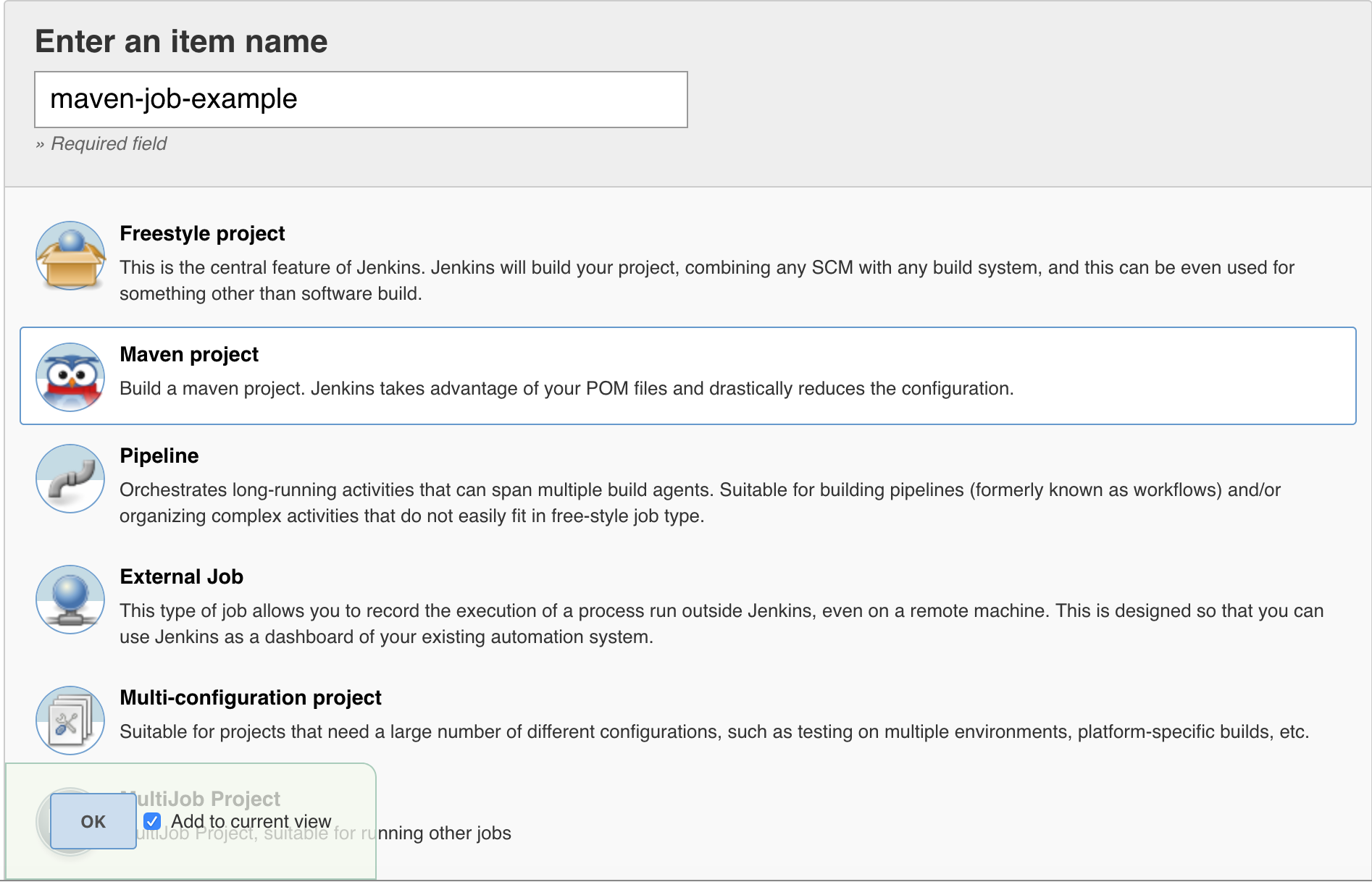
Gradle Builds and the Jenkins Artifactory Plugin
The Jenkins Artifactory Plugin supports Gradle build jobs, allowing your build jobs deploy artifacts and resolve dependencies to and from Artifactory, and then have them linked to the build job that created them.
As described below, using the Jenkins Gradle Plugin, you can create a freestyle job with the Artifactory Gradle integration.
To help you get started, you can use gradle-example-ci-server as a sample project you can build from your Jenkins Gradle job.
JDK compatibility
From version 3.0.0, the plugin no longer supports building with JDK 7.
Gradle Compatibility
The minimum Gradle version supported is 4.10
Benefits
Integration Benefits JFrog Artifactory and Gradle
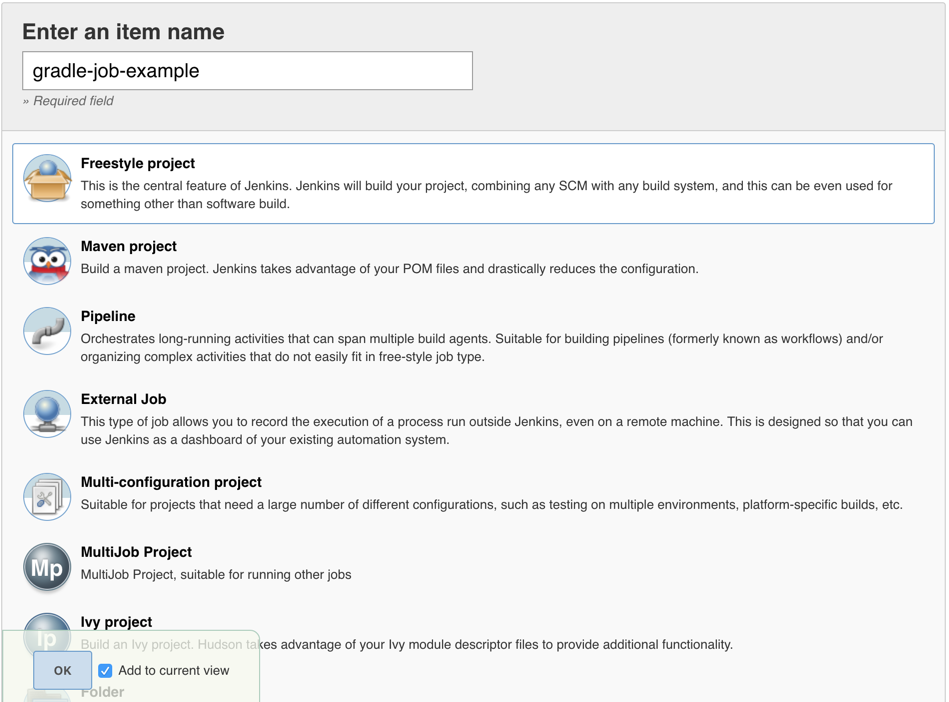
Configure Gradle Builds when working with the Jenkins Artifactory Plugin
Deploy Artifacts to Artifactory
Once you have at least one Artifactory server configured, you can add the deployment details in your Gradle build.
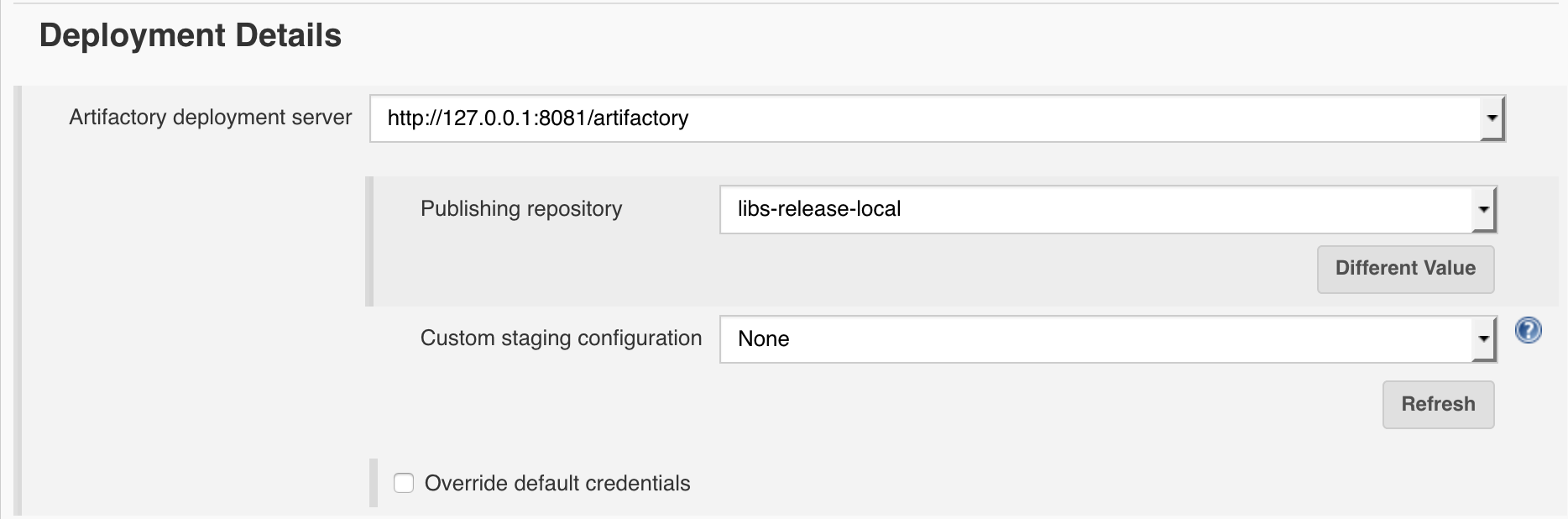
| Field | Description |
|---|---|
| Artifactory deployment server | Artifactory server as defined in the Artifactory plugin configuration. The selected server will be used for artifacts resolution and build info deployment. |
| Publishing repository | Repository to deploy artifacts to. Using the text mode will enable you to also use placeholders for environment variable which will be replaced with your environment value at build time. |
| Custom staging configuration | Select a named staging configuration defined by an Artifactory User Plugin or select "None" to use the default staging settings. |
| Override default credentials | Override default credentials. |
Ivy-Ant Build options for the Jenkins Artifactory Plugin
The build Goals and options should be set to clean install
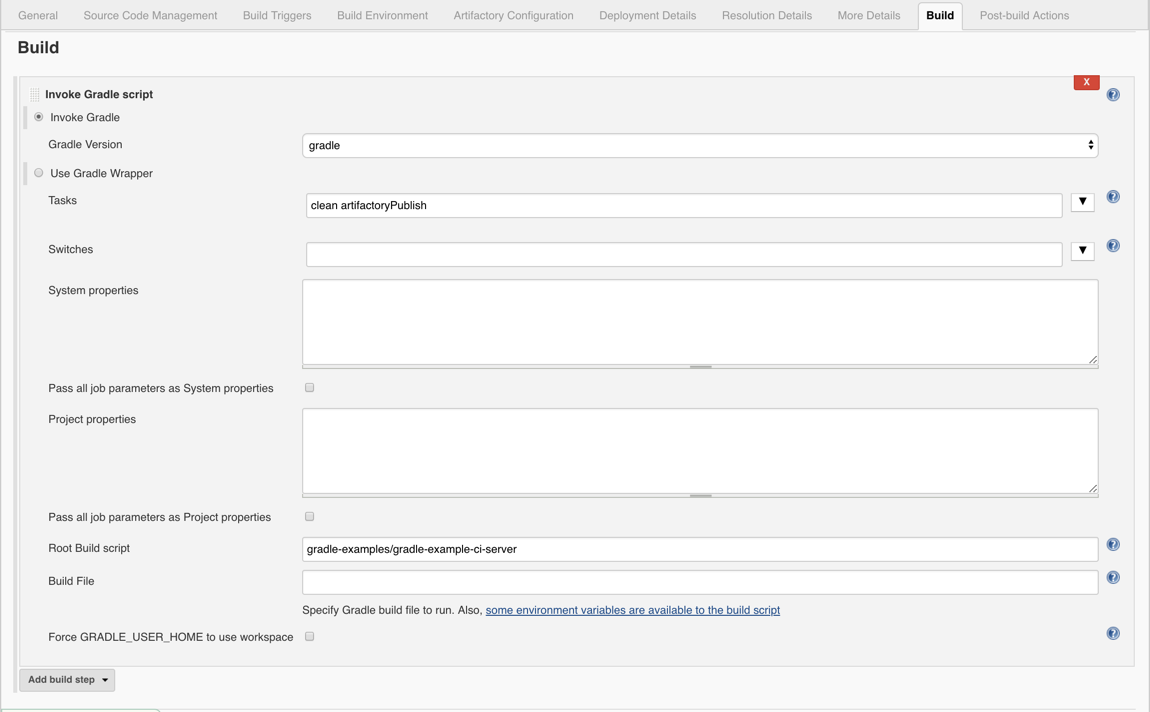
| Field | Description |
|---|---|
| Gradle Version | The Maven version. |
| Tasks | Specify the Gradle task to be invoked. The artifactoryPublish task will build your Gradle project and publish your artifacts to Artifactory. |
Resolve Artifacts from Artifactory Configure Gradle Builds when working with the Jenkins Artifactory Plugin
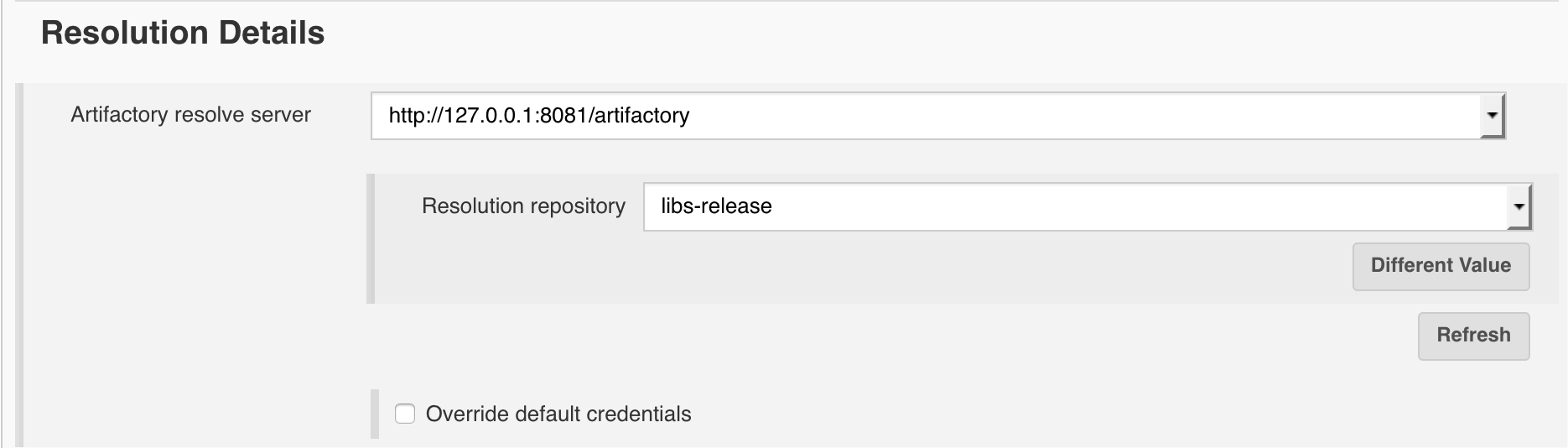
| Field | Description |
|---|---|
| Artifactory resolve server | Artifactory server as defined in the Artifactory plugin configuration. The selected server will be used for artifacts resolution and build info deployment. |
| Resolution repository | Repository used to download artifacts from. |
| Override default credentials | Override default credentials. |
Configure Jobs Configure Gradle Builds when working with the Jenkins Artifactory Plugin
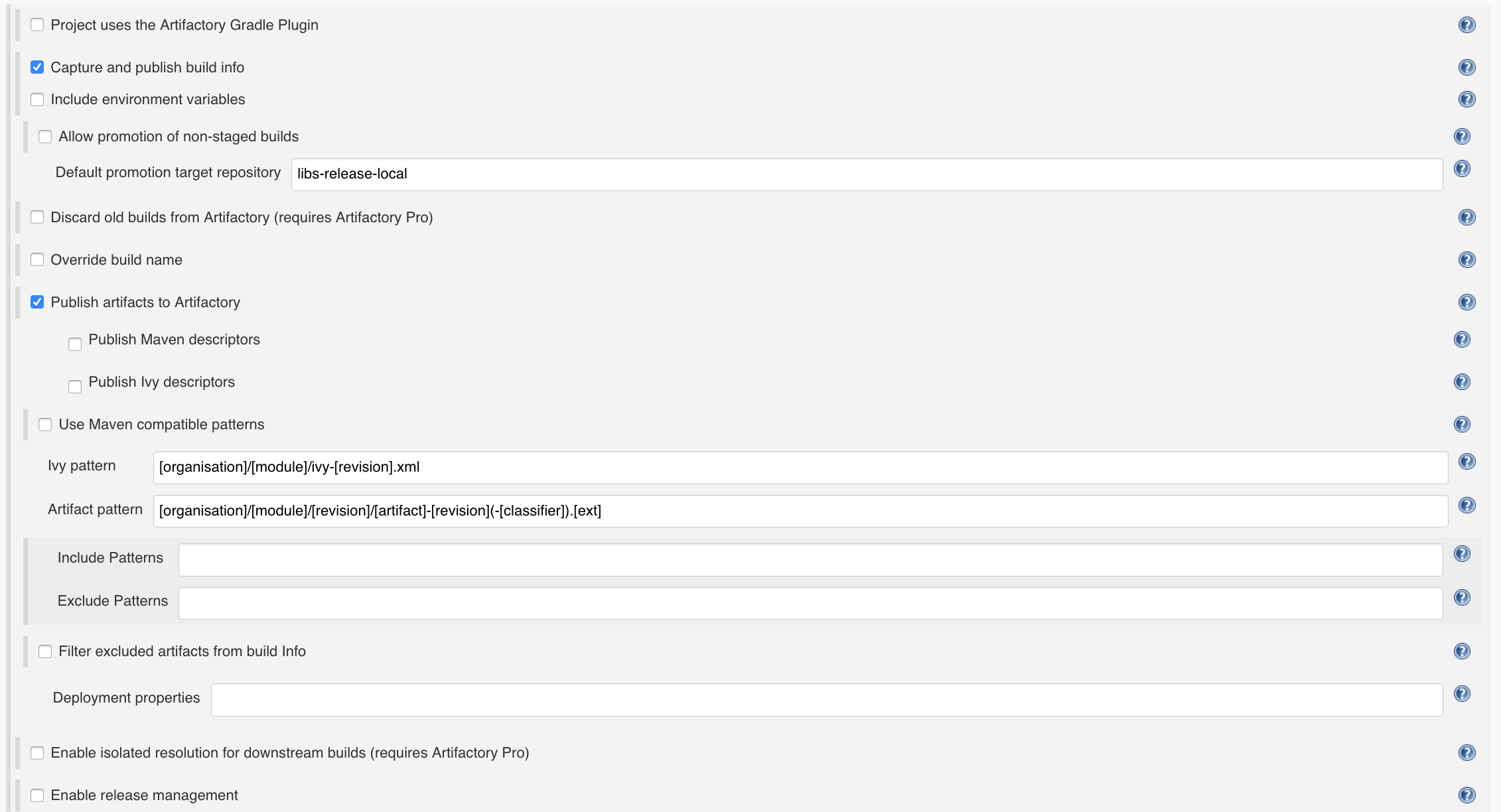
| Field | Description |
|---|---|
| Project uses the Artifactory Gradle Plugin | If this checkbox is not set, Jenkins assumes that the com.jfrog.artifactory plugin is not applied in the gradle script. It will then try to apply it, by adding an init script when triggering the gradle build. |
| Capture and publish build info | Check if you wish to publish build information to Artifactory. |
| Override build name | Check if you wish to override Artifactory default build name. |
| Publish artifacts to Artifactory | Check if you wish to publish produced build artifacts to Artifactory. |
| Publish Maven descriptors | Check if you wish to publish Gradle-generated POM files to Artifactory. Note: Maven descriptors are always deployed according to the Maven layout convention. |
| Publish Ivy descriptors | Check if you wish to publish Gradle-generated ivy.xml descriptor files to Artifactory. |
| Use Maven compatible patterns | Whether to use the default Maven patterns when publishing artifacts and Ivy descriptors, or to use custom patterns. Dots in [organization] will be converted to slashes on path transformation. |
| Filter excluded artifacts from build Info | Add the excluded files to the excludedArtifacts list and remove them from the artifacts list in the build info. |
| Enable isolated resolution for downstream builds (requires Artifactory Pro | When checked, a build parameter named ARTIFACTORY_BUILD_ROOT with a value of $ For example: ARTIFACTORY_BUILD_ROOT=Infrastructure-1025. The value of the parameter is also attached to published artifacts as the property: build.root as a matrix parameter on the deployment URL. Downstream builds will add build.root=$ For example: build.root=Infrastructure-1025 to achieve isolated resolution from Artifactory and only resolve artifacts produced by the root build that triggered it, avoiding any artifacts produced by other runs that are out of the build chain. |
| Enable release management | Artifactory supports release management through the Jenkins Artifactory Plugin. When you run your builds using Maven or Gradle with jobs that use Git or Perforce as your version control system, you can manually stage a release build allowing you to:
Inside Artifactory, the history of all build status change activities (staged, promoted, rolled-back, etc.) is recorded and displayed for full traceability. When release management is enabled, the Artifactory release staging link appears on the top header bar in the job page. |
Use Default Values in the Gradle Build Script when working with the Jenkins Artifactory Plugin
Behind the scenes, the Jenkins Artifactory Plugin utilises the Gradle Artifactory Plugin. It does that by injecting the Jenkins job's configuration into the artifactory closure defined by the Gradle Artifactory Plugin.
You also have the option of defining the artifactory closure in the build script with default values. When the Jenkins job is triggered, it will override these values with the values defined in the job configuration.
Note
Since the resolution details are not defined as part of the artifactory closure in the gradle script, they cannot be overridden by the Jenkins job.
Ivy-Ant Build Jobs for the Jenkins Artifactory Plugin
The Jenkins Artifactory Plugin supports Ivy build jobs, allowing your build jobs deploy artifacts and resolve dependencies to and from Artifactory, and then have them linked to the build job that created them.
As described below, using the Jenkins Ivy Plugin together with the Jenkins Artifactory Plugin your Ivy builds will publish artifacts and build information to Artifactory whenever an ivy:publish task is executed.
Install the Jenkins Ivy Plugin
To use the Jenkins Artifactory Plugin with Ivy builds you need to install the Jenkins Ivy Plugin.
JDK compatibility
From version 3.0.0, the plugin no longer supports building with JDK 7.
Publishing to your local file cache repository is the best way to go (i.e. you do not need to publish to Artifactory). The plugin will intercept the publish events and will replay them against Artifactory according to the configuration. Using an ivy:publish task that publishes directly to Artifactory will result in (redundant) double publishing.
Integration Benefits
Integration Benefits JFrog Artifactory and Ivy
Configure Ivy-Ant Builds for the Jenkins Artifactory Plugin
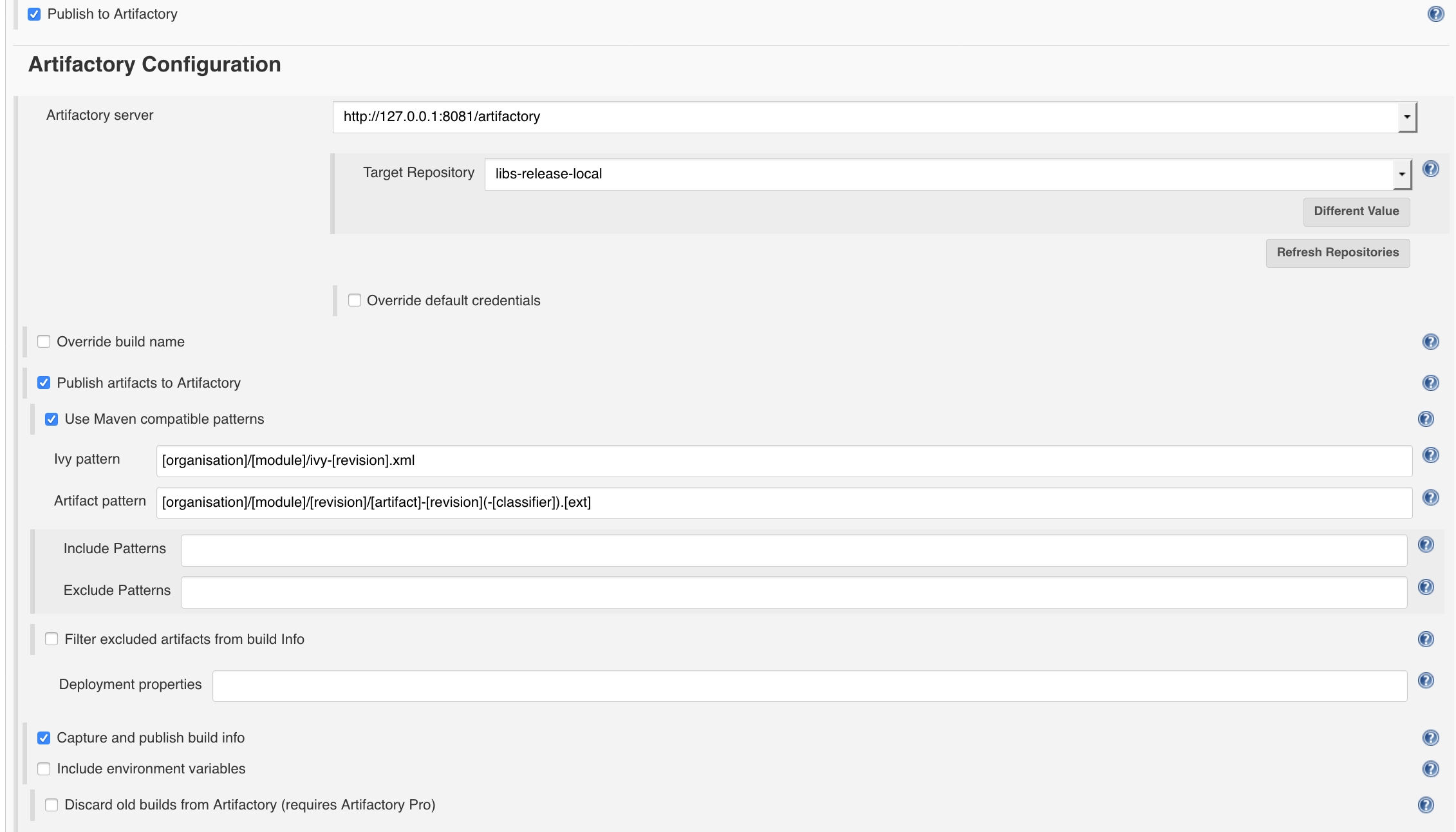
| Field | Description |
|---|---|
| Artifactory Server | Artifactory server as defined in the Artifactory plugin configuration. The selected server will be used for artifacts resolution and build info deployment. |
| Target releases repository | Repository to deploy release artifacts to. Using the text mode will enable you to also use placeholders for environment variable which will be replaced with your environment value at build time. |
| Override default credentials | Override default credentials. |
| Override build name | Override Artifactory default build name. |
| Publish artifacts to Artifactory | Check if you wish to publish produced build artifacts to Artifactory. |
| Use Maven compatible patterns | Whether to use the default Maven patterns when publishing artifacts and Ivy descriptors, or to use custom patterns. Dots in [organization] will be converted to slashes on path transformation. |
| Ivy pattern | The pattern to use for published Ivy descriptors. |
| Artifact pattern | The pattern to use for published artifacts. |
| Filter excluded artifacts from build Info | Add the excluded files to the excludedArtifacts list and remove them from the artifacts list in the build info. |
| Deployment properties | Semicolon-separated list of properties to attach to all deployed artifacts in addition to the default ones (build.name, build.number, vcs.revision, etc.). Property values can take environment variables. For example: p4.cl=$ |
| Capture and publish build info | Publish build information to Artifactory. |
| Include environment variables | Check if you wish to include all environment variables accessible by the builds process. Jenkins-specific EnvVars are always included. Note: including all environment variables as part of the captured build information may result in very large build objects and may slow down deployment. |
| Discard old builds from Artifactory (requires Artifactory Pro) | Automatically remove old builds stored in Artifactory according to Jenkins’s configured policy for discarding old builds. |
Ivy-Ant Build options for the Jenkins Artifactory Plugin
The build Goals and options should be set to clean install
| Field | Description |
|---|---|
| Gradle Version | The Maven version. |
| Tasks | Specify the Gradle task to be invoked. The artifactoryPublish task will build your Gradle project and publish your artifacts to Artifactory. |
Generic Builds and the the Jenkins Artifactory Plugin
The Jenkins Artifactory Plugin supports Generic build jobs, allowing your build jobs deploy artifacts and resolve dependencies to and from Artifactory, and then have them linked to the build job that created them.
Integration Benefits JFrog Artifactory and Jenkins CI
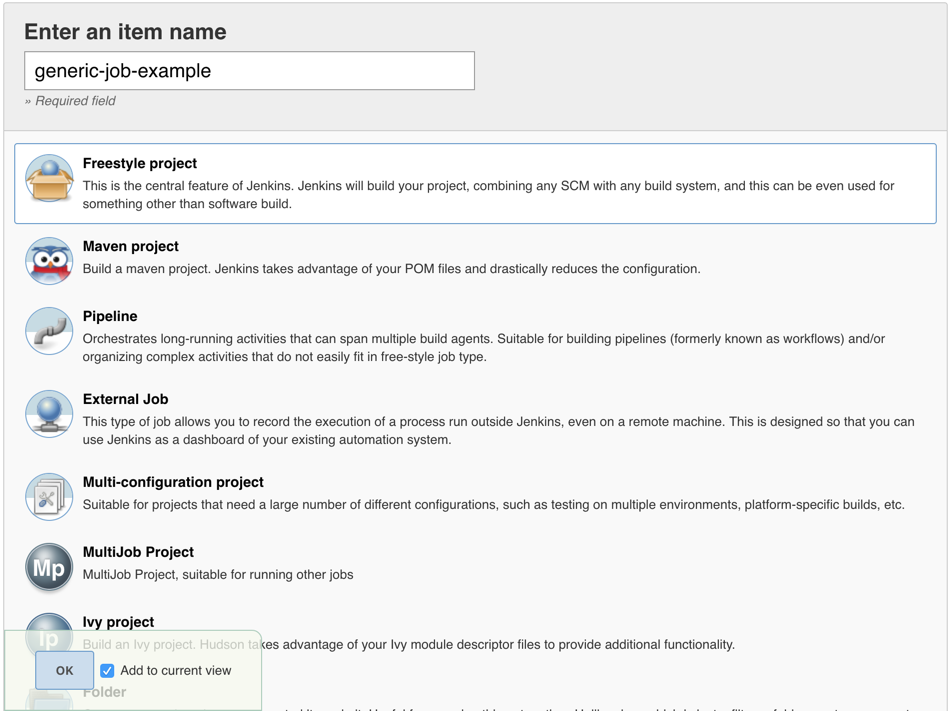
Configure Generic (Freestyle) Builds for the the Jenkins Artifactory Plugin
Generic build integration provides Build Info support for any build type. This allows custom builds, such as non-Java builds to:
- Upload any artifacts to Artifactory, together with custom properties metadata, and keep published artifacts associated with the Jenkins build.
- Download artifacts from Artifactory that are required by your build.
You can define the artifacts to upload and download by using File Specs.
File Specs
File Spec are specified in JSON format.
You can use File Specs in one of the following ways:
You can read the File Spec schema here.
- Manage them in your SCM, and then during the build, have them pulled to the workspace with the other sources. If you choose this option, you should select the "File" option in the "Upload spec source" or "Download spec source" field and specify the relative path to the File Spec in your workspace.
- Save the File Spec JSON as part of the job configuration. If you choose this option, you should select the "Job configuration" option in the "Upload spec source" or "Download spec source" field and specify the File Spec JSON content in your workspace in the "File path" field.
Jenkins Artifactory Plugin - Release Management
The Artifactory plugin includes release management capabilities for Maven and Gradle jobs that use Subversion, Git or Perforce for VCS.
The plugin lets you manually stage a release build, allowing you to:
- Change values for the release and next development version
- Choose a target staging repository for deployment of the release, and
- Create a VCS tag for the release.
Staged release builds can, later on, be promoted or rolled-back, changing their release status in Artifactory and, optionally, moving the build artifacts to a different target repository.
Inside Artifactory the history of all build status change activities (staged, promoted, rolled-back, etc.) is recorded and displayed for full traceability.
Plugin Issue tracker
Plugin Source Code
Set Up Docker Build-info for the Jenkins Artifactory Plugin
To enable fully traceable Docker builds, the Jenkins Artifactory Plugin can collect build info for your Docker builds in Jenkins by setting up an internal proxy server through which the Docker daemon routes its traffic.
Important
Since version 2.14.0 of the Artifactory Plugin, docker build info creation no longer requires setting up the Build-Info Proxy.
Therefore the Pipeline API which uses the Build-Info Proxy is now deprecated.
Here's the deprecated API:
def rtDocker = Artifactory.docker [credentialsId: 'credentialsId'], [host: 'tcp://daemon IP:daemon port']
Please use the new API, which receives an Artifactory server as an argument, instead of credentialsId:
def rtDocker = Artifactory.docker server: server, [host: 'tcp://daemon IP:daemon port']
If you're moving from the old API to the new one, please make sure to remove the HTTP Proxy redirection in your docker configuration.
System Requirements
- Jenkins build agents running on OSX, Ubuntu 14.x, 16.x or Centos 7.
- Jenkins 2.x.
- Jenkins Artifactory Plugin 2.14.0 or above.
- Artifactory configured as a Docker registry.
Collect and Publish Docker Build-Info for the the Jenkins Artifactory Plugin
To set up Jenkins to collect Docker build info, carefully execute the following steps:
- Install Docker on all Jenkins build agents
- Setup Artifactory as a Docker registry
- Ensure Docker is working correctly with Artifactory
- Make sure Artifactory reverse proxy is trusted by Jenkins
- Make sure you have the correct version of the Jenkins Artifactory Plugin
- For OSX Agents, Run a Socat Container
- Test your setup
Install Docker on the Jenkins Build Agent
To install Docker on all the Jenkins build agents, follow the instructions in the Docker Documentation.
Make Sure Artifactory is Set Up as a Docker Registry
Make sure Artifactory can be used as docker registry and is used by the Docker daemon from all Jenkins build agents. If you need to configure Artifactory as a Docker registry, please refer to Getting Started with Docker and Artifactory in the JFrog Artifactory User Guide.
Make Sure Docker Works With the Artifactory Docker Registry
To ensure that Docker and your Artifactory Docker registry are correctly configured to work together, run the following code snippet from all Jenkins build agents:
docker pull hello-world
docker tag hello-world:latest <artifactoryDockerRegistry>/hello-world:latest
docker login <artifactoryDockerRegistry>
docker push <artifactoryDockerRegistry>/hello-world:latest
If everything is configured correctly, pushing any image including the hello-world image should be successfully uploaded to Artifactory.
Make Sure the Artifactory Reverse Proxy is Trusted by Jenkins
If you are using a self-signed SSL certificate to access your Artifactory reverse proxy, your Jenkins build agents need to trust the reverse proxy domain. If you're not using a self-signed certificate or your Jenkins builds can already access Artifactory successfully using SSL, it means that your reverse proxy is already trusted by your Jenkins agents, and you can, therefore, skip this section.
To add your reverse proxy’s certificate to your JRE trust store so your Jenkins build agents trust the Artifactory reverse proxy domain, execute the following steps on each Jenkins agent:
- Find the JAVE_HOME directory. Make sure that this is the Java distribution used by your Jenkins agent. The following sections refer to the JAVA_HOME directory as $JAVE_HOME.
- To see if your Artifactory reverse proxy domain is already trusted, list all the certificates that are in your JRE trust store using the following command:
sudo $JAVA_HOME/bin/keytool -v -list -keystore $JAVA_HOME/jre/lib/security/cacerts -storepass changeit- If your domain is not listed, obtain your Artifactory's proxy domain self-signed certificate file and add it to the trust store using the following command:
sudo keytool -import -alias <alias> -file <reverseProxyCertificateFile> -keystore $JAVA_HOME/jre/lib/security/cacerts -storepass changeitMake Sure You Have the Correct Version of Jenkins Artifactory Plugin
To collect Docker build information, you need to have Jenkins Artifactory Plugin 2.14.0 and above installed.
For OSX Agents, Run a Socat Container
If your Jenkins agent runs on an OSX machine, run the following command, to startup a Socat container. This container needs to be up and running for being able to push images to Artifactory using the Artifactory Pipeline API.
docker run -d -v /var/run/docker.sock:/var/run/docker.sock -p 127.0.0.1🔢1234 bobrik/socat TCP-LISTEN:1234,fork UNIX-CONNECT:/var/run/docker.sock
Test Your Setup
Note
You can skip this part if you intend to use the Jenkins Artifactiry Plugin using Kaniko or JIB.
Create a new Jenkins Pipeline job with the following script and run it. If everything is setup correctly, the build should publish build info to Artifactory.
node() {
    // Step 1: Obtain an Artifactiry instance, configured in Manage Jenkins --> Configure System:
    def server = Artifactory.server '<ArtifactoryServerID>'

    // Step 2: Create an Artifactory Docker instance:
    def rtDocker = Artifactory.docker server: server
    // Or if the docker daemon is configured to use a TCP connection:
    // def rtDocker = Artifactory.docker server: server, host: "tcp://<docker daemon host>:<docker daemon port>"
    // If your agent is running on OSX:
    // def rtDocker= Artifactory.docker server: server, host: "tcp://127.0.0.1:1234"

    // Step 3: Push the image to Artifactory.
    // Make sure that <artifactoryDockerRegistry> is configured to reference <targetRepo> Artifactory repository. In case it references a different repository, your build will fail with "Could not find manifest.json in Artifactory..." following the push.
    def buildInfo = rtDocker.push '<artifactoryDockerRegistry>/hello-world:latest', '<targetRepo>'

    // Step 4: Publish the build-info to Artifactory:
    server.publishBuildInfo buildInfo
}
Bamboo Artifactory Plug-in
Migrate to the JFrog Bamboo Plugin
If you're already using the Artifactory Bamboo Plugin, we recommend also installing the JFrog Bamboo Plugin, and gradually migrate your jobs from the old plugin to the new one. You can also have your existing plans use the two plugins. The old plugin will continue to be supported, however for the latest updates, product features, and support for Atlassian Bamboo Data Center, use the latest JFrog Bamboo Plugin.
Why Did We Create the JFrog Bamboo Plugin?
We want to ensure that the Bamboo plugin continues receiving new functionality and improvements. that are added very frequently to JFrog CLI. JFrog CLI already includes significantly more features than the Artifactory Bamboo Plugin. The new JFrog plugin will be receiving these updates automatically.
How is the JFrog Bamboo Plugin Different from the Artifactory Bamboo Plugin?
Unlike the Artifactory Bamboo plugin, the JFrog Bamboo Plugin completely relies on JFrog CLI, and serves as a wrapper for it. This means that the APIs you'll be using in your jobs look very similar to JFrog CLI commands.
Artifactory provides tight integration with Bamboo through the Bamboo Artifactory Plug-in. Beyond managing efficient deployment of your artifacts to Artifactory, the plug-in lets you capture information about artifacts deployed, dependencies resolved, environment data associated with the Bamboo build runs and more. This data can be published to Artifactory as buildinfo using the Artifactory Publish Build Info task.
The Bamboo Artifactory Plug-in currently provides full support for Maven, Gradle, Ivy, NPM, Docker and NuGet through dedicated Artifactory tasks for each of these package managers. Generic download and upload using File Specs is also supported through dedicated tasks.
Sources: The Bamboo Artifactory Plugin is an open-source project on GitHub which you can freely browse and fork.
Download the Bamboo Artifactory Plugin
Plugin Compatibility: The Bamboo Artifactory Plugin is fully tested for compatibility with the version of Bamboo that is current when the plugin is released. When a new version of Bamboo is released, the Marketplace lists the Bamboo Artifactory Plugin as incompatible, however, since we regularly update the plugin it is likely to maintain compatibility with patch or minor version upgrades of Bamboo. We recommend testing new Bamboo and plugins releases on a staging environment before upgrading the production environment.
Versions
The full list of versions is available here.
Note
Upgrading to version 2.x from version 1.x of the plugin requires new installation steps. For more information, see Installing the Plugin .
Install the Bamboo Artifactory Plugin
This section reviews how to install the Bamboo Artifactory Plugin.
Requirements
- Artifactory 2.2.5 or later. For best results and optimized communication, we recommend using the latest version of Artifactory.
- Maven 3.
- Gradle 4.10 or later.
- Ant and Ivy 2.1.0 or later.
Upgrade to Bamboo Artifactory Plugin Versions 2.x from Versions 1.x
If you are currently using a version of the plugin below 2.0.0 and would like to upgrade to version 2.0.0 or above, you need to migrate your Artifactory configuration data to the format expected by the type 2 plugin as described in the following steps:
-
If you are not already on version 1.13.0 of the plugin, upgrade to that version first.
-
From Bamboo Administration | Artifactory Plugin, click on the "Migrate data to v2" button.
-
Remove plugin version 1.13.0 and restart Bamboo.
-
You're now ready to install version 2.x according to the below instructions.
Install Bamboo Artifactory Bamboo Artifactory Versions 2.x
From version 2.0.0, the Bamboo Artifactory Plugin is released as a type 2 plugin. You can read about installing type 2 plugins in the Bamboo documentation for Installing add-ons.
Install Bamboo Artifactory Versions 1.x
Remove older versions
If you have an older version of the plug-in, be sure to remove it before upgrading to a newer one
For versions below 2.0.0, the plugin was released as a type 1 plugin and is deployed to Bamboo by placing the packaged plugin jar file into the $BAMBOO_INSTALLATION_HOME/atlassian-bamboo/WEB-INF/lib folder and restarting Bamboo.
For more details please refer to the Bamboo documentation for Installing Plugins type 1 add-ons.
Integration Benefits JFrog Artifactory and Bamboo
Configure the Bamboo Artifactory Plugin
To use the Bamboo Artifactory plug-in you need to set up your Artifactory server(s) in Bamboo's server configuration. You can then set up a project builder to deploy artifacts and build-info to a repository on one of the configured Artifactory servers.
Configure System-wide Artifactory Server(s) for Bamboo Integration
To make Artifactory servers available to project configurations, they must be defined under Bamboo Administration | Manage Apps | Artifactory Plugin.
Press New Artifactory Server to add a new server, fill in the required fields and press save.
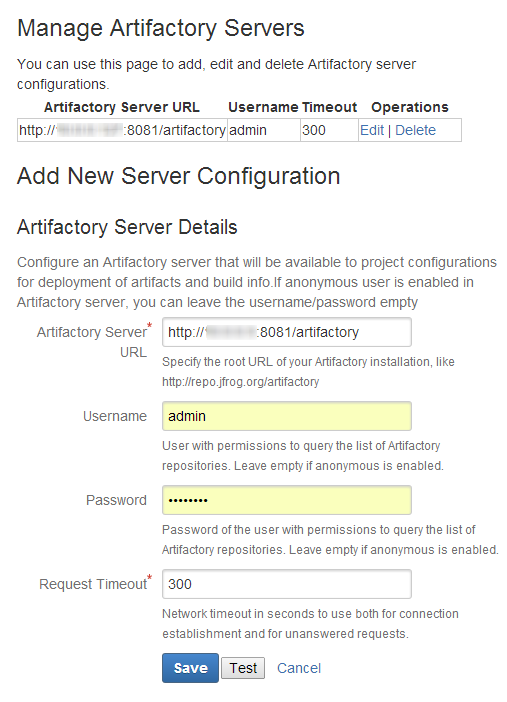
Configure Artifactory Tasks for the Bamboo Artifactory Plugin
This section reviews different tasks involved in configuring the Bamboo Artifactory Plugin.
| Task | Description | For more information, see... | |
|---|---|---|---|
| 1 | Configure the Generic Resolve Task | Enable the downloading files from Artifactory using file specs. | The Artifactory Generic Resolve Task |
| 2 | Configure the Generic Deploy Task | Enable uploading files to Artifactory using file specs. | The Artifactory Generic Deploy Task |
| 3 | Configure NuGet and .NET Core Tasks | Enable using NuGet or .NET Core clients with Artifactory | The Artifactory NuGet and Artifactory .NET Core tasks |
| 4 | Configure the Build Issues Task | Enable the listing of issues collected by Bamboo in Artifactory. | The Collect Build Issues task |
| 5 | Configure the Publish Build Info Task | Enable publishing build-info in the plan. | The Publish Build Info task |
| 6 | Configure the Xray Scan Task | Enable Bamboo build artifacts to be scanned for vulnerabilities by Xray. | The Artifactory Xray Scan Task |
| 7 | Use File Specs for the Plugin | Enable using File Specs to specify dependencies to be resolved by Artifactory. | Use File Specs for the Bamboo Artifactory Plugin |
| 8 | Enable Bamboo Deployment Projects | Enable using Bamboo deployment projects. | Deployment Projects for the Bamboo Artifactory Plugin |
| 9 | Attach Searchable Parameters | Define parameters that should be attached to build info deployed by the plugin. | Attach Searchable Parameters |
| 10 | Override Plan values using Bamboo Variables | Enable overriding variables in the plan configuration like Deployer and Resolver credentials, repositories and more. | Override Plan values using Bamboo Variables |
| 11 | Conduct Release Management | Use the Artifactory Plugin for Bamboo for release management. | Release Management and the Bamboo Artifactory Plugin |
The Artifactory Generic Resolve Task
The Artifactory Generic Resolve task allows downloading files from Artifactory using file specs. It allows collecting build-info, which can be later published to Artifactory using by the Artifactory Publish Build Info task.
Note
- Before version 2.2.0, specifying artifact patterns was possible through Legacy Patterns, which became deprecated in version 2.2.0.
- Tasks which were created before version 2.7.0, publish the build-info to Artifactory directly, and not by the Publish Build Info task.
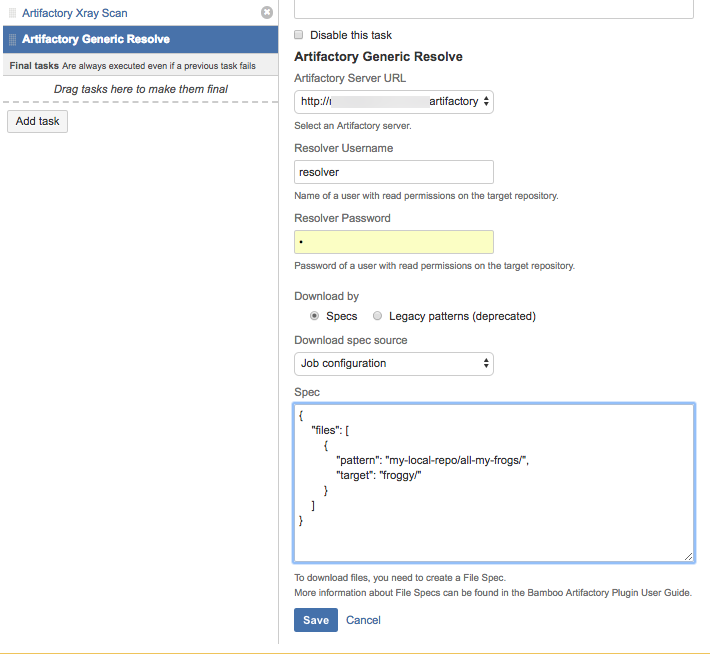
The Artifactory Generic Deploy Task
The Artifactory Generic Deploy task allows uploading files to Artifactory using file specs. It allows collecting build-info, which can be later published to Artifactory using by the Artifactory Publish Build Info task.
Note
- Before version 2.2.0, specifying artifact patterns was possible through Legacy Patterns, which became deprecated in version 2.2.0.
- Tasks which were created before version 2.7.0, publish the build-info to Artifactory directly, and not by the Publish Build Info task.
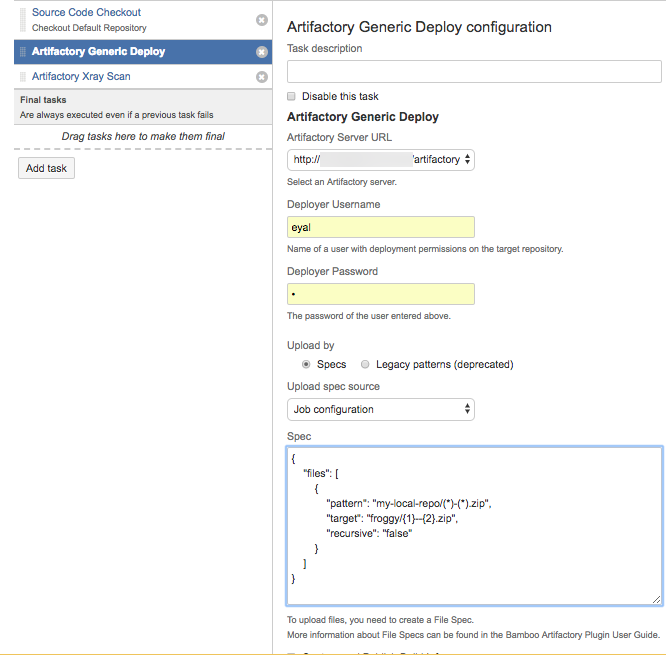
The Artifactory NuGet and Artifactory .NET Core tasks
Depending on whether you use the NuGet or .NET Core CLI to build your NuGet packages, the Artifactory NuGet and Artifactory .NET Core tasks support using the NuGet or .NET Core clients with Artifactory. The tasks allow resolving NuGet dependencies from Artifactory during the build, while collecting build-info, which can be later published to Artifactory using the Artifactory Publish Build Info task
Note
- Depending on the client you use, please make sure either the nuget or dotnet clients are included in the build agent's PATH.
- If you use the dotnet client, please note that .NET Core 3.1.200 SDK or above are supported.
The Collect Build Issues task
The build-info collected by the various Artifactory tasks, can also include the issues which were handled as part of the build. The list of issues is automatically collected by Bamboo from the git commit messages. This requires the project developers to use a consistent commit message format, which includes the issue ID and issue summary, for example:
BAP-1364 - Replace tabs with spaces
The list of issues can be then viewed in the Builds UI in Artifactory, along with a link to the issue in the issues tracking system.
The information required for collecting the issues is provided through a JSON configuration. This configuration can be provided as a file or as a JSON string.
Here's an example for issues collection configuration.
{
    "version": 1,
    "issues": {
        "trackerName": "JIRA",
        "regexp": "(.+-[0-9]+)\s-\s(.+)",
        "keyGroupIndex": 1,
        "summaryGroupIndex": 2,
        "trackerUrl": "http://my-jira.com/issues",
        "aggregate": "true",
        "aggregationStatus": "RELEASED"
    }
}
Configuration file properties:
| Property name | Description |
|---|---|
| aggregate | Set to true, if you wish all builds to include issues from previous builds. |
| aggregationStatus | If aggregate is set to true, this property indicates how far in time should the issues be aggregated. In the above example, issues will be aggregated from previous builds, until a build with a RELEASE status is found. The RELEASE status is set to a build when it is promoted using the Build Promotion functionality added by the Bamboo Artifactory Plugin. |
| keyGroupIndex | The capturing group index in the regular expression used for retrieving the issue key. In the example above, setting the index to "1" retrieves BAP-1364 from this commit message: BAP-1364 - Replace tabs with spaces |
| regexp | A regular expression used for matching the git commit messages. The expression should include two capturing groups - for the issue key (ID) and the issue summary. In the example above, the regular expression matches the commit messages as displayed in the following example: BAP-1364 - Replace tabs with spaces |
| summaryGroupIndex | The capturing group index in the regular expression for retrieving the issue summary. In the example above, setting the index to "2" retrieves the sample issue from this commit message: BAP-1364 - Replace tabs with spaces |
| trackerName | The name (type) of the issue tracking system. For example, JIRA. This property can take any value. |
| trackerUrl | The issue tracking URL. This value is used for constructing a direct link to the issues in the Artifactory build UI. |
| Version | The schema version is intended for internal use. Do not change! |
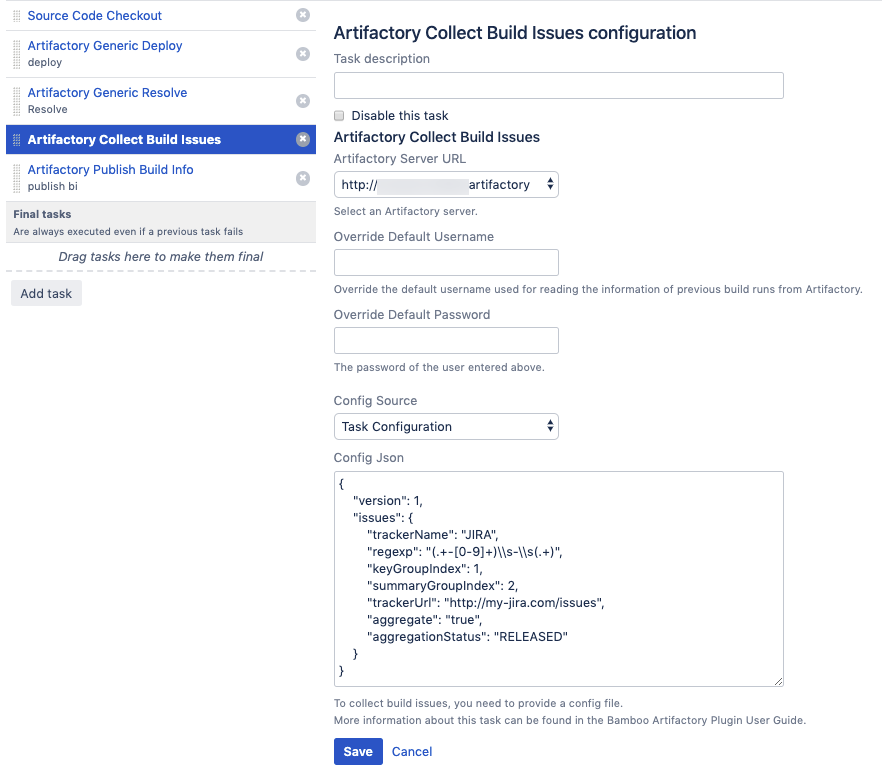
The Publish Build Info task
The Publish Build Info task has been added in version 2.7.0. The task publishes the build-info collected by previous Artifactory tasks in the plan, if they are configured to collect build-info. For plans which include the Publish Build info task, the link to the published build-info is available in the Build Results area.

Note
Plan tasks which were created before version 2.7.0, publish the build-info to Artifactory without the use of the Publish Build Info task.
The Artifactory Xray Scan Task
The Bamboo Artifactory Plugin is integrated with JFrog Xray through JFrog Artifactory allowing you to have build artifacts scanned for vulnerabilities and other issues. If issues or vulnerabilities are found, you may choose to fail a build job. This integration requires JFrog Artifactory v4.16 and above and JFrog Xray v1.6 and above.
For Xray to scan builds, you need to configure a Watch with the right filters that specify which artifacts and vulnerabilities should trigger an alert, and set a Fail Build Job Action for that Watch. You can read more about CI/CD integration with Xray here.
Next, add the Artifactory Xray Scan task to your plan and configure it.
Note
To scan a build with Xray, the build-info must be already published to Artifactory. You should therefore make sure that one or more of the previous plan tasks is configured to collect build info and that the build-info is published to Artifactory.
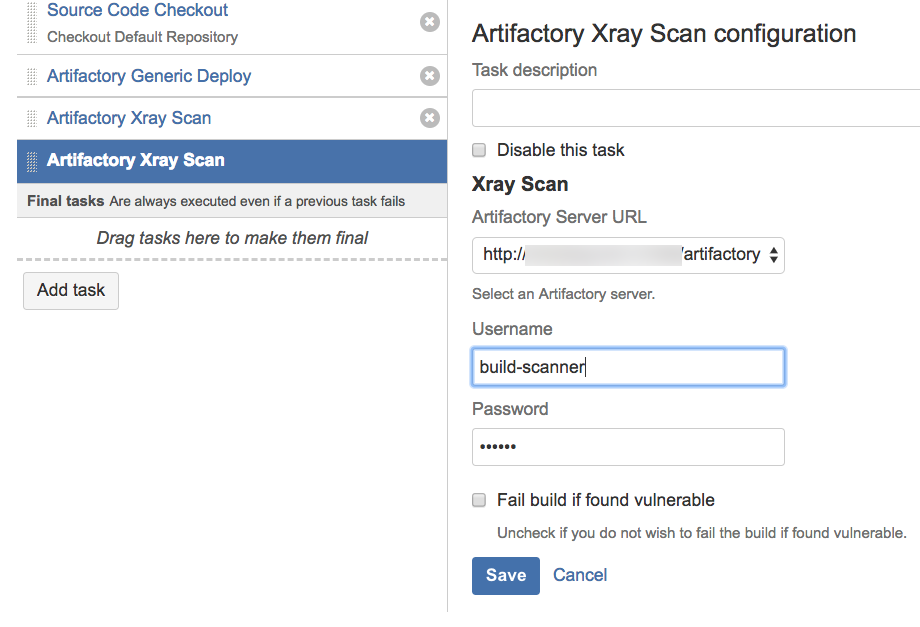
Use File Specs for the Bamboo Artifactory Plugin
File Spec are specified in JSON format. They are used in the Generic Resolve and Generic Deploy tasks and in Bamboo Deployment tasks, File Specs are used in the Artifactory Download task, to specify the dependencies to be resolved from Artifactory or artifacts to be deployed to it.
You can use File Specs in one of the following ways:
- Manage them in your SCM, and then during the build, have them pulled to the workspace with the other sources. If you choose this option, you should select the "File" option in the "Upload spec source" or "Download spec source" field and specify the relative path to the File Spec in your workspace.
- Save the File Spec JSON as part of the job configuration. If you choose this option, you should select the "Job configuration" option in the "Upload spec source" or "Download spec source" field and specify the File Spec JSON content in your workspace in the "File path" field.
You can read the File Spec schema here.
Deployment Projects for the Bamboo Artifactory Plugin
The Bamboo Artifactory Plugin also supports Bamboo Deployment projects (read more about Deployment projects here).
- The Artifactory Download task downloads artifacts from Artifactory. The artifacts to be downloaded are defined using File Specs.
- The Artifactory Deployment task collects the build artifacts which are shared by the build plan associated with the deployment task, and uploads them to Artifactory. In addition, artifacts which were downloaded by Artifactory Download task are also available for deployment.
The "Artifacts Download" Task
The Artifacts Download task must be prior to the Artifactory Deployment task in the Deployment job flow.
Run a Build when using the Bamboo Artifactory Plugin
Once you have completed setting up a project builder you can run it. The Artifactory plug-in commences at the end of the build and:
- Deploys all artifacts to the selected target repository in one go (as opposed to the deploy at the end of each module build, used by Maven/Ivy).
- Deploys the Artifactory build-info to the selected server, which provides full traceability of the build in Artifactory, with links back to the build in Bamboo.
Attach Searchable Parameters
You can define parameters that should be attached to build info and artifacts that are deployed by the plugin.
To define a parameter, under Administration go to Build Resources | Global Variables, fill in a Key/Value pair and click Save.
The available parameter types are:
buildInfo.property.*- All properties starting with this prefix will be added to the root properties of the build-info.artifactory.deploy.*- All properties starting with this prefix will be attached to any produced artifacts that are deployed.
Use a Properties File
Instead of defining properties manually, you can point the plug-in to a properties file.
To do so, define a property named buildInfoConfig.propertiesFile and set its value to the absolute path of the properties file.
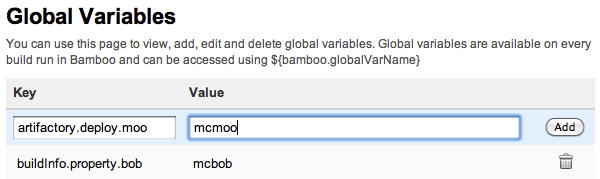
Tip
The given path and file should be present on the machine that is running the build agent, not the server.
Override Plan values using Bamboo Variables
The Artifactory Plugin supports overriding variables in the plan configuration like Deployer credentials, Resolver credentials, repositories etc.
If you wish to override any of the values specified in the table below, you need to configure them as Bamboo variables either through the UI or append them to the REST URL request as a query parameters.
When assigning any value to these Bamboo variables, it will override the job configuration.
Example with REST
curl -ubamboo-user:bamboo-password -XPOST
"http://<BAMBOO HOST>:8085/rest/api/latest/queue/MVN-JOB?stage&executeAllStages&bamboo.variable.artifactory.override.deployer.username=new_username&bamboo.variable.artifactory.override.deployer.password=new_password"
In the example above, we use CURL to remotely invoke a Bamboo plan. We set the Deployer username and Deployer password for this specific request.
Note that we add the "bamboo.varaible" prefix to the query parameters.
Warning
Note that the sent values will be applied only if the specific task support them. For example: currently Artifactory Gradle tasks do not support Resolver credentials, hence those values will be ignored if sent.
| Parameter name | Description | Supported jobs |
|---|---|---|
| artifactory.override.deployer.username | Deployer username | Maven, Gradle, Ivy, Generic deploy |
| artifactory.override.deployer.password | Deployer password | Maven, Gradle, Ivy, Generic deploy |
| artifactory.override.resolver.username | Resolver username | Maven, Generic resolve |
| artifactory.override.resolver.password | Resolver password | Maven, Generic resolve |
| artifactory.override.resolve.repo | Resolve repository | Maven, Gradle |
| artifactory.override.deploy.repo | Deploy repository | Maven, Gradle, Ivy, Generic deploy |
| artifactory.task.override.jdk | If set to true, check the value of artifactory.task.override.jdk.env.var. If that variable is populated with an environment variable, use the value of that environment variable as the Build JDK path. If artifactory.task.override.jdk.env.varis not defined, use the value of JAVA_HOME for the Build JDK. | Maven, Gradle, Ivy |
| artifactory.task.override.jdk.env.var | Stores the name of another environment variable whose value should be used for the build JDK. | Maven, Gradle, Ivy |
Release Management and the Bamboo Artifactory Plugin
The Artifactory Plugin provides a powerful feature for release management and promotion. For details please refer to Bamboo Artifactory Plugin - Release Management.
Release Notes for the Bamboo Artifactory Plugin
The release notes for versions 3.3.0 and above are available here.
3.2.10 (11 September 2022)
- Bug fix - Gradle wrapper should remove the requirement for capability - https://github.com/jfrog/bamboo-artifactory-plugin/pull/189
3.2.9 (24 April 2022)
- Bug fix - Build Info aggregation may pass the OS environment variable size limit - https://github.com/jfrog/bamboo-artifactory-plugin/pull/177
3.2.8 (1 March 2022)
- Bug fix - NullPointerException in Maven task when no deployment server is configured - https://github.com/jfrog/bamboo-artifactory-plugin/pull/172
3.2.7 (22 February 2022)
- Dependencies update - https://github.com/jfrog/bamboo-artifactory-plugin/pull/168 & https://github.com/jfrog/bamboo-artifactory-plugin/pull/170
3.2.6 (12 January 2022)
- Compatibility with 8.1.1 - https://github.com/jfrog/bamboo-artifactory-plugin/pull/165
3.2.5 (14 December 2021)
- Dependencies update - https://github.com/jfrog/bamboo-artifactory-plugin/pull/161
3.2.4 (12 December 2021)
- Bug fix - NullPointerException while executing task - https://github.com/jfrog/bamboo-artifactory-plugin/pull/155
- Bug fix - NoSuchMethodError: org.apache.commons.io.IOUtils.toString - https://github.com/jfrog/bamboo-artifactory-plugin/pull/158
3.2.3 (4 August 2021)
- Bug fix - Passwords with special characters cannot be used in tasks - https://github.com/jfrog/bamboo-artifactory-plugin/pull/145
3.2.2 (6 June 2021)
- Bug fix - Artifactory response parsing can fail due to missing JSON properties - https://github.com/jfrog/build-info/pull/502
3.2.1 (10 Jan 2021)
- Credentials are not encrypted in the UI. BAP-533- Authenticate to see issue details
- Using SSH shared credentials produces NPE. BAP-532 - Using SSH shared credentials produces NPE Resolved
3.2.0 (10 Nov 2020)
- Artifactory Docker task. BAP-515 - Add docker support Resolved
- Artifactory NuGet and .NET tasks. BAP-516 - Add NuGet and .Net support Resolved
- Support Bamboo shared credentials in all tasks. BAP-465 - Bamboo Artifactory Plugin Shared Credential Resolved
- Support running Maven, Gradle and Ivy builds in Docker containers. BAP-507 - maven3 - Could not find the Maven lib directory Resolved BAP-518 - Support for running Maven, Gradle and Ivy builds in Docker containers Resolved
- Support custom build name and number. BAP-476 - As a developer i would like to customize my build name and build number Resolved BAP-506 - Support custom build name and number Resolved
- Bamboo 7.1.4 compatibility. BAP-517 - Artifactory tasks UI fail to load on Bamboo server 7.1.3 Resolved
- Bug fixes and improvments ( BAP-448 - Prevent autofilled userid and password Resolved , BAP-510 - Plugin compatibility update for Bamboo v 7.1.1 Resolved , - Maven 3 task: JAVA_HOME is not correctly set Resolved , BAP-520 - Can't create Gradle task with Gradle wrapper Resolved , BAP-521 - Replace deprecated methods Resolved , BAP-522 - NPE when JDK capability is not well configured in agent Resolved ).
3.1.0 (31 Mar 2020)
- Breaking change: Maven and Gradle - remove restriction of build-info collection only when deployment is configured. BAP-503 - Breaking change: Maven and Gradle remove restriction of build-info collection only when deployment is configured Resolved
- Bamboo 7 upgrade and compatibility. BAP-504 - Upgrade to Bamboo 7 Resolved
- Improvements ( BAP-496 - Improve tasks descriptions Resolved , BAP-498 - File-specs defined in task configuration should be labeled as 'Task configuration' Resolved , BAP-499 - Add description for Maven 'Project file' field Resolved , BAP-500 - Add validations to tasks configurations Resolved , BAP-501 - Using overriding credentials requires saving the task in order to fetch repository list Resolved , BAP-502 - Improve UI of Artifactory tasks Resolved ).
3.0.1 (16 Jan 2020)
- Bug fixes ( BAP-494 - Missing 'Environment Variables' field in Maven, Gradle, Ivy tasks Resolved , BAP-495 - SSH key file selector is missing in Maven and Gradle task configurations Resolved ).
3.0.0 (23 Dec 2019)
- Artifactory npm task. BAP-487 - Add npm support Resolved
- Build Issues-Collection task. BAP-486 - Add issues collection task Resolved
- HTTP proxy support in Artifactory tasks. BAP-204 - Add an option for HTTP proxy configuration Resolved
- Gradle 6 support. BAP-493 - Support Gradle 6 Resolved
- Removed deprecated APIs. BAP-484 - Remove deprecated actions and APIs Resolved
- Bug fixes ( BAP-492 - Gradle task doesn't allow promoting a released build Resolved , BAP-488 - Bamboo Artifactory Gradle task fails with java.lang.NullPointerException Resolved , BAP-491 - Maven task failing with message "Failed to add Build Info to context" Resolved ).
2.7.2 (9 Sep 2019)
- Bug fix - Downloads using file specs may fail, if Artifactory's S3 Redirect feature is enabled. BAP-477 - Downloads using file specs may fail, if Artifactory's S3 Redirect feature is enabled Resolved
2.7.1 (30 Jul 2019)
- Bug fix - Releasing from plan branch broken. BAP-475 - Releasing from plan branches broken Resolved
2.7.0 (22 Jul 2019)
- Support aggregating build-info from multiple tasks. New tasks created since this version can publish build-info only by the use of the new Publish Build Info task. BAP-473 - Add the ability to aggregate build info's Resolved
- Bug fix - Gradle Artifactory Executable is not part of the plan requirements. BAP-474 - Adding an executable in Gradle task does not add it as a requirement automatically Resolved
2.6.3 (2 May 2019)
- Compatibility with Bamboo 6.8.1. BAP-470 - Compatibility with Bamboo 6.8.1 Resolved
- NPE when using different plans in one task with release management and picking wrong plan. BAP-469 - NPE when using different plans in one task with release management and picking wrong plan Resolved
2.6.2 (28 Oct 2018)
- When adding a new Generic Deploy task a javascript error appears. BAP-453 - When adding a new Generic Deploy task a javascript error appears Resolved
- The vcs.url property is not displayed properly in Artifactory. BAP-452 - The vcs.url property is not displayed properly in Artifactory Resolved
2.6.1 (14 Oct 2018)
- Gradle, Maven and Ivy builds no longer support JDK 7
- Bamboo Deployment Project - Support deployment using FileSpecs BAP-443 - Bamboo Deployment Project - Artifactory Deployment using FileSpecs Resolved
- Artifactory FileSpec from file ignores variable BAP-447 - Artifactory spec from File ignors variable Resolved
- Concurrency issue in parallel deployment of artifacts using FileSpecs BAP-450 - Generic upload job running in several threads throwing a NullPointerException Resolved
- Matrix Parameters are not passed correctly BAP-446 - Matrix Parameters are not passed correctly Resolved
2.5.1 (26 June 2018)
- Gradle skips deployment to Artifactory when "Project uses the Artifactory Gradle Plugin" option is unchecked ( BAP-442 - Deploying artifact faild without error Resolved )
2.5.0 (18 June 2018)
- Support for build scan with JFrog Xray ( BAP-426 - Support for Xray scan build feature Resolved )
- Files uploaded to Artifactory using Files Specs are now uploaded in parallel using three threads ( BAP-433 - Parallel deployment of Artifacts when using FileSpecs Resolved )
- Large files downloads from Artifactory are now downloaded concurrently (using range request) ( BAP-427 - Download artifacts concurrently using range-request Resolved )
- Bug fixes ( BAP-441 - Remove the limitation of Generic Deploy task must be a final task Resolved , BAP-432 - Bamboo artifactory plugin fails with Gradle 4.7 Resolved , BAP-430 - When using the same file with filespec it will upload for the same target Resolved , BAP-425 - Build info extractor replaces spaces in file names with '+' Resolved , BAP-423 - Maven fails to resolve snapshot parent pom from Artifactory Resolved )
2.4.2 (3 June 2018)
- Compatibility with Bamboo 6.5.x ( BAP-439 - Bamboo 6.5.0 compatibility Resolved )
2.4.1 (21 Jan 2018)
- Bug fix ( BAP-422)
2.4.0 (17 Jan 2018)
- Support Download from Artifactory in Deployment Plans ( BAP-413)
- Compatibility with Bamboo 6.3.x ( BAP-415, BAP-419, BAP-421)
- Bug fixes ( BAP-399, BAP-401, BAP-403, BAP-404, BAP-408, BAP-409, BAP-410, BAP-411, BAP-412, BAP-413, BAP-414, BAP-417)
2.3.0 (10 Oct 2017)
- Support pattern exclusion in File Specs ( BAP-391)
- File specs AQL optimizations ( BAP-395)
- Dependencies repositories have been added to the plugin's maven descriptor ( BAP-397)
- Bug fixes ( BAP-385, BAP-390, BAP-396)
2.2.0 (6 Aug 2017)
- File Specs support for the Generic Resolve and Generic Deploy Tasks (BAP-377)
- Upgrade JGit ( BAP-381)
- Bug fixes ( BAP-378, BAP-379, BAP-380, BAP-382, BAP-383, BAP-384, BAP-387)
2.1.1 (22 Jun 2017)
- Compatibility with Bamboo 6.0.x ( BAP-376)
2.1.0 (20 Apr 2017)
2.0.2 (16 Feb 2017) 2.0.1 (29 Jan 2017)- Bug fix ( BAP-369)
1.10.2 (22 Sep 2016) 1.10.1 (7 Apr 2016)- Bug fixes ( BAP-345)
1.10.0 (25 Feb 2016)- Compatibility with Bamboo 5.10.x ( BAP-336)
- Coordinate the deployment order of artifacts according to module info in the Gradle task ( BAP-294)
- Bug fix ( BAP-303)
1.9.2 (22 Dec 2015) 1.9.1 (13 Dec 2015)- Bug fix ( BAP-312)
1.9.0 (26 Nov 2015)
- Support sending parameters when invoking Bamboo Artifactory tasks remotely. ( BAP-281, BAP-232)
- New "Push to Maven Central" ( BAP-284)
- Bug fixes ( BAP-313, BAP-306, BAP-290, BAP-288)
1.8.2 (27 Oct 2015) 1.8.1 (4 Aug 2015)- Bug fix ( BAP-282)
1.8.0 (15 Jun 2015)- Add push to Bintray support ( BAP-257)
- Make Artifactory Upload Task available for Deployment projects ( BAP-264)
- Ability not to promote the version on Gradle Release Staging ( BAP-258)
- Bug fixes ( BAP-270, BAP-269, BAP-267, BAP-266, BAP-261, BAP-260, BAP-254, BAP-246)
1.7.7 (30 Mar 2015)- Support for Bamboo 5.8.x ( BAP-249)
1.7.6 (14 Jan 2015)- Support for Bamboo 5.7.x ( BAP-230)
- Compatibility with Maven 3.2.5 ( BAP-244)
- Enable overriding the Build JDK value using Bamboo variables ( BAP-240)
- Bug fix ( BAP-241)
1.7.5 (10 Nov 2014)- Support Atlassian Stash source control management ( BAP-206)
- Artifactory generic Resolve task ( BAP-207)
- Maven 3 tasks - Record Implicit Project Dependencies and Build-Time Dependencies ( BAP-225)
1.7.4 (12 Aug 2014) 1.7.3 (29 Jul 2014) 1.7.2 (25 Jun 2014)1.7.1 (26 MAY 2014)
- A new check box that gives the ability to ignore artifacts that are not deployed according to include/exclude patterns. ( BAP-180)
1.7.0 (06 Apr 2014)
- Fix Support for Bamboo 5.4+
- Supporting Git Shared Credentials in Release Management functionality ( BAP-189)
- Adding Version Control Url property to the Artifactory Build Info JSON. ( BAP-200)
- Bug fixes ( BAP-197)
1.6.2 (24 Nov 2013)
- Fix Support for Bamboo 5.2
- Add Artifactory BlackDuck integration
- Bug fixes ( BAP-182 BAP-184 BAP-186 BAP-184)
1.6.1 (03 Oct 2013)
- Support form Bamboo 5.1.1
- Bug fixes 1.6.1
1.6.0 (16 Jul 2013)
- Support form Bamboo 5.0
1.5.6 (03 Sep 2013)
- Support form Bamboo 4.2
1.5.5 (03 Sep 2012)
- Support for include/exclude captured environment variables ( BAP-143)
- Bug fixes ( MAP-41 MAP-40 GAP-129 BAP-148 IAP-32)
1.5.4 (25 Jun 2012)
- Support Bamboo 4.1.
1.5.3 (02 Apr 2012)
- Support Bamboo 4.0.
1.5.2 (02 Apr 2012)
- Support Perforce for release management. ( BAP-133)
1.5.1 (05 Jan 2012)
- Compatible release plugin for version 3.4.2. ( BAP-116)
- Support for Gradle properties deployment.
- Uniqueicon for each Artifactory task type.
- Setting Bamboo job requirements correctly for all builder types. ( BAP-125)
1.5.0 (11 Dec 2011)
- Compatible with bamboo version 3.3.x.
- Compatible with Gradle 1.0-milestone-6.
1.4.2 (19 Sep 2011)
- Bug fix ( BAP-91)
1.4.1 (01 Aug 2011)
- Support for Bamboo 3.2.x
- Bug fix ( BAP-90)
1.4.0 (14 Jul 2011)
- Introducing Release Management capabilities.
- Generic Build Info support for all job types.
- Bug fixes.
1.3.2 (14 Jun 2011)
- Bug fix ( BAP-65)
1.3.1 (13 Jun 2011)
- Bug fix ( BAP-64)
1.3.0 (30 May 2011)
- Support for Bamboo 3.1.x
1.2.0 (2 Mar 2011)
- Support for Bamboo 3.x
1.1.0 (2 Jan 2011)- Gradle Support - Gradle builds are now fully supported with the new Gradle builder
- Ivy builds now support custom Ivy patterns for artifacts and descriptors
- Support for Bamboo 2.7.x
1.0.3 (21 Nov 2010)
- Add Include/exclude pattern for artifacts deployment
- Bug fix ( BAP-26)
1.0.2 (7 Nov 2010)
- Control for including published artifacts when running license checks
- Limiting license checks to scopes
- Control for turning off license discovery when running license checks
Bamboo Artifactory Plugin - Release Management
Artifactory supports release management through the Bamboo Artifactory Plugin.
When you run your builds using Maven or Gradle with jobs that use Git or Perforce as your version control system, you can manually stage a release build allowing you to:
- Change values for the release and next development version
- Choose a target staging repository for deployment of the release, and
- Create a VCS tag for the release.
Staged release builds can later be promoted or rolled-back, changing their release status in Artifactory and, optionally, moving the build artifacts to a different target repository.
Inside Artifactory, the history of all build status change activities (staged, promoted, rolled-back, etc.) is recorded and displayed for full traceability.
When release management is enabled, the Artifactory release staging link appears on the top header bar in the job page.
Displaying the Release and Promotion Tab
To display the Artifactory Release & Promotion tab you need to click the small arrow indicated below.

Release management tab moved from plugin version 1.7.0
From Bamboo Artifactory Plugin version 1.7.0, the Release Management tab was moved from the Plan page level to the Job page level because the process applies to artifacts in the context of a single job rather than a whole plan (which may hold several jobs).
The tab name was also changed from Artifactory Release management to Artifactory Release & Promotion.
Maven Release Management and the Bamboo Artifactory Plugin
The Bamboo Artifactory Plugin manages a release with Maven running the build only once using the following basic steps:
- Change the POM versions to the release version (before the build starts).
- Trigger the Maven build (with optionally different goals).
- Commit/push changes to the release branch.
- Change the POM versions to the next development version.
- Commit/push changes to the trunk.
If the build fails, the plugin attempts to rollback the changes (both local and committed).
For more information including configuration of Maven Runners, and Jobs and staging a release build, please refer to Bamboo Artifactory Plugin.
Configure Maven Jobs with the Bamboo Artifactory Plugin
To enable release management in Maven jobs, edit the job configuration and check the Enable Artifactory release management checkbox.
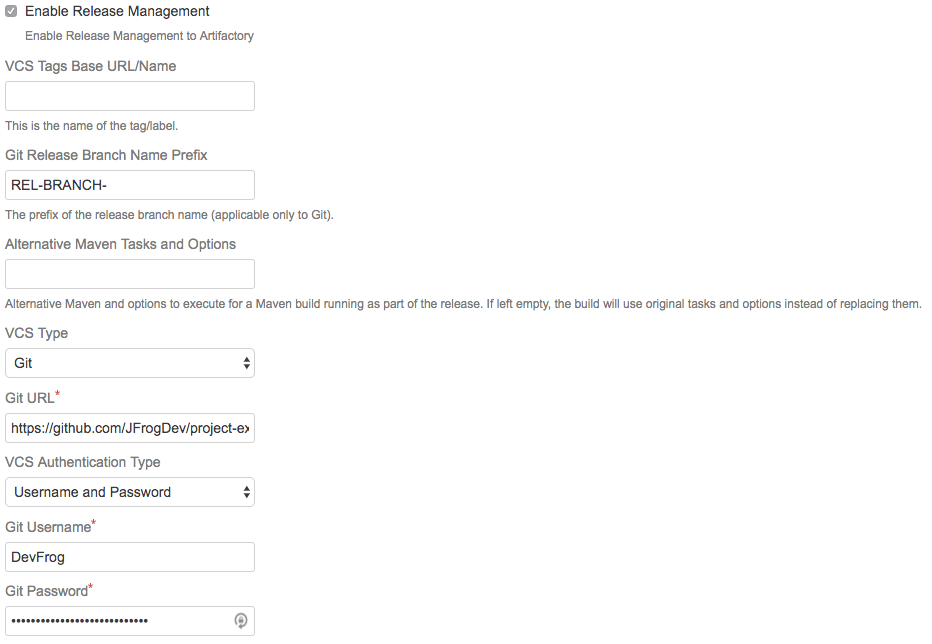
Stage a Maven Release Build with the Bamboo Artifactory Plugin
Clicking on the release staging link opens a new page with configuration options for the release build:
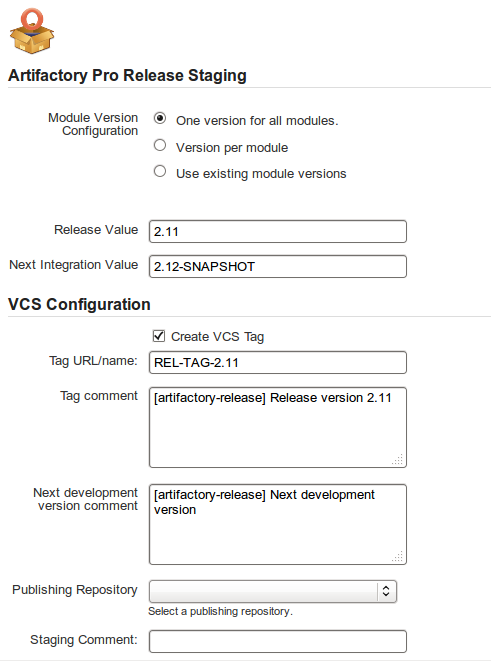
The release staging page displays the last version built (the version tag is that of the root POM, and is taken from the last build that is not a release). Most of the fields in the form are populated with default values.
Version configuration controls how the plugin changes the version in the POM files (global version for all modules, version per module or no version changes).
If the Create VCS tag checkbox is checked (default), the plugin commits/pushes the POMs with the release version to the version control system with the commit comment. When using Git, there's also an option to create a release branch.
Click on the Build and Release to Artifactory button to trigger the release build.
Target server is Artifactory Pro?
If the target Artifactory server is a Pro edition, you can change the target repository, (the default is the release repository configured in Artifactory publisher) and add a staging comment which is included in the build info deployed to Artifactory.
Gradle Release Management and the Bamboo Artifactory Plugin
The Bamboo Artifactory Plugin supports release management when running builds with Gradle. This relies on the version property (and others) managed by the gradle.properties file. The plugin reads the properties from the Artifactory release management configuration, and modifies those properties in the gradle.properties file.
The plugin manages a release using the following basic steps:
- Modify properties in the
gradle.propertiesto release values (before the build starts). - Trigger the Gradle build (with optionally different tasks and options).
- Commit/push changes to the release branch.
- Modify the
gradle.propertiesto the next integration values. - Commit/push changes to the trunk.
Configure Gradle Jobs when using the Bamboo Artifactory Plugin
To enable Gradle release management, edit the Artifactory Gradle Task configuration and check the Enable Release Management checkbox.
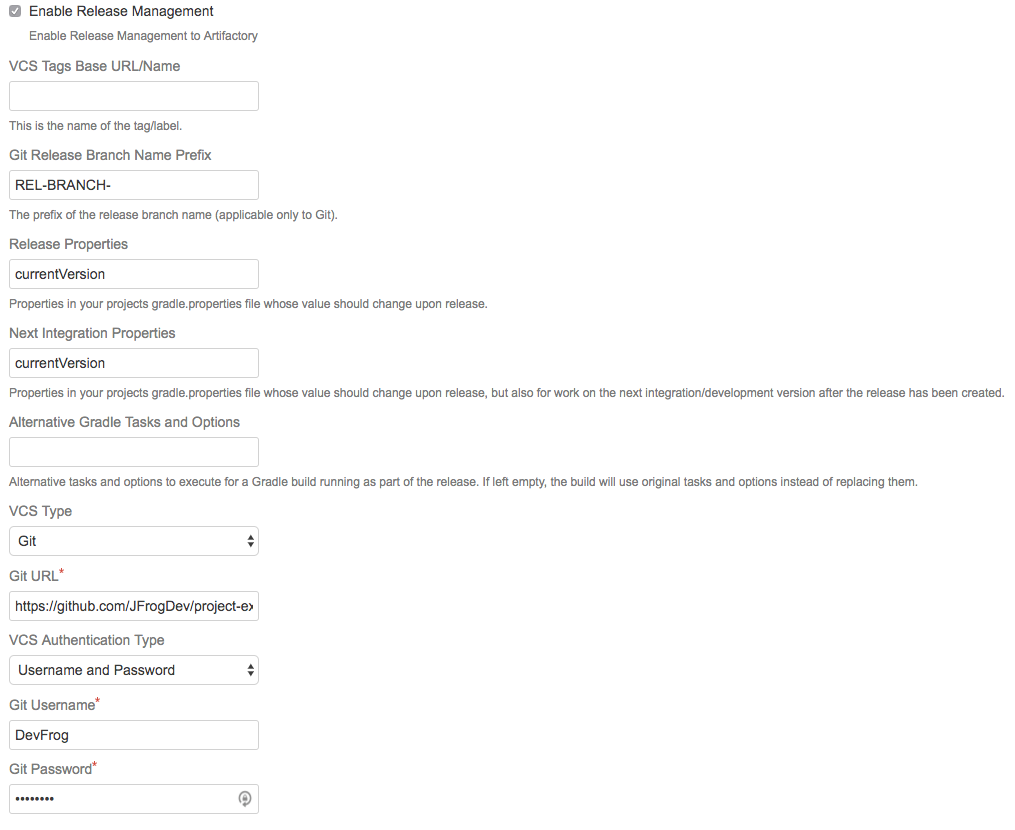
Stage a Gradle Release Build when using the Bamboo Artifactory Plugin
Once release management is enabled, the Artifactory Release staging tab appears in the top header bar on the job page.
Clicking on the Release staging tab opens a new page with configuration options for the release build:
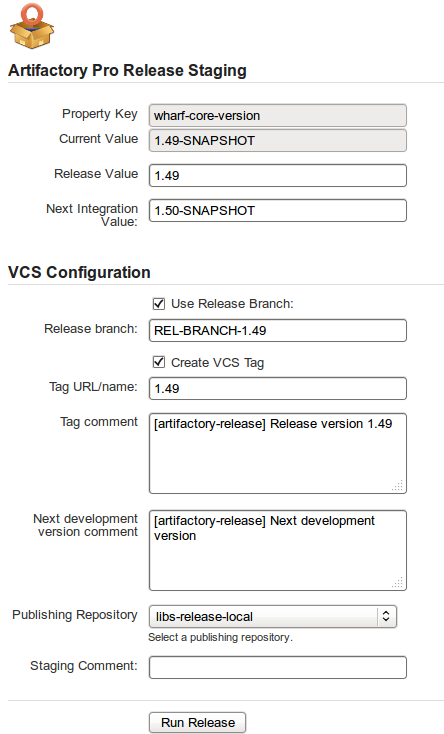
The Release staging tab displays the Release and Next development properties configured for the job. The plugin reads these values from the gradle.properties file and attempts to calculate and display Release and Next integration version in the text fields.
If Create VCS tag is checked (default), the plugin commits/pushes the POMs with the release version to the version control system with the commit comment. When using Git, if Use release branch is checked, the Next release version changes are carried out on the release branch instead of the current checkout branch. The final section allows you to change the target repository (the default is the release repository configured in Artifactory publisher) and an optional staging comment which includes the build info deployed to Artifactory.
Click on the Build and Release to Artifactory button to trigger the release build.
Promote a Release Build when using the Bamboo Artifactory Plugin
You can promote a release build after it completes successfully.
This is not a mandatory step but is very useful because it allows you to mark the build as released in Artifactory, and move or copy the built artifacts to another repository so they are available to other users.
To promote a build, browse to the build's result page and click the Artifactory Release & Promotion tab.
Artifactory Pro required
Promotion features are only available with Artifactory Pro
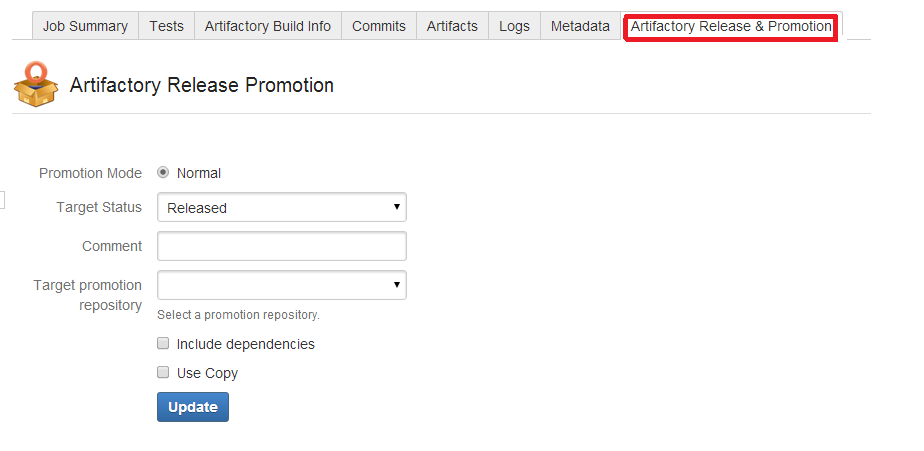
Select the target status of the build ("Released" or "Rolled-Back"). You may also enter a comment to display in the build in Artifactory.
To move or copy the build artifacts, select the Target promotion repository.
Release management
From Bamboo Artifactory Plug-in version 1.7.0, the Artifactory Release Promotion was moved from the Artifactory tab to the new Artifactory Release & Promotion tab.
Work with Git and the Bamboo Artifactory Plugin
To work with Git, the Git plugin must be configured to build one branch AND to checkout to the same local branch.
The remote URL should allow Read+Write access.
The Bamboo Artifactory Plugin uses the Git client installed on the machine and uses its credentials to push back to the remote Git repository.
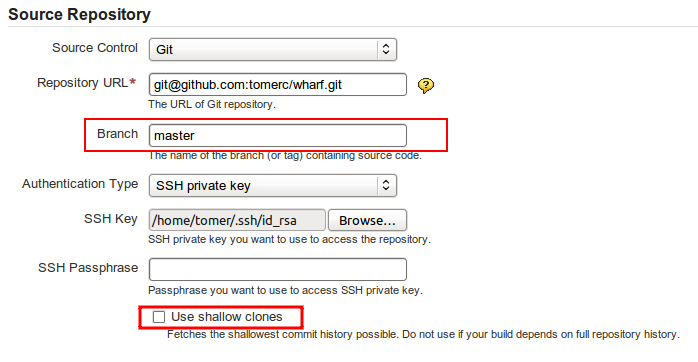
During the release, the plugin performs the following steps:
- If Create Branch is checked, create and switch to the release branch.
- Commit the release version to the current branch.
- Create a release tag.
- Push the changes.
- Switch to the checkout branch and commit the next development version.
- Push the next development version to the working branch
Shallow Clones
Bamboo's Git plugin allows the use of shallow clones, however this causes the "push" not to work.
Therefore, when using the Artifactory Bamboo Plugin, you must have shallow clones unchecked.
For more information about shallow clones, please refer to git-clone Manual Page.
Work with Perforce and the Bamboo Artifactory Plugin
Release management with Bamboo Artifactory Plug-in supports Perforce when using one checkout directory.
During the release the plugin does the following:
- Commits the release version directly to the tag (if Create VCStag is checked). The release version is not committed to the working branch.
- Commits the next development version to the working branch
Changes
Changes are only committed if the files are modified (POM files or
gradle.properties).
Updated about 1 month ago