

Artifactory and Xray Integration with Slack
This integration is between JFrog Artifactory and Xray and Slack.
We know that software development happens in a myriad of collaboration environments. Today, there are key events throughout the JFrog Platform that can be difficult for a user to interact with if they aren't logged into the platform. When it comes to people across the organization knowing what’s going on, this Slack integration provides users real-time information about Artifactory and Xray events. This will give each user situational awareness about occurrences in the JFrog Platform. Additionally, where appropriate - they will have links and action buttons to follow-up on the event.
Note
- For a list of shortcuts that can be used with Slack integration, see List of Shortcuts for Slack Integration
- For a list of commands that can be used with Slack integration, see List of Commands for Slack Integration
How it Works
- This integration allows you the ability to see Artifact, Artifact Properties, Docker Tag, and Build events through notifications and actionable UI cards inside Slack.
- You can send these notifications to multiple channels.
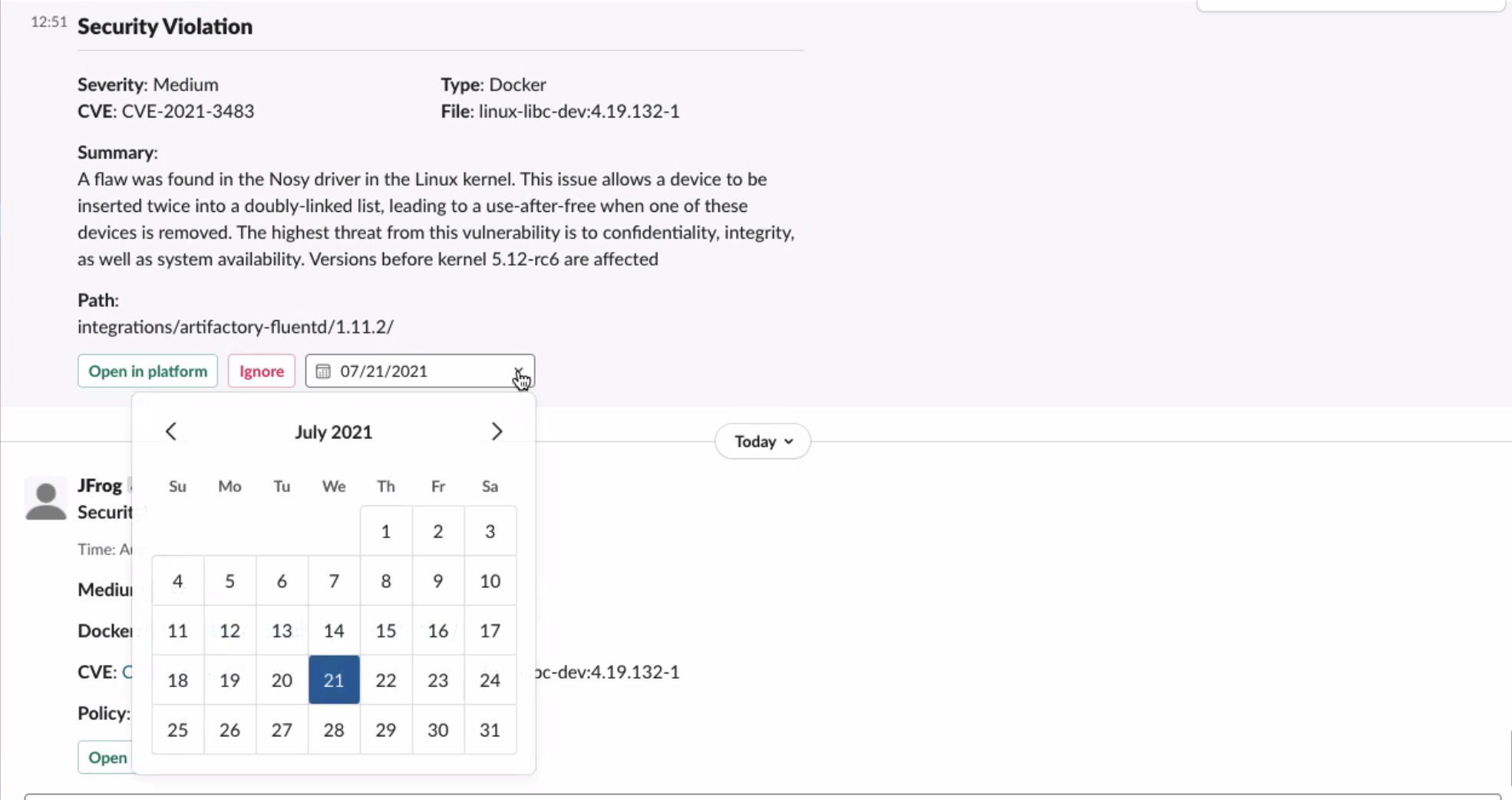
- Additionally, you can get vulnerability and license compliance notification based on policies setup in JFrog Xray and take actions. Here is an example of a security violation and adding an ignore rule to snooze the notification (happens in Slack and in the JFrog Platform):
Configuration Overview
For information on how to configuration this integration, see Slack Application with Artifactory and Xray Configuration Overview.
Support
If you need help with this integration, please contact [email protected].
Slack Application with Artifactory and Xray Configuration Overview
This topic provides an overview of working with the Slack integration with Artifactory and Xray.
Requirements
- Your organization has an instance of Artifactory. You can signup for a free instance at: https://jfrog.com/start-free/
- You must be a user with Admin permissions to authenticate your organization’s Slack app with your JFrog Platform Deployment (JPD).
- You must be a user with Admin permissions to create the initial notifications for Artifactory and Xray. Once created, any team member can add existing notifications to new Slack channels.
- Your organization must already have setup policies and watches prior to getting Xray notifications in Slack. Learn how to setup watches and policies in Xray.
Prerequisites
To use the Slack integration with an on-premise JFrog installation, the network port 8082 will need to be exposed to the external network. See JFrog System Requirements for more information. Then when configuring the JPD, include the network port in the JPD url, e.g. https://example.com:8082
For on-Premise Installation
- Self-hosted customers will need to enable integrations by configuring the Access yaml file; see Enabling New Integrations for details.
- To use the Slack integration with an on-premise JFrog installation, the network port
8082will need to be exposed to the external network. See JFrog System Requirements for more information. Then when configuring the JPD, include the network port in the JPD url, e.g.https://example.com:8082
Configuration Overview
To work with the integration, do the following:
| Task | Description | For more information, see... | |
|---|---|---|---|
| 1 | Install the Slack Application from the Slack Store | Visit the slack store and download the application. | https://slack.com/downloads/windows |
| 2 | Connect your JFrog Platform Deployment | Describes how to connect your JFrog Platform Deployment | Connect your JFrog Platform Deployment (JPD) to Slack |
| 3 | Login to your JFrog account on the Slack App | Provides information on Slack channels and confirmation you're connected. | Login to JFrog from the Slack App |
| 4 | Create Notifications | Provides information about notifications, both via private channels and to individuals, as well as lists types of supported notifications and information about Xray notifications. | Create Notifications for the Slack Integration |
| 5 | Enable Integration with Self-hosted JFrog Platform | Describes how to enable integration with Self-Hosted JFrog platforms. | Artifactory and Xray Integration with Microsoft Teams |
Connect your JFrog Platform Deployment (JPD) to Slack
Once you’ve installed the JFrog Slack Application from the Slack Store, you must connect the application to your JFrog Platform Deployment (or JPD) instance. You can only connect one JPD with a Slack workspace and therefore failover across the HA cluster is not supported.
First, login to the JFrog platform. You must be an admin to access your credentials.
A) If you are an JFrog Platform paid user, go to General tab and look for Applications. From there, you can add a new application.
Then click on Next, Generate your ID and Secret..
B) If you are using the free version of the JFrog Platform, go to the Administration section and then click on Security. Next, scroll down and click on Integrations.
Then click on + New Client Integration. Provide it a name and then from the dropdown under Application, select JFrog Collaboration Integration.
Then click on Next, Generate your ID and Secret..
When you have your Integration ID and Secret, copy and paste these items into the Slack modal window. It is the modal that appears when you type “/jfrog configure” in Slack after installing the JFrog app, allowing you to configure JFrog settings directly.
Last, copy and paste your JFrog Platform URL (found at the top of your browser window) into the Slack modal window where it says JFrog URL.
Hit Save and look for the success message! Great, you have now connected your organization’s JFrog account to the Slack app.
Login to JFrog from the Slack App
Next, login to your JFrog account on the Slack app.
Once you see the confirmation message, you can create new notifications and add them to Slack channels.
We expect you to have Slack channels already setup - how you want to organize notifications to different Slack channels is up to your organization.
Create Notifications for the Slack Integration
Once logged in with Admin privileges, you can start creating notifications.
Hit Create Notification to bring up the list of options.

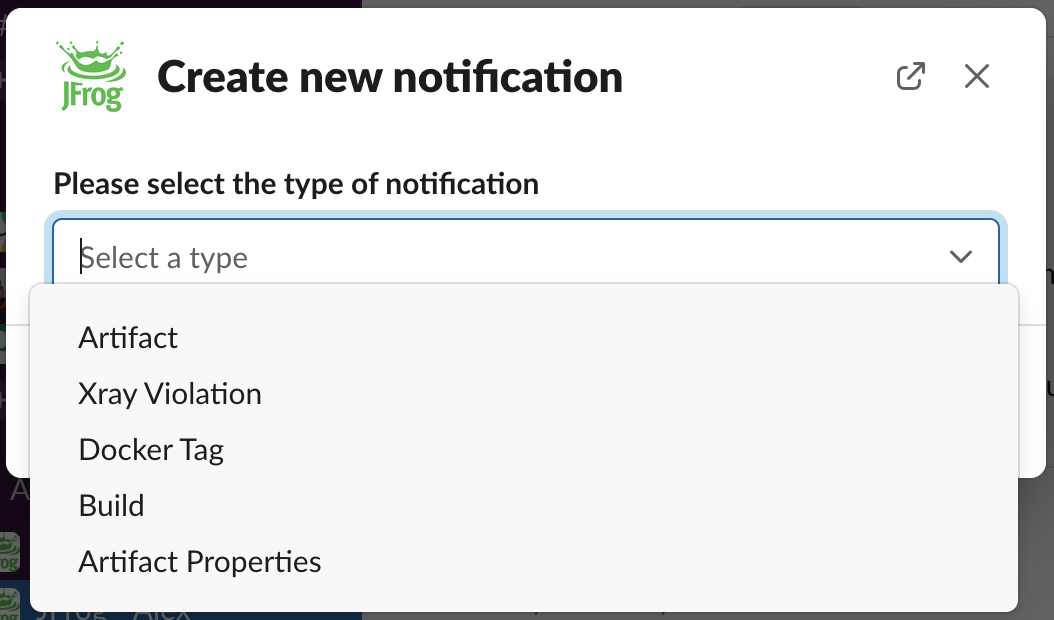
Select which type notification you would like to create from the drop-down menu.
On the next screen, name the notification and select which events you would like to include in the notification, and which repos should be included.
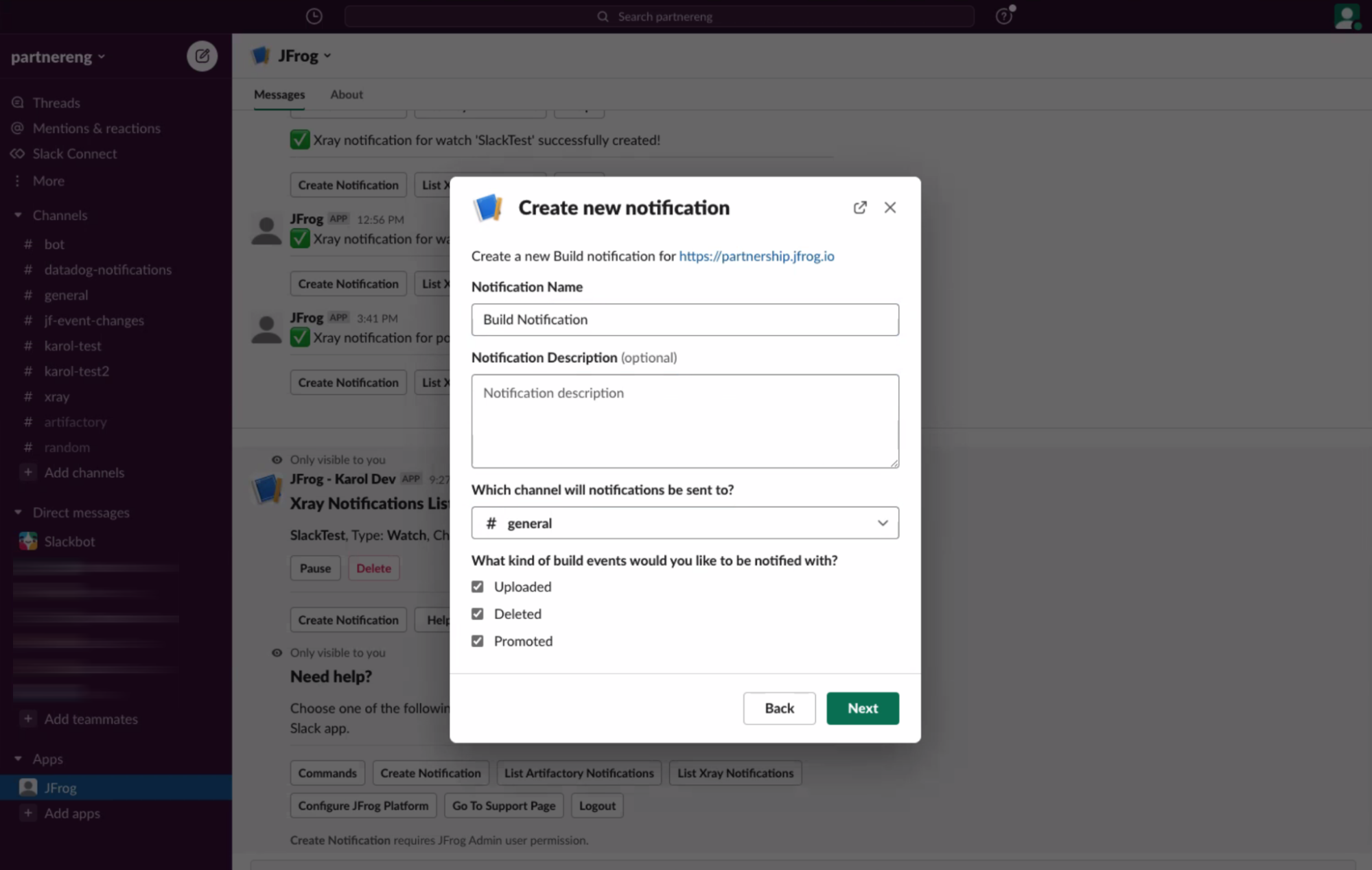
You select a channel to send the notifications to. Hit Next.
On the next screen, you may see options for your notification. For example, for build notifications, you can select any build or find an existing build (in your JFrog Platform Deployment) by name or pattern.
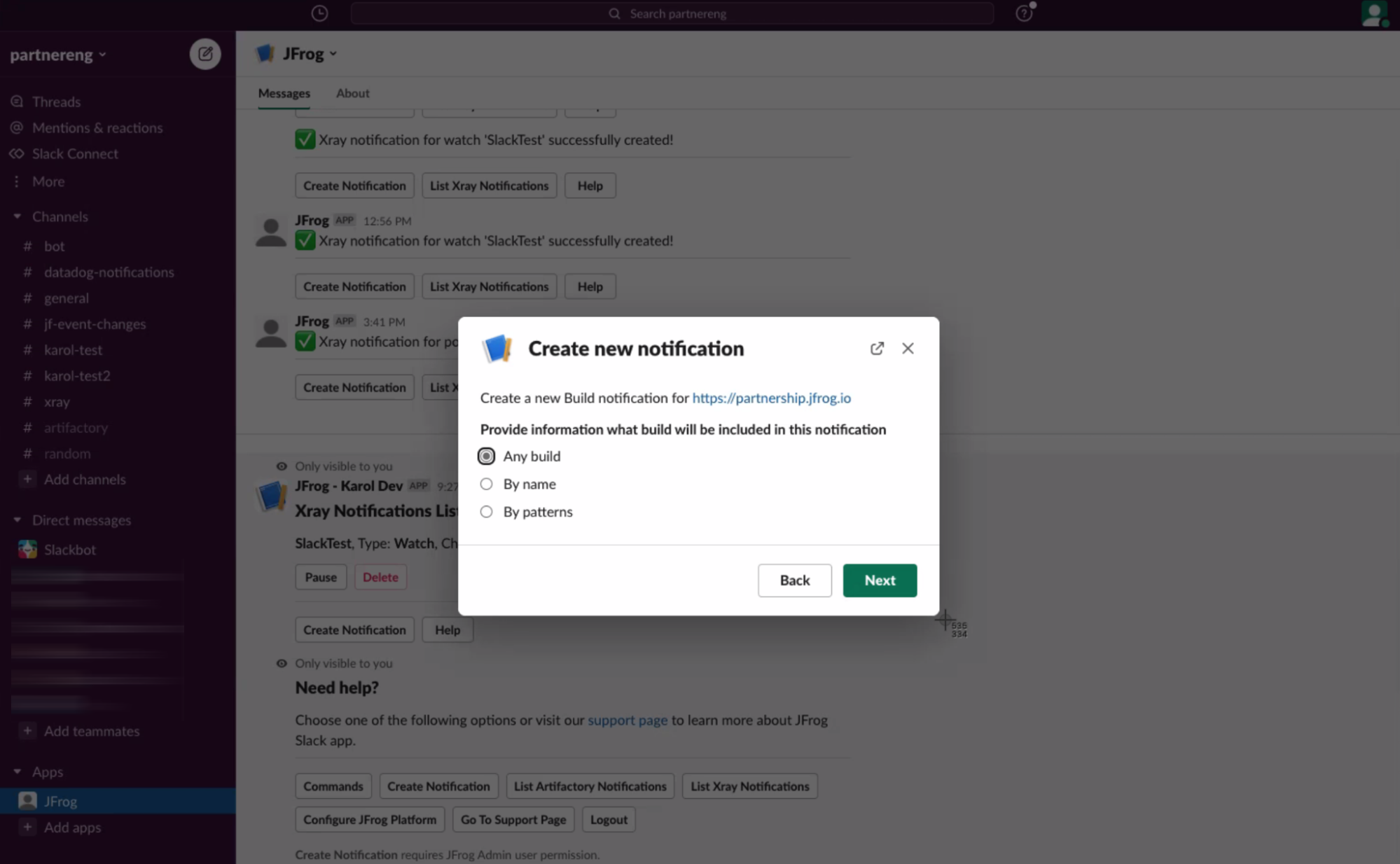
Once you hit Next, you should see a success message.
Once you have setup notifications, you should start seeing the notification cards in the channel within about 20 minutes. If you do not see notifications working, first type /jfrog rt list to bring up the list of active notifications.
If you see nothing on the notification list, please try again or contact support.
Working with Slack Notifications in Artifactory and Xray
The following subjects discuss working with Notifications in Artifactory and Xray
- Types of Supported Notifications with Slack Integration
- Notifications to a Private Slack Channel
- Slack Notifications to Individuals
- Xray Notifications in Slack
- Pause Slack Notifications
Notifications to a Private Slack Channel
The Slack app supports sending notifications to private channel. Select the private channel during the create new notification process and notifications will be routed to that channel.
Important: In order to send notifications to private channel, the Slack app must be added to the private channel separately. You can do this by going into the channel's info modal, then select "Integrations" tab. Click on "Add an App" button and add "JFrog Artifactory and Xray" app. This needs to be done on each and every private channels you wish the Slack app sends notifications to.
Slack Notifications to Individuals
The Slack app supports sending notifications to individuals. Select the direct message channel or multi-person direct message channel during the create new notification process and notifications will be routed to that chat.
Important: In order to send notifications to multiple individuals, the Slack app must be added to the chat separately. You can do this by creating a group conversation between the Slack app and the individuals. This needs to be done on each and every multi-person direct message channel you wish the Slack app sends notifications to.
If you want the Slack app's bot user to start a 1:1 conversation with you in the workspace, start by creating a conversation between the Slack app and yourself. Resultant messages will start appearing in the "Messages" tab of the Slack App.
Types of Supported Notifications with Slack Integration
All notifications are based on webhook events in the JFrog Platform. The currently supported notifications include:
Artifactory Notifications
| Type | Events |
|---|---|
| Artifact | deployed, deleted, moved, copied |
| Artifact Properties | added, deleted |
| Docker Tag | pushed, deleted, promoted |
| Builds | uploaded, deleted, promoted |
| Release Bundles (Enterprise+) | created, signed, deleted |
| Distribution (Enterprise+) | stared, completed, aborted, failed, deletion started, deletion failed, deletion completed |
Xray Notifications
| Type | Events |
|---|---|
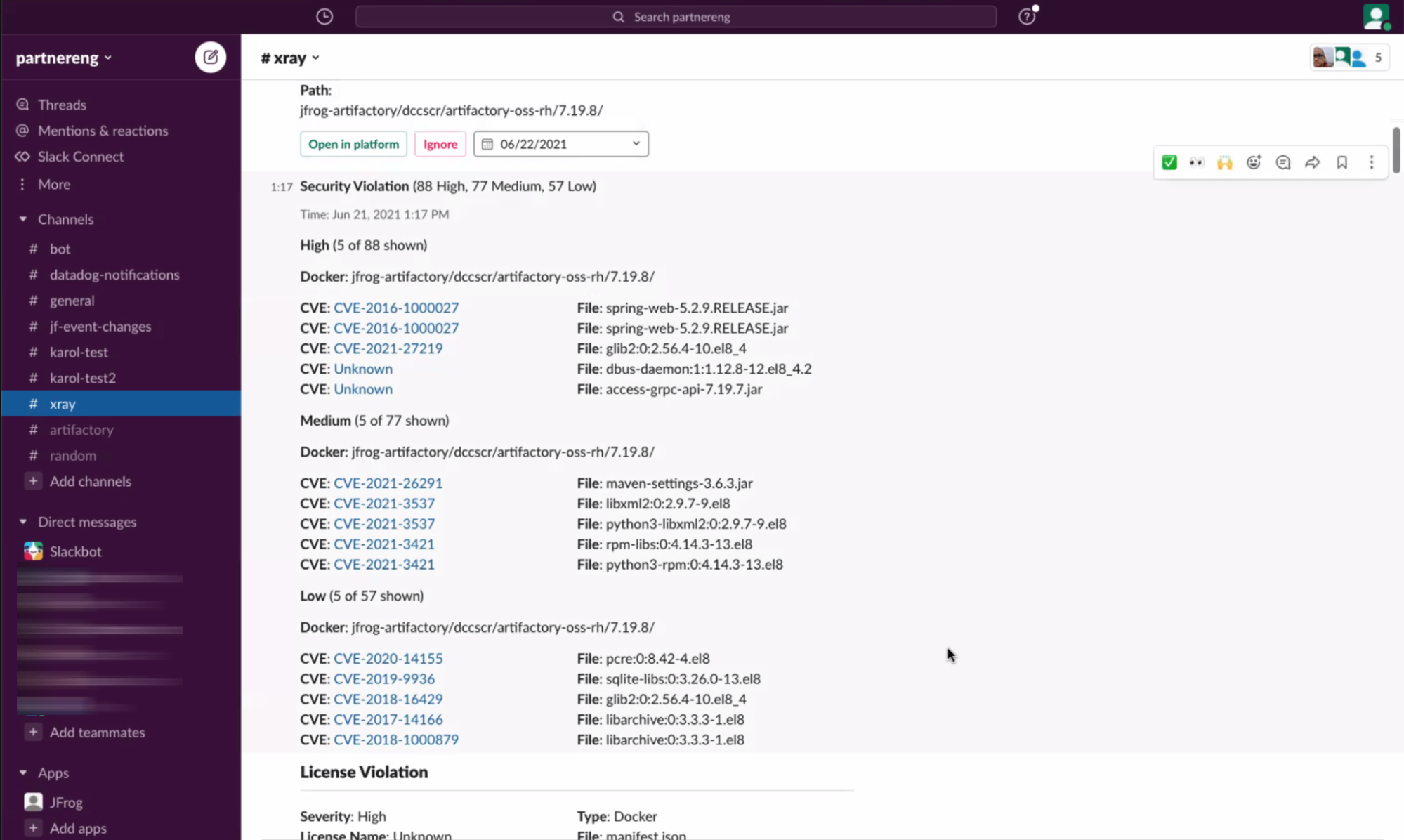
| Security Violations by CVE | This sends individual notification cards for each CVE or issue |
| Security Violations by Component (Summary view) | This provides a summary of all CVEs and severities by component |
| License Compliance | This sends individual notification cards for each license compliance issue |
Xray Notifications in Slack
JFrog Xray notifications are special in that only repositories that are being actively watched in Xray and have a policy setup will generate notification events. To learn more about how Xray policies and watch work,
.
If you already have policies and watches setup in Xray, you can create notifications in the Slack app.
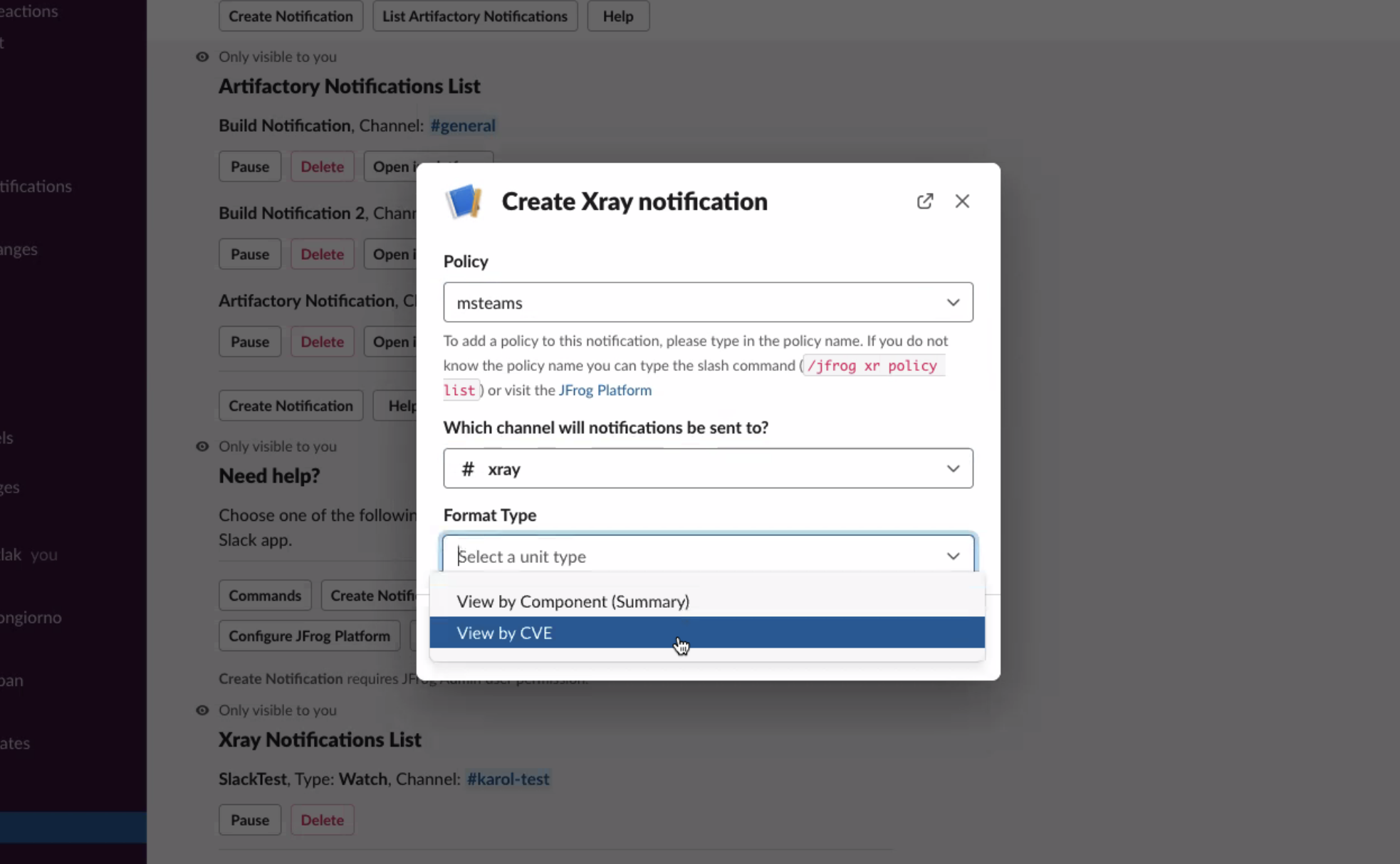
Hit Create Notification.
Give the Notification a name, which policy it is coming from, which channel to send the notification to, and whether you would like the security violation to send you information by individual CVE or send a grouped notification by Component (Summary).
Example - by CVE:
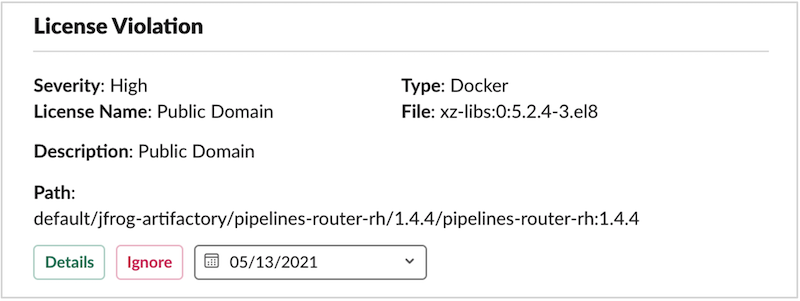
Example - by Component:
Pause Slack Notifications
All notifications can be paused, which removes them from being active in Slack channels, but does not delete the underlying webhook so they can be added again.
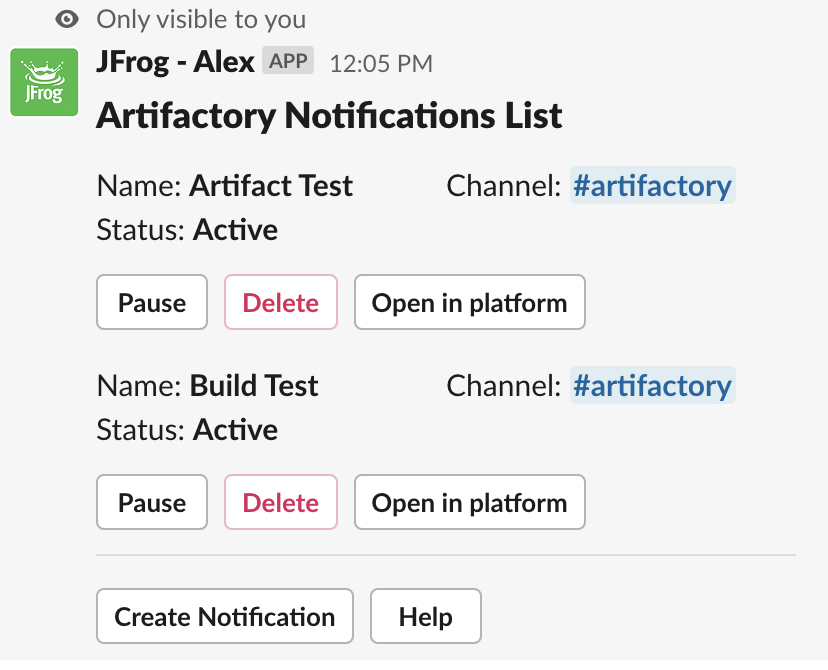
The delete notification button deletes the entire notification from Slack as well as the underlying webhook in the JFrog Platform.
List of Shortcuts for Slack Integration
Right under the text input area in Slack, you will see a lightning bolt symbol. Clicking on it brings up a list of 5 shortcuts that you can also use to create notifications and view lists. These shortcuts are:
Create Notifications
List XR Notifications
List RT Notifications
List Policies
List Watches
List of Commands for Slack Integration
Outside the UI elements, you can also interact with our application using commands in the Slack chat area. The commands we currently support are:
General Commands
| Command | Description |
|---|---|
| /jfrog help | Shows help content |
| /jfrog configure | Connects to your JFrog Instance and asks for JFrog URL, Integration ID, and Integration secret |
| /jfrog logout | Log out from the JFrog Platform with this Slack app |
Artifactory Commands
| Command | Description |
|---|---|
| /jfrog xr notify list | Provides a list of current xray notifications subscribed to by the personal or channel bot context |
| /jfrog xr watch list | Provides a list of current watches (that user can has read access to) with a micro action to subscribe the bot to the notification |
| /jfrog xr policy list | Provides a list of current policies with a micro action to open JFrog Platform. |
Xray Commands
| Command | Description |
|---|---|
| /jfrog xr notify list | Provides a list of current xray notifications subscribed to by the personal or channel bot context |
| /jfrog xr watch list | Provides a list of current watches (that user can has read access to) with a micro action to subscribe the bot to the notification |
| /jfrog xr policy list | Provides a list of current policies with a micro action to open JFrog Platform. |
Updated 4 months ago