

Manage Builds
This section describes the different actions that are available to manage builds including:
- Promote a Build
- Append Modules to an Existing Build
- Search Builds
- View Xray Build Data
- View Associated Builds on Artifacts
- Delete a Build
Promote a Build
Promoting a build is a way of preparing the build for eventual release. There are three different types of build promotion:
- Moving the artifacts and dependencies to a target repository and setting certain properties
- Copying the artifacts and dependencies to a target repository and setting certain properties
- Changing the status of the build without copying or moving its contents
Build Promotion using the REST API
You can promote a build using the Build Promotion REST API.
Build Promotion using the JFrog CLI
You can also use the JFrog CLI to promote builds, as described here.
Tip
Using build promotion? Learn how Release Lifecycle Management (RLM) can give you even more power and control over your software releases.
Append Modules to an Existing Build
After publishing a build to Artifactory, you can append additional modules to it, with each module representing a package containing a library, component, or other self-contained software unit. This process is useful, for example, when your build is comprised of multiple build steps that run on different machines or across different time periods.
Append Modules using the REST API
You can append one or modules to an existing build using the Build Append REST API.
Append Modules using the JFrog CLI
You can also use the JFrog CLI to append modules to builds. For more information, see Aggregating Published Builds.
Search Builds
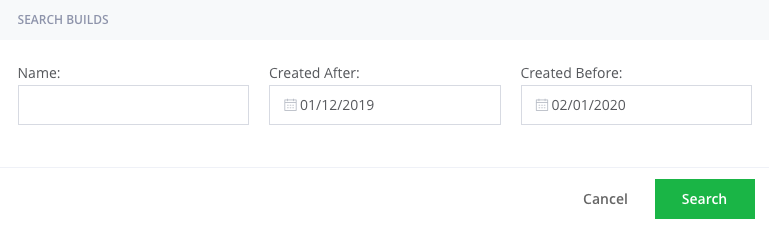
The global Application Search includes a dedicated Build search bar allowing you to search for specific builds within a specified data range.
For more information, see the Build Search.
View Xray Build Data
Xray scanning requires Artifactory Pro X, Enterprise with Xray, or an Enterprise+ license. 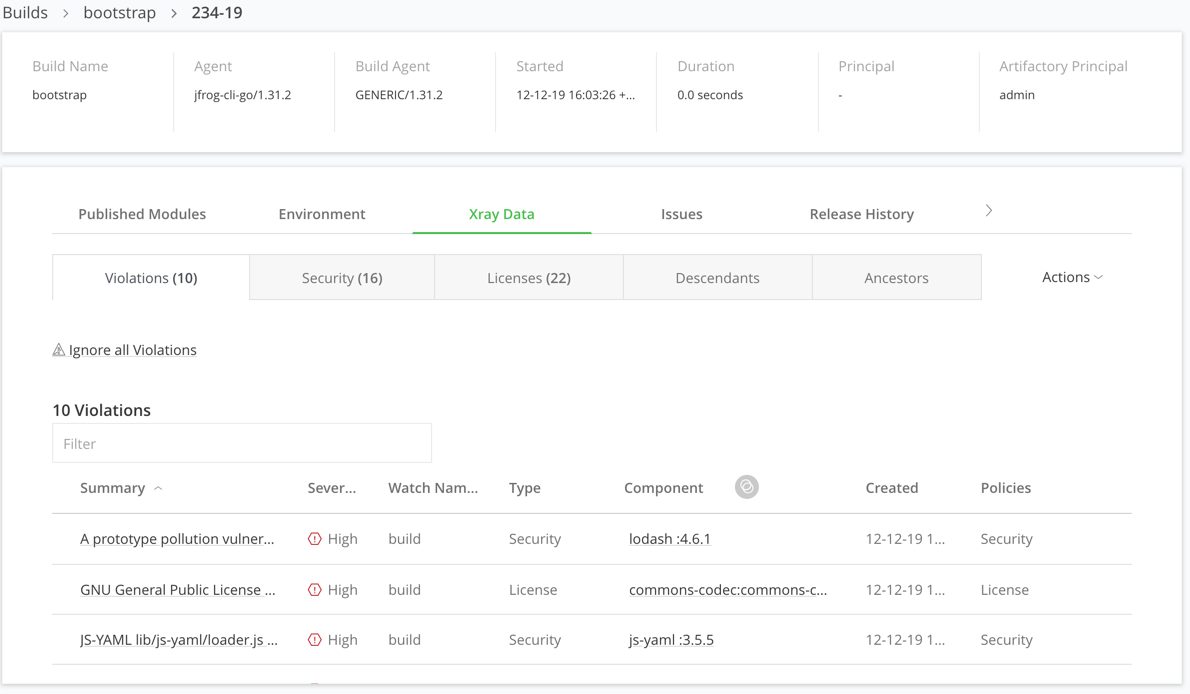
For more information, see Builds Security Overview.
View Associated Builds on Artifacts
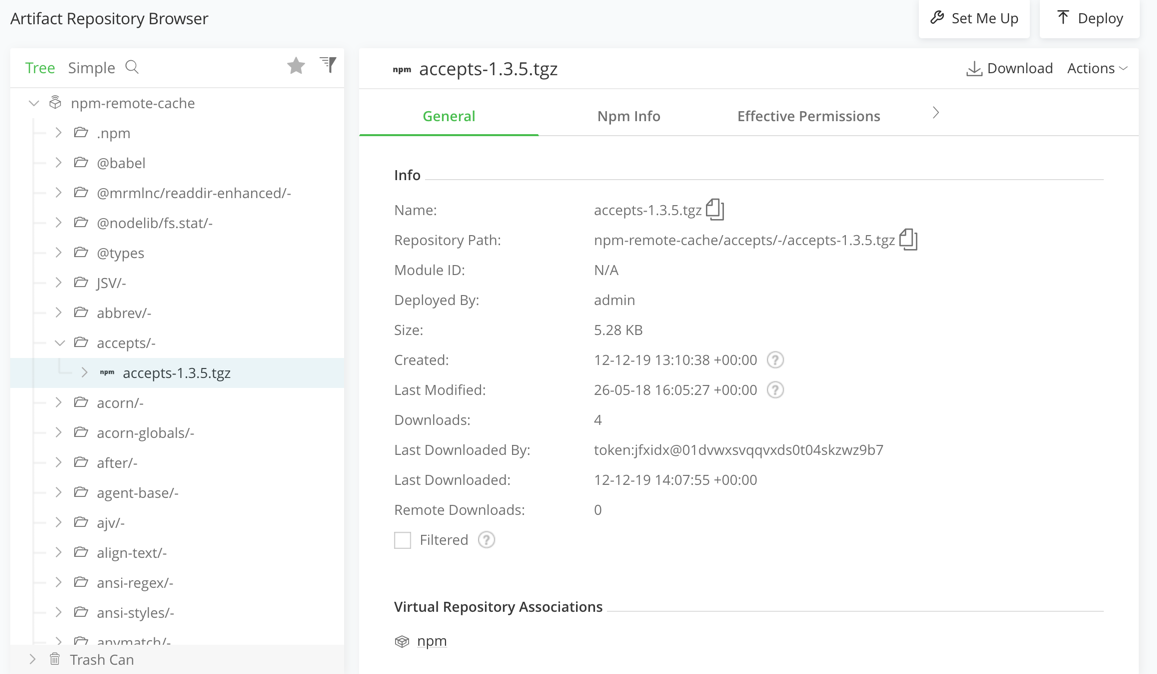
When viewing an artifact within the Tree Browser, you can see all of the builds with which that artifact is associated, whether directly or as a dependency in the Builds tab.
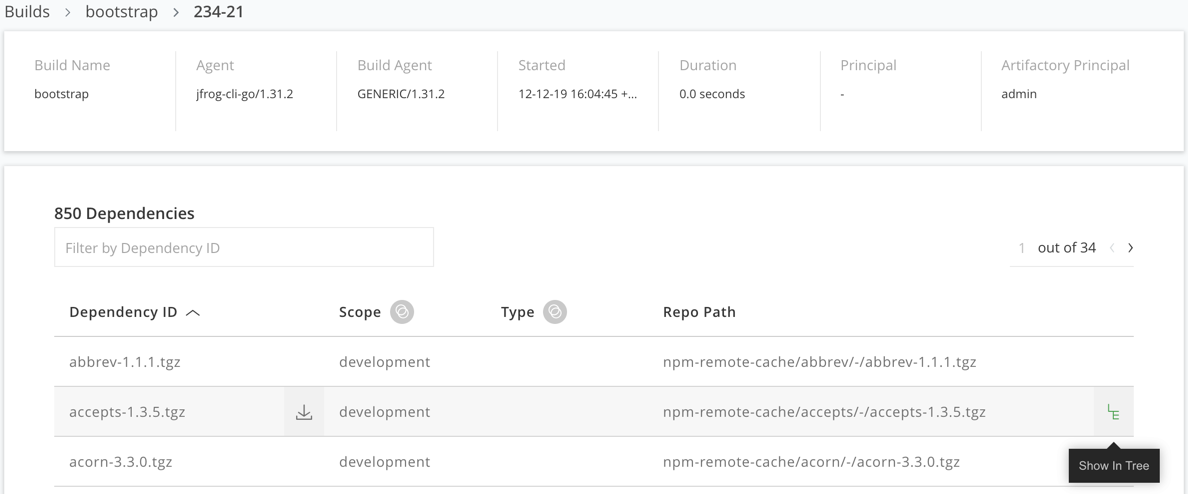
Moreover, if you try to remove the artifact you will receive a warning that the build will no longer be reproducible.
Note
The association of an artifact with a build is retained even if you move or copy it within Artifactory, because the association linked to the artifact's checksum which remains constant, regardless of the its location.
Delete a Build
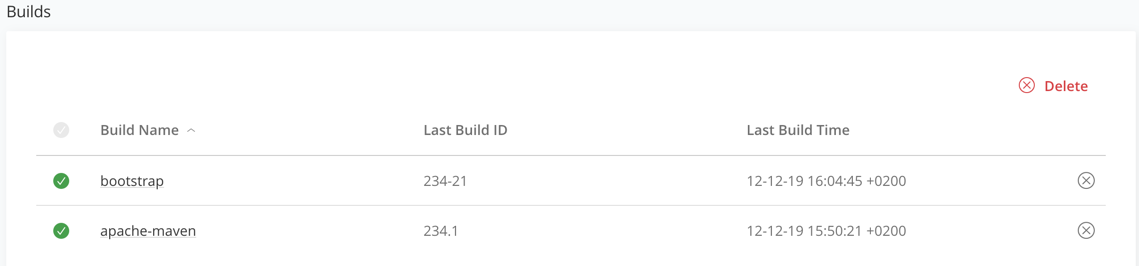
You can delete a single build or multiple builds from the UI, select the builds and click Delete or hover over a build number and click Delete.
Updated 3 months ago