

VS Team Services Artifactory Plugin
Deprecation Notice
This plugin has been deprecated and is no longer maintained.
To continue using Artifactory with VSTS, we recommend using the new JFrog Artifactory Extension.
To get the new extension, please refer to Artifactory Azure DevOps Extension.
To facilitate switching from the old extension to the new one, both extensions can be installed and run concurrently in your VSTS environment.
Artifactory brings continuous integration to Visual Studio Team Services (VSTS) through the Visual Studio Team Services Artifactory Plugin.
Artifactory already provides a set of plugins for Maven, Gradle, Ivy and other build tools that are supported on VSTS and enable you to capture information about deployed artifacts, resolve dependencies and deploy artifacts to Artifactory. The Visual Studio Team Services Artifactory plugin adds the ability to deploy and download generic artifacts, promote a build to Artifactory and view build information and promotion history.
Download and Install the VS Team Services for Artifactory Plugin
The VSTS Artifactory Plugin is an extension for VSTS and is available for download by account holders from the VSTS Marketplace.
To install the VSTS Artifactory Plugin:
- Sign in to your VSTS account and go to the marketplace. You can find the plugin in the Build and Release section where it is named JFrog Artifactory Integration.
- On the VSTS Artifactory Plugin page, click "Install".
- Select the account to which you want to apply the plugin and confirm installation.
Configure the VS Team Services for Artifactory Plugin
Setting up VSTS to work with Artifactory involves two basic steps:
- Configuring VSTS components
- Automating release workflow with custom tasks
Configure VSTS Components
Access Artifactory through ssl and authorize cross-domain request
The components added to VSTS use AJAX to communicate with Artifactory through the REST API. To enable this, you need to configure Artifactory to authorize cross-domain requests from your VSTS.
Also, as VSTS is on HTTPS you must use an HTTPS connection to your Artifactory instance.
Confiugre VSTS requires the following basic steps:
- Configuring an Artifactory instance
- Configure your build
Run Your Build for the VS Team Services for Artifactory Plugin
Configure your project as usual, setting it up to deploy to Artifactory, and run the build.
Once the build has completed, the build summary includes a new JFrog Artifactory section which displays Artifactory Build Info.
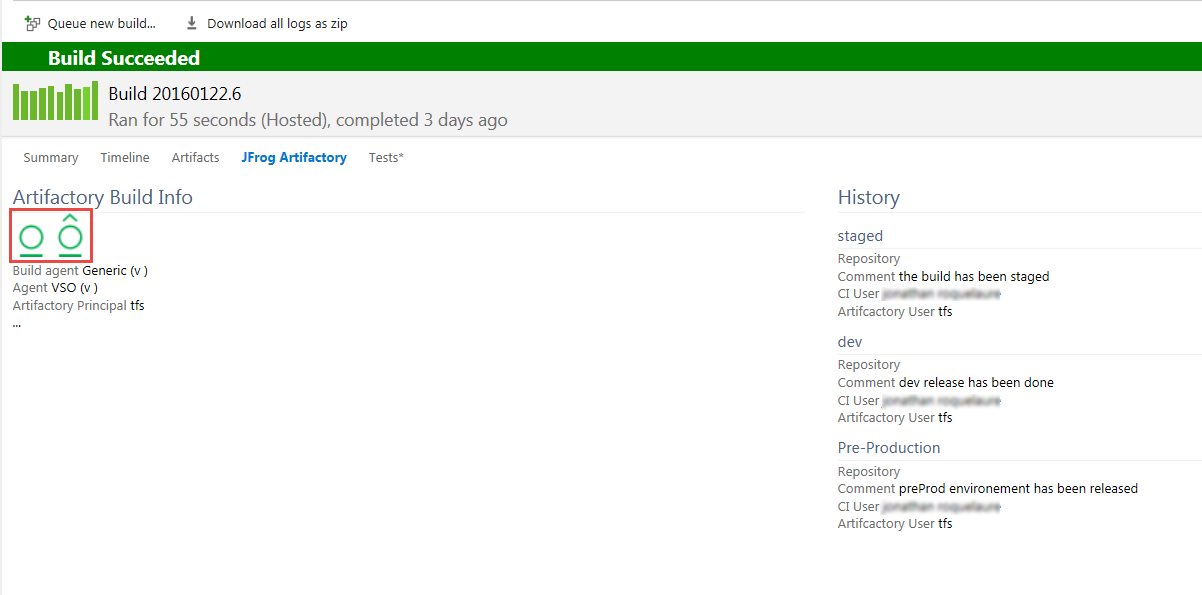
The two buttons demarcated in the image above are used for linking directly to the corresponding build information page in Artifactory, and to promote the build.
Configure an Artifactory Instance for the the VS Team Services for Artifactory Plugin
In VSTS, open your team project collection and go to the Build tab and select the Setup JFrog Artifactory sub-tab.
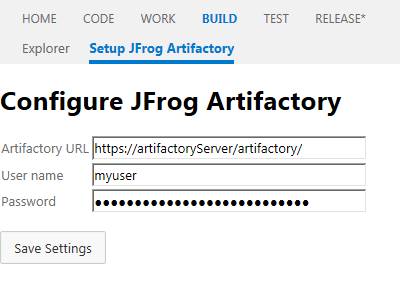
Provide your Artifactory URL, and default login credentials through which VSTS will connect to Artifactory.Once you save your settings they will be stored in VSTS and used for all your projects.
Promote Your Build for the VS Team Services for Artifactory Plugin
If you choose to promote your build, VSTS Artifactory Plugin will display a set of fields through which you can configure the Build Promotion REST API call that will be used to promote the build.
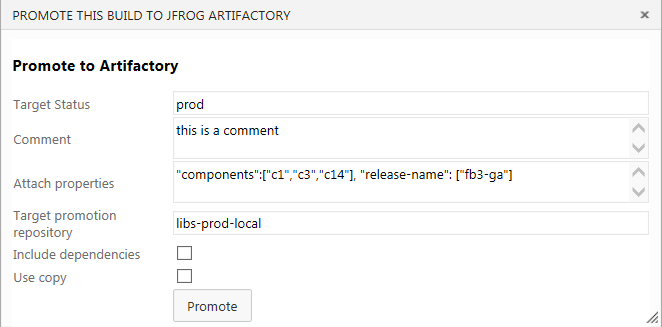
Click "Promote" to promote the build with the parameters you have configured.
When promotion is completed, you can refresh the build summary to see the new status in the build history.
Automate Release Workflow when working with the VS Team Services for Artifactory Plugin
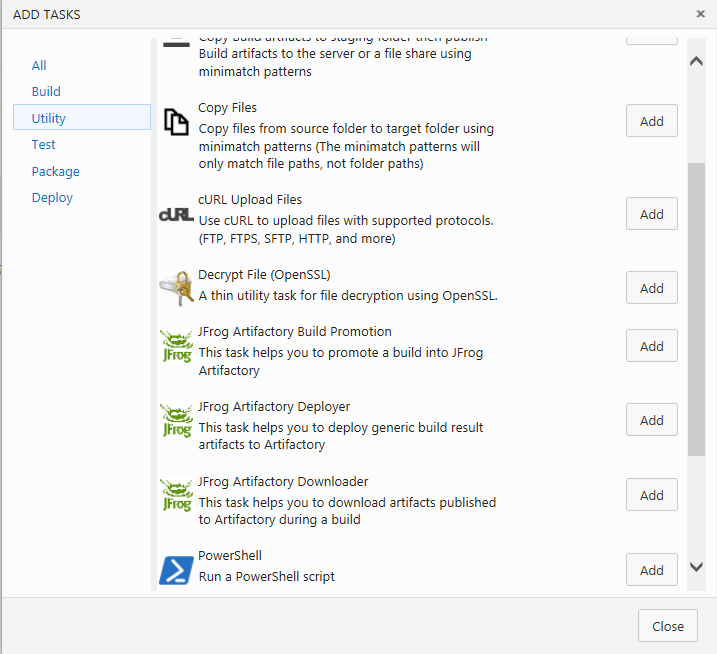
The VSTS Artifactory Plugin includes three custom tasks that enable you to automate your build and release workflows:
- JFrog Artifactory Deployer: A generic deployer
- JFrog Artifactory Downloader: A task to download artifacts produced during a build
- JFrog Artifactory Build Promotion: A task to promote a build
JFrog Artifactory Deployer and the the VS Team Services for Artifactory Plugin
The JFrog Artifactory Deployer task uses the JFrog CLI and facilitates working with VSTS and Artifactory, effectively, on any build tool such as Maven, Gradle and others, for any packaging format such as NuGet, npm and others.
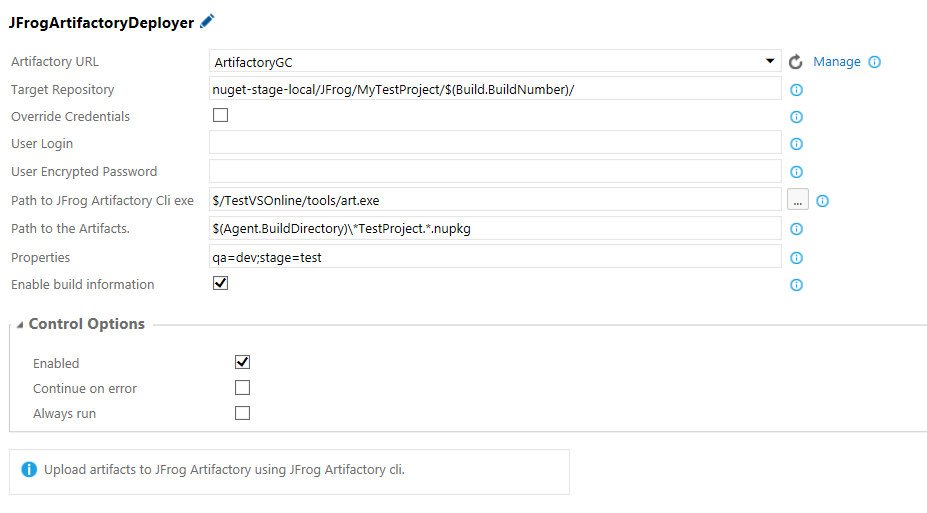
To use it, you need to configure a new service that points to an Artifactory instance as displayed in the following screenshot.
Note
Parameter values with spaces should be enclosed within quotation marks.
| Field | Description |
|---|---|
| Artifactory URL | Click "Manage" to set the Artifactory instance to which you want to deploy artifacts. |
| Target Repository | The target repository and path within that repository to which you want to deploy artifacts. Note that you can use environment variables such as $(Build.BuildNumber). |
| Override Credentials | When checked, you can override credentials provided by the service. |
| User Login | User name to use if you have checked Override Credentials. |
| User Encrypted Password | Corresponding encrypted password to use if you have checkedOverride Credentials. |
| Path to JFrog Artifactory Cli.exe | Path to the Artifactory CLI in your VSTS team project code repository. |
| Path to the Artifacts | Path to the artifacts you want to deploy. You may use environment variables and wild card characters. |
| Properties | Properties to attach to deployed artifacts. |
| Enable build information | If checked, build information will be created. |
In the example above, we are deploying any NuGet package containing "VSODemo" in its name that is located in the build directory or subfolder of the Artifactory configured as service “ArtifactoryGC” in the repository called “nuget-stage-local” with path “JFrog/MyTestProject/<BuildNumberValue>”. Some properties will be attached and the build information provided.
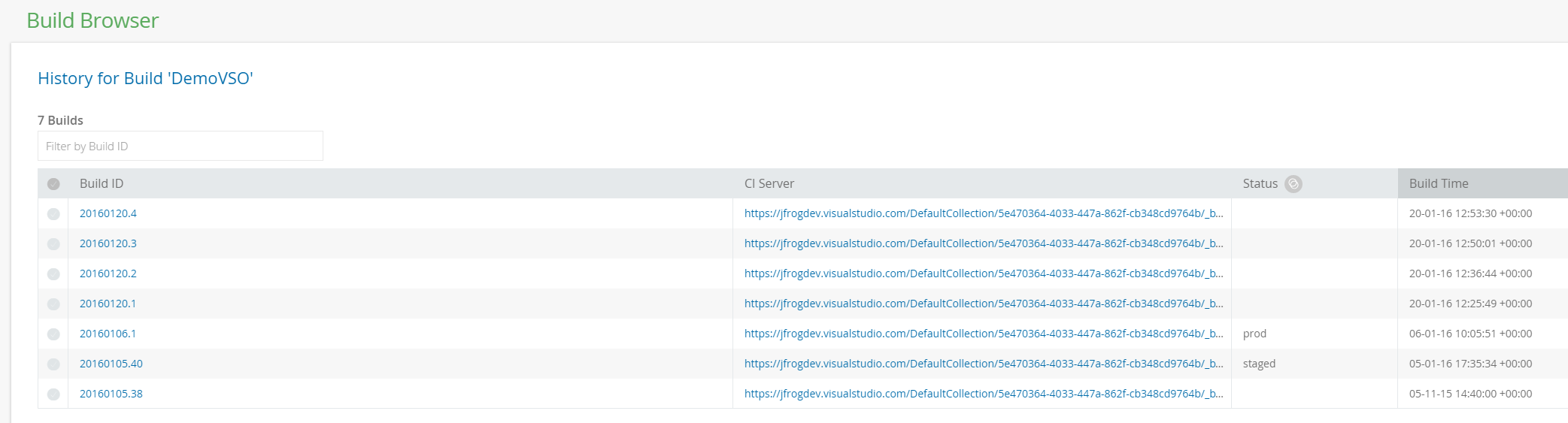
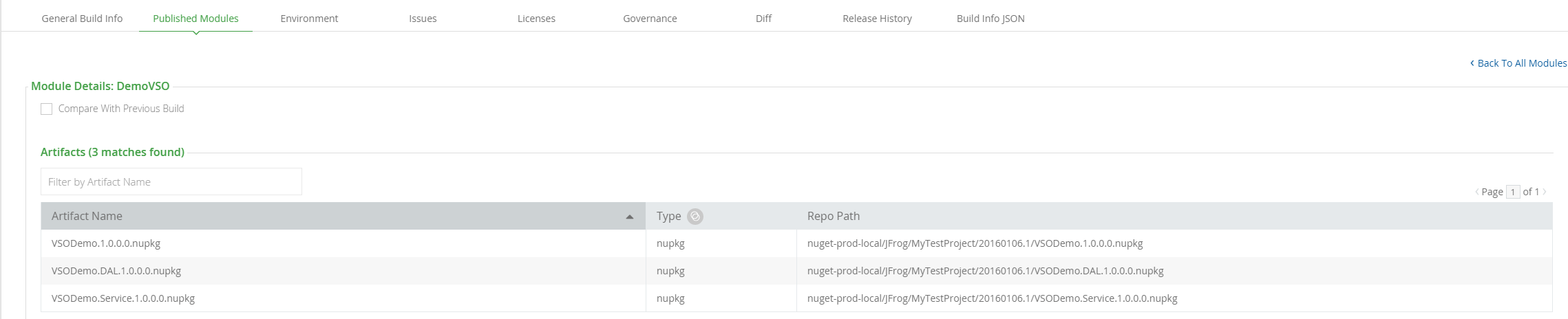
Once the build is complete, you can view its details in Artifactory as displayed below:
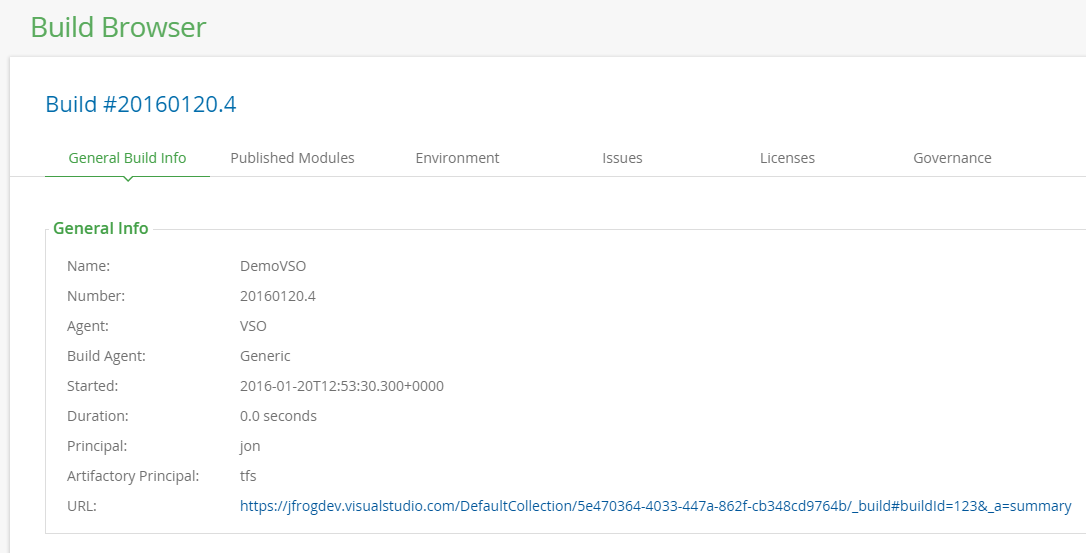
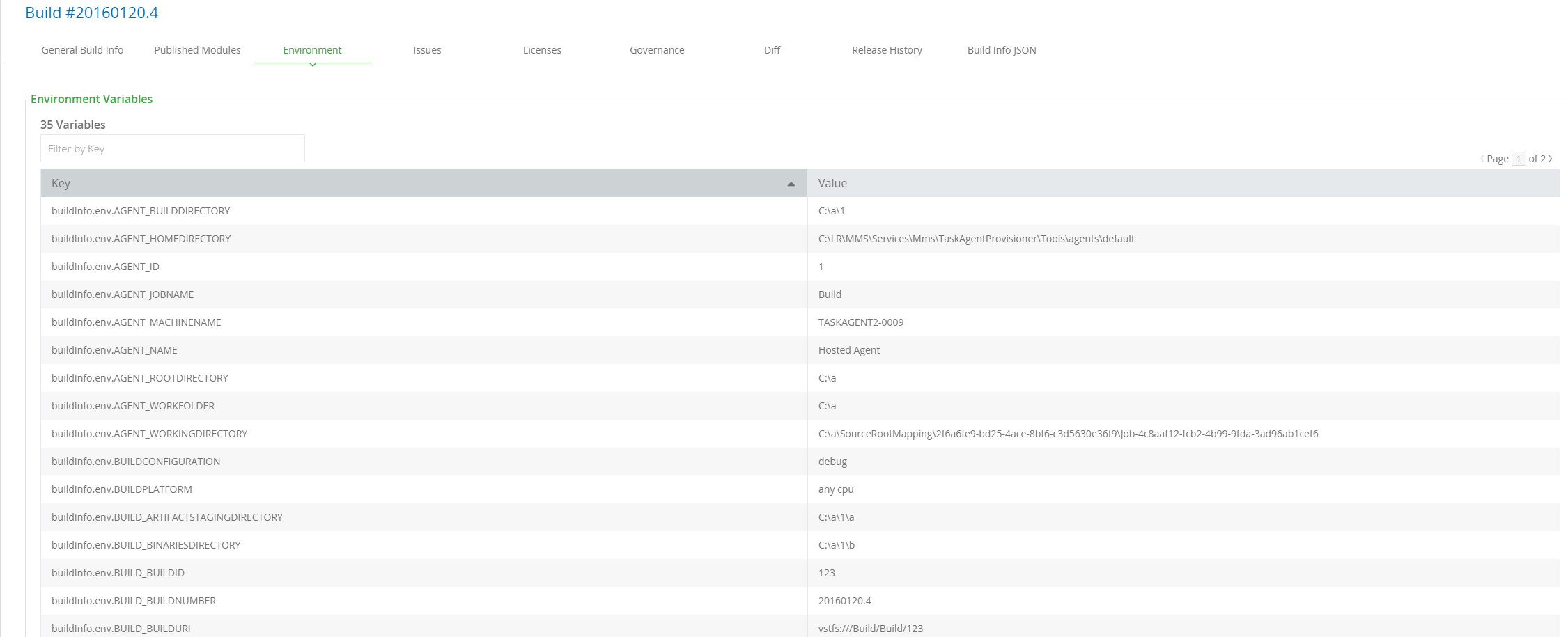
You can also view details for each build including a link back to the VSTS build summary:
JFrog Artifactory Downloader
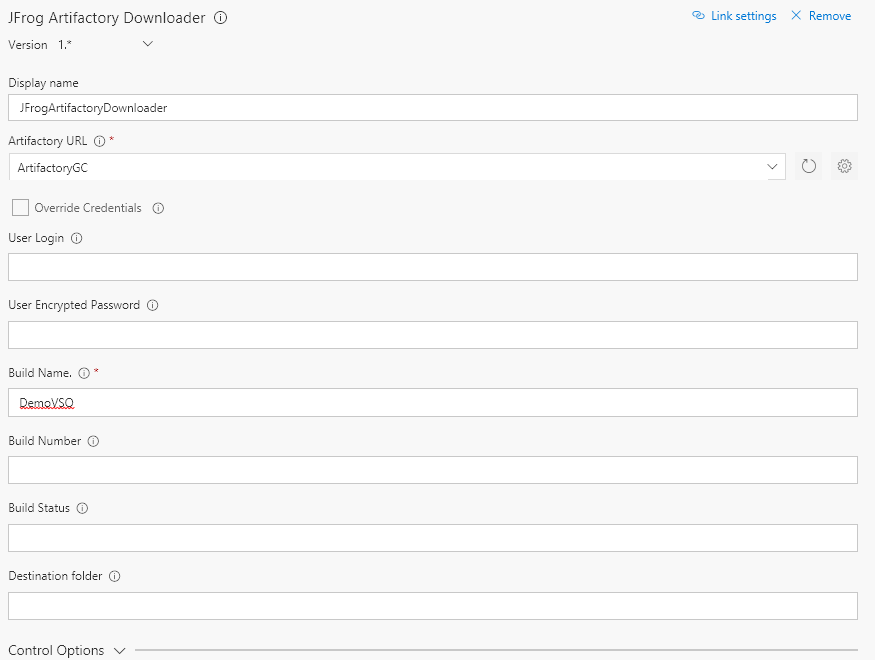
The JFrog Artifactory Downloader task downloads artifacts generated in a build from Artifactory as a zip archive and stored as $env:temp\artifacts.zip
The main point of this task is to enable download of artifacts in a release workflow and deploy them in a target environment where you can apply acceptance or other tests to them.
| Field | Description |
|---|---|
| Artifactory URL | Please refer to parameters for the JFrog Artifactory Deployer task. |
| Override Credentials | Please refer to parameters forthe JFrog Artifactory Deployer task. |
| User Login | Please refer to parameters forthe JFrog Artifactory Deployer task. |
| User API Key | Please refer to parameters forthe JFrog Artifactory Deployer task. |
| Build Name | The name of the build from which to download artifacts. |
| Build Number (optional) | If not provided, the task will use the current build number from the BUILD_BUILDNUMBER environment variable. If this variable is not available in context, the task will use the latest build from Artifactory. |
| Build Status (optional) | If provided, the task only downloads artifacts linked to the latest build with the specified status. If not provided, the task downloads artifacts from the current build number (as determined from the environment variables). If the task is applied in a release workflow (rather than being triggered by a build, and therefore, there is no build number available), the latest build will be used. |
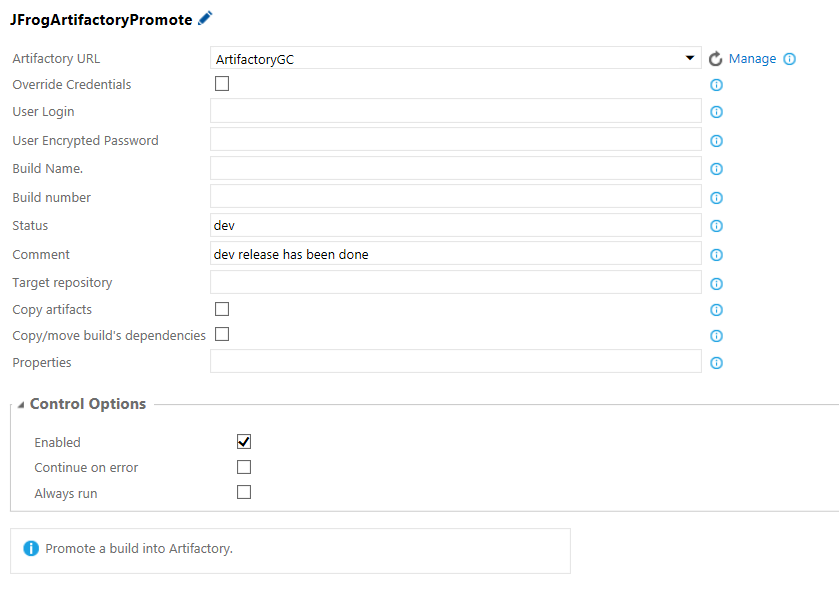
JFrog Artifactory Build Promotion Task
| Field | Description |
|---|---|
| Artifactory URL | Please refer to parameters for the JFrog Artifactory Deployer task. |
| Target Repository | Please refer to parameters for the JFrog Artifactory Deployer task. |
| Override Credentials | Please refer to parameters for the JFrog Artifactory Deployer task. |
| User Login | Please refer to parameters for the JFrog Artifactory Deployer task. |
| User API Key | Please refer to parameters for the JFrog Artifactory Deployer task. |
| Build Name (optional) | The name of the build from which to download artifacts. If not provided, the task will use values from environment variables if available. |
| Build Number (optional) | The number of the build from which to download artifacts. If not provided, the task will use values from environment variables if available. |
| Build Status | Target status for promotion. |
| Comment (Optional) | Optional comment to add. |
| Target Repository (Optional) | You may set this parameter if you want the build moved/copied to a target repository. |
| Copy artifacts | If checked, build artifacts will be copied, otherwise they will be moved. |
| Copy/move build dependencies | If checked, the build dependencies will also be copied/moved in the promotion. |
| Properties (optional) | You may add a set of properties separated by a semicolon. |
Updated 2 months ago