

Maven Repositories
As a Maven repository, Artifactory is both a source for artifacts needed for a build, and a target to deploy artifacts generated in the build process. Maven is configured using a settings.xml file located under your Maven home directory, which is typically located at /user.home/.m2/settings.xml. Once your Maven build is configured, Artifactory provides tight integration with commonly used CI servers like Jenkins, TeamCity or Bamboo. The integration is done through a set of plugins that you can install and use freely.
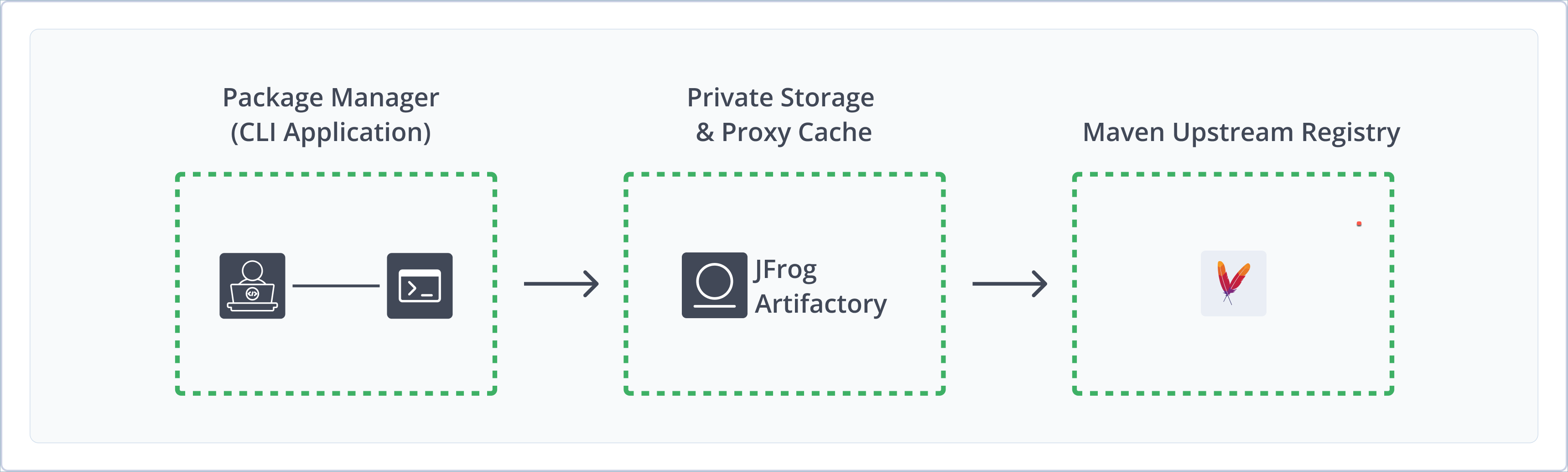
Artifactory fully supports Maven repositories, including the following capabilities:
- Unified Repository Management: Consolidate all your Maven builds in Artifactory repositories as a single source of truth. Set up secure local repositories, access cached versions of remote registries, and create a single access point for all sources with virtual repositories.
- Robust Metadata Capabilities: Calculate metadata for artifacts hosted in Artifactory's local repositories.
- Secure Storage: Protect your proprietary information by deploying resources to Artifactory local repositories, giving you fine-grained control over access to your project dependencies and build packages.
- Centralized Storage and Management: Use Artifactory as your source of truth and single location for distributing and sharing Maven builds and related artifacts.
Get Started with Maven
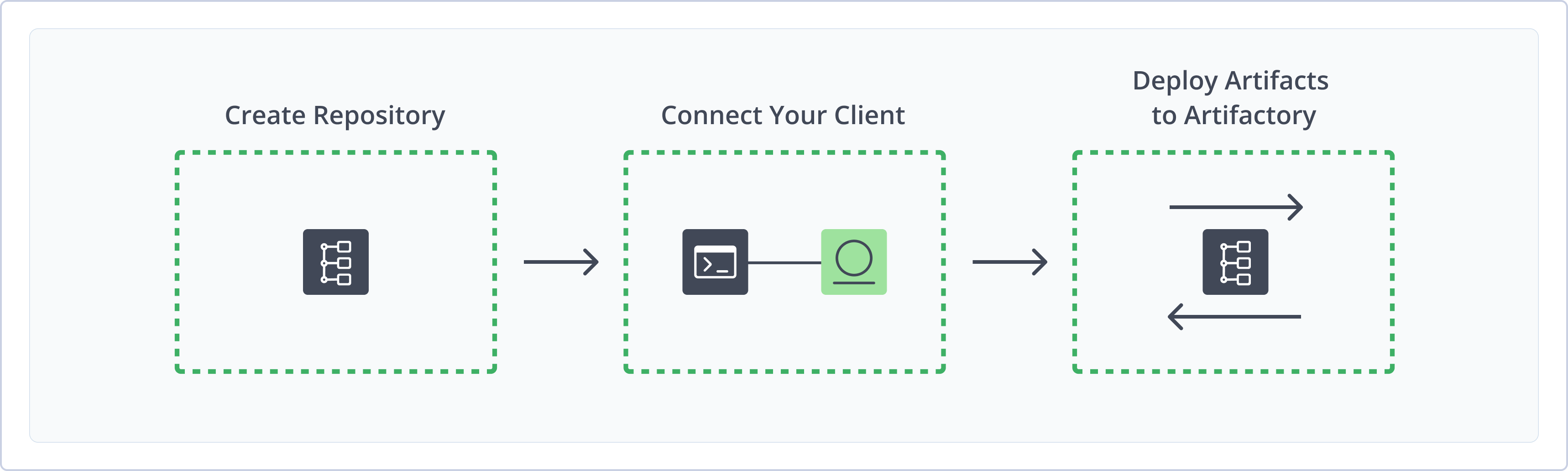
To get started working with Maven, complete the following main steps:
- Create a Maven Repository
- Connect your Maven Client to Artifactory
- Deploy Maven Artifacts to Artifactory
Create a Maven Repository
This topic describes how to create a Maven repository. This is required before you can deploy artifacts to Maven repositories. There are three primary types of repositories:
- Local repositories: Where you store and share 1st and 2nd party repositories with your organization
- Remote repositories: Enable you to download from any remote location including external repositories or other Artifactory instances
- Virtual repositories: Enable aggregating remote and local repositories enabling your organization to scale by providing a single URL that provides access to multiple repositories and types
For more information on JFrog repositories, see Repository Management.
Prerequisite: You need Admin or Project Admin permissions to create a Maven repository. If you don't have Admin permissions, the option will not be available.
To create a Maven repository:
-
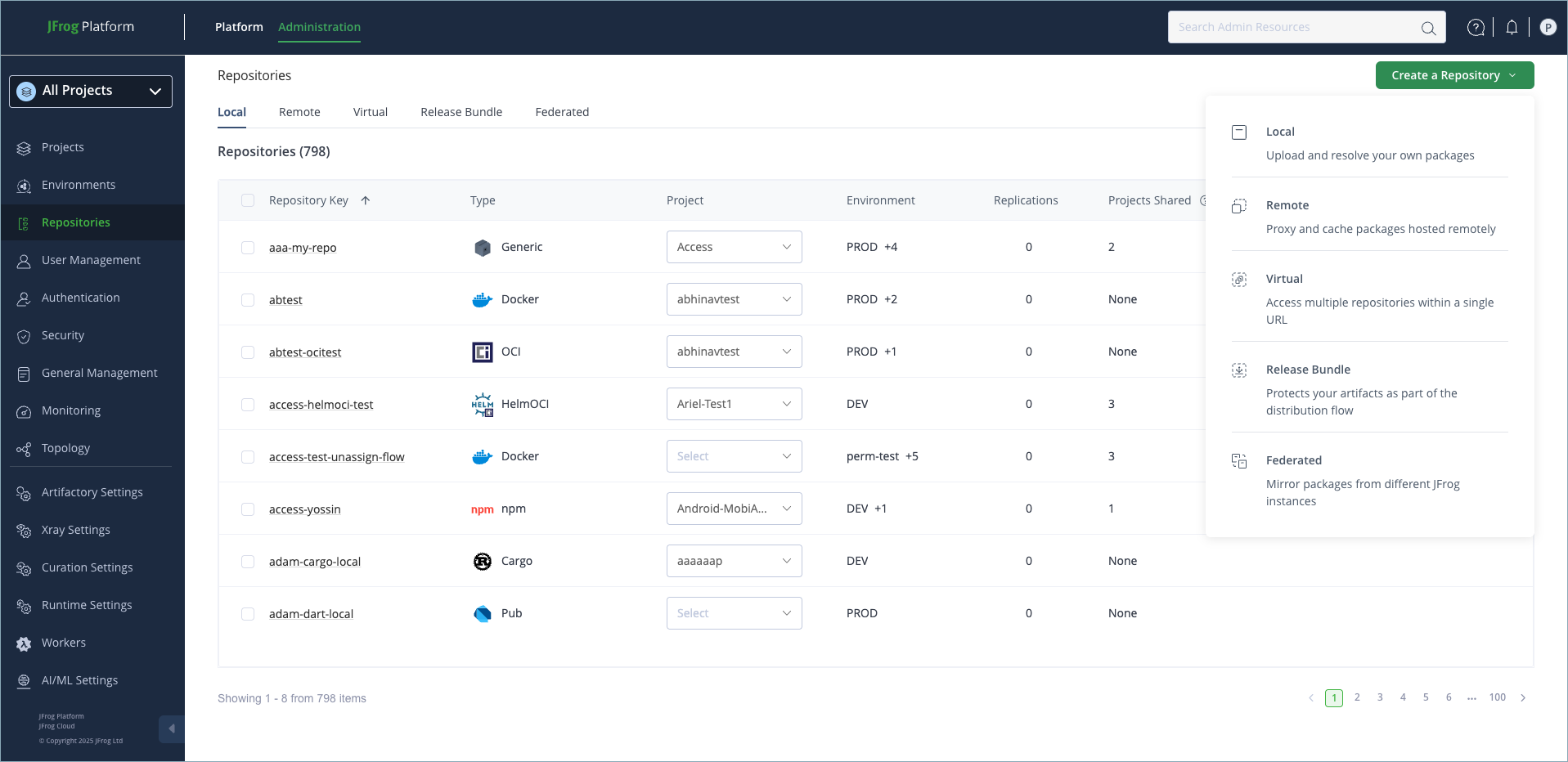
In the Administration tab, click Repositories | Create a Repository.
-
From the drop-down list, select the repository type you want to create. The Select Package Type window appears.
-
In the Select Package Type window, select Maven.
-
In the New Repository window, configure the required fields as described in the following list:
- For Local Repositories, in the Repository Key field type a meaningful name for the repository. For example,
maven-local-repository-1. For more information on configuring local repositories, see Local Repositories. - For Remote Repositories, additionally verify the Repository URL and update if needed. For more information on Remote Repositories and all its possible settings, see Remote Repositories.
- For Virtual Repositories, additionally select one or more local or remote repository types to include in the virtual repository. For more information on virtual repositories and all its possible settings, see Virtual Repositories.
- For Local Repositories, in the Repository Key field type a meaningful name for the repository. For example,
-
When you are finished configuring the repository, click Create Repository. The repository is created and the Repositories window is displayed.
Connect your Maven Client to Artifactory
This topic provides details on configuring Maven to work with Artifactory.
Pre-requisite: Before connecting your Maven client to Artifactory, you must have an existing Maven repository in Artifactory. For more information, see Create a Maven Repository
To configure Maven to resolve artifacts through Artifactory, you need to modify the settings.xml file. You can generate one automatically or create and modify it manually. The instructions provided here explain how to create and modify settings.xml. manually.
The definitions in the generated settings.xml file override the default central and snapshot repositories of Maven.
Note
JFrog recommends using an identity token for configuring your Maven client, as it has certain advantages over a user password. However, it is not strictly required.
If you want to use an identity token instead of your Artifactory password for configuring your Maven client with Artifactory, follow the instructions in Generate Identity Token.
To connect your Maven client to Artifactory:
-
Create and modify the
settings.xmlfile according to the following steps:-
Copy the contents of the
settings.xmlfile below to an XML editor:<?xml version="1.0" encoding="UTF-8"?> <settings xsi:schemaLocation="http://maven.apache.org/SETTINGS/1.2.0 http://maven.apache.org/xsd/settings-1.2.0.xsd" xmlns="http://maven.apache.org/SETTINGS/1.2.0" xmlns:xsi="http://www.w3.org/2001/XMLSchema-instance"> <servers> <server> <username>${ARTIFACTORY_USER}</username> <password>${ARTIFACTORY_TOKEN}</password> <id>central</id> </server> <server> <username>${ARTIFACTORY_USER}</username> <password>${ARTIFACTORY_TOKEN}</password> <id>snapshots</id> </server> </servers> <profiles> <profile> <repositories> <repository> <snapshots> <enabled>false</enabled> </snapshots> <id>central</id> <name><release_repo></name> <url>https://<my_jfrog_domain>/artifactory/<release_repo></url> </repository> <repository> <snapshots /> <id>snapshots</id> <name><snapshot_repo></name> <url>https://<my_jfrog_domain>/artifactory/><snapshot_repo}</url> </repository> </repositories> <pluginRepositories> <pluginRepository> <snapshots> <enabled>false</enabled> </snapshots> <id>central</id> <name><plugin_release_repo></name> <url>https://<my_jfrog_domain>/artifactory/<plugin_release_repo></url> </pluginRepository> <pluginRepository> <snapshots/> <id>snapshots</id> <name><plugin_snapshot_repo></name> <url>https://<my_jfrog_domain>/artifactory/<plugin_snapshot_repo></url> </pluginRepository> </pluginRepositories> <id>artifactory</id> </profile> </profiles> <activeProfiles> <activeProfile>artifactory</activeProfile> </activeProfiles> </settings> -
In the
settings.xmlfile, replace the following placeholders as follows:- $
{ARTIFACTORY\_USER}: Replace with your Artifactory username. - $
{ARTIFACTORY\_TOKEN}: Replace with your identity token or Artifactory password. <my_jfrog_domain>: Replace with the name of your Artifactory domain.<release_repo>: Replace with the repository from which to resolve releases.<snapshot_repo>: Replace with the repository from which to resolve snapshots.<plugin_release_repo>: Replace with the repository from which to resolve plugin releases.<plugin_snapshot_repo>: Replace with the repository from which to resolve plugin snapshots.
- $
-
-
Save the
settings.xmlfile in one of the following locations, according to your system needs:- User-specific install: $
USER.HOME/.m2/settings.xml - Global machine install: $
{maven.home}/conf/settings.xml - Custom settings.xml file: Pass it as an argument during execution, for example: mvn install -s settings.xml
- User-specific install: $
Note
You can also use JFrog Set Me Up to copy the snippet populated with your token and environment. For more information, see Use Artifactory Set Me Up for Configuring Package Manager Clients.
Set Me Up supports virtual Maven repositories only.
Next Step:
Deploy Maven Artifacts to Artifactory
Deploy Maven artifacts to Artifactory by adding the following deployment element to the pom.xml file of your Maven project with the target local repository URL that you want to deploy your artifacts to.
<distributionManagement>
    <repository>
        <id>central</id>
        <name><user_defined_name></name>
        <url>https://<MY_JFROG_DOMAIN>/artifactory/<MY_MAVEN_REPO></url>
    </repository>
    <snapshotRepository>
        <id>snapshots</id>
        <name><what name should they put here></name>
        <url>https://<MY_JFROG_DOMAIN>/artifactory/<MY_MAVEN_REPO></url>
    </snapshotRepository>
</distributionManagement>
In the code snippet above, replace the following placeholders as follows:
<user_defined_name>: Enter here a name or description that will help you identify your repository. It can be any name; it does not have to be the actual repository name and is for your identification purposes only.<MY_JFROG_DOMAIN>: Enter here the name of your Artifactory domain.<MY_MAVEN_REPO>: Enter here the name of the Maven local repository that you are connecting to Artifactory.
Additional Maven Actions
The following additional actions are available with Maven repositories:
Mirror Any Setup
In addition to overriding built-in Maven repositories, you can use the Mirror Any setting to redirect all requests to a Maven repository through Artifactory, including those defined inside POMs of plug-ins and third party dependencies. (While it does not adhere to best practices, it is not uncommon for POMs to reference Maven repositories directly). This ensures no unexpected requests directly to Maven are introduced by such POMs.
You can either check Mirror Any in the Maven Settings screen when generating your settings.xml file, or you can manually insert the following:
<mirrors>
    <mirror>
      <id>central</id>
      <mirrorOf>*</mirrorOf>
      <url>http://[host]:[port]/artifactory/[virtual repository]</url>
      <name>Artifactory</name>
    </mirror>
</mirrors>Note
While using Mirror Any is a convenient way to ensure Maven only accesses repositories through Artifactory, it defines a coarse proxying rule that does not differentiate between releases and snapshots and relies on the single specified repository to do this resolution.
For more information on using mirrors, see Using Mirrors for Repositories in the Apache Maven documentation.
Configure Maven Authentication
Artifactory requires user authentication in three cases:
- Anonymous access has been disabled by unchecking the global Allow Anonymous Access setting.
- You want to restrict access to repositories to a limited set of users
- When deploying builds (while theoretically possible, it is uncommon to allow anonymous access to deployment repositories)
Authentication is configured in Maven using <server> elements in the settings.xml file.
Each <repository> and <mirror> element specified in the file must have a corresponding <server> element with a matching <id> that specifies the username and password.
The sample snippet below emphasizes that the <repository> element with id=central has a corresponding <server> element with id=central.
Similarly, the <repository> element with id=snapshots has a corresponding <server> element with id=snapshots.
The same would hold for <mirror> elements that require authentication.
In both cases the username is admin and the password is encrypted.
Sample snippet from settings.xml
<settings xmlns="http://maven.apache.org/SETTINGS/1.1.0" xmlns:xsi="http://www.w3.org/2001/XMLSchema-instance" xsi:schemaLocation="http://maven.apache.org/SETTINGS/1.1.0 http://maven.apache.org/xsd/settings-1.1.0.xsd">
<servers>
    <server>
        <id>central</id>
        <username>admin</username>
        <password>\{DESede\}kFposSPUydYZf89Sy/o4wA==</password>
    </server>
    <server>
        <id>snapshots</id>
        <username>admin</username>
        <password>\{DESede\}kFposSPUydYZf89Sy/o4wA==</password>
    </server>
</servers>
<profiles>
    <profile>
        <repositories>
            <repository>
                <id>central</id>
                <snapshots>
                    <enabled>false</enabled>
                </snapshots>
                <name>libs-release</name>
                <url> http://localhost:8081/artifactory/libs-release</url>
            </repository>
            <repository>
                <id>snapshots</id>
                <snapshots />
                <name>libs-snapshot</name>
                <url> http://localhost:8081/artifactory/libs-snapshot</url>
            </repository>
        </repositories>
    </profile>
</profiles>
</settings>Artifactory encrypts passwords for safe and secure access to Maven repositories
To avoid having to use cleartext passwords, Artifactory encrypts the password in the settings.xml file that is generated. For example, in the above sample snippet we can see that the admin user name is specified in cleartext, but the password is encrypted:
<username>admin</username> <password>\{DESede\}kFposSPUydYZf89Sy/o4wA==</password>
Synchronizing Authentication Details for Repositories with the Same URL
If you have repository definitions (either for deployment or download) that use the same URL, Maven takes the authentication details (from the corresponding server definition) of the first repository encountered and uses it for the life-time of the running build for all repositories with the same URL. This may cause authentication to fail (producing 401 errors for downloads or deployment) if you are using different authentication details for the respective repositories.This is inherent Maven behavior and can only be solved by using the same authentication details for all repository definitions with the same URL in your settings.xml .
Force Authentication on Virtual Maven Repositories
Artifactory supports Maven repositories with Allow Anonymous Access enabled by default and will not query the Maven client for authentication parameters.
If you want to enforce authentication you need to explicitly instruct Artifactory to request authentication parameters.
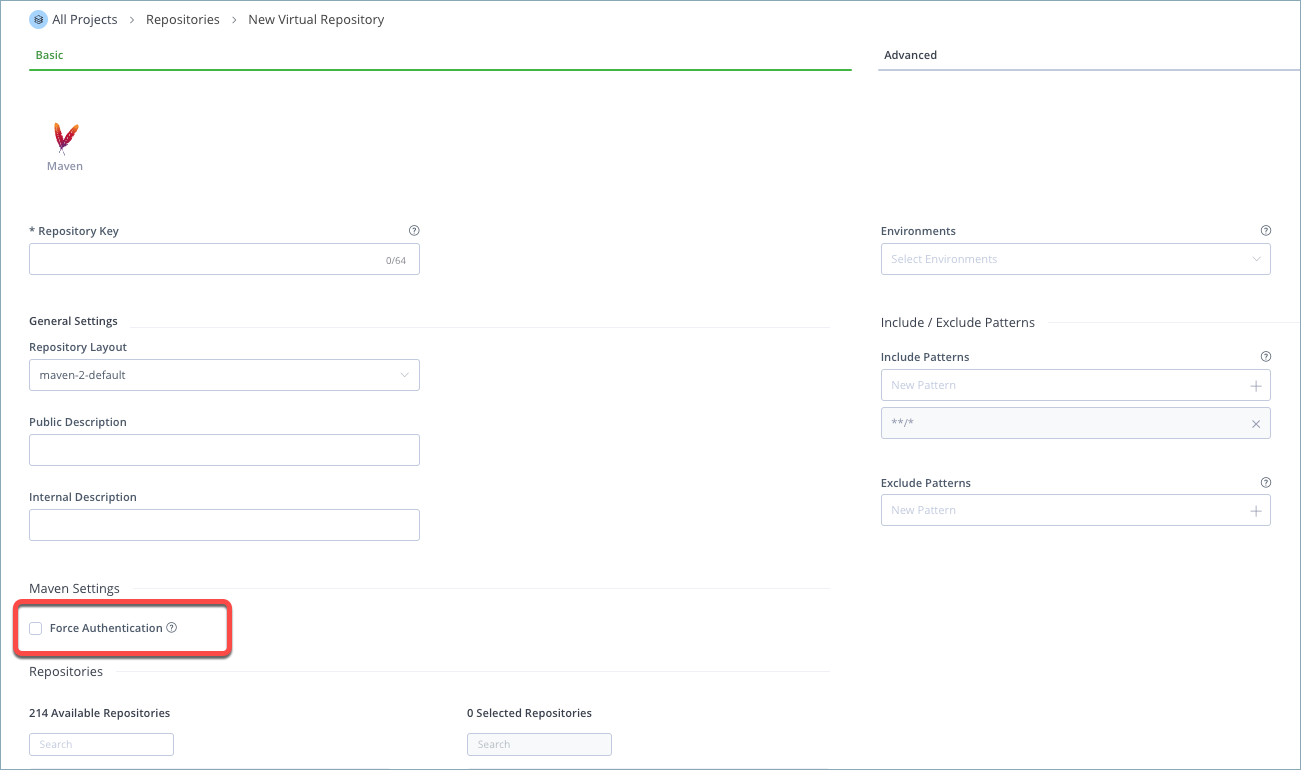
In the New or Edit Repository dialog of the Maven virtual repositories, select the Force Authentication check box.
Note
When Force Authentication is selected, Artifactory will request authentication parameters from the Maven client before trying to access this repository.
Force Maven Non-Preemptive Authentication for Local, Remote, and Virtual Repositories
From Artifactory version 7.37.9, an enhanced Maven Authentication mechanism has been implemented in Artifactory to eliminate the need to perform authentication prior to checking if a package is located in local, remote, and virtual repositories. With the new authentication mechanism, when reaching Maven-local-three (which requires authentication), instead of first performing authentication and next authorization, Artifactory will check if the requested item is located in the repository. If the requested package does exist, it will proceed to perform authentication and authorization. If not, a 404 error message will be triggered. This feature is disabled by default.
For Self-Hosted platforms only: To enable non-preemptive authentication, add the artifactory.maven.authentication.nonPreemptive parameter to the artifactory.system.properties file.
Reboot Required
You are required to perform a system reboot after adding this flag.
Provision Dynamic Maven Settings for Users
You can deploy and provision a dynamic settings template for your users.
Once downloaded, settings are generated according to your own logic and can automatically include user authentication information.
For more details, please refer to the Provisioning Build Tool Settings.
Updated 18 days ago