

JFrog ML in Self-Managed Environments
Enable secure communication between your JFrog Platform Deployment (JPD) and JFrog ML for Self-Managed environments.
To take advantage of JFrog's AI and ML capabilities you need to enable this feature in your self-managed JFrog platform.
This comprises two mandatory steps:
-
First you must enable the AI/ML user interface in the JFrog Platform by following the instructions in AI/ML Service Activation.
-
Then you must install the JFrog ML Bridge, as described below.
The JFrog ML Bridge is installed behind the scenes to enable secure communication between on-prem environments and the JFrog ML control plane. This installation is required because JFrog ML is not currently part of the JFrog platform deployment (JPD).
Prerequisites
To use AI/ML capabilities, your JFrog Platform must meet the following minimum version requirements:
| Product | Minimum Version |
|---|---|
| Artifactory | 7.117.5 |
| Xray | 3.137.30 |
| Package Catalog | 1.34.6 |
Activate AI/ML Service
To activate your JFROG AI/ML service, follow the instructions in AI/ML Service Activation.
JFrog ML Bridge Installation
The following steps explain how to install the JFrog ML Bridge. This should be done after you have activated the JFrog AI/ML service.
Use the AI/ML setup workflow in the JFrog Platform to configure the JFrog Bridge client and generate the Helm command for your Kubernetes cluster.
To install the JFrog Bridge:
-
Navigate to AI/ML.
-
In the Internal Artifactory URL field, enter the URL that allows the Bridge client (running in your Kubernetes cluster) to communicate with your JFrog Platform Deployment (JPD).
The JFrog Bridge should be installed where it has a network connection to Artifactory.
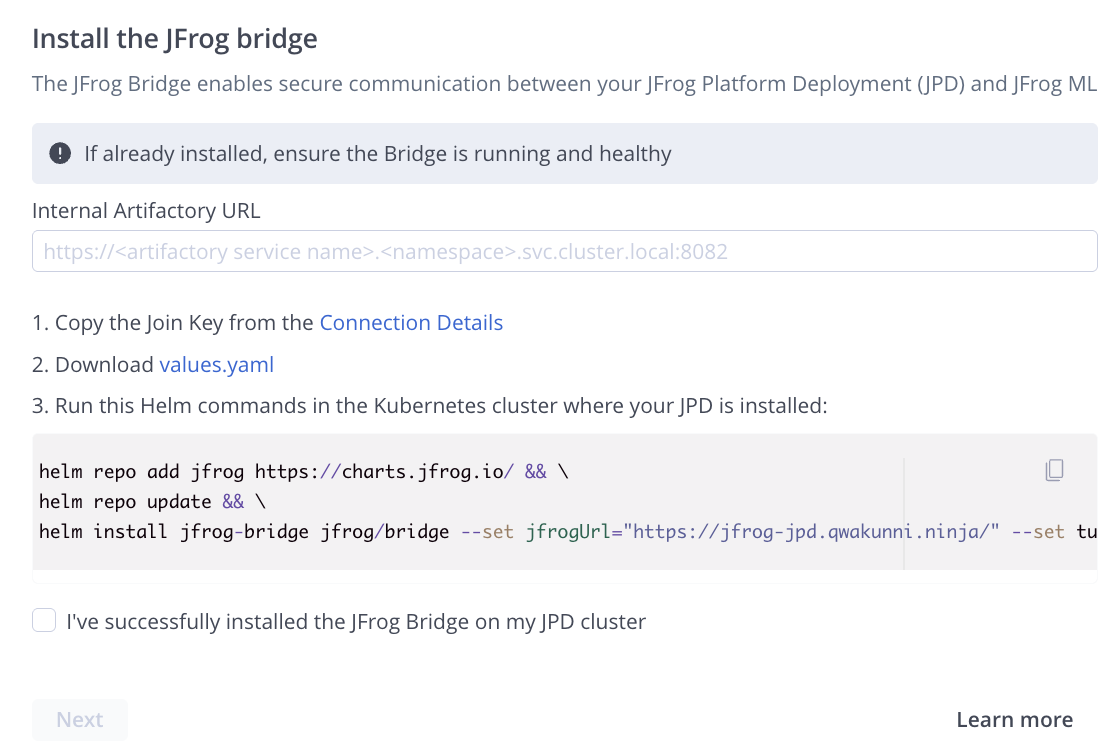
-
In the Administration module, select Security > General and scroll down to Connection details.
-
Copy the Join Key and download the values.yaml file.

-
Copy the generated Helm command snippet and run it in the Kubernetes cluster where your JPD is installed.
The following is an example complete Helm command snippet.
helm repo add jfrog https://charts.jfrog.io/ && \\
helm repo update && \\
helm install jfrog-bridge jfrog/bridge --set jfrogUrl="<YOUR_JPD_URL>" --set tunnel.client.bridges.jfrogml.local.url="<YOUR_INTERNAL_ARTIFACTORY_URL>" --values values.yaml --set joinKey=<JOIN_KEY>
Where:
- The
jfrogUrlparameter in the Helm command snippet will update automatically according to your base URL. - The
tunnel.client.bridges.jfrogml.local.urlparameter will update automatically according to the Internal Artifactory URL that you input. - The
<JOIN_KEY>: The join key you copied from Connection details.
- The
-
Select the confirmation checkbox I've successfully installed the JFrog Bridge....
-
Click Next.
For more information, see Manage Bridges.
Frequently Asked Questions
This section provides answers to frequently asked questions.
FAQs
Q: What do I need to have in place before I start this process?
A: Before activating AI/ML and installing the Bridge, verify: (1) Your JFrog Platform meets the minimum versions in Prerequisites, (2) Your organization has a license with AI/ML entitlement, (3) Your network has direct internet access to grpc.qwak.ai (proxy not supported). See AI/ML Service Activation for detailed requirements.
Q: Do I activate AI/ML in the UI, or do I need to manually edit system.yaml?
A: You activate via the in-UI workflow described in AI/ML Service Activation. After activation is complete, return here to install the JFrog ML Bridge.
Q: What network access does the Bridge need?
A: The JFrog Bridge should be installed where it has a network connection to Artifactory. (Note: Your overall setup also requires direct internet access to grpc.qwak.ai — see AI/ML Service Activation.)
Q: How do I verify the Bridge is installed and connected?
A: In your JPD, go to Administration > Manage Bridges and check the JFrog ML Bridge status.
Q: What permissions do I need?
A: You need Platform Administrator privileges to activate the service and install the Bridge.