

Troubleshoot MCP Registry
Verify Agent Guard integration and troubleshoot common MCP Registry issues, including custom MCP errors, runtime configuration, and support escalation.
Use this topic to verify Agent Guard in your IDE, resolve common MCP Registry symptoms, look up custom MCP registration error codes, and escalate to JFrog support when needed.
- Verify the Agent Guard is Connected to the JFrog Plugin
- General MCP Registry Issues
- Troubleshooting Custom MCPs
- Getting Help
Verify the Agent Guard is Connected to the JFrog Plugin
Before you troubleshoot MCP Registry in your agent, confirm Agent Guard is installed and the JFrog sessionStart hook runs in your IDE.
To verify the Agent Guard is active in Cursor
After you restart Cursor, confirm the JFrog sessionStart hook is registered and running.
To verify the Agent Guard is active in Cursor:
- In Cursor, open a new Agent window to trigger the hook.
- Select Settings > Hooks, and inspect the Execution Log below the hook entry. The most recent run should show input and output.
- If the hook entry is missing, or the Execution Log shows no recent runs, the plugin did not load. Verify the plugin is installed in Cursor Settings > Plugins, then fully close and reopen Cursor.
- If the hook ran but the Output is empty, the force-enable flag is not set. Set
JF_AGENT_GUARD_FORCE_ENABLE=true, and restart Cursor.
To verify the Agent Guard is active in Claude Code
To verify the Agent Guard is active in Claude Code:
- Select the Installed tab.
- Confirm the
jfrog @ claude-plugins-officialplugin is listed with:- Status: Enabled
- Version: 0.1.1 or higher
- Installed components include:
- Hooks:
SessionStart
- Hooks:
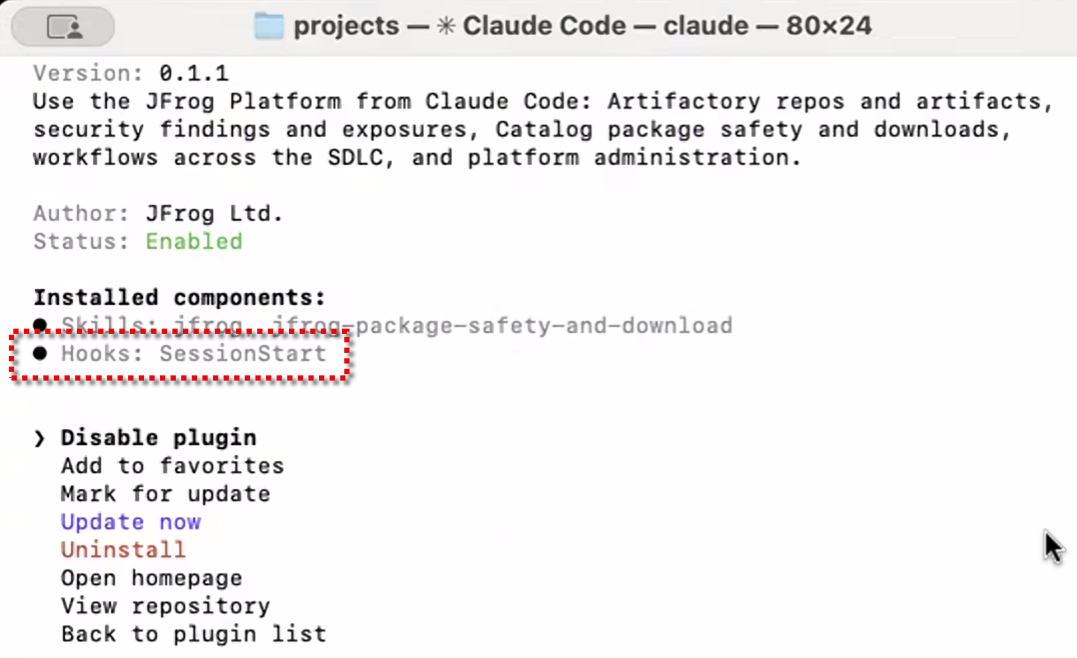
To verify the Agent Guard is active in VS Code
VS Code does not expose installed hooks in a user interface. Instead, verify the JFrog plugin sessionStart hook by confirming the file it writes into your workspace.
To verify the Agent Guard is active in VS Code:
-
Fully quit VS Code (
Cmd+Qon macOS, or close all windows on Windows), and reopen it. -
Open a project folder in VS Code (File > Open Folder).
-
Confirm the file exists. In the Explorer panel, open the
.githubfolder and look forcopilot-instructions.md. Alternatively, open Quick Open (Cmd/Ctrl+P), and type.github/copilot-instructions.md.
The file should open.If
.github/copilot-instructions.mdis missing:- Confirm
JF_AGENT_GUARD_FORCE_ENABLE=trueis set in the environment VS Code inherited. - Confirm the JFrog plugin is installed and trusted (Extensions panel, filter
@agentPlugins). - On Windows, the PowerShell execution policy must allow
.ps1scripts. SeeGet-ExecutionPolicy. - Fully close and reopen VS Code (close all windows, not only reload).
- Confirm
General MCP Registry Issues
Expand the accordion that matches your symptom or question.
Can't sign in to a remote OAuth MCP?
Agent Guard runs as a local stdio proxy, so your IDE's built-in MCP Auth action is a no-op for proxied servers.
Ask your agent to sign in directly in chat (for example, Sign in to JFrog). The agent calls the enable_<server>_tools tool, which opens your browser for OAuth consent. If sign-in fails, confirm the upstream server supports Dynamic Client Registration (DCR). JFrog OAuth servers support DCR natively, and manual client ID and secret overrides are not supported in v1.
For the full flow, see Authenticate Remote MCP Tools in Agent Guard.
Signed in but the real tools don't appear?
After a successful sign-in, Agent Guard reconnects and replaces the enable_<server>_tools placeholder with the server's real tools.
Some clients do not hot-refresh on the tools/list_changed notification. Open a new chat tab or window, or restart the MCP session, to load the tools. If they still do not appear, the reconnection may have failed. Restart the session to retry.
Unexpected tools allowed?
A tool policy or regex pattern might be broader than you intended. Review your regex patterns in Configure Tool Policies. A broad pattern can allow more tools than you meant to permit.
MCP failed to start?
Agent Guard does not install runtimes. Ensure Docker, Python, or Node is installed locally, or confirm the MCP server's required environment variables are set.
Why isn't Agent Guard activating in my IDE?
Symptom
Agent Guard fails to activate (no MCP management instructions appear), even though JFROG_URL and JFROG_ACCESS_TOKEN are correctly set.
Cause
Your IDE may launch its hooks and agent shell commands under a different shell than your interactive terminal.
Suggested Solution
- Define your environment variables in the specific shell configuration file your IDE launches with.
- Alternatively, run
jf c addto set a persistent configuration that bypasses shell dependencies.
Required MCP Server does not appear in Discovery?
All official Model Context Protocol (MCP) integrations and connectors are sourced directly from the official MCP public registry.
If a required MCP is not found in the official registry, add it manually as a custom MCP server.
Tools are not appearing in my agent chat?
MCP permissions are project-specific. Ensure you allowed the MCP for the project configured in your environment, and confirm regex patterns on your tool policies are not blocking the tools.
How do I get the agent to surface MCP Registry tools?
Make your prompt explicit (accurate and clear) that you want MCPs or tools from the JFrog MCP Registry. Name the server or capability you expect when possible so the agent can match registry entries.
Why does the tool list show AI-Generated?
JFrog MCP Registry runs the MCP through AI analysis to predict the tools it exposes. This helps you set up policies before you download the tool, but the list is a discovered suggestion list, not a hard-coded manifest.
How do I configure API keys for an MCP?
Some MCPs require environment variables (such as API keys) to function. Pre-populate them on the Config tab of the MCP details page, or define them locally when you add MCP servers.
How do I check if an MCP is safe to use?
Before you add an MCP to your allowed list, open the server card on the Discovery tab. Review the Licenses tab and malicious status so the server meets your organization's compliance standards.
How do I allow an MCP server for my team?
See Allow MCP Servers.
How do I block dangerous commands (for example, delete) while allowing others?
See Configure Tool Policies to create Allow and Deny lists.
How do I uninstall the JFrog IDE plugin?
Uninstall the JFrog plugin from your IDE's plugin or extension manager. Agent Guard stops automatically when the plugin is removed.
How do I configure runtime arguments for a server?
You configure runtime arguments when you add a server to the registry.
To configure runtime arguments for a server:
- When adding a server to the registry, proceed to Step 2: Configuration in the Add to Registry wizard.
- Click the Runtime arguments tab (next to the Environment variables tab), and enter your configuration.
- After saving, you can view the configured runtime arguments at any time on the Configuration tab of the MCP Server Details page.
How do I set environment variables as secrets?
To set environment variables as secrets:
- During Step 2 (Configuration) of the Add to Registry wizard, navigate to the Environment variables tab.
- Next to the environment variable you are configuring, click the Secret toggle to turn it on.
Why isn't Agent Guard activating in my IDE?
Symptom
Agent Guard fails to activate (no MCP management instructions appear), even though JFROG_URL and JFROG_ACCESS_TOKEN are correctly set.
Cause
Your IDE may launch its hooks and agent shell commands under a different shell than your interactive terminal.
Suggested Solution
- Define your environment variables in the specific shell configuration file your IDE launches with.
- Alternatively, run
jf c addto set a persistent configuration that bypasses shell dependencies.
Troubleshooting Custom MCPs
The following table lists registration and unregistration errors by code (for example, MISSING_MANDATORY_FIELDS or ARTIFACT_NOT_FOUND). Search this page or the table for the exact code from your error message.
| Error | Cause | Resolution |
|---|---|---|
MISSING_MANDATORY_FIELDS | A required field is missing. | Verify that you provided values for Name, Type, Repository, Path, and README. |
ARTIFACT_NOT_FOUND | The specified artifact path does not exist in JFrog Artifactory, or the package does not exist in the repository. | Verify that the path to the artifact binary in JFrog Artifactory is correct. |
INSUFFICIENT_PERMISSIONS | You do not have the required permissions for the project. | Ensure you have READ access to the repository and ALLOW permission on the project. |
VIRTUAL_REPO_NOT_SUPPORTED | You attempted to use a virtual repository. | Use a local repository instead. |
REPO_PROJECT_MISMATCH | The repository belongs to a different project. | Use a repository owned by your project. |
Getting Help
If you continue to experience issues, escalate to JFrog support with logs and error details from your environment.
To escalate an issue to JFrog support:
- Collect the relevant log files from the affected device (for example, Agent Guard or CLI logs).
- Note any HTTP status codes and error messages from the user interface or API.
- Contact JFrog support with the collected information.
Related Topics
- Get Started with MCP Registry
- Install an MCP Server
- Configure Tool Policies
- Configure Pre-Built MCP Servers
- Custom MCP Servers
Updated 3 months ago