

Artifactory General Settings
Configure global Artifactory parameters: file upload limits, folder downloads, replication blocking, and trash retention.
With the Artifactory General Settings, you can configure various global parameters in Artifactory.
Note
To view or configure these settings you need Administrative privileges. If you do not see the Administration option at the top of the JFrog instance, contact your JFrog administrator for assistance.
To configure the Artifactory General Settings:
-
In the Administration module, under Artifactory Settings, click General Settings . Artifactory General Settings are displayed.
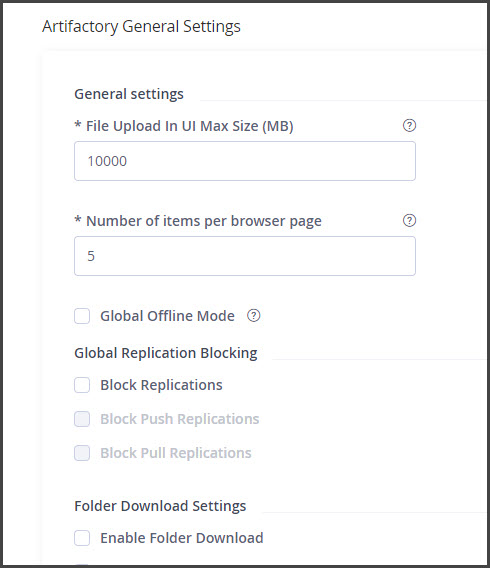
In the Artifactory General Settings screen, you can configure the following general settings:
| Field | Description |
|---|---|
| File Upload in UI Max Size (MB) | Maximum size allowed for files uploaded via the web interface. |
| Number of items per browser page | The maximum number of displayed items (artifacts and folders) per bulk, at the requested path level in a tree browser or native browser. If there are more items to display beyond the number you set here, a Load more option appears at the end of the list and when clicked displays another list of items according to this setting. |
| Global Offline Mode | When selected, Artifactory will behave as if it is not connected to an external network (such as the internet), and therefore, will not query remote repositories (regardless of the offline status of any specific remote repository). |
| Global Replication Blocking | Allows you to enable or disable replication globally as needed (disabled by default). For information on configuring Global Replication Blocking, see Global Replication Blocking. |
| Archive Search Enabled | When a new archive file is deployed to Artifactory, its content is indexed in a way that lets the user search within an archive. When selected, the files located within archive files are indexed to allow their content to be searchable through the “Archive Search” feature (formerly known as the “Class Search”). We recommend disabling this feature if you do not use it, as it consumes a large amount of storage.
|
| Folder Download Settings | Allow you to configure a number of options regarding how files can be downloaded from the JDP. For information about Folder download settings, see Folder Download Settings. |
| Distribution Settings | Enable you to set the number of hours to wait before a Release Bundle is declared "incomplete" and eligible for cleanup from the temporary folder. For more information see Distribution Settings. |
| Trash Can Settings | Enable you to determine the period that delete items should be retained before being completely removed from the system. For more information see Trash Can Settings. |
- When finished with your configuration, click Save.
Global Replication Blocking
Global Replication Blocking allows you to enable or disable replication globally as needed. Global Replication Blocking is disabled by default.
Note
To view or configure these settings you need Administrative privileges. If you do not see the Administration option at the top of the JFrog instance, contact your JFrog administrator for assistance.
To configure Global Replication Blocking:
-
In the Administration workspace, under Artifactory Settings, click General Settings . Artifactory General Settings are displayed.
-
Scroll down to Global Replication Blocking.
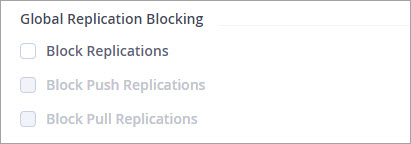
-
Enable Global Replication Blocking, then deselect any options as required. The following Global Replication Blocking settings are available:
| Field | Description |
|---|---|
| Block Replications | Enables the use of Block Replications. When set, push and pull replication will be blocked according to the check boxes below, regardless of the configuration for specific repositories. |
| Block Push Replications | When set, push replication will be blocked regardless of the configuration for specific repositories. |
| Block Pull Replications | When set, pull replication will be blocked regardless of the configuration for specific repositories. |
- When finished with your configuration, click Save.
Folder Download Settings
File download settings allow you to configure a number of options regarding how files can be downloaded from the JDP, including if to enable the download of a folder and its contents or just specific files, the maximum size and maximum number of artifacts that can be downloaded under one folder, and more.
Note
To view or configure these settings you need Administrative privileges. If you do not see the Administration option at the top of the JFrog instance, contact your JFrog administrator for assistance.
To configure Folder Download Settings:
-
In the Administration workspace, under Artifactory Settings, click General Settings . Artifactory General Settings are displayed.
-
Scroll down to Folder Download Settings , then select Enable Folder Download.
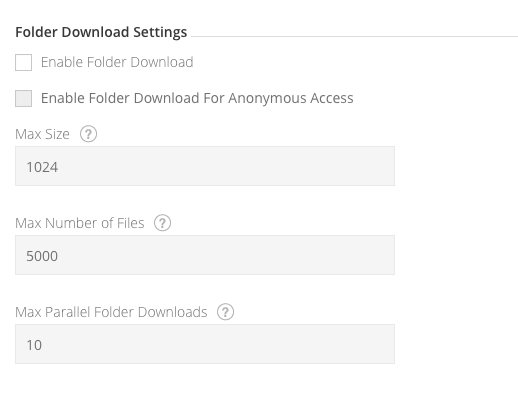
Folder Download options are enabled.
-
Configure the required settings as follows:
| Field | Description |
|---|---|
| Enable Folder Download | Must be set to enable folder download. |
| Enable Folder Download For Anonymous Access | Must be set to enable folder download for anonymous users. |
| Max Size | The maximum size (in MB) of a folder that may be downloaded. |
| Max Number of Files | The maximum number artifacts that may be downloaded under one folder. |
| Max Parallel Folder Downloads | The maximum number of folder download requests that may be run concurrently. |
- When finished with your configuration, click Save.
Distribution Settings
The Release Lifecycle Settings area of the Artifactory General Settings screen includes settings related to JFrog Distribution and Release Bundles v1.
Subscription Information
This feature is supported with the Enterprise+ license.
Note
To view or configure these settings you need Administrative privileges. If you do not see the Administration option at the top of the JFrog instance, contact your JFrog administrator for assistance.
-
In the Administration workspace, under Artifactory Settings, click General Settings . Artifactory General Settings are displayed.
-
Scroll down to Distribution Settings.

-
Configure the following setting:
| Field | Description |
|---|---|
| Incomplete Release Bundle (v1) Cleanup Period (Hours) | The number of hours to wait before a partially distributed Release Bundle v1 is set as "incomplete" and eligible for cleanup from the temporary folder. Set the value to 0 to disable automatic cleanup. |
- When finished with your configuration, click Save.
Trash Can Settings
Trash can settings control how long deleted items are retained before being permanently removed from the system. For information about restoring deleted repositories, see Restoring Deleted Repositories.
Note
To view or configure these settings you need Administrative privileges. If you do not see the Administration option at the top of the JFrog instance, contact your JFrog administrator for assistance.
To configure Artifactory Trash Can settings:
-
In the Administration workspace, under Artifactory Settings, click General Settings . Artifactory General Settings are displayed.
-
Scroll down to Trash Can Settings.
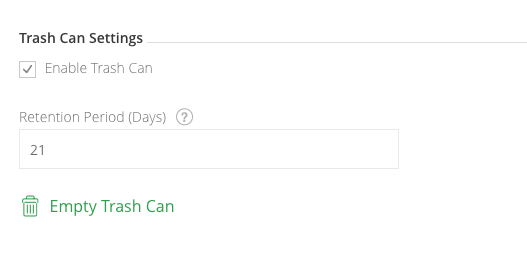
-
Configure Trash Can Settings as required. The following settings are available:
| Field | Description |
|---|---|
| Enable Trash Can | If set, the trash can will be enabled and deleted items will be stored in the trash can for the specified retention period. |
| Retention Period | The number of days to keep deleted items in the trash can before deleting permanently. |
| Empty Trash Can | Click to delete all items currently in the trash can permanently. |
- When finished with your configuration, click Save.
Restoring Deleted Repositories
From Artifactory release 7.41.4, two changes have been implemented in Trash Can permissions:
- Users who have deploy or manage permissions to any repository will be able to view the Trash Can and to view files in that repository of origin.
- Users who also have delete permissions to their repository will now also be able to access deleted files from that repository and to restore them without requiring admin assistance (they will not be able to view or restore any other repositories)
The contents of the Trash Can are filtered based on the repositories to which the user has permissions. This means that the user will not see or restore any other repositories unless they have permissions to that repository.
Related Topics
- Artifactory Configuration
- HTTP Settings
- Backups
- Import and Export
- Artifactory System YAML
- Artifactory Configuration Files
Frequently Asked Questions
This section provides answers to frequently asked questions.
FAQs
Q: What privilege is required to configure Artifactory General Settings?
A: Administrative privileges are required to view or configure any Artifactory General Settings. If the Administration option is not visible in the JFrog instance, contact your JFrog administrator for assistance.
Q: What does enabling Global Offline Mode do to remote repositories?
A: When Global Offline Mode is selected, Artifactory behaves as if it has no external network connection and will not query any remote repositories, regardless of the offline status configured for individual remote repositories.
Q: Why should Archive Search be disabled if it is not actively used?
A: Archive Search indexes the content of archive files to make them searchable, but this indexing consumes a large amount of storage. If you do not use the Archive Search feature, the page recommends disabling it. Starting from Artifactory 7.28.11, archive indexing for Cloud instances has been disabled by default in system.yaml.
Q: How long are deleted items retained in the Trash Can before permanent removal?
A: The retention period is configurable in the Trash Can Settings. Items are kept for the number of days set in the Retention Period field. To permanently remove all items immediately, use the Empty Trash Can button. See Artifactory General Settings for configuration steps.
Q: Who can restore files from the Trash Can without administrator assistance?
A: From Artifactory release 7.41.4, users with deploy or manage permissions on a repository can view the Trash Can and see files from that repository. Users who also have delete permissions on a repository can restore deleted files from that repository without requiring admin help.
Updated 5 months ago