

S3 Intelligent Tiering Storage Class
Migrate S3 artifacts to Intelligent Tiering storage class via lifecycle rules for potential 20–60% storage cost savings.
Amazon S3 offers different storage classes for storing objects. One of the storage classes is Intelligent Tiering. It transitions objects between different tiers based on how frequently they are accessed, in a fully managed automatic way, and can lead to significant cost savings.
Intelligent Tiering sets up a monitoring mechanism that tracks when your object was last accessed. Objects that are not accessed are transitioned to cheaper storage tiers. Objects that are accessed are automatically moved back to the frequent access tier. This is done without any degradation to performance or added operational procedures.
The Benefits of Using Intelligent Tiering with Artifactory
If you are using AWS S3 for your Artifactory storage, you are probably using the Standard storage class. This is the default for S3 and historically was the suggested practice for Artifactory.
After thorough testing, JFrog has determined that Artifactory can work with the Intelligent Tiering storage class, maintaining all the same service levels as the Standard storage class. There are some important implementation details and this guide aims to direct you through the migration process from Standard S3 storage to Intelligent Tiering storage.
Potential Costs Savings
The possible cost savings from using Intelligent Tiering depends on the access pattern of your data. Based on some examples that AWS mentions, savings may range between 20% and 60%.
Performance of S3 Intelligent Tiering Storage
Performance of first-byte latency and transfer speed is similar for the three automatic access tiers used in the S3 Intelligent Tiering Storage Class. This is true for both direct cloud-storage download or regular download.
Caveats in the S3 Intelligent Tiering Storage Class
Service Level Agreement (SLA) Availability
Moving from the Standard storage class to the Intelligent Tiering class implies one nine less in both the designed availability and its SLA, as per AWS documentation.
| Standard | Intelligent Tiering | |
|---|---|---|
| Designed for availability | 99.99% N/A ~52 mins/year | 99.9% N/A ~8 hours/year |
| SLA Availability | 99.9% | 99% |
The durability remains 99.999999999% (11 nines).
Additional Access to Objects
The mechanism by which Intelligent Tiering transitions objects between tiers is based on the access pattern to each object. Operations like replication, if in place, may continuously access objects that are not currently used by the application and render Intelligent Tiering’s transition mechanism inefficient.
JFrog recommends mapping the procedures applied to your storage objects before transitioning to Intelligent Tiering. If objects are constantly refreshed, Intelligent Tiering will never transition them to the cheaper tiers.
Implementing the S3 Intelligent Tiering Storage Class
Intelligent Tiering offers automatic access tiers and asynchronous archive access tiers. The main difference between these tiers is that the latter requires time to restore objects.
Warning
To run Artifactory with Intelligent Tiering, only automatic access tiers can be used. The asynchronous archive access tiers should not be used under any circumstances.
The automatic access tiers are:
- Frequent Access Tier
- Infrequent Access Tier
- Archive Instant Access Tier
If you do not need a custom configuration, Intelligent Tiering works with Artifactory using the default settings. If you need a custom configuration, read Warning about Custom Configurations to avoid mistakenly activating the archive access tiers.
Changes in Artifactory
No changes to Artifactory are required to work with Intelligent Tiering.
Changes in S3
The steps for implementing Intelligent Tiering as the storage class for the S3 objects in Artifactory are as follows:
-
Establish the criteria for which objects you want to migrate to the Intelligent Tiering storage class. Click here for more details.
-
Set up a lifecycle rule to transition all existing objects to Intelligent Tiering. The same lifecycle rule should also set the storage class of newly created objects to Intelligent Tiering. Also include previous versions if versioning is enabled. Click here for more details.
-
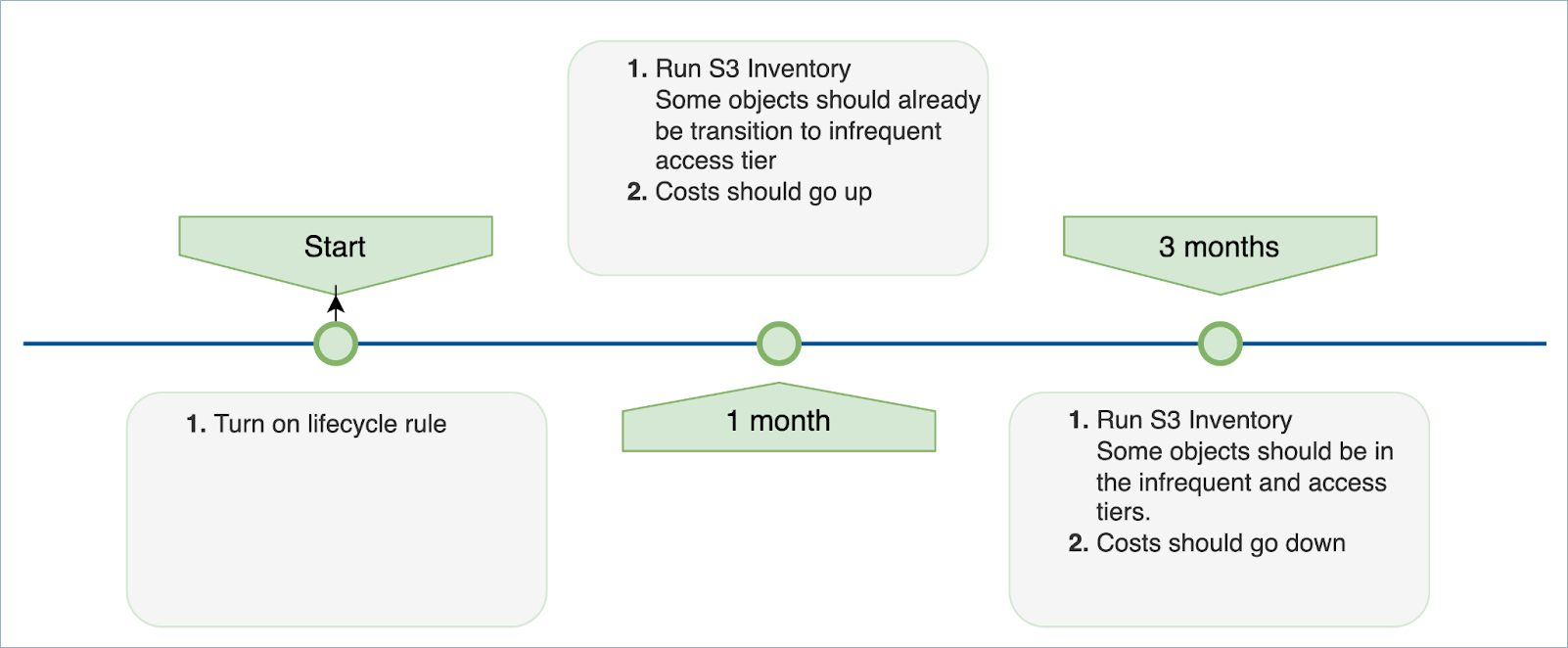
Optional: After at least one month, run an S3 Inventory job to report how many objects have transitioned to the infrequent access tier. S3 costs for the first month will be higher than with standard storage, because all objects remain in the frequent access tier (which offers no cost reduction) while you also pay for the S3 Intelligent Tiering service. Click here for more details.
-
Optional: After no less than 2 more months (3 months after enabling Intelligent Tiering), run another S3 Inventory job. This time you should observe objects that have been transitioned to the archive tier. Click here for more details.
Note
Steps 3 and 4 are optional since they are only recommended for tracking cost-effectiveness.
- Put in place an AWS batch job needed for performing a rollback. Click here for more details.
The diagram below shows the timeline of transitioning objects for the first three months of using Intelligent Tiering storage.
Establish Criteria for Migrating Objects
Intelligent Tiering manages objects only above 128 KB. This means that there is no benefit to transitioning small objects. Additionally, there is a monitoring cost that depends on the quantity of objects with the Intelligent Tiering storage class.
JFrog suggests using the S3 Lens to analyze the state of your bucket and decide which objects to migrate to Intelligent Tiering. Consider the table below as the state of a bucket.
| Object Size (Bytes) | Object Count | Object Count % | Total Storage (Bytes) | Total Storage % | Average Object Size |
|---|---|---|---|---|---|
| 0-128K | 1,000,000 | 97% | 10 G | ~1% | 10 K |
| 128K-1M | 10,000 | 1% | 5 G | ~0.5% | 500 K |
| 1M-10M | 10,000 | 1% | 40 G | ~4% | 4 M |
| 10M+ | 10,000 | 1% | 1 T | ~95% | 100 M |
97% of the objects (by count) are below 128 KB. Intelligent Tiering manages objects only above 128 KB, so these objects are not worth transitioning to the Intelligent Tiering storage class. Most of the storage space (95%) is for objects above 10 MB, which represents 1% of the stored objects by count.
The Intelligent Tiering management cost is per amount of objects, the same as the cost incurred for the initial transition of these objects to the new storage class. However, savings on storage cost is per GB stored.
By transitioning only objects above 10 MB to Intelligent Tiering, you pay for the initial transition and management of only 1% of your stored objects while exposing 95% of your storage space to Intelligent Tiering, resulting in cost savings.
Create a Lifecycle Rule to Migrate Objects
Objects in the bucket need to be transitioned to the Intelligent Tiering storage class. This can be achieved with a lifecycle rule.
This rule has two purposes:
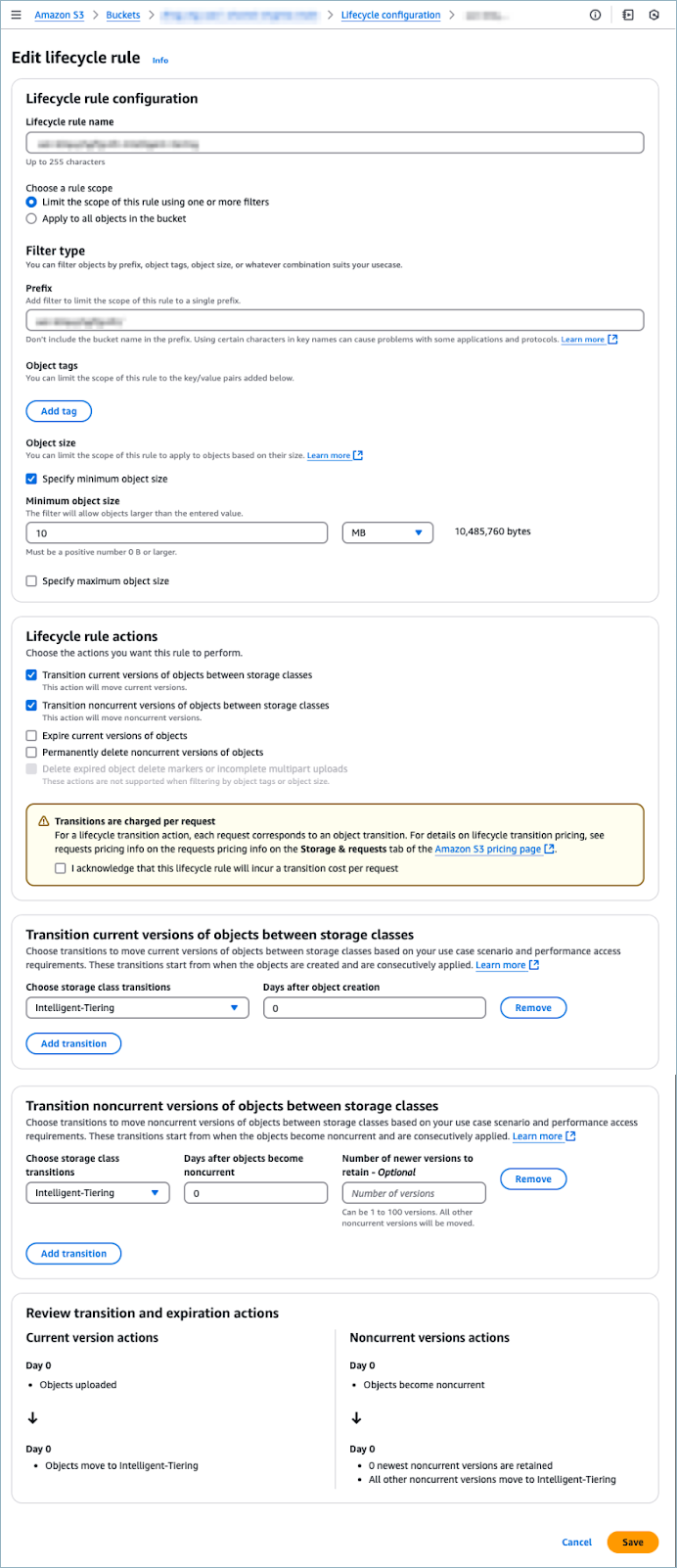
- Migrate existing objects to Intelligent Tiering, filtering by the object size. Only objects that are above the minimum size established previously should be migrated.
- Set Intelligent Tiering as the storage class for all newly created objects that are above the minimum size.
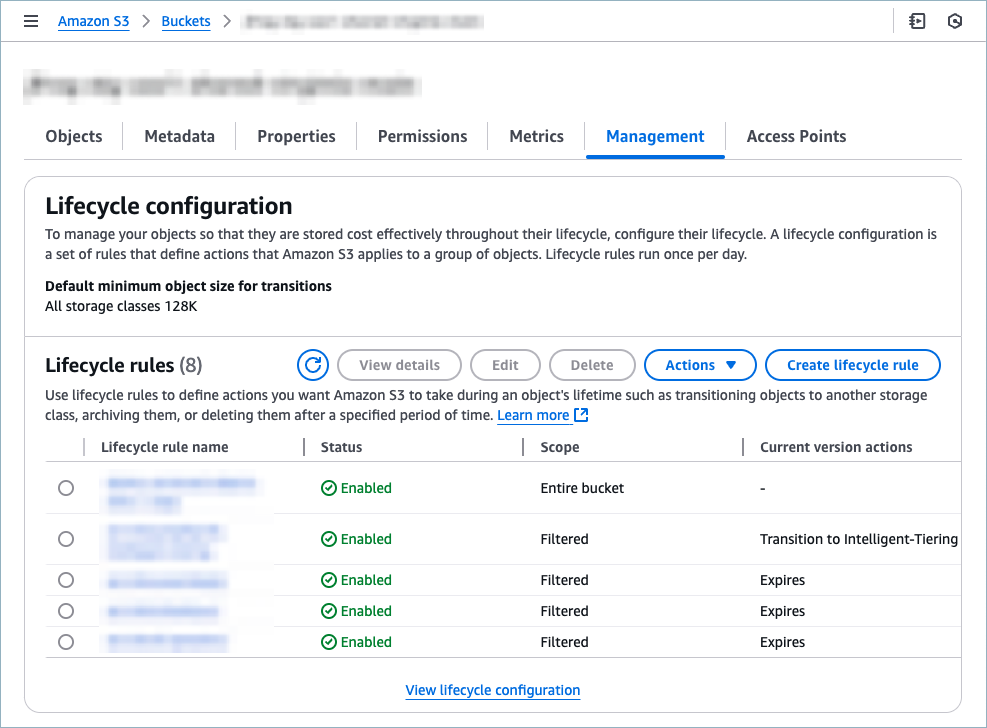
To configure a lifecycle rule, select your bucket, select the Management tab, and click Create lifecycle rule, as shown below.
The example below shows a lifecycle rule that migrates objects to Intelligent Tiering. The lifecycle rule indicates a minimum object size of 10 MB.
A few observations about lifecycle rules:
- A lifecycle rule is triggered once a day, it doesn’t run immediately. This means that pre-existing objects and also newly created objects may remain in the Standard storage class for a day until the lifecycle rule starts running and transitioning them.
- It processes the objects in batches.
- Depending on the amount of objects to migrate, it may take a few days for a lifecycle rule to transition all existing objects.
- The lifecycle rule is billed based on the amount of requests it makes. This number depends on the amount of objects to be transitioned.
For more information on lifecycle rules, see this blog post and this GitHub repo.
Running Inventory Jobs
After enabling the lifecycle rule, start tracking to which tiers objects are moved. AWS offers S3 Inventory as a tool that allows you to see the tier of each object. Other FinOps tools can also be used to obtain this information. Additionally, the CUR (cost and usage file) that AWS provides will not tell you which objects are in which tier but what cost is associated with what tier. This means that indirectly, you will also be able to get this information.
Perform a Rollback
In the scope of this guide, rolling back means transitioning all objects back to the Standard storage class. It is not possible to use a lifecycle rule to transition the objects in Intelligent Tiering back to the Standard storage class (as explained in the AWS documentation). Instead, this can be achieved manually by performing the following steps:
- Run S3 Lens or S3 Inventory to get a list of objects with the Intelligent Tiering storage class.
- Use the AWS batch mechanism to write a batch job that copies the objects found in step 1, this time specifying Standard as the storage class. This creates a new bucket version (if the bucket is versioned) and, because it is a copy operation, the Last Modified field for each object is updated.
Warning about Custom Configurations
If you need a custom configuration, read this section carefully to avoid mistakenly activating the archive access tiers. If those tiers are activated, Artifactory will not work properly with Intelligent Tiering.
The following steps show how to initiate a custom configuration. Take care not to select any of the archive access tiers.
-
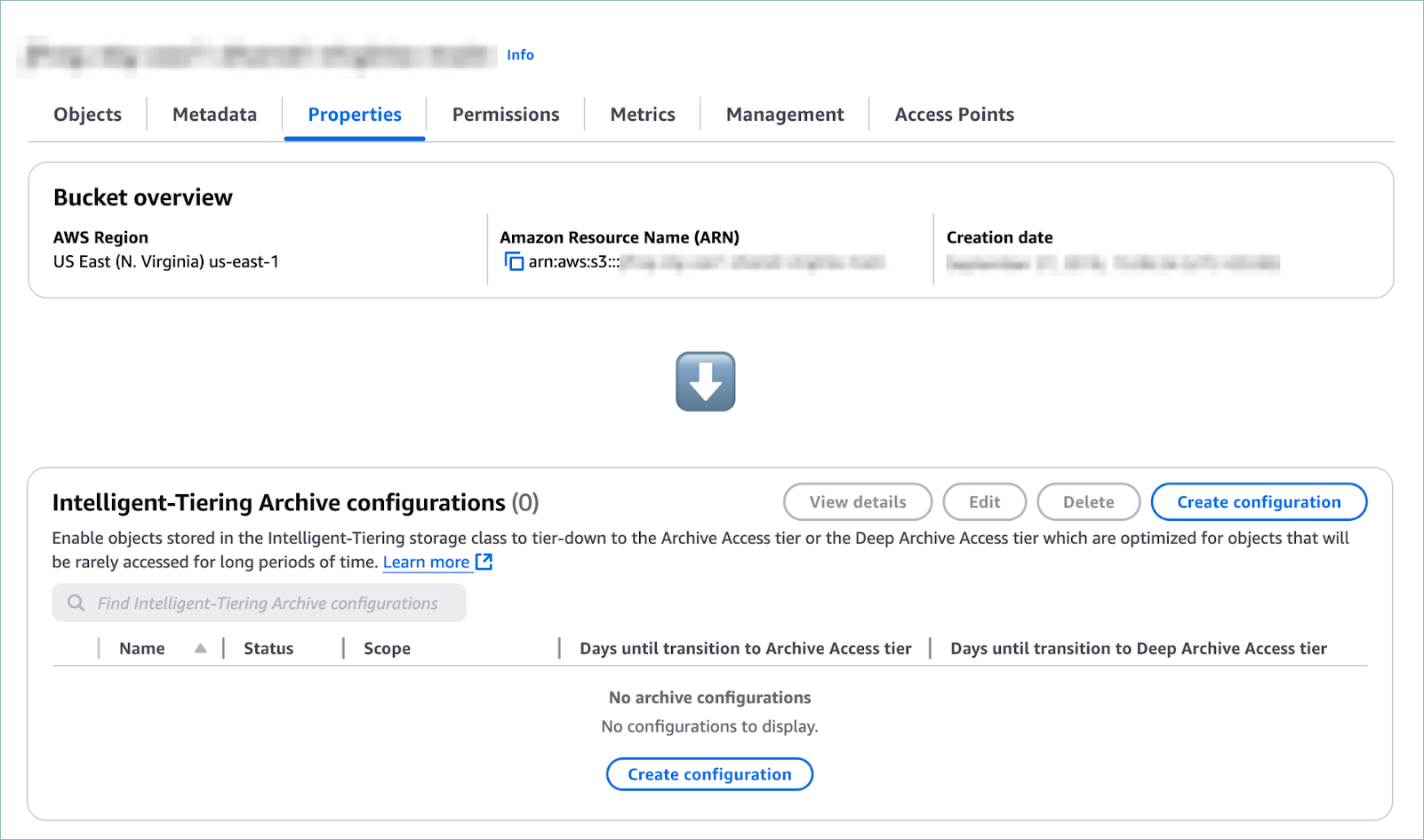
Select the Properties tab of your S3 bucket and scroll down to the section Intelligent Tiering Archive configurations, as shown below.
-
Click Create configuration. The Create Intelligent Tiering Archive configurations screen appears, as shown below.
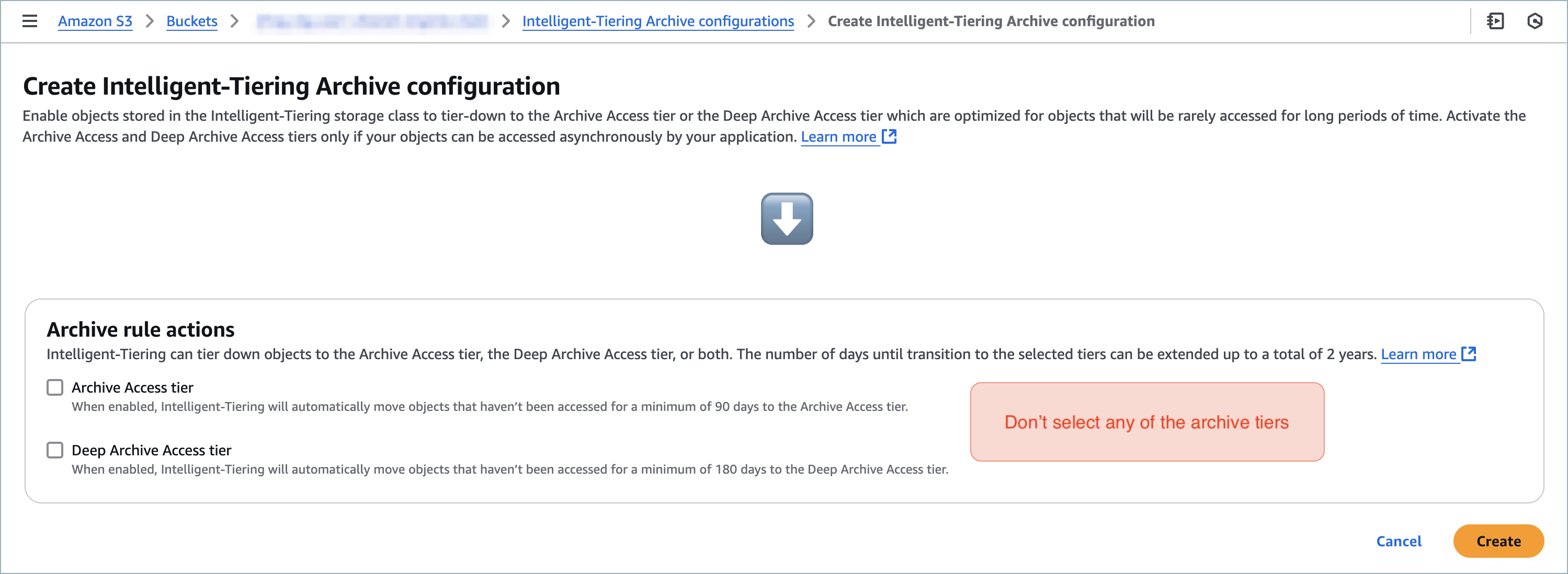
When you are in this screen, it is extremely important that you do not select any of the Archive rule actions. If you do this, Artifactory will not work properly with Intelligent Tiering.
Related Topics
- Filestore Configuration
- AWS S3 Object Storage
- S3 Binary Storage Templates
- Artifactory S3 Storage Configuration
- Direct Cloud Storage Download
Frequently Asked Questions
This section provides answers to frequently asked questions.
FAQs
Q: How much storage cost can Intelligent Tiering save?
A: Based on AWS examples, savings may range between 20% and 60% depending on the access pattern of your data. Objects not frequently accessed are automatically moved to cheaper tiers, while objects that are accessed are moved back to the frequent access tier.
Q: Does Artifactory require any configuration changes to work with Intelligent Tiering?
A: No changes to Artifactory are required. The implementation is entirely on the S3 side, using lifecycle rules to transition objects to the Intelligent Tiering storage class.
Q: Which Intelligent Tiering access tiers are compatible with Artifactory?
A: Only the automatic access tiers can be used: Frequent Access Tier, Infrequent Access Tier, and Archive Instant Access Tier. The asynchronous archive access tiers must not be activated under any circumstances because Artifactory will not work properly if those tiers are enabled.
Q: What is the minimum object size that Intelligent Tiering manages?
A: Intelligent Tiering manages only objects above 128 KB. There is no benefit to transitioning smaller objects, and JFrog recommends using S3 Lens to analyze your bucket and identify the object-size distribution before setting a lifecycle rule filter. See S3 Binary Storage Templates for S3 filestore template configuration.
Q: How do I roll back from Intelligent Tiering to the Standard storage class?
A: You cannot use a lifecycle rule to transition objects from Intelligent Tiering back to Standard. Instead, use S3 Lens or S3 Inventory to list the affected objects, then run an AWS Batch job that copies those objects to the bucket specifying Standard as the storage class.
Updated 4 months ago