

Platform Installation with Helm
Deploy the JFrog Platform via a single Helm Chart. Artifactory and Xray are available by default. Other products (Distribution, Catalog, Worker, Bridge, AppTrust, Wingman/MCP Server) require configuration in customvalues.yaml. Includes evaluation and production installation paths.
Choose Your Install Path
Select the path that matches your use case before running the install command.
| Path | When to Use | What It Needs |
|---|---|---|
| Production | Real workloads, team use | customvalues.yaml with external DB, filestore, and security keys. For OpenShift: openshift-values.yaml overlay. |
| Evaluation | Fast exploration, POC, demos | Nothing: chart defaults work out of the box. |
Before installing, verify you have a Kubernetes 1.27+ cluster (OpenShift 4.14+), Helm 3.17+, kubectl configured with cluster access, and a default StorageClass.
Check Requirements
What You Need
You need the following before deploying JFrog products with Helm charts.
| Requirement | Values |
|---|---|
| Kubernetes (including OpenShift) | 1.27+ (OpenShift 4.14+) |
| Dynamic Storage Provisioning | Enable |
| Default Storage Class | Persistent Storage |
| kubectl | Target cluster |
| Helm | 3.17+ |
| License | Requires a valid license. |
| Sizing | For guidance on the sizing, see |
AWS EBS CSI Driver Required On EKS
When deploying a JFrog application on an AWS EKS cluster, the AWS EBS CSI Driver is required for dynamic volume provisioning. However, this driver is not included in the JFrog Helm Charts. For more information, see Store Kubernetes volumes with Amazon EBS.
Platform Deployment via Helm - Workflow Diagram
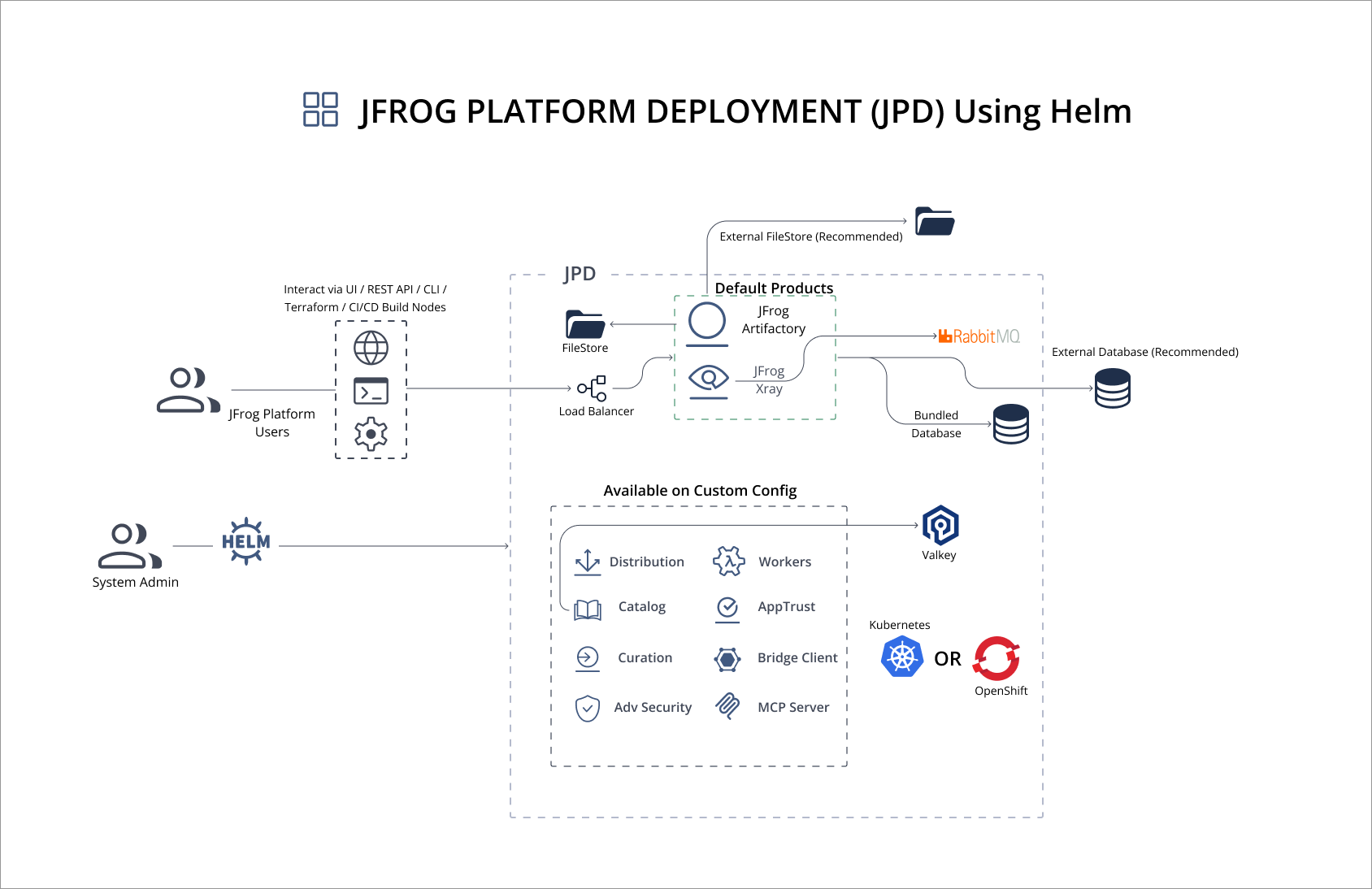
Chart Defaults Vs Production
| Area | Chart Defaults | Production |
|---|---|---|
| Artifactory + Xray | Enabled | Disable Xray if not required: xray.enabled: false and rabbitmq.enabled: false (RabbitMQ is only used by Xray) |
| Distribution | Disabled (bundled subchart) | Enable: distribution.enabled: true |
| Catalog | Disabled (bundled subchart) | Enable: catalog.enabled: true |
| Worker | Disabled (bundled subchart) | Enable: worker.enabled: true |
| Bridge | Disabled (bundled subchart) | Enable: bridge.enabled: true |
| Wingman (MCP Server) | Disabled (bundled subchart; beta) | Enable: wingman.enabled: true and wingman.consentToJfrogOnlineBetaAgreement: true — requires accepting the JFrog MCP Server Beta Agreement |
| RabbitMQ | Enabled (bundled, 1 replica — used by Xray) | For HA Xray: use sizing/platform-medium.yaml or higher, or enable quorum queues with rabbitmq/ha-quorum.yaml |
| JAS (Advanced Security) | License-gated (built into Xray) | Set xray.serviceAccount.create: true + xray.rbac.create: true; activates when JPD is connected to MyJFrog with E+ / E X license |
| Curation | License-gated (component of Xray; requires Catalog) | Enable catalog.enabled: true; activates when JPD is connected to MyJFrog with E+ / E X license. See Installing Catalog |
| AppTrust | - | Enable: artifactory.apptrust.enabled: true and artifactory.unifiedpolicy.enabled: true NOTE: AppTrust requires both JFrog Xray and SBOM. |
| Database | Bundled PostgreSQL | External PostgreSQL — see Database Selection |
| Filestore | Local/PVC-backed | External object storage — see Filestore Selection |
For license requirements by product, see the License Matrix.
If
distribution.enabled: trueVerify entitlement in the License Matrix and prepare an external PostgreSQL
distributiondatabase. See Database and Third-Party Applications in Distribution.
How Do I Install?
The installation takes two steps: add the JFrog Helm repository, then deploy the platform using your chosen configuration.
End-to-End Install Flow
flowchart TD
    A[Start] --> B[Check prerequisites: K8s, Helm, kubectl, StorageClass]
    B --> C[Add JFrog Helm repo]
    C --> D{Install path?}

    D -->|Evaluation| E[helm upgrade --install with chart defaults]
    D -->|Production| F[1 - Set up external PostgreSQL]

    F --> G[2 - Configure external filestore]
    G --> H[3 - Build customvalues.yaml]
    H --> I[4 - Create master-key and join-key secrets]
    I --> J[5 - Apply sizing profile]
    J --> K[6 - Run pre-install checklist]
    K --> L[helm upgrade --install with customvalues.yaml]

    E --> M[curl /router/api/v1/system/health]
    L --> M

    M --> N{HEALTHY?}
    N -->|No - wait 3 to 5 min| M
    N -->|Yes| O[Open UI - change admin password - complete Onboarding Wizard]
O --> P[Done - tune and enable products]helm repo add jfrog https://charts.jfrog.io
helm repo updateWhat Do I Need for Production?
For production, complete six preparation tasks before deploying: set up an external PostgreSQL database, configure external filestore, build a customvalues.yaml, create security key secrets, apply a sizing profile, and run the pre-install checklist.
Production Preparation Steps
Complete these steps before deploying to production:
1. Set up external database
Create databases for each product on your external PostgreSQL server and configure them in customvalues.yaml. See Platform Helm Chart - External Database for full instructions and the SQL setup commands.
2. Set up external filestore
Configure S3, GCS, or Azure Blob for artifact storage. See Platform Helm Chart - External FileStore.
3. Build your customvalues.yaml
Start from the sample below and replace the placeholder values.
# customvalues.yaml — JFrog Platform Quick Start (Production)
# Overrides only what differs from platform chart defaults.
# Full defaults: https://github.com/jfrog/charts/blob/master/stable/jfrog-platform/values.yaml

# ── Security keys ────────────────────────────────────────────────────
# Reference the K8s secrets created in step 4.
# Setting under global: propagates to ALL subcharts (Artifactory, Xray,
# Distribution, Catalog) — each chart checks global.masterKeySecretName
# first, ensuring all products share the same master and join key.
global:
  masterKeySecretName: master-key
  joinKeySecretName: join-key

  # External PostgreSQL host — the chart auto-generates per-product URLs:
  #   Artifactory/Distribution/Catalog: jdbc:postgresql://<host>:<port>/<product>?sslmode=<mode>
  #   Xray:                             postgres://<host>:<port>/xray?sslmode=<mode>
  # Note: <product> is the chart name (artifactory, xray, distribution, catalog).
  # Your PostgreSQL databases must be named exactly after the product.
  # If your DB names differ, override database.url per product instead.
  # For cert-based SSL, override database.url per product with full connection params.
  database:
    host: <DB_HOST>
    port: 5432
    sslMode: disable
    initDBCreation: false   # required when postgresql.enabled: false

# ── Disable bundled PostgreSQL ────────────────────────────────────────
postgresql:
  enabled: false

# ── Artifactory ───────────────────────────────────────────────────────
# url/type/driver/postgresql.enabled/waitForDatabase already set in
# platform chart defaults — only credentials need overriding here.
artifactory:
  database:
    user: artifactory
    password: <ARTIFACTORY_DB_PASSWORD>
  # Optional: Mission Control (E+ license required)
  # mc:
  #   enabled: true
  # Optional: AppTrust (both keys required together)
  # apptrust:
  #   enabled: true
  # unifiedpolicy:
  #   enabled: true

# ── Xray ─────────────────────────────────────────────────────────────
# url/postgresql.enabled/rabbitmq.enabled already set in platform defaults.
xray:
  database:
    user: xray
    password: <XRAY_DB_PASSWORD>
  # Optional: JAS (Advanced Security) — E+ / Enterprise X license required
  # serviceAccount:
  #   create: true
  # rbac:
  #   create: true

# To skip Xray entirely:
# xray:
#   enabled: false
# rabbitmq:
#   enabled: false   # RabbitMQ is only used by Xray

# ── Optional products (disabled by default; require license) ──────────
# distribution:
#   enabled: true
#   database:
#     user: distribution
#     password: <DISTRIBUTION_DB_PASSWORD>

# catalog:
#   enabled: true
#   database:
#     user: catalog
#     password: <CATALOG_DB_PASSWORD>

# worker:
#   enabled: true

# bridge:
#   enabled: true

# wingman:
#   enabled: true
#   consentToJfrogOnlineBetaAgreement: true
Ready-to-use examples from the jfrog/charts repository:
| Example | Description |
|---|---|
| external-postgres-values.yaml | External PostgreSQL for all products |
| HA-with-distribution-S3 | Full HA: 3-node Artifactory, Distribution, external PostgreSQL, S3 |
| values-catalog-jas.yaml | Enable Catalog and JAS |
| xray-with-catalog-valkey-cache | Catalog with Valkey cache for Xray |
| fresh-install-rabbitmq-4.x-with-quorum | Fresh install with RabbitMQ 4.x and quorum queues |
| terraform/jfrog-platform-aws-install | Full Terraform AWS install (EKS, RDS, S3) |
Key points:
- Database config is at the subchart level (
artifactory.database), notartifactory.artifactory.database— becausedatabase:is a top-level key in the standalone Artifactory chart postgresql.enabled: falseis already set per-subchart in the platform chart defaults — you do not need to repeat it incustomvalues.yaml- Artifactory uses JDBC format (
jdbc:postgresql://); Xray uses libpq format (postgres://) — the chart auto-generates the correct format per product fromglobal.database.host - Filestore is at the application level (
artifactory.artifactory.persistence) — becausepersistence:is inside theartifactory:application section of the standalone Artifactory chart - JAS (Advanced Security) requires
xray.serviceAccount.create: trueandxray.rbac.create: true— uncomment the JAS block in the sample above. Once set, JAS activates automatically when your JPD is connected to MyJFrog with an Enterprise+ or Enterprise X license (source) - Curation is a component of Xray (not Artifactory) and requires Catalog to function. Curation is installed when Xray is installed. Enable
catalog.enabled: trueso Curation can access package vulnerability data, then activate Curation via the UI with the required entitlement. See Installing Catalog - Catalog is a separate subchart enabled with
catalog.enabled: true. It requires its owncatalogdatabase (JDBC format) — it does not share the Xray database. See values-catalog-jas.yaml for a combined Catalog + JAS example - AppTrust is a component (container deployment) within the Artifactory chart, not a separate subchart. Enable it with
artifactory.apptrust.enabled: trueandartifactory.unifiedpolicy.enabled: true— both keys are required together - Wingman (MCP Server) is a separate bundled subchart, enabled with
wingman.enabled: true. It additionally requireswingman.consentToJfrogOnlineBetaAgreement: trueas a YAML boolean — the chart fails at template time if this is a string or omitted. This is different from installing the standalone MCP Server Helm chart, which runs as its own release against an existing JPD; the bundled subchart shares the platform release's master and join keys automatically. Review the JFrog MCP Server Beta Agreement before enabling - Explicit per-product URLs: If you need a different host per product or want full control, you can override
artifactory.database.url,xray.database.url, etc. with explicit connection strings instead of usingglobal.database.host - Uncomment optional products only if your license covers them (License Matrix)
- For production, store passwords in Kubernetes Secrets instead of plain text — see External Database
4. Create security key secrets
export MASTER_KEY=$(openssl rand -hex 32)
export JOIN_KEY=$(openssl rand -hex 16)

kubectl create namespace jfrog-platform
kubectl -n jfrog-platform create secret generic master-key --from-literal=master-key=$MASTER_KEY
kubectl -n jfrog-platform create secret generic join-key --from-literal=join-key=$JOIN_KEY
Save these keys securely — you need them for upgrades and disaster recovery.
5. Apply a sizing profile (recommended)
The chart ships six pre-built sizing profiles in the jfrog/charts sizing directory. Each profile sets replica counts, HPA bounds, resource requests/limits, JVM options, and DB connection pool sizes for Artifactory, Xray, RabbitMQ, and Distribution.
| Profile | Artifactory replicas | Xray replicas | Use case |
|---|---|---|---|
platform-xsmall.yaml | 1 | 1 (HPA 1–2) | Minimal footprint / dev |
platform-small.yaml | 1 | 1 (HPA 1–3) | Small teams |
platform-medium.yaml | 2 | 1 (HPA 1–5) | HA Artifactory |
platform-large.yaml | 3 | 2 (HPA 2–6) | Large org |
platform-xlarge.yaml | 4 | 2 (HPA 2–8) | Very large |
platform-2xlarge.yaml | 6 | 3 (HPA 3–12) | Maximum |
Apply a profile by adding it as an additional -f flag. Place it before customvalues.yaml — in Helm, the last -f file wins, so customvalues.yaml takes final precedence over the sizing profile for any overlapping keys:
helm upgrade --install jfrog-platform jfrog/jfrog-platform \
  --namespace jfrog-platform \
  --create-namespace \
  --version <CHART_VERSION> \
  -f https://raw.githubusercontent.com/jfrog/charts/master/stable/jfrog-platform/sizing/platform-small.yaml \
  -f customvalues.yaml
6. Pre-install checklist
Before deploying, confirm:
- External PostgreSQL is reachable from inside the cluster
- Databases and users for each product are created
- A default
StorageClassexists in the cluster (kubectl get sc) - Security key secrets are created (step 4 above)
- If using external filestore, the binarystore secret is created (step 2 above)
Run the install command for your environment (Kubernetes or OpenShift) and deployment type (production or evaluation):
Pin the chart version with --version for repeatable deployments.
helm upgrade --install jfrog-platform jfrog/jfrog-platform \
  --namespace jfrog-platform \
  --create-namespace \
  --version <CHART_VERSION> \
  -f customvalues.yaml
Find available versions: helm search repo jfrog/jfrog-platform --versions
Layer openshift-values.yaml on top of customvalues.yaml. Keep it last so its overrides take precedence.
helm upgrade --install jfrog-platform jfrog/jfrog-platform \
  --namespace jfrog-platform \
  --create-namespace \
  --version <CHART_VERSION> \
  -f customvalues.yaml \
  -f openshift-values.yaml
See the OpenShift values example.
Uses bundled PostgreSQL and local storage. Not recommended for production.
helm upgrade --install jfrog-platform jfrog/jfrog-platform \
  --namespace jfrog-platform \
--create-namespaceUpgrading with bundled PostgreSQL
The bundled PostgreSQL defaults to a
500GiPVC. On resource-constrained clusters, reduce it before install by addingpostgresql.primary.persistence.size: <SIZE>to a values file.Before running
helm upgrade, pin the PostgreSQL image tag to your currently running version to avoid data incompatibility or pod restart loops.
- Find your current tag:
kubectl get pod jfrog-platform-postgresql-0 -n jfrog-platform -o jsonpath="{.spec.containers[*].image}"- Add to
customvalues.yaml:gaUpgradeReady: true # required when upgrading from chart >= 10.0.0 databaseUpgradeReady: true postgresql: image: tag: <CURRENT_POSTGRES_TAG>
- Then run:
helm upgrade --install jfrog-platform jfrog/jfrog-platform --namespace jfrog-platform --create-namespace -f customvalues.yaml
How Do I Verify the Installation?
Run both checks in sequence once pods are ready.
curl -f http://<JFROG_URL>/router/api/v1/system/healthA healthy response returns "status": "HEALTHY" for all services. If any service is unhealthy, wait 2–3 minutes and retry — services take time to initialize.
Open http://<JFROG_URL> in your browser. Log in with the default credentials (admin / password), change the password immediately, and complete the Onboarding Wizard.
Common Errors and Fixes
| Error | Cause | Fix |
|---|---|---|
Pods stuck in Pending | Insufficient cluster resources or missing storage class | Verify CPU/memory requests and confirm a default StorageClass exists (kubectl get sc) |
Artifactory CrashLoopBackOff | Database not reachable or wrong credentials | Check database.url, user, password in customvalues.yaml; test DB connectivity from inside the cluster |
UnknownHostException: jfrog-platform-postgresql | Artifactory still connecting to bundled PostgreSQL | Set artifactory.postgresql.enabled: false and artifactory.waitForDatabase: false. Verify DB config is at artifactory.database, not artifactory.artifactory.database |
Failed to load binary provider config - invalid XML | Empty binarystore.xml from inline persistence values | Use customBinarystoreXmlSecret instead of inline S3/GCS/Azure values — see External FileStore |
| Catalog / Curation not visible in UI | JPD not connected to MyJFrog, missing E+ license, or Catalog not enabled | Check Administration → Platform Management → MyJFrog; Curation requires catalog.enabled: true (source) |
Master key mismatch on startup | Databases were initialized with a different master key (e.g., after reinstall or key rotation) | Drop and recreate the product databases on the external PostgreSQL, or restore the original master key. Scale down all workloads first to release active DB connections |
helm upgrade fails with "release not found" | First install requires --install flag | Use helm upgrade --install (both flags together) |
| Health check returns unhealthy after deploy | Services still starting | Wait 3-5 minutes for all services to initialize; check pod logs with kubectl logs -n jfrog-platform |
For common questions about databases, licensing, upgrades, and more, see the Quick Start FAQ.
Next Steps
After all services are healthy:
- Complete the Onboarding Wizard to configure repositories and security.
- Install your license, enable additional products, and tune your deployment — see JFrog Platform Helm chart — Advanced Configuration.
- Set TLS on the JFrog Platform to enable HTTPS.
- To install and enable Catalog, see Installing Catalog.
- Review the System YAML Configuration for advanced tuning.
Related Topics
- Configure customvalues.yaml
- Platform Helm Chart - External Database
- Platform Helm Chart - External FileStore
- JFrog Platform Helm chart — Advanced Configuration
- Helm Charts for Advanced Users
- Install JFrog Platform via Ansible [Quick Start]
- System Requirements
Frequently Asked Questions
This section provides answers to frequently asked questions.
FAQs
Q: What is the minimum setup needed to install the JFrog Platform via Helm?
A: For evaluation, run helm upgrade --install jfrog-platform jfrog/jfrog-platform --namespace jfrog-platform --create-namespace. No configuration files are required — the chart defaults install Artifactory and Xray with a bundled PostgreSQL and local storage. Other products (Distribution, Catalog, Worker, Bridge, Wingman/MCP Server) must be enabled via customvalues.yaml.
Q: How do I verify the JFrog Platform is running after a Helm install?
A: Run curl -f http://<JFROG_URL>/router/api/v1/system/health. A healthy response returns "status": "HEALTHY" for all services. If services appear unhealthy, wait 3–5 minutes — some services take time to initialize.
Q: Do I need an external database for a JFrog Platform Helm installation?
A: Not for evaluation — the chart includes a bundled PostgreSQL database. For production, configure an external PostgreSQL database before deploying. The bundled database is not suitable for production workloads. See JFrog Platform Helm chart — Advanced Configuration.
Q: What is the default admin password after a Helm install?
A: The default credentials are username admin and password password. Change the password immediately after the first login and complete the Onboarding Wizard.
Updated 13 days ago