

Artifactory S3 Storage Configuration
Configure Artifactory S3 filestore in binarystore.xml using IAM roles or explicit credentials with direct or eventual templates.
Prerequisites
-
Choose an Authentication Method
Artifactory uses the standard S3 SDK for authentication. Use one of the following methods:
-
Connect an IAM role to ensure your machine has access to the S3 buckets in the cloud. The IAM role must have one of the following policies:
-
The pre-made policy (AmazonS3FullAccess), or...
-
Your own custom policy with these action permissions:
s3:ListBucket, s3:ListBucketVersions, s3:ListBucketMultipartUploads, s3:GetBucketLocation, s3:GetObject, s3:GetObjectVersion, s3:PutObject, s3:DeleteObject, s3:ListMultipartUploadParts, s3:AbortMultipartUpload, s3:ListAllMyBuckets, s3:CreateBucket
Connect the IAM role to an EC2 or EKS instance. For EC2, see the AWS documentation. For EKS, see the AWS documentation.
-
-
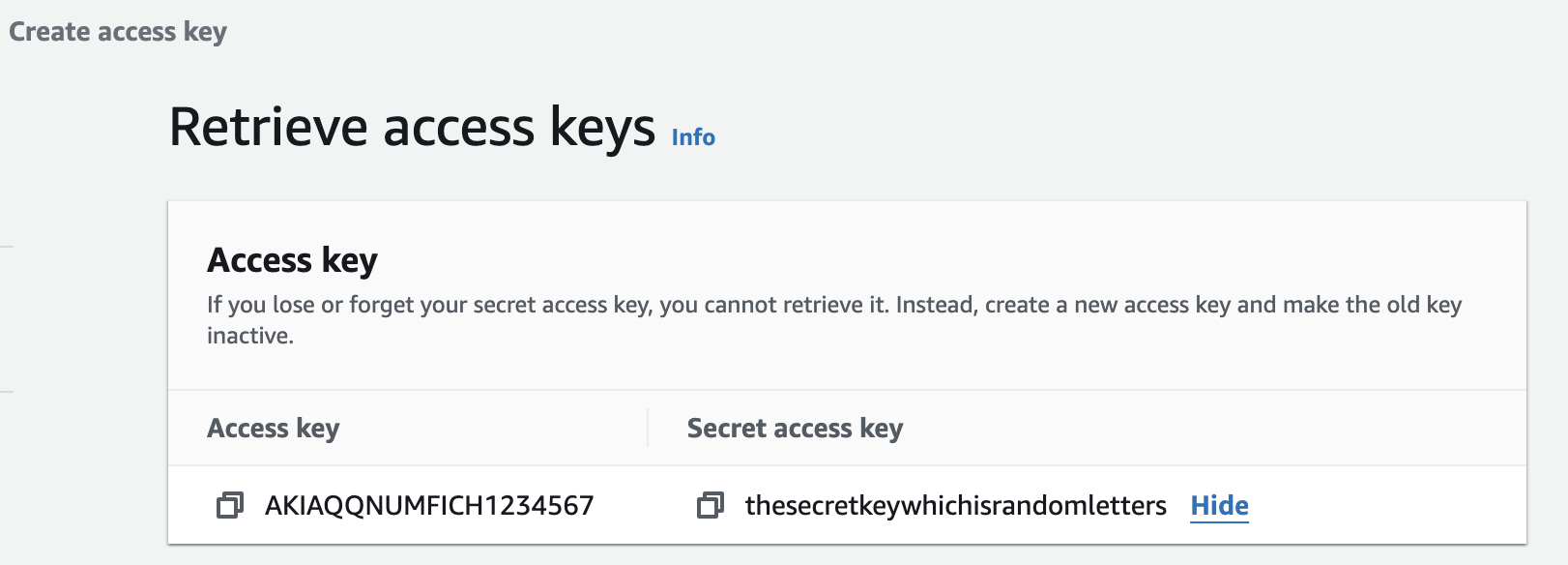
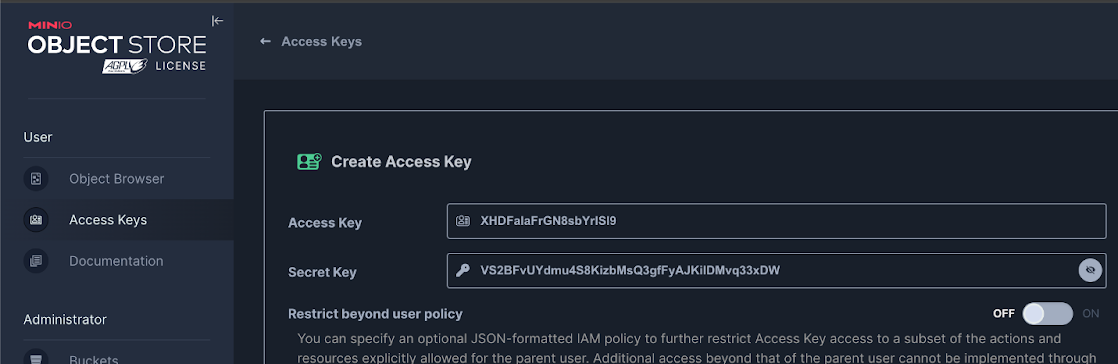
Pass credentials explicitly in the provider chain. Artifactory providers use the terms identity and credential. These translate to:
identity = access keycredential = Secret key / Secret access key
Here is an example showing an access key and secret access key for AWS:
Here is an example showing an access key and secret key for an external S3 provider:
You can read more about access credentials here: https://docs.aws.amazon.com/IAM/latest/UserGuide/id_credentials_access-keys.html
-
-
Choose a Template
Decide which type of template you want to use. Choose from one of the following:
-
Direct (recommended): Uploads binaries directly to the S3 bucket. This mechanism generally allows for faster uploads, since there is less contention for disk IO, particularly when Artifactory is hosted on AWS. The direct template can be used for both single-node and high-availability (HA) configurations. A shared mount is not needed for HA.
For more information on the direct template, click here.
-
Eventual: Temporarily stores binaries locally and returns a 201 response. Binaries are uploaded sometime later to the bucket. Useful if the S3 upload speed is slow (for example, when Artifactory is not in the same network as the bucket). The Eventual Upload mechanism also allows you to upload when S3 is down or experiencing network issues.
This template can be used for single-node and HA configurations, but for HA a shared mount is needed.
For more information on the eventual template, click here.
-
Eventual Cluster: Uses the same mechanism as eventual, but suitable for HA environments only. A shared mount is not needed. For more information on the eventual cluster template, click here.
-
S3 Sharding: Like direct, but also allows connection to multiple buckets. For more information on the S3 Sharding template, click here.
-
Configure Artifactory with S3 Storage
After implementing your authentication method and selecting a template, configure Artifactory with S3 storage using one of the following options:
To configure Artifactory with S3 Storage (non-Kubernetes):
-
Create an S3 bucket.
-
Go to
$JFROG_HOME/artifactory/var/etc/artifactoryfolder and openbinarystore.xml.
Note
$JFROG_HOMEis a variable for the path of the installer type. For the possible values for this variable, click here.
-
Open a template editor of your choice and replace the default template in
binarystore.xmlwith the template you want to use (i.e., direct, eventual, cluster, or sharding). -
Set the following parameters in the template:
<bucketName>bucketName</bucketName>:Enter the bucket name from the bucket that you created at Step 1.<path>filestore</path>:The path inside the bucket where binaries will be saved. If you do not enter a path here, the default pathfilestoreis used.
-
Set either the
<endpoint>or<region>parameter according to the following criteria:- If you use the default value for
<endpoint>, set<region>. Get the value for<region>from the bucket you created. - If you use a custom value for
<endpoint>, (i.e., you do not use the default value), no value is needed for<region>.
- If you use the default value for
-
If you are using IAM roles for your authentication method, set
<useInstanceCredentials>totrueas follows:<useInstanceCredentials>true</useInstanceCredentials>
If you are passing credentials explicitly in the provider chain for your authentication method, set values for
<identity>and<credential>(as discussed in prerequisites) as follows:<identity>access key</identity><credential>secret key</credential>
-
Optional: Configure other parameters listed in the table in Amazon S3 Template Parameters according to your system needs.
-
Save the template with the changes that you made.
-
Restart Artifactory. If you are using an HA cluster (multiple nodes), restart all nodes in the cluster.
-
While Artifactory is restarting, check the Artifactory log to verify that Artifactory is connected to the S3 Bucket. The Artifactory Log is located at:
$JFROG_HOME/artifactory/var/log/artifactory-service.log
Note
For HA configuration, there is no need to make changes in the
binarystore.xmlof each node. When you restart each node, the changes you made inbinarystore.xmlabove will automatically transfer to thebinarystore.xmlof each node.
To configure Artifactory with S3 Storage for Kubernetes:
-
Create an S3 bucket.
-
Select the template you want to use:
- Direct: template name: s3-storage-v3-direct (recommended)
- Eventual: template name: s3-storage-v3
- Cluster: template name: cluster-s3-storage-v3
- Sharding: This requires a custom setup. Use the sharding template shown here: S3 Sharding and apply it as a custom binarystore as shown here.
-
Set the template name in the values.yaml under
artifactory.persistence.type. -
Set the parameters mentioned in steps 4-7 in the previous (non-Kubernetes) section under artifactory.persistence.awsS3V3.
Note
Any parameter not set explicitly will take the default value defined in
values.yaml.
-
Run one of the commands below to apply the changes depending on the Helm chart you are using:
-
For Artifactory:
helm upgrade --install artifactory jfrog/artifactory --namespace artifactory -f values.yaml -
For Artifactory HA:
helm upgrade --install artifactory-ha jfrog/artifactory-ha --namespace artifactory-ha -f values.yaml
-
-
Check the Artifactory log to verify that Artifactory is connected to the S3 Bucket.
Related Topics
- Filestore Configuration
- AWS S3 Object Storage
- S3 Binary Storage Templates
- Amazon S3 Template Parameters
- Integrate Artifactory with AWS SDK v2 for S3 Storage
- Filestore Migration to S3
- Direct Cloud Storage Download
Frequently Asked Questions
This section provides answers to frequently asked questions.
FAQs
Q: What IAM permissions are required for Artifactory to use an S3 bucket?
A: The IAM role or credentials must include the following S3 actions: s3:ListBucket, s3:ListBucketVersions, s3:ListBucketMultipartUploads, s3:GetBucketLocation, s3:GetObject, s3:GetObjectVersion, s3:PutObject, s3:DeleteObject, s3:ListMultipartUploadParts, s3:AbortMultipartUpload, s3:ListAllMyBuckets, and s3:CreateBucket. Alternatively, you can attach the pre-made AmazonS3FullAccess policy.
Q: How do I use an IAM role instead of explicit credentials for S3 authentication?
A: Set useInstanceCredentials to true in binarystore.xml and attach the IAM role to your EC2 or EKS instance. When using explicit credentials, set identity to the access key and credential to the secret access key.
Q: Which S3 template should I choose for an HA deployment without a shared mount?
A: Use the Direct template (s3-storage-v3-direct), which supports both single-node and HA configurations without requiring a shared mount. The Eventual template requires a shared mount for HA. See S3 Binary Storage Templates for template details.
Q: Do I need to update binarystore.xml on every HA node separately?
A: No. For HA configurations, you only need to update binarystore.xml on one node. When you restart each node, the changes automatically transfer to the binarystore.xml of every node in the cluster.
Q: Where is the Artifactory log that confirms a successful S3 connection?
A: The Artifactory log is at $JFROG_HOME/artifactory/var/log/artifactory-service.log. Check this file while Artifactory is restarting to verify that it has connected to the S3 bucket.
Updated 5 months ago