

WebStart and Jar Signing
Generate keystores and sign JAR files in Artifactory via keytool for Java Web Start (JNLP) client downloads.
Java Web Start is a technology developed by Sun Microsystems (now Oracle) to allow you to download and run Java applications directly from your browser with one-click activation. For more information on Java Web Start, see the Oracle documentation for Java Web Start.
Java Web Start requires that any JAR downloaded is signed by the software vendor. To support this requirement, Artifactory lets you manage a set of signing keys that are used to automatically sign JAR files downloaded from a virtual repository. For instructions on managing signing keys in Artifactory, see Manage Signing Keys
WebUI Changes implemented in Artifactory 7.38.x and above
Security is now called Authentication Providers. All the relevant text and images on this page have been updated to reflect this change.
Managing Signing Keys
Signing keys are managed in the Administration module under Authentication Providers | Signing Keys.
Debian Signing Key
Debian signing keys are also managed on this page, but these are not related to JAR signing. For details, refer to Debian Signing Keys.
The following topics review how to manage signing keys:
- Generate JAR Signing Keys
- Set Your Keystore and Keys
- Remove a Key Pair
- Configure Virtual Repositories to Sign JARs
Generate JAR Signing Keys
To sign JAR files, first create a keystore and generate key pairs to add to it. You can create these using Oracle's keytool utility, which is built into your Java Runtime Environment (JRE), by running the following command:
keytool -keystore <keystore filename> -keypass <key_password> -storepass <store_password> -alias <store_alias> \
-genkeypair -dname "cn=<cName>, ou=<orgUnit>, o=<orgName>, S=<stateName>, c=<country>" -validity <days>
For details, refer to the Oracle keytool - Key and Certificate Management Tool documentation.
Set Your Keystore and Keys
Before adding a keystore, set the password required to make future changes to the keystore. You will need this password to remove or update the keystore.
Set the password and click Create. This will unlock the rest of the keystore management fields.
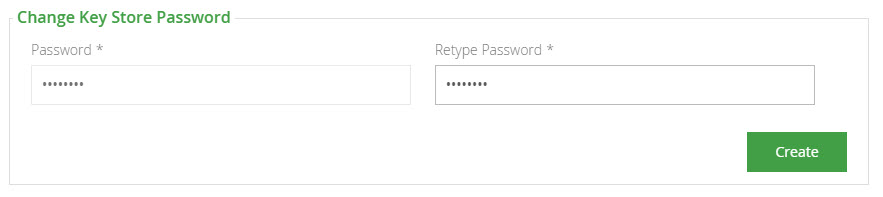
Once your keystore password is set and you have created a keystore and a set of signing keys, you can add them to Artifactory.
First upload your keystore file under Add Key-Store and enter the keystore password. Click "Unlock"
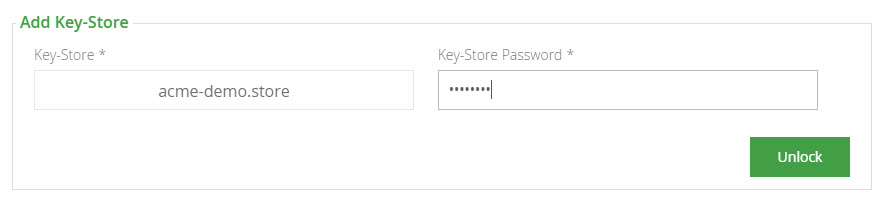
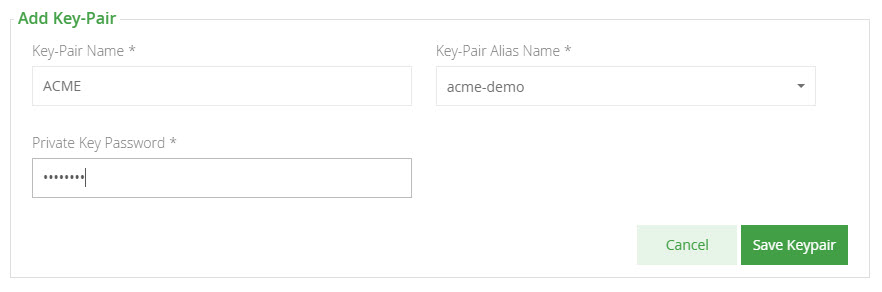
Once your keystore is set in Artifactory you may add key pairs under Add Key-Pair.
Remove a Key Pair
To remove a key pair, select the key pair and click Remove.

Configure Virtual Repositories to Sign JARs
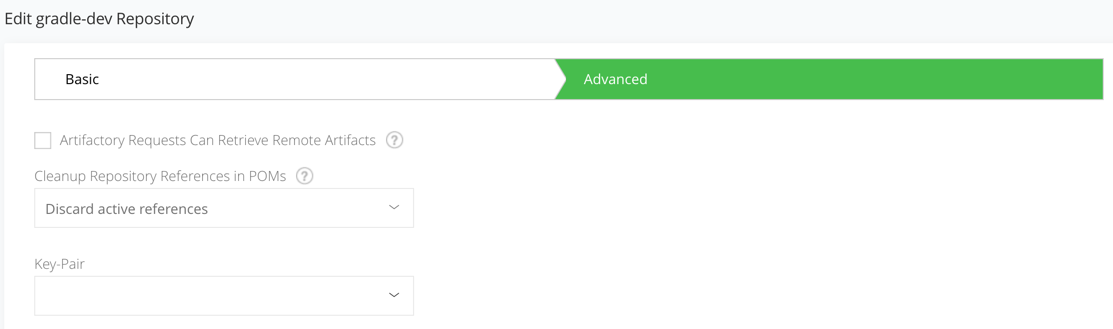
Once Artifactory has a keystore and key pairs, you can configure a virtual repository with the key pair you wish to use for JAR signing. This is done in the Advanced settings of the virtual repository configuration screen.
Related Topics
Updated 4 months ago