

AI Catalog in Self-Managed Systems
Learn how to start using JFrog AI Catalog with a self-managed system.
Follow these 5 steps to go from zero to using AI Catalog in your self-managed environment.
| Step | Description |
|---|---|
 | Understand the Components JFrog ML Bridge and the JFrog AI Catalog. |
 | Verify Prerequisites Verify your environment meets these minimal requirements before proceeding. |
 | Enable AI/ML Service Follow the instructions in AI/ML Service Activation to enable JFrog AI/ML. |
 | Install JFrog ML Bridge Enables communication between your self-managed JFrog Platform Deployment (JPD) and the JFrog AI/ML control plane. |
 | Verify Bridge Connection Verify JFrog ML Bridge is connected and configured. |
Step 1: Understand the Components
Before beginning the installation, understand the core components of the JFrog AI/ML ecosystem and how they function in a self-managed environment.
-
AI Catalog: The JFrog AI Catalog serves as your organization’s central hub for AI asset governance and visibility. It allows you to manage compliance, mitigate risks, and track AI assets. It includes:
- Models Registry / MCP Registry / Skills Registry : A centralized registry to browse and manage verified AI models, MCP servers and Agent Skills.
- Shadow AI Detection: Identify and manage unapproved or "rogue" AI models within your JFrog Platform and organization.
- Marketplace: To explore and add assets that are not yet in your AI Catalog registry.
-
JFrog ML Bridge: The JFrog ML Bridge is a secure connector that runs inside your infrastructure to create a bidirectional tunnel between your self-managed JFrog Platform and cloud-hosted JFrog ML control plane.
To enable the JFrog AI/ML features, you must install the JFrog ML Bridge. This is a specialized flavor of the standard JFrog Bridge that requires its own separate installation and includes unique modifications specifically designed to power the AI Catalog.
Why the ML Bridge is Essential:
In a self-managed deployment, your JFrog Platform cannot directly communicate with cloud-hosted AI/ML services. The ML Bridge solves this by:- Establishing Secure Connectivity: Routes all AI/ML traffic through an authenticated, encrypted, bidirectional tunnel.
- Handling Authentication: Securely manages the credential exchange between your local JFrog Platform and the cloud-hosted JFrog ML backend.
- Enabling AI Catalog Integration: Synchronizes model metadata and governance controls, allowing your teams to safely browse and track models while keeping your infrastructure secure.
Step 2: Verify Prerequisites
Verify your environment meets these requirements before proceeding. If any of the prerequisites is not met, setup will fail later. This prevents wasted time troubleshooting configuration issues:
-
Verify your JFrog Platform installation type, as AI Catalog supports:
- A Kubernetes-based installation.
- A VM installation with a containerized environment such as Docker Compose.
-
Verify JFrog Platform component versions:
- Artifactory: 7.133.17 or higher.
- Xray: 3.137.30 or higher.
- Package Catalog: 1.34.6 or higher.
-
Verify license and entitlements:
- AI Catalog and Curation entitlements.
- Do not enable AI Catalog on Edge nodes.
-
Confirm network access. Your Artifactory must have direct outbound HTTPS access to:
bridge.ml.jfrog.io,api.ml.jfrog.io, andgrpc.qwak.aifor the JFrog ML control plane.
-
Verify JFrog admin access. You must have Platform Administrator privileges.
Step 3: Enable AI/ML Service
When implementing this procedure, you are enabling the local JFrog AI/ML frontend service on your self-managed JFrog Platform and establishing its direct connection to JFrog's cloud-hosted backend.
To enable the AI/ML service:
Follow the instructions in AI/ML Service Activation for Self-Managed Environments to enable JFrog AI/ML.
What happens:
The AI/ML service becomes visible in your JFrog Platform. Bridge functionality and configuration UI become available. You're now ready to install and configure the JFrog ML Bridge.
Step 4: Install JFrog ML Bridge
The JFrog ML Bridge is the mandatory connectivity layer that enables communication between your self-managed JPD and the JFrog AI/ML backend. The following steps explain how to install the JFrog ML Bridge (after you have activated the JFrog AI/ML service).
To install the JFrog ML Bridge Using Helm Charts
-
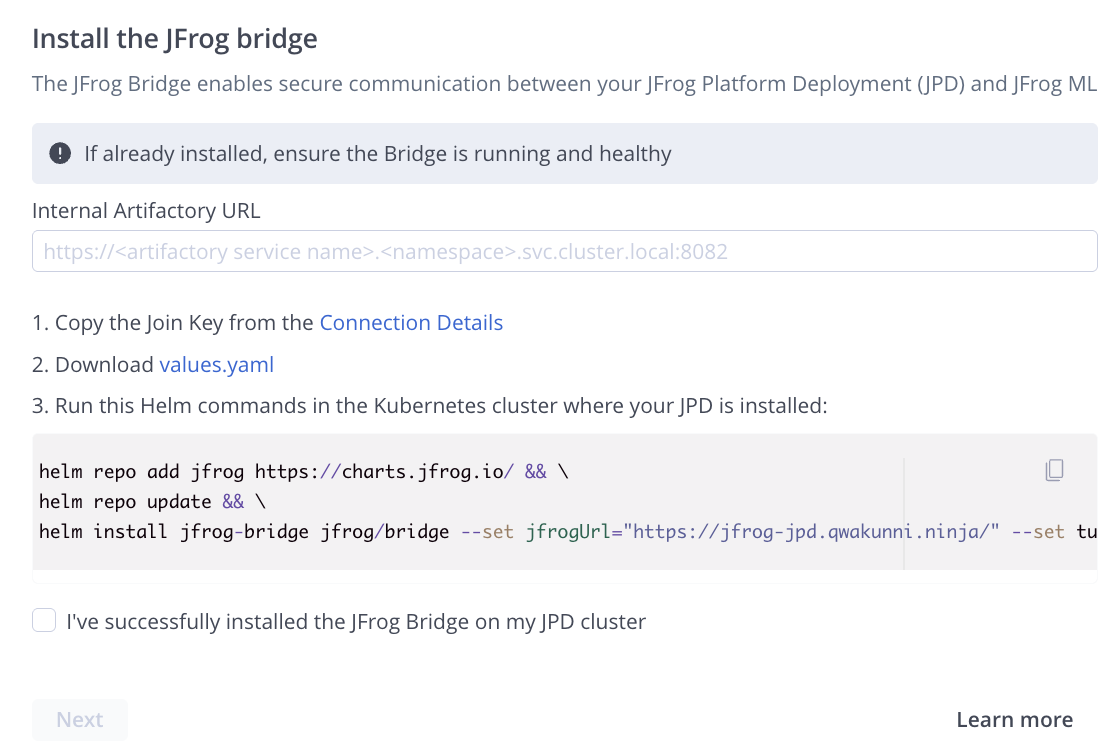
Navigate to AI/ML in the JFrog Platform UI and follow the installation steps on-screen.
-
In the Internal Artifactory URL field, enter the URL that will allow the JFrog ML Bridge client (running in your Kubernetes cluster) to communicate with your JPD.
Note
The JFrog Bridge should be installed where it has a network connection to Artifactory.
-
In the Administration module, select Security > General and scroll down to Connection details.
-
Copy the Join Key and download the values.yaml file.

-
Copy the generated Helm command snippet and run it in the Kubernetes cluster where your JPD is installed.
The following is an example complete Helm command snippet.
helm repo add jfrog https://charts.jfrog.io/ && \\
helm repo update && \\
helm install jfrog-bridge jfrog/bridge --set jfrogUrl="<YOUR_JPD_URL>" --set tunnel.client.bridges.jfrogml.local.url="<YOUR_INTERNAL_ARTIFACTORY_URL>" --values values.yaml --set joinKey=<JOIN_KEY>
Where:
- The
jfrogUrlparameter in the Helm command snippet will update automatically according to your base URL. - The
tunnel.client.bridges.jfrogml.local.urlparameter will update automatically according to the Internal Artifactory URL that you input. - The
<JOIN_KEY>: The join key you copied from Connection details.
- The
-
Select the confirmation checkbox I've successfully installed the JFrog Bridge.
-
Click Next.
To install the JFrog ML Bridge Using Docker Compose
- Download the latest (starting from 1.262.34) Bridge Client docker-compose installer from the official JFrog Releases page.
- Extract the tar archive and go to
/jfrog-bridge-<version>-compose. - Run
bash config.shfrom the unzipped Bridge installation file - After running the above config file and completing the interactive setup, you will have present a system yaml file at
<bridge-folder>/var/etc/system.yaml - Append the below YAML content to the generated
system.yamlfile in section 4.bridge: jmlProxy: enabled: true jfConnectClient: centralAccessTokenService: "generic" tunnel: client: backoff: initialIntervalMillis: 1000 maxIntervalMillis: 12000 multiplier: 2 bridges: jfrogml: type: jfrogml minTunnels: 4 local: url: http://<internal-artifactory-host>:8082 anonymousEndpoints: - .*/system/(ping|readiness|liveness) - .*/v1/cert/root - .*/v1/registry/join - .*/v1/config/shared remote: url: https://bridge.ml.jfrog.io:10443 - Follow Bridge Client Docker Compose Installation procedure, starting with Step 3.
What happens:
The JFrog ML Bridge client is installed in your environment and starts a secure tunnel between your self-managed JPD and the JFrog AI/ML control plane. The Bridge Client registers with your JPD. You are now ready to verify that the Bridge shows as connected.
Verification: Confirm the Bridge Client is running, then continue to Step 5: Verify Bridge Connection and check the status under Administration > Manage Bridges.
Step 5: Verify Bridge Connection
What to do: After the JFrog ML Bridge is installed, verify it's connected and configured.
To configure the JFrog ML Bridge and verify connection:
- In Artifactory, go to Administration > Manage Bridges.
- Check the JFrog ML Bridge status. The status should show as connected.
What happens:
Bridge is verified as installed and connected to your JPD. The secure tunnel to JFrog's AI/ML backend is established and ready for AI Catalog initialization.
If Bridge is not connected:
- Check network connectivity to Artifactory from the Bridge pod.
- Verify outbound HTTPS access to
bridge.ml.jfrog.io,api.ml.jfrog.io, andgrpc.qwak.ai. - Review the JFrog ML Bridge pod logs for connection errors.
- Ensure the Join Key and other parameters were correct during installation.
You are now ready to start using AI Catalog. For more information, see Getting Started with the AI Catalog.
Frequently Asked Questions
This section provides answers to frequently asked questions.
FAQs
Q: How do I connect a self-managed JFrog Platform to the AI Catalog?
A: Enable the AI/ML service, install the JFrog ML Bridge to open a secure tunnel to the JFrog ML control plane, and then verify the connection. See Enable AI/ML Service and Install JFrog ML Bridge.
Q: What do I need before installing the JFrog ML Bridge?
A: You must first enable the AI/ML service, as described in this procedure. You also need Platform Administrator access, the minimum Artifactory, Xray, and Package Catalog versions, AI Catalog and Curation entitlements, and outbound HTTPS access to the control plane. See Enable AI/ML Service and Verify Prerequisites.
Q: What is the difference between the JFrog ML Bridge and the standard JFrog Bridge?
A: The JFrog ML Bridge is a specialized build of the standard bridge with modifications that power the AI Catalog, and it requires its own separate installation. See Understand the Components.
Q: Can I build, train, and deploy models in a self-managed AI Catalog?
A: No. Self-managed subscriptions are scoped strictly to the AI Catalog. Full lifecycle capabilities such as building, training, and deploying models are not supported.
Related Topics
Updated 2 months ago