

Authenticate Remote MCP Tools in Agent Guard
Learn how JFrog Agent Guard authenticates remote MCP tools with browser-based OAuth.
At a Glance
- Mechanism: JFrog Agent Guard handles remote OAuth directly using a synthetic placeholder tool (
enable_<server>_tools) inside your chat session.- Important: Do not use your IDE's built-in MCP Auth action. It is a no-op when proxied through Agent Guard.
- Browser Flow: Invoking the placeholder tool opens your default browser to complete OAuth consent.
- VS Code Note: If tools don't appear after login, open a new chat window or restart the MCP session.
Authentication Flow Overview
Because Agent Guard, part of the JFrog MCP Registry, runs as a local stdio proxy, standard IDE authentication buttons can't reach the upstream server. Agent Guard intercepts the connection and manages authentication seamlessly within the conversation flow. To connect governed MCP servers to your agent first, see Get Started with the MCP Registry.
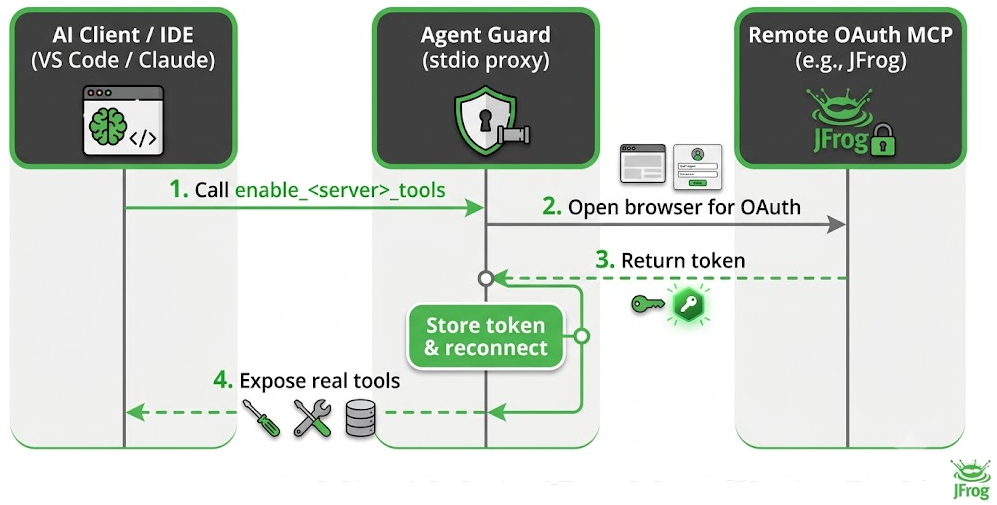
How Agent Guard Authenticates
Pre-Authentication State
Before authentication, Agent Guard hides the upstream server's real tools and exposes exactly one synthetic tool:
- Tool Name:
enable_<server>_tools(for example,enable_jfrog_tools,enable_notion_tools). - Tool Behavior: Agent Guard pre-instructs the AI agent via tool descriptions and system instructions to call this tool first whenever you request an action involving that server.
Initiating Sign-In
- Ask your agent to perform a task (for example,
Connect to JFrogorList my repositories). - The agent automatically calls
enable_<server>_tools. - Agent Guard opens your default web browser to the upstream server's OAuth login page (where you may need to accept Terms of Service).
- Note If multiple login requests occur at once, Agent Guard serializes them so only one browser tab opens at a time.
Automatic Tool Replacement
Once login is complete:
- Agent Guard caches your token securely and reconnects to the upstream server.
- It removes the
enable_<server>_toolsplaceholder. - It exposes the server's real tools and emits a
tools/list_changednotification.
IDE and Client Compatibility
Depending on your client, you may need to take a quick action to see the newly unlocked tools after logging in.
| Client or IDE | Hot-Refresh Support | Required Action After Login |
|---|---|---|
| Hot-Refreshing Clients | ✅ Yes | None. Real tools automatically appear in your current session. |
| VS Code Copilot and Non-Refreshing Clients | ❌ No | Open a new chat tab or restart the MCP session to load the new tools. |
Token Lifecycle
- Automatic Refresh: Agent Guard handles access token renewals transparently in the background.
- Mid-Session Revocation: If a token is revoked mid-session, active tool calls will return errors. Restarting the session will prompt the
enable_<server>_toolsplaceholder to reappear. - Session Restarts: If a stored refresh token expires or becomes invalid, Agent Guard automatically flags the server as pending and prompts you to re-authenticate on next use.
Troubleshooting
If you have trouble signing in or connecting to a remote MCP server, see Troubleshoot MCP Registry. It covers the IDE MCP Auth button doing nothing, tools not appearing after login, and DCR sign-in errors.
Frequently Asked Questions
This section provides answers to frequently asked questions.
FAQs
Q: Why doesn't my IDE's MCP Auth button work with Agent Guard?
A: Agent Guard runs as a local stdio proxy, so your IDE's built-in MCP Auth action is a no-op. Trigger sign-in by asking your agent directly in chat. For more details, see Troubleshoot MCP Registry.
Q: How do I sign in to a remote MCP server through Agent Guard?
A: Ask your agent to perform a task involving the server, and it calls the enable_<server>_tools placeholder automatically. Agent Guard then opens your browser to complete OAuth. See How Agent Guard Authenticates.
Q: Why don't my tools appear after I log in?
A: Some clients don't support dynamic tools/list_changed refreshing. Open a new chat tab or restart the MCP session to load the tools. See IDE and Client Compatibility.
Related Topics
- JFrog MCP Registry Overview
- Get Started with the MCP Registry
- Install an MCP Server
- Security and Validation
- Troubleshoot MCP Registry
Updated 3 months ago