
Manage Skill Policies
Create, view, edit, and delete Skills policies that allow or block skills in a project.
Preview Feature - PoliciesPolicies can be created and edited regardless of Preview status, but they have no effect until a primary admin enables Skills Enforcement in MyJFrog → Settings → Previews. Until then, no policy on this page will actually block a skill.
Signed AI Addendum required for scan-based rulesBlock malicious and Block Suspicious above threshold rely on Xray scan results. If your organization's AI Addendum is not signed, these rule types cannot be created. Manual Allow-List does not depend on scanning and is unaffected. See AI Addendum.
A skill policy is a rule plus a scope. The rule defines the condition and whether matching skills are allowed or blocked. The scope is the whole organization (Global) or one or more projects.
Policies do not replace the security scan. They further control which skills can run in a project—for example, restrict a project to an allow-list, block unscanned skills, or block malicious or high-severity CVE findings. When a skill violates one or more policies in a project, it is blocked in that project.
The following table lists the available rule types.
| Rule Type | Action | Description |
|---|---|---|
| Manual Allow-List | Allow | Explicitly allows specific skills by name, version, and repository path. Only applies to skills not already blocked by another policy — it never overrides an active block. |
| Block malicious | Block | Blocks any skill Xray has flagged as malicious, based on its scan result. |
| Block Suspicious above threshold | Block | Triggers a block when a skill component is affected by a CVE in the specified severity range. Choose one of 8 rule variations based on your preferred severity threshold and applicability handling:
|
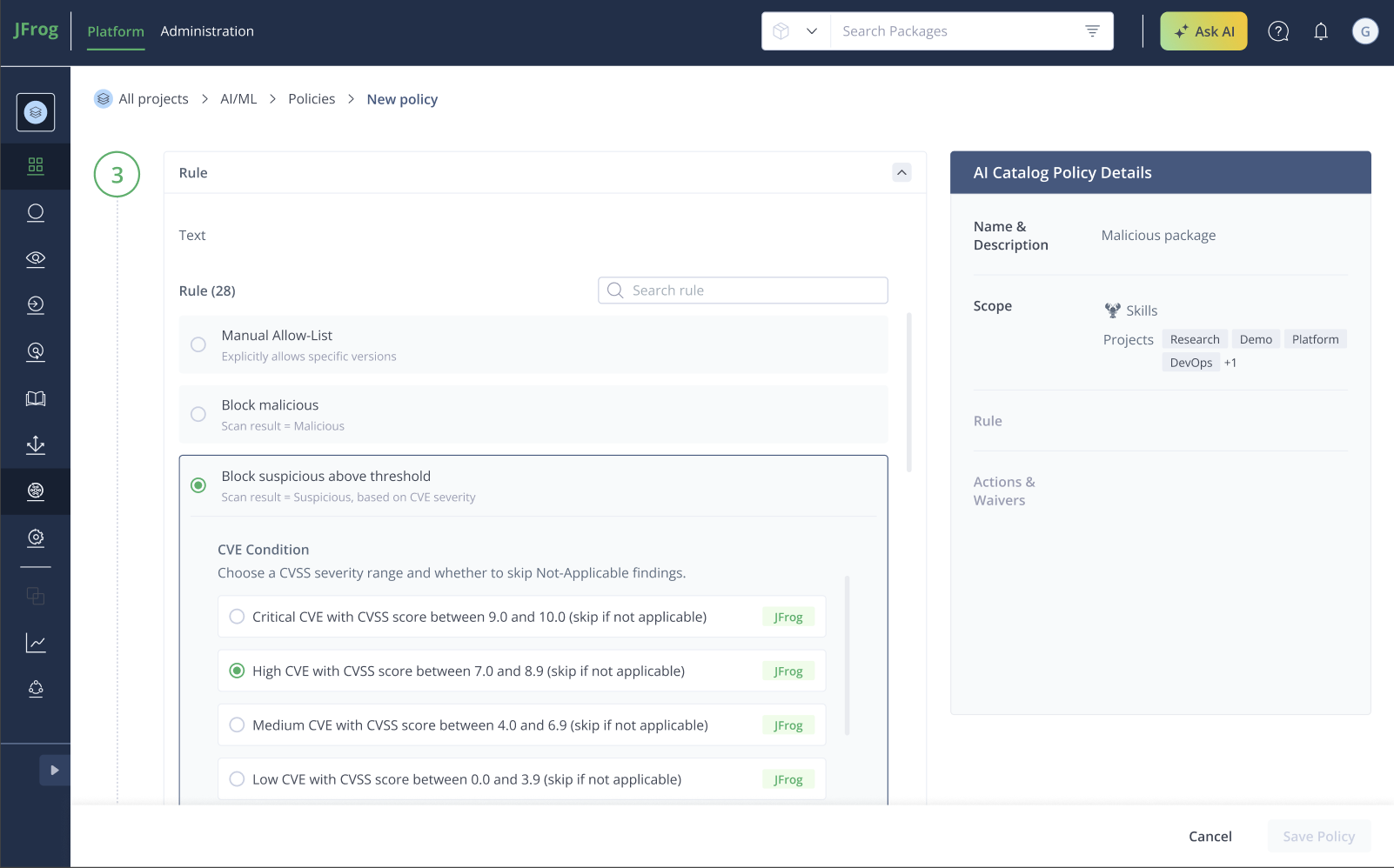
AI Policies: Block suspicious above threshold categories
Project administrators can create and manage policies for their projects. Global (organization-wide) policies require Global administrator permissions. For the full governance flow, see Govern the Skills Registry.
This topic covers the following tasks:
Create Policy
Create a policy when you need a new allow or block rule for the organization or for one or more projects. The policy takes effect immediately.
To create a policy:
-
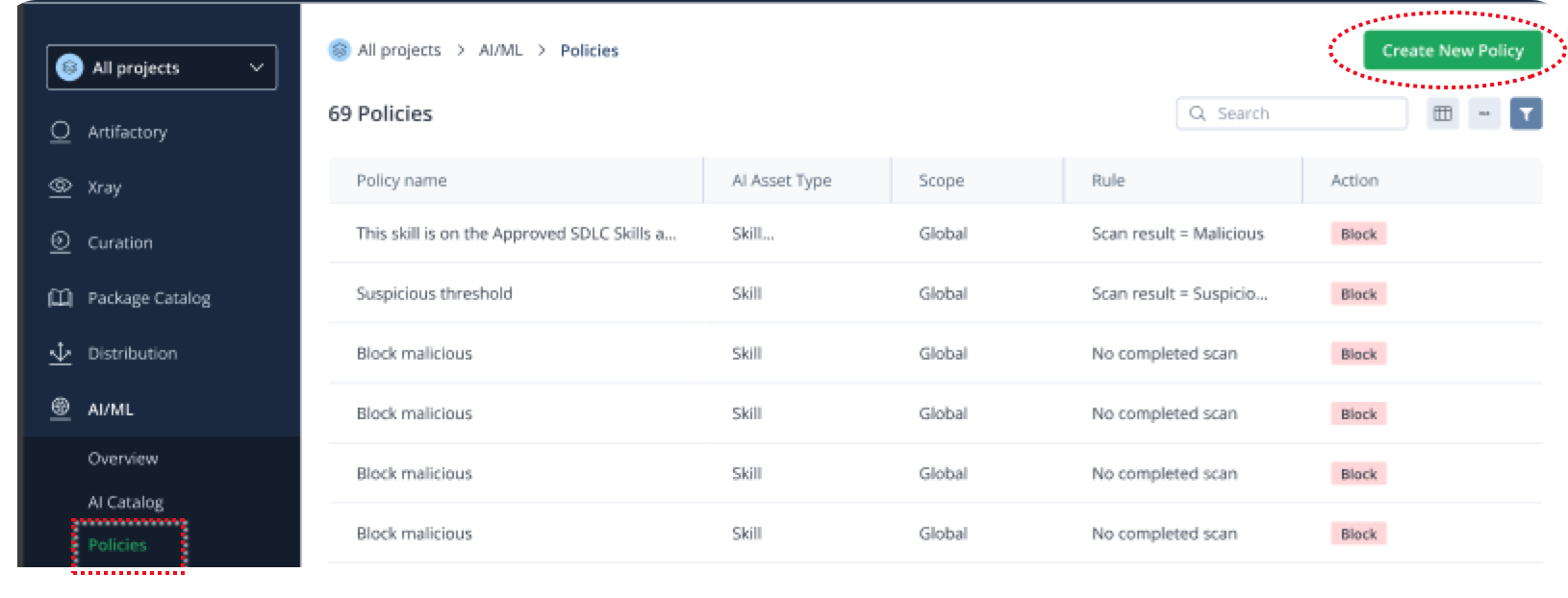
In the JFrog Platform, go to AI/ML > Policies and click Create New Policy.
-
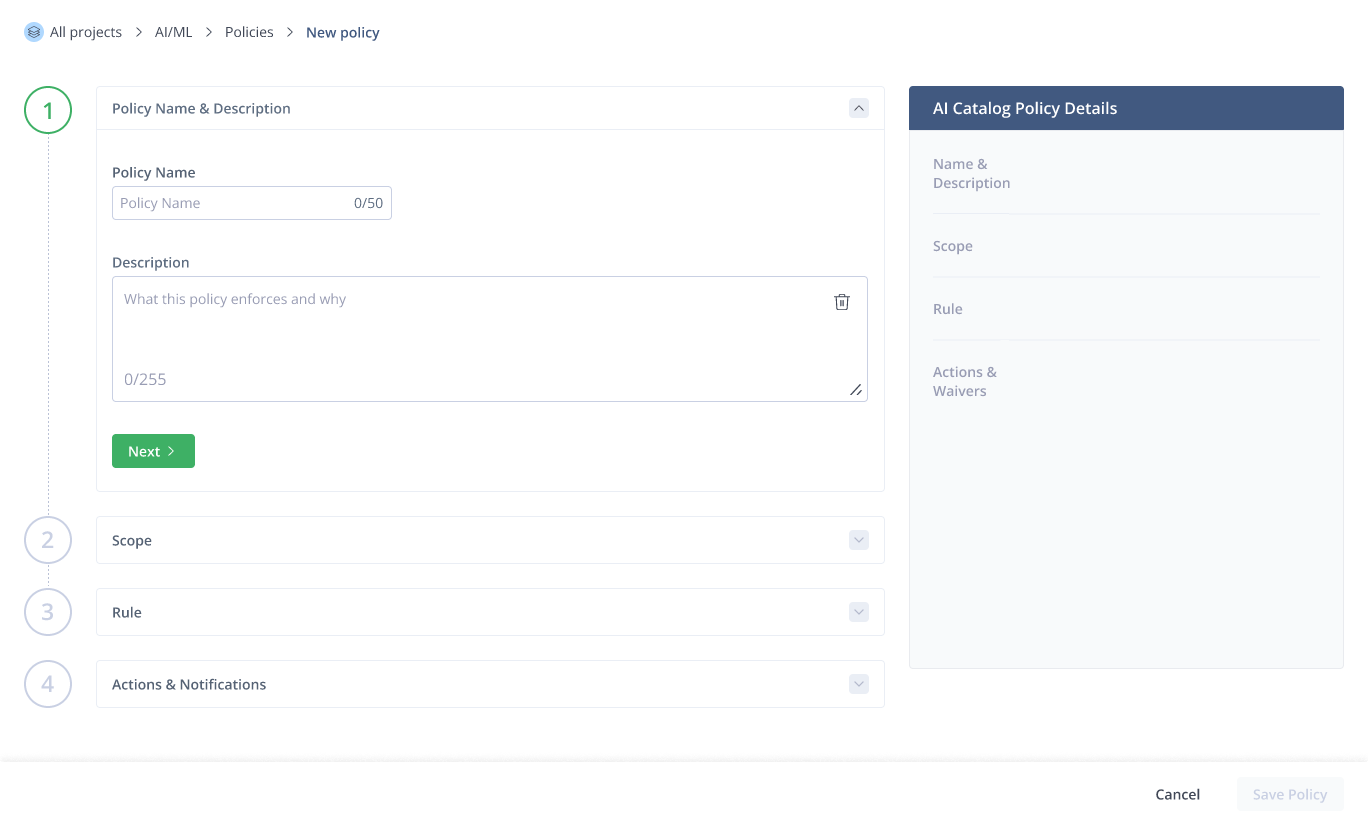
Enter a Policy Name. A description is optional.
-
Click Next. The details you entered appear in the panel on the right.
-
Set the Scope:
- Asset type (for example, Skills).
- Where to apply policy: Global (organization) or for one or more specific Projects. If you selected projects, you need to select which projects, and click Save.
-
Click Next.
-
Select the Rule from the rule types in this topic. This is the policy rule that will indicate a violation.
For Block suspicious above threshold, set CVE severity and applicability. For Manual Allow-List, select the skills to include. You can add skills to the allow-list later from the JFrog AI Catalog. -
Click Next.
-
Select the action that should be implemented if a violation occurs: Block or Allow.
-
Click Next.
-
Click Save Policy.
The policy appears in the Policies list and is enforced on subsequent evaluations.
View Policies in the Policies List
Use the Policies list to review all skill policies defined for your organization or projects.
To view policies in the Policies list:
-
In the JFrog Platform, go to AI/ML > Policies.
-
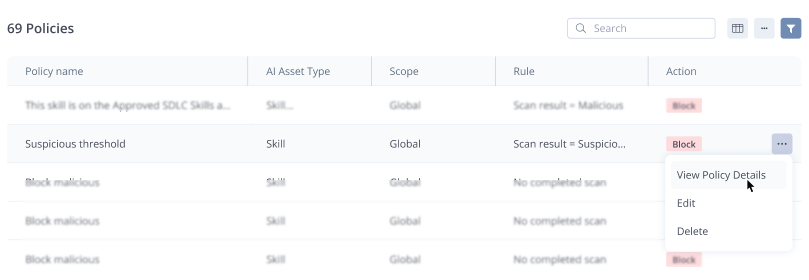
Review the policies in the table. Each entry shows the policy name, scope, rule, and action.
-
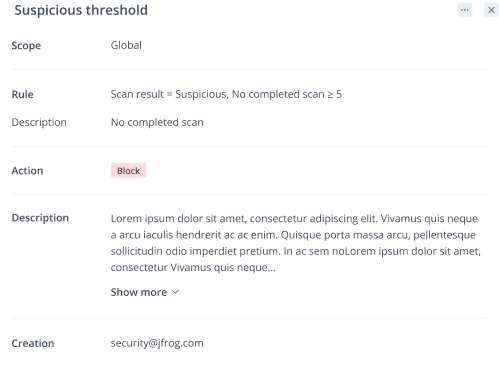
Select View Policy Details from the ... Menu on the right of the policy row.
Full details are displayed.
View Policies on a Skill
Use the skill Policies tab to see which policies apply to a skill in a selected project.
To view the policies that apply to a skill:
- Open the skill in the JFrog AI Catalog.
- Select the project you want to check.
- Select the Policies tab.
- The tab lists all the policies that apply to the selected skill in the selected project.
- If the skill is blocked in that project, the tab also details the blocking policies.
Note
In Administration > AI/ML Settings > AI Catalog, an administrator can allow specific projects to run new or unpublished skills immediately. That setting appears on a skill's Policies tab as a flagged override.
Edit Policy
Edit a policy when you need to change its scope, rule, name, or description. The updated policy takes effect immediately and is used in all subsequent evaluations.
To edit a policy:
-
In the JFrog Platform, go to AI/ML > Policies.
-
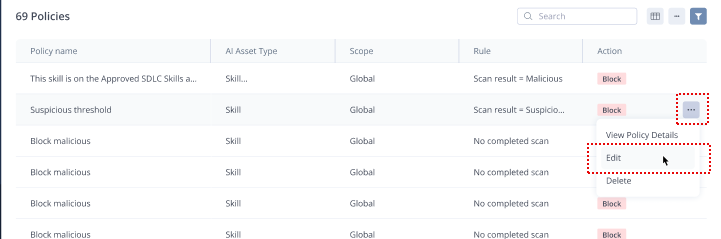
Locate the policy you want to edit and open the menu adjacent to the policy.
-
Click Edit.
-
Update the scope, rule, name, or description as needed. For Block suspicious above threshold, you can change CVE severity and applicability. For Manual Allow-List, you can change which skills are included.
-
Save the policy.
Delete Policy
Delete a policy when it is no longer needed. After you delete it, the policy is removed from the list and is no longer enforced on future evaluations. Other policies still apply.
To delete a policy:
-
In the JFrog Platform, go to AI/ML > Policies.
-
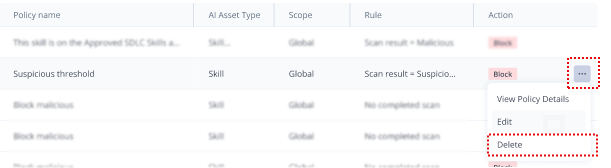
Locate the policy you want to delete and open the menu adjacent to the policy.
-
Click Delete.
-
Confirm the deletion (click Yes, Delete) when prompted.
Frequently Asked Questions
This section provides answers to frequently asked questions about Skills Registry policies.
FAQs
Q: Do policies replace the security scan?
A: No. Policies sit on top of the security scan. The scan decides whether a skill is installable; policies further allow or block skills in a project. For how to add a policy, see Create Policy.
Related Topics
Updated 10 days ago