

Create Stages in the Platform UI
Stages created within the scope of a particular project can be used only by that project. Stages created at the global level can be used by one or many projects, as needed.
To create a stage:
-
Select the proper context for your new stage:
- If you want to create a global stage, select All Projects.
- If you want to create a project stage, select the relevant project from the list.
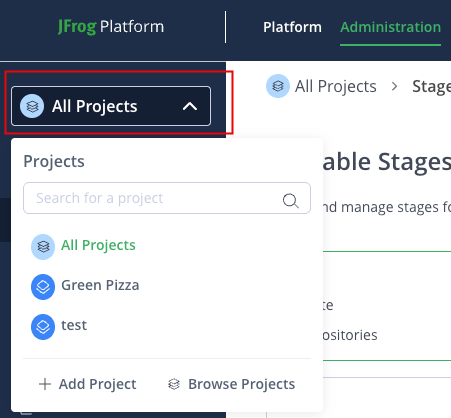
-
In the Administration module, select Stages & Lifecycle. The top half of the Stages & Lifecycle page shows the currently available stages. The bottom half of the page shows the currently configured lifecycle.
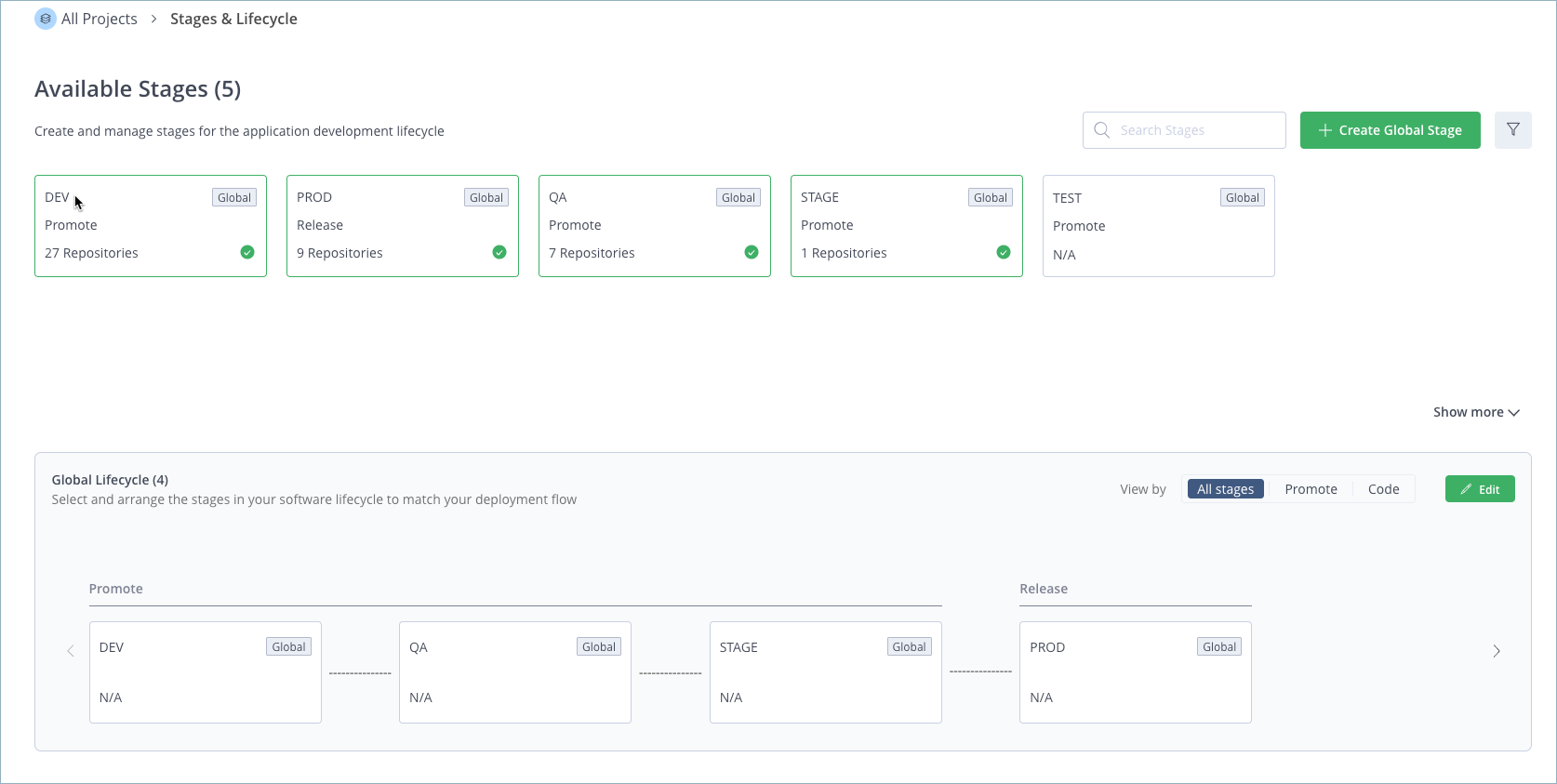
-
Click Create Global Stage/Create Project Stage. The Create Stage window is displayed.
-
Enter a name for the stage. The name is case-insensitive and must be unique within its scope. For example, a project stage must be given a name that is unique within that project. A global scope must have a name that is unique throughout the platform.
-
Select a lifecycle category:
- Promote: Used for stages that are part of the promotion phase of the SDLC, where the application version is tested, promoted, and readied for eventual release.
- None
-
Click Create Stage. The new stage appears in the list of available stages.
Updated 3 months ago