

Configure Access Federation Topologies
Once a circle of trust is established by providing target Platform Deployments with the root certificates of source Platform Deployments, you need to configure the topology by setting up the relationship in Access Federation.
Mesh Topology
Consider the scenario where three Access services should be set up in a Full Mesh topology where each service should be able to synchronize changes to security entities to both other services. In this case, you need to provide each Access service with the root certificates of both other services so that both are trusted.
To set up a Mesh topology:
- In the Platform Deployment where Mission Control is installed, select the Administration module and go to Topology > Access Federation. The Access Federation page lists managed JPDs.
- Click Apply Topology | Mesh. The Access Federation wizard appears.
- In the Select Platform Deployments tab, choose servers from the Available Platform Deployments list and use the arrows to transfer them to the Included Platform Deployments list. The chosen JPDs participate in the Access Federation. Click Next.
- In the Select Entity Types tab, check/clear options to choose the types of security entities that are synchronized across JPDs of the federation. Click Next.
- The Summary tab displays your configuration settings. To create the Access Federation, click Finish. A dialog displays sync activity between JPDs of the federation.
Note
When configuring a Mesh topology, the JFrog Platform establishes reciprocal (two-way) connections between instances. The UI displays these as individual source-to-target relationships (Star topologies). This is a display convention only; the underlying architecture remains a fully synchronized Mesh.
Star Topology
Consider the scenario where three Access services should be set up in a Star topology where Access-A synchronizes to Access-B and Access-C. In this case, you need to provide Access-B and Access-C the root certificate of Access-A so that A becomes trusted by B and C.
Chaining Star Topology
When creating a chain topology (e.g., a case where JPD A replicates to JPD B, which in turn replicates to JPD C), the content of JPD A will not be propagated to JPD C by default. To enable the chain topology, set the following parameter in your Access Configuration YAML file of JPD B, or any intermittent JPDs, to true:
federation.inbound.forward-propagation(false by default).
To set up a Star topology:
-
In the Platform Deployment where Mission Control is installed, select the Administration module and go to Topology > Access Federation. The Access Federation page lists managed JPDs.
-
Click Apply Topology > Star. The Access Federation wizard appears.
-
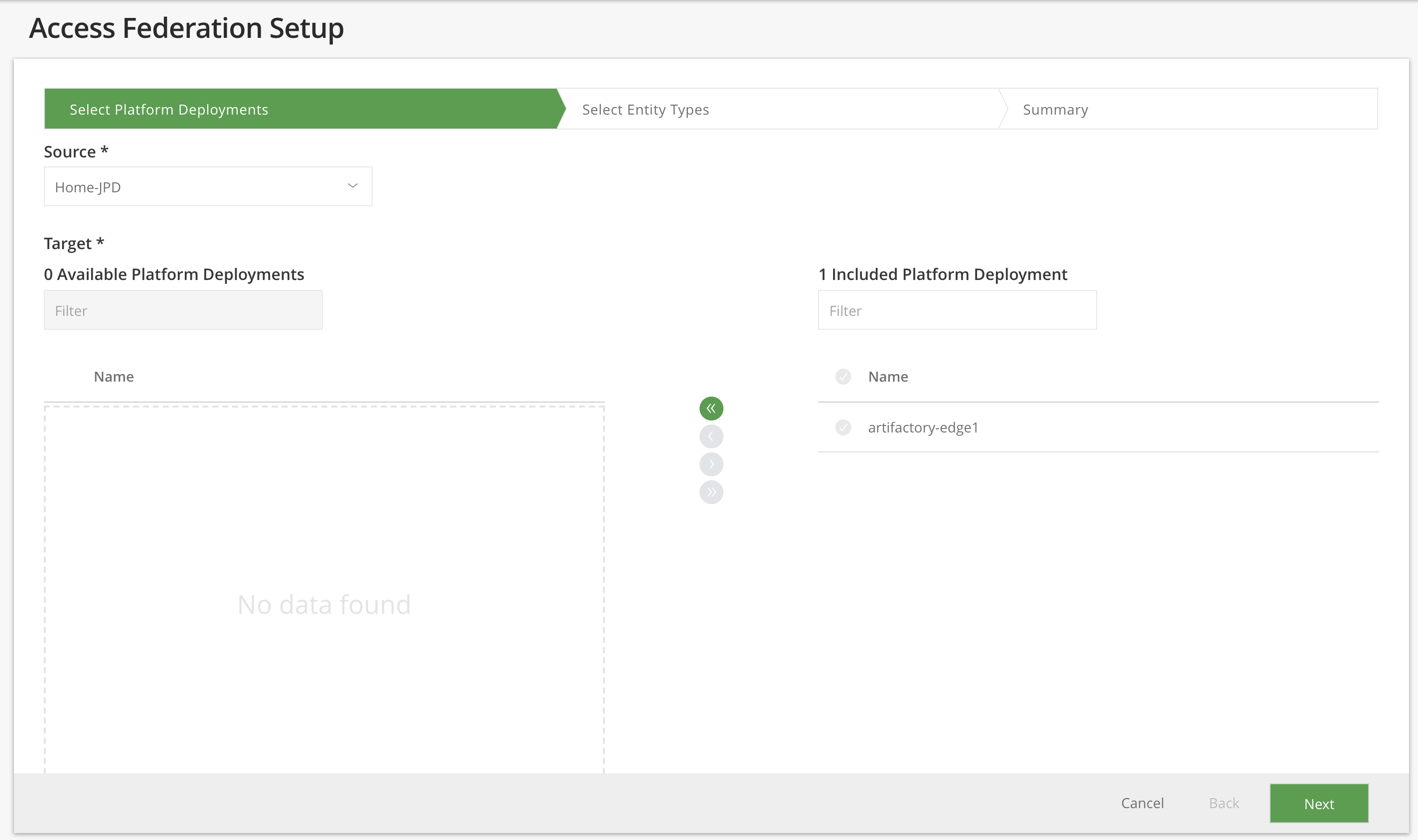
Select services
Select the services that will be part of the federated group. To include services in the federated group, select them from the Available Platform Deployments list and use the arrows to transfer them to the Selected Platform Deployments list.
-
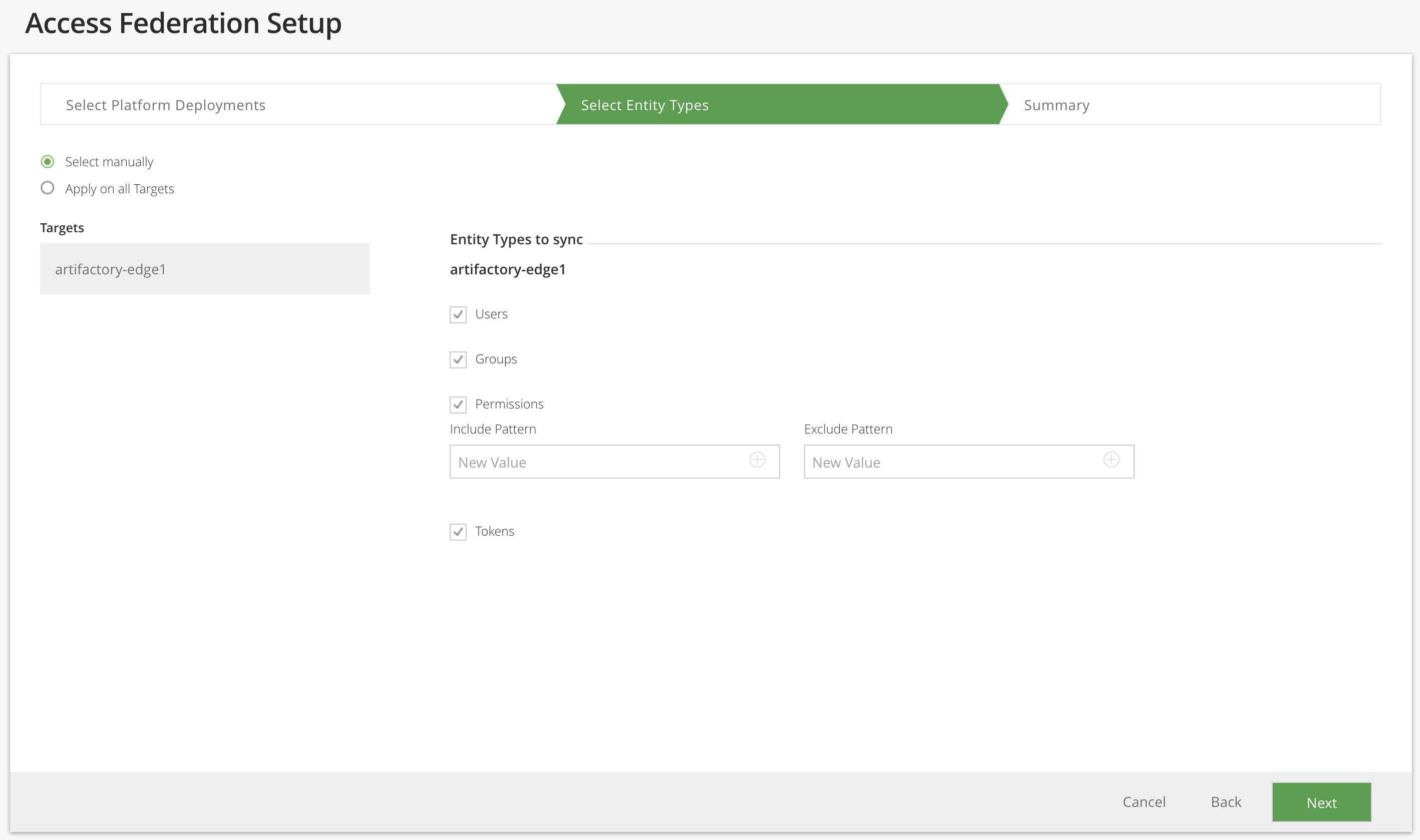
Select security entities to synchronize
-
Select the method for assigning entity types to targets.
- Manually assign entities to different targets: This provides flexibility as it allows you to assign different entity types to different targets. For example: You decide to synchronize users and groups from Access A to Access B, choose to only synchronize users, groups, and permission from Access A to Access C, and synchronize all the entities from Access A to Access E.
- Apply on all Targets: Any selection made applies to all targets and selecting Permissions applies to all permissions. This option is enabled when selecting the Star Topology.
-
Select the entity types to be synced.
- Users
- Groups
- Permissions
- Include/exclude Patterns: When assigning entity types to targets, you can assign specific permissions to be synchronized using the Include/Exclude regular expressions.
- Tokens
-
-
Summary
The wizard displays a summary of your configuration. To apply, click Finish.
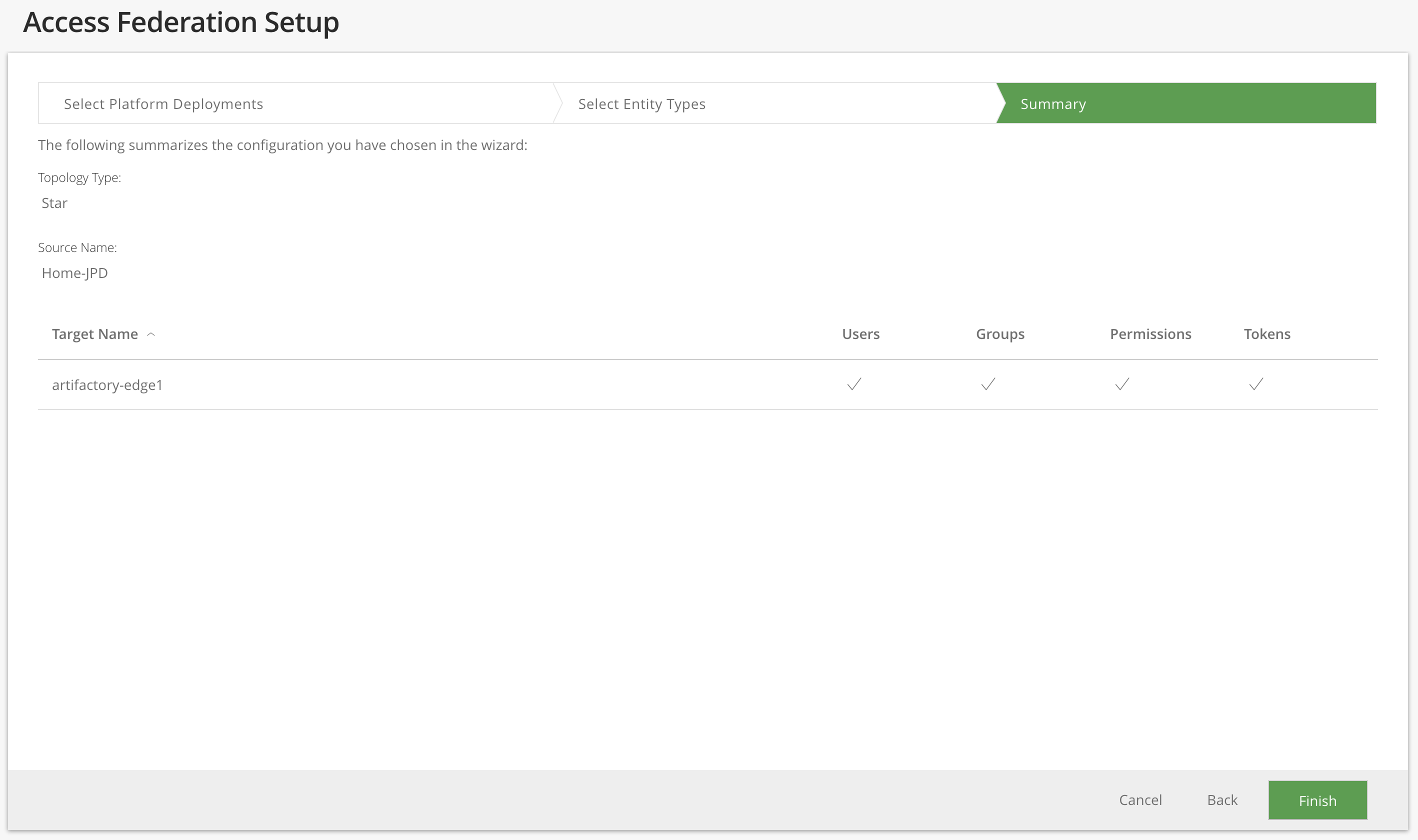
A summary of the results appears.
Note
This example shows setting up a star topology to allow synchronization of security entities from the Home-JPD to artifactory-edge1. Prior to setup, artifactory-edge1 was provided with the root certificate of Home-JPD , and Mission Control was setup to make calls to the Access service in artifactory-edge1.
Updated 3 months ago