

Cleanup Policies
Cleanup removes files, applications, and configurations to free up storage and improve system performance. Regular cleanup helps optimize disk space and maintain system efficiency.
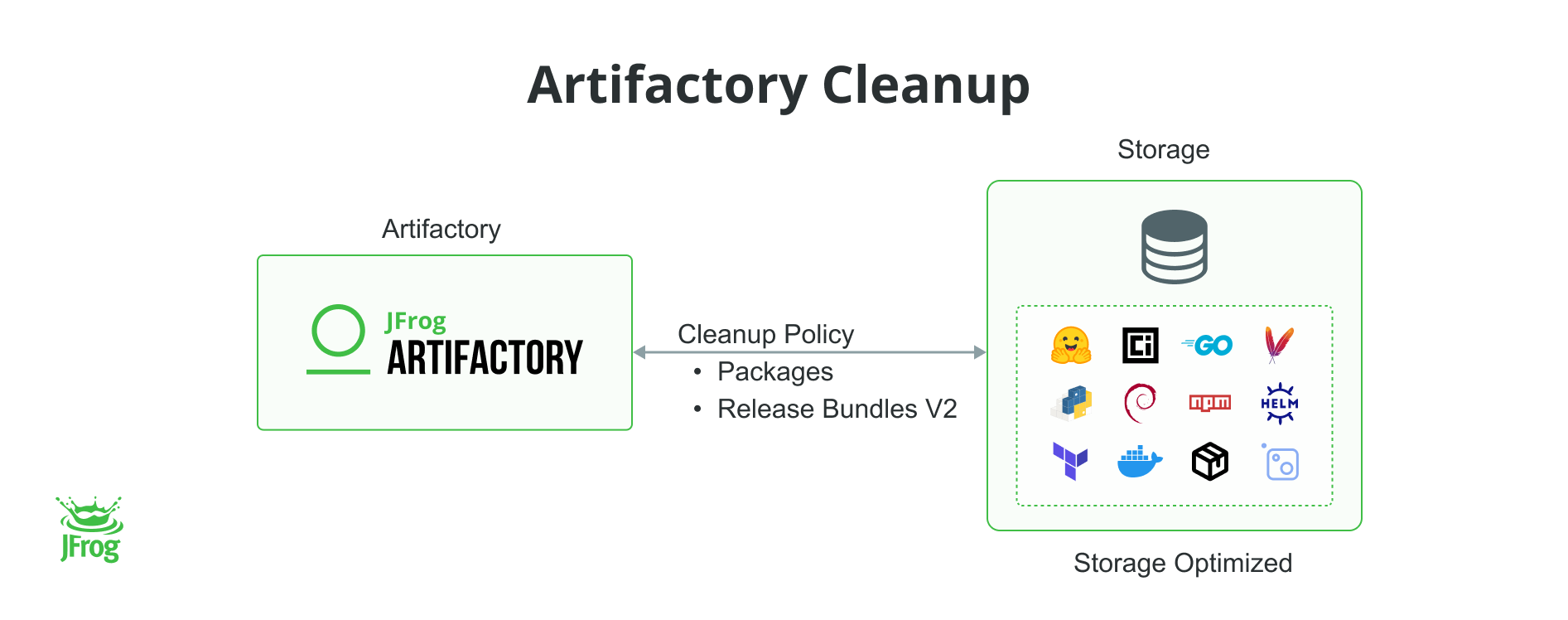
JFrog cleanup policies remove stale data based on specific criteria. Platform and Project Administrators define custom cleanup policies to identify package, release bundles, or builds that are candidates for removal. This automates cleanup processes that align with organizational needs by customizing these policies.
Key Benefits
-
Improved Efficiency
-
Optimizes platform performance and loading times.
-
Enhanced User Experience
Simplifies navigation by reducing the number of items, saving time and improving overall user experience.
-
Reduced Storage Costs
Frees up storage space by removing unnecessary items, helping to reduce costs.
For more information, see Cleanup Policies at JFrog Academy.
Prerequisites
- Subscription: See the Subscription Information note in the Cleanup Policies Overview section.
-
Administrator Access: Platform or Project Administrator
-
Project Context
- Platform Admins can manage cleanup policies globally across all projects or for specific projects.
- Project Admins can manage policies within their project scope, with visibility into global policies affecting their projects.
Cleanup Policies Overview
There are 3 types of cleanup policies:
- Package Cleanup Policies define which Packages to delete.
- Release Bundles V2 Cleanup Policies define which Release Bundles V2 to delete.
- Build Cleanup Policies define which Builds to delete.
For supported package types, see Cleanup Supported Packages.
Package cleanup policies support a multi-select condition framework. You can combine all three time-based, property-based, and version-based criteria into a single cleanup policy. This lets you target stale or tagged packages for deletion while protecting the last N versions as a safety rail against accidental removal.
Subscription Information
- Package cleanup policies are supported on the SaaS (7.98.2) and Self-Hosted (7.98.7) platforms, with an Enterprise+ or Enterprise X (7.139.1 SaaS, 7.146.7 SH) subscription.
- Release Bundle V2 Cleanup policies are supported on the SaaS (7.104.2) and Self-Hosted (7.104.5) platforms, with an Enterprise+ or Enterprise X (7.139.1 SaaS, 7.146.7 SH) subscription.
- Build Cleanup policies are supported on the SaaS (7.125) and Self-Hosted (7.125) platforms, with an Enterprise+ or Enterprise X (7.139.1 SaaS, 7.146.7 SH) subscription.
Note
When you clean up Packages, Builds and Release Bundles (RB V2) that have associated evidence, the evidence is also permanently deleted.
Running Cleanup Policies
You can schedule hourly, daily, weekly, or monthly execution of a cleanup policy. You can also define time periods when execution is stopped. This enables you to perform cleanup during weekends or maintenance windows.
If required, you can run the cleanup policy manually. For more information, see the Run Cleanup Policy Manually.
As the cleanup process progresses, the system generates detailed logs in the Artifactory service logs.
Cleanup Limitations
The following limitations currently apply when you run a Packages Cleanup Policy:
Supported Repositories
- Supports Local and Federated repositories. Does not support Remote and Virtual repositories.
Note
When cleaning Federated repositories, the run (dry or actual) can take significantly longer compared to Local repositories. This is because the cleanup workflow must check the last download status of each package across all federation members. The more members involved, the longer the process will take.
Recommendations to Optimize Cleanup:
- Adjust Policy Conditions: Narrow the scope of your cleanup policies to reduce the number of packages to be deleted in each run. This can significantly speed up the run.
- Increase Run Frequency: Run cleanup policies more often to process smaller sets of packages. This helps prevent large backlogs and improves long-term performance.
Package Verification
There is no verification if packages are part of a Release Bundle or build. A package-level Cleanup policy may impact build or release bundle promotion.
Cleanup Limits
Cleanup policy can delete up to 100,000 packages in a single run.
Progress Notifications
Notifications on the progress of a cleanup policy run are unavailable.
Visibility of Run Results
Run results for global policies are visible only to Platform admins globally.
Search
A project admin can only perform searches within their project context and does not have access to the global scope.
Include Path Patterns
If you add only the last folder in Include Path Patterns, the policy finds no packages. The last folder is the one that holds the file. The policy still finds nothing even if the full path includes that folder name. Add at least one parent folder as well. Include path patterns are available from Artifactory 7.146.x, and this limitation applies when you use them.
Artifactory Configuration
The Artifactory Instance can only be a Platform or a Mothership, not an Edge.
Concurrent Execution and Queuing of Cleanup Policies
- Cleanup Policies can run concurrently up to a specified maximum. When this limit is reached, additional triggered policies are queued. Any further triggered policies will be skipped entirely if the queue reaches its maximum capacity.
- In the current version of Artifactory, queued or skipped policy runs do not appear in the Runs view. You can find a log of skipped policies in the Artifactory Service log. For example, you might see a message like:
"Policy: test_policy run: 1 has been rejected since 3 concurrent runs are already in progress.".
The following limitations currently apply when you run a Release Bundle V2 policy:
Distributed Release Bundles
- Cleanup policies will not delete distributed release bundles.
Source Artifacts
The source of release bundles, including associated builds and artifacts, will not be deleted.
Cleanup Known Issues
The following Known Issues were found in the Packages Cleanup Policy:
Editing Existing Cleanup Policy - Time-based Policy Conditions
When you edit a Cleanup Policy created before 7.111, you cannot modify settings for the following Time-based Policy Conditions:
-
Packages Older Than
-
Packages Not Downloaded Since
Workaround: Create a new cleanup policy for the packages and configure it according to your needs.
Debian Package
When Debian packages are uploaded directly to the root directory, all packages may be cleaned during cleanup actions.
Impact
Only the Version-based condition is affected by this issue. The Time-based condition remains unaffected.
Workaround: To avoid unintended cleanup, always upload Debian packages to a subdirectory rather than the root.
For more information, see Artifactory 7.98 Known Issues.
SBT Package
When SBT packages are uploaded with the sbt-default repository layout, they are not resolved during cleanup actions.
Workaround: Choose Recommended Repository Layouts as described in the sbt Repository Layouts.
Cleanup Supported Packages
This topic outlines the supported packages with cleanup. It includes the policy conditions that apply to each package type.
| Package Type | Supported Release Version | Lead Artifact | Age (Packages Older Than) | Usage (Packages Not Downloaded Since) | Version (Number of Latest Versions to Keep) |
|---|---|---|---|---|---|
| Agent Plugins | 7.157 | .zip |  | | |
| Alpine | 7.111.0 | .tar.gz, .apk | | | |
| Ansible | 7.104.2 | tar.gz | | | |
| Bower | 7.162 | – | | | |
| Cargo (Rust) | 7.102.0 | .crate | | | |
| Chef | 7.112 | – | | | |
| CocoaPods | 7.99.1 | .tar.gz, .tgz | | | |
| Composer | 7.116 | – | | | |
| Conan | 7.98.2 | conanfile.py | | | |
| Conda | 7.105.2 | tar.bz2 | | | |
| CRAN | 7.162 | .tar.gz | | | |
| Debian | 7.98.2 | .deb, .ddeb | | | |
| Docker | 7.98.2 | manifest.json | | | Note: Supported from V 7.115.1 |
| Gems | 7.96.3 | .gem | | | |
| Generic | 7.98.2 | – | | |  |
| Go | 7.98.2 | .mod | | | |
| Gradle | 7.98.2 | .pom | | | |
| Helm | 7.98.2 | .tgz | | | |
| Helm OCI | 7.102.0 | manifest.json | | | Note: Supported from V 7.115.1 |
| Hex | 7.111.0 | – | | | |
| HuggingFaceML | 7.100.0 | .jfrog_huggingface_model_info.json, .jfrog_huggingface_dataset_info | | | |
| Machine Learning | 7.104.2 | model-manifest.json | | | |
| Maven | 7.98.2 | .pom | | | |
| Nix | 7.162 | narInfo | | | |
| npm | 7.98.2 | .tgz | | | |
| NuGet | 7.98.2 | .nupkg | | | |
| OCI | 7.102.0 | manifest.json | | | Note: Supported from V 7.115.1 |
| Puppet | 7.112 | – | | | |
| PyPI | 7.98.2 | tar.gz, tgz, gz, whl, egg, bz2 | | | |
| RPM | YUM | 7.98.2 | .rpm | | | |
| SBT | 7.108 | .pom, .xml | | | |
| Swift | 7.114.1 | – | | | |
| Terraform | 7.99.1 | .zip | | | |
| Terraform BE | 7.103.0 | .json | | | |
| Vagrant | 7.111.0 | – | | | |
Note
Several package types consist of multiple underlying files. The package-level cleanup policy determines if the entire package should be removed by checking the statistics or metadata of the lead artifact. For example, in a Maven package, the policy checks the statistics of the .pom file. If the file meets the criteria, the entire package is eligible for cleanup.
Docker Image Cleanup
Docker images can have multiple tags and use list.manifests to support different architectures. Each list.manifest points to several specific manifests for various systems.
Learn how the policy executes for the following conditions:
-
Time-based Condition: Time-based conditions delete images and tags that have not been used within a certain period. This helps keep the connections between tags intact and ensures the stability of multi-architecture references. We recommend using the Packages Not Downloaded Since condition to prevent the deletion of images that are currently in use.
-
Version-based Condition: From Artifactory V 7.115.1, Artifactory supports Version-based policy conditions for Docker. It allows you to keep a specified number of versions per image, which considers the structure of Docker images when deciding what to delete. If a Docker image is a
list.manifest, it will either be deleted with all of its related sub-manifests or not deleted at all. This approach maintains the relationships between images. This provides greater control over image management and helps maintain tag relationships and multi-architecture references.You can combine Keep Last N Versions with time-based and property conditions in a single policy. The last N versions are never deleted, even if they match the other conditions.
On the other hand, time-based conditions treat each manifest and
list.manifestseparately, without considering their hierarchical structure. Each one is evaluated independently based on its status.
Note
Tag Retention Logic: When this logic is enabled, previous tag revisions (tag retentions) will be removed only when the most recent revision of a tag is deleted.
Max Unique Tags Logic: When this logic is enabled, the Last N Versions policy will take precedence.
Example: With Last N Versions set to 2 and Max Unique Tags set to 5, retains only 2 versions/tags of the same image after the policy is executed.
Avoid Policies with Conflicting Criteria
We recommend that you avoid configuring separate cleanup policies with conflicting criteria (for example, one policy with Keep Last N Versions and another with Packages Not Downloaded Since) for the same Docker, OCI, or Helm OCI repository. Instead, combine time, property, and version conditions in a single policy by selecting multiple conditions from the multi-select group.
Getting Started with Cleanup
This topic outlines how to get started with Cleanup. It includes granting permission to a project admin, working with cleanup, and monitoring cleanup operations.
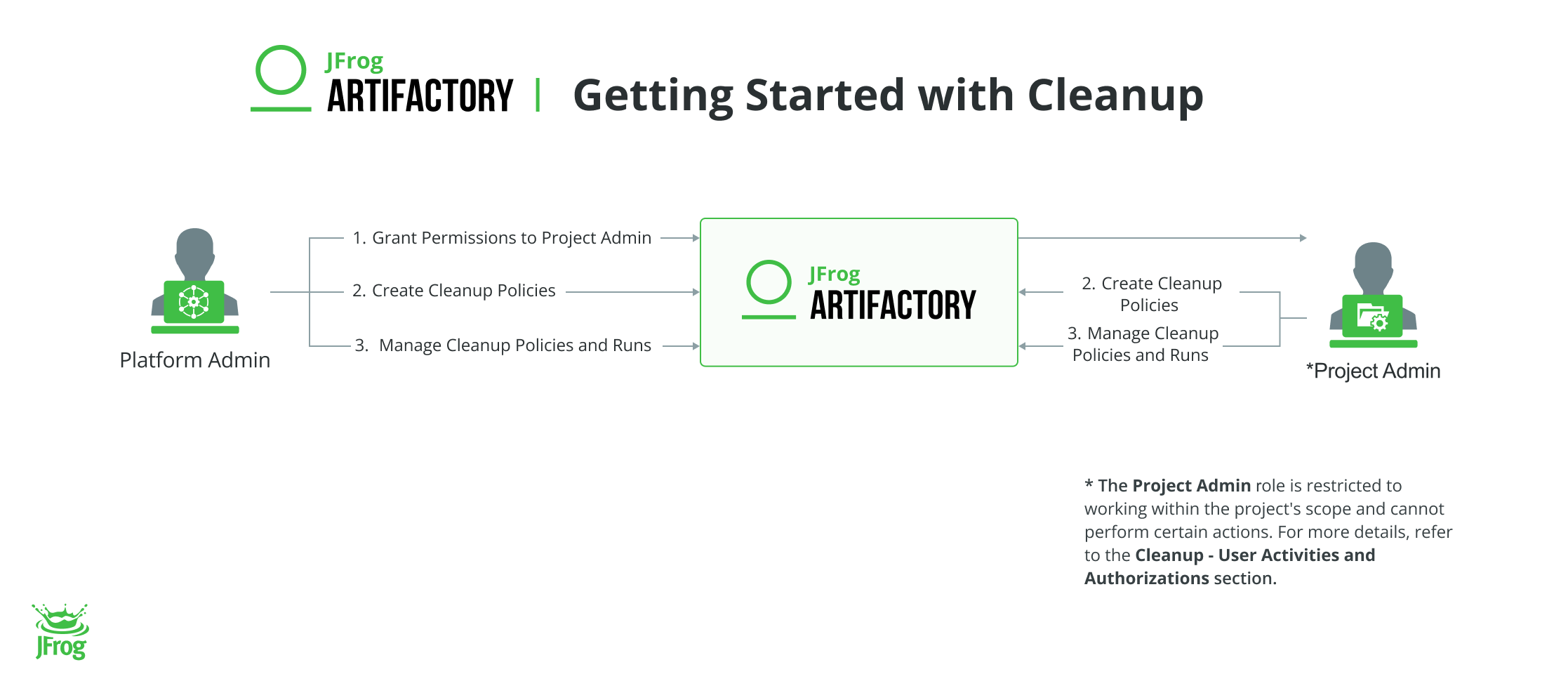
| Task | Description | Reference Links | |
|---|---|---|---|
| 1 | Grant Permission to a Project Admin to Create and Edit Cleanup Policies | This topic outlines how to grant permission to a project admin. Platform admins can enforce and manage cleanup policies across multiple projects or all projects on the JFrog platform and thereby gain full control over organizational storage management (Global Policies). Platform admins can also delegate permissions to Project admins to manage policies on their project scope only (Project Policies), and Project admins have visibility on Global Policies affecting their projects. | Grant Permission to a Project Admin |
| 2 | Work with Cleanup | This section outlines working with cleanup. It includes creating and managing cleanup policies and managing cleanup runs. | Work with Cleanup |
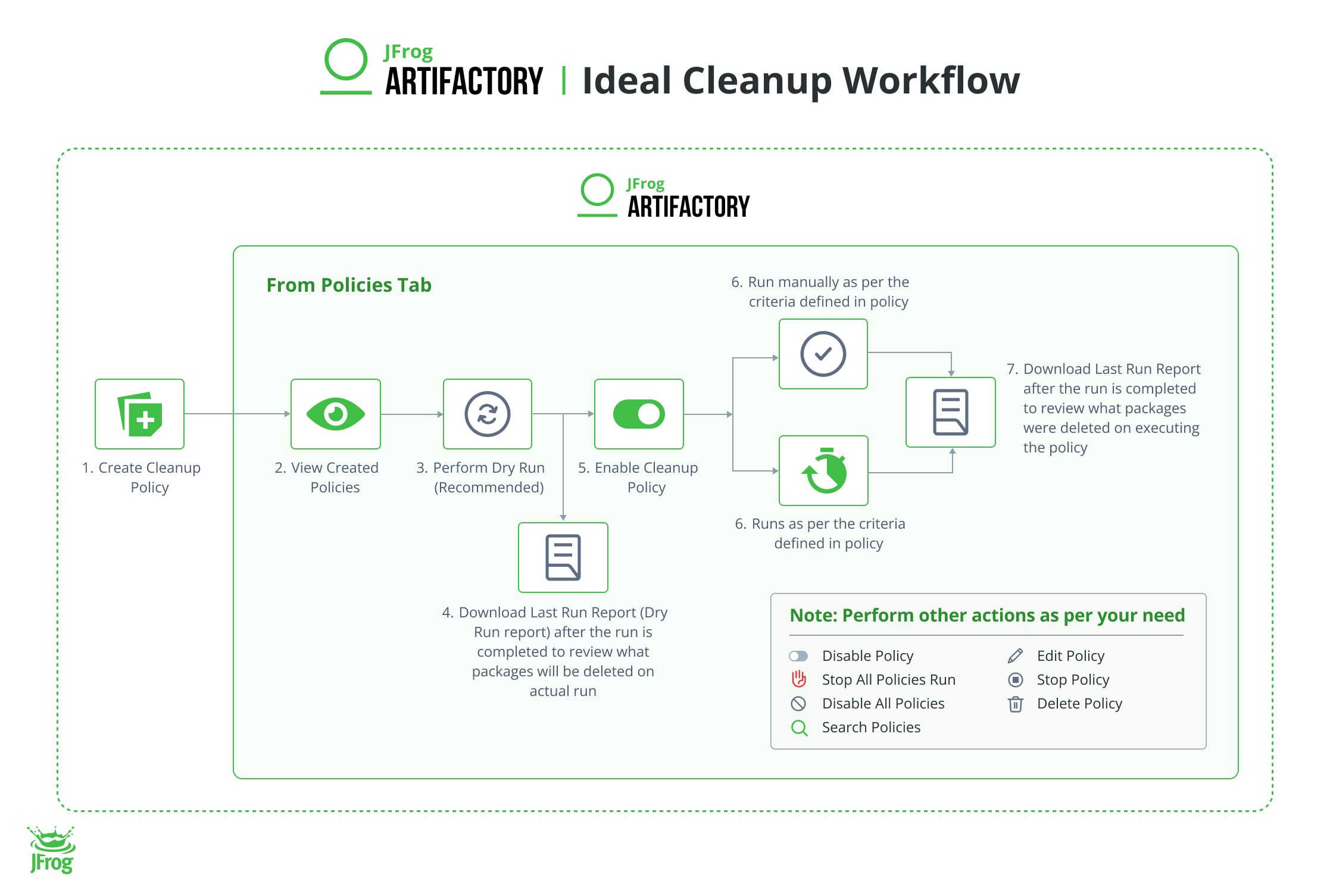
- Create Cleanup Policy
- View All Cleanup Policies
- Perform Dry Run Cleanup Policy
- Download Last Run Report Cleanup Policy
- Enable/Disable Cleanup Policy
- Run Cleanup Policy Manually
Cleanup - User Activities and Authorizations
This topic outlines cleanup user activities and their authorizations.
Grant Permission to Project Admin
| Activity | Platform Admin | Project Admin | Non-admin User |
|---|---|---|---|
| Grant Permission to a Project Admin | | | |
| Activity | Platform Admin | Project Admin | Non-admin User |
|---|---|---|---|
| Create Cleanup Policy | |
Note: Only from allocated projects | |
| Activity | Platform Admin | Project Admin Note: Applicable within the scope of your project context. | Non-admin User |
|---|---|---|---|
| Edit Cleanup Policy | | | |
| Enable/Disable Cleanup Policy | | | |
| Perform Dry Run Cleanup Policy | | | |
| Run Cleanup Policy Manually | | | |
| Edit Cleanup Policy | | | |
| Stop a Running Cleanup Policy | | | |
| Delete Cleanup Policy | | | |
| Download Last Run Report Cleanup Policy | | | |
| Disable All Cleanup Policies |
Note: This option is shown from the Global Context only. | | |
| Search Cleanup Policy | | | |
| Stop All Cleanup Policy Runs |
Note: This option is shown from the Global Context only. | | |
| Activity | Platform Admin | Project Admin Note: Applicable within the scope of your project context. | Non-admin User |
|---|---|---|---|
| View All Cleanup Runs | | | |
| Stop All Cleanup Policy Runs | | | |
| Download and Review Cleanup Run Report | | | |
Depending on your role, you can perform the operations described in this section within the following contexts:
Global Context
Project Context
Grant Permission to a Project Admin
This topic outlines how to grant permission to a project admin. Platform admins can enforce and manage cleanup policies across multiple projects or all projects on the JFrog platform and thereby gain full control over organizational storage management (Global Policies). Platform admins can also delegate permissions to Project admins to manage policies on their project scope only (Project Policies), and Project admins have visibility on Global Policies affecting their projects.
Global Policy: For maintaining consistent cleanup policies across multiple projects, ensuring compliance and standardization.
- Scope: Applies to all packages across the entire Artifactory instance.
- Configuration: Set by platform administrators and affects all projects at global level.
Project Policy: For addressing unique cleanup policies for a project that differ from the global standard, allowing flexibility to project administrators.
- Scope: Applies to individual projects.
- Configuration: Set by project/platform administrators for specific needs and requirements of a project.
To grant permissions to project admins:
-
From the Administration module, click Projects.
-
In the Projects screen, select the project where you want to give permissions to the Project Admin.
The project details appear in read-only mode.
-
Click Edit Settings in the upper right of the project details screen.
-
Go to the section Project Admins, and then click Manage Resources.
-
Add the user to the project from the Users tab.
-
Click Save.
Work with Cleanup
This section outlines working with cleanup. It includes creating and managing cleanup policies and managing cleanup runs.
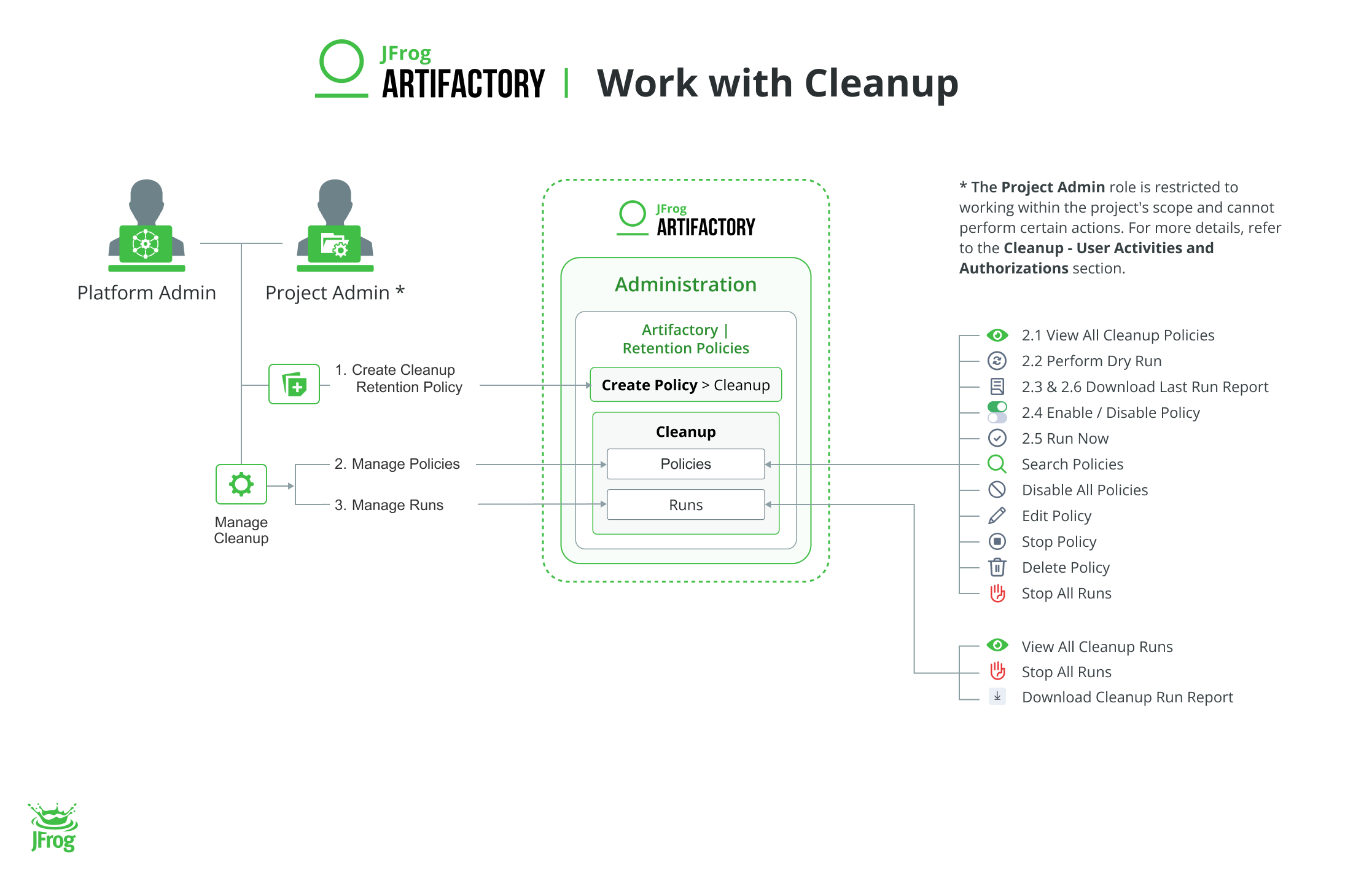
| Task | Description | For UI, see... | |
|---|---|---|---|
| 1 | Create Cleanup Policy | This topic outlines how to create a cleanup policy. You create a cleanup policy to delete unintended packages, builds and release bundles V2 in Artifactory. | Create Cleanup Policy |
| 2 | Manage Cleanup - Policies | This section outlines the actions you can perform on the Cleanup Policies in Artifactory. It includes enable/disable, search, manual run, dry run, edit, stop, delete, view and delete policies. | Manage Cleanup - Policies |
| 3 | Manage Cleanup - Runs | This section outlines the actions you can perform on the Cleanup Runs in the Artifactory. It includes view, stop all runs and downloading run reports. | Manage Cleanup - Runs |
Create Cleanup Policy
This topic outlines how to create a cleanup policy. You create a cleanup policy to delete unintended packages, builds and release bundles V2 in Artifactory.
| Task | Description | For UI, see... | For API, see... | For Terraform, see... |
|---|---|---|---|---|
| Create Cleanup Policy - Packages | This topic outlines how to create a cleanup policy. You create a cleanup policy to delete unintended packages in Artifactory. | Create Cleanup Policy - Package | Create a Package Cleanup Policy API | artifactory_package_cleanup_policy (Resource) |
| Create Cleanup Policy - Release Bundles V2 | This topic outlines how to create a cleanup policy. You create a cleanup policy to delete unintended Release Bundle V2 in Artifactory. | Create Cleanup Policy - Release Bundle V2 | Create a Release Bundle Cleanup Policy API | artifactory_release_bundle_v2_cleanup_policy (Resource) |
| Create Cleanup Policy - Builds | This topic outlines how to create a cleanup policy for builds. You create a cleanup policy to delete unintended builds in Artifactory. | Create Cleanup Policy - Build | Create Build Cleanup Policy API. |
Authorization
| Activity | Platform Admin | Project Admin | Non-admin User |
|---|---|---|---|
| Create Cleanup Policy | |
Note: Only from allocated projects | |
Create Cleanup Policy – Package
This topic outlines how to create a cleanup policy. You create a cleanup policy to delete unintended packages in Artifactory.
To create a Package Cleanup Retention policy:
-
From the Administrator module, select Artifactory > Retention Policies.
-
In the Retention Policies page, from the Create Policy dropdown list, click Cleanup Policy.

-
In the Create New Cleanup Policy page, select Package.

-
Configure the following in the Create New Cleanup Policy page:
| Field | Description |
|---|---|
| Policy Name | Enter a unique and meaningful name for the policy. |
| Description | Enter information regarding why this policy was created, and details that help users understand its configuration. |
Policy Scope Define what should be deleted. | |
| Include Stages / Include All Stages | Select the stages to which the policy should apply, or choose Include All Stages to run the policy across all stages on the platform. |
| Include Projects / Include All Projects |
|
| Package Types | Select one or more of the package types you want to delete.
|
| Include Repository Patterns |
|
| Exclude Repository Patterns | Enter one or more patterns or explicit repository names to exclude from the cleanup policy. Auto-complete will suggest options based on the project and package type.
|
| Include Path Patterns | (Optional) Enter one or more folder paths to include in the cleanup policy. Use this option to narrow the policy scope to specific repository paths within the defined repositories.
|
| Exclude Path Patterns | (Optional) Enter one or more folder paths to exclude from the cleanup policy. Use this option to include all packages within the defined repositories except for the packages whose path matches the exclude patterns.
|
| Include Package Name Pattern | Enter a pattern for a package name or an explicit package name for the cleanup policy, then click Add or select Include All Packages. Only one pattern or explicit name is allowed.
|
| Exclude Package Name | Enter explicit package names to exclude from the policy and click Add. Only explicit names are accepted and not patterns. |
| Include Package Version Pattern | Enter a pattern for a package version or an explicit package version for the cleanup policy.
Available from V 7.127 (SaaS) and V 7.125.7 (Self-managed). |
| Exclude Package Version Patterns | Enter explicit package version to exclude from the policy. Only explicit versions are accepted and not patterns. Available from V 7.127 (SaaS) and V 7.125.7 (Self-managed). |
Policy Conditions Define under what conditions the policy finds packages. | Select one or more conditions from the multi-select group. Time, property, and version criteria are evaluated using logical AND. The policy targets packages that meet all selected time and property conditions and fall outside the protected version history.
|
| Policy Condition Details | Select one or more of the following conditions:
Behavioral logic when multiple conditions are selected All selected conditions are evaluated together using logical AND:
prod=true, and Keep Last 5 Versions. The policy deletes only packages that are older than 12 months and have the property prod=true, and are not among the five most recent versions of their package. |
| Exclude based on property | Enable the checkbox and enter the property name and value applied to the lead artifact of a package. Packages with this property will be excluded from deletion. For more information, see Cleanup Supported Packages. |
| Settings | |
| Cron Expression | A cron expression is a string comprised of five or six fields separated by spaces. Each field represents a different unit of time, which collectively defines the schedule for policy execution. The standard format is as follows:
Example Cron Expression To illustrate how to construct a cron expression, consider the following example: Expression:0 0 2 * * ?
|
| Max Run Duration | This setting limits the maximum duration the policy can run when enabled. The maximum allowed duration is 5 hours.
|
| Skip Trash Can | When enabled, this setting will cause packages to be permanently deleted from the Artifactory instance without an option to restore them immediately after the cleanup policy is executed, bypassing the Trash Can repository.
|
-
Click Save to save the policy.
The newly created cleanup policy appears in the Policies list and executes on the scheduled date and time.
- Perform Dry Run Cleanup Policy: This feature allows you to see which items would be deleted without actually deleting them. We recommend performing a dry run and reviewing the results before enabling a policy.
- Enable/Disable Cleanup Policy: The policy must be enabled to run automatically according to the schedule or Run Cleanup Policy Manually manually.
Create Cleanup Policy – Release Bundle V2
This topic outlines how to create a cleanup policy. You create a cleanup policy to delete unintended Release Bundle V2 in Artifactory.
To create a Release Bundle V2 Cleanup Retention policy:
-
From the Administrator module, select Artifactory > Retention Policies.
-
In the Retention Policies page, from the Create Policy dropdown list, click Cleanup Policy.

-
In the Create New Cleanup Policy page, select Release Bundle V2.

-
Configure the following in the Create New Cleanup Policy page:
| Field | Description |
|---|---|
| Policy Name | Enter a unique and meaningful name for the policy. |
| Description | Enter information regarding why this policy was created, and details that help users understand its configuration. |
Policy Scope Define which Release Bundle versions should be deleted. | |
| Include Projects / Include All Projects |
|
| Include Release Bundles | Select one or more of the Release Bundles you want to delete. |
Policy Conditions Define under what conditions the cleanup policy removes Release Bundles versions. | |
| Release Bundle Versions Older Than | Apply the number of days/weeks/months/years for the older Release Bundles.
|
| Not Promoted To Environments | Select one or more of the environments where the release bundles are not promoted.
|
| Additional Settings | |
| Cron Expression | A cron expression is a string comprised of five or six fields separated by spaces. Each field represents a different unit of time, which collectively defines the schedule for policy execution. The standard format is as follows:
Example Cron Expression To illustrate how to construct a cron expression, consider the following example: Expression:0 0 2 * * ?
|
| Max Run Duration | This setting limits the maximum duration the policy can run when enabled. The maximum allowed duration is 5 hours.
|
-
Click Save to save the policy.
The newly created cleanup policy appears in the Policies list and executes on the scheduled date and time.
- Perform Dry Run Cleanup Policy: This feature allows you to see which items would be deleted without actually deleting them. We recommend performing a dry run and reviewing the results before enabling a policy.
- Enable/Disable Cleanup Policy: The policy must be enabled to run automatically according to the schedule or Run Cleanup Policy Manually manually.
Create Cleanup Policy – Build
This topic outlines how to create a cleanup policy for builds. You create a cleanup policy to delete unintended builds in Artifactory.
Removing a build deletes the build entity, build-info, and build artifacts. To exclude build artifacts from deletion, uncheck Delete Build Artifacts checkbox under Settings (It is checked by default).
To create a Build Cleanup Retention policy:
-
From the Administrator module, select Artifactory > Retention Policies.
-
In the Retention Policies page, from the Create Policy dropdown list, click Cleanup Policy.

-
In the Create New Cleanup Policy page, select Build.

-
Configure the following in the Create New Cleanup Policy page:
| Field | Description |
|---|---|
| Policy Name | Enter a unique and meaningful name for the policy. |
| Description | Enter information regarding why this policy was created, and details that help users understand its configuration. |
Policy Scope Define what should be deleted. | |
| Include Projects / Include All Projects |
|
| Include Build Patterns/Include All Builds | From the dropdown, select the build or choose Include All Builds to run the policy across all builds.
|
Policy Conditions Define under what conditions the policy finds builds. | |
| Builds older than | Specify the number of days/weeks/months/years for the older builds.
|
| Settings | |
| Delete Build Artifacts | Deletes the artifacts associated with the build.
|
| Cron Expression | A cron expression is a string comprised of five or six fields separated by spaces. Each field represents a different unit of time, which collectively define the schedule for policy execution. The standard format is as follows:
Example Cron Expression To illustrate how to construct a cron expression, consider the following example: Expression:0 0 2 * * ?
|
| Max Run Duration | This setting limits the maximum duration the policy can run when enabled. The maximum allowed duration is 5 hours.
|
| Skip Trash Can | When enabled, this setting will cause builds to be permanently deleted from Artifactory instance without an option to restore them immediately after the cleanup policy is executed, bypassing the Trash Can repository.
|
-
Click Save to save the policy.
The newly created cleanup policy appears in the Policies list and executes on the scheduled date and time.
- Perform Dry Run Cleanup Policy: This feature allows you to see which items would be deleted without actually deleting them. We recommend performing a dry run and reviewing the results before enabling a policy.
- Enable/Disable Cleanup Policy: The policy must be enabled to run automatically according to the schedule or Run Cleanup Policy Manually manually.
What Happens after the Cleanup Policy is Created?
This topic outlines what happens after a cleanup policy is created.
After the Cleanup policy has been defined and created:
-
Enabled cleanup policies execute on the scheduled date and time.
The cleanup policy can also be manually executed. For more information, see Run Cleanup Policy Manually.
Note
We recommend not to run more than 10 policies at the same time.
The Cleanup policy does not execute when an ongoing mandatory task is in progress (for example, Garbage Collection). If you want to manually Run Cleanup Policy Manually or Perform Dry Run Cleanup Policy, try at a later time.
- The system deleted the items, along with the associated metadata.
- As the cleanup process progresses, View All Cleanup Runs.
Manage Cleanup - Policies
This section outlines the actions you can perform on the Cleanup Policies in Artifactory. It includes enable/disable, search, manual run, dry run, edit, stop, delete, view and delete policies.
The following table lists all the possible actions on the policies and their equivalent links to REST API.
| Task | Description | For UI, see... | For API, see... |
|---|---|---|---|
| View All Policies | This section outlines how to view all cleanup policies. It guides you in reviewing key details such as the policy status, associated projects with the policy, timestamps for the last and next scheduled runs, last run status, actions performed on each policy, and options for customizing table columns. | View All Cleanup Policies | |
| Perform a Dry Run | This section outlines how to perform a dry run for a cleanup policy. A dry run lets you preview which items will be deleted based on your defined policy criteria, without performing the actual deleting. This helps you understand the potential outcome before executing the policy. After the dry run, a CSV report is generated, listing all items that would be deleted along with relevant details. Review this list to decide whether to proceed with the policy or adjust the settings. | Perform Dry Run Cleanup Policy | |
| Download the Last Run Report | This section outlines how to download the last run report. The report is in CSV format and lists all deleted items with relevant information. You can review the list to learn about the deleted items. | Download Last Run Report Cleanup Policy | Download Cleanup Policy Run Report |
| Enable/Disable Policy | This topic outlines how to enable/disable a cleanup policy. By default, newly created cleanup policies are disabled. You must activate a policy before it can execute automatically according to the schedule or be triggered manually. | Enable/Disable Cleanup Policy | |
| Run Now | This topic outlines how to run a cleanup policy manually. In addition to the periodic automated execution of the cleanup policy that occurs if you enable the policy and set its Cron Expression, you can also manually run the cleanup policy at any time. | Run Cleanup Policy Manually | |
| Search Policies | This topic outlines how to search for cleanup policies to locate the desired policy easily. | Search Cleanup Policy | |
| Disable All Policies | This topic outlines how to disable all cleanup policies. As a Platform Admin, you can disable all policies globally, making them inactive. Once this is done, you can activate policies individually as needed. | Disable All Cleanup Policies | Disable All Cleanup Policies API |
| Edit Policy | This topic outlines how to edit a Cleanup policy. After the cleanup policy has been created, you can change the settings or cleanup criteria. | Edit Cleanup Policy | |
| Stop Policy | This topic outlines how to stop a running cleanup policy. For some reason, you may want to stop a running cleanup policy that is currently running before it finishes completion. | Stop a Running Cleanup Policy | Stop a Running Cleanup Policy API |
| Delete Policy | This topic outlines how to delete a Cleanup policy. If you decide that a cleanup policy is no longer needed, you can delete it. | Delete Cleanup Policy | |
| Stop All Runs | This topic outlines how to stop all cleanup policy runs. You can perform this action from the policies tab and runs tab. As a Platform Admin, you can stop all currently running policies. Once a policy run is stopped, it cannot resume from its last point. You must restart the policy from the beginning to rerun it. | Stop All Cleanup Policy Runs | Stop All Running Cleanup Policies API |
Authorization
| Activity | Platform Admin | Project Admin Note: Applicable within the scope of your project context. | Non-admin User |
|---|---|---|---|
| Edit Cleanup Policy | | | |
| Enable/Disable Cleanup Policy | | | |
| Perform Dry Run Cleanup Policy | | | |
| Run Cleanup Policy Manually | | | |
| Edit Cleanup Policy | | | |
| Stop a Running Cleanup Policy | | | |
| Delete Cleanup Policy | | | |
| Download Last Run Report Cleanup Policy | | | |
| Disable All Cleanup Policies |
Note: This option is shown from the Global Context only. | | |
| Search Cleanup Policy | | | |
| Stop All Cleanup Policy Runs |
Note: This option is shown from the Global Context only. | | |
View All Cleanup Policies
This section outlines how to view all cleanup policies. It guides you in reviewing key details such as the policy status, associated projects with the policy, timestamps for the last and next scheduled runs, last run status, actions performed on each policy, and options for customizing table columns.
To view all the Cleanup policies:
-
From the Administration module, select Artifactory > Retention Policies.
-
In the Retention Policies page, click Cleanup.
-
Under the Policies tab, you can view all the policies.
Cleanup Policy Table Fields
The following table describes the columns of the cleanup policy table fields.
| Field | Description |
|---|---|
| Policy Name | Indicates the name of the policy. |
| Object Type | Indicated the type of object. It can be Packages or Release Bundles. |
| Global | Indicates whether it is a global policy. Global Policy may affect multiple projects. It can be managed by a Platform Admin on the Global Scope only. |
| Project | Indicates the name of the project. Note: Unassigned Repos: Only repositories not assigned to a project will be affected. |
| Last Run Status | Indicates the status of each policy execution, which can be one of the following:
|
| Last Run | Indicates when the last run was executed. |
| Next Run | Indicates the next scheduled run. |
| Enabled | Indicates whether the policy is enabled or disabled:
|


More Actions
From the more icon you can perform various actions on the policies. The actions are as follows:
| Icon | Action | Description |
|---|---|---|
 | Run Now | Manually run the enabled policy. |
 | Perform a Dry Run | Review which packages will be deleted on the actual run. |
 | Edit | Edit the policy to make necessary changes |
 | Stop | Stop a running policy |
 | Download Last Report | On completing the run, download the last run report based on the Last Run Status to review:
|
 | Delete | Delete the policy from the system. |
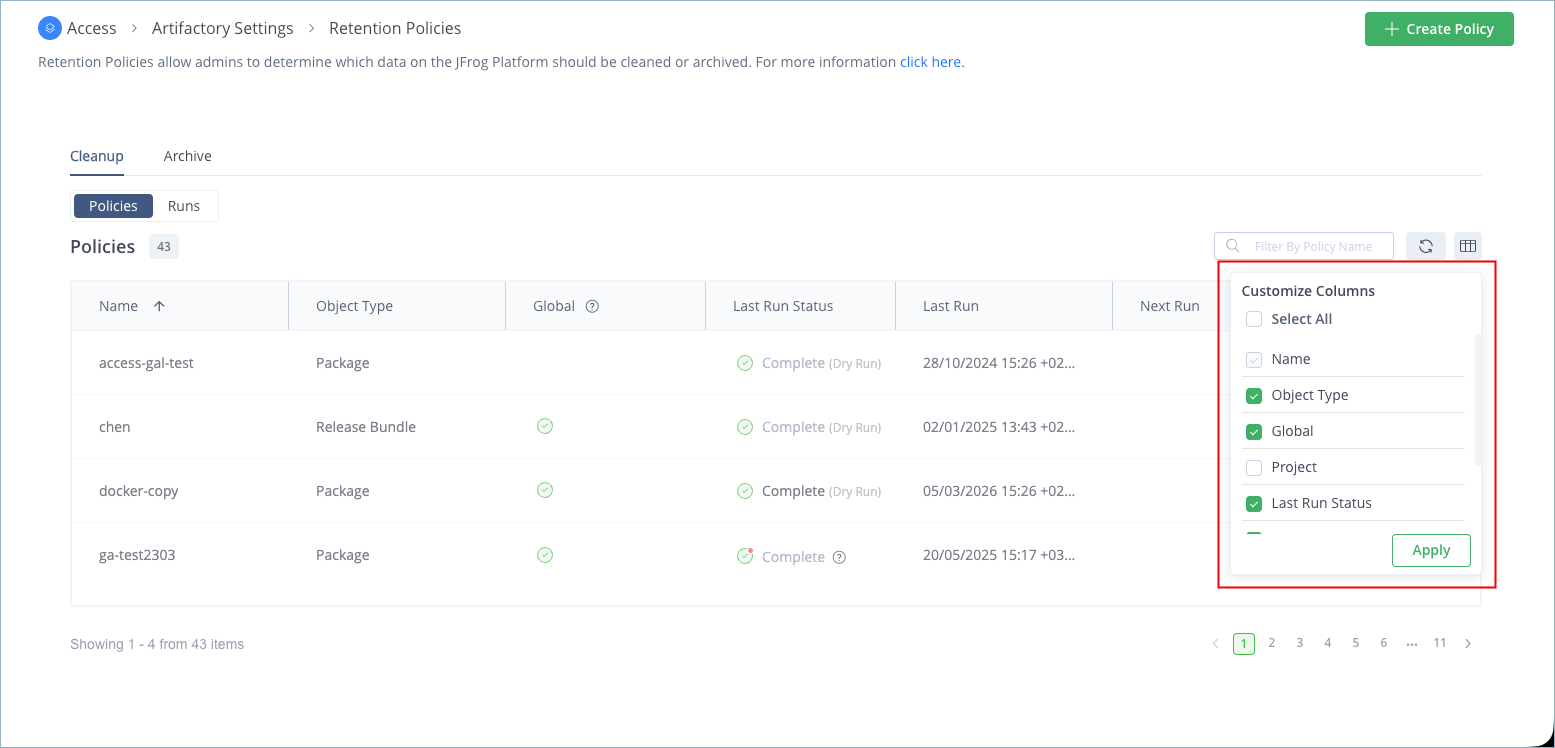
Customize Table Columns
Arrange the table columns according to how you want to view them.
To display and arrange the columns:
-
From the Table header, click the Customize Columns at the end.
-
Select which columns to display in the Customize Columns pop-up and drag and drop to reorder them.
-
Click Apply.
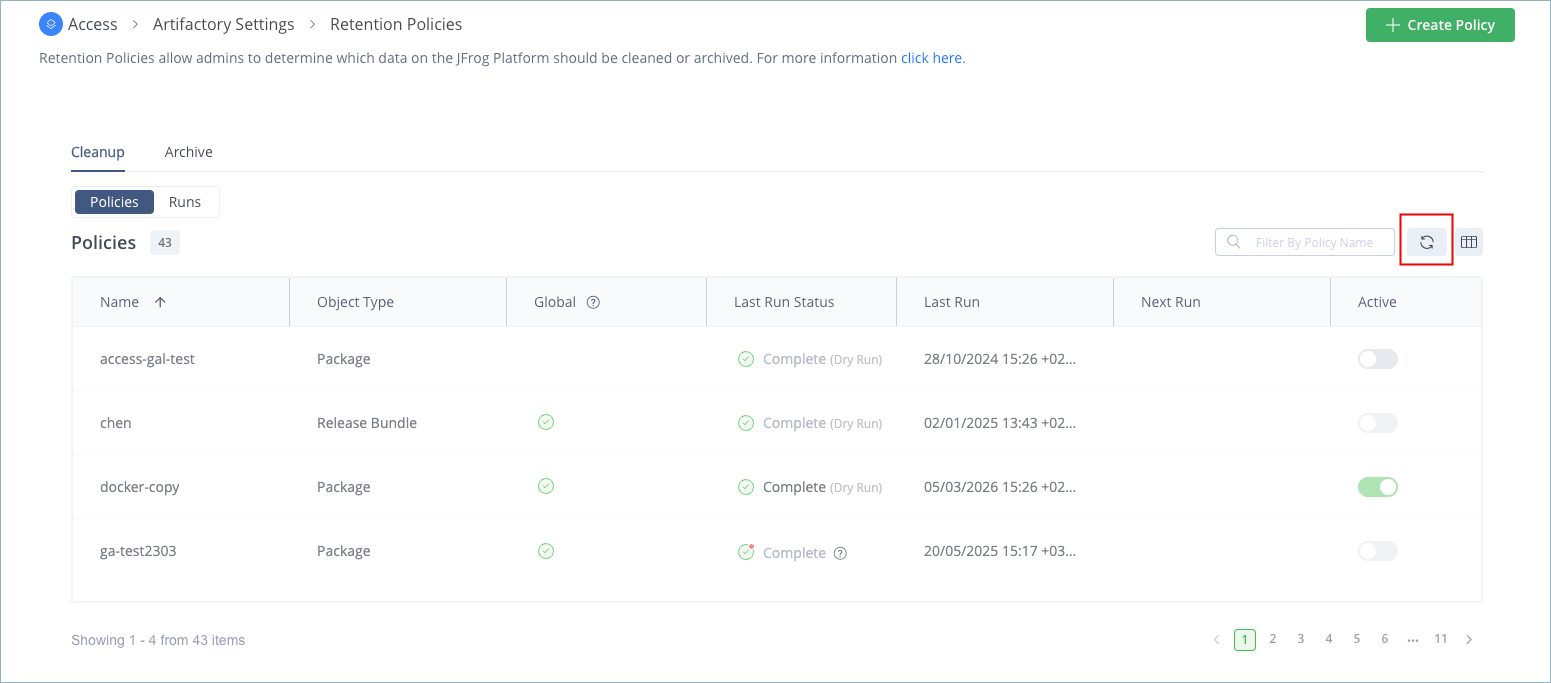
Refresh Policies
To refresh policies, click the Refresh icon in the top-right corner of the table header.
Search Cleanup Policy
This topic outlines how to search for cleanup policies to locate the desired policy easily.
To search the Cleanup policy:
-
From the Administration module, select Artifactory > Retention Policies.
-
In the Retention Policies page, click Cleanup.
-
Click the Policies tab, enter the policy name in the Search field, and then press enter on the keyboard.
Perform Dry Run Cleanup Policy
This section outlines how to perform a dry run for a cleanup policy. A dry run lets you preview which items will be deleted based on your defined policy criteria, without performing the actual deleting. This helps you understand the potential outcome before executing the policy. After the dry run, a CSV report is generated, listing all items that would be deleted along with relevant details. Review this list to decide whether to proceed with the policy or adjust the settings.
Note
- We recommend performing a dry run and reviewing the results before activating a policy to prevent unintended deletion.
- Dry run results reflect the specific point in time when the dry run is performed. The results of an actual policy execution may differ, as it occurs at a later scheduled time.
To perform a dry run for the Cleanup policy:
-
From the Administration module, select Artifactory > Retention Policies.
-
In the Retention Policies page, click Cleanup.
-
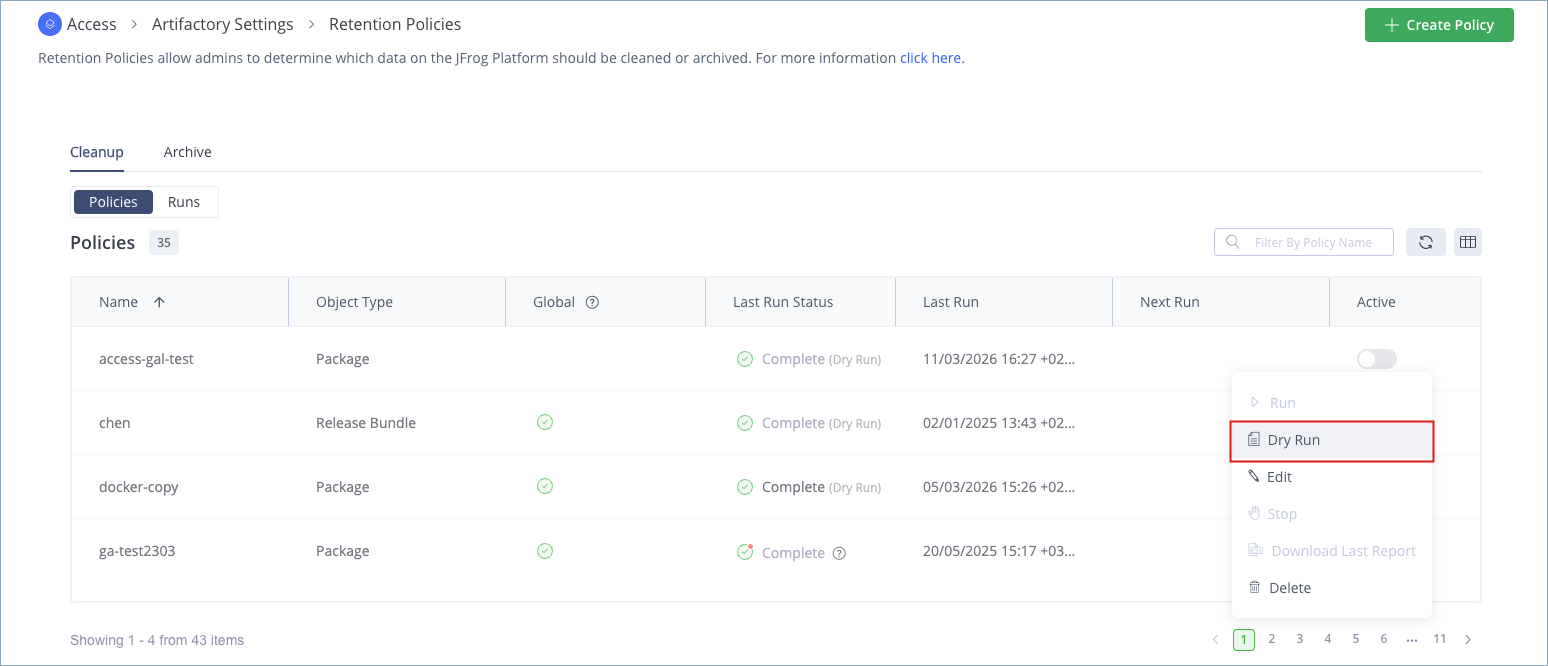
From the Policies tab, under Policies, locate the policy you want to run, click the ••• icon and then click Dry Run.
-
After the dry run is completed:
- Download the report from Download Last Run Report Cleanup Policy or Download and Review Cleanup Run Report.
- Review its status report, as explained in Cleanup Run Report Overview.
Enable/Disable Cleanup Policy
This topic outlines how to enable/disable a cleanup policy. By default, newly created cleanup policies are disabled. You must activate a policy before it can execute automatically according to the schedule or be triggered manually.
Note
We recommend that you first perform a dry run and review its results before you enable a policy. This helps prevent unintended deletion. For more information, see Perform Dry Run Cleanup Policy.
The following actions can be performed on a disabled policy:
To Enable or Disable the Cleanup policy:
-
From the Administration module, select Artifactory > Retention Policies.
-
In the Retention Policies page, click Cleanup.
-
From the Policies tab, under Policies, locate the policy you want to enable/disable, and then toggle the slider
 under the Active column.
Once enabled, the policy will run automatically based on the schedule you set during creation. You can also run it manually, as detailed in the Run Cleanup Policy Manually.
Disable All Cleanup Policies
This topic outlines how to disable all cleanup policies. As a Platform Admin, you can disable all policies globally, making them inactive. Once this is done, you can activate policies individually as needed.
Note
The option to disable all policies is not available to Project Admins.
To disable all the Cleanup policies:
Depending on your role, you can work with the following contexts:
- Global Context
Note
Applies to Platform Admin only.
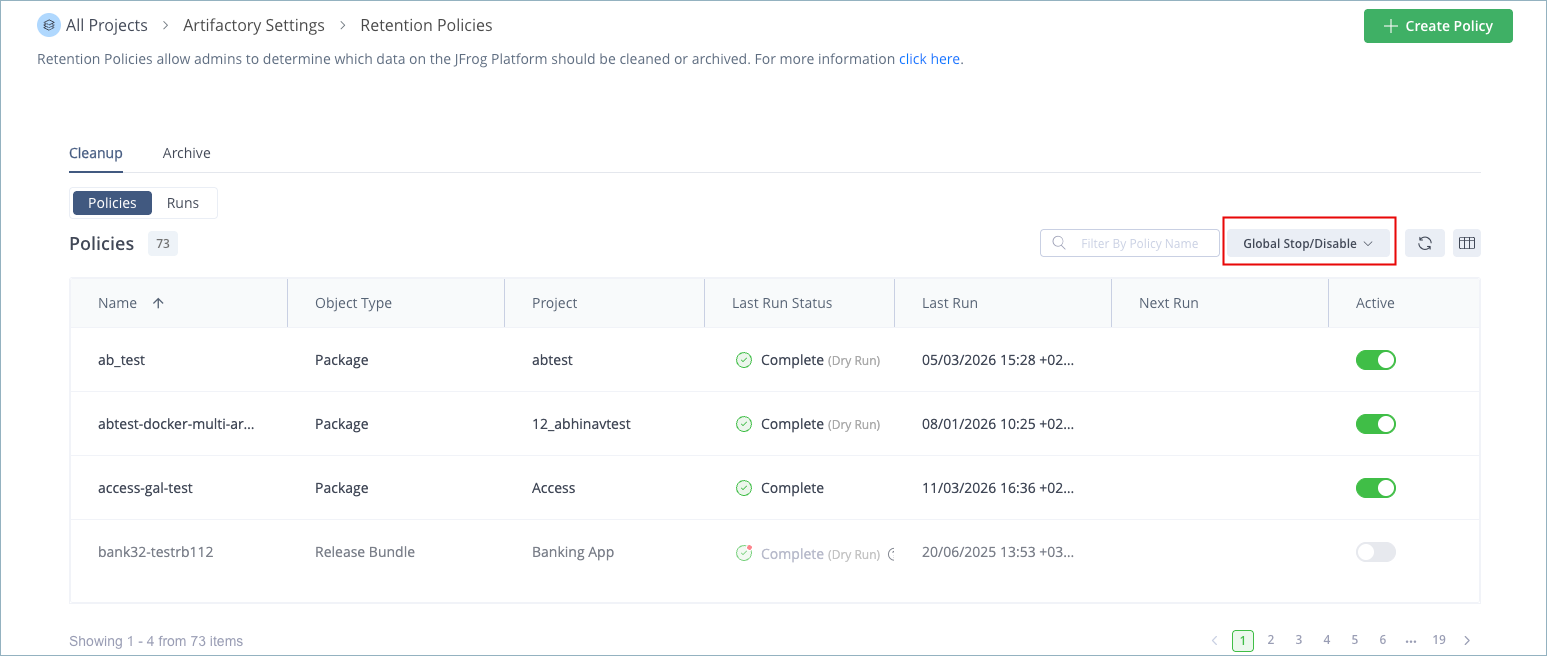
- From the Projects dropdown list, click All Projects.
Note
The Disable All Policies option can be viewed in the global context only.
-
From the Administrator module, click Artifactory Settings, and then click Retention Policies.
The Retention Policies page appears.
-
In the Retention Policies page, click Cleanup.
-
From the Policies tab, click Global Stop/Disable dropdown list, and then click Disable All Policies.
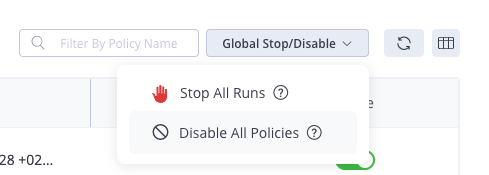
The Disable All Policies dialog appears.
-
In the Disable All Policies dialog, click Disable All Policies to confirm.
-
Check the Active column in the policies list to verify that all policies are now disabled.
Run Cleanup Policy Manually
This topic outlines how to run a cleanup policy manually. In addition to the periodic automated execution of the cleanup policy that occurs if you enable the policy and set its Cron Expression, you can also manually run the cleanup policy at any time.
Note
To manually run a cleanup policy, the policy must first be activated. For more information, see Enable/Disable Cleanup Policy.
To run the Cleanup policy manually:
-
From the Administration module, select Artifactory > Retention Policies.
-
In the Retention Policies page, click Cleanup.
-
From the Policies tab, under Policies, locate the policy you want to run, click ••• icon and then click Run.
-
After the run is completed:
- Download the completed report from Download Last Run Report Cleanup Policy or Download and Review Cleanup Run Report.
- Review downloaded report. For more information, see Cleanup Run Report Overview.
Download Last Run Report Cleanup Policy
This section outlines how to download the last run report. The report is in CSV format and lists all deleted items with relevant information. You can review the list to learn about the deleted items.
To download the report:
-
From the Administration module, select Artifactory > Retention Policies.
-
In the Retention Policies page, click Cleanup.
-
From the Policies tab, under Policies, locate the policy for which you want to download the report, click ••• icon, and then click Download Last Report.
A zip file is downloaded including one .csv file.
-
Review the downloaded report. For more information, see Cleanup Run Report Overview.
Stop a Running Cleanup Policy
This topic outlines how to stop a running cleanup policy. For some reason, you may want to stop a running cleanup policy that is currently running before it finishes completion.
Note
Once a policy has been stopped, it cannot resume from the point where it stopped. The only way to run the policy again is to restart it from the beginning.
To stop the running Cleanup policy:
-
From the Administration module, select Artifactory > Retention Policies.
-
In the Retention Policies page, click Cleanup.
-
From the Policies tab, under Policies, locate the policy you want to stop, click ••• icon and then click Stop.
-
In the Status column of Runs tab, the status changes to Stopped for that run.
Stop All Cleanup Policy Runs
Platform Admins can stop all currently running policies from both the Policies tab and the Runs tab. Once a policy run is stopped, it cannot resume from its last point. You must restart the policy from the beginning to rerun it.
Note
The option to stop all running policies is not available to Project Admins. The Stop All Runs option can be viewed in the global context only.
To stop all Cleanup policy runs:
-
From the Administrator module, select Artifactory Settings > Retention Policies.
-
The Retention Policies page appears.
-
In the Retention Policies page, click Cleanup.
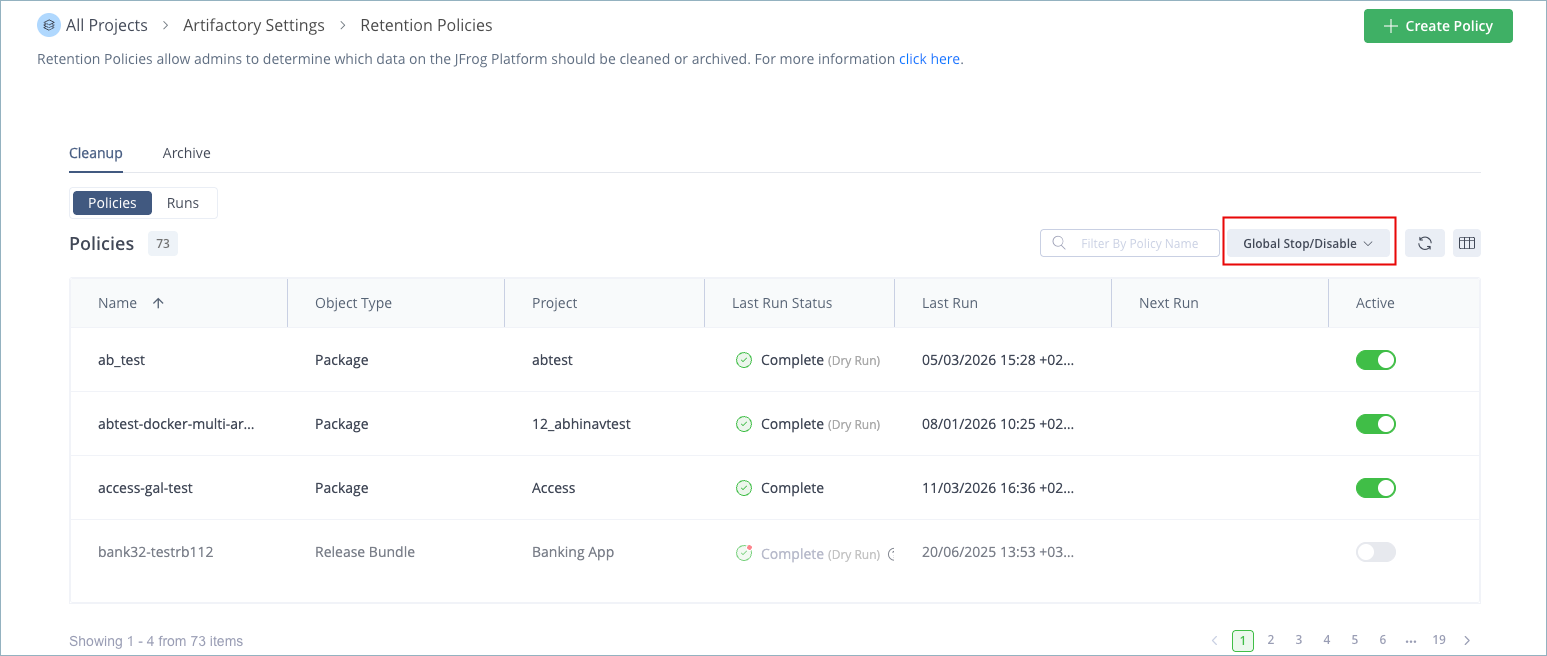
-
From the Policies tab, click Global Stop/Disable, and then click Stop All Runs.
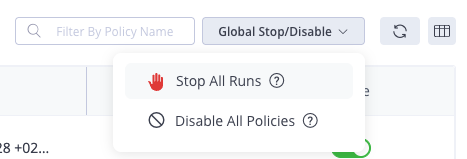
Stop All Runs dialog appears.
-
In the Stop All Runs dialog, click Stop All Runs to confirm.
To verify that all runs have stopped, under the Policies tab, check the Last Run Status column to ensure that all runs have stopped.
Edit Cleanup Policy
This topic outlines how to edit a Cleanup policy. After the cleanup policy has been created, you can change the settings or cleanup criteria.
Note
You cannot update a running policy. If you want to update a policy that is running, you need to either wait for the run to complete or Stop a Running Cleanup Policy.
To edit the Cleanup policy:
-
From the Administration module, select Artifactory > Retention Policies.
-
In the Retention Policies page, click Cleanup.
-
From the Policies tab, under Policies, locate the policy you want to edit, click ••• icon and then click Edit.
Edit
<Policy Name>Cleanup Policy page appears. -
In the
<Policy Name>Cleanup Policy page, update the settings as needed, and then click Save.
Delete Cleanup Policy
If you decide that a cleanup policy is no longer needed, you can delete it.
Note
You cannot delete a running policy. If you want to delete a running policy, you need to either wait for the run to complete or Stop a Running Cleanup Policy.
To delete the Cleanup policy:
-
From the Administration module, select Artifactory > Retention Policies.
-
In the Retention Policies page, click Cleanup.
-
From the Policies tab, under Policies, locate the policy you want to delete, click ••• icon and then click Delete.
The Delete Policy dialog appears.
-
In the Delete Policy dialog, click Delete to confirm.
The policy is deleted and removed from the Policies list.
Manage Cleanup - Runs
This section outlines the actions you can perform on the Cleanup Runs in the Artifactory. It includes view, stop all runs and downloading run reports.
| Task | Description | For UI, see... | For API, see... |
|---|---|---|---|
| View All Cleanup Runs | This section outlines how to view the status of both past and ongoing cleanup runs. It provides guidance on how to review specific details, including the items that have been deleted, the associated timestamps, the status of each cleanup operation, customizing table columns, and applying filters to view the desired information. | View All Cleanup Runs | NA |
| Stop All Cleanup Policy Runs | This topic outlines how to stop all cleanup policy runs. You can stop all currently running policies. Once a policy run is stopped, it cannot resume from its last point. You must restart the policy from the beginning to rerun it. | Stop All Cleanup Policy Runs | Stop All Running Cleanup Policies API |
| Download and Review Cleanup Run Report | This section outlines how to download a cleanup run report. The report is in CSV format and lists all deleted items with relevant information. You can review the list to learn about the deleted items. | Download Cleanup Policy Run Report |
Authorization
| Activity | Platform Admin | Project Admin Note: Applicable within the scope of your project context. | Non-admin User |
|---|---|---|---|
| View All Cleanup Runs | | | |
| Stop All Cleanup Policy Runs | | | |
| Download and Review Cleanup Run Report | | | |
View All Cleanup Runs
This section outlines how to view the status of both past and ongoing cleanup runs. It provides guidance on how to review specific details, including the items that have been deleted, the associated timestamps, the status of each cleanup operation, customizing table columns, and applying filters to view the desired information.
To view the Cleanup policy runs:
-
From the Administration module, select Artifactory > Retention Policies.
-
In the Retention Policies page, click Cleanup.
-
From the Runs tab, under Runs, locate the Run Id you want to learn about it.
In this list, you can review a comprehensive history of executed cleanup policies, including the start time, number and physical size of deleted items, and run status. The list is sorted chronologically, with the most recent run at the top. For more information, see the following table for run statuses.
-
To view a report on a specific policy run, locate the run, and then click Report icon.
A zip file will be downloaded containing one or more .csv files. If the report is for a dry run, it will show the items that would be deleted in a real run. If it’s for an actual cleanup run, it will detail what was deleted.
Note
- Reports are created and stored in a dedicated repository called
jfrog-policy-reports-local. We recommend not deleting this repository to maintain a history of policy executions and their results. Deleting it will result in the loss of this history.- If no items are deleted (for a real run) or deleted (for a dry run), a report will not be generated.
- The number of previous runs included in the history is defined by the artifactory.policy.cleanup.nodes_cleaned.expiration.days system property. For more information, see Cleanup Policies System Properties.
Cleanup Runs Table Fields
The following table describes the columns of the cleanup runs table fields.
| Field | Description |
|---|---|
| Run ID | Indicates the number of the run id. |
| Global | Indicates the policy is applicable at the global level. Note Global Policy may affect multiple projects. It can be managed by a Platform Admin on the Global Scope only. |
| Project | Indicates the name of the project. |
| Object Type | Indicated the type of object. It can be Packages or Release Bundles. |
| Policy Name | Indicates the name of the policy. |
| Start Time | Indicates the date and time when the cleanup operation started running. |
| Cleaned Items (Physical Size) | The number of total deleted items, and the total items (The deleted size). |
| Status | Indicates the status of each policy execution, which can be one of the following:
|
| Report | Indicates the report download state as follows:
|
Customize Table Columns
Arrange the table columns according to how you want to view them.
To display and arrange the columns:
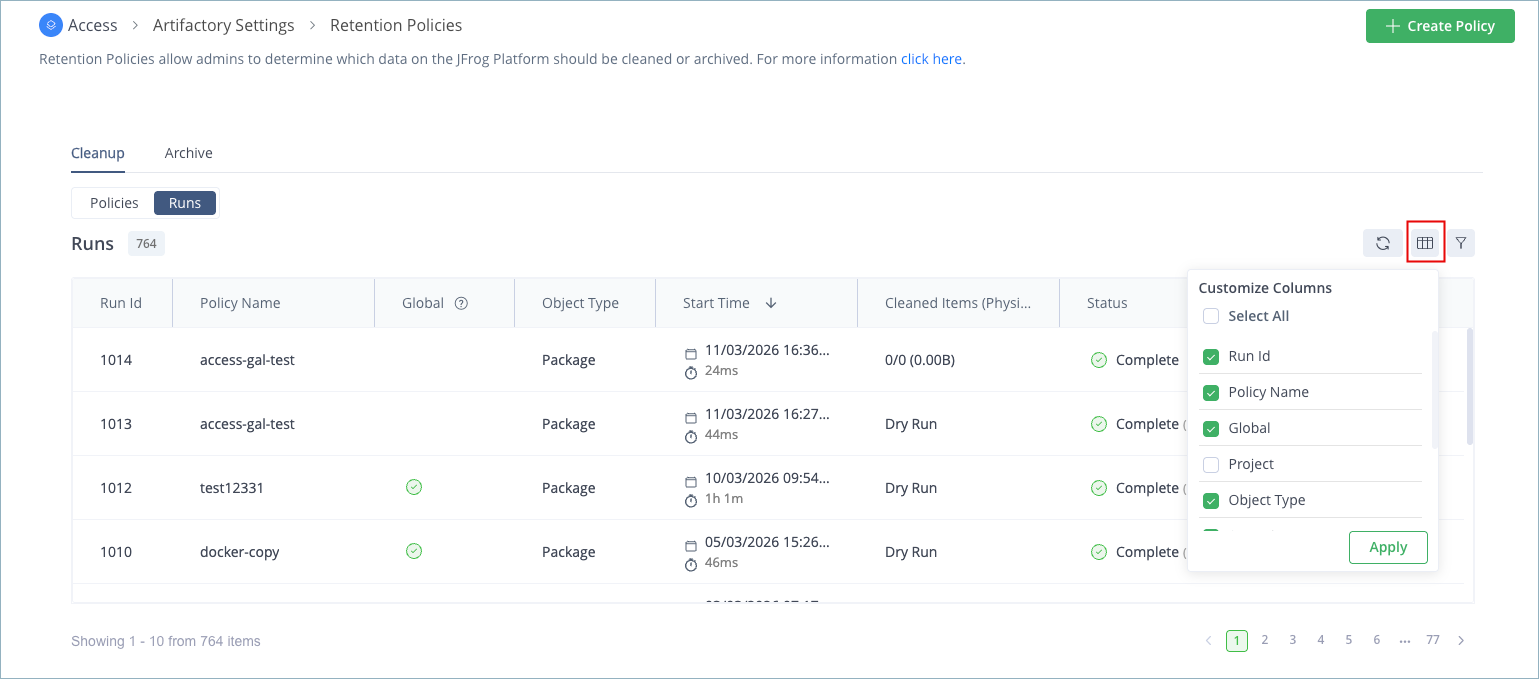
-
From the Table header, click Customize Columns icon at the end.
-
Select which columns to display in the Customize Columns pop-up and drag and drop to reorder them.
-
Click Apply.
Apply Filters to Sort Run Results
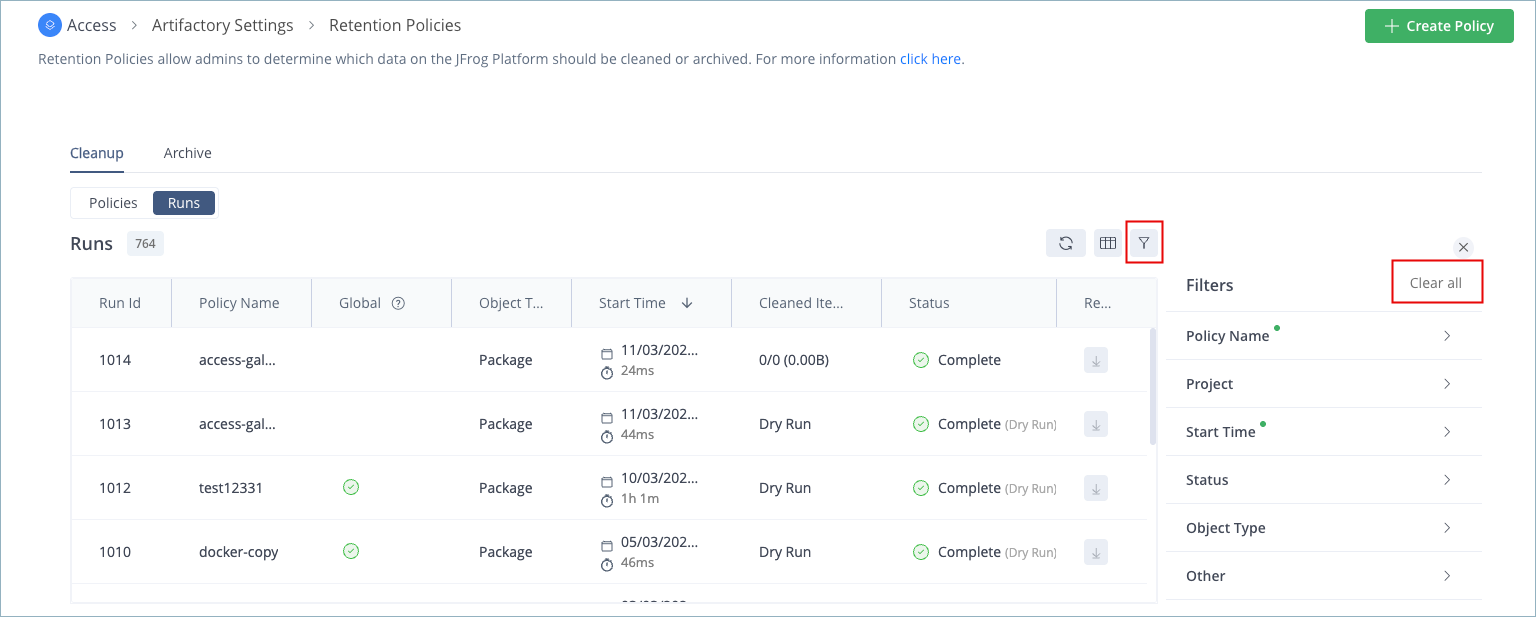
You can apply the filter to the run results to easily access your desired view.
To apply filters:
-
Click the Filter icon in the top-right corner of the table header.
-
Apply the following fields as you want to sort:
| Name | Description |
|---|---|
| Policy Name | Enter the name of the policy and choose the policy from the list. |
| Project | Enter the name of the project and choose the project from the list. |
| Start Time | Select from the dropdown list or customize the time range using the calendar. |
| Status | Select the run status from the available list. For more information on statuses, see Cleanup Runs Table Fields and the Status field. |
| Other | Select the available options as applicable. |
-
To remove applied filters, click Clear all.
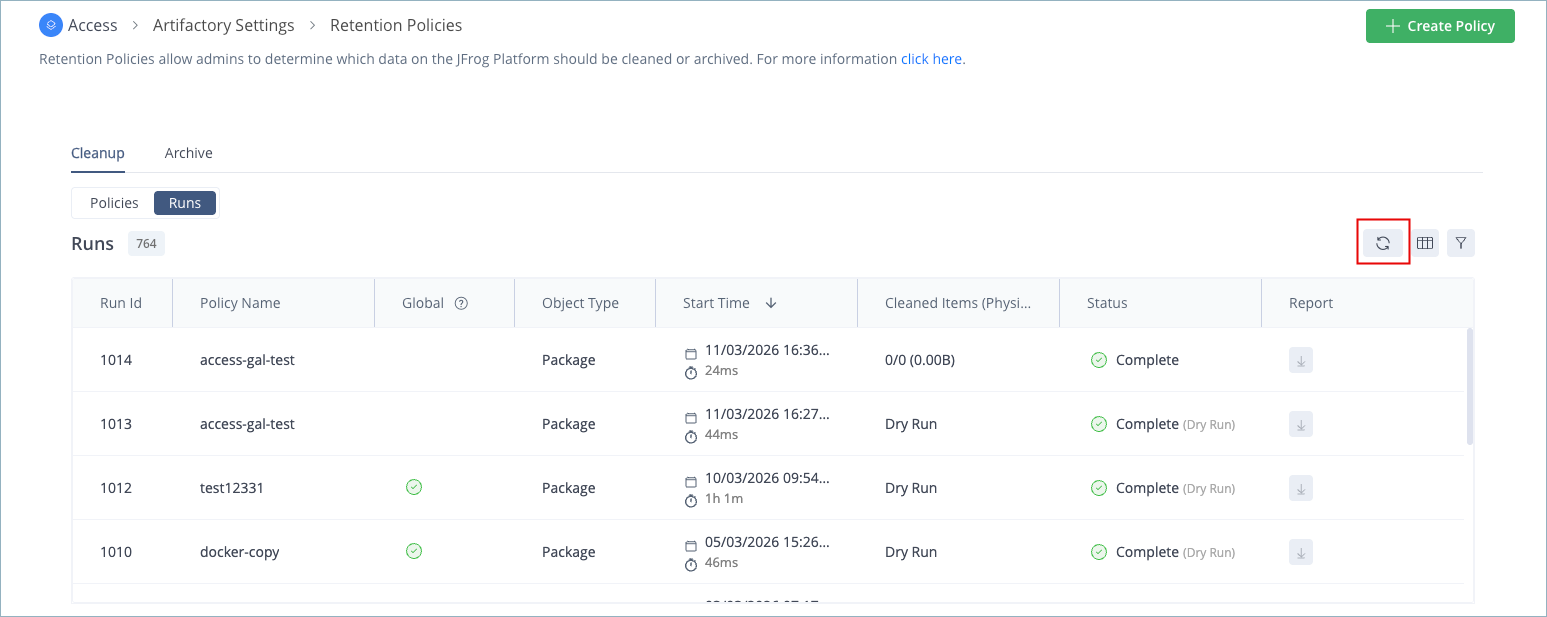
Refresh Cleanup Runs
If you don't see the latest created runs in the list, you can refresh the runs to view them.
To refresh runs, click the Refresh icon in the top-right corner of the table header.
Stop All Cleanup Policy Runs
This topic outlines how to stop all cleanup policy runs. You can perform this action from the policies tab and runs tab. As a Platform Admin, you can stop all currently running policies. Once a policy run is stopped, it cannot resume from its last point. You must restart the policy from the beginning to rerun it.
Note
The option to stop all running policies is not available to Project Admins. The Stop All Runs option can be viewed in the global context only.
To stop all Cleanup policy runs:
-
From the Administrator module, select Artifactory Settings > Retention Policies. The Retention Policies page appears.
-
In the Retention Policies page, click Cleanup.
-
From the Policies tab, click Global Stop/Disable, and then click Stop All Runs.
The Stop All Runs dialog appears.
-
In the Stop All Runs dialog, click Stop All Runs to confirm.
To verify that all runs have stopped, under the Policies tab, check the Last Run Status column to ensure that all runs have stopped.
Download and Review Cleanup Run Report
This section outlines how to download a cleanup run report. The report is in CSV format and lists all deleted items with relevant information. You can review the list to learn about the deleted items.
Note
The report is generated for both actual run and dry run.
To download the report:
-
From the Administration module, select Artifactory > Retention Policies.
-
In the Retention Policies page, click Cleanup.
-
From the Runs tab, under Runs, locate the run for which you want to download the report, and then click Download icon.
A zip file is downloaded including one .csv file.
Possible Download icon statuses are as follows:
| Icon | State | Description |
|---|---|---|
 | Enabled | Indicates the report is available for download. |
 | Hover | On hovering the mouse pointer, |
 | Selected | Indicates the download icon is clicked. |
 | Disabled | Indicates the report is not available. |
- Review the downloaded report. For more information, see Cleanup Run Report Overview.
Cleanup Run Report Overview
The downloaded CSV report provides a detailed summary of the cleanup process, including information on the policy used, the status of the run, and the items processed.
- Following are the package cleanup report fields:
| Field | Description |
|---|---|
| Run General Details | The general details of the cleanup run. |
cleanup run for <policy-name> <status> | The policy name and current status of the cleanup run. |
| isDryRun | Indicates whether the run was a dry run or an actual run.
|
| Run Start Time | The timestamp when the cleanup process started. |
| Duration | The total time taken for the cleanup process. |
| Run Summary | The summary of the cleanup run. |
| cleanup packages count | The total number of packages successfully deleted. |
| Total packages count | The total number of packages processed during the cleanup. |
| Packages virtual size | The virtual size of all deleted packages. |
| Packages physical size | The actual physical size of all deleted packages. |
| Policy Configuration For This Run | Indicates the configuration details of the policy. |
| Policy Key | The name of the cleanup policy used for this run. |
| Description | A description of the cleanup policy. |
| Cron Expression | The cron expression used to schedule the cleanup runs. |
| Max Run Duration | The maximum duration allowed for the policy to run. |
| Skip Trash Can | Indicates if the trash can was skipped during the cleanup.
|
| Created By | The user who created the policy. |
| Creation Time | The timestamp when the policy was created. |
| Last Modified By | The user who last edited the policy. |
| Last Modification Time | The timestamp when the policy was last edited. |
| Projects | The project name associated with the policy. |
| Included in Projects | The projects to which the policy is assigned. |
| Package Types | Indicates which projects the GLOBAL policy applies to. It includes: ALL: This option indicates that the policy is shared with all projects. This is selected when the "Include All Projects" checkbox is checked in the policy settings. N/A: This option indicates that the policy is not applicable to any specific projects. Note: Applicable for Global Policies only. |
| Included in Repositories | |
| Excluded from Repositories | The repositories not affected by the policy. |
| Include Package Name Pattern | The name pattern applied to select packages for deleting. |
| Exclude Package Name | The name pattern applied to exclude packages from deleting. |
| Age Condition (older than) | The age-based condition for selecting packages (for example, older than a specified time). |
| Usage Condition (not downloaded since) | The condition for selecting packages based on usage (for example, not downloaded since a certain date). |
| Version (keep last N) | The number of latest versions to retain for each package. Older versions of that package are deleted. |
| Run Detailed Summary | Indicates the detailed cleanup run summary:
|
- Following are the release bundle cleanup report fields:
| Field | Description |
|---|---|
| Run General Details | The general details of the cleanup run. |
cleanup run for <policy-name> <status> | The policy name and current status of the cleanup run. |
| isDryRun | Indicates whether the run was a dry run or an actual run.
|
| Run Start Time | The timestamp when the cleanup process started. |
| Duration | The total time taken for the cleanup process. |
| Run Summary | The summary of the cleanup run. |
| Cleaned release bundles count | The total number of cleaned release bundles. |
| Total release bundle count | The total number of release bundles processed during the cleanup. |
| Policy Configuration For This Run | Indicates the configuration details of the policy. |
| Policy Key | The name of the cleanup policy used for this run. |
| Description | A description of the cleanup policy. |
| Cron Expression | The cron expression used to schedule the cleanup runs. |
| Max Run Duration | The maximum duration allowed for the policy to run. |
| Created By | The user who created the policy. |
| Creation Time | The timestamp when the policy was created. |
| Last Modified By | The user who last edited the policy. |
| Last Modification Time | The timestamp when the policy was last edited. |
| Projects | The project name associated with the policy. |
| Included in Projects | The projects to which the policy is assigned. |
| Include Release Bundles Names | The names of the selected release bundles for deleting. |
| Age Condition (older than) | The age-based condition for selecting release bundles (for example, older than a specified time). |
| Not Promoted to Environments | The release bundle was not promoted to. |
| Run Detailed Summary | Indicates the detailed cleanup run summary.
|
- Following are the build cleanup report fields:
| Field | Description |
|---|---|
| Run General Details | The general details of the cleanup run. |
cleanup run for <policy-name> <status> | The policy name and current status of the cleanup run. |
| isDryRun | Indicates whether the run was a dry run or an actual run.
|
| Run Start Time | The timestamp when the cleanup process started. |
| Duration | The total time taken for the cleanup process. |
| Run Summary | The summary of the cleanup run. |
| cleanup builds count | The total number of builds successfully deleted. |
| Total builds count | The total number of builds processed during the cleanup. |
| Builds virtual size | The virtual size of all deleted builds. |
| Builds physical size | The actual physical size of all deleted builds. |
| Policy Configuration For This Run | Indicates the configuration details of the policy. |
| Policy Key | The name of the cleanup policy used for this run. |
| Description | A description of the cleanup policy. |
| Cron Expression | The cron expression used to schedule the cleanup runs. |
| Max Run Duration | The maximum duration allowed for the policy to run. |
| Skip Trash Can | Indicates if the trash can was skipped during the cleanup.
|
| Created By | The user who created the policy. |
| Creation Time | The timestamp when the policy was created. |
| Last Modified By | The user who last edited the policy. |
| Last Modification Time | The timestamp when the policy was last edited. |
| Selected Projects | The project name associated with the policy. |
| Include All Projects | The projects to which the policy is assigned. |
| Include Build Names | The name pattern applied to include builds for deleting. |
| Age Condition (older than) | The age-based condition for selecting builds (for example, older than a specified time). |
| Delete Build Artifacts | Indicates if the build artifacts are deleted. |
| Run Detailed Summary | Indicates the detailed cleanup run summary:
|
Cleanup Policies System Properties
The following properties can be configured in the Artifactory configuration file $JFROG_HOME/etc/artifactory/artifactory.system.properties.
| Parameter | Description | Default Value |
|---|---|---|
| artifactory.policy.cleanup.csv.file.max.records | The number of records per CSV report file. | 100,000 |
| artifactory.policy.cleanup.nodes_cleaned.expiration.days | The number of days that deleted artifacts are stored in the temp table that is used for reports (like debug info). | 30 |
| artifactory.policy.cleanup.nodes_cleaned.job.rate.days | The frequency (in days) at which the clean temp table job checks for expired deleted artifacts. | 10 |
| artifactory.policy.cleanup.concurrency.maxLevel | The maximum number of threads that can be used for a policy run. | 5 |
| artifactory.policy.cleanup.batchSize | The maximum number of packages that can be requested to be processed at one time. | 10,000 |
| artifactory.policy.cleanup.partition.size | The number of items in a group into which one batch is divided during processing. | 1,000 |
| artifactory.policy.cleanup.error.threshold.percent | The maximum percentage of errors that can occur in a one-run before the run is stopped. | 10 |
| artifactory.policy.cleanup.deleted.package.limit | The maximum number of packages that can be processed during one run. | 100,000 |
Updated 22 days ago