

Prometheus with Grafana
Subscription Information
This feature is supported on the Self-Hosted platform, with a Pro, Pro X, Enterprise X, or Enterprise+ license.
JFrog supports integration with Prometheus for log monitoring. The JFrog Log Analytics and Metrics solution using Prometheus consists of three segments,
- Prometheus - the component where metrics data gets ingested
- Loki - the component where log data gets ingested
- Grafana - the component where data visualization is achieved via prebuilt dashboards
Note
This version replaces all previous implementations. This version is not an in-place upgrade to the existing solution from JFrog but a full reinstall. Any dashboard customizations done on previous versions will need to be redone after this installation
Note
This guide assumes the implementer is performing a new setup. Changes to handle install in an existing setup are highlighted where applicable. If Prometheus is already installed and configured, we recommend to have the existing Prometheus release name handy. If Loki is already installed and configured, we recommend to have its service URL handy.
If Prometheus and Loki are already available, you can skip the installation section and proceed to the configuration section.
Prerequisites for Prometheus with Grafana
For Kubernetes Deployments:
-
Working and configured Kubernetes Cluster - Amazon EKS / Google GKE / Azure AKS / Docker Desktop / Minikube
- Recommended Kubernetes version 1.25.2 and above
- 'kubectl' utility on the workstation which is capable of connecting to the Kubernetes cluster
-
HELM v3 Installed
-
Versions supported and tested:
- Jfrog Platform: 10.9.2
- Artifactory: 7.46.10
- Xray: 3.59.4
- Prometheus: 2.39.1
- Grafana: 9.2.3
- Loki: 2.6.1
For Non-Kubernetes Deployments:
- A running instance of JFrog Artifactory.
- Root/Admin access to the server/VM where you intend to host the monitoring tools.
- Network connectivity between the monitoring server and the JFrog Platform.
Install Prometheus, Loki and Grafana
The Prometheus Community kube-prometheus-stack helm chart allows the creation of Prometheus instances and includes Grafana. The Grafana Community grafana helm chart allows the creation of Loki instances and includes Grafana that can link to Prometheus.
On Kubernetes:
Once the prerequisites are met, to install Prometheus Kubernetes stack:
Create the Namespace required for Prometheus Stack deployment
kubectl create namespace jfrog-plgWe will use jfrog-plg as the namespace throughout this document.
Install the Prometheus Chart
-
Add the required Helm Repositories:
helm repo add prometheus-community https://prometheus-community.github.io/helm-charts helm repo update -
Install the chart:
helm install "prometheus" prometheus-community/kube-prometheus-stack -n jfrog-plgWhere: "prometheus" is the value that needs to be used against the value for "release_name" in the configuration section.
For Docker Desktop, run this additional command to correct the mount path propagation for Prometheus node-exporter component. An error event will appear as follows "Error: failed to start container "node-exporter": Error response from daemon: path / is mounted on / but it is not a shared or slave mount".
kubectl patch ds prometheus-prometheus-node-exporter --type "json" -p '[{"op": "remove", "path" : "/spec/template/spec/containers/0/volumeMounts/2/mountPropagation"}]' -n jfrog-plgInstall the Loki Chart
-
Add the required Helm Repositories:
helm repo add grafana https://grafana.github.io/helm-charts helm repo update helm repo add loki https://grafana.github.io/loki/charts helm repo update -
Install the chart:
helm upgrade --install "loki" grafana/loki-stack -n jfrog-plgWhere:
- "loki" will be the service name. The url to access Loki as a datasource can be visualised as
http://<service_name>.<namespace>:<port>. Example:http://loki.jfrog-plg:3100will be the "loki_url" value. - --version v2.6.1 is the most recent Loki version at the time of writing the document. If there is a need to deploy this exact version, then add "--version v2.6.1" to the command line.
- "loki" will be the service name. The url to access Loki as a datasource can be visualised as
On Non-Kubernetes:
For Pro and Self-Hosted customers not using Kubernetes, we recommend installing Prometheus and Grafana using the official vendor packages. This ensures you have the latest stable versions compatible with your specific operating system (RPM, Debian, Windows, etc.).
- Install Grafana: Download and install Grafana for your OS by following the Official Grafana Installation Guide.
- Install Prometheus: Download and install Prometheus by following the Official Prometheus Installation Guide.
Prometheus with Grafana Configuration
The configuration that is needed before the JFrog products installation can take place are listed below:
From any of the value files for applying charts, that is in helm/jfrog-platform-values.yaml, helm/artifactory-values.yaml, helm/artifactory-ha-values.yaml or helm/xray-values.yaml download and provide the following values for global.prometheus.loki_url and global.prometheus.release_name as per the installation if Prometheus and Loki are already installed:
global:
   jfrog:
      observability:
         branch: master
   prometheus:
      loki_url: http:\/\/loki.jfrog-plg:3100
      release_name: prometheus
Configuration for Non-Kubernetes Support
If you installed Prometheus manually, you must configure it to scrape metrics from the JFrog Platform.
- Enable metrics: In the Artifactory
system.yamlfile, setshared.metrics.enabledtotrue, then restart Artifactory. For details, see Open Metrics. - Generate an access token: Log in to the JFrog Platform and generate an admin token or a scoped token with the
system:metrics:rscope. - Configure Prometheus: Locate your
prometheus.ymlfile (typically found in/etc/prometheus/on Linux). Add the Artifactory scrape job to thescrape_configssection.Replace
<YOUR_JFROG_ACCESS_TOKEN>and<YOUR_JFROG_PLATFORM_IP>with your actual details.scrape_configs: - job_name: 'jfrog_artifactory' metrics_path: '/artifactory/api/v1/metrics' bearer_token: '<YOUR_JFROG_ACCESS_TOKEN>' scheme: http static_configs: - targets: ['<YOUR_JFROG_PLATFORM_IP>:8081'] - Restart Prometheus: Restart the Prometheus service to apply the configuration change.
Prometheus with Grafana - JFrog Platform + Metrics via Helm
Ensure JFrog repo is added to helm.
helm repo add jfrog https://charts.jfrog.io
helm repo update
To configure and install JFrog Platform with Prometheus metrics being exposed use our file helm/jfrog-platform-values.yaml to expose a metrics and new service monitor to Prometheus.
JFrog Platform:
helm upgrade --install jfrog-platform jfrog/jfrog-platform \
       -f helm/jfrog-platform-values.yaml \
-n jfrog-plgNote
If you are installing in the same cluster with the deprecated solution, Use the same namespace as the previous one instead of jfrog-plg above.
Prometheus with Grafana - Artifactory / Artifactory HA + Metrics via Helm
For configuring and installing Artifactory Pro/Pro-x use the artifactory-values.yaml file.
For configuring and installing Enterprise/Ent+ use the artifactory-ha-values.yaml file.
You can apply them to your helm install examples below:
Artifactory:
helm upgrade --install artifactory jfrog/artifactory \
       --set artifactory.masterKey=FFFFFFFFFFFFFFFFFFFFFFFFFFFFFFFFFFFFFFFFFFFFFFFFFFFFFFFFFFFFFFFF \
       --set artifactory.joinKey=EEEEEEEEEEEEEEEEEEEEEEEEEEEEEEEE \
       -f helm/artifactory-values.yaml \
       -n jfrog-plg
If you are installing in the same cluster with the deprecated solution, Use the same namespace as the previous one instead of jfrog-plg above.
Artifactory-HA:
helm upgrade --install artifactory-ha jfrog/artifactory-ha \
       --set artifactory.masterKey=FFFFFFFFFFFFFFFFFFFFFFFFFFFFFFFFFFFFFFFFFFFFFFFFFFFFFFFFFFFFFFFF \
       --set artifactory.joinKey=EEEEEEEEEEEEEEEEEEEEEEEEEEEEEEEE \
       -f helm/artifactory-ha-values.yaml \
       -n jfrog-plg
If you are installing in the same cluster with the deprecated solution, Use the same namespace as the previous one instead of jfrog-plg above.
Note the above examples are only references you will need additional parameters to configure TLS, binary blob storage, or other common Artifactory features.
This will complete the necessary configuration for Artifactory. The values files in jfrog/log-analytics-prometheus create the ServiceMonitors that expose metrics to Prometheus:
- Pro and Pro X:
helm/artifactory-values.yamlcreatesservicemonitor-artifactoryandservicemonitor-observability. - Enterprise and Enterprise+:
helm/artifactory-ha-values.yamlcreatesservicemonitor-artifactory-haandservicemonitor-observability.
Prometheus with Grafana - Xray + Metrics via Helm
To configure and install Xray with Prometheus metrics being exposed use our file helm/xray-values.yaml to expose a metrics and new service monitor to Prometheus.
Xray:
helm upgrade --install xray jfrog/xray --set xray.jfrogUrl=http://my-artifactory-nginx-url \
       --set xray.masterKey=FFFFFFFFFFFFFFFFFFFFFFFFFFFFFFFFFFFFFFFFFFFFFFFFFFFFFFFFFFFFFFFF \
       --set xray.joinKey=EEEEEEEEEEEEEEEEEEEEEEEEEEEEEEEE \
       -f helm/xray-values.yaml \
       -n jfrog-plg
If you are installing in the same cluster with the deprecated solution, Use the same namespace as the previous one instead of jfrog-plg above.
Grafana Dashboard
Once Prometheus is connected to Grafana as a data source, you can import dashboards to visualize your data. JFrog provides pre-built dashboards for Kubernetes deployments only.
For Kubernetes:
Example dashboards are included in the grafana directory. These dashboards needs to be imported to the grafana. These include:
For Non-Kubernetes:
Dashboard compatibility
The Grafana dashboard linked in this section comes from the third-party Artifactory Exporter project. It is not designed for the native
/artifactory/api/v1/metricsendpoint. It queries legacyartifactory_*metrics, which the native endpoint does not expose. The native endpoint exposes metrics with prefixes that includejfrt_,jfsh_,jfbh_,http_, anddb_.
To visualize the metrics from the native endpoint, build a Grafana dashboard that queries these metrics. For the metrics that Artifactory exposes, see Open Metrics.
The JFrog dashboards in jfrog/log-analytics-prometheus are designed for Kubernetes deployments. They query jfrt_* metrics. They also need metrics from the /observability/api/v1/metrics endpoint, Loki logs, and a service label. This guide does not cover how to use these dashboards on non-Kubernetes installs.
If you want to use the dashboard from the third-party Artifactory Exporter instead, the exporter must generate the artifactory_* metrics that the dashboard queries. The /artifactory/api/v1/metrics scrape job in this guide does not produce them. The exporter is a community project that JFrog does not support or maintain. To import the exporter dashboard:
- Install and run the Artifactory Exporter, and add a Prometheus scrape job for it. For instructions, see the exporter README.
- Download the exporter Dashboard JSON.
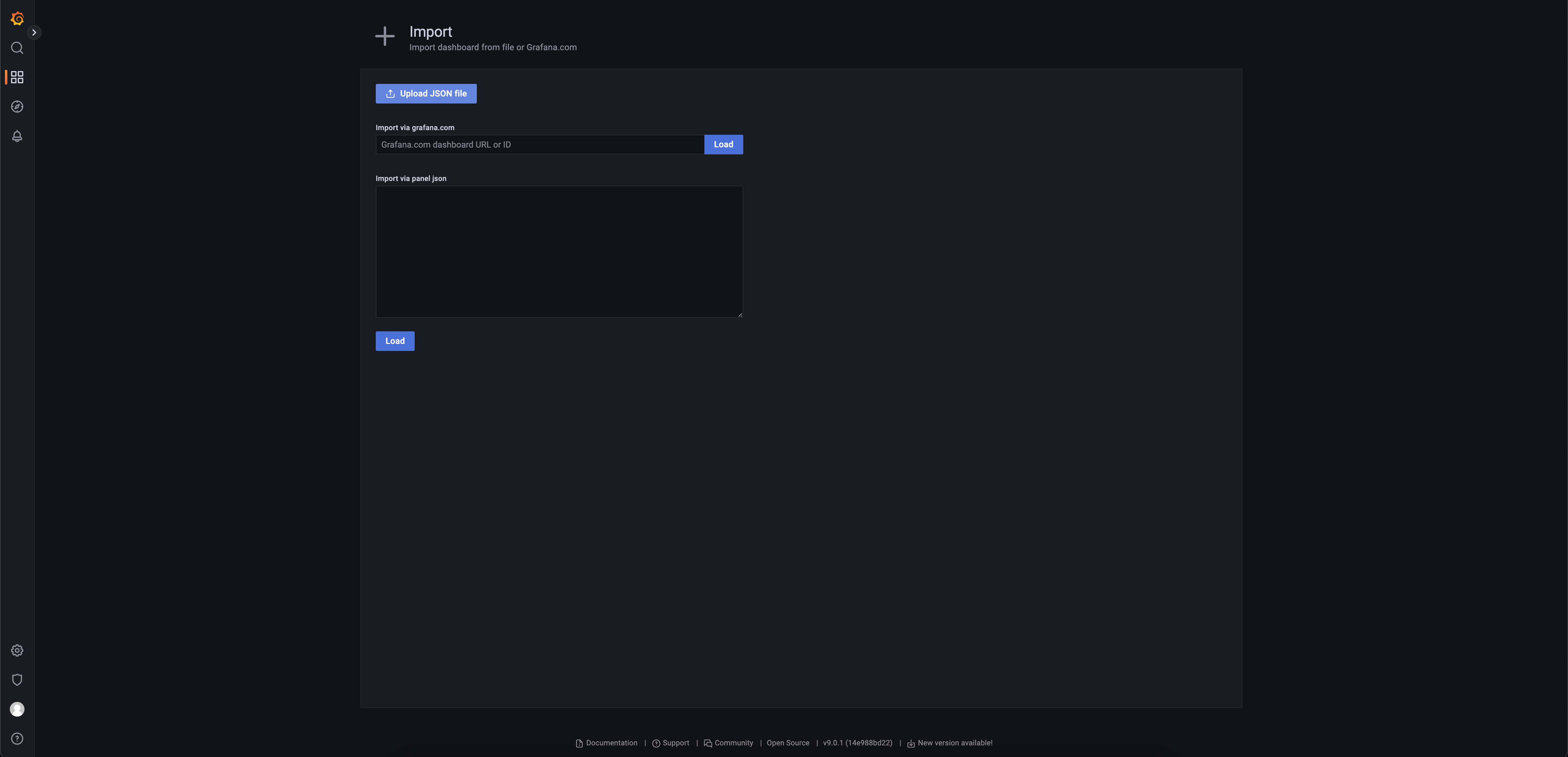
- Open Grafana and navigate to Dashboards > Import.
- Upload the JSON file or paste the JSON content.
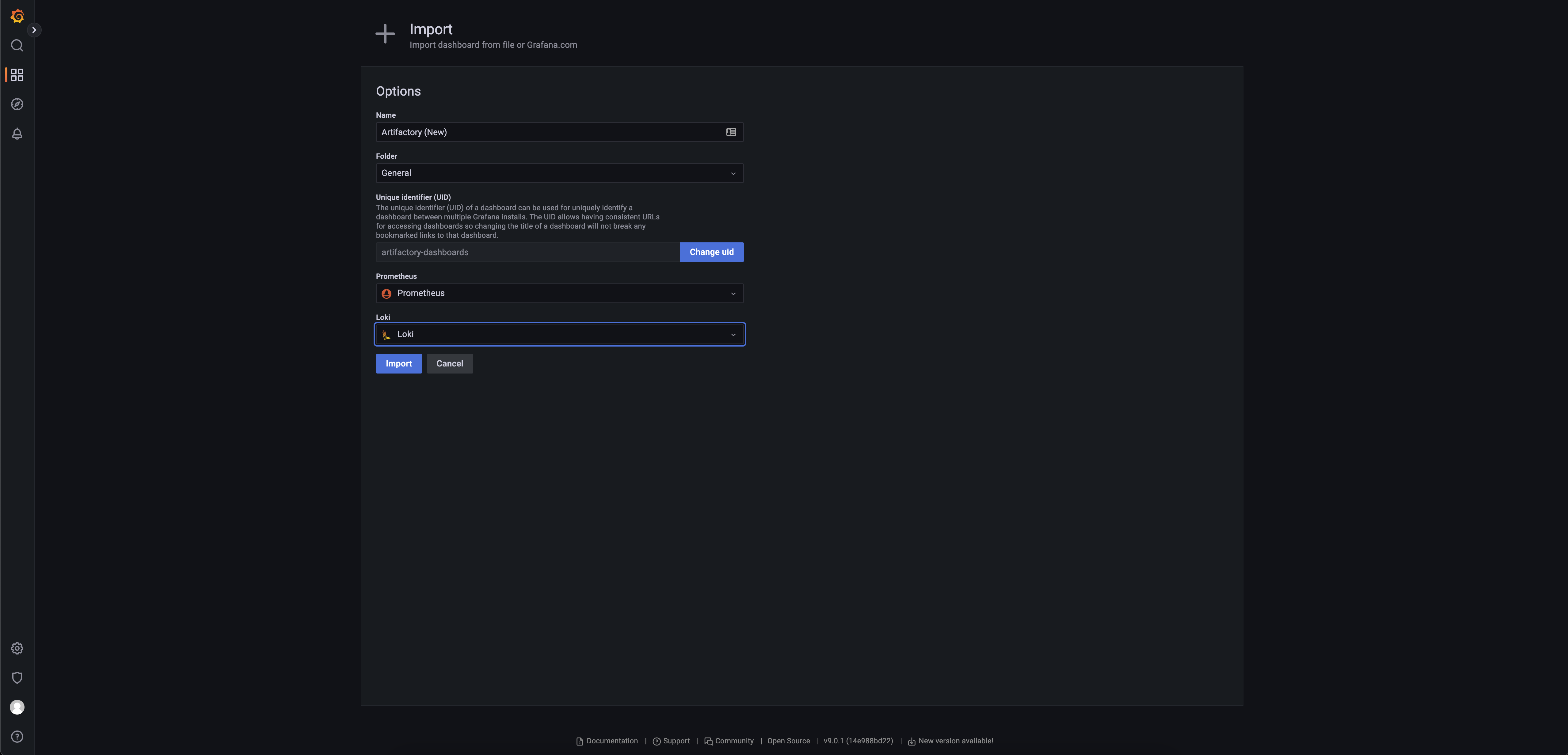
- Select the Prometheus data source that scrapes the exporter.
Assess the Prometheus with Grafana Setup
Use kubectl port forwards as mentioned in two terminal windows.
kubectl port-forward service/prometheus-operated 9090:9090 -n jfrog-plg
kubectl port-forward service/prometheus-grafana 3000:80 -n jfrog-plg-
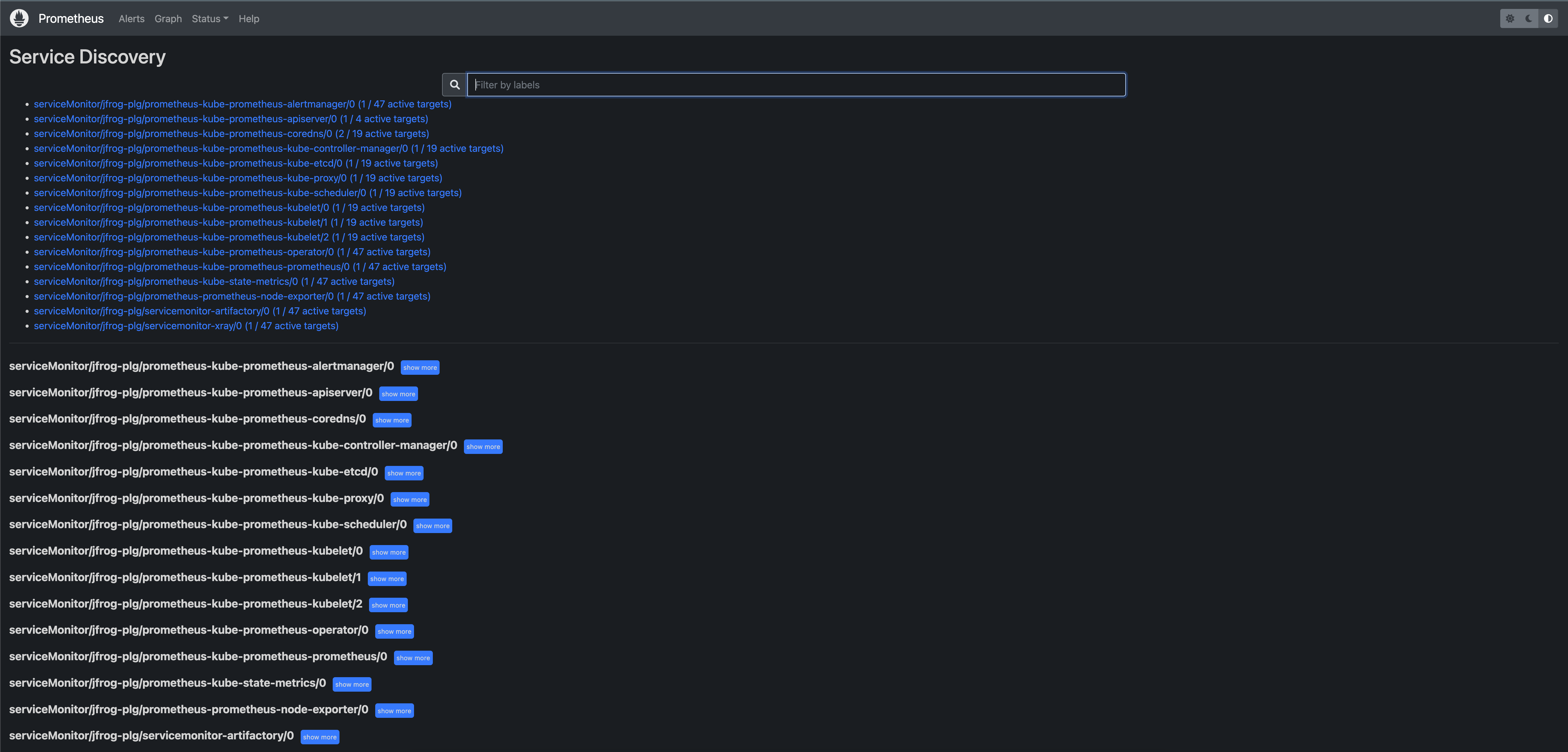
Go to the web UI of the Prometheus instance (for example, http://localhost:9090) and verify "Status -> Service Discovery", the list shows the new ServiceMonitor for Artifactory or Xray or Both.
-
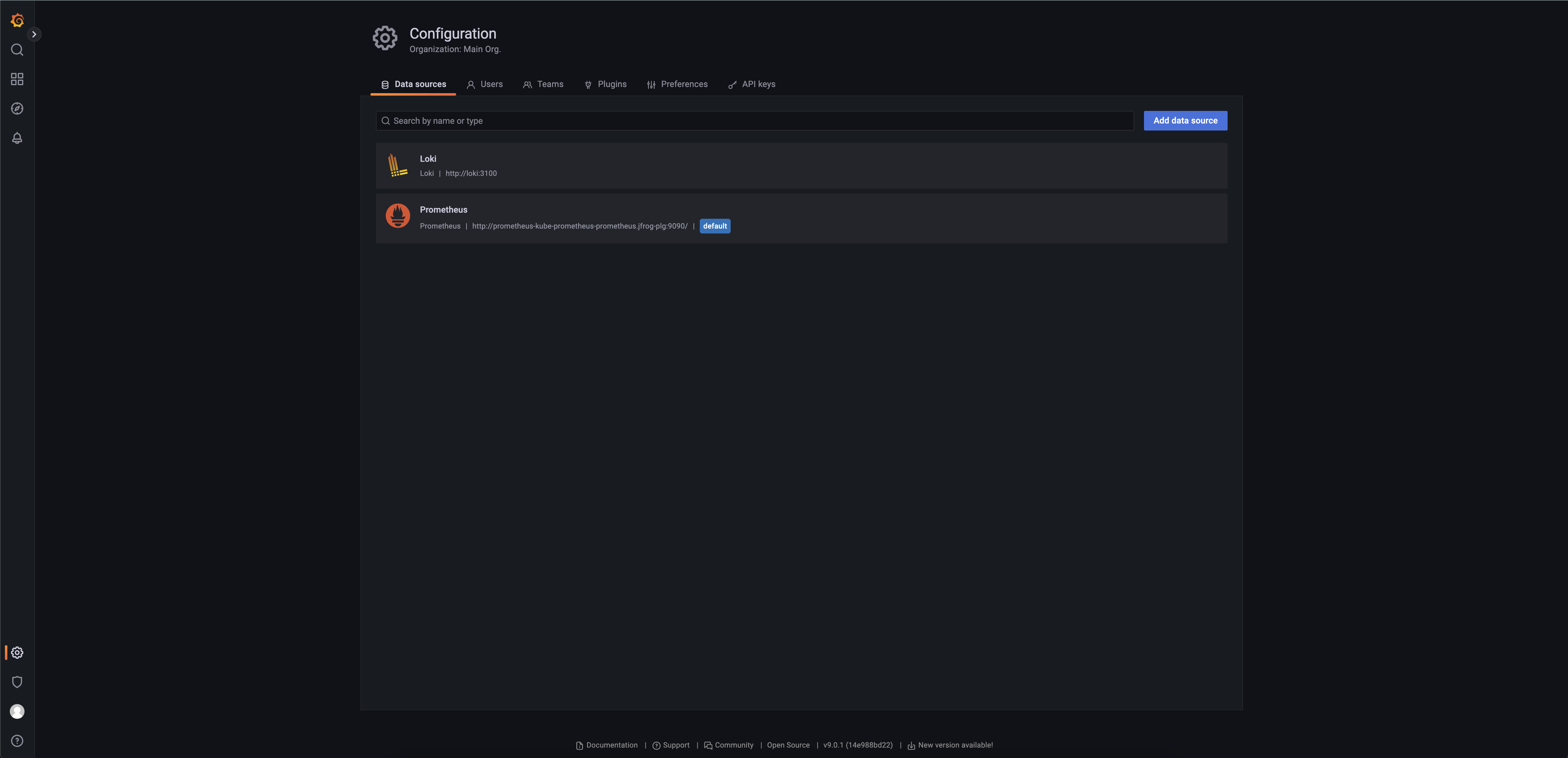
Go to Grafana "http://localhost:3000" to add your Prometheus instance and Loki Instance as a datasource.
While specifying datasource url for Loki and Prometheus,please test and confirm that the connection is successful.
For Loki, specify url value as http://loki:3100.
For Prometheus specify url value as 'http://prometheus-kube-prometheus-prometheus.jfrog-plg:9090/'.
You can get the url content from the command
kubectl get svc -n jfrog-plgDefault credentials (UNAME / PASSWD) for Prometheus grafana is -> "admin" / "prom-operator"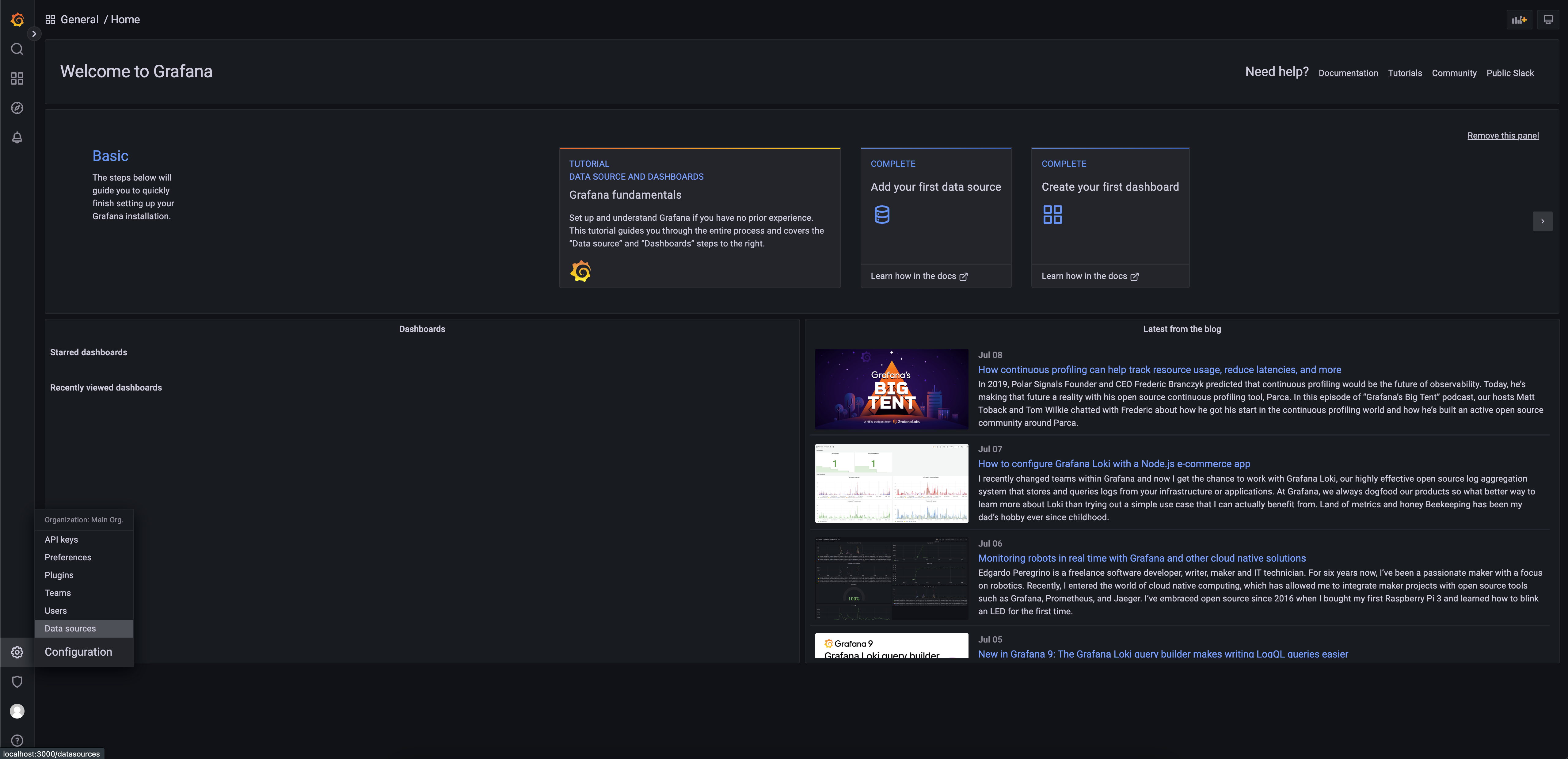
-
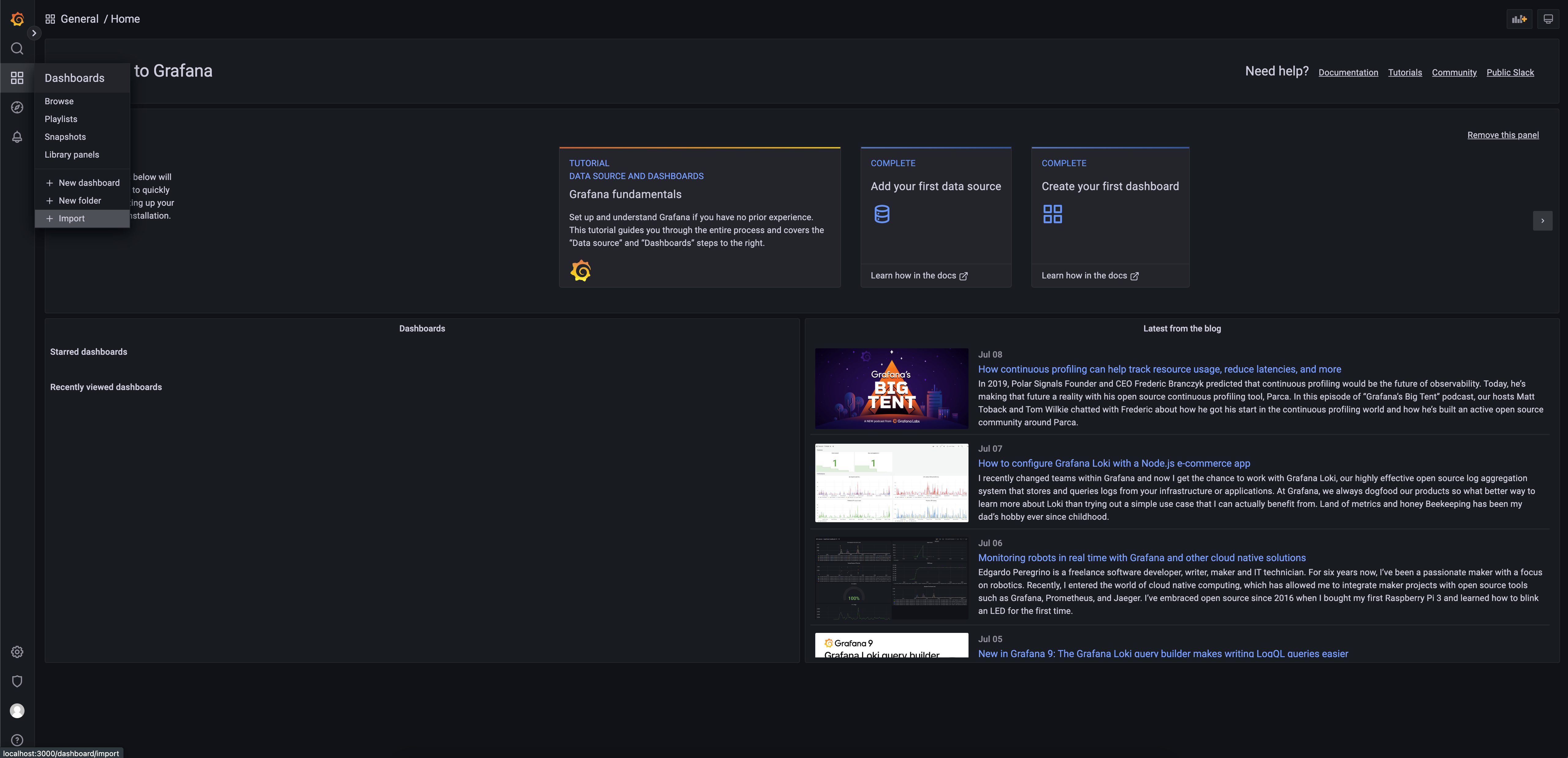
Finally in the Grafana, import the Dashboards and select the appropriate sources.
Updated 11 days ago