

LDAP
The JFrog Platform supports authenticating users against an LDAP server out-of-the-box.
Using Active Directory?
If you are using Active Directory to authenticate users, see Active Directory.
Note
Enabling LDAP disables internal password authentication by default. For more information, see Disable Basic Authentication Method.
LDAP Configuration
To configure LDAP authentication, in the Administration module, go to Authentication | LDAP and click + Add Settings.
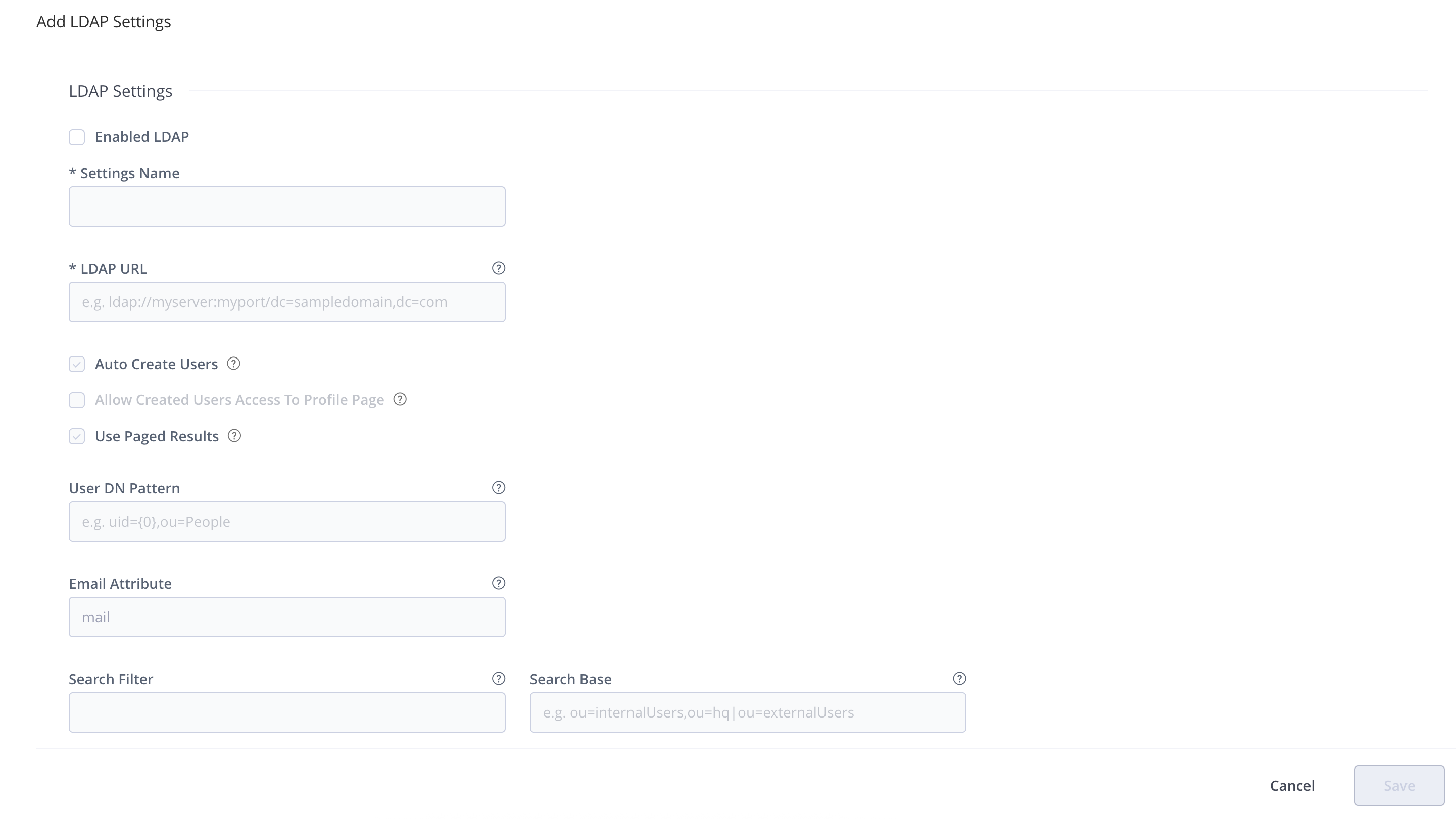
The following table describes the configuration parameters for LDAP connection settings.
| LDAP Connection Setting | Description |
|---|---|
| Enabled | When set, these settings are enabled. |
| Settings Name | The unique ID of the LDAP setting. |
| LDAP URL | Location of the LDAP server in the following format: The URL should include the base DN used to search for and/or authenticate users. |
| Auto Create System Users | When set, the system will automatically create new users for those who have logged in using LDAP, and assign them to the default groups. |
| Allow Created Users Access To Profile Page | When set, users created after logging in using LDAP will be able to access their profile page. |
| Used Page Results | When set, supports paging results for the LDAP server. This feature requires that the LDAP Server supports a PagedResultsControl configuration. |
| User DN Pattern | A DN pattern used to log users directly in to the LDAP database. This pattern is used to create a DN string for "direct" user authentication, and is relative to the base DN in the LDAP URL. The pattern argument 0 is replaced with the username at runtime. This only works if anonymous binding is allowed and a direct user DN can be used (which is not the default case for Active Directory). For example:
|
| Email Attribute | An attribute that can be used to map a user's email to a user created automatically by the system. |
| Search Filter | A filter expression used to search for the user DN that is used in LDAP authentication. This is an LDAP search filter (as defined in 'RFC 2254') with optional arguments. In this case, the Possible examples are:
Authentication using LDAP is performed from the DN found if successful. |
| Search Base | The Context name in which to search relative to the base DN in the LDAP URL. Multiple search bases may be specified separated by a pipe ( | ). This is parameter is optional. |
| Secure LDAP Search | Protects against LDAP poisoning by filtering out users exposed to vulnerabilities. |
| Search Sub Tree | When set, enables deep search through the sub-tree of the LDAP URL + Search Base. True by default. |
| Manager DN | The full DN of a user with permissions that allow querying the LDAP server. When working with LDAP Groups, the user should have permissions for any extra group attributes such as memberOf. |
| Manager Password | The password of the user binding to the LDAP server when using "search" authentication. |
| Test LDAP Connection | Run a LDAP test to validate your settings are correct. |
LDAP Groups
The LDAP Groups Add-on allows you to synchronize your LDAP groups with the system and leverage your existing organizational structure for managing group-based permissions.
Unlike many LDAP integrations, LDAP groups use super-fast caching, and has support for both Static, Dynamic and Hierarchical mapping strategies. Powerful management is accomplished with multiple switchable LDAP settings and visual feedback about the up-to-date status of groups and users coming from LDAP.
LDAP groups synchronization works by instructing the system about the external groups authenticated users belong to. Once logged-in, you are automatically associated with your LDAP groups and inherit group-based permission managed in the system.
Make sure users log in
Synchronizing LDAP groups does not automatically create users that are members of those groups. Once the LDAP connection is configured, the LDAP users are only created in the system after they log in to the system for the first time. Automatic creation of users can be controlled by the Auto Create Users checkbox in the LDAP Settings screen.
LDAP Groups Usage
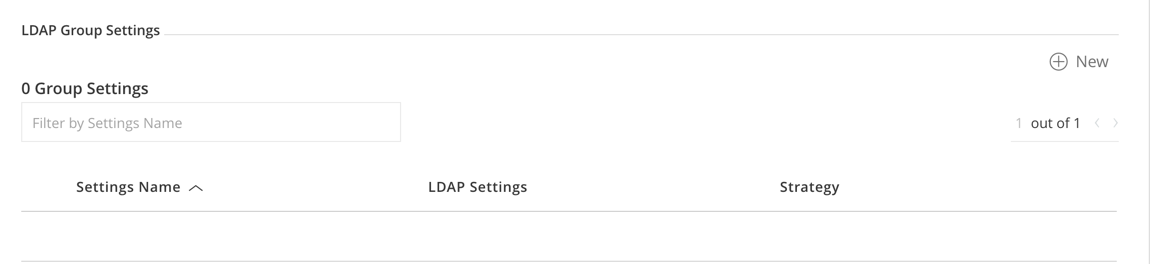
LDAP Groups settings are available in the Administration module under Authentication Providers | LDAP.
To configure LDAP group settings, in the Administration module, go to Authentication | LDAP and click + Add Group.
To use LDAP groups, you must first set up an LDAP server for authentication from the LDAP Settings screen. You must also alert the system about the correct LDAP group settings to use with your existing LDAP schema.
Active Directory Users
For specific help with setting up LDAP groups for an Active Directory installation, please see Active Directory.
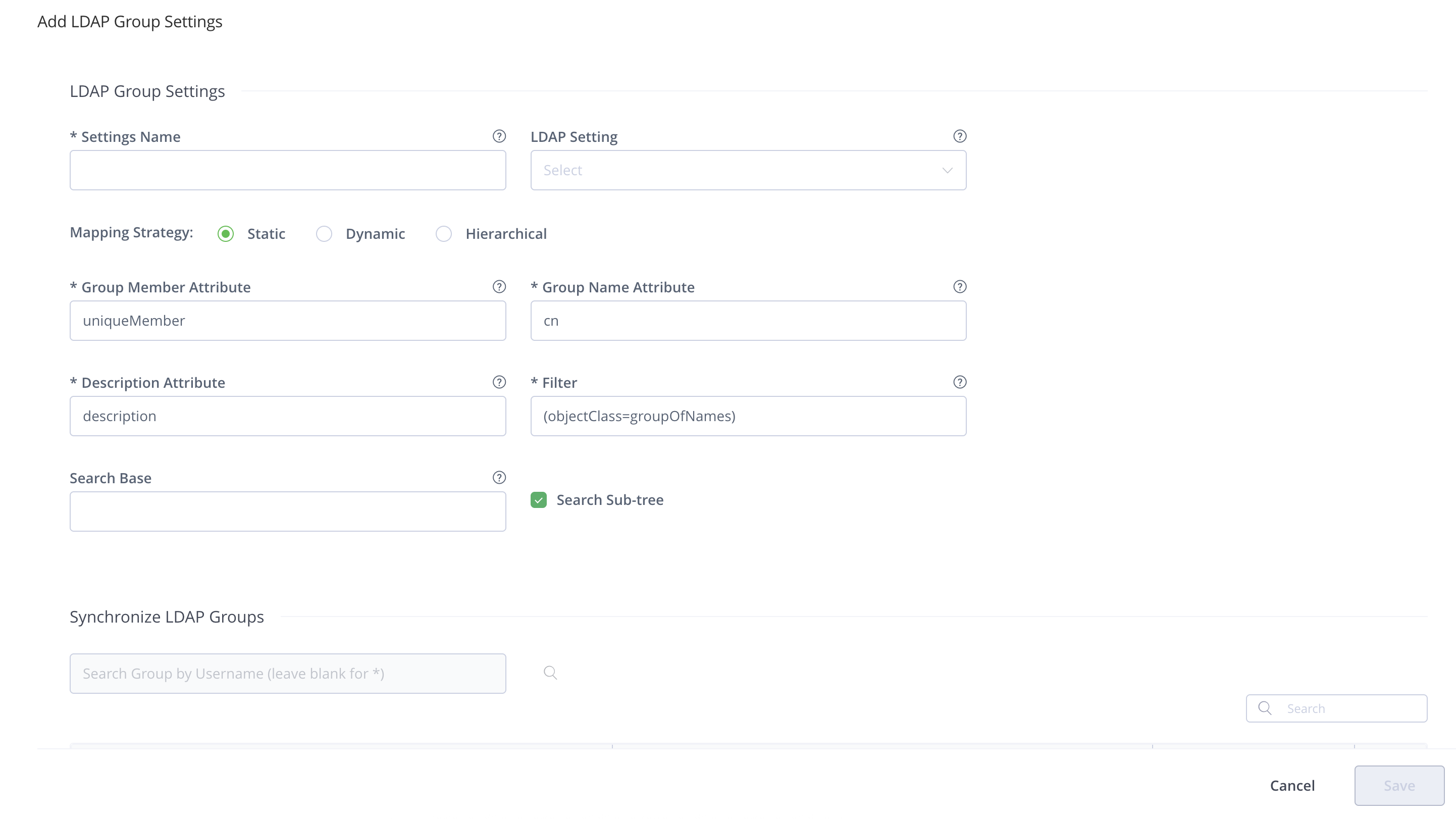
Manage Permissions for LDAP Groups
You can synchronize LDAP groups while leveraging your existing organizational structure while managing group-based permissions. LDAP groups in the system use super-fast caching and support Static, Dynamic, and Hierarchical mapping strategies.
Powerful management is accomplished with multiple, switchable LDAP settings and visual feedback about the up-to-date status of groups and users coming from LDAP.
LDAP Group Synchronization Strategies
The JFrog Platform Deployment (JPD) supports the following ways of mapping groups to LDAP schemas:
-
Static: Group objects are aware of their members, however, the users are not aware of the groups they belong to.
Each group object such as
groupOfNamesorgroupOfUniqueNamesholds its respective member attributes, typicallymemberoruniqueMember, which is a user DN. -
Dynamic: User objects are aware of what groups they belong to, but the group objects are not aware of their members.
Each user object contains a custom attribute, such as
group, that holds the group DNs or group names of which the user is a member. -
Hierarchy: The user's DN is indicative of the groups the user belongs to by using group names as part of user DN hierarchy.
Each user DN contains a list of
ou's or custom attributes that make up the group association.For example,
uid=user1,ou=developers,ou=uk,dc=jfrog,dc=orgindicates thatuser1belongs to two groups:ukanddevelopers.
Using OpenLDAP
From Artifactory version 7.37.17, the Dynamic strategy is supported.
Prior to Artifactory version 7.37.17, when using OpenLDAP, you can't apply the Dynamic strategy because the
memberOfattribute is not defined by default (memberOfis an overlay), so JPD would not be able to fetch it from the LDAP server.
Synchronize LDAP Groups with the JPD Through the UI
Once you have configured how groups should be retrieved from your LDAP server, you can verify your set up by clicking the Refresh button on the Synchronize LDAP Groups sub-panel. A list of available LDAP groups is displayed according to your settings.
You are now ready to synchronize/import groups into the system. The groups table allows you to select which groups to import and displays the sync-state for each group:
A group can either be completely new or already existing in JPD. If a group already exists in the system it can become outdated (for example, if the group DN has changed) - this is indicated in the table so you can select to re-import it.
Once a group is imported (synced) a new external LDAP group is created in the system with the name of the group.
Once you have imported LDAP groups, you can Manage Permissions on them as with regular the JPD groups. Users association to these groups is external and controlled strictly by LDAP.
Note
Make sure that LDAP group settings is enabled (in the
LDAP Groups Settingspanel) in order for your settings to become effective.
To synchronize a group through the UI, in the Administration module, under Authentication | LDAP, select the group you want to synchronize, and search for groups that have been defined under the corresponding group settings. Once groups have been found, select Import.
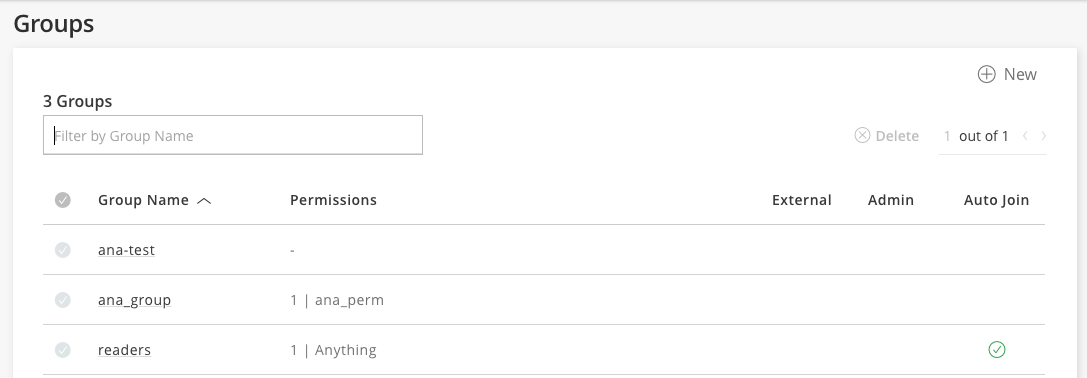
Once the groups are synchronized, you should see them in your list of groups (Administration module under Authentication Providers | Groups) indicated as External.
Synchronize LDAP Groups with the JPD Using the REST API
You may also synchronize LDAP groups by using the Create or Replace Group API to create groups with the ldap realm and full DN path to the group object under your LDAP server.
Limitation
Make sure to use lower case only when creating LDAP groups through the REST API. Using upper or mixed case will prevent synchronization of groups.
When using the REST API to synchronize LDAP groups, you need to specify the exact and full Group DN path to the group on your LDAP server. The example below shows the JSON payload you would use to synchronize the "testgroup" group displayed in the below LDAP server:
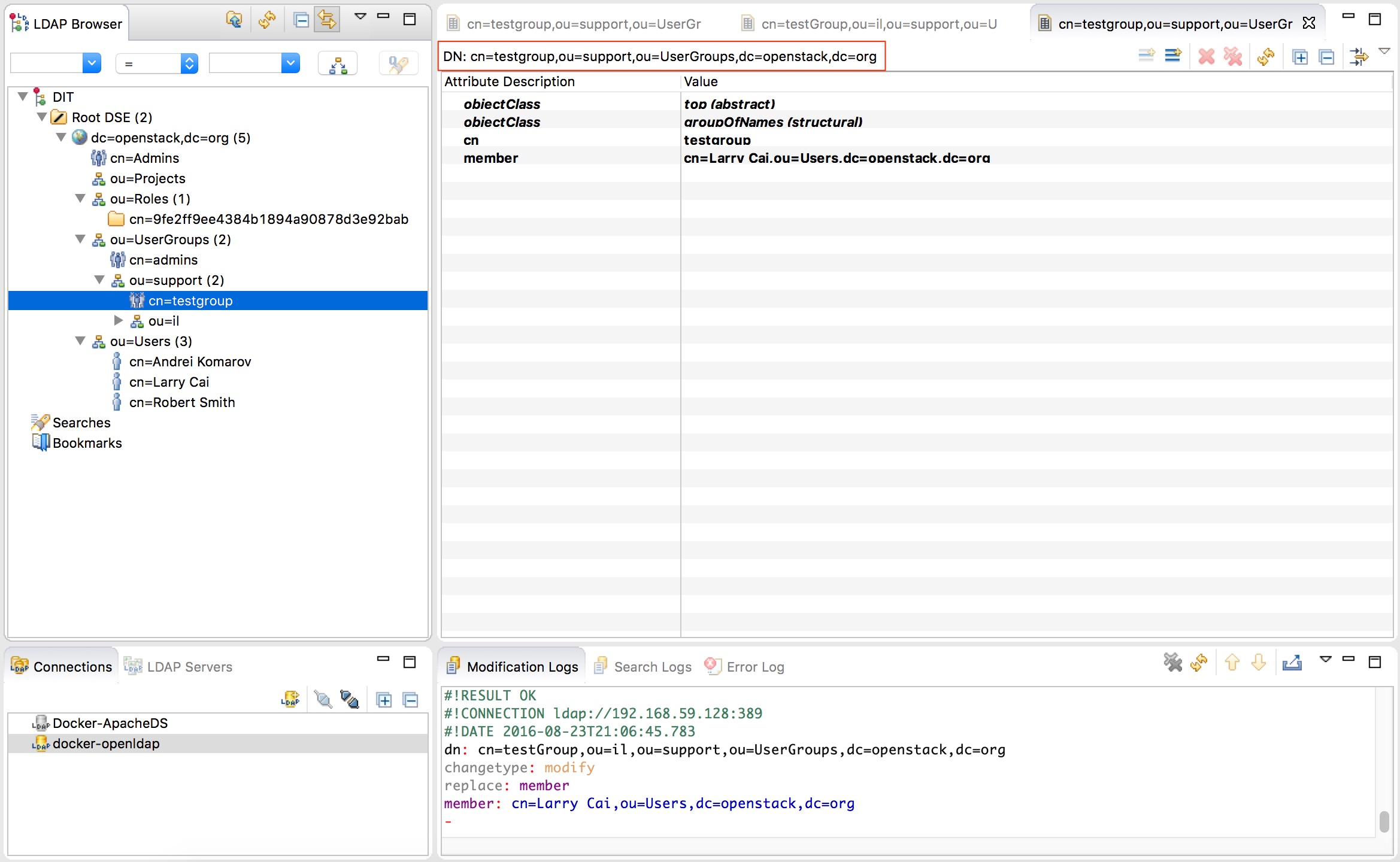
Sample JSON:
{
        "name": "testgroup",
        "description" : "This groups already exists in ldap",
        "autoJoin" : false,
        "realm": "ldap",
        "realmAttributes": "ldapGroupName=testgroup;groupsStrategy=STATIC;groupDn=cn=testgroup,ou=support,ou=UserGroups,dc=openstack,dc=org"
}
Customize the LDAP Timeout / LDAP Referral Strategy
To customize the LDAP timeout/ LDAP referral strategy in Artifactory, you need to add the following properties to the Artifactory YAML Configuration file.
'artifactory.security.ldap.connect.timeoutMillis' for connect. Default value: 10000ms
'artifactory.security.ldap.socket.timeoutMillis' for readRepy timeout. Default value: 15000ms
'artifactory.security.ldap.referralStrategy' for the referral strategy (value can be either 'follow', 'ignore', 'throw'). Default value: follow
Prior to Artifactory version 7.71.2, you need to add the properties to the Artifactory system property file, artifactory.system.property.
Enforce Dynamic Search of Attributes for LDAP Groups
After Artifactory version 7.57.2, you can set the dynamic attributes for LDAP groups using the Update LDAP Group Settings REST API with the attribute setting force_attribute_search": true.
Prior to Artifactory 7.71.2, you could also set dynamic attributes in the Artifactory YAML Configuration file. You could enforce dynamic internal search of attributes in a group by using the following setting in the Config Descriptor file: <forceAttributeSearch>true</forceAttributeSearch>.
   <ldapGroupSettings>
       <ldapGroupSetting>
           <name>groups</name>
           <forceAttributeSearch>false</forceAttributeSearch>
       </ldapGroupSetting>
   </ldapGroupSettings>
Non-UI Authentication Cache for LDAP
You can configure the system to cache data about authentication against external systems such as LDAP for REST API requests. This means that the first time a user needs to be authenticated, the system queries the external system for the user's permissions and group settings.
The information received from the external system is cached for a period of time. You can set the dynamic attributes in the Artifactory YAML Configuration file by setting the property. Once a user is authenticated, while the authentication data is cached, Artifactory uses the cached data rather than querying the external system, resulting is faster authentication.
The default value is set to 300 seconds: to change it, configure the artifactory.security.authentication.cache.idleTimeSecs property in the $JFROG_HOME/artifactory/var/etc/artifactory/artifactory.system.properties file.
REST API Only
The cache is only relevant for REST API requests, and is not relevant when using the UI.
Docker Caching Requests Require Docker v2 Tokens
Caching for Docker requests requires using a Docker v2 token. The Docker client or a Smart Remote repository with token-based authentication enabled, always refers to v2 token in the initial request and applies to all Docker command types (Pull, Push, etc.). The retrieved token is then used for all the subsequent requests to Artifactory. For example, when pulling Docker layers using the same Docker Pull request.
Avoid Clear Text Passwords
Not applicable from Artifactory 7.71.2.
Storing your LDAP password in clear text in settings.xml on your disk is a big security threat, since this password is very sensitive and is used in SSO to other resources in the domain.
When using LDAP, we strongly recommend, using the JPD's Encrypted Passwords in your local settings.
Prevent Authentication Fallback to the Local Artifactory Realm
In some cases, as an administrator you may want to require users to authenticate themselves through LDAP with their LDAP password.
However, if a user already has an internal account with a password in the system, you can set the system to fallback to use their internal password if LDAP authentication fails.
You can prevent this fallback authentication by ensuring that the Disable Internal Password checkbox in the Edit User dialog is set.
Using LDAPS (Secure LDAP)
To use LDAPS with a valid certificate from a CA trusted by Java, all you need to do is use a secure LDAP URL in your settings, for example, ldaps://secure_ldap_host:636/dc=sampledomain,dc=com.
If you want to use LDAPS with a non-trusted (self-signed) certificate, follow the steps described in Communication Between Services.
Note
Secure LDAP for SaaS customers, self-signed certificates are not supported.
Entra ID
The JFrog Platform Deployment (JPD) supports integration with a Microsoft Entra ID server to authenticate users and synchronize groups.
When authentication using Entra ID is configured and active, JPD first attempts to authenticate the user against the Entra ID server. If the authentication fails, JPD tries to authenticate via its internal database.
For every externally authenticated user configured in your Entra ID server, JPD creates a new user in the internal database (provided the user does not already exist), and automatically assigns that user to the default groups.
WebUI Changes implemented in Artifactory 7.38.x and above
Security is now called Authentication Providers. All the relevant text and images on this page have been updated to reflect this change.
Configure Entra ID
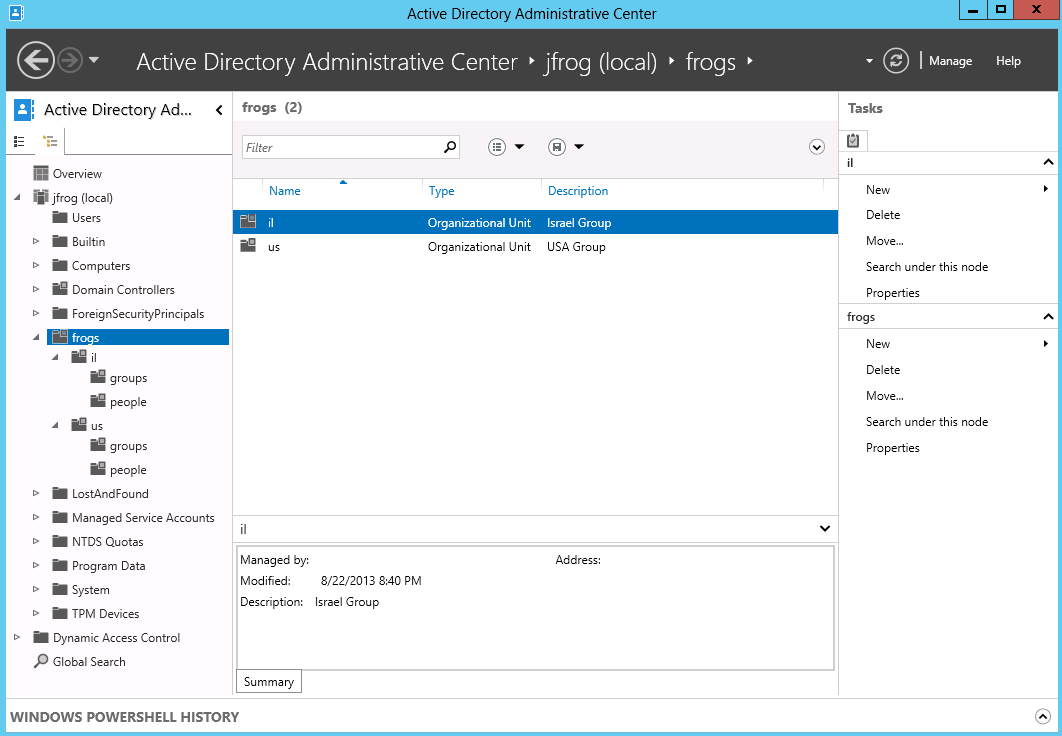
Consider an Entra ID server that must support the following conditions:
- Users are located in two geographically separated sites. Some are in the US (designated as "us"), while others are in Israel (designated as "il").
- Each site defines users and groups in different places in the Entra ID tree as displayed below.
To configure Entra ID authentication, in the Admin module, go to Authentication Providers | LDAP and click New.
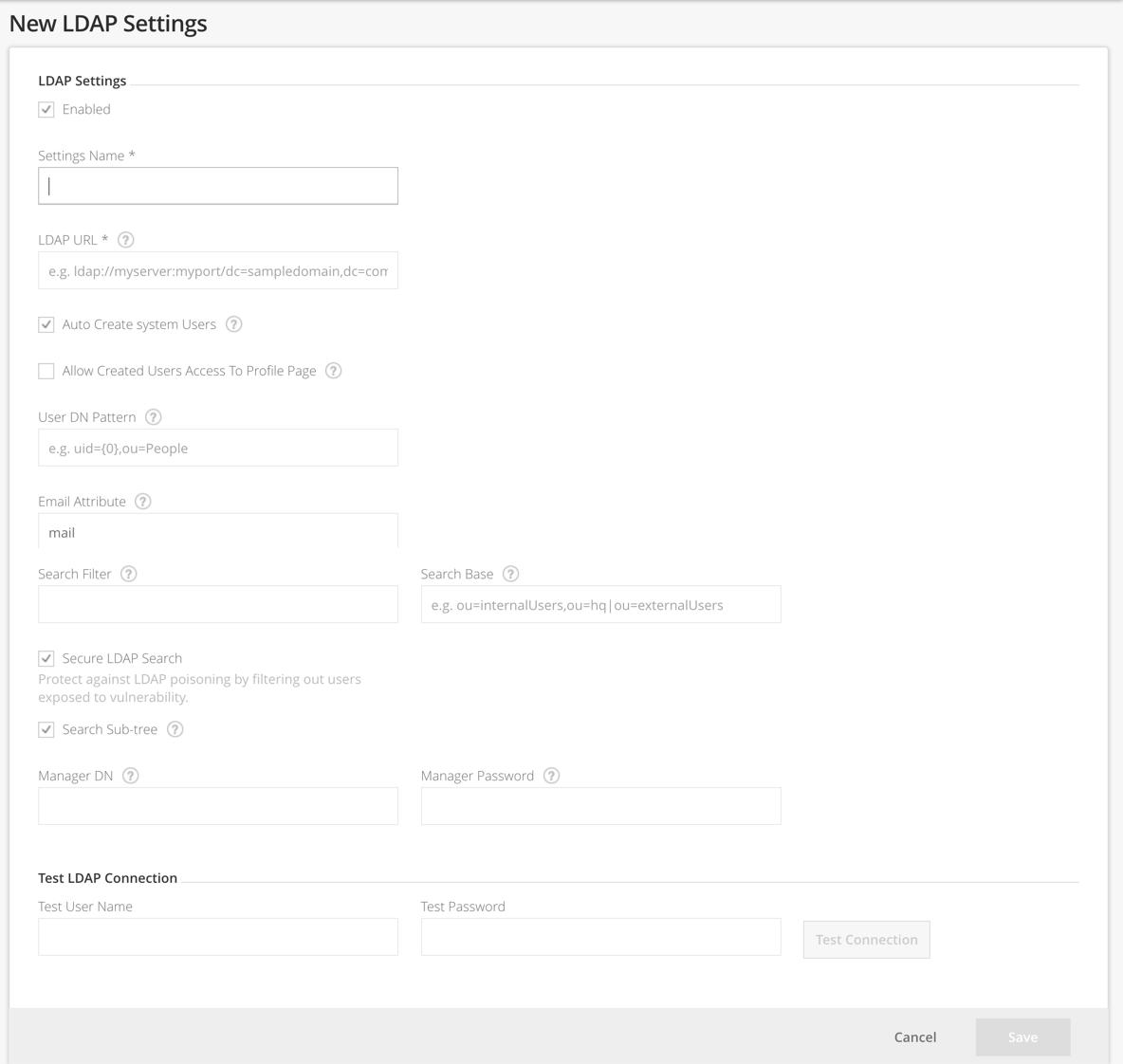
The following table describes the configuration parameters.
| Configuration Parameter | Description |
|---|---|
| Settings Name | The unique ID of the Entra ID setting. |
| Enabled | When set, these settings are enabled. |
| LDAP URL | Location of the Entra ID server LDAP access point in the following format: The URL may include the base DN used to search for and/or authenticate users. If not specified, the Search Base field is required. |
| Auto Create System Users | When set, the JPD will automatically create new users for those who have logged in using Entra ID. Any newly created users will be associated with the default groups. |
| Allow Created Users Access to Profile Page | When set, users created automatically will have access to their profile page and perform actions such as generating an API key. |
| User DN Pattern | A DN pattern is used to log users directly into the LDAP database. For Entra ID, we recommend leaving this field blank since this only works if anonymous binding is allowed and a direct user DN can be used, which is not the default case in Entra ID. |
| Email Attribute | An attribute that can be used to map a user's email to a user created automatically by JPD. This corresponds to the mail field in Entra ID. |
| Search Filter | A filter expression is used to search for the user DN that is used in Entra ID authentication. This is an LDAP search filter (as defined in 'RFC 2254') with optional arguments. In this case, the For Entra ID, the corresponding field should be |
| Search Base | The Context name in which to search relative to the base DN in the Entra ID URL. This parameter is optional, but if possible, we highly recommend that you set it to prevent long searches on the Entra ID tree. Leaving this field blank will significantly slow down the Entra ID integration. The configuration in the example below indicates that the search should only be performed under "frogs/il" or "frogs/us". This improves search performance since the JPD will not search outside the scope of the "frogs" entry. |
| Manager DN | The full DN of a user with permissions that allow querying the Entra ID server. When working with LDAP Groups, the user should have permissions for any extra group attributes such as memberOf. |
| Manager Password | The password of the user binding to the Entra ID server when using "search" authentication. |
| Search Sub Tree | When set, enables deep search through the sub-tree of the Entra ID URL + Search Base. True by default. |
Import Entra ID Groups
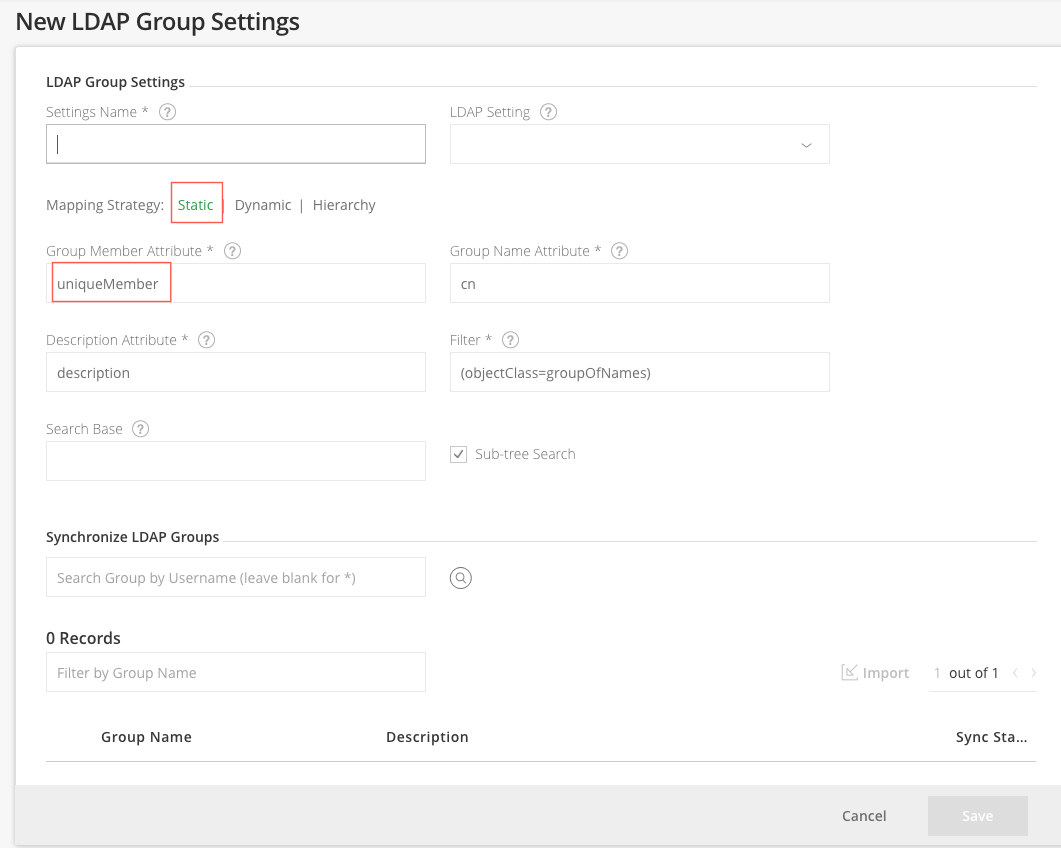
Entra ID groups can be imported using either a Static mapping strategy or a Dynamic one (Entra ID works for both).
The only difference is in the attribute defined on the corresponding Entra ID entry:
- The Static mapping strategy defines a "member" multi-value attribute on the group entry containing user DNs of the group members
- The "Dynamic" configuration defines a "memberOf" multi-value attribute on the user entry containing group DNs of the groups the user is a member of.
Entra ID supports both configurations, so you can choose the one that fits your organization's structure.
Support for Nested Entra ID Groups
The JFrog Platform supports synchronization with Entra ID "Nested Groups".
From Artifactory 7.3, an improved Entra ID "Nested Groups" search is supported, providing performance improvements when working with LDAP.
Prerequisite
This feature requires that Entra ID run on Windows Server 2012 R2 version or later. There are no additional requirements for the Entra ID Windows Server side.
To enable the feature:
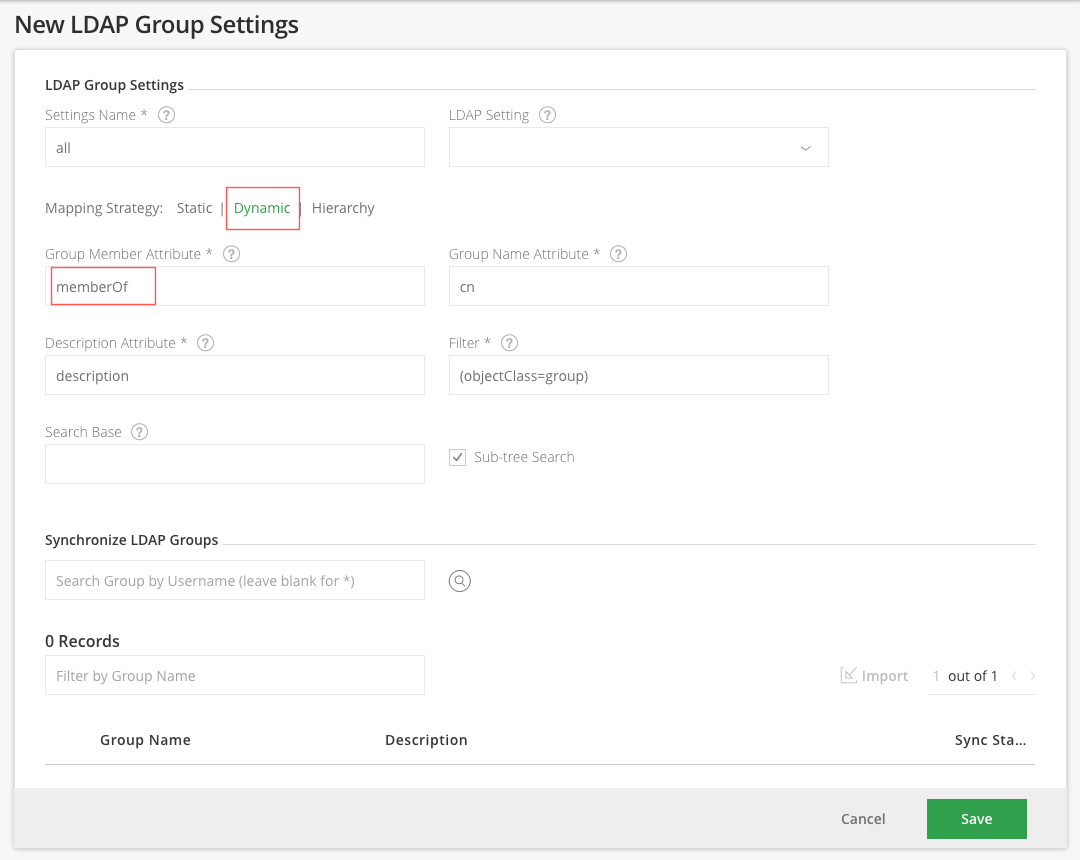
- Set the Dynamic Strategy with a group setting definition
- Set the
msds-memberOfTransitivevalue for the membership attribute.
Mapping Strategy: Dynamic
Group Membership Attribute: msds-memberOfTransitive
Group Name Attribute: cn
Filter: (objectClass=group)
Microsoft provides a unique OID for rule chain matching as part of the search filter syntax, as a result when executing an LDAP Query to the Entra ID using this OID, the Entra ID will return a list of all the groups according to the user's main group membership.
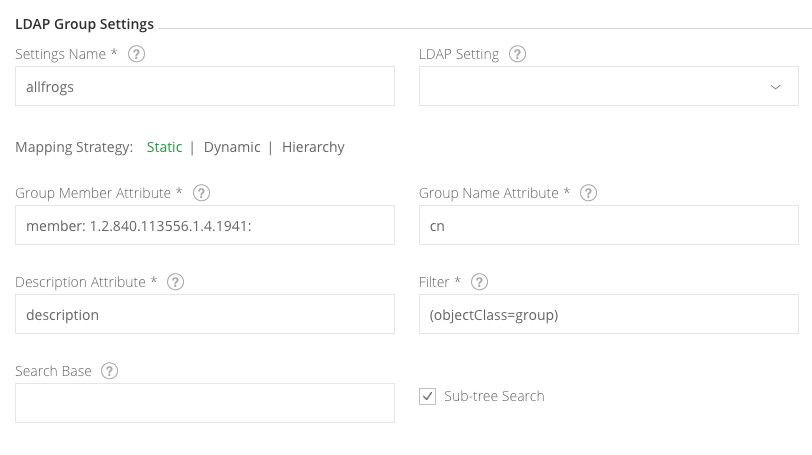
Mapping Strategy: Static
Group Membership Attribute: member:1.2.840.113556.1.4.1941:
Group Name Attribute: cn
Filter: (objectClass=group)
The following displays the settings.
Using Secure Entra ID
To use Secure Entra ID with a valid certificate from a CA trusted by Java, all you need to do is use a secure Entra ID URL in your settings, for example, ldaps://secure_ldap_host:636/dc=sampledomain,dc=com.
If you want to use Secure Entra ID with a non-trusted (self-signed) certificate, see Trust a self-signed certificate or a new CA.
Manager DN
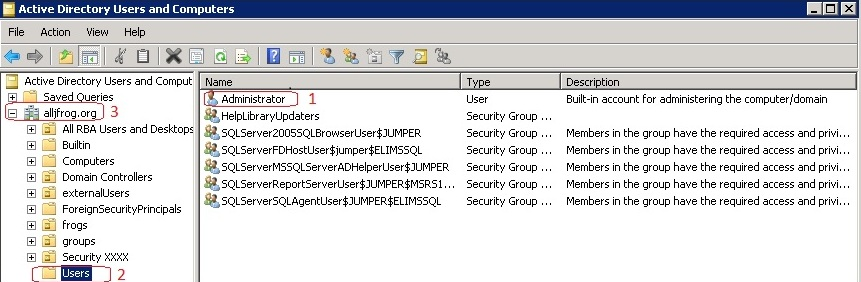
To construct the Manager DN string according to your Entra ID server, navigate to a user with administrator privileges (e.g. Administrator (1)), and then construct the Manager DN in reverse order (2,3) from the User, up the folder hierarchy.For example, in this simple configuration, the Manager DN here should be
cn=Administrator,cn=Users,dc=alljfrog,dc=org
Notice that the domain (3) is split in reverse order to dc=alljfrog,dc=org
Updated 3 months ago