

Logging in using Multi-factor Authentication (MFA)
Multi-factor authentication (MFA) enables a higher level of security when accessing JFrog applications. In addition to your credentials, you have to authenticate with a one-time password (OTP) generated by an additional authentication factor - the Google Authenticator application. This ensures that if a user's credentials have been compromised, the multi-factor authentication method prevents malicious users from gaining access to JFrog applications. To enable MFA in your JFrog subscription, see Enable Multi-Factor Authentication (MFA) in MyJFrog.
MFA Enrollment - First Time Login with MFA Enabled
Once enabled, users logging in must enroll using the third-party authentication method by performing the following steps.
-
Log in to the JFrog Platform using your basic credentials.
You will then be prompted for the Google Authenticator application.
-
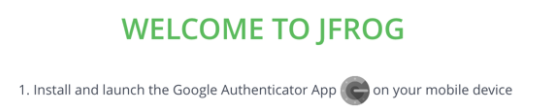
Download and install the Google Authenticator application on your mobile phone:
-
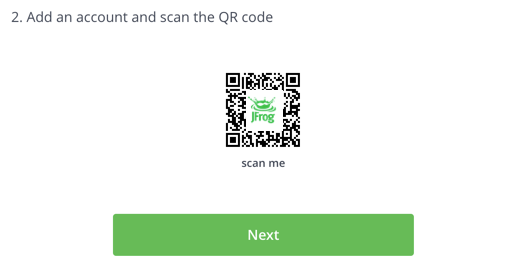
On your mobile phone, open the Google Authenticator App and choose to add an account.
-
Scan the QR code to register the JFrog Platform as a new authenticated application:
-
Click next once your JFrog Platform application was added to your mobile app.
-
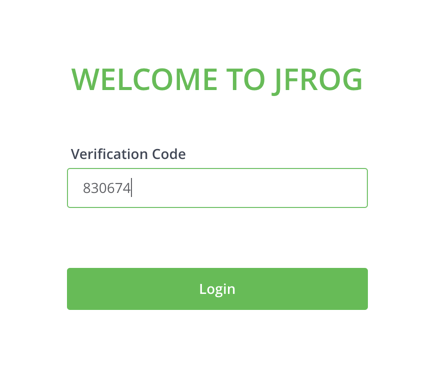
Use the code from the Google Authenticator app to complete the enrollment process and log in.
Log in with Multi-factor Authentication
-
Log in to the JFrog Platform using your basic credentials.
-
Use the code from the Google Authenticator app to complete the login.
Updated 3 months ago