

Manage Groups
A group represents a role in the system and is assigned a set of permissions. Using groups enables you to define a set of permissions for a specific role, then assign those permissions easily by adding a user to that group. There are a number of primary actions you can conduct to create and manage groups.
Create and Edit Groups
A group represents a role and is used with RBAC (Role-Based Access Control) rules.
-
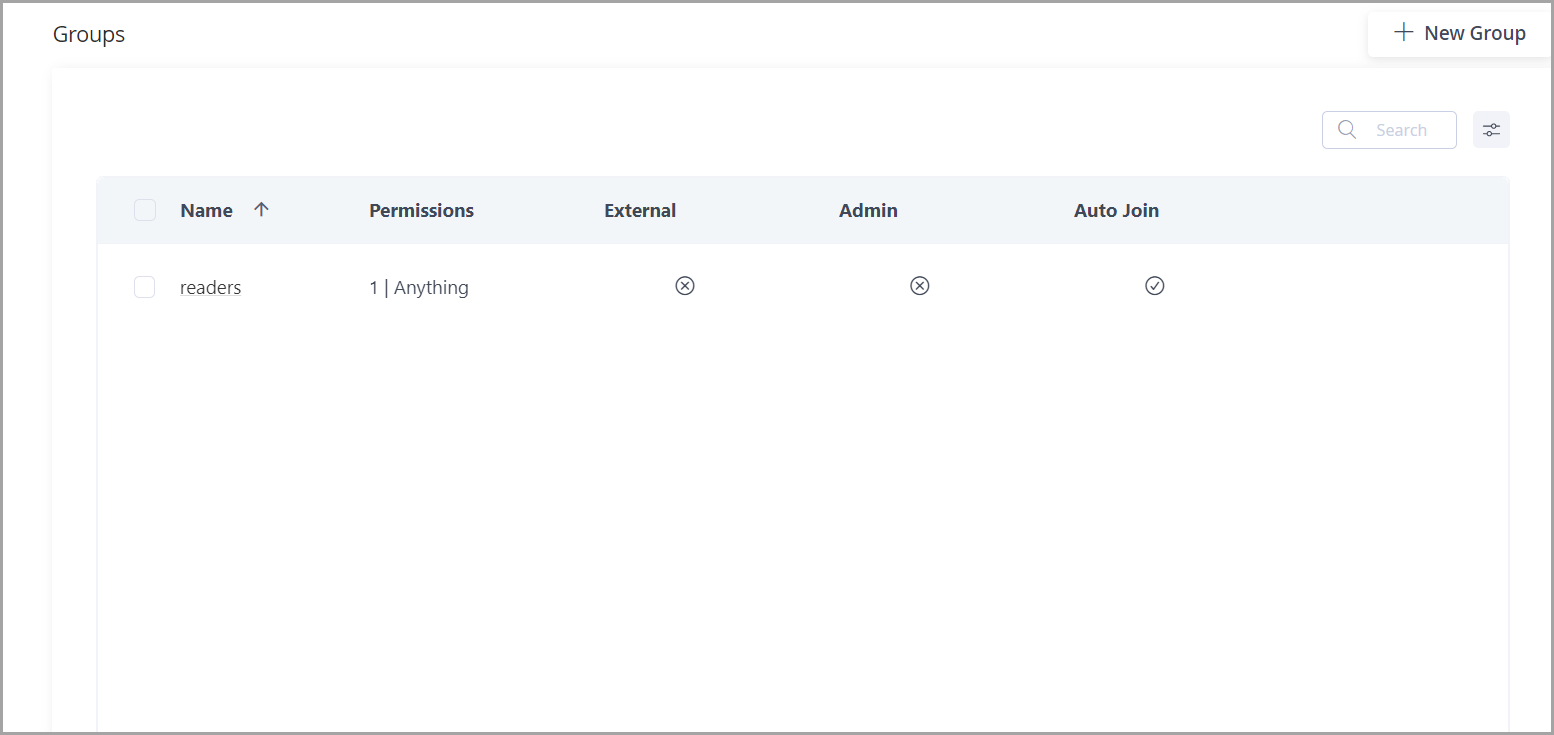
To manage groups, in the Administration module select User Management | Groups.
-
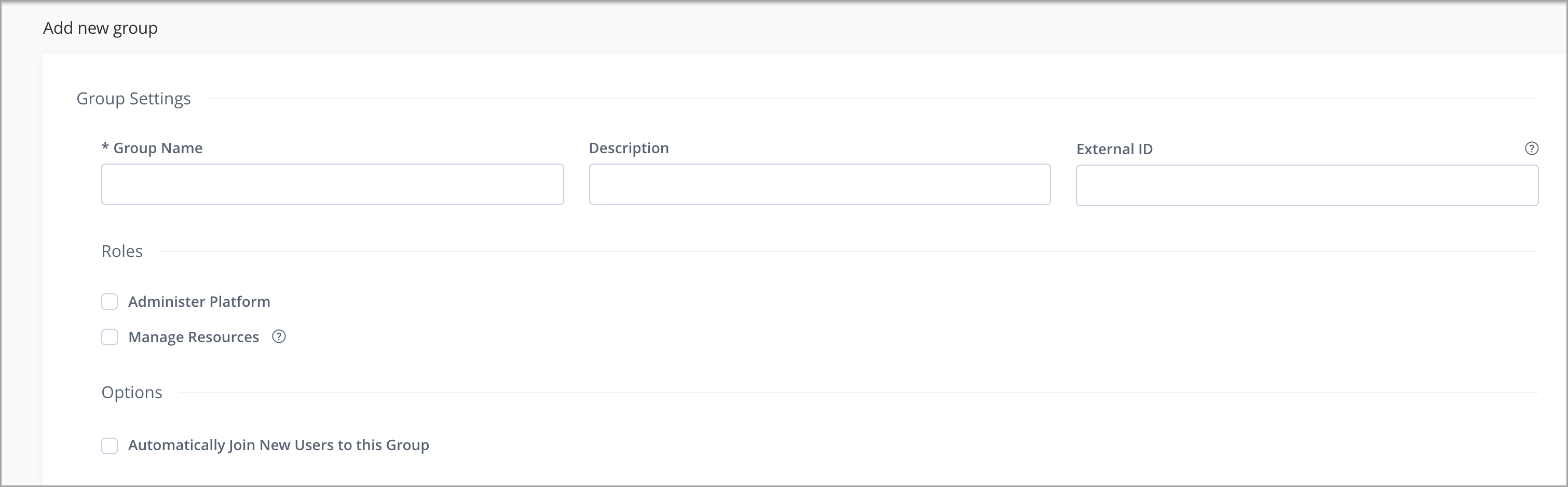
Create a new group by clicking + New Group at the top of the groups table.
-
Assign a unique name to each group with an optional description. Note: The following special characters are not allowed in group names:
/,\,:,;,|,?,<,>, and,.You can also assign an external group ID to the new group, which will then be used to configure the corresponding group in Azure AD.
-
For the new group, specify the roles assigned to that group: Administer Platform, Manage Resources.
-
You can also choose whether to automatically join new user to the group by selecting the checkbox.
Assign Users to Groups
There are two ways to manage users' assignment to groups.
Setting permissions
In both cases, you can assign corresponding permissions to the user or group respectively on the same screen. For more information, see Managing Permissions
Set Groups for a User
You can assign and remove a user from groups when the user is created or by editing user's details later.
-
In the Administration module, under User Management | Users, from the list of users, select the user you wish to assign to or remove from the group.
-
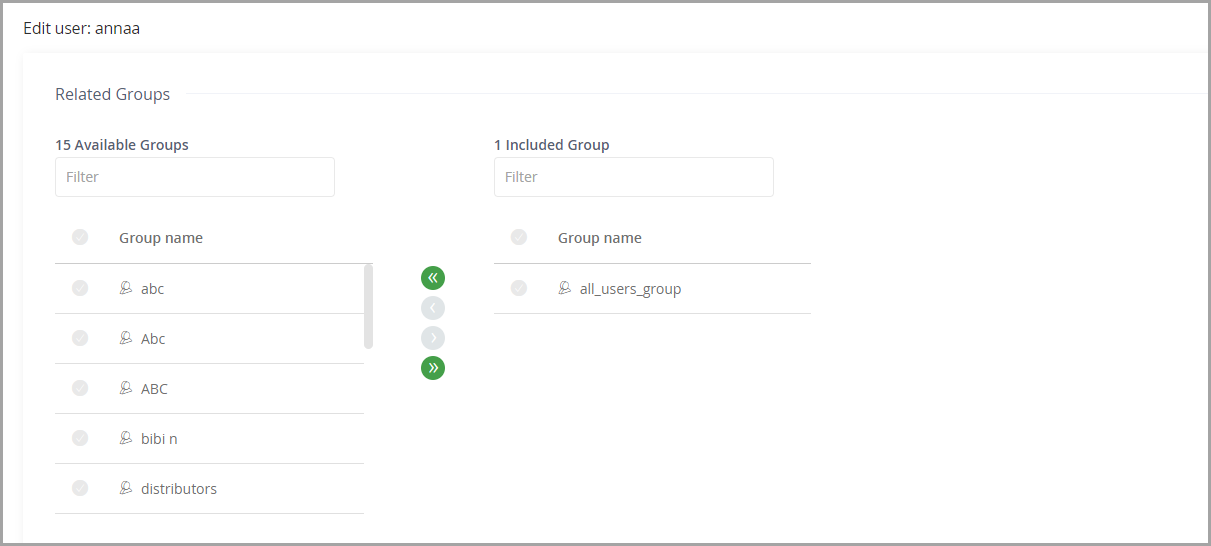
In the Related Groups section of the form, you can set which groups the user should be assigned to.
Before Artifactory version 7.73, the interface contains the available groups and selected groups in the same view.
Note
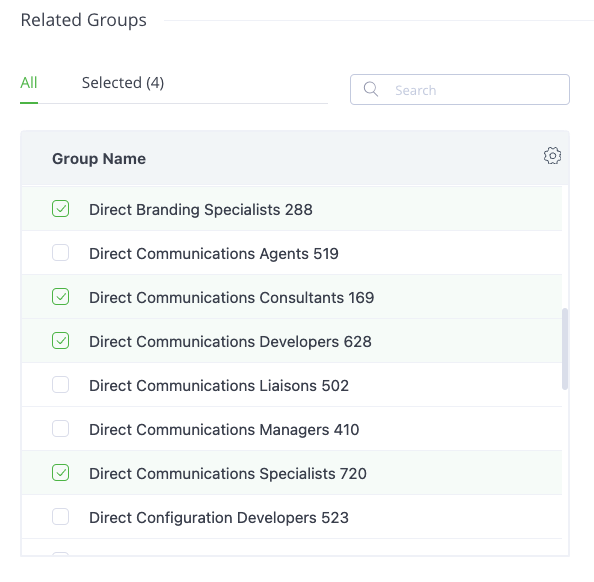
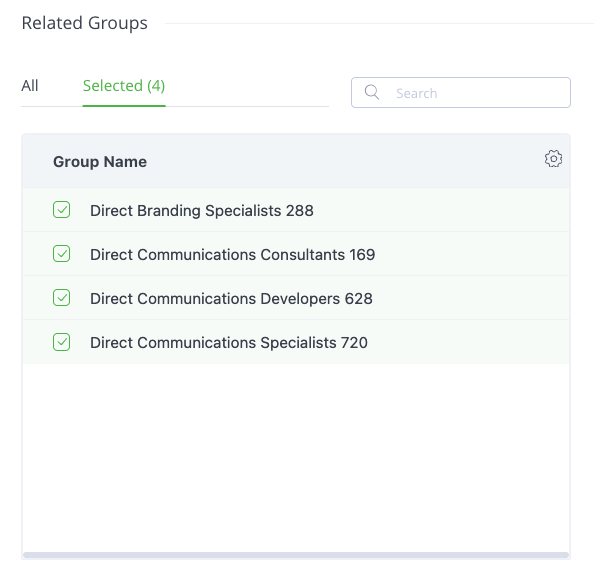
From Artifactory version 7.73, the selection process for associating groups has been enhanced to scale up to work with a very large number of groups. The Related Groups section instead contains an All tab, where you select groups, and a Selected tab, which shows the groups associated with the user.
-
From Artifactory version 7.73, in the All tab, select which groups to assign to the user by clicking the checkbox next to the group. When you select a group, it is automatically added to the Selected tab.
-
From Artifactory version 7.73, to select all of the groups, in the All tab, click the checkbox near the first group, scroll down to the last group, then click Shift and click the checkbox near the last group. All the groups will be selected.
Set Users for a Group
You can assign and remove a user from a group by editing the group's details.
-
In the Administration module, under User Management | Groups, from the list of groups, select the group you wish to modify.
-
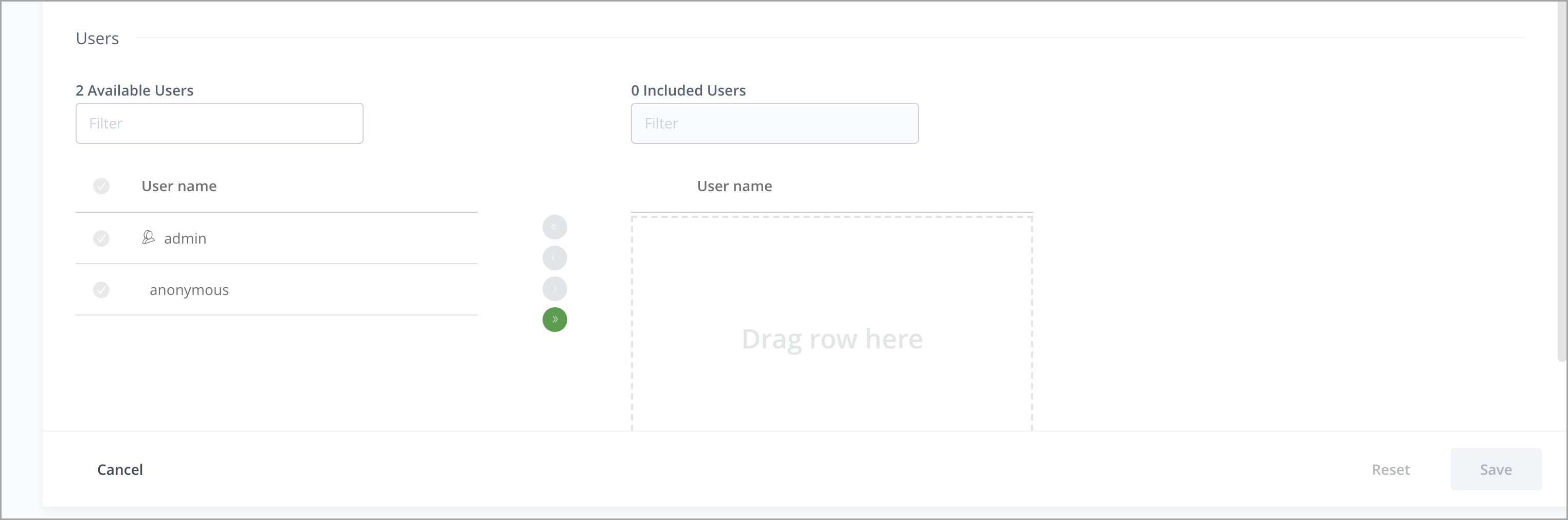
In the Users section of the form, you can set which users should be assigned to the group.
Automatically Assign Users to a Group
When creating (or editing) a group you can set Automatically Join New Users to this Group.
When this parameter is set, any new users defined in the system are automatically assigned to this group.
This is particularly useful if users are defined automatically and you want them to be assigned to certain groups. This includes:
- Users created via the UI, REST API, invitations, or SCIM.
- Users automatically created upon login via LDAP, SAML, or OAuth.
- Transient users created dynamically during authentication (such as during an OIDC token exchange with a non-existing username).
Because transient users inherit Auto Join groups dynamically, they can expand the effective permissions of OIDC-exchanged tokens beyond what you explicitly mapped. Review these groups to prevent unintended privilege escalation.
Assign Admin Privileges to a Group
If Admin Privileges is set, any users added to this group will automatically be assigned with admin privileges in the system.
For reasons of security when Admin Privileges is set, Automatically Join New Users to this Group is disabled so that new users are not automatically provided with admin privileges.
Updated 2 months ago