

Manage Configured Workers
This section outlines the actions you can perform on configured workers. It includes enable/disable, search, edit, view and delete workers.
View Configured Workers
This topic describes how to view all configured workers. It guides you in reviewing key details such as the enabled, name, description, type, run and options for customizing table columns.
To view all the workers, follow these steps:
-
From the Projects drop-down list, click All Projects or your desired project.
-
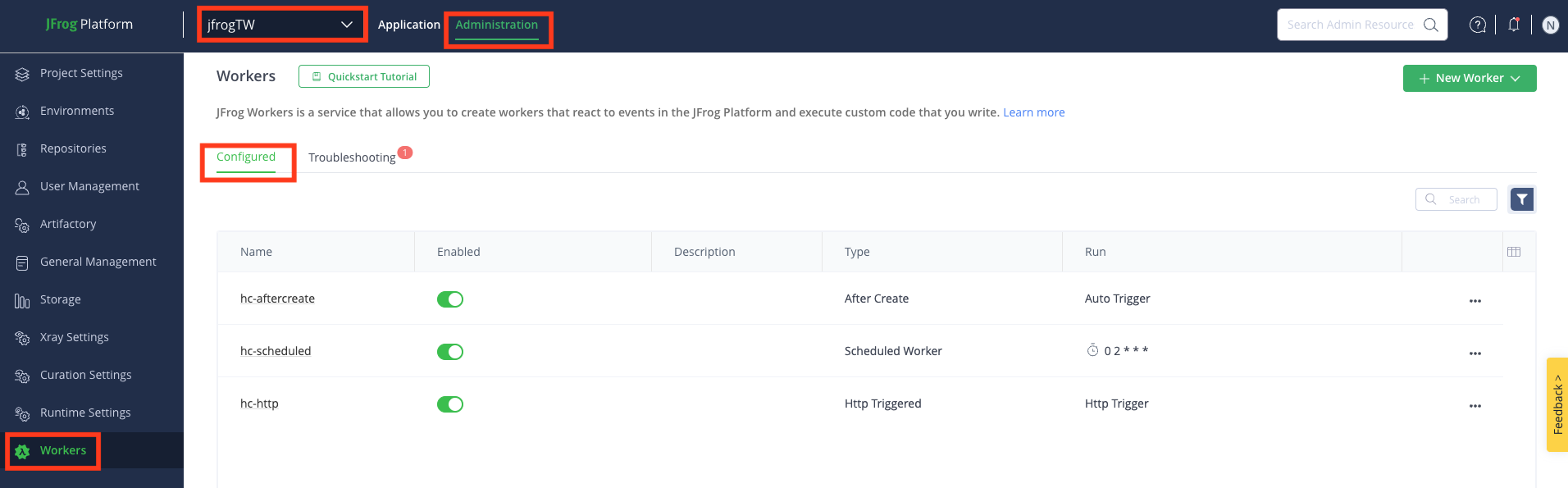
From the Administrator module, click Workers.
The Workers page appears.
-
Under the Configured tab, you can view all the configured workers.
Workers Table Fields
The following table describes the columns of the workers table fields.
Customize Columns
To display and arrange the table columns:
- From the Table header, click the Customize Columns at the end.
- Select which columns to display in the Customize Columns pop-up and drag and drop to reorder them.
- Click Apply.
| Field | Description |
|---|---|
| Enabled | Indicates whether the worker is enabled or disabled:
|
| Name | The name of the worker |
| Description | The provided description for the worker |
| Project | The name of the project |
| Type | The type of the worker. For example, After Create, Scheduled Worker, Http Triggered |
| Run | The type of Run. For example, cron for scheduled, Auto Trigger for event-based and Http Trigger for Http Triggered workers. |
| More | Following are the actions you can perform on a worker:
|
Apply Filters to Sort Workers
To apply filters:
-
Click the Filter icon from the top right above the table /header.
-
Apply the following fields as you want to sort:
| Name | Description |
|---|---|
| Application | Enter the name of the application |
| Artifactory | Check this field to view Artifactory workers |
| Access | Check this field to view Access workers |
| Worker | Check this field to view other workers |
- To remove applied filters, click Clear all.
View Workers for All Projects
-
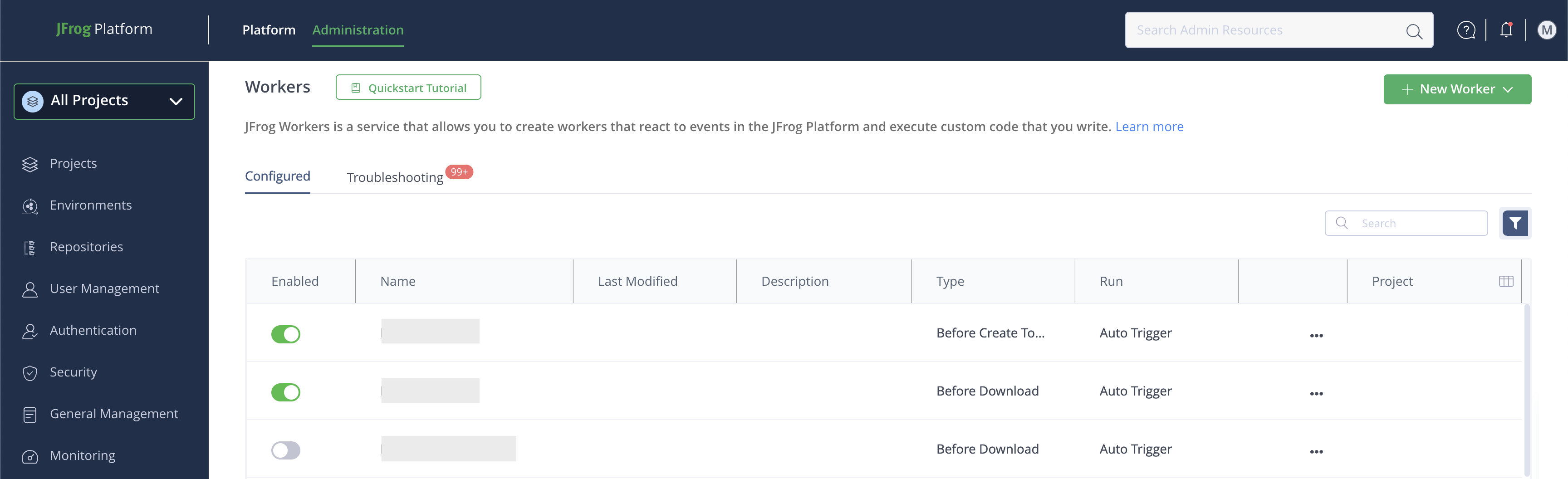
To see Workers in all projects, open the Projects drop-down menu in the sidebar and select All Projects
-
Navigate to Administration | Workers: here you can see all Workers in your JFrog instance, and the projects they are associated with.
View Workers for a Project
-
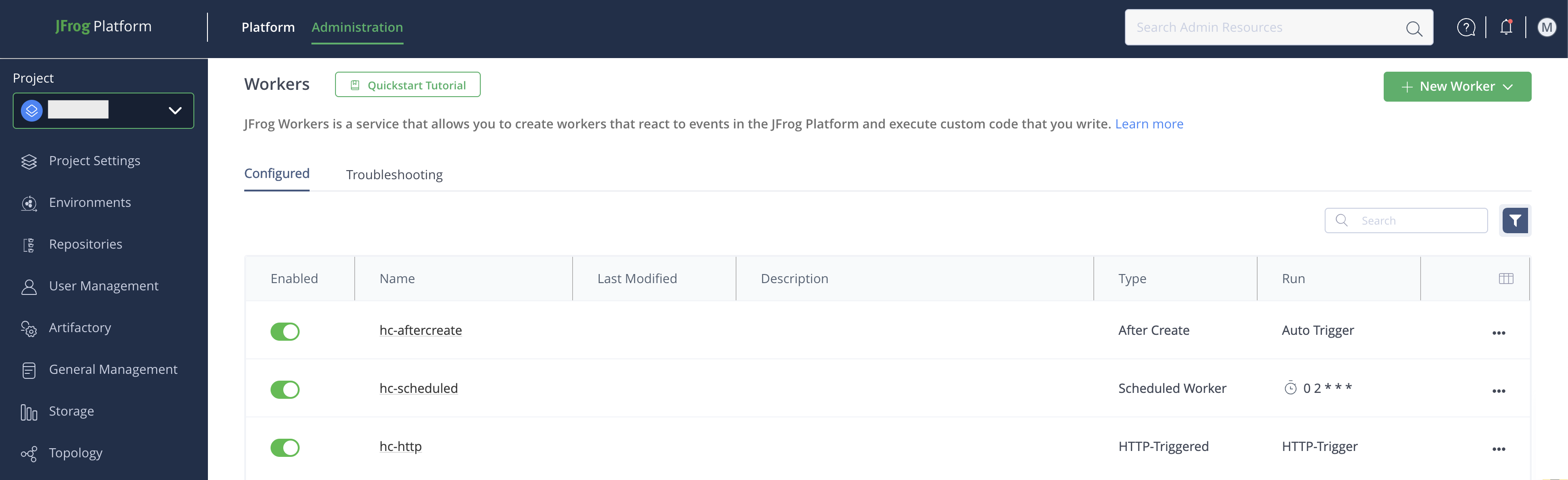
To see Workers in a specific project, open the Projects drop-down menu in the sidebar and select the project name
-
Navigate to Administration | Workers: here you can see all Workers that are associated with the project you selected.
Search Configured Workers
This topic outlines how to search workers policy to locate the desired configured worker easily.
To search the worker, follow these steps:
-
From the Projects drop-down list, click All Projects or your desired project.
-
From the Administrator module, click Workers.
The Workers page appears.
-
Under the Configured tab, you can view all the configured workers.
-
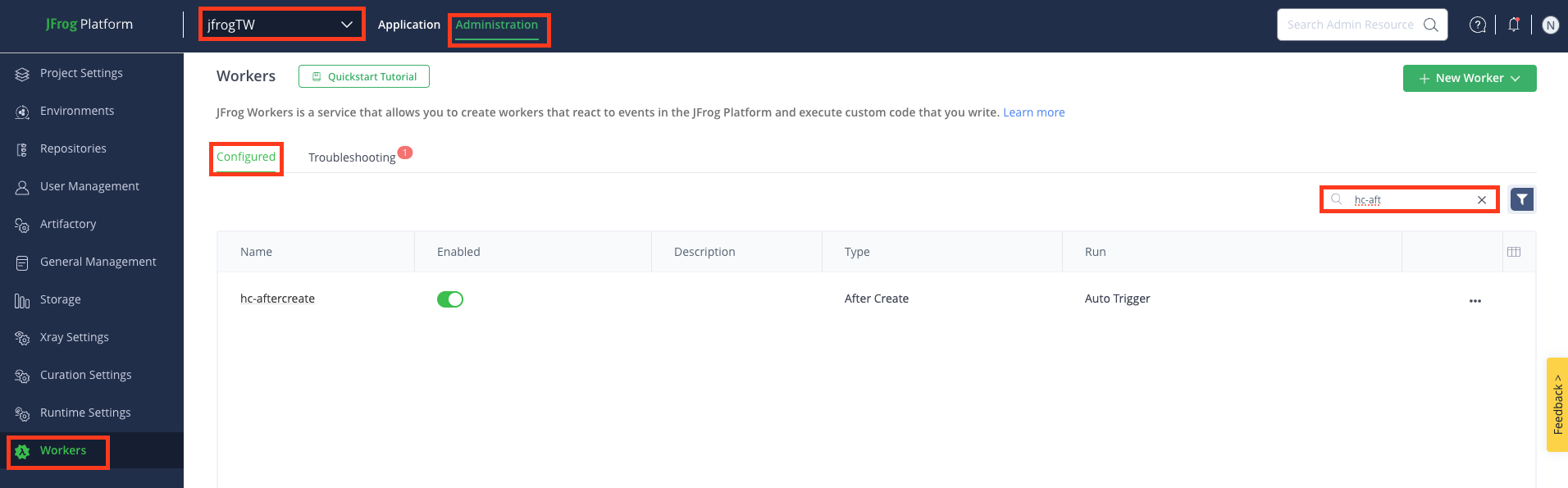
Enter the search criteria in the Search field, and then press enter on the keyboard.
Enable/Disable Configured Workers
This topic outlines how to enable/disable a worker.
To Enable or Disable the worker, follow these steps:
-
From the Projects drop-down list, click All Projects or your desired project.
-
From the Administrator module, click Workers.
The Workers page appears.
-
Under the Configured tab, you can view all the configured workers.
-
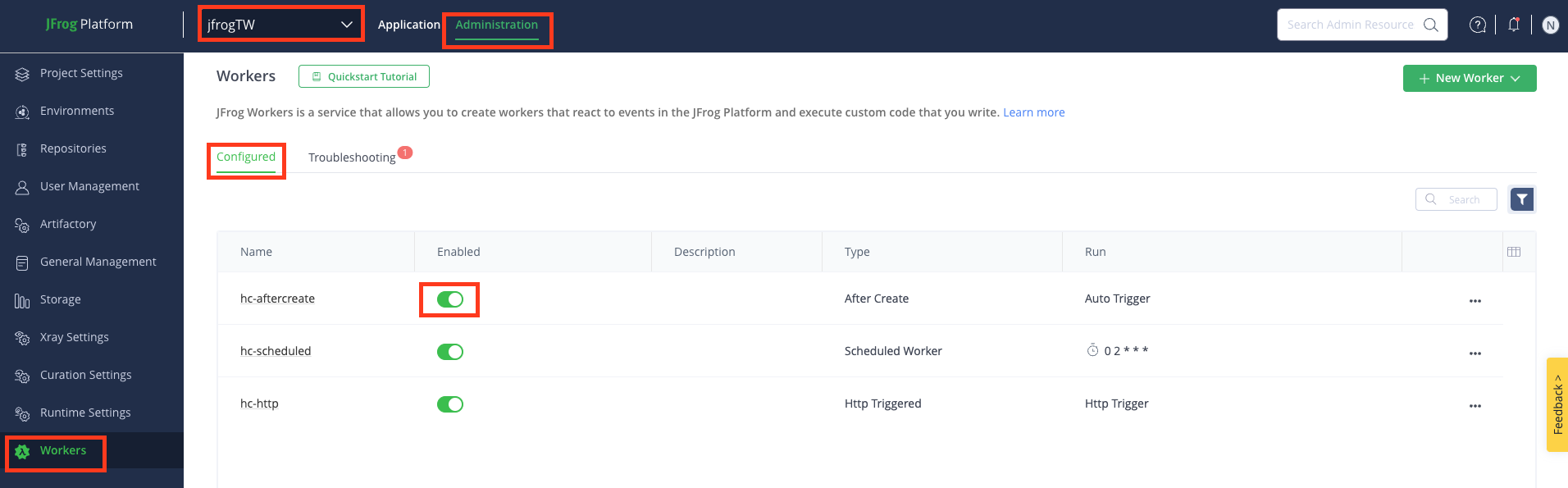
From the Configured tab, locate the worker you want to enable/disable, and then toggle the slider
 under the Enabled column.
| Icon | Status | Description |
|---|---|---|
| Enabled | Indicates the worker has been enabled. |
 | Disabled | Indicates the policy has been disabled. |
Once enabled, the worker will run based on the type of worker.
If a Worker is in backoff or has another warning, a warning icon appears next to the Worker name on the Workers list. Hover over the icon to see the reason. You can dismiss a warning. If a Worker has more than one warning, you can open a dialog to view all of them. For more information, see Workers Limitations.
Edit Configured Workers
This topic outlines how to edit a worker. After a worker has been created, you can change the settings.
To edit the worker, follow these steps:
-
From the Projects drop-down list, click All Projects or your desired project.
-
From the Administrator module, click Workers.
The Workers page appears.
-
Under the Configured tab, you can view all the configured workers.
-
From the Configured tab, locate the worker you want to edit, click ••• icon and then click Edit.
Edit worker
<worker name>page appears.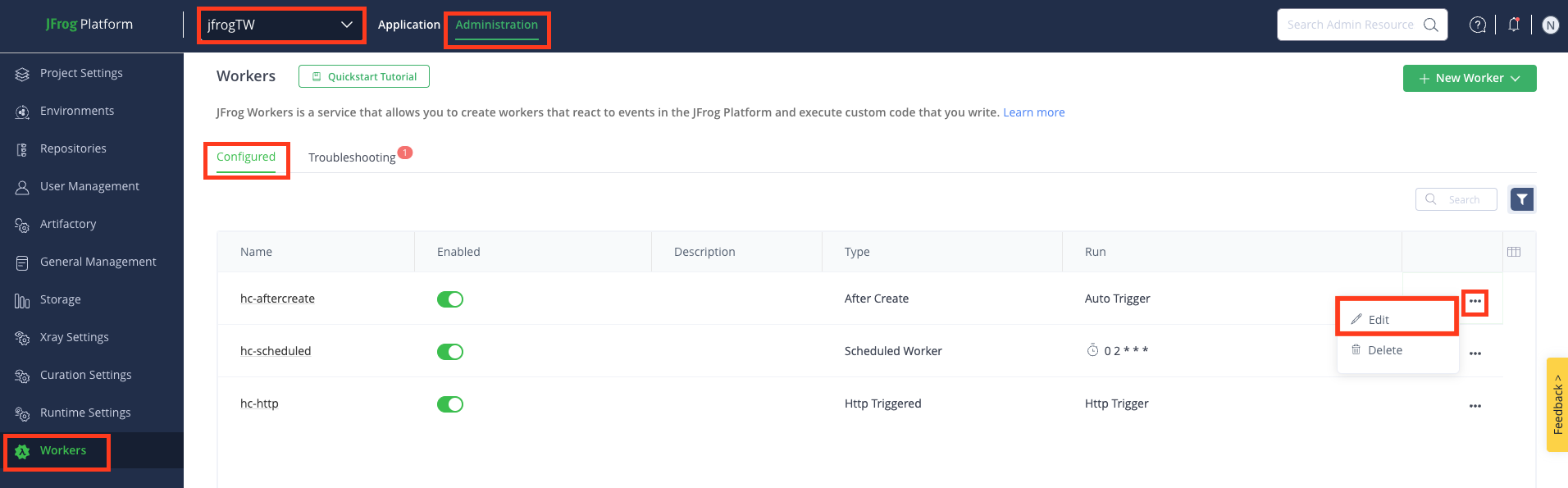
-
In the
<worker name>page, update the settings as needed, and then click Save.
Delete Configured Workers
This topic outlines how to delete a worker. If you decide that a worker is no longer needed, you can delete it.
To delete the worker, follow these steps:
-
From the Projects drop-down list, click All Projects or your desired project.
-
From the Administrator module, click Workers.
The Workers page appears.
-
Under the Configured tab, you can view all the configured workers.
-
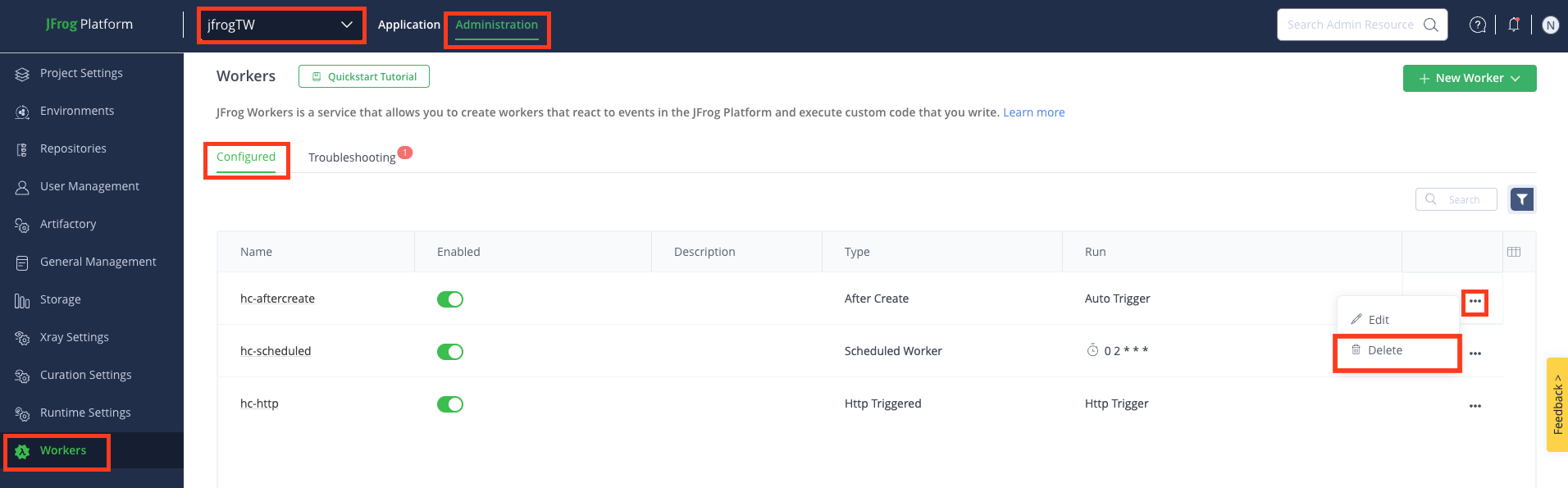
From the Configured tab, locate the worker you want to delete, click ••• icon and then click Delete.
The worker is deleted and removed from the configured list.
Updated 7 days ago