

Manage Skill Waivers
Request, review, cancel, or revoke a skill waiver in the JFrog AI Catalog.
A waiver lets you ask for an exception when a skill policy blocks a skill. One waiver covers every policy blocking that skill.
You can start a request from your coding agent, from the skill in the Skills Registry, or from AI/ML > Waiver requests. This page gives the steps for Waiver requests. The clicks in the coding agent and on the skill page aren't documented here.
You can create or cancel a waiver request. Only an administrator can approve, reject, or revoke a waiver. A new request stays Pending until an administrator reviews it.
A request can have one of the following statuses:
- Pending
- Approved
- Rejected
- Expired
- Revoked
- Canceled
On the Waiver Requests page, the summary cards are All requests, Pending, Approved, Expired, and Rejected. Search matches a waiver ID, a scope, or an asset name.
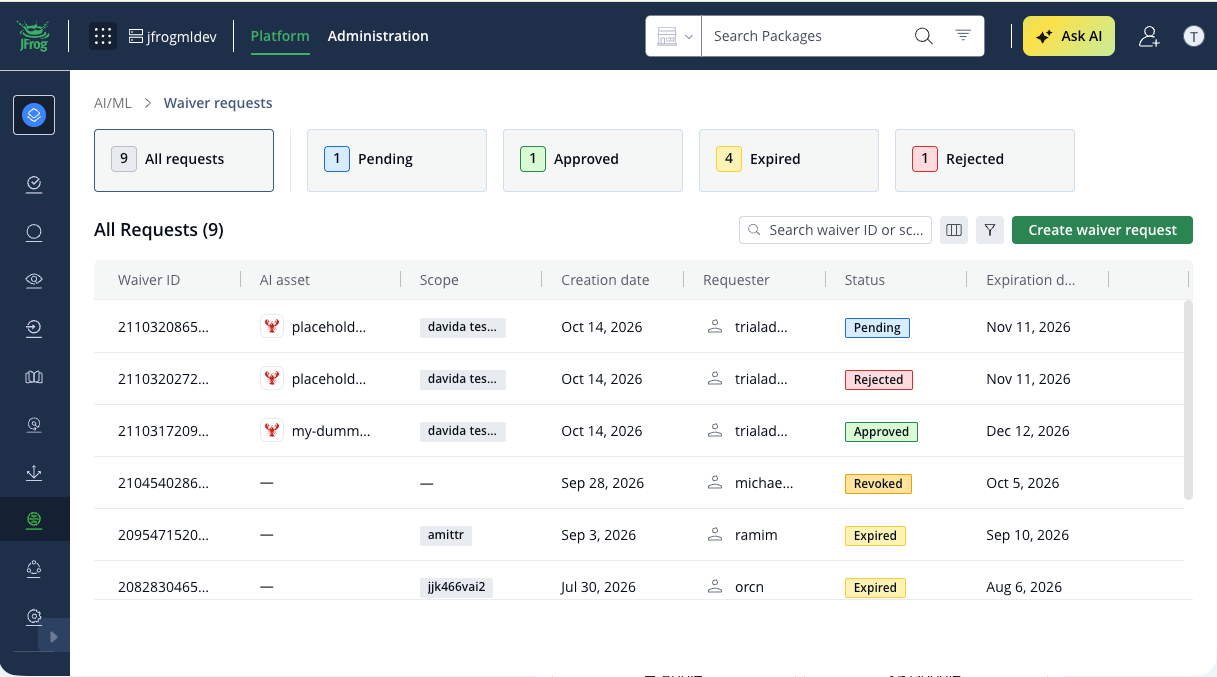
This topic covers the following tasks:
- Create a Waiver Request
- Review a Waiver Request
- Cancel a Waiver Request
- Revoke a Waiver
- View an Approved Waiver
You can also sort a column, filter the table, and show or hide columns.
Create a Waiver Request
If a policy blocks a skill you need to use, create a waiver request to unblock it. Every request requires a justification and an expiration date.
The skill stays blocked, with a Pending status, until an administrator approves or rejects the request.
From the JFrog Platform
- Start from either location:
- AI/ML > Waiver Requests
- AI/ML > AI Catalog > Skills, then select the blocked skill
- Click Create waiver request. Skill Details opens.
- If you started from Waiver Requests, select the skill. (If you started from the skill, it's already selected.)
- Select the project, repository, and version. The blocking policies and findings appear. One waiver covers all of the policies blocking that skill.
- Click Next.
- Enter an expiration date and a justification. Both are required.
- Click Submit.
From your coding agent
Ask your coding agent to create a waiver request for the blocked skill.
The result is the same as creating the request in the platform.
Note
If an active waiver already exists for the same project, repository, and version, Submit fails with this message:
an active waiver (id …) already exists for this scope. Use the existing waiver, or wait for it to expire.
Review a Waiver Request
Review a waiver request when you are an administrator and a request is Pending. Use this procedure to approve or reject the request. If you reject it, the same skill can be requested again.
To review a waiver request:
- In the JFrog Platform, go to AI/ML > Waiver requests.
- Click Pending. The table lists pending requests.
- Click the actions menu for the request, then click Review request. Review waiver request opens.
- Complete the required expiration date and decision.
- Click Submit.
Cancel a Waiver Request
Cancel a waiver request when it is still Pending and you don't want it reviewed. You can cancel a request.
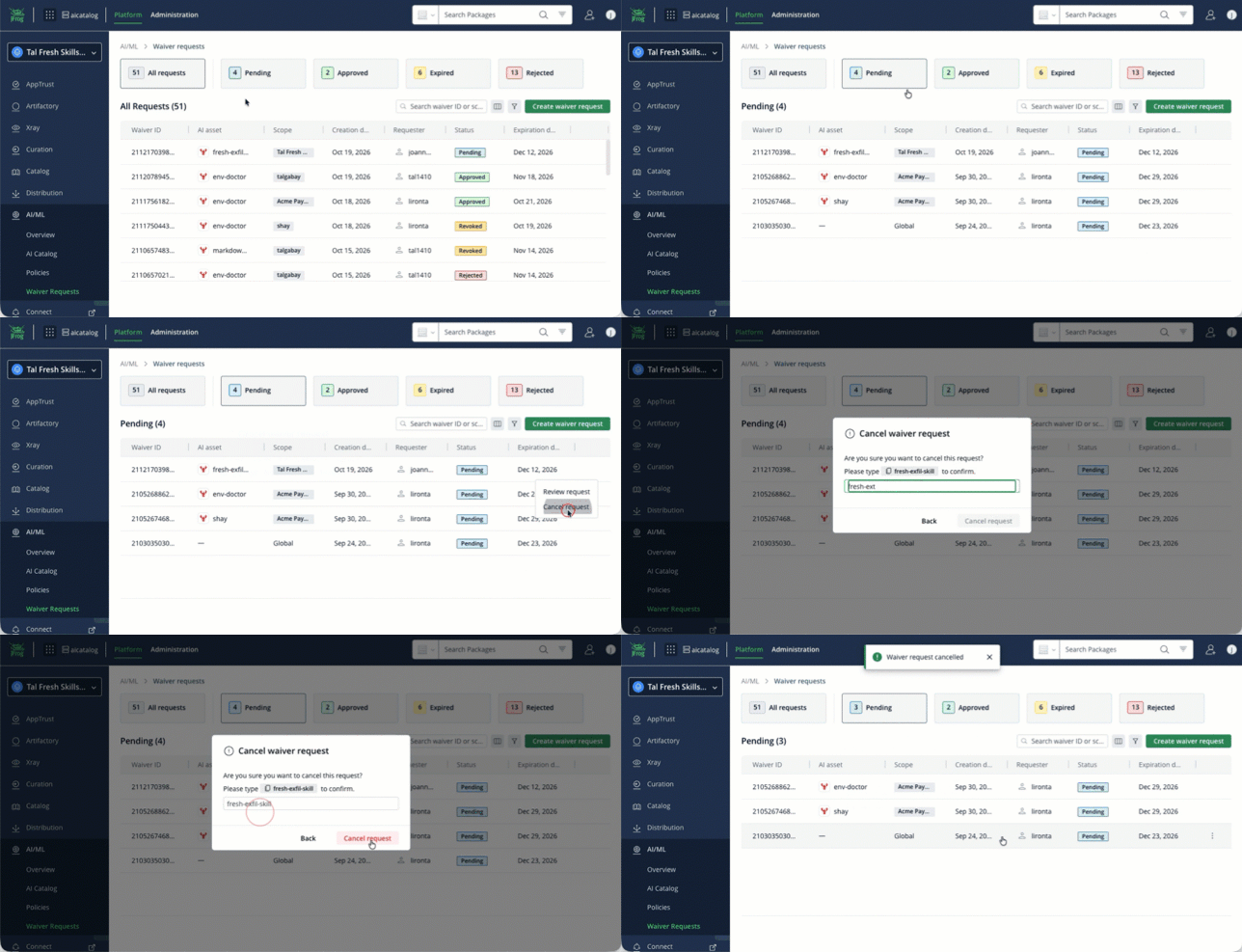
To cancel a waiver request:
- In the JFrog Platform, go to AI/ML > Waiver requests.
- Click the actions menu for the pending request, then click Cancel request.
- Confirm the cancelation.
The request is canceled.
Revoke a Waiver
Revoke a waiver when you are an administrator and an approved waiver shouldn't apply anymore. Only an administrator can revoke a waiver.
To revoke a waiver:
- In the JFrog Platform, go to AI/ML > Waiver requests.
- Click Approved. The table lists approved waivers.
- Click the actions menu for the waiver, then click Revoke waiver.
The waiver is Revoked.
View an Approved Waiver
View an approved waiver to read its details, open the skill, or open the repository. The details open.
To view an approved waiver:
- In the JFrog Platform, go to AI/ML > Waiver requests.
- Click the actions menu for the approved waiver, then click View. The details open.
- (Optional) Click the skill name. A new tab opens AI/ML > Registry for that skill, with the waived version selected.
- (Optional) Click the repository name. A new tab opens Artifactory > Artifacts for that repository and version.
Frequently Asked Questions
This section provides answers to frequently asked questions about skill waivers.
FAQs
Q: How do I request a waiver when a policy blocks a skill?
A: In the JFrog Platform, go to AI/ML > Waiver requests and click Create waiver request. The request stays Pending until an administrator approves or rejects it. For the steps, see Create a Waiver Request.
Q: Who can approve, reject, or revoke a skill waiver?
A: All users can create or cancel a waiver request. Only an administrator can approve, reject, or revoke a waiver. For the review steps, see Review a Waiver Request.
Q: What happens if I request a waiver that already exists?
A: After you click Submit, a notification shows that an active waiver already exists for this scope, with that waiver's ID. To find the existing waiver, search for that ID in AI/ML > Waiver requests. For the request steps, see Create a Waiver Request.
Related Topics
Updated about 4 hours ago