

Repository Layouts
Learn how Artifactory repository layouts map module paths for any build tool.
Together with the growing number of choices for build tools and frameworks, there are also many ways in which modules can be stored within a repository.
JFrog Artifactory first supported the Maven layout conventions for modules (and Maven-specific metadata). Your build tool should be able to talk to the repository naturally, so if you are using Ivy or Gradle, there is no need to configure them to use the Maven conventions to fit in. Combining and chaining repositories that use different layouts should work out of the box.
This is where the Repository Layouts add-on comes into play.
Custom Repository Layouts
Repository Layouts enable you to take full control over the layout used by each repository and use layout definitions to identify module artifacts and descriptors. Repository layouts support these smart module management facilities for any build technology:
- Automatic snapshot/integration version cleanup
- Deleting old versions
- Conversions between remote and local layouts
- Conversions between two local layouts when moving or copying
- Resolution conversions from a virtual repository to its underlying repositories (where the virtual repository has its own layout defined)
Support for repository layouts in Artifactory OSS
Layout configuration for conversion and resolution is available only with Artifactory Power Pack. If you use the OSS version, you can only configure repositories to use the default repository layouts bundled with Artifactory.
The OSS version only supports automatic snapshot/integration version cleanup and deleting old versions.
Default Repository Layouts
Artifactory comes with a number of out-of-the-box default layouts requiring no additional configuration. They include:
- Ansible
- Bower
- Build
- Cargo
- Composer
- Conan
- Go
- Gradle (Wharf cache default layout)
- Ivy (default layout)
- Maven 1
- Maven 2/3
- npm
- npm Test
- NuGet
- Puppet
Bundled Layouts
Artifactory comes out-of-the-box with a number of default, predefined layouts requiring no additional configuration:
- Maven 2/3
- Ivy (default layout)
- Gradle (Wharf cache default layout)
- Maven 1
Support for repository layouts in Artifactory OSS
Layout configuration for conversion and resolution is available only with Artifactory Power Pack. If you use the OSS version, you can only configure repositories to use the default repository layouts bundled with Artifactory.
The OSS version only supports automatic snapshot/integration version cleanup and deleting old versions.
Modules and Path Patterns Used by Repository Layouts
To support smart module management, Artifactory must construct module information for stored files. Artifactory constructs this information based on path pattern information defined as part of the Repository Layout configuration.
A module is comprised of various sub-elements or fields, which are typically expressed in the path of a stored artifact.
The module sub-elements recognized by Artifactory are listed in the following table. At a minimum, there are three mandatory fields required for module identification:
- Organization
- Module
- Base Revision
| Field | Description | Example | Mandatory |
|---|---|---|---|
| Organization | A sequence of literals that identifies the artifact's organization | "org.slf4j" |  |
| Module | A sequence of literals that identifies the artifact's module | "slf4j-api" | |
| Base Revision | A sequence of literals that identifies the base revision part of the artifact version, excluding any integration information | "1.5.10", or in case of an integration revision "1.2-SNAPSHOT" the base revision is "1.2" | |
| Folder Integration Revision | A sequence of literals that identifies the integration revision part used in folder names in the artifact's path, excluding the base revision | in case of an integration revision "1.2-SNAPSHOT" the folder integration revision is "SNAPSHOT" |  |
| File Integration Revision | A sequence of literals that identifies the integration revision part in the artifact's file name, excluding the base revision | in case of an integration revision "1.2-20110202.144533-3" the file integration revision is "20110202.144533-3" | |
| Classifier | A sequence of literals that identifies the artifact's classifier | "sources" | |
| Extension | A sequence of literals that identifies the artifact's extension | "zip" | |
| Type | A sequence of literals that identifies the artifact's type. Typically used when the artifact's extension can't be reused as the artifact's type. | "java-source" | |
Using Module Fields to Define Path Patterns
A path pattern is used in the configuration of a Repository Layout.
The pattern is similar to that of the Ivy pattern and is used to define a convention for artifact resolution and publication paths.
Artifactory uses path patterns to construct module information for stored files. This module information is then used to facilitate all the features mentioned in Custom Repository Layouts (version cleanup, cross-repo path conversions, and so on).
Path Pattern Tokens
A path pattern is constructed of tokens (explained in the following table), path separators ('/'), optional parentheses ('(' and ')') and literals ('.', '-', and so on). Tokens are modeled after module fields, as presented in the module fields table.
Path patterns can be defined for every artifact in the repository or you can define separate path patterns for descriptor-type artifacts (such as a .pom or an ivy.xml file).
The following tokens are available:
| Token | Description |
|---|---|
| [org] | Represents the Organization field where the levels are separated by dots ('.'), a-la Ivy. For example: "org.slf4j" |
| [orgPath] | Represents the Organization field where the levels are separated by path separators ('/'), a la Maven. For example: "org/slf4j". |
| [baseRev] | Represents the Base Revision field. |
| [module] | Represents the Module field. |
| [folderItegRev] | Represents the Folder Integration Revision field. |
| [fileItegRev] | Represents the File Integration Revision field. |
| [classifier] | Represents the Classifier field. |
| [ext] | Represents the Extension field. |
| [type] | Represents the Type field. |
[customTokenName<customTokenRegex>] | A custom token. Can be used to create a new type of token when the provided defaults are insufficient. For example, |
Custom tokens
When using custom tokens in the repository layout, make sure that the layout begins with
[orgPath]/[module]. If the[module]token is missing in the layout, some REST API requests will not work.
Multiple Custom Tokens
Artifactory supports any number of custom tokens. When you provide multiple custom tokens of the same key, Artifactory only takes into account the regular expression of the first occurrence and substitutes the rest with a repetition expression, even if each occurrence has a different regular expression value.
For example:
[custom1<.+>]/[custom1<.*>]/[custom1<[0-9]+>]Translates to:
<custom1>.+/\1/\1
Optional parts
To specify tokens or a sequence of tokens and literals as optional in the path pattern, surround the sequence with the optional parentheses '
(' and ')' literals.For example, the pattern
[module](-[classifier])matches bothbobs-tools-sourcesandbobs-tools, and the pattern[baseRev](-[fileItegRev])matches both1.2-SNAPSHOTand1.2.
Artifact Path Patterns
An artifact path pattern represents the typical structure in which all module artifacts are expected to be stored.
For example:
-
To represent a normal Maven artifact path: "
org/eclipse/jetty/jetty-ajp/7.0.2.v20100331/jetty-ajp-7.0.2.v20100331.jar"Use the artifact path pattern:
[orgPath]/[module]/[baseRev](-[folderItegRev])/[module]-[baseRev](-[fileItegRev]) (-[classifier]).[ext] -
To represent a default Ivy artifact path: "
org.eclipse.jetty/jetty-ajp/7.0.2.v20100331/jars/jetty-ajp-7.0.2.v20100331.jar"Use the artifact path pattern:
[org]/[module]/[baseRev](-[folderItegRev])/[type]s/[module]-[baseRev](-[fileItegRev]) (-[classifier]).[ext]
Descriptor Path Patterns
A descriptor path pattern is used to recognize descriptor files (like .pom or ivy.xml files).
Using a specific descriptor path pattern is optional. When not used, Artifactory constructs module information for descriptor files using the artifact path pattern.
Even though descriptor path patterns are optional, you should use them for distinctive descriptors, such as Ivy ivy_-1.0.xml and Maven bobs-tools-1.0.pom.
For example:
-
To represent a normal Maven descriptor path: "
org/eclipse/jetty/jetty-ajp/7.0.2.v20100331/jetty-ajp-7.0.2.v20100331.pom"Use the descriptor path pattern:
[orgPath]/[module]/[baseRev](-[folderItegRev])/[module]-[baseRev](-[fileItegRev]) (-[classifier]).pom -
To represent a default Gradle descriptor path: "
org.eclipse.jetty/jetty-ajp/ivy-7.0.2.v20100331.xml"Use the descriptor path pattern:
[org]/[module]/ivy-[baseRev](-[fileItegRev]).xml
Configure Repository Layouts
Repository layouts are configured on the global level of your Artifactory instance so that any layout can be shared and reused across any number of repositories.
- Create a Repository Layout
- Configure a Local Repository Layout
- Configure a Remote Repository Layout
- Configure a Virtual Repository Layout
Create a Repository Layout
Administrators can access layout configuration in the Administration module under Artifactory Settings > Repositories Layouts.
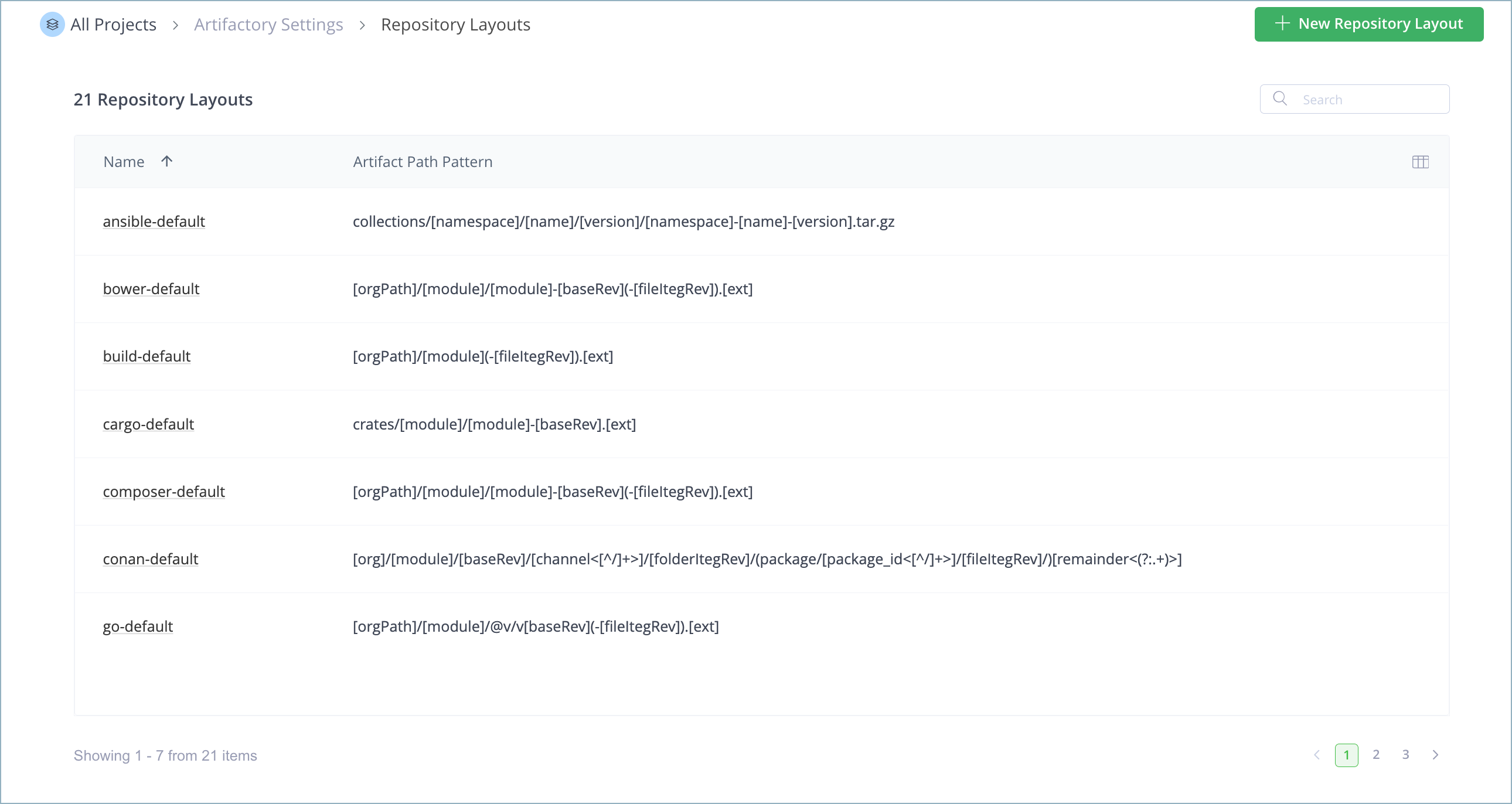
To create a repository layout:
-
Do one of the following:
-
Click New Repository Layout.

-
Click the copy icon at the end of a table row to duplicate an existing layout.

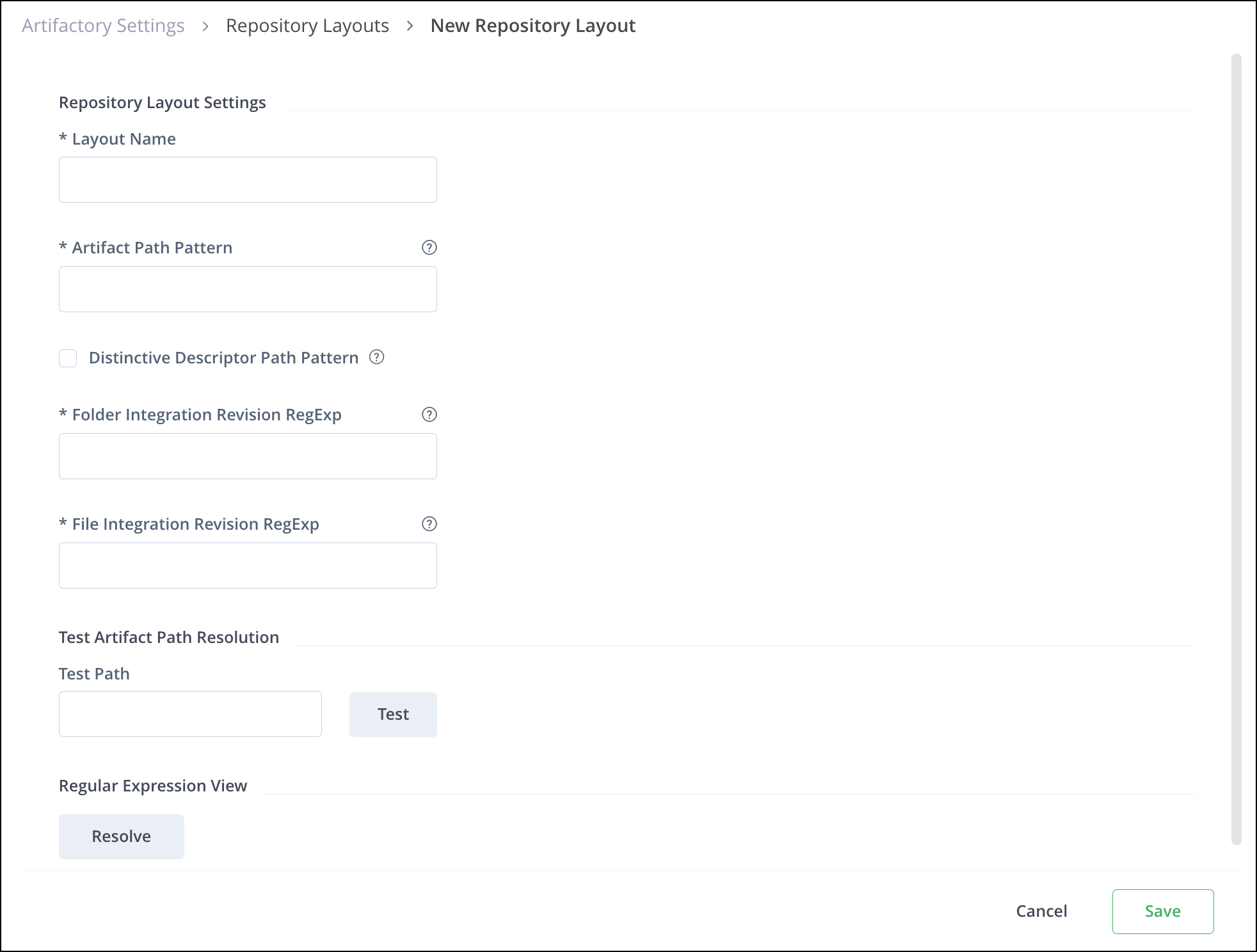
-
Testing Layouts
Once you have finished configuring your layout, you can test it on an artifact path and see how the system builds module information from the path using the layout definitions.
Path Patterns
Path patterns are used to define the artifact path pattern and the descriptor path pattern (optional).
Use patterns in the directory part of the path
For best path matching results, artifact and descriptor patterns should also contain the mandatory tokens (
[org]or[orgPath],[module], and[baseRev]) within the directory structure itself.For example, Gradle's artifact path pattern:
[org]/[module]/[baseRev](-[folderItegRev])/[module]-[baseRev](-[fileItegRev]) (-[classifier]).[ext]
Regular Expressions for File and Folder Integration Revision
These fields should contain regular expressions that exactly match and describe the integration revision (excluding the base revision) formats as they are expected in the artifact's file name and path-structure folder name.
Avoid using capturing group syntax in regexp
Regular expressions entered in these fields are wrapped and treated as a single capturing group.
Don't introduce any capturing groups within the expressions. Doing so may result in unexpected behavior and compromise the accuracy of the matcher.
Folder integration revision regular expression examples:
-
Maven's folder integration revision is simply the constant
-SNAPSHOTappended to the base revision (1.2-SNAPSHOT), so the regular expression isSNAPSHOT -
Ivy's default folder integration revision is usually equal to the file integration revision and is normally a 14-digit timestamp ("5.1-20101202161531"), so the regular expression can be
\d{14}
File integration revision regular expression examples:
-
Maven's file integration revision can be either the
-SNAPSHOTconstant ("1.2-SNAPSHOT") or a timestamp, where the date and time are separated by a dot ('.'), with an addition of a dash ('-') and a build-number ("2.3-20110108.100922-2"), so the regular expression should be able to fit them both:SNAPSHOT|(?:(?:\d{8}.\d{6})-(?:\d+)) -
Ivy's default file integration revision is normally a 14-digit timestamp (
5.1-20101202161531) and usually equal to the folder integration revision, so the regular expression may be the same as suggested in the folder example:\d{14}
Repository Layout Configuration
Before custom layouts
Repositories created before the introduction of custom repository layouts are automatically configured with the default Maven 2 layout.
The following topics describe repository layout configuration:
- Configure a Local Repository Layout
- Configure a Remote Repository Layout
- Configure a Virtual Repository Layout
Configure a Local Repository Layout
Layouts are mandatory for local repositories since they define the structure with which artifacts are stored.
To select a repository layout for a local repository:
-
In the Administration module, go to Repositories.
-
Do one of the following:
-
When creating a new repository, click Create a Repository and then select Local.
or
-
When modifying an existing repository, click the Local tab, locate the relevant repository and click its repository key.
-
-
In the Basic tab, scroll down to the Repository Layout field. When you create a new repository, Artifactory recommends the best layout according to the package type.
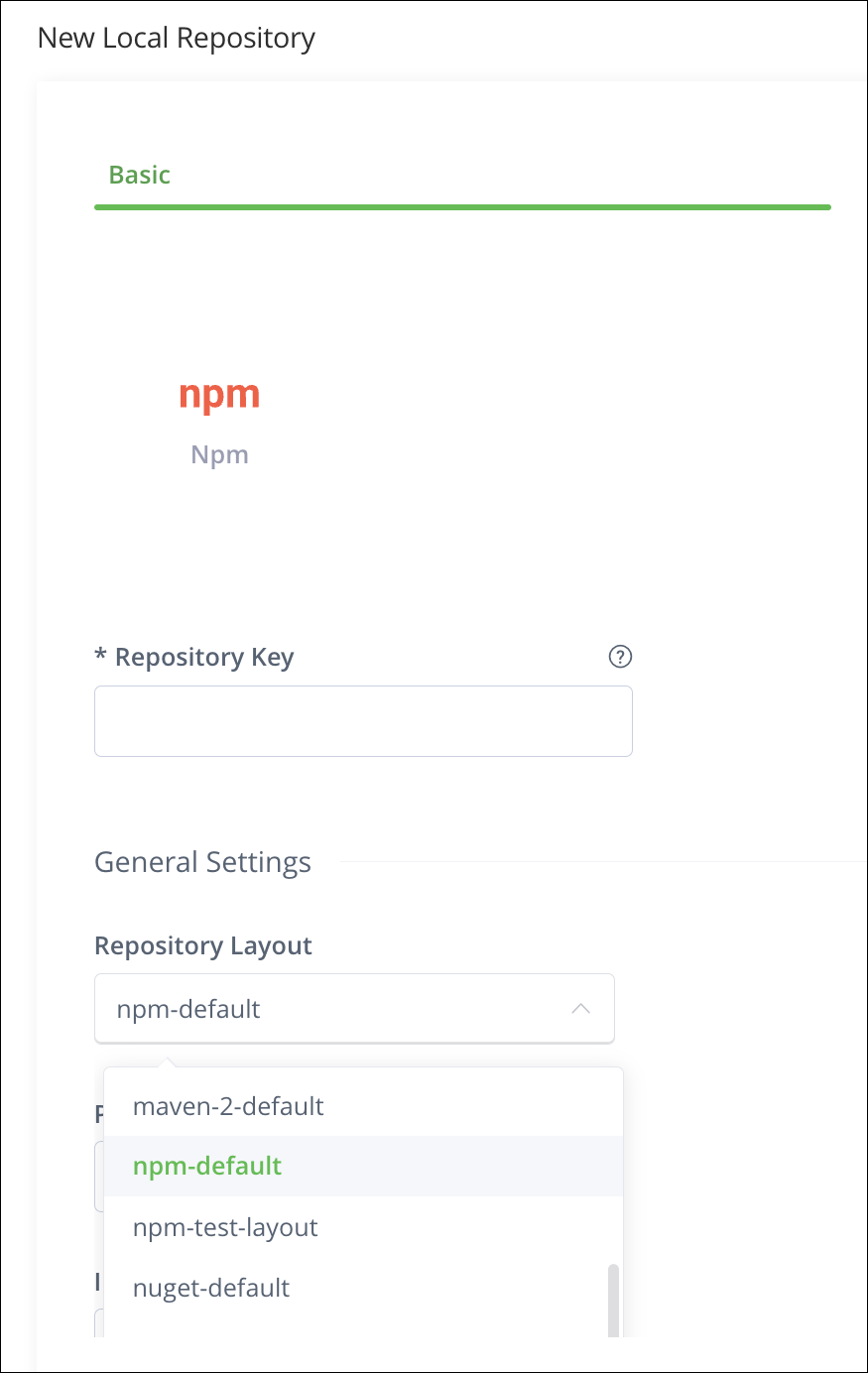
-
Select a repository layout from the list.
-
Click Save.
Configure a Remote Repository Layout
Layouts are mandatory only for the remote repository cache configuration. However, you can also specify the layout of the remote repository itself, as described in the following procedure.
To configure a repository layout for a remote repository:
-
In the Administration module, go to Repositories.
-
Do one of the following:
-
When creating a new repository, click Create a Repository and then select Remote.
or
-
When modifying an existing repository, click the Remote tab, locate the relevant repository and click its repository key.
-
-
In the Basic tab, scroll down to the Repository Layout field.
If the remote repository itself uses a different layout than the one chosen for the cache, all requests to the remote target are translated from the path of the cache layout to the path of the remote layout.
For example, suppose you have a remote repository that stores its artifacts according to the Maven 1 convention. You can configure the cache of this repository to use the Maven 2 layout but set the Remote Layout Mapping to Maven 1. This way, the repository cache handles Maven 2 requests and artifact storage, while outgoing requests to the remote repository are translated to the Maven 1 convention.
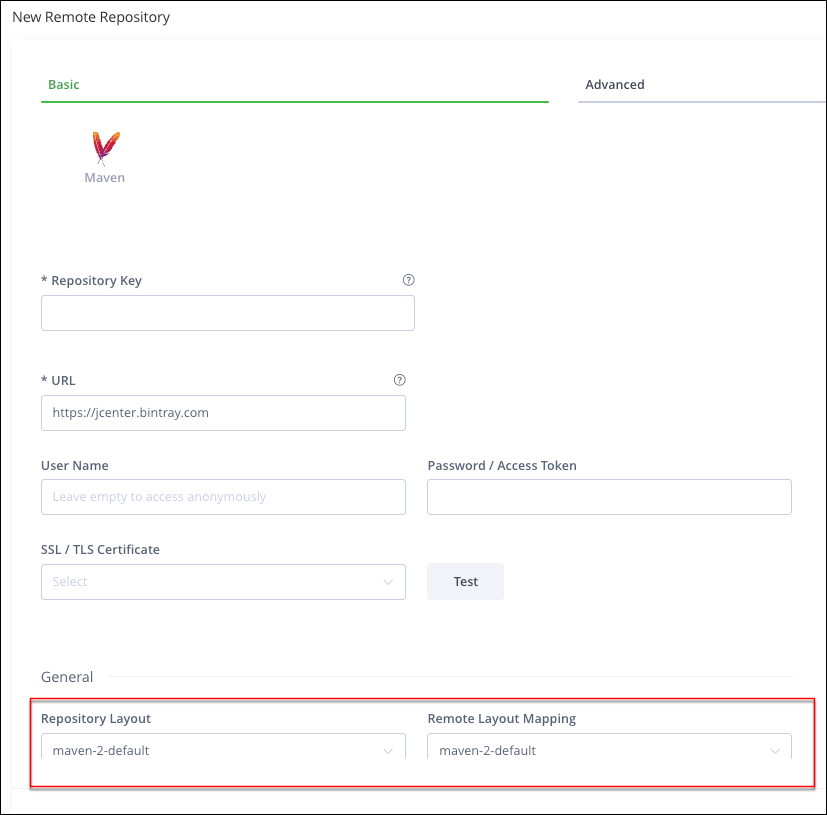
-
Select a repository layout from the list.
-
Click Save.
Configure a Virtual Repository Layout
You can configure a layout for a virtual repository.
When configured, all resolution requests can be made according to the virtual repository layout. When trying to resolve requests to the virtual repository, the system attempts to translate the request path to the layout of each nested repository, according to the module information constructed from the virtual request.
In the following cases, the request path is not translated, and requests pass through to nested repositories with the original specified path:
- Module information can't be constructed
- The virtual module information can't be mapped to a nested repository (for example, fields are missing on one of the sides)
- The virtual repository or the nested repository is not configured with a layout
To configure a repository layout for a virtual repository:
-
In the Administration module, go to Repositories.
-
Do one of the following:
-
When creating a new repository, click Create a Repository and then select Virtual.
or
-
When modifying an existing repository, click the Virtual tab, locate the relevant repository and click its repository key.
-
-
In the Basic tab, scroll down to the Repository Layout field.
-
Select a repository layout from the list.
-
Click Save.
Frequently Asked Questions
This section provides answers to frequently asked questions.
FAQs
Q: How do I create a repository layout in Artifactory?
A: In the Administration module, go to Artifactory Settings > Repositories Layouts, then click New Repository Layout or copy an existing layout. For more information, see Create a Repository Layout.
Q: What is the difference between a bundled layout and a custom layout?
A: Bundled layouts are predefined (for example Maven 2/3, Ivy, and Gradle) and need no extra setup. Custom layouts let you define path patterns so Artifactory can identify modules and convert paths between repositories. For more information, see Custom Repository Layouts and Bundled Layouts.
Q: What happens if a virtual repository has no layout configured?
A: Resolution requests pass through to nested repositories with the original path. Artifactory does not translate the request to each nested repository's layout. For more information, see Configure a Virtual Repository Layout.
Q: Which module fields are required in a repository layout path?
A: At a minimum, Artifactory needs Organization, Module, and Base Revision to identify a module. Put [org] or [orgPath], [module], and [baseRev] in the directory part of the pattern when you can. For more information, see Modules and Path Patterns Used by Repository Layouts.
Q: Can I configure custom layout conversion if I use Artifactory OSS?
A: Layout configuration for conversion and resolution is available with Artifactory Power Pack. OSS can use the default bundled layouts and still supports automatic snapshot/integration version cleanup and deleting old versions. For more information, see Custom Repository Layouts.
Related Topics
Updated 6 days ago