
View the Application Version Evidence Graph
Evidence is a central component of AppTrust as it provides an immutable audit trail of the actions and operations performed on the application version throughout its lifecycle. A way to conceptualize this picture is by using the evidence graph, which consists of evidence items, the subjects of that evidence, and the relationships between them.
Tip
To view evidence in tabular form, see View Application Version Evidence.
To view the application version evidence graph:
-
In the Platform module, select AppTrust > Applications.
-
In the Applications table, click the name of the relevant application.
-
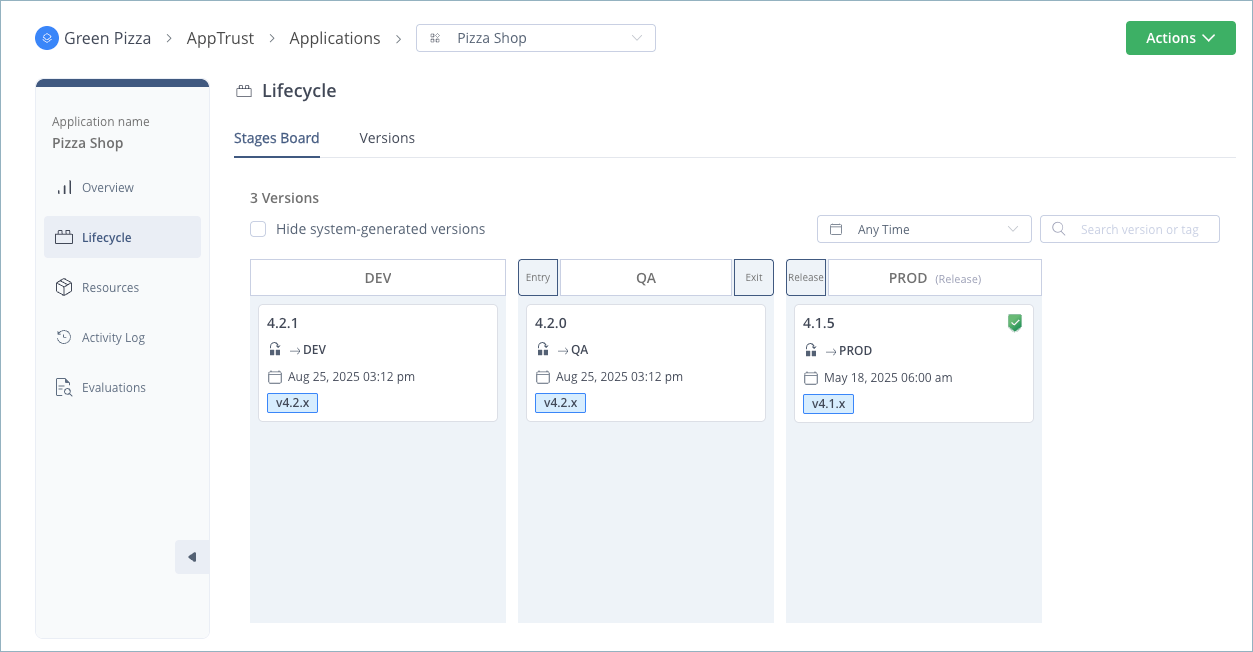
In the sidebar, click Lifecycle. The Stages Board tab is displayed by default.
-
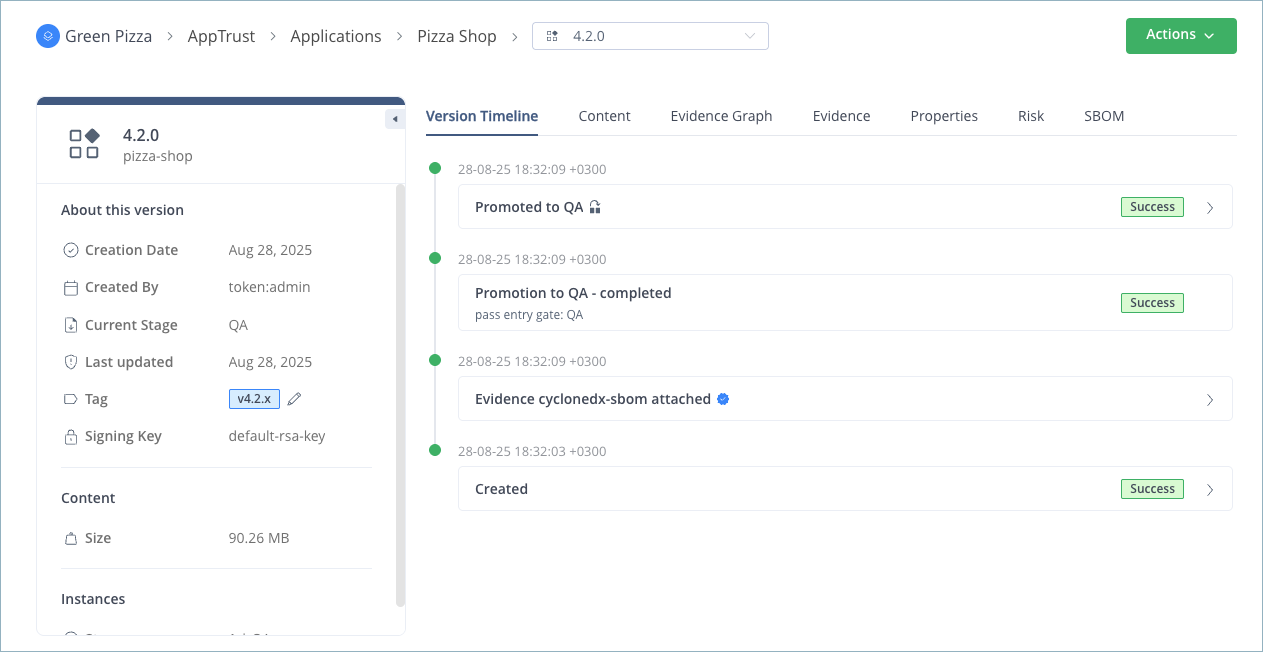
Click the card of the relevant application version to drill down into the version. The Version Timeline tab is displayed by default.
-
Click the Evidence Graph tab.
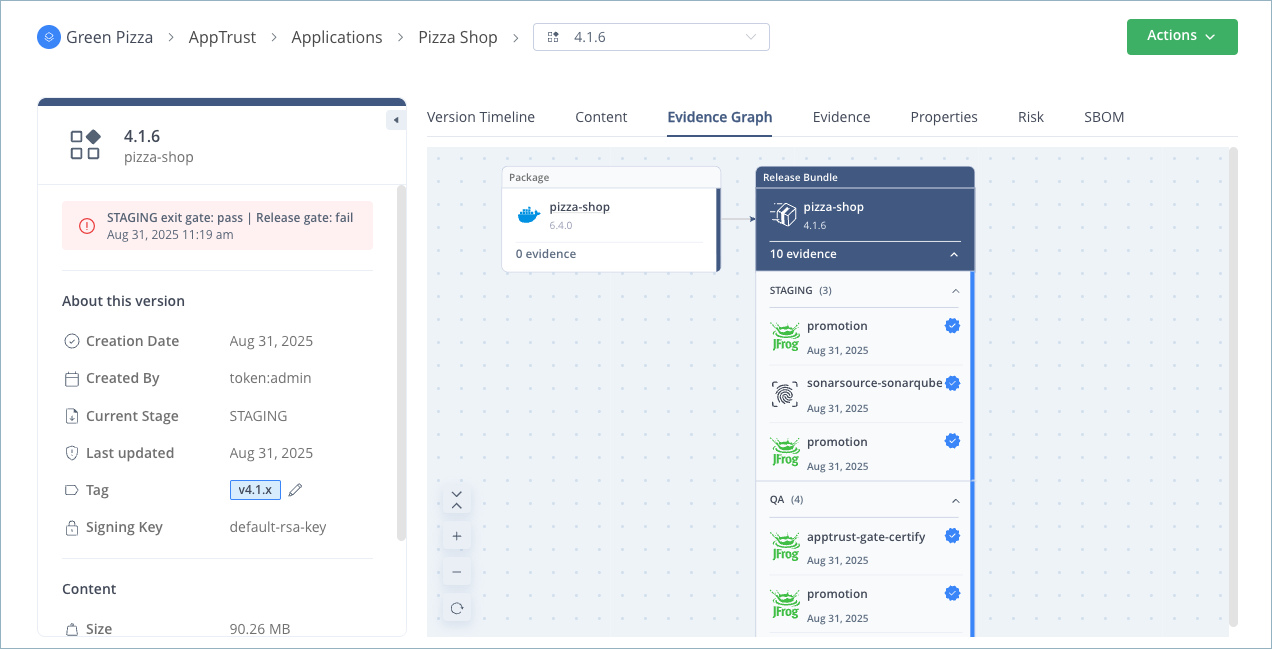
The evidence graph contains the following elements:
Element | Description |
|---|---|
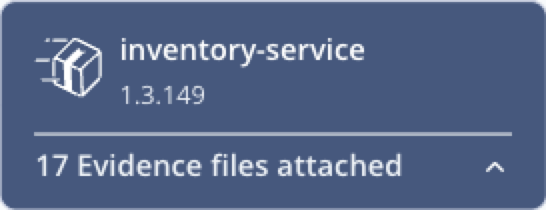
| Represents the application version, which is the highest element in the graph. The evidence files associated with the application version appear below it. The releasables (for example, the builds and packages) associated with the application version appear off to one side with lines connecting them to the application version. |
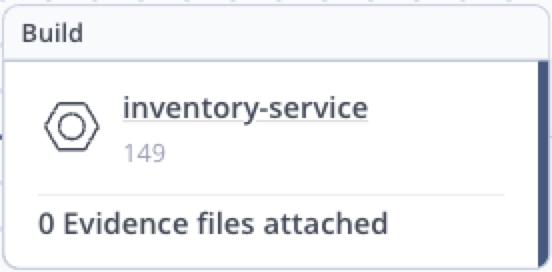
| Represents a build. The evidence files associated with the build appear below it with lines connecting them to the build.
|
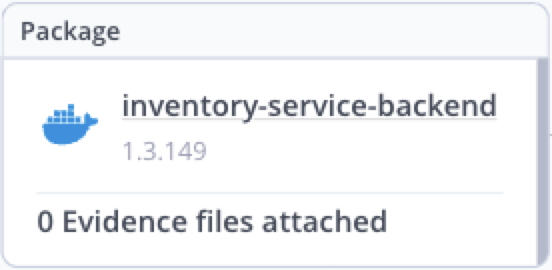
| Represents a package. The evidence files associated with the artifacts inside the package appear below it with lines connecting them to the package.
|
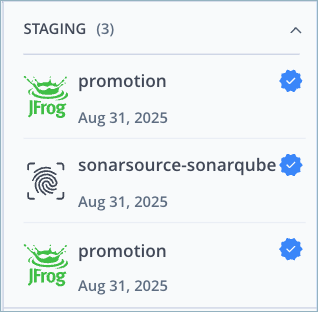
| Evidence is displayed underneath the graph element with which it is associated. The items are divided by stage, making it easy to see when each piece of evidence was added. (Evidence added before the application version reached the promotion phase of its lifecycle is classified as Unassigned.) Each piece of evidence is assigned one of the following categories (predicate types):
The logo indicates the evidence provider, which can be either JFrog or an external provider. Click an evidence element to view the predicate, which contains the actual content of the evidence. For more information, see View the Evidence Predicate. You can collapse and expand the evidence as required using the arrows. |
| Indicates the evidence file has been verified using the public key created for this purpose. For more information, see Upload the Public Key to Artifactory. |

Tip
You can pan the graph left/right and up/down. Use the icons in the corner of the graph to:
Icon Purpose Expand all evidence Collapse all evidence Zoom in Zoom out Refresh graph