

View Evidence
There are several ways to view evidence in Artifactory:
- Select an artifact or build and view a table of evidence files (internal and external) associated with the artifact or build. From the table, you can download evidence files to your local system. For more information, see View the Artifact Evidence Table and View the Build Evidence Table.
- Select an application version or Release Bundle v2 version and view its content graph, which provides a graphical depiction of the evidence files associated with the version and the builds and packages it contains. For more information, see View Lifecycle Evidence.
- The evidence graph and the evidence table in the artifact tree can be used to view the predicate, which contains the actual contents of the evidence file. For more information, see View the Evidence Predicate.
- You can view a list of evidence-related events associated with an application version or a Release Bundle v2 version in the version timeline.
View the Artifact Evidence Table
When you select a local repository, virtual repository, or Release Bundle v2 from the repository tree, use the Evidence tab to view a list of external evidence files associated with the Release Bundle and its contents. You can download these files to your local server.
To view the artifact evidence table:
-
In the Application module, select Artifactory > Artifacts.
-
Select an artifact from the tree. Details about the artifact are displayed in a series of tabs in the pane to the right of the tree. For more information, see Artifact Information.
-
Click the Evidence tab to display the evidence table.
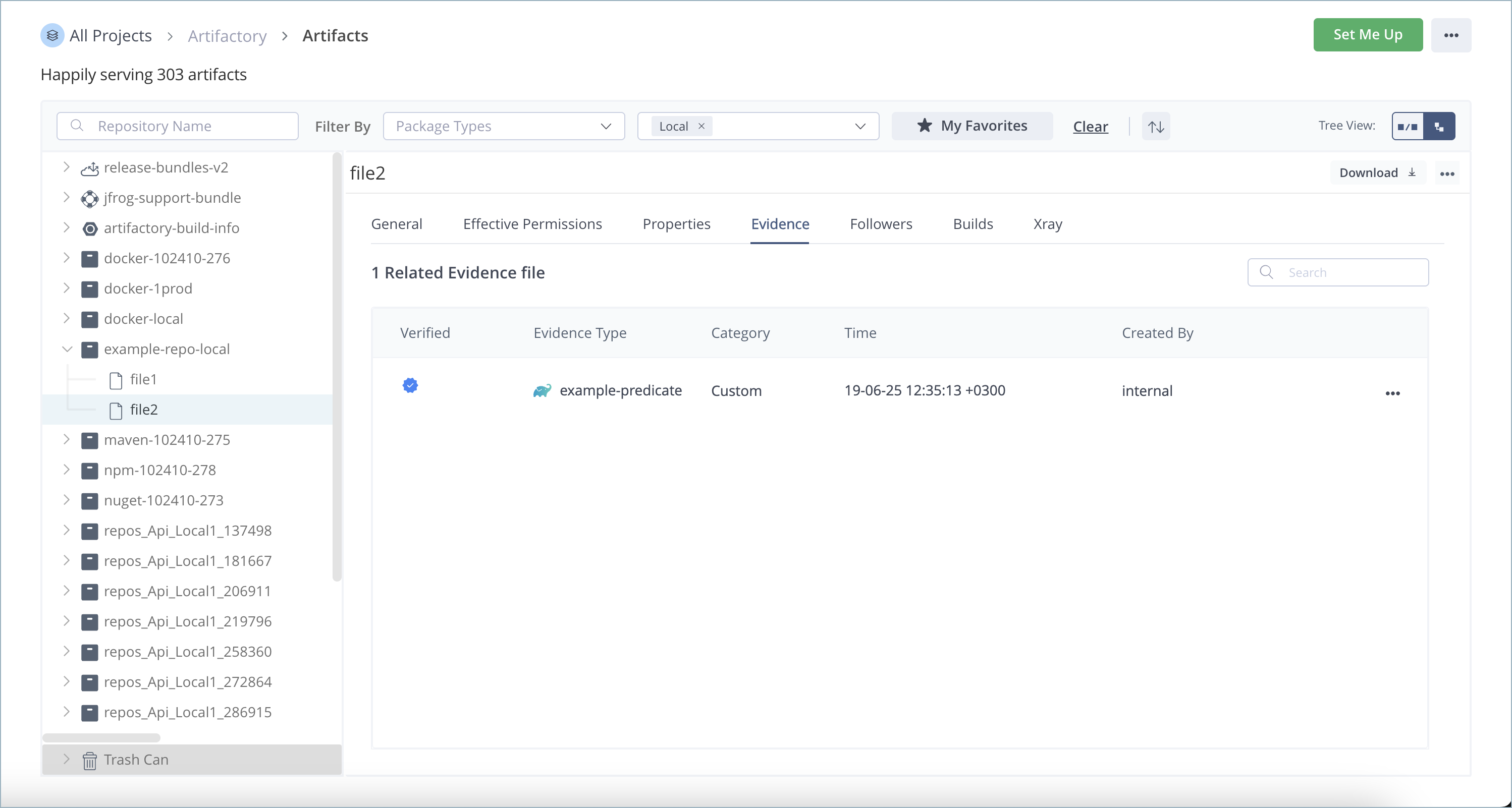
The table lists all external evidence files related to the selected artifact.
| Column | Description |
|---|---|
| Verified | A blue checkmark icon indicates the evidence has been verified using the public key created for this purpose. For more information, see Create a Key Pair for Evidence. |
| Evidence Type | The type of evidence contained in the file, for example, vulnerability scan, code scan, test result, or commit. An icon representing the evidence provider is displayed next to the name. |
| Time | The timestamp that indicates when the evidence file was created. |
| Created By | The name of the user who created the evidence file. |
| Actions menu | Click the ellipsis icon at the end of each table row to select options for viewing and downloading evidence. |
View the Evidence Contents
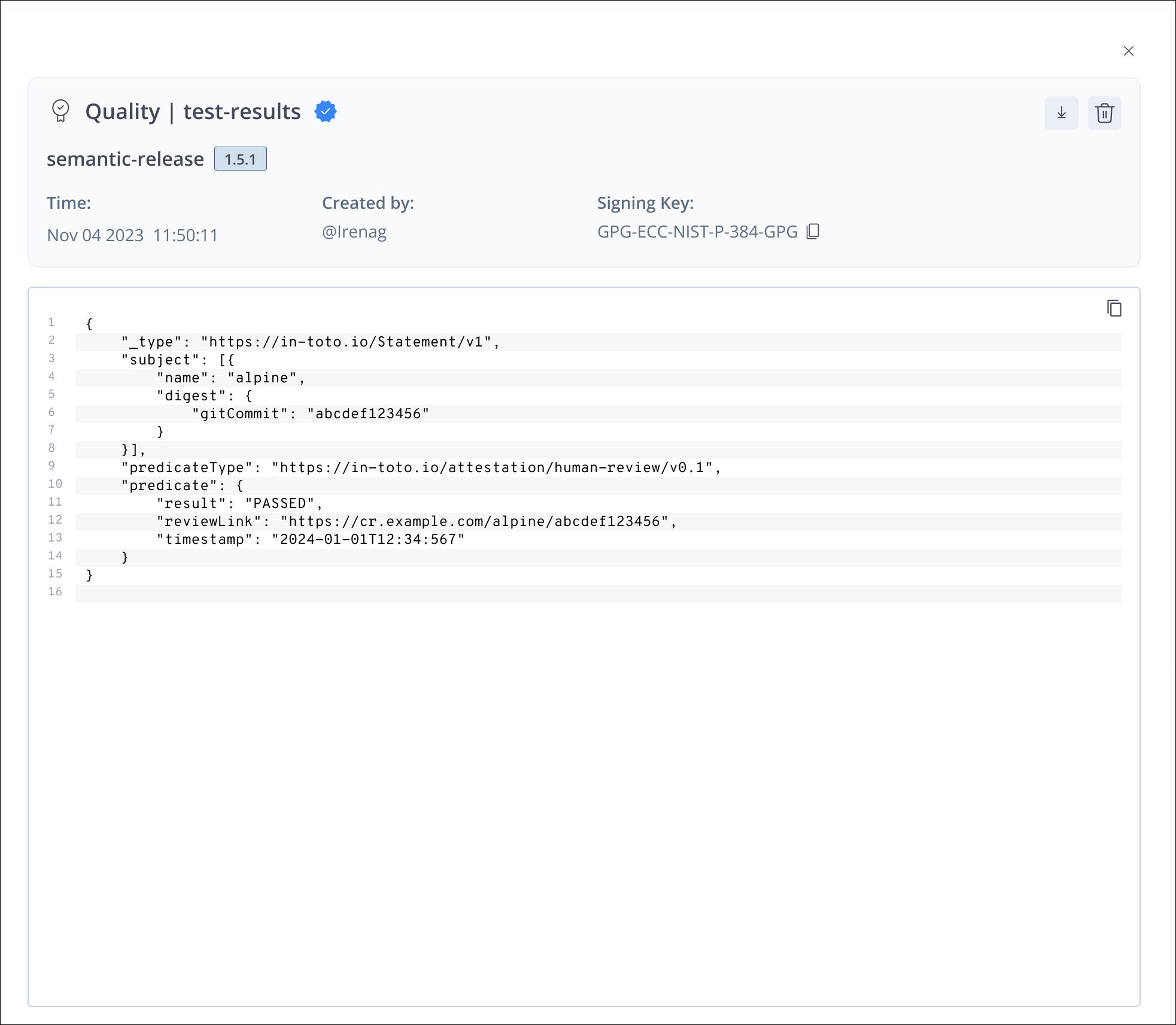
To view the contents of the evidence file, select View Evidence from the actions menu.
Note
The platform UI can display a maximum of 3000 lines from the evidence file. If the file is larger than that, you are given the option to download the evidence instead. The maximum size of an evidence file supported by Artifactory is 16MB.
Download Evidence
To download an evidence file from the table, select Download Evidence from the actions menu.
View the Package Evidence Table
When you select a package version from the Packages page, use the Evidence tab to view a list of external evidence files associated with the package. You can download these files to your local server.
To view the package evidence table:
-
In the Application module, select Artifactory > Packages.
-
Click the name of a package to display a table of package versions.
-
Click the relevant version to display the details of that version.
-
Click the Evidence tab.
-
Select a repository from the dropdown list above the table.
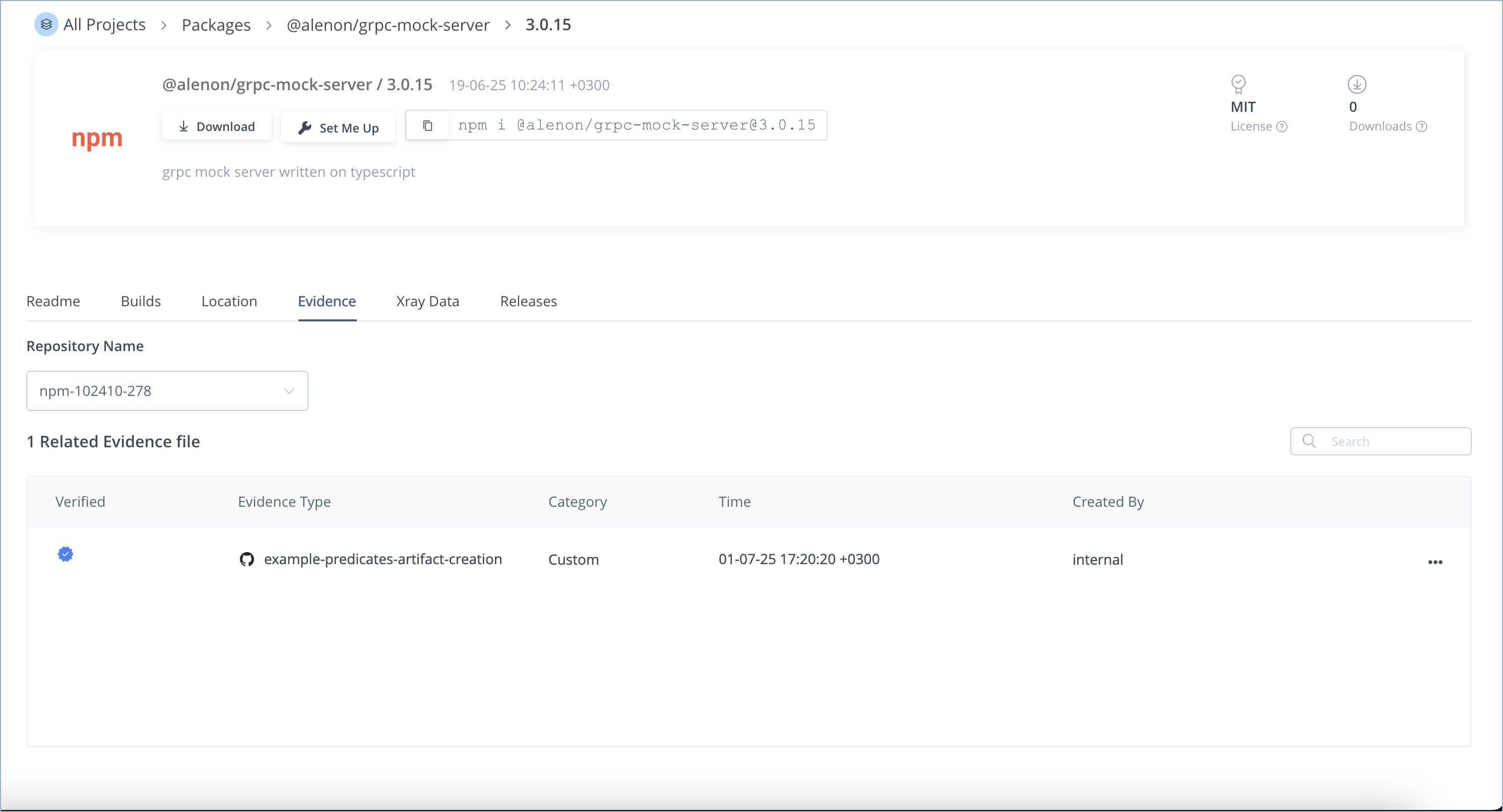
The table lists all external evidence files related to the package version in the selected repository.
| Column | Description |
|---|---|
| Verified | A blue checkmark icon indicates the evidence has been verified using the public key created for this purpose. For more information, see Create a Key Pair for Evidence. |
| Evidence Type | The type of evidence contained in the file, for example, vulnerability scan, code scan, test result, or commit. An icon representing the evidence provider is displayed next to the name. |
| Time | The timestamp that indicates when the evidence file was created. |
| Created By | The name of the user who created the evidence file. |
| Actions menu | Click the ellipsis icon at the end of each row to select options for viewing and downloading evidence. |
View the Build Evidence Table
When you select a build version from the Builds page, use the Evidence tab to view a list of external evidence files associated with the build. You can download these files to your local server.
To view the build evidence table:
-
In the Application module, select Artifactory > Builds.
-
Click the name of a build to display a table of build versions.
-
Click the relevant build ID to display the details of that build version.
-
Click the Evidence tab to display the evidence table.
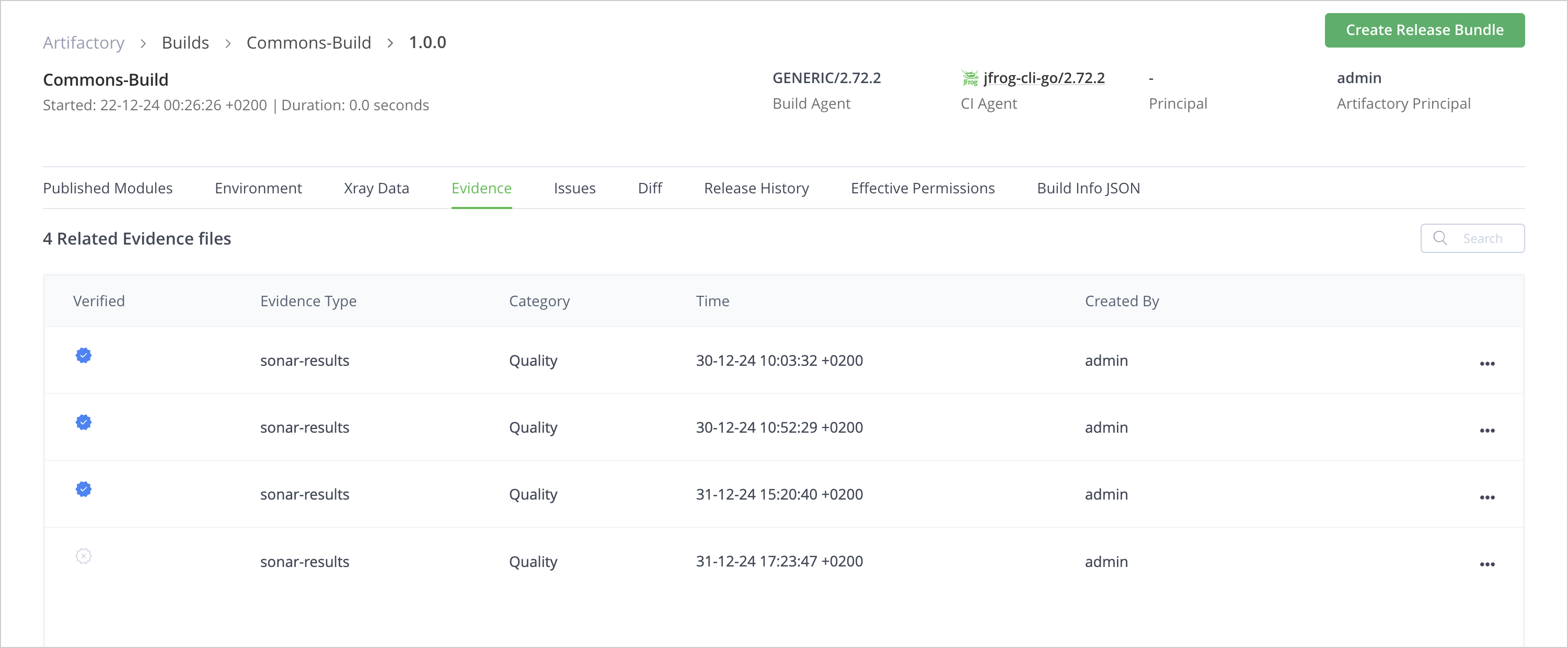
The table lists all external evidence files related to the selected artifact.
| Column | Description |
|---|---|
| Verified | A blue checkmark icon indicates the evidence has been verified using the public key created for this purpose. For more information, see Create a Key Pair for Evidence. |
| Evidence Type | The type of evidence contained in the file, for example, vulnerability scan, code scan, test result, or commit. |
| Time | The timestamp that indicates when the evidence file was created. |
| Created By | The name of the user who created the evidence file. |
| Actions menu | Click the ellipsis icon at the end of each row to select options for viewing and downloading evidence |
View Lifecycle Evidence
When you select a specific application version or Release Bundle v2 version in the platform UI, you can view the evidence associated with that version in two formats:
- In the Evidence table, as described for example in View the Release Bundle Version Evidence Table.
- In the content graph, which contains a graphical representation of the elements that comprise the Release Bundle version and the connections between them, including all related evidence. For more information, see View the Contents of a Release Bundle v2 Version in the Platform UI.
View the Evidence Predicate
When viewing the content graph for an application version or Release Bundle v2 version, click an evidence card to view its predicate, which contains the actual contents of the evidence.
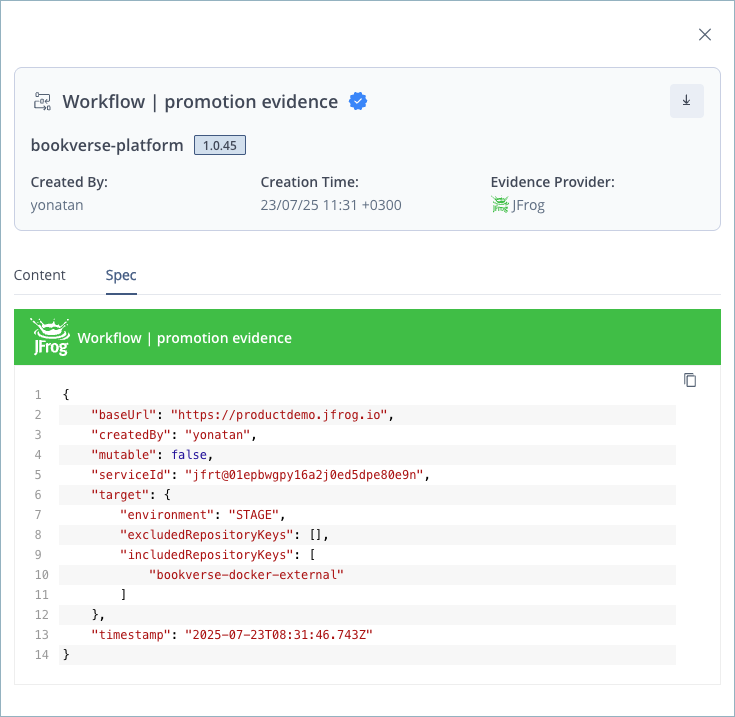
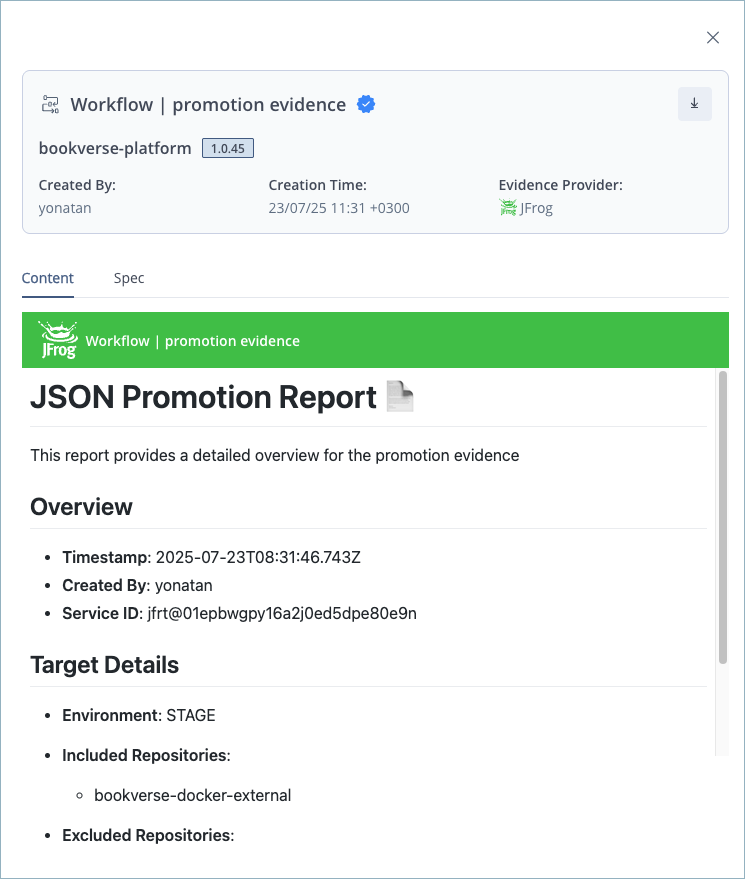
All evidence is available in JSON format. Internal evidence generated by Artifactory (such as Release Bundle v2 promotion reports) and Xray (such as SBOMs and vulnerability reports) is also available in Markdown for easy readability. When both formats are available, the Markdown version (including the evidence provider logo) is shown in the Content tab and the JSON version is shown in the Spec tab.
Tip
The predicate can also be viewed from the Evidence tab in the Artifact tree. For more information, see View the Artifact Evidence Table.
Sample predicates of different types are shown below.
Release Bundle v2 Promotion Predicate
Promoting a Release Bundle v2 version creates internal evidence about the event.
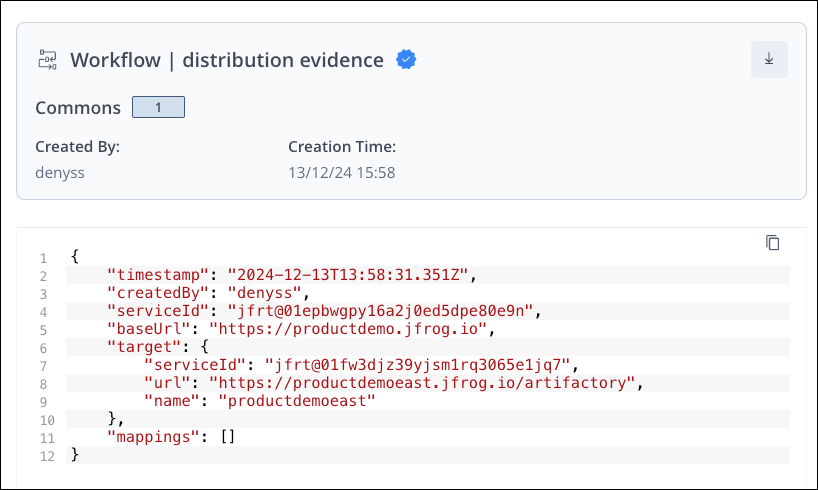
Release Bundle v2 Distribution Predicate
Distributing a Release Bundle v2 version to a target (such as an Edge node) creates internal evidence about the event.
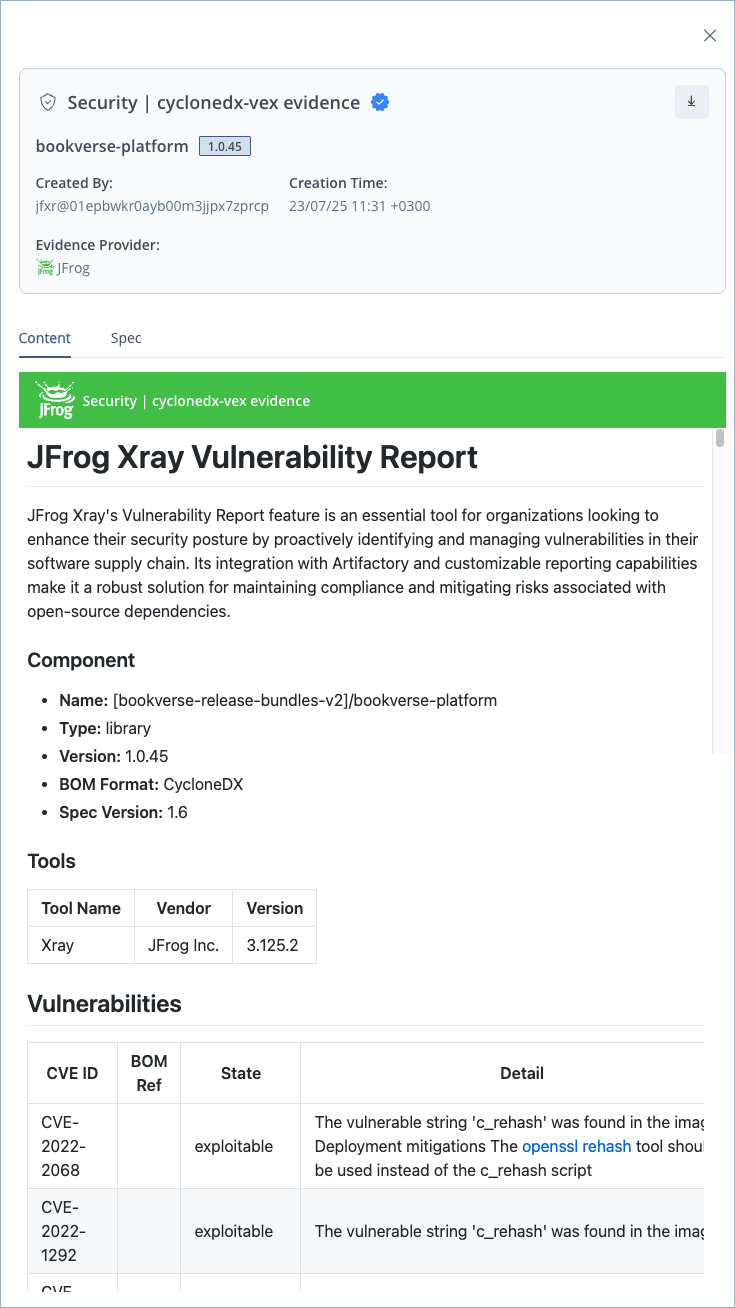
Xray Scan Results
The following is an example of vulnerability report evidence generated by Xray in Markdown format.
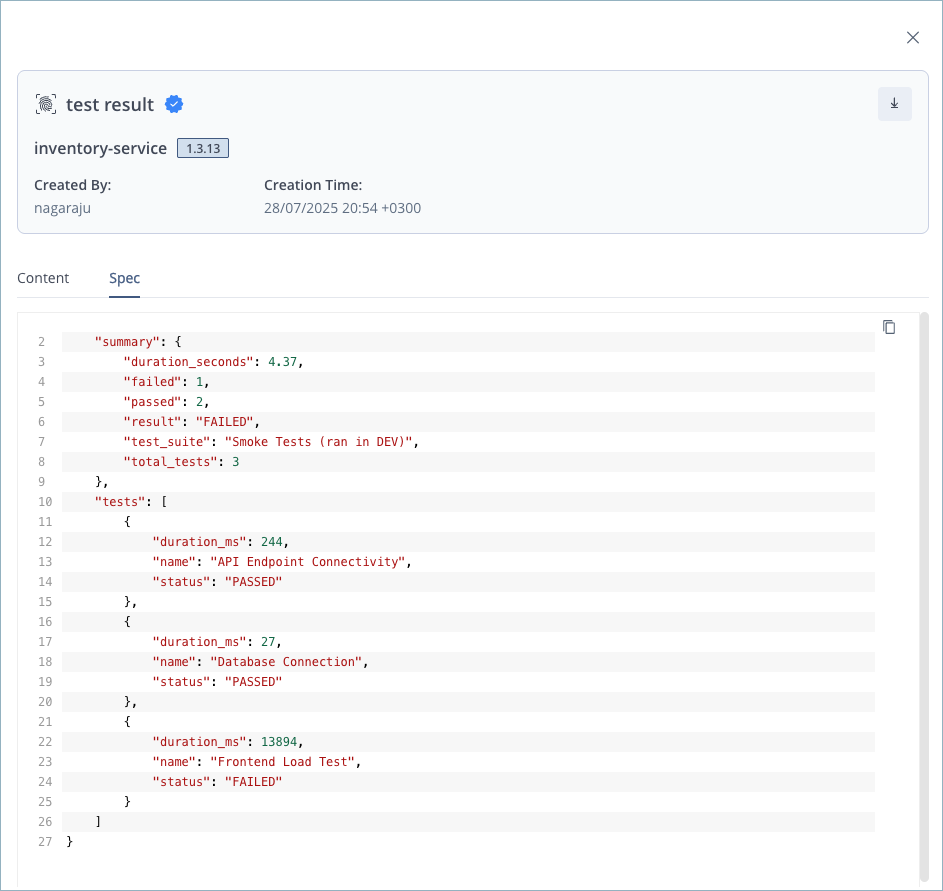
Test Results
Using the Create Evidence CLI, you can attach external evidence, such as test results performed outside of Artifactory.
Tip
Click the down arrow icon to download the evidence file to your local computer.
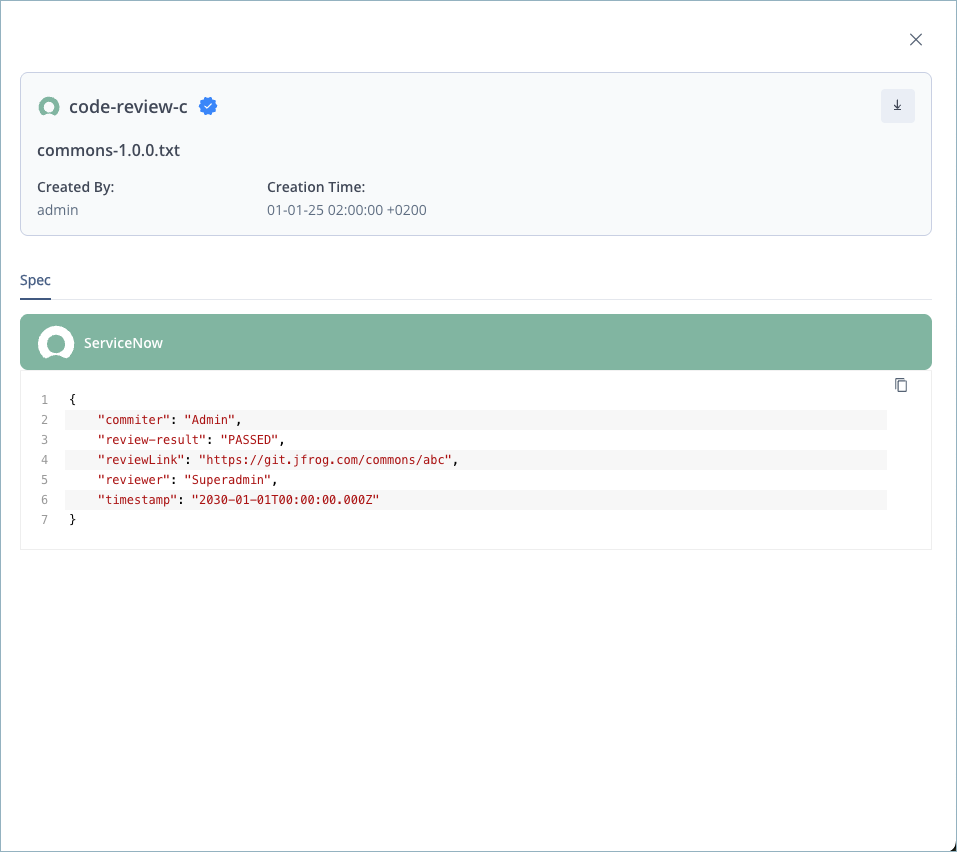
Evidence from an External Provider
Evidence uploaded from external providers are displayed with the provider logo, as shown in the example below.
Updated about 2 months ago