

View Waiver Requests
You can view a list of the existing waiver requests, including the status of each waiver. In addition, you can see the details of each waiver request.
Waiver Request Table
The table of waiver requests enables you to track waiver requests in all statuses.
To view waiver requests:
- In the JFrog Platform, go to AppTrust > Waivers. The list of waiver requests appears, showing the most recent requests of all statuses.
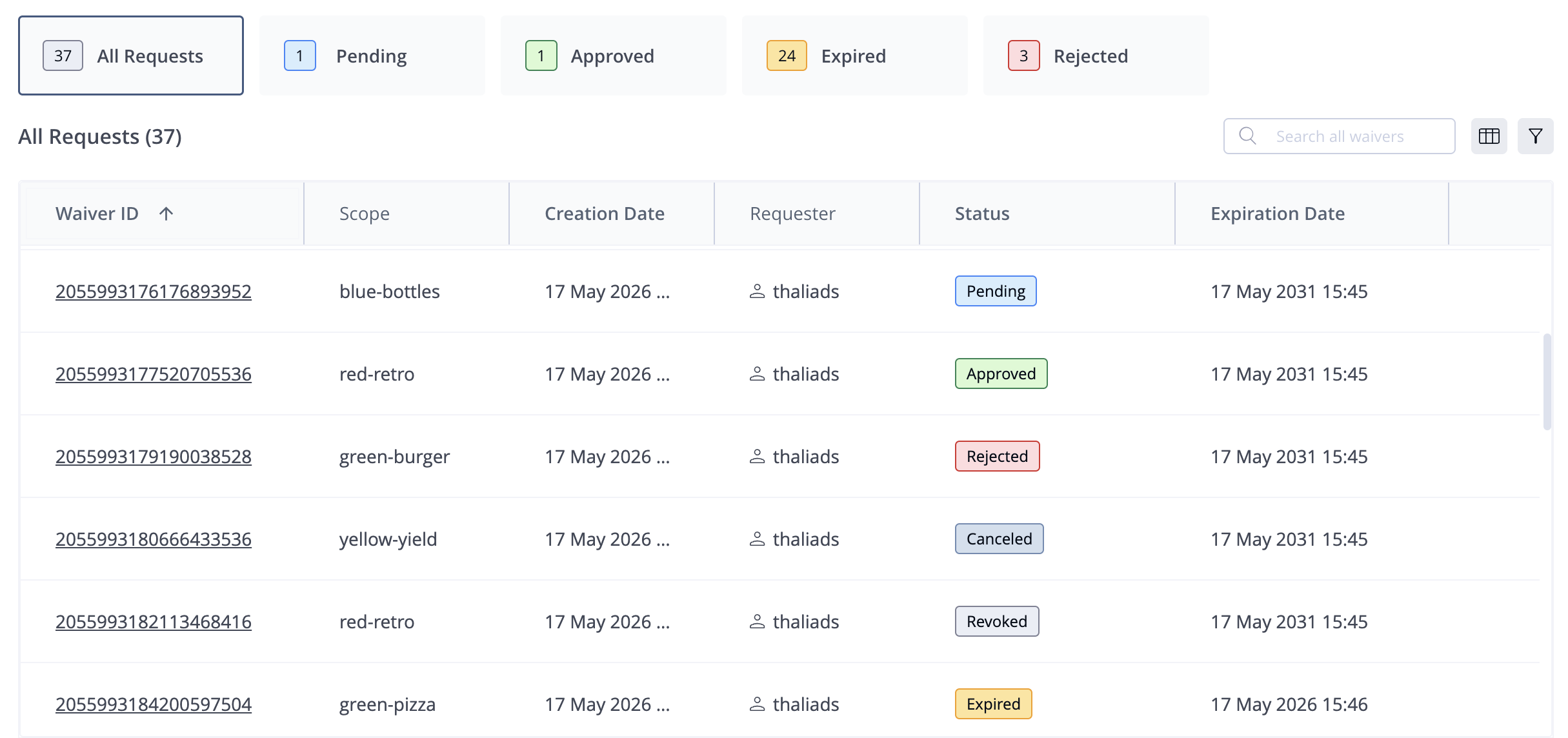
The table shows the following columns:
- Waiver ID: An identifier for the waiver request.
- Resource Scope: The scope to which the waiver applies, for example, the application.
- Conditions: The evaluation point that is being waived, for example, the stage and gate.
- Creation Date: The date the request was created
- Requester: The user name of the requester
- Status: The status of the waiver request. These can be:
- Pending: Not yet approved, rejected, or canceled.
- Canceled: The requestor has terminated a pending request.
- Approved: The approver has allowed the request.
- Rejected: The approver has denied the request.
- Expired: The time limit has run out and the request is no longer valid.
- Revoked: The approver has terminated a request that was previously approved.
- Expiration Date: Date the request becomes no longer valid.
Filters and Search
You can use the filter buttons above the table to filter the requests by Status. You can also use the Search box above the table to find specific requests by Waiver ID.
Request Details
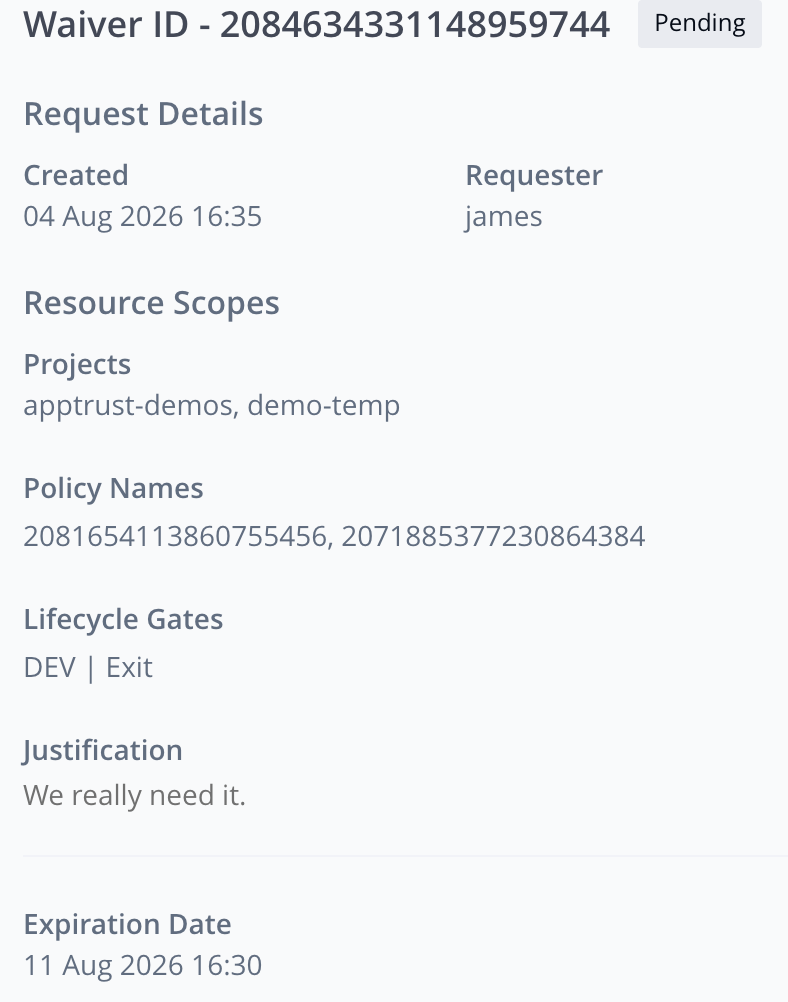
You can view the details of a specific request.
To view the request details:
- In the Requests table, click on the row of the waiver request, or click the eye on the far right of the row. If the request has Status Approved, click the three dots (...) on the far right, and choose View Request. The panel with the request details appears.
Updated 23 days ago
Did this page help you?