
View Application Versions
For an application in JFrog AppTrust, this is where you see overview information about the application versions.
In JFrog AppTrust, you can view a table of versions for a selected application, including the current stage of each version, how it arrived there, and when the last activity on it was performed. From the table you can also drill down into the details of the application version.
To view application versions:
- In the JFrog Platform, go to AppTrust > Applications.
- In the Applications table, click the name of the relevant application.
- In the sidebar, click Lifecycle. The Stages Board tab appears.
- Click the Versions tab.
Lifecycle Stages and Gates
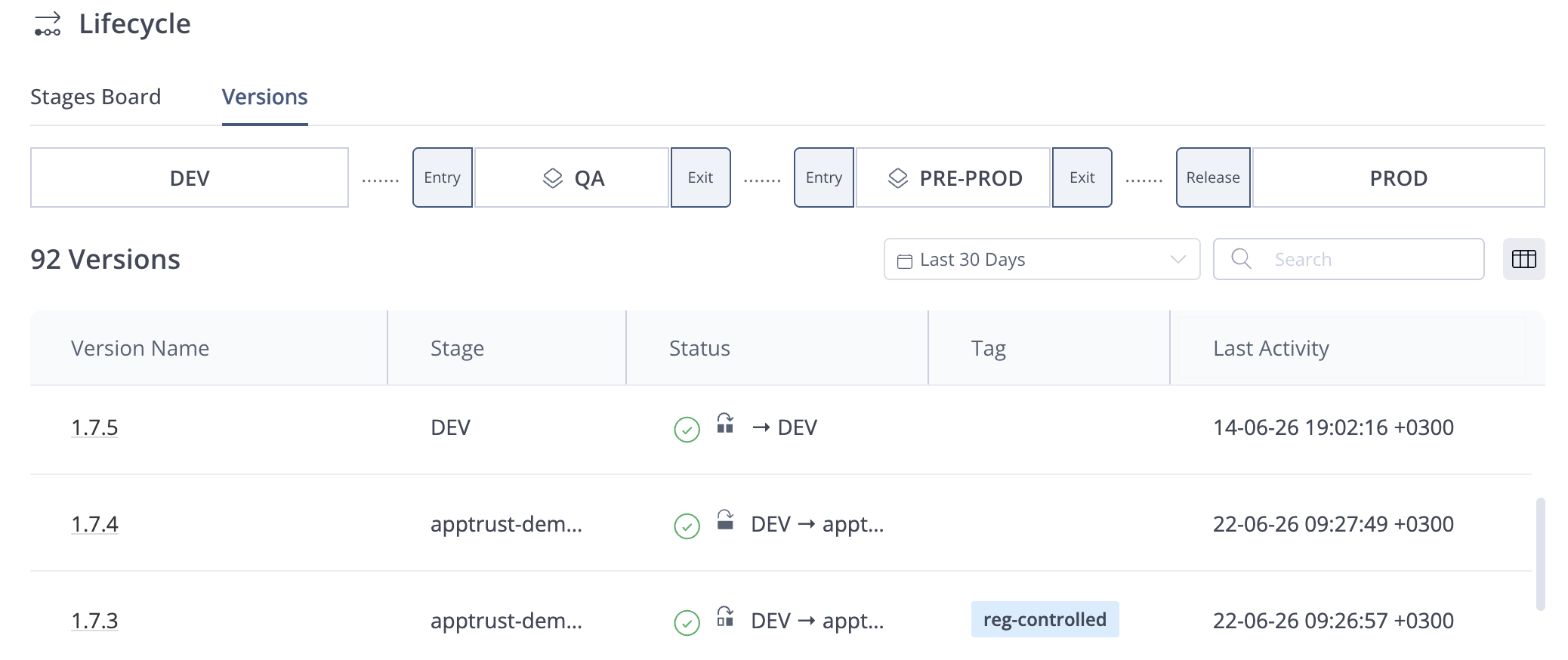
The stages defined for your lifecycle and any policy gates configured for those stages appear above the Versions table. The final stage, which is the release stage for your application version, is called PROD. Each application version is promoted from one stage to the next until it is ready to be released. For more information about the stages and gates, see Lifecycle Stages.
Versions Table
The table in the Versions tab includes the following information about each application version:
- Version Name
- Stage: The current stage the version is in.
- Status: The status of the last operation performed on the version (typically, a promotion to the current stage).
- Tag: Any tags associated with the version are shown here.
- Last Activity: The timestamp of the last activity performed on the version.
Click the version name to drill down to the application version details. For more information, see View Application Version Details.
Updated 3 months ago