

Export Release Bundle v2 Versions in the Platform UI
Export a Release Bundle v2 version to a zip archive in the Platform UI for Air Gap transfer.
You can use the version timeline in the Platform UI to export a Release Bundle v2 version to a .zip file that you can transfer to a different Artifactory instance in an Air Gap environment.
To export a Release Bundle v2 version:
-
In the Platform module, select Artifactory > Release Lifecycle.
-
Click the name of the relevant Release Bundle. The Versions tab is displayed by default.
-
Click the name of the relevant Release Bundle version. The Version Timeline tab is displayed by default.
-
Click Actions and then select Export.
-
(Optional) In the Path Mappings field, specify a list of input and output regex mapping pairs that define where the queried artifact is located and where it should be placed after it is imported. Use this option if the path on the target is different than the source path.
Important
Path mapping can be performed only during the first distribution or export of a particular Release Bundle version. The following message is displayed during subsequent operations.
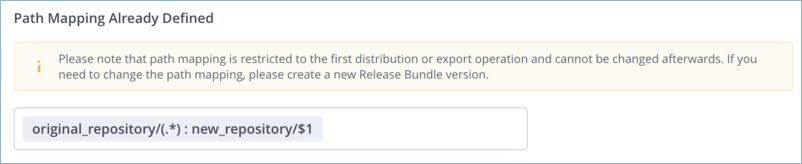
There are several options for defining path mappings:
-
You can define custom mapping pairs manually and click Add.
-
You can click Use Template to use one of the provided Path Mapping templates:
Template Description Change Repository All files in a specific repository on the source Artifactory service are mapped to a different repository on the target. Change Folder All files are moved to a specific folder in the target. Rename Folder All files in a specific folder on the source Artifactory service are mapped to a different folder on the target. -
If Default Path Mapping by Last Promotion is enabled (requires Distribution 2.26.1 or higher), the repositories used for the most recent promotion of this Release Bundle version are provided as the default path mapping. If you do not want this path mapping definition, click the X to remove it.
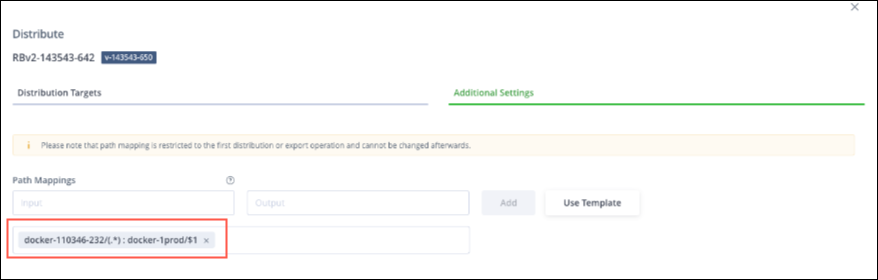
Important
See Path Mapping Guidelines for Release Bundles v2 for important instructions and limitations regarding path mapping.
-
-
Click Export. When the process is complete, a new event is added to the version timeline.
Warning
When JFrog Xray is used to scan Release Bundles for potential vulnerabilities and license violations, Xray will block the distribution if the Release Bundle violates a Policy that has a blocking action defined. For more information, see Scan Release Bundle v2 Versions with Xray.
Additional Export Actions
Click the export event in the timeline to view the list of artifacts included in the exported archive. Use the icons to perform the following actions on the archive:
Delete Release Bundle v2 Export
The Export dialog box contains an icon for deleting an archive that you previously exported. This action is typically performed to reclaim storage space.
To delete the exported archive of a Release Bundle v2 version:
-
In the Release Bundle version timeline, click the event for the export operation.
-
In the Export dialog box, click the Delete icon
 . A confirmation dialog box is displayed.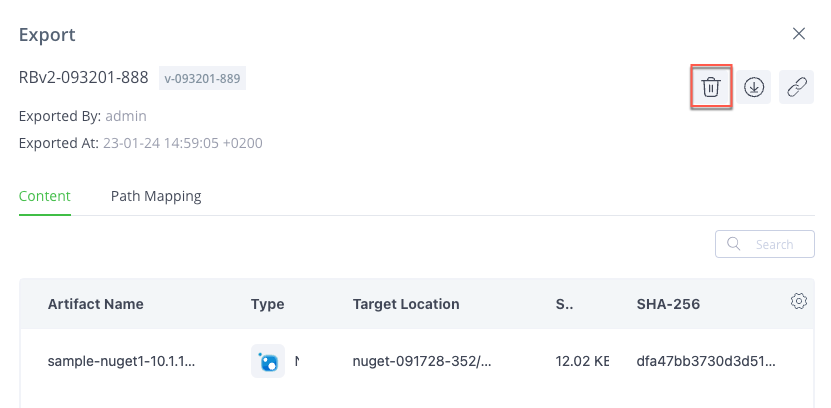
-
In the confirmation dialog box, click Delete. The export archive is deleted. In the timeline, an event is added for the delete operation and the event for the export operation is crossed out.
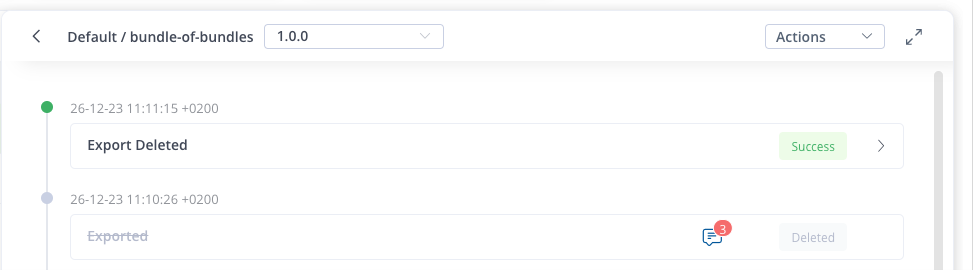
Download Release Bundle v2 Export Archive
The Export dialog box contains an icon for downloading the exported archive to your local computer. The archive can then be moved manually to another Artifactory instance that is part of an Air Gap environment.
To download an exported Release Bundle v2 archive:
-
In the Release Bundle version timeline, click the event for the export operation.
-
In the Export dialog box, click the Download icon
 . The archive is downloaded to your local computer.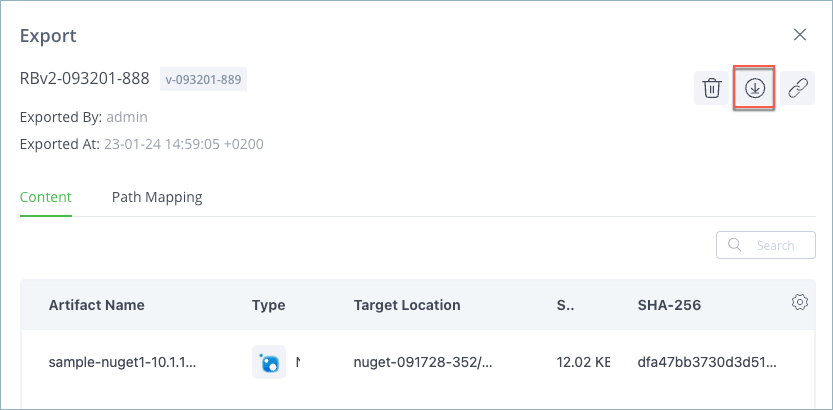
Copy Release Bundle v2 Export Link
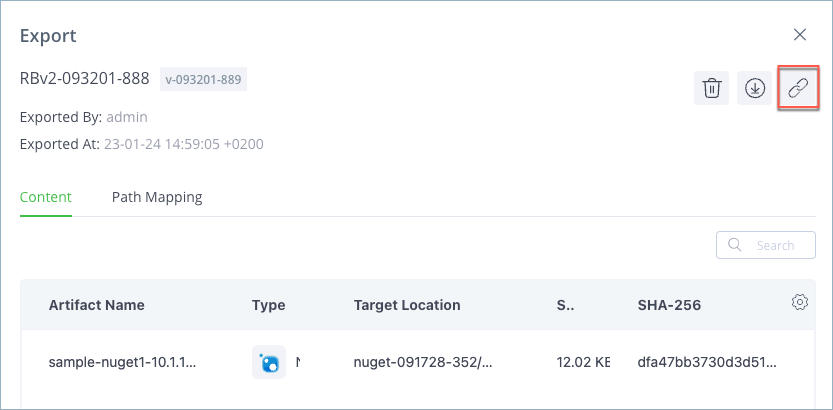
The Export dialog box contains an icon for copying a link to the exported archive. You can share the link with others.
To copy the Release Bundle v2 export link:
-
In the Release Bundle version timeline, click the event for the export operation.
-
In the Export dialog box, click the Copy Link icon
 .
.
Related Topics
Updated 10 days ago