
Version Timeline
A chronological record of lifecycle events related to the application version in JFrog AppTrust.
The Version Timeline tab displays a chronological record of lifecycle events related to the application version. Use the timeline Actions menu to perform various actions on the application version and to view the details of a specific event.
To open the application version timeline:
- In the JFrog Platform, go to AppTrust > Applications.
- In the Applications table, click the name of the relevant application.
- In the sidebar, click Lifecycle. The Stages Board tab appears.
- In the Stages Board, click the relevant application version to drill down into the version. The Version Timeline tab appears with the most recent event at the top.
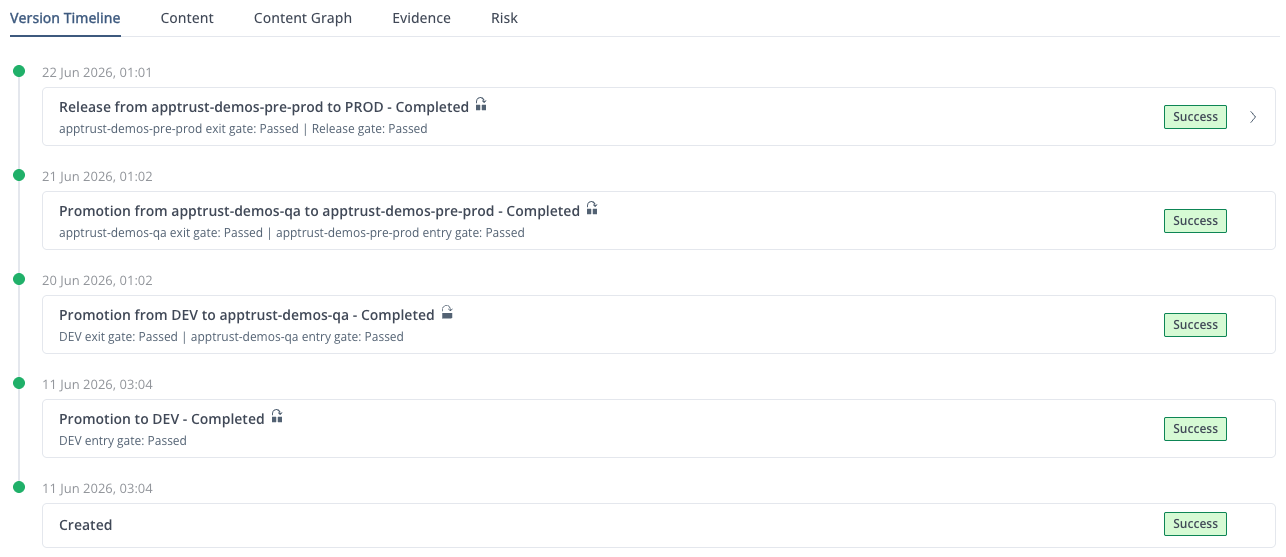
The first event records the creation of the application version. New events are added to the timeline as other actions are performed on the version by the REST APIs, JFrog CLI, or the AppTrust UI. Users with access to evidence management receive timeline events for evidence generated automatically as application versions are created and promoted. Events are also added for external evidence attached to the application version.
Timeline Event Color Indicators
Each timeline event includes a detailed status description and color indicator:
| Status | Color | Description |
|---|---|---|
| In Progress | Blue | The operation is currently in progress. |
| Failed | Red | The operation failed. |
| Success | Green | The operation was successful. |
| Deleting | Blue | Deletion of the application version or promotion is currently in progress. |
| Deleted | Gray | The application version (or version promotion) has been deleted. |
| Canceled | Yellow | The operation was canceled. |
| Verified |  | Indicates the evidence file has been verified using the public key created for this purpose. For more information, see Upload the Public Key to Artifactory. |
Event Details
Use the application version timeline to view detailed information about the most recent event related to that version. The information displayed depends on the event type.
Application Version Creation Details
Click the timeline event for creating an application version to view the list of packages that comprise the version. This information is displayed in the Content tab. Click the Spec tab to view the JSON file containing the application version definition.
Promotion and Release Details
Click the timeline event for promoting or releasing an application version to view details about the contents of the promotion or release, including the name and package type of each artifact.
Evidence Details
Click the timeline event for attached evidence to view the evidence in JSON and optionally Markdown formats.
Updated 3 months ago