
Create an Application Version
Procedure to create an application version in JFrog AppTrust
An Application Version groups multiple sources into a single, composite release. You can include builds, release bundles, and other application versions -- from the same application or from different applications -- as sources within a single version.
The creation wizard has three steps in which you enter:
- Details to identify the version
- Sources that are included in the version
- How the version will be created
The steps are described in detail below.
Prerequisites:
- An application exists in AppTrust.
- At least one source (a build, release bundle, or application version) exists and is available in your JFrog environment.
- You have the required permissions to view the sources you want to include.
- A GPG or RSA signing key is configured and available if you want to create a finalized (non-draft) version.
To create an application version:
- In the JFrog Platform, go to AppTrust > Applications and choose an Application in the list.
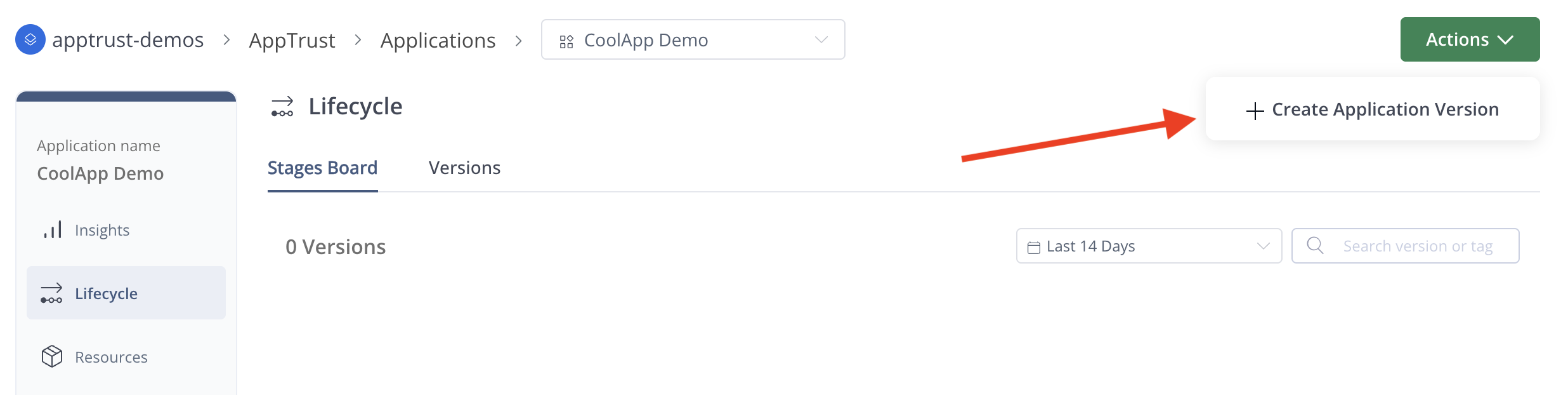
- Go to Lifecycle > Actions > Create Application Version.
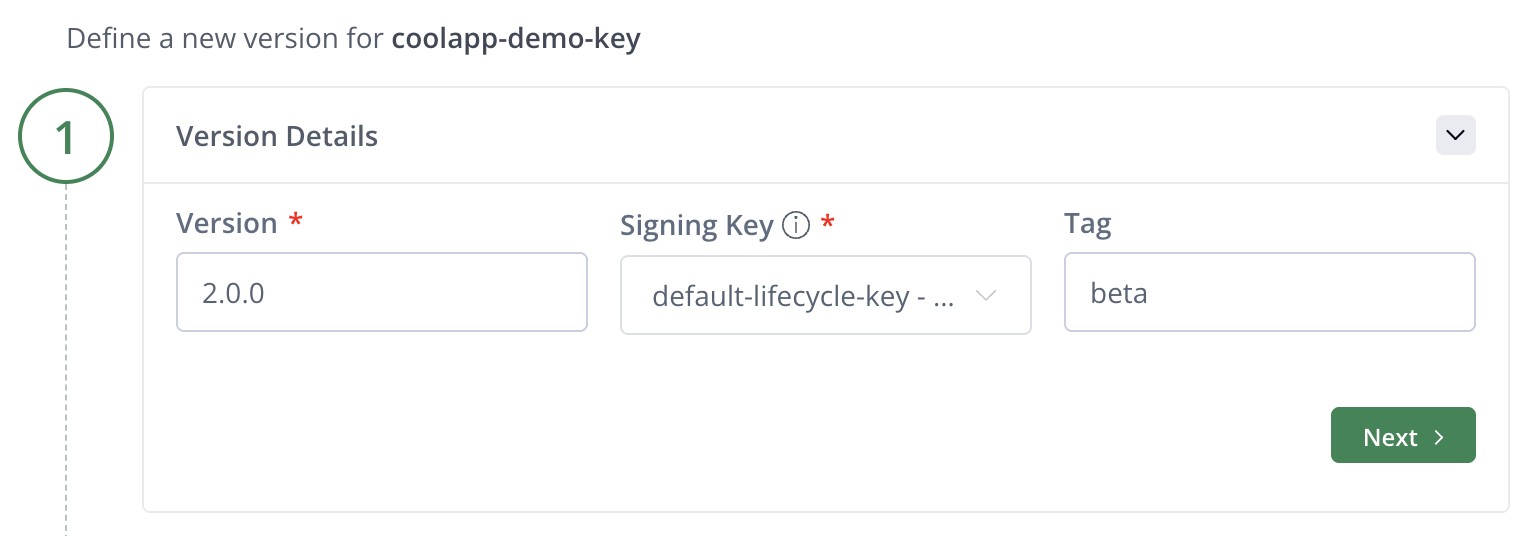
- In Step 1 of the Create Application Version wizard, complete the following and then click Next:
- Version: Enter a semantic version number, for example, 3, 3.4, 3.5.6.
- Signing Key: Choose from the list of available GPG and RSA keys for signing the version. If you do not select a key, a default key is used. For information on supported keys, see Manage Signing Keys.
- Tag: Add one or more tags.
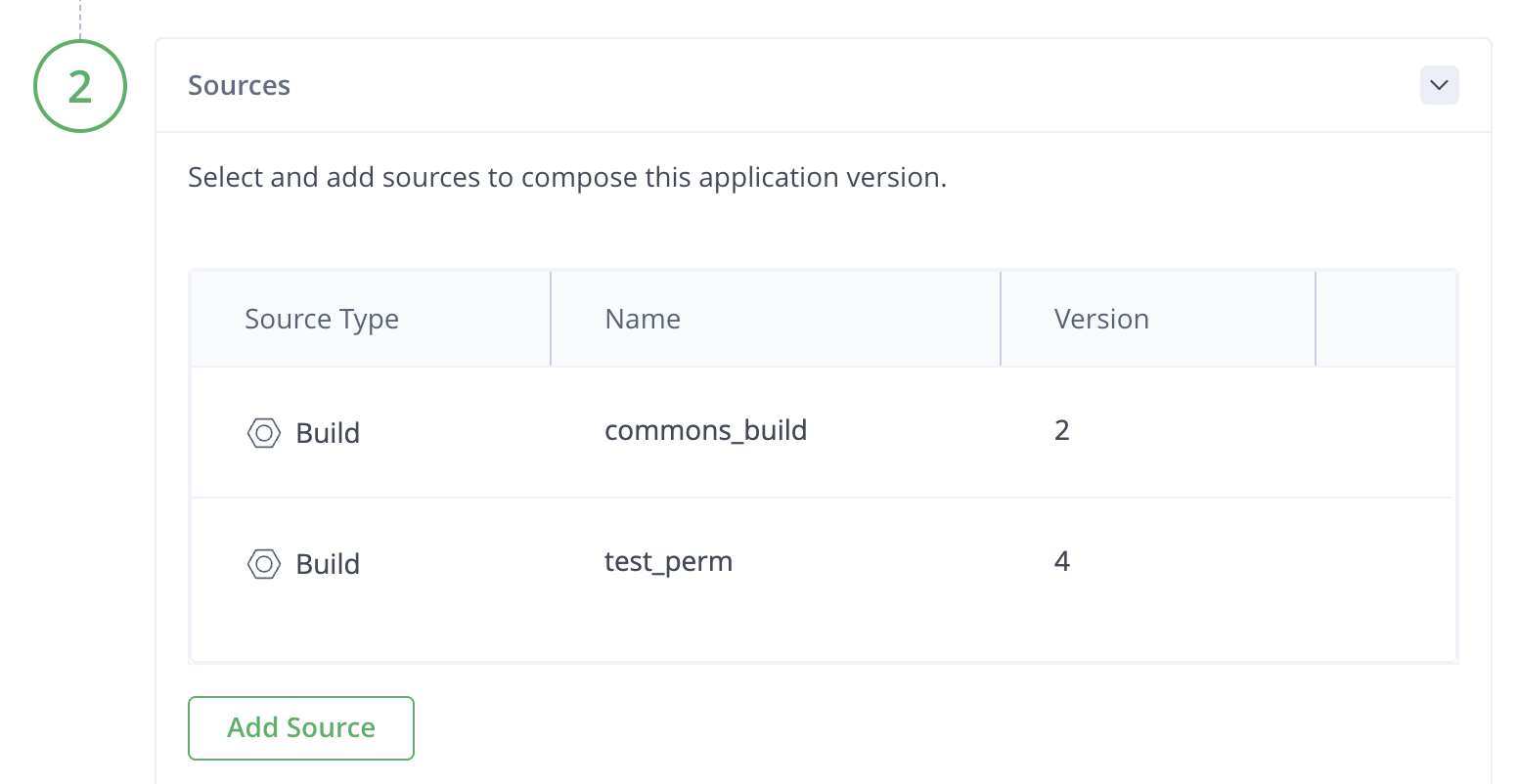
- In Step 2 of the wizard, complete the following and then click Next:
- Source Type: Choose either Build, Release Bundle, or Application Version. If your source type is Build, you can choose to include the Dependencies.
- Name: Choose a name from the list.
- Version: Choose a version from the list.
- Add Source: Click this only if you want to add an additional source to the version. Complete the source information for each additional source you add.
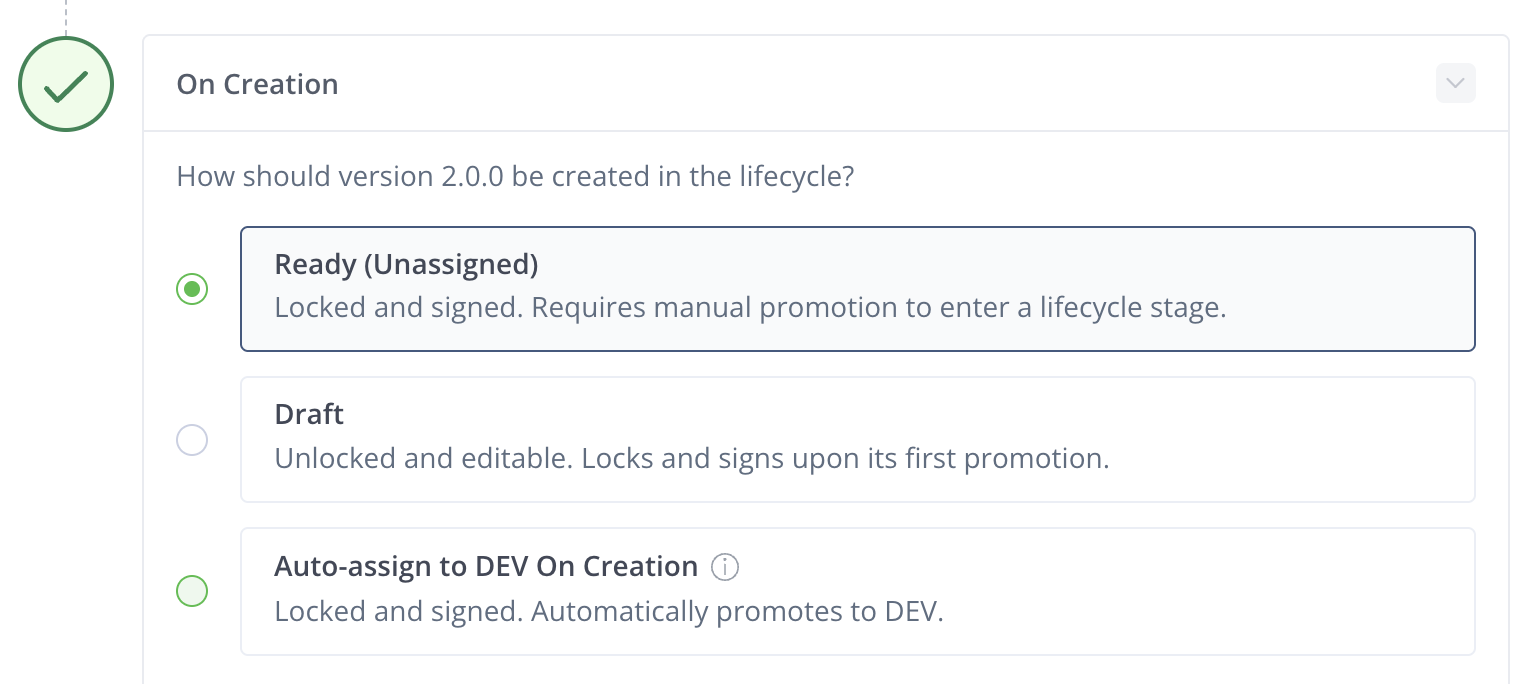
- In Step 3 of the wizard, you can choose how the version is created. Choose one of the following:
- Ready (Unassigned): The version is locked and signed. It appears in the Unassigned stage of the stages board. You will need to assign (promote) it to a lifecycle stage.
- Draft: The version is unlocked and modifiable. You can add sources to the version. The version appears in the Unassigned stage of the Stages Board, and when you promote the version, it will be automatically locked and signed.
- Auto-assign to DEV on Creation: When the creation is initiated, the version is evaluated against any policies required to enter the first stage (DEV, for example). If the version meets all the requirements, then it is locked and signed and goes directly to the first stage in the Stages Board.
- When you have finished entering your information in the wizard, you can review a summary of the details in the right panel. Click Create Version.
The application version will now appear in the Stages Board and the Versions table. The records of the version creation will appear in the Activity Log.
What’s Next?
Learn how to create an application version in the:
Updated 3 months ago
Did this page help you?