
Configure Global Level
In this part of the ServiceNow Integration, you will choose which fields in AppTrust will map to fields in ServiceNow. These mappings will apply at the global level, meaning that they apply across all projects.
This procedure includes mapping only. The actual synchronization of fields takes place in a separate procedure.
Prerequisites
- Administrator permissions in JFrog Platform
- Completion of procedure in Set Up Authentication
Step 1: Field Mapping
In this step, you will map the basic fields of the AppTrust application, which are used across the AppTrust system for policies and insights, to fields in ServiceNow. For example, the AppTrust field Criticality might be mapped to a ServiceNow field called Business Criticality. The mapping of fields and their categories is described in detail below.
To complete the field mapping:
-
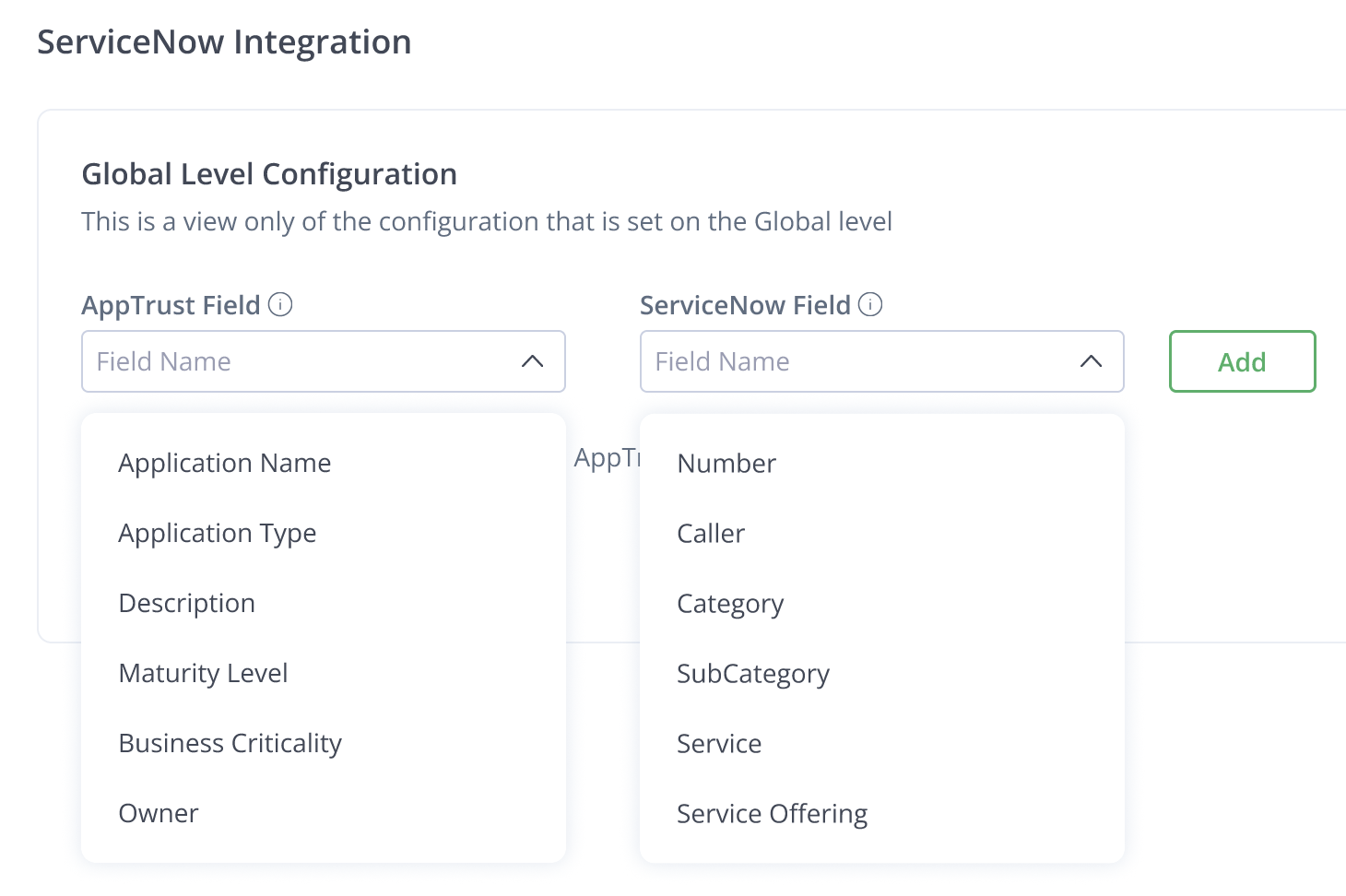
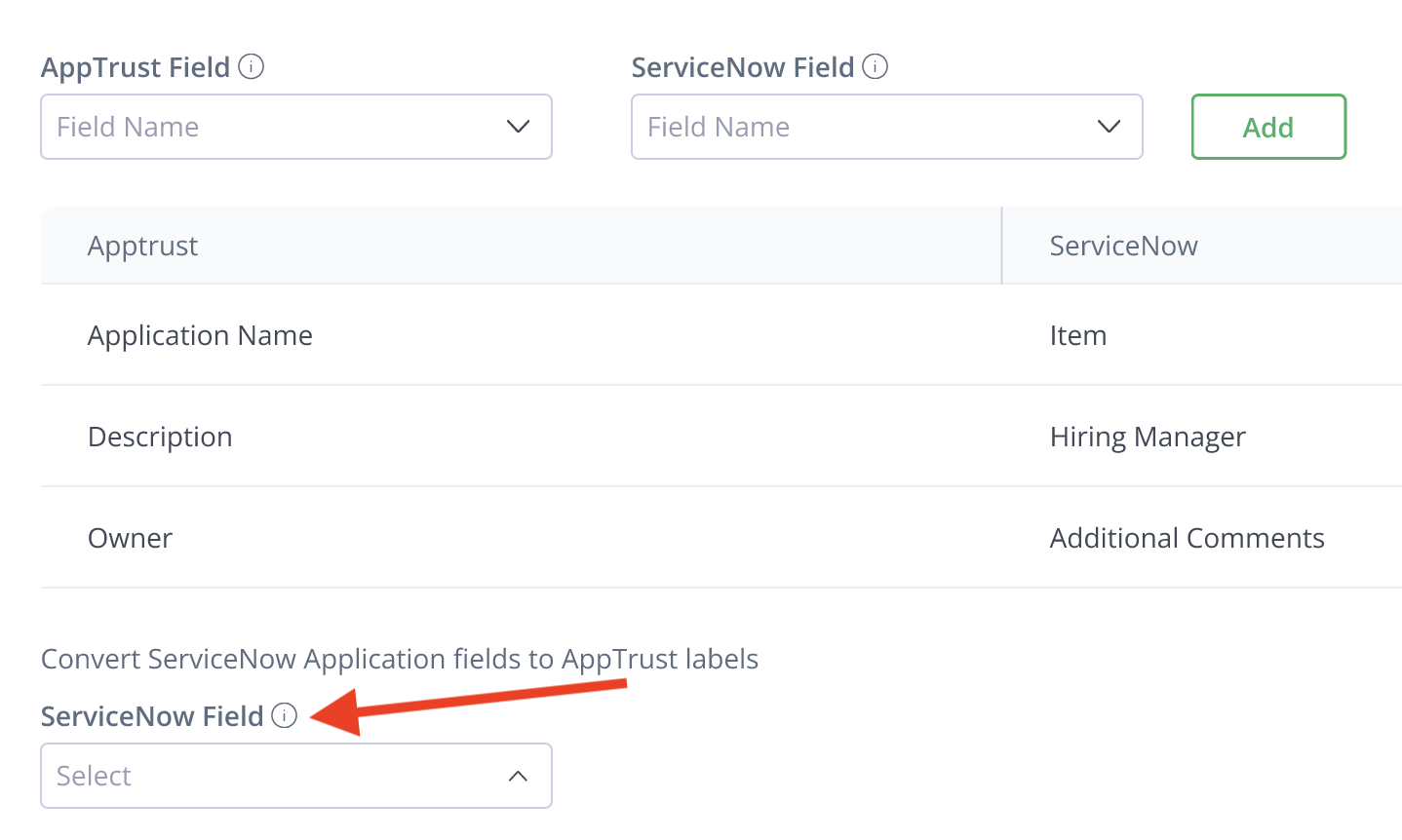
Under AppTrust Field, choose an item to map to ServiceNow.
-
In ServiceNow Field, choose the item that will be used to represent the AppTrust Field in ServiceNow, and click Add.
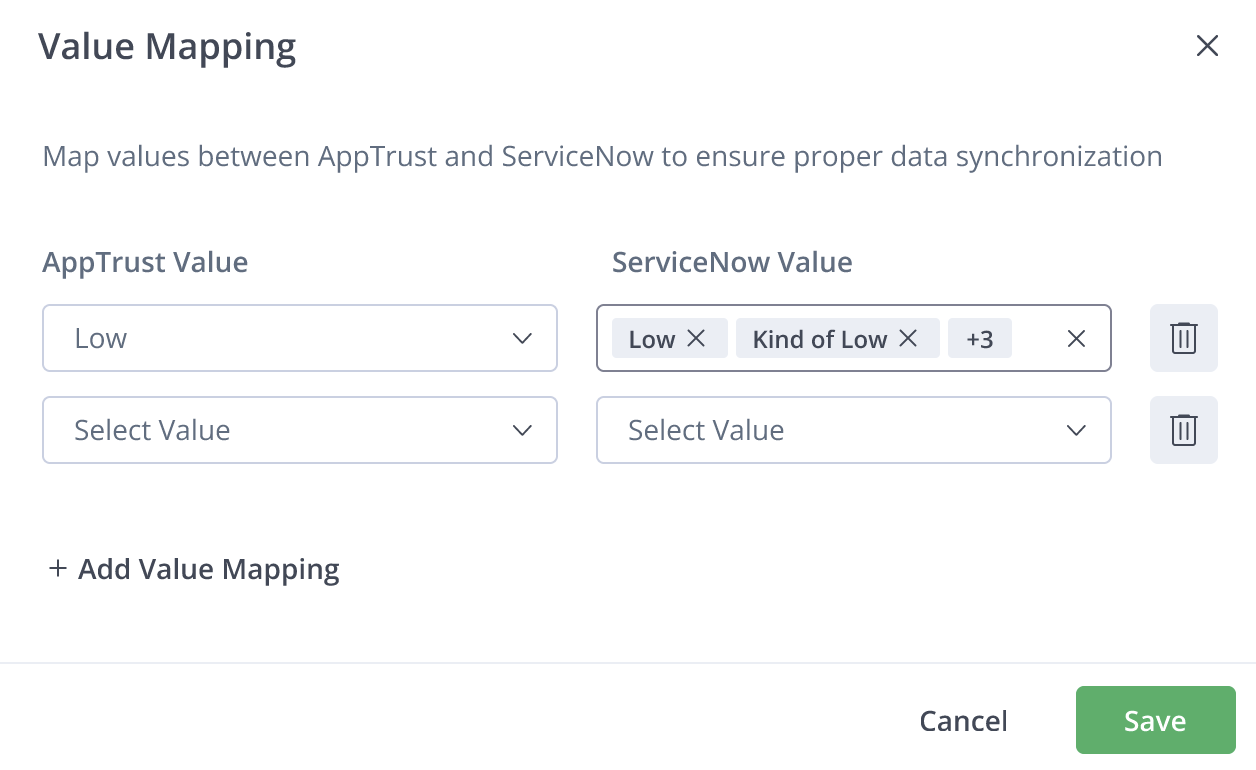
- After you click Add in Step 2, a popup will appear for fields that require mapping of sub-fields (also called values). For example, for Criticality, you will also have to map its values of High, Medium, and Low. In the Value Mapping popup, choose the ServiceNow values to be equated with the AppTrust values, and click Save.
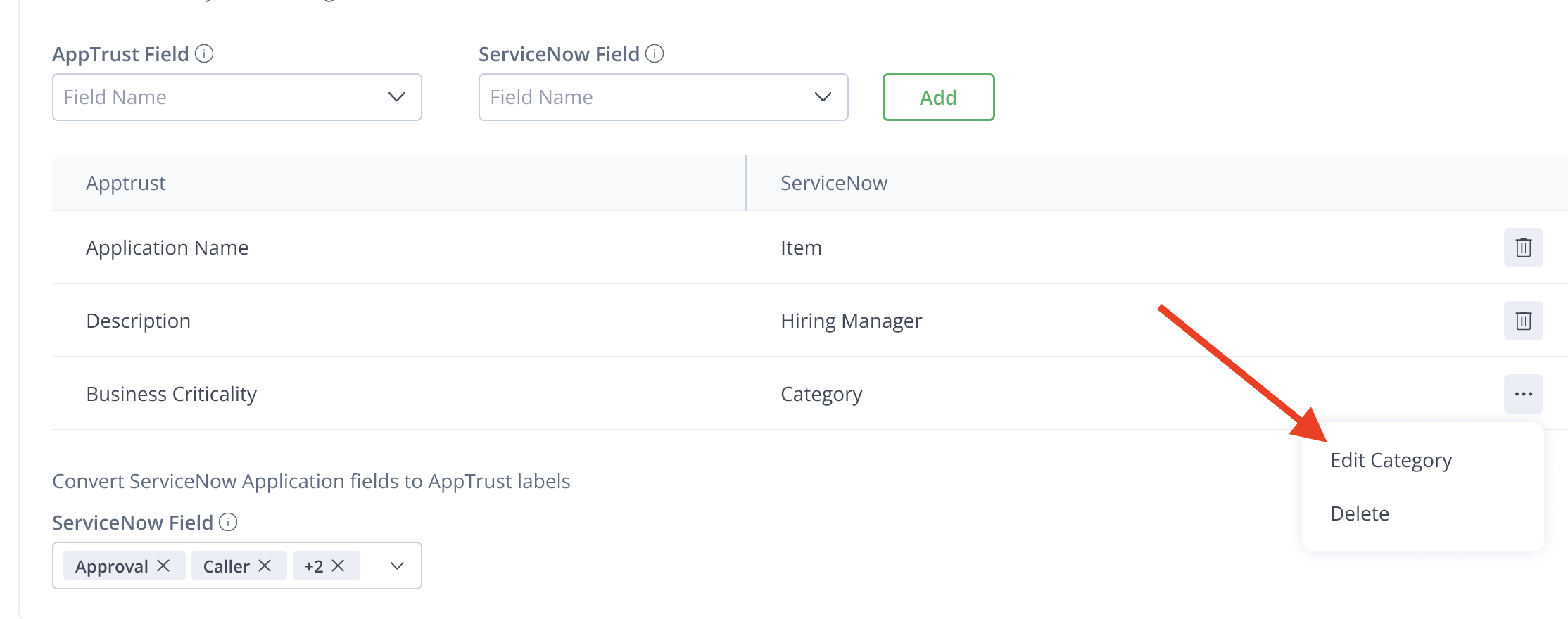
- (Optional) If you need to edit your configuration after completing the mappings above, click the three dots (...) on the right of a row and choose Edit.
Step 2: Mapping to AppTrust Labels
Any additional fields you would like to synchronize with your application from ServiceNow to JFrog can be selected here, and they will be synchronized as labels. The ServiceNow field name is the key of the label in AppTrust, and the ServiceNow value is the value in the label.
An application synced from ServiceNow to AppTrust that does not have a value in a field you have chosen will not have that field synced at all.
To map ServiceNow fields to AppTrust labels:
- Choose the ServiceNow fields to be turned into AppTrust labels.
- When you have completed the configuration, click Save Configuration.
Configuration Changes after Synchronization
Changes made to the mapping configuration after the applications are synchronized will be updated retroactively, meaning if you add a label after you synced an application, that label will be added to the synced application too. The same applies if you remove a label or change any of the other mappings.
What's Next?
Continue to the next procedure, Configure Project Level.
Updated 2 months ago