

Synchronize Applications
Use this procedure to synchronize one or more applications with AppTrust.
In this procedure, you will use the JFrog Tool in ServiceNow, usually referred to simply as ServiceNow. The JFrog Tool is located in DevOps Change Workspace > Tools.
Prerequisites
- Completion of the procedures Set Up Authentication and Configure Global Level.
- In ServiceNow:
sn_devops.adminpermission (DevOps Administrator Role) orsn_devops.tool_ownerpermission (DevOps Tool Owner Role)
To synchronize applications:
-
In the JFrog Tool in ServiceNow, go to the Projects tab and locate the relevant project in the list of Projects. If your project is not in the list, click Discover Projects to sync the projects from JFrog Artifactory.
-
Open the project and go to Business Applications > Associate. You will see a list of business applications.
-
Mark the checkboxes of all the business applications to associate with the AppTrust project and then associate them. The applications will be associated with the project and the data will be synchronized according to the mappings you configured in the global level configuration. Also, in ServiceNow the applications you chose now appear in the list of Business Applications for that project.
At this point, you can go to JFrog AppTrust and see that the business applications have been synchronized.
To view synchronized applications in AppTrust:
-
In JFrog Platform, choose the relevant Project.
-
Go to Platform > AppTrust > Applications. The list of applications in that project will appear, including the ones that were synced from ServiceNow.
-
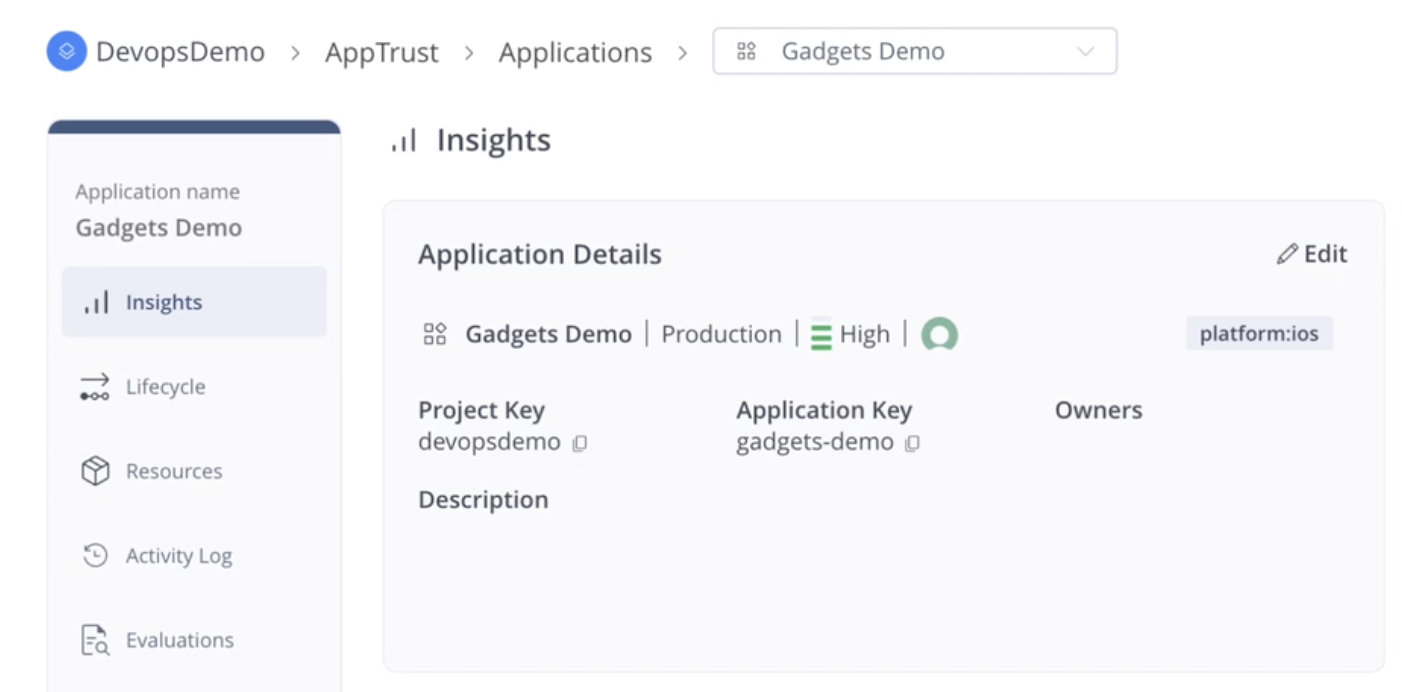
Click an application that was synced from ServiceNow. The dashboard for that application will open with the Insights panel displayed, and the ServiceNow icon.
What's Next?
You are now ready to create an application version, promote it through the lifecycle stages, and complete the procedure in Complete a Change Request.
Updated 2 months ago