
Lifecycle Stages
In JFrog AppTrust, you can use the Stages Board to track and manage the lifecycle stages in your SDLC.
The stages board in JFrog AppTrust provides a visual representation of the versions that exist for the selected application and their current location in your software development lifecycle (SDLC). Use the stages board to promote application versions between stages and to access detailed information about a specific version, its associated evidence, and possible security risks.
To use the stages board:
- In the JFrog Platform, go to AppTrust > Applications.
- In the Applications table, click the name of the relevant application.
- In the sidebar, click Lifecycle. The Stages Board tab appears.
Stages Board Layout
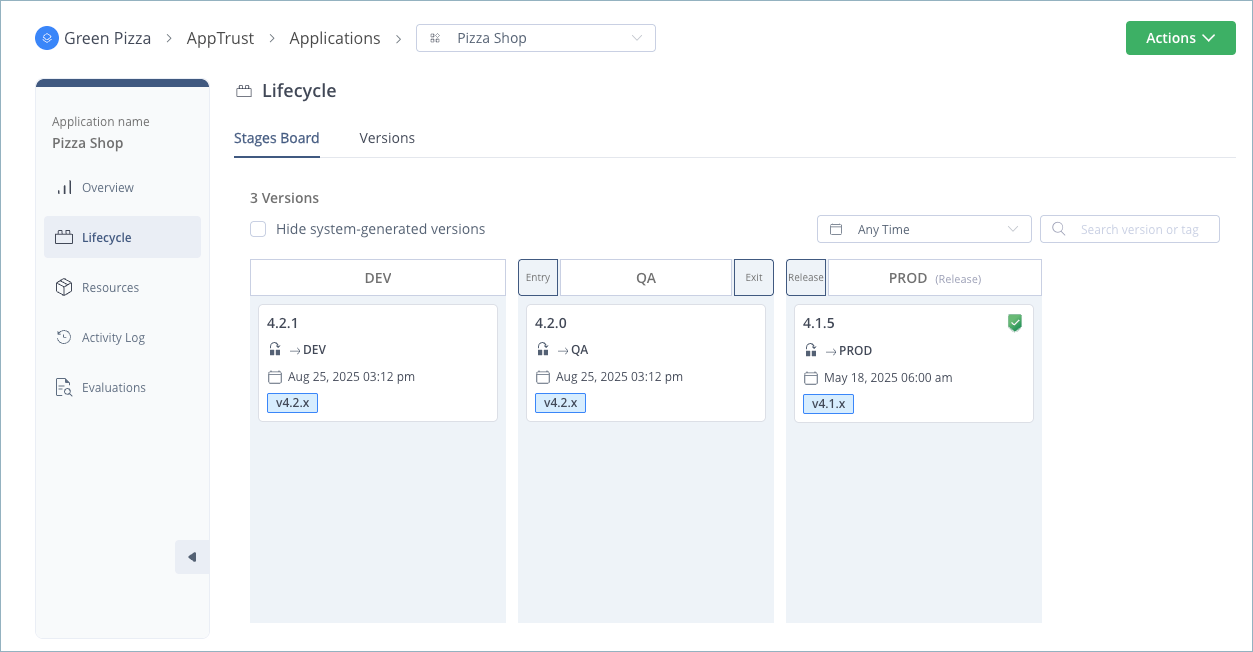
The board is divided into the stages that are defined as your SDLC (see Edit the Lifecycle). The final stage, which is the release stage for your application version, is called PROD and cannot be modified. The total number of versions on display appears above the board.
Policy Gates
Policy gates are your main tool for enforcing policies and achieving compliance. If lifecycle policies have been defined, they appear in gray boxes next to the title of each stage. Lifecycle policies control the movement of application versions between stages by defining a set of rules that must be adhered to before the version is allowed to proceed to the next stage.
It is up to a policy administrator to decide which stages have policies attached to them and whether versions that violate the rules defined by the policy are allowed to proceed with a warning or fail. The policy administrator must have Project Administrator permissions or higher in the JFrog Platform.
Each user-defined stage can have up to two gates with policies:
- Entry gate policies determine whether an application version is allowed to be promoted to the stage. This gate is represented by a gray box to the left of the stage title.
- Exit gate policies determine whether an application version is allowed to be promoted out of the stage. This gate is represented by a gray box to the right of the stage title.

Stages and the order in which they appear in the lifecycle are defined by an administrator in the Stages & Lifecycle page. The default release stage, PROD, can have a single gate, which is called Release.
Application Version Cards
Depending on your configuration, a newly created application version may appear first in the Unassigned or the DEV stage. The card for each version contains the version number, the latest promotion performed on the version, and the time stamp when the version was created or promoted.
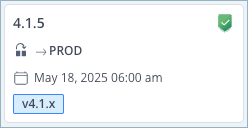
As the application version is promoted to other stages, its card moves to the corresponding column.
In the example shown above, cards for various versions of the Pizza Shop application are displayed. Each version is located in a different stage of the SDLC. In this example, version 4.2.0 has been promoted to the QA stage, while version 4.1.5 has been promoted to PROD as a trusted release.
Failed promotions are marked with an error banner. Banners are also used to show operations in progress, such as application version creation or promotion.
Filtering the Stages Board
There are several tools available for filtering the application versions displayed on the stages board:
- Filter by time: Use the dropdown list to limit the board to application versions created over the past 7 days, 30 days, or 90 days. You can also configure a custom time filter or view all versions. The default value is Any Time.
- Search window: Use the search window to filter the stages board according to version or version tag . For example, if all your release candidates are tagged
release-candidate, you can filter the stages board to display only those application versions.
Updated 3 months ago