

Promote an Application Version
When you promote an application version to a target environment, you must choose the target stage and the type of promotion to perform. The promotion type can be one of the following:

Copy Artifacts: The artifacts in the application version remain in the repositories associated with the source stage and are created in the repositories associated with the target stage.

Move Artifacts: The artifacts in the application version are deleted from the repositories in the source stage and are created in the repositories in the target stage.

Keep Artifacts: No operation is taken on the artifacts (i.e., they are neither moved nor copied). The artifacts remain in the same environment.
By using Keep Artifacts, there is no need to associate stages in the lifecycle with repositories. The only exception to this is when you promote a version from Unassigned to the first stage in the lifecycle. The first stage must be associated with a repository.
Drag-and-Drop on the Stages Board
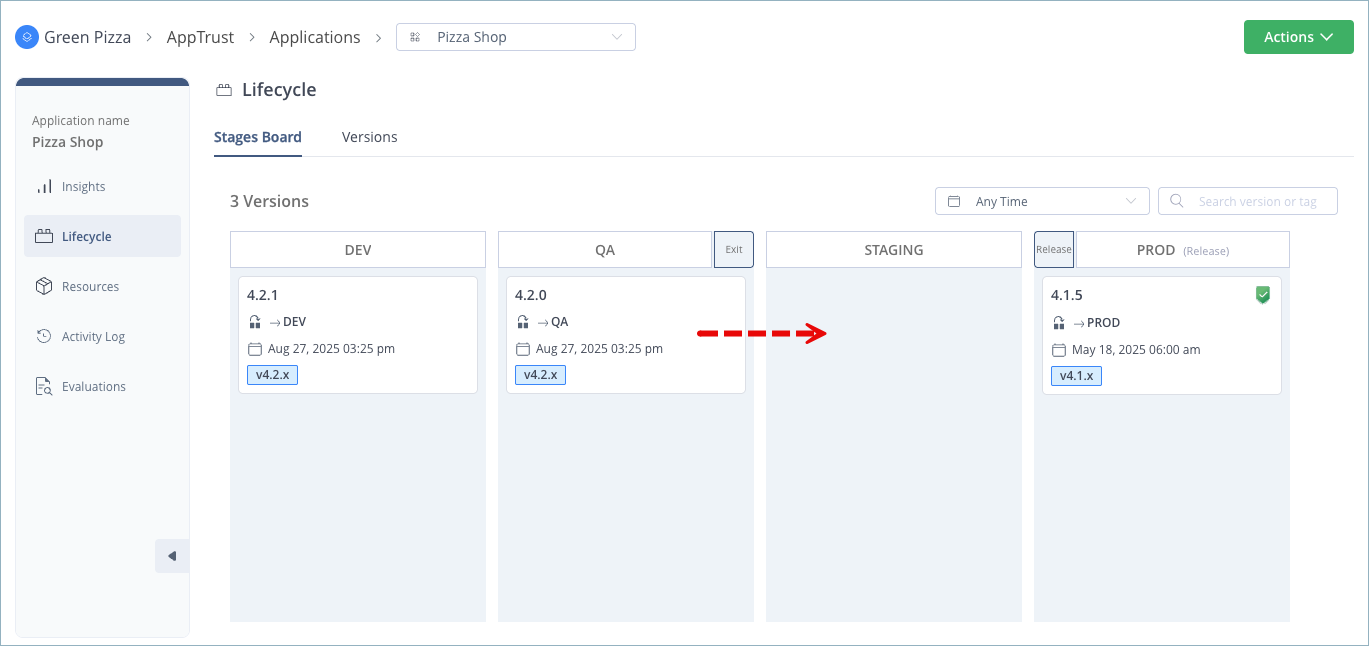
The easiest way to promote an application version in the platform UI is to drag it from its current stage and drop it in a different stage, as described below.
Prerequisites:
- A Role that includes the Promote permission and be scoped for the lifecycle stage you want to promote to. For more information, see Set Promote and Release Permissions.
- A Role that includes the Write Artifact permission.
To promote via drag-and-drop:
- In the JFrog Platform, go to AppTrust > Applications.
- In the Applications table, click the name of the relevant application and click Lifecycle. The Stages Board tab is displayed.
- Drag the relevant application version and drop it in the stage you want to promote it to. The New Promotion panel appears.
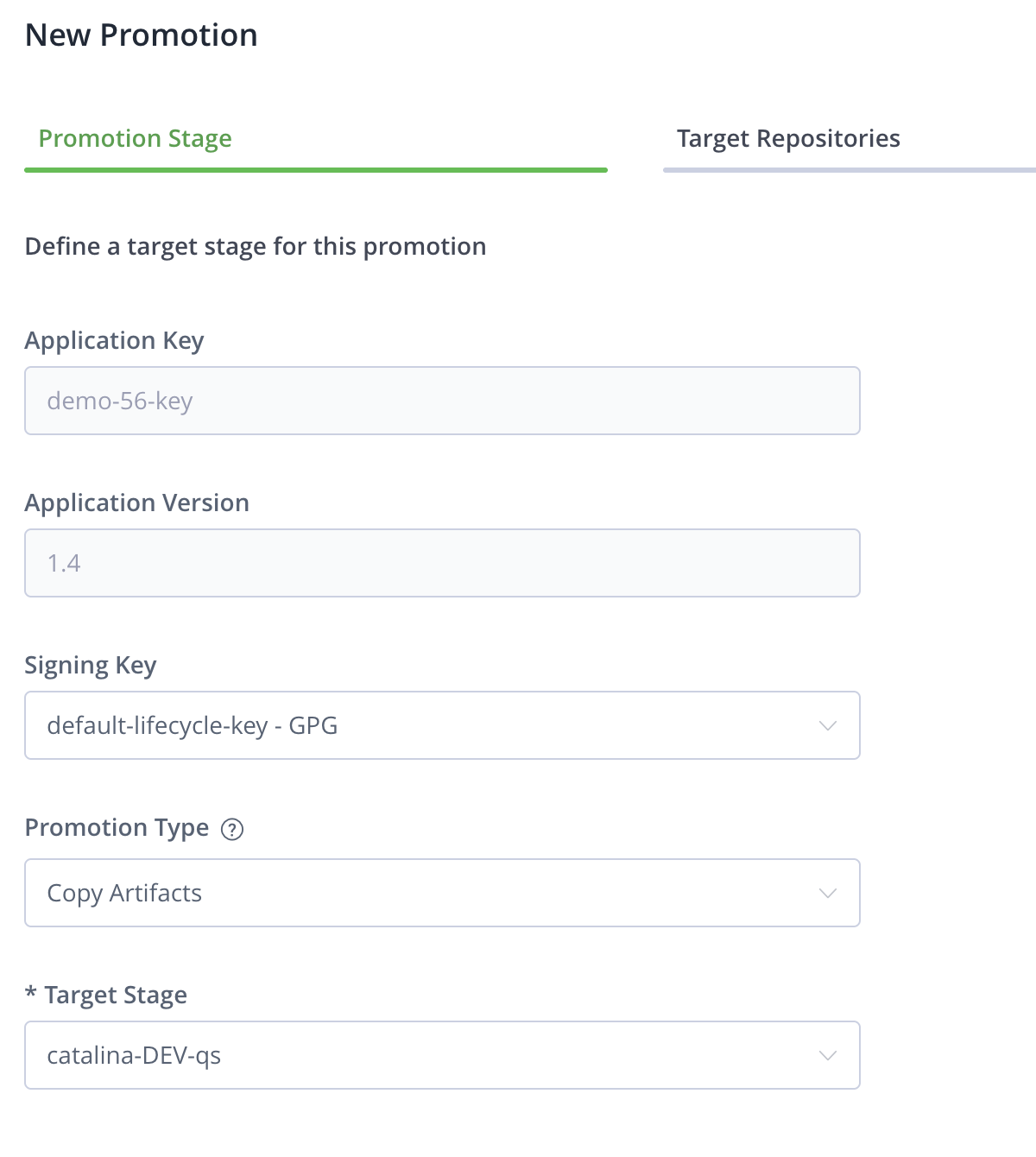
- In the Promotion Stage tab, complete the following:
- (Optional) Signing Key: Change the signing key. Ensure that the signing key is valid. The operation will fail if the key has expired.
- Promotion Type: Choose Copy Artifacts, Move Artifacts, or Keep Artifacts.
For promotions from Unassigned to a lifecycle stage, Keep Artifacts is not available, and Copy Artifacts is applied automatically, even if Move Artifacts is selected. - Target Stage: Verify the selected target stage.
- If you chose Keep Artifacts, go to Step 8. (The Overwrite Action field will be grayed out.) Otherwise, continue to the next step.
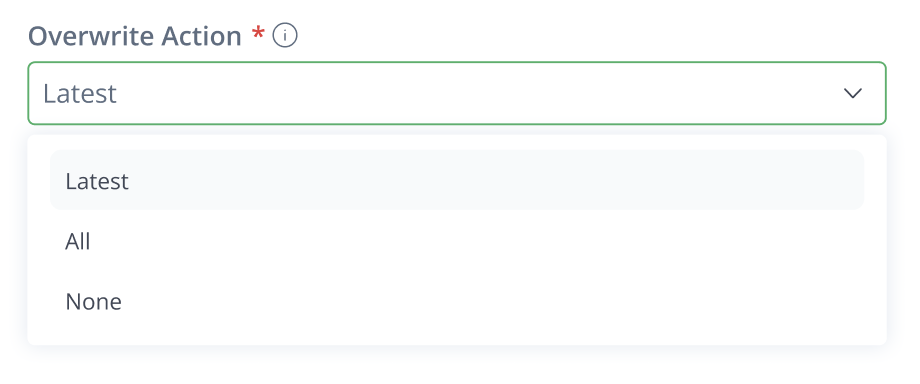
- Select the Overwrite Action. This determines whether artifacts can be overwritten during promotion and is a strategy for handling target artifacts with the same path, but different checksum. Overwrite Action is an exception to the general immutability of artifacts.
- Latest: Default. Overwrite is permitted only if the artifact tag is latest. This option is intended primarily for artifacts that make use of the latest tag.
- All: Overwriting of artifacts of any path is permitted.
- None: No overwriting is permitted. This is the strongest option for preserving immutability during promotion.
- Click Next.
- In the Target Repositories tab, review the list of target repositories for each package type. To modify the list, open the relevant dropdown list and clear the checkmark next to each repository to exclude it from the promotion. If you don’t want any target repositories, then go back to the Promotion Stage tab and choose Keep Artifacts.
- Click Promote. The relevant card moves to its new stage. In addition, the promotion is added as an event on the timeline.
Promote from the Actions Menu
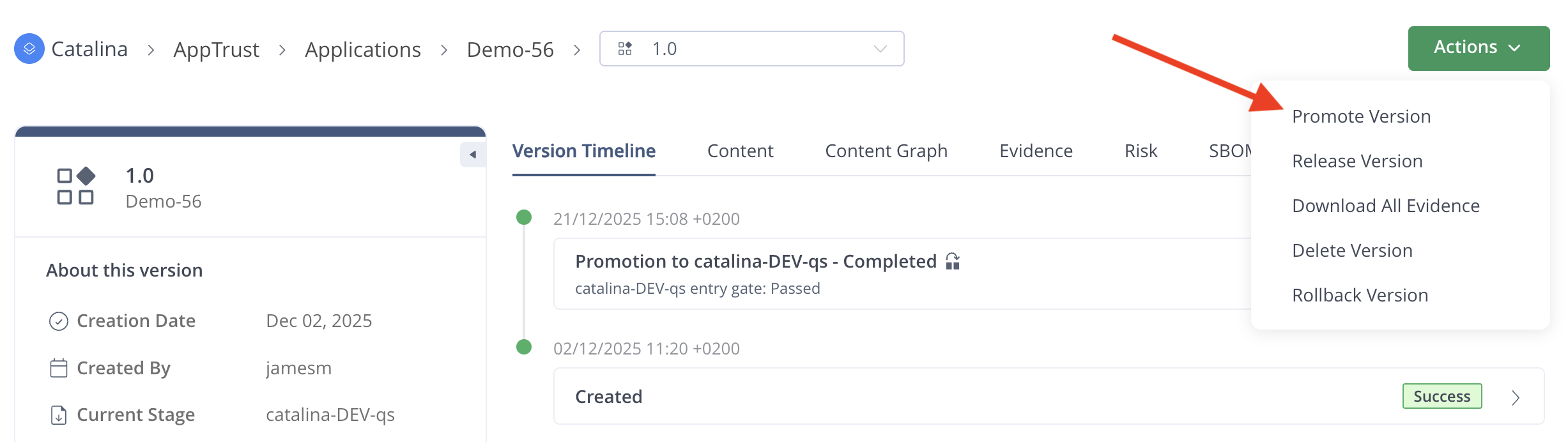
Another way to promote an application version is to select the option from the Actions menu.
To promote from the Actions menu:
- In the JFrog Platform, go to AppTrust > Applications.
- In the Applications table, click the name of the relevant application.
- In the sidebar, click Lifecycle.
- Click the Versions tab.
- In the Versions table, click the name of the relevant version. The Version Timeline tab is displayed.
- From the Actions menu, select Promote Version.
- Continue the promotion process, as described above.
Promotion with Governance
If your lifecycle includes governance, the application version is promoted to the target stage only if it passes the evaluations defined by the lifecycle policies configured on the exit and entry gates between stages. The results of each evaluation can be viewed on the application Evaluation tab.
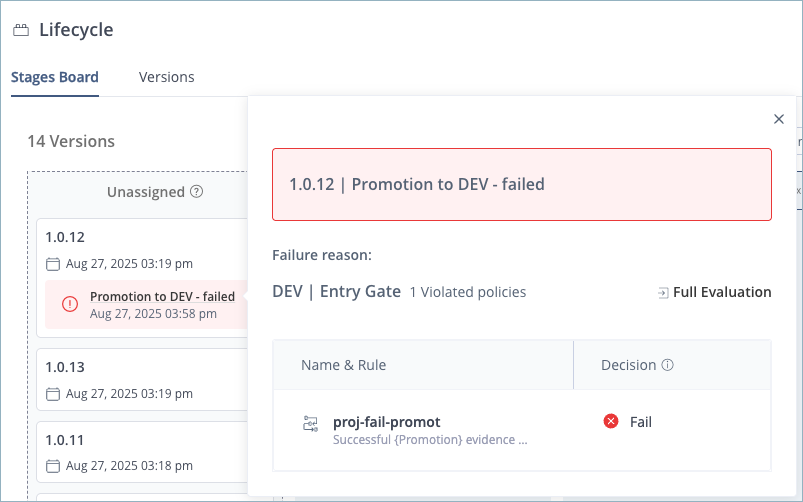
Promotion will fail if the application version violates a policy containing a rule configured to fail upon violation. In such cases, an error message is displayed on the card and in the version timeline.
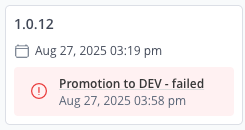
Click the error message to see details about why promotion failed, including the name of the policy which failed. Click Full Evaluation to see complete details.
Updated 3 months ago