
Release Lifecycle Management Setup
Set up Release Lifecycle Management by configuring lifecycle stages, signing keys, Artifactory Edges, and optional Release Bundle webhooks in the JFrog Platform.
RLM Deprecation
As of July 31, 2026, all feature development, patches, and security fixes for Release Lifecycle Management will end, except for critical security fixes. RLM End of Life is currently scheduled for January 31, 2028. For more information, see JFrog Release Lifecycle Management Deprecation - End of Life.
The setup process for Release Lifecycle Management consists of the following steps:
- Configure Stages and the Lifecycle
- Connect Artifactory Edges to the Platform (Enterprise+, optional)
- Create Signing Keys for Release Bundles v2
- Propagate Signing Keys (Enterprise+)
- Configure Release Bundle Webhooks (optional)
- Configure Release Bundle Promotion Webhooks (optional)
Note
For setup instructions when using JFrog Security to scan Release Bundles for vulnerabilities, see Scan Release Bundle v2 Versions with Xray.
Configure Stages and the Lifecycle
The lifecycle represents the stages that make up the software development lifecycle (SDLC) for your releases. You can configure a lifecycle for each project in your organization or use a single global lifecycle for all projects.
For more information, see Stages and Lifecycle.
Connect Artifactory Edges to the Platform
Connect Distribution Edges to the JFrog Platform before you distribute Release Bundles v2 to remote sites.
For more information, see Add an Edge Node.
Create Signing Keys for Release Bundles v2
When working with Release Bundles v2, you can use the same signing key in JFrog Artifactory to create and promote the Release Bundle, and in JFrog Distribution to distribute the Release Bundle. Distribution requires Enterprise+.
Note
Starting with JFrog Artifactory 7.101.2, JFrog Artifactory creates and uses a default key called
default-lifecycle-keyif signing keys aren't specified during Release Bundle v2 creation.
For more information, see Generate GPG Keys and Upload and Deploy GPG Keys. Examples are provided in the following sections.
Generating GPG With RSA Key (Key Size = 2048 Bits)
# Generate GPG key pair with a passphrase:
#
gpg --full-generate-key

# Please select what kind of key you want:
#
# >  Select "(1) RSA and RSA" by entering "1".

# RSA keys may be between 1024 and 4096 bits long.
# What keysize do you want? (3072)
#
# >  Enter "2048"

# Please specify how long the key should be valid.
#
# >  Enter "0"

# Is this correct? (y/N)
#
# >  Enter "y"

# GnuPG needs to construct a user ID to identify your key.
#
# Real name:
#
# >  Enter "{your-key-id}"
#
# Email address:
#
# >  Enter "{your-email}"
#
# Comment:
#
# >  Enter "{your-comment}"
#
# Change (N) ame, (C) omment, (E) mail or (O) kay/(Q) uit?
#
# > Enter "o"Note
You may specify a passphrase to use together with the signing keys.
Exporting GPG Keys
# Export the private key with the specified id to a file:
#
gpg --output {private-key-output-file} --armor --export-secret-keys {your-key-id}

# Export the public key with the specified id to a file:
#
gpg --output {public-key-output-file} --armor --export {your-key-id}
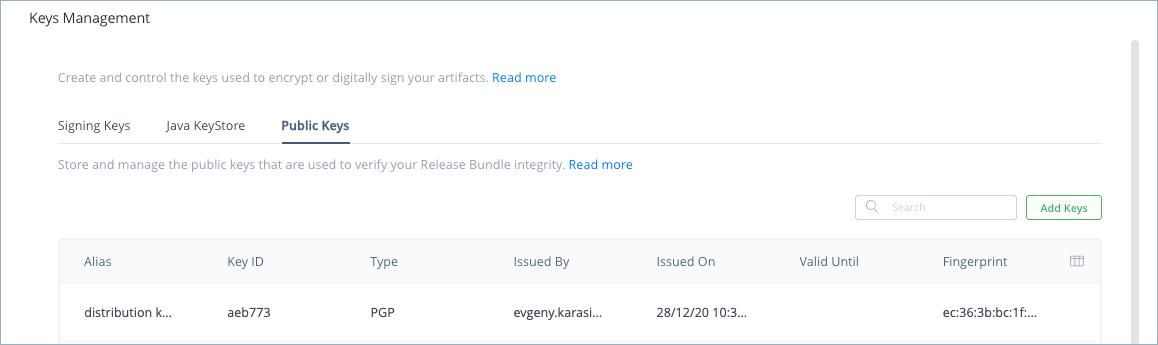
Propagate Signing Keys
Use the Propagate Public Signing Key REST API to take the signing key for Release Bundles v2 versions defined in JFrog Artifactory and propagate it to:
- The trusted list of Edge nodes to which the Release Bundle versions will be distributed. Using this API eliminates the need to add the key manually to each Edge node one by one.
- The list of trusted public keys stored in the source JFrog Artifactory instance. This is needed when working in an Air Gap environment.
Configure Release Bundle Webhooks
Optional. Administrators can create webhooks that are triggered by Release Bundle v2 creation events. When a webhook is triggered, it sends relevant information about the event to a listening endpoint. Webhooks enable you to integrate Release Bundle v2 creation with third-party applications that are also essential to your release lifecycle process.
To configure Release Bundle v2 webhooks:
-
In the Administration module, select General > Webhooks.
-
Enter a name and description for the webhook.
-
Enter the URL that the webhook should invoke.
-
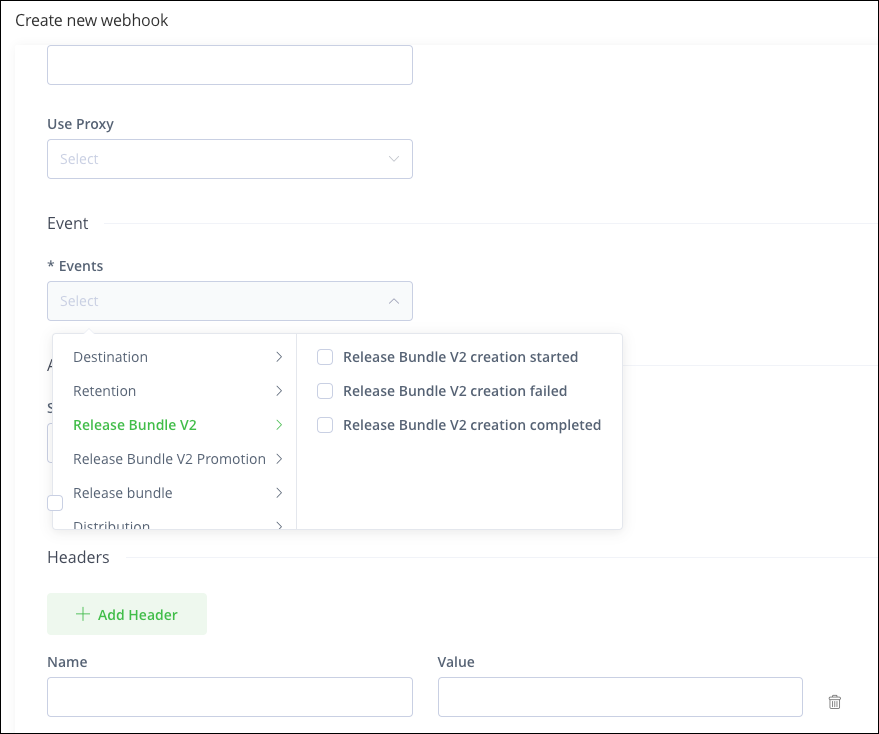
Under Events, select Release Bundle V2 and then select one or more of the following events:
-
Release Bundle creation started
-
Release Bundle creation failed
-
Release Bundle creation completed
-
-
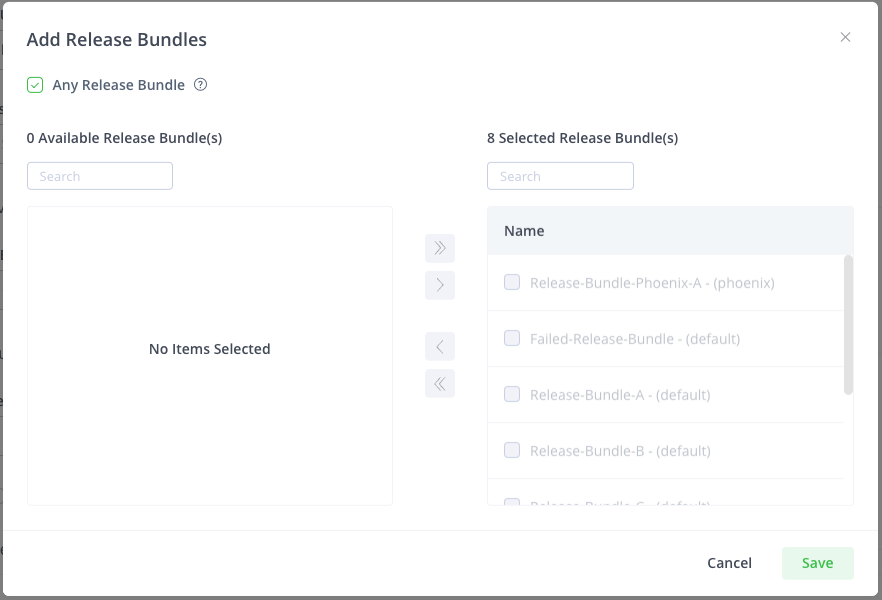
In the Add Release Bundles window, do one of the following:
-
Select Any Release Bundle to include all Release Bundles in this webhook.
-
Choose which Release Bundles to include. Click Save when finished.
-
-
Define the secret token used for authentication.
-
Select the Use secret for payload signing checkbox, if required for validating incoming webhook calls.
-
Define custom headers, if required.
-
Click Create.
For more information, see Webhooks.
Configure Release Bundle Promotion Webhooks
Optional. Administrators can create webhooks that are triggered by Release Bundle v2 promotion-related events. When a webhook is triggered, it sends relevant information about the event to a listening endpoint. Webhooks enable you to integrate Release Bundle v2 promotions with third-party applications that are also essential to your release lifecycle process.
To configure Release Bundle v2 promotion webhooks:
-
In the Administration module, select General > Webhooks.
-
Enter a name and description for the webhook.
-
Enter the URL that the webhook should invoke.
-
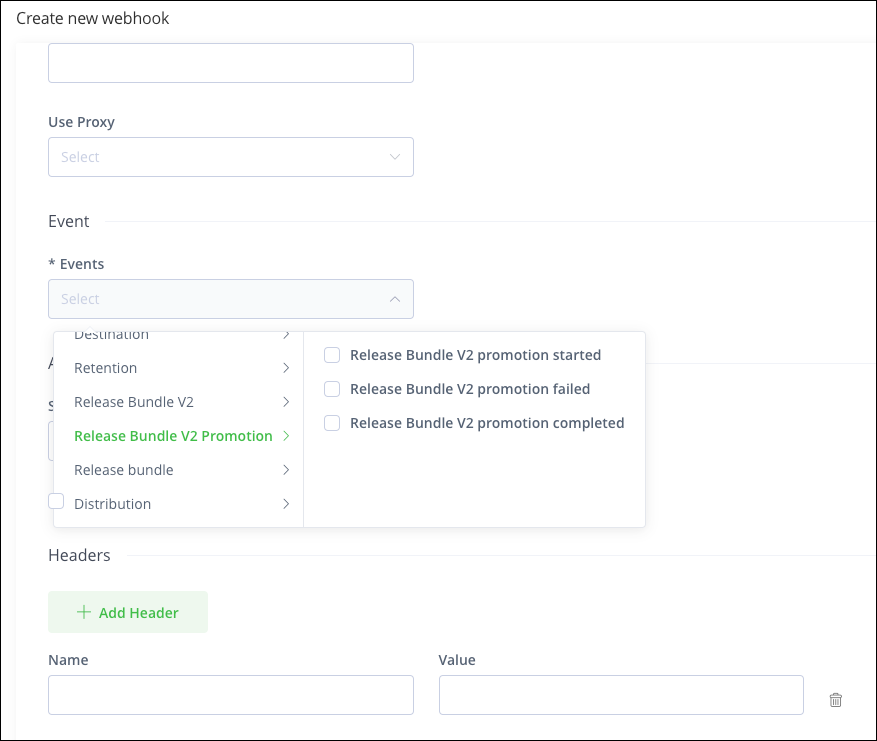
Under Events, select Promotion and then select one or more of the following events:
-
Release Bundle promotion started
-
Release Bundle promotion failed
-
Release Bundle promotion completed
-
-
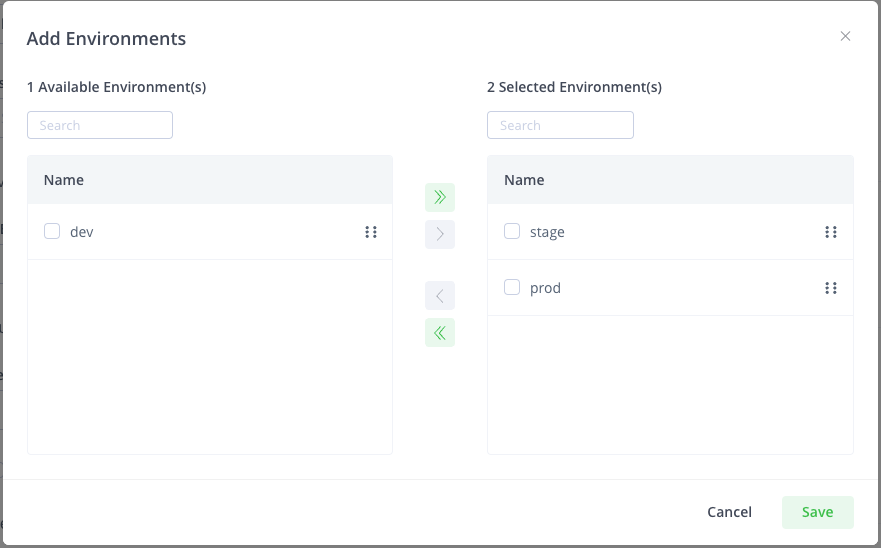
In the Add Environments window, select the environments to which the webhook should apply, and click Save.
-
Define the secret token used for authentication.
-
Select the Use secret for payload signing checkbox, if required for validating incoming webhook calls.
-
Define custom headers, if required.
-
Click Create.
For more information, see Webhooks.
Related Topics
- Release Lifecycle Management
- Release Lifecycle Management Workflow
- Understanding Release Bundles v2
- Create Release Bundles v2
Updated about 2 months ago