

Search Criteria and Operators
Filter AQL query results using field criteria, property criteria, comparison operators like $match and $eq, wildcards, relative time operators, and the $msp single-property matcher.
This page covers how to construct search criteria for AQL queries, including field and property filtering, comparison operators, wildcards, and date/time operators.
Search Criteria Construction
The criteria element must be a valid JSON format statement composed of the criteria that specify the items that should be returned. It is essentially a compound boolean statement, and only elements for which the statement evaluates to true are returned by the query.
Each criterion is essentially a comparison statement that is applied either to a field or a property. Please see the full list of Comparison Operators. While each criterion may be expressed in complete general format, AQL defines shortened forms for readability as described below.
Field Criteria
The general way to specify a criterion on a field is as follows:
{"<field>" : {"<comparison operator>" : "<value>"}}If the query applied is to a different domain, then field names must be pre-pended by a relation path to the primary domain.
For example:
//Find items whose "name" field matches the expression "*test.*"
items.find({"name": {"$match" : "*test.*"}})

//Find items that have been downloaded over 5 times.
//We need to include the "stat" specifier in "stat.downloads" since downloads is a field of the stat domain and not of the item domain.
items.find({"stat.downloads":{"$gt":"5"}})

//Find items that have never been downloaded. Note that when specifying zero downloads we use "null" instead of 0.
//We need to include the "stat" specifier in "stat.downloads" since downloads is a field of the stat domain and not of the item domain.
items.find({"stat.downloads":{"$eq":null}})

//Find builds that use a dependency that is a snapshot
builds.find({"module.dependency.item.name":{"$match":"*SNAPSHOT*"}})Fields with "Zero" value in the stat domain
Note that when searching for items that have a "zero" value in the stat domain, you should search for null, not 0. For example, as shown above, when searching for items with zero downloads you specify "null" instead of 0.
Short notation for Field criteria
AQL supports a short notation for search criteria on fields.
An "equals" ("$eq") criterion on a field may be specified as follows:
\{"<field>" : "<value>"\}
Element Description Example Find items whose "name" field equals "ant-1.9.4.jar" Regular notation items.find(\{"name":\{"$eq":"ant-1.9.4.jar"\}\})Short notation items.find(\{"name":"ant-1.9.4.jar"\})
Properties Criteria
Artifactory lets you attach, and search on properties in three domains: items, modules, and builds.
The general way to specify a criterion on a property is as follows:
{"@<property_key>":{"operator":"<property_value>"}}Accessing the right properties
If you are specifying properties from the primary domain of your query, you may simply enter the property key and value as described above. If you are specifying properties from one of the other domains, you need to specify the full relational path to the property.
In the example below, the primary domain is the build domain, but we want to find builds based a property in the item domain, so we must specify the full path to the property:
builds.find({"module.artifact.item.@qa_approved" : {"$ne" : "true"}})
Here are some examples:
//Find items that have been approved by QA"
items.find({"@qa_approved" : {"$eq" : "true"}})

//Find builds that were run on a linux machine"
builds.find({"@os" : {"$match" : "linux*"}})

//Find items that were created in a build that was run on a linux machine.
items.find({"artifact.module.build.@os" : {"$match" : "linux*"}})Short notation for properties criteria
AQL supports a short notation for search criteria on properties.
An "equals" ("$eq") criterion on a property may be specified as follows:
{"@
<property_key>" : "<property_value>"}
Element Description Example Find items with associated properties named "license" with a value that equals "GPL" Regular notation items.find(\{"@artifactory.licenses" : \{"$eq" : "GPL"\}\})Short notation items.find(\{"@artifactory.licenses" : "GPL"\})
Compounding Criteria
Search criteria on both fields and properties may be nested and compounded into logical expressions using "$and" or "$or" operators. If no operator is specified, the default is $and
<criterion>={<"$and"|"$or">:[{<criterion>},{<criterion>}]Criteria may be nested to any degree
Note that since search criteria can be nested to any degree, you may construct logical search criteria with any degree of complexity required.
Here are some examples:
//This example shows both an implicit "$and" operator (since this is the default, you don't have to expressly specify it, but rather separate the criteria by a comma), and an explicit "$or" operator.
//Find all items that are files and are in either the maven-remote or my-local repositories.
items.find({"type" : "file","$or":[{"repo" : "maven-remote", "repo" : "my-local" }]})

//Find all the items that were created in a build called "my_debian_build" and whose name ends with ".deb" or all items created in a build called "my_yum_build" and whose name ends with ".rpm".
items.find(
        {
                "$or":
                [
                        {
                                "$and":
                                [
                                        {"artifact.module.build.name" : "my_debian_build"} ,
                                        {"name" : {"$match" : "*.deb"}}
                                ]
                        },
                        {
                                "$and":
                                [
                                        {"artifact.module.build.name" : "my_yum_build"} ,
                                        {"name" : {"$match" : "*.rpm"}}
                                ]
                        }
                ]
        }
)

//Find all items in a repository called "my_local" that have a property with a key called "license" and value that is any variant of "LGPL".
items.find({"repo" : "my_local"},{"@artifactory.licenses" : {"$match" : "*LGPL*"}})
Match Criteria on a Single Property ($msp)
A search that specifies several criteria on properties may sometimes yield unexpected results.
This is because items are frequently annotated with several properties, and as long as any criterion is true for any property, the item will be returned in a regular find.
But sometimes, we need to find items in which a single specific property answers several criteria. For this purpose we use the $msp (match on single property) operator.
The fundamental difference between a regular find and using the $msp operator is:
- find will return an item if ANY of its properties answer ALL of the criteria in the search term.
- $msp will only return an item if at least ONE of its properties answers ALL of the criteria in the $msp term.
Here is an example.
Consider two items A and B.
A has a license property with value AGPL-V3
B has two license properties . One is LGPL-2.1, and the other LGPL-2.2
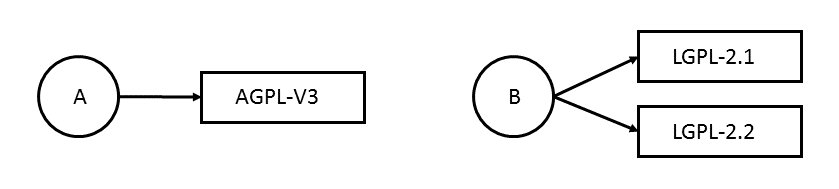
Now let's assume we want to find items that use any variety of GPL license as long as it's NOT LGPL-2.1.
In our example we would expect to get both Items A and B returned since A has AGPL-V3 and B has LGPL-2.2.
As a first thought, we might write our query as follows:
items.find({
            "@license":{"$match": "*GPL*"},
                "@license":{"$nmatch": "LGPL-2.1*"}
           })
But this query only returns item A.
Item A is returned because it clearly answers both criteria: "@license":\{"$match": "*GPL*"\} and "@license":\{"$nmatch": "LGPL-2.1*"\}
Item B is not returned because it has the property license=LGPL-2.1 which does not meet the criterion of "@license":\{"$**nmatch**": "LGPL-2.1*"\}.
If we use the $msp operator as follows:
"items.find({
                        "$msp": [
                        "@license":{"$match": "*GPL*"},
                        "@license":{"$nmatch": "LGPL-2.1*"}
            ]}).
Then both Item A and Item B are returned.
Item A is returned because it has the @license property AGPL-V3 which meets both the \{"@license":\{"$match": "*GPL*"\}\} criterion and the "@license":\{"$nmatch": "LGPL-2.1*"\} criterion.
Item B is returned because it has the @license property LGPL-2.2 which also meets both the\{"@license":\{"$match": "*GPL*"\}\} criterion and the "@license":\{"$nmatch": "LGPL-2.1*"\} criterion.
Tip
Note that the
$mspoperator works equally well on all domains that have properties: item, module and build.
Comparison Operators
Note
Using comparison operators, such as
$match, as the sole criteria in an AQL query can sometimes yield unexpected or overly broad results.This is especially evident when searching for fields that correspond to underlying database entities, such as the
repofield, particularly for layered package types like Docker images.For example, a query that only uses
$matchfor a repository pattern:items.find( \{"repo" :\{"$match":"bzwbk-docker-"\}\} )This query might generate an overly generic SQL query on the Artifactory backend, causing the results to include internal artifacts (like Docker layers) that are associated with the repository but do not explicitly match the user-provided
repopattern.To ensure your AQL query targets only the intended artifacts and produces accurate results, you must combine comparison operators with other specific criteria (e.g.,
type,path, orname) that help narrow the backend search scope.
The following table lists the full set of comparison operators.
| Operator | Types | Meaning |
|---|---|---|
| $ne | string, date, int, long | Not equal to |
| $eq | string, date, int, long | Equals |
| $gt | string, date, int, long | Greater than |
| $gte | string, date, int, long | Greater than or equal to |
| $lt | string, date, int, long | Less than |
| $lte | string, date, int, long | Less than or equal to |
| $match | string | Matches |
| $nmatch | string | Does not match |
For time-based operations, please also refer to Relative Time Operators.
Using Wildcards
To enable search using non-specific criteria, AQL supports wildcards in common search functions.
Use Wildcards with $match and $nmatch
When using the "$match" and "$nmatch" operators, the "*" wildcard replaces any string and the "?" wildcard replaces a single character.
"Catch all" Notation on Properties
In addition to supporting "$match" and "$nmatch", AQL supports a notation that uses wildcards to match any key or any value on properties.
If you specify "@*" as the property key, then it means a match on any key.
If you specify "*" as the property value, then it means a match on any value
| Element | Description |
|---|---|
| Example | Find items that have any property with a value of "GPL" |
| Regular notation | items.find(\{"$and" : [\{"property.key" : \{"$eq" : "*"\}\}, \{"property.value" : \{"$eq" : "GPL"\}\}]\}) |
| Short notation | items.find(\{"@*":"GPL"\}) |
| Element | Description |
|---|---|
| Example | Find any items annotated with any property whose key is "license" (i.e. find any items with a "license" property) |
| Regular notation | items.find(\{"$and" : [\{"property.key" : \{"$eq" : "license"\}\}, \{"property.value" : \{"$eq" : "*"\}\}]\}) |
| Short notation | |
Be careful not to misuse wildcards
Wildcard characters ("*" and "?") used in queries that do not conform to the above rules are interpreted as literals.
Examples of Wildcard Usage
To avoid confusion, here are some examples that use the "*" and "?" characters explaining why they are interpreted as wildcards or literals.
| Query | Wildcard or Literal | Explanation | What the query returns |
|---|---|---|---|
items.find(\{"name":\{"$match":"ant-1.9.4.*"\}\}) | Wildcard | Wildcards on fields are allowed with the $match operator. | All items whose name matches the expression "ant-1.9.4.*" |
items.find(\{"name":\{"$eq":"ant-1.9.4.*"\}\}) | Literal | Wildcards on fields are only allowed with the $match and $nmatch operators. | Only find items whose name is literally "ant-1.9.4.*" |
items.find(\{"@artifactory.licenses":"*"\}) | Wildcard | For properties, this short notation is allowed and denotes any value | All items with a property whose key is "license" |
items.find(\{"@artifactory.licenses":"*GPL"\}) | Literal | This is the short notation replacing the $eq operator for properties, but it does not use the "catch all" notation for properties. | All items with a license whose value is literally "*GPL" |
items.find(\{"@artifactory.licenses":\{"$match":"*GPL*"\}\}) | Wildcard | Wildcards on properties are allowed with the $match operator. | All items with a license matches the expression "GPL" |
Date and Time Format in AQL
AQL supports Date and Time formats according to a W3C profile of the ISO 8601 Standard for Date and Time Formats.
The complete date and time notation is specified as:
YYYY-MM-DDThh:mm:ss.sTZD (e.g., 2012-07-16T19:20:30.45+01:00)
Date/Time specified in partial precision is also supported: (i.e. specify just the year, or year and month, year, month and day etc.)
For example, the following query will return all items that were modified after July 16, 2012 at 30.45 seconds after 7:20pm at GMT+1 time zone:
 //Find all the items that have been modified after 2012-07-16T19:20:30.45+01:00
items.find({"modified" : {"$gt" : "2012-07-16T19:20:30.45+01:00"}})

//Find all the builds that have were created after 2012-07-01
builds.find({"created" : {"$gt" : "2012-07-01"}})
For full details, please refer to the W3C documentation.
Relative Time Operators in AQL
AQL supports specifying time intervals for queries using relative time. In other words, the time interval for the query will always be relative to the time that the query is run, so you don't have to change or formulate the time period, in some other way, each time the query is run. For example, you may want to run a query over the last day, or for the time period up to two weeks ago.
Relative time is specified using the following two operators:
| Operator | Description |
|---|---|
| $before | The query is run over complete period up to specified time. |
| $last | The query is run over period from the specified time until the query is run |
Time periods are specified with a number and one of the following suffixes:
| Time Period | Suffix |
|---|---|
| milliseconds | mills, ms |
| seconds | seconds, s |
| minutes | minutes |
| days | days, d |
| weeks | weeks, w |
| months | months, mo |
| years | years, y |
For example, to specify five days, you could use 5d. To specify two weeks, you could use 2w.
Below are some examples using relative time operators:
//Find all the items that were modified during the last three days
items.find({"modified" : {"$last" : "3d"}})

 //Find all the builds that were created up to two weeks ago (i.e. no later than two weeks ago)
builds.find({"created" : {"$before" : "2w"}})
Related Topics
Updated 6 months ago