

Filtered Resources
Note
The Filtered Resources setting requires a Pro license.
You can designate any textual file artifact as a filtered resource to process any textual file artifact as a FreeMarker template before download. JFrog Artifactory applies its own APIs to the filtering context, allowing you to create and provision dynamic content based on information stored in Artifactory. With filtered resources, a single artifact can be downloaded with content tailored to the specific context of the download request.
For example, you can provision different content based on an originating IP address or based on changing property values attached to the artifact.
Artifactory provides the following environment variables for the FreeMarker template:
- "properties" (
org.artifactory.md.Properties): Contains the properties of the requested artifact and any matrix params included in the request. When a clash of properties with identical keys occurs, the former takes precedence. - "request" (
org.artifactory.request.Request): The current request that was sent for the artifact. - "security" (
org.artifactory.security.Security): Artifactory's current security object.
Mark an Artifact as a Filtered Resource
Mark an artifact as a filtered resource to dynamically process its content and provide tailored information on download based on contextual information like IP address or artifact properties.
Prerequisites: You must have a Pro license and have Annotate permissions on the selected artifact to designate it as filtered.
To mark an artifact as filtered:
-
On the Platform module, navigate to Artifactory > Artifacts. The artifact browser appears.
-
Use the browser to find the artifact you want, and select it in the repository tree. The artifact details appear.
-
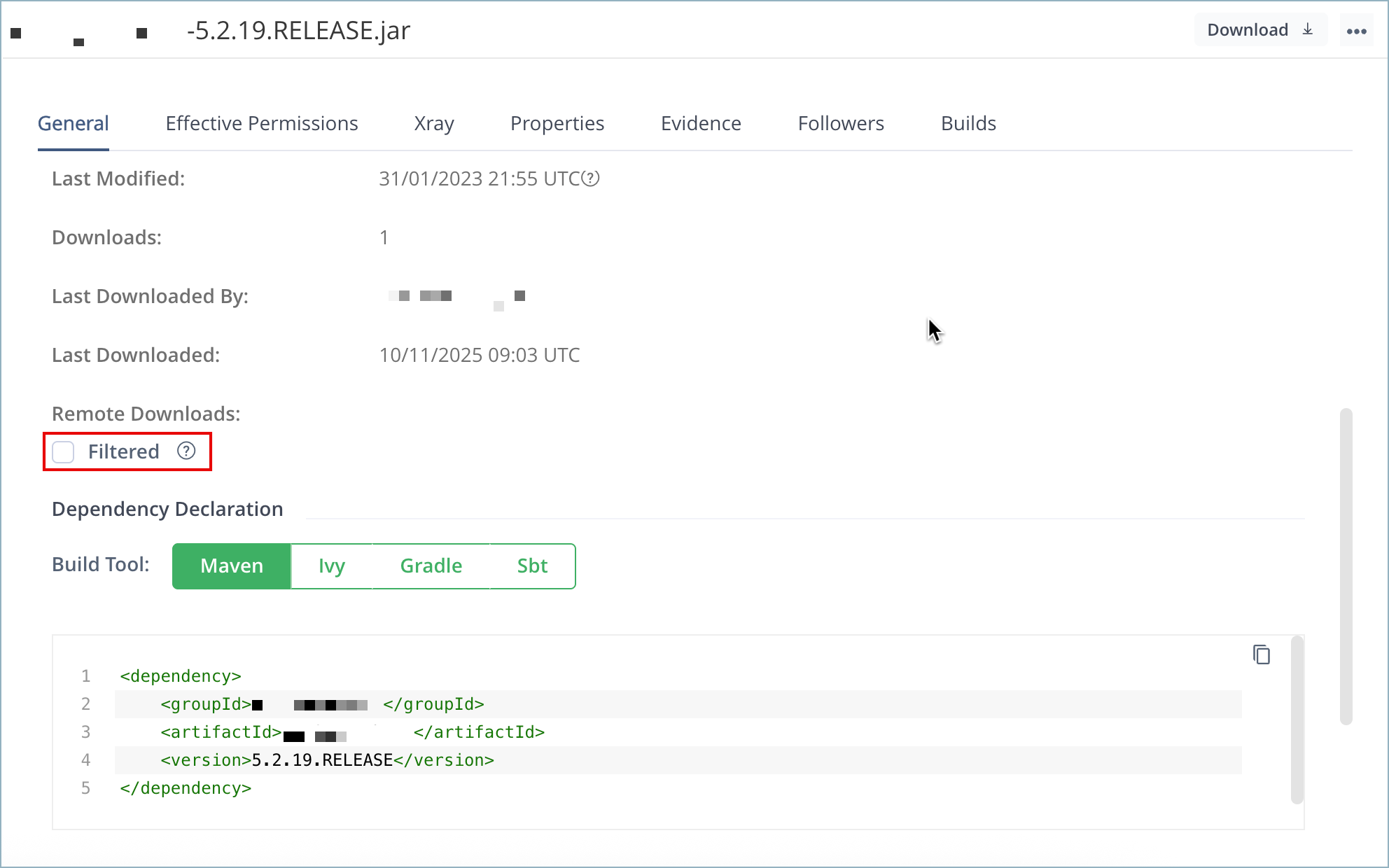
In the General tab of the artifact details, under Remote Downloads, select the Filtered checkbox.
Provision Build Tool Settings
When logged-in as an admin user, you can provision user-generated settings for build tools like Maven, Gradle, and Ivy using the Filtered Resources features.
Prerequisites: You need Admin permissions to provision user-generated build tool settings.
To provision build tool settings:
-
In the Platform module, navigate to Artifactory > Artifacts. The artifact browser appears.
-
Use the browser to find and select a Maven, Gradle, or Ivy package in the repository tree.
-
Click Set Me Up. The Set Me Up window appears.
-
In the Set Me Up window, click Generate Token & Create Instructions. An identity token and instructions for configuring your client appear.
-
Select the relevant repositories from the menus and click Generate Settings.
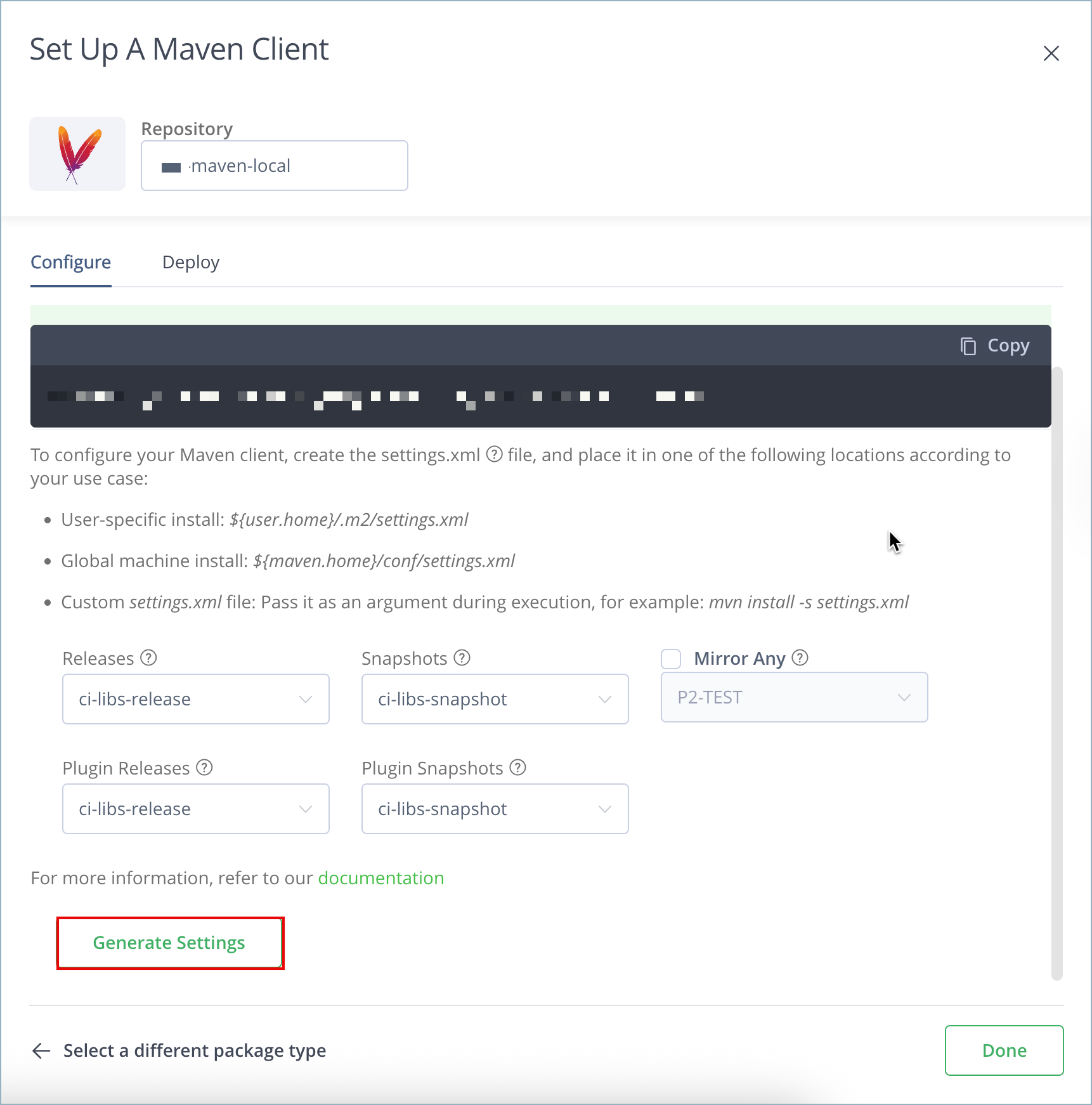
The settings snippet is generated and appears below the configuration instructions.
-
Click Download Snippet and then close the Set Me Up window.
-
Open the settings snippet and edit it as required with relevant FreeMarker placeholders.
-
Save your changes to the settings snippet.
-
Follow the instructions in Deploy Artifacts to deploy the build tool settings as an artifact.
Provisioning Example
The following example demonstrates provisioning a different resource based on the current user group and a property on the requested artifact.
The artifact vcsProj.conf.xml has a property vcs.rootUrl which holds the root URL for the version control system. A different project version control URL is returned depending on the user group.
For the template of vcsProj.conf.xml:
<servers>
<#list properties.get("vcs.rootUrl") as vcsUrl>
    <#list security.getCurrentUserGroupNames() as groupName>
    <vcs>${vcsUrl}/<#if groupName == "dev-product1">product1<#elseif groupName == "dev-product2">product2<#else>global</#if></vcs>
    </#list>
</#list>
</servers>
If the value of the vcs.rootUrl property on the vcsProj.conf.xml artifact is http://vcs.company.com and the file is downloaded by someone in the dev-product2 group, the returned value is:
<servers>
    <vcs> http://vcs.company.com/product2 </vcs>
</servers>
Updated 8 months ago